
Lorsque vous gérez une boutique de gros WooCommerce, il est crucial de recueillir des informations précises auprès des clients potentiels. Le plugin de capture de prospects en gros vous permet d'ajouter des champs personnalisés à vos formulaires d'inscription, vous permettant ainsi d'adapter le processus d'inscription aux besoins de votre entreprise.
L'un des types de champs personnalisés les plus utiles est le menu déroulant. Les listes déroulantes vous permettent de limiter les réponses que les utilisateurs peuvent soumettre, en vous assurant qu'ils sélectionnent parmi un ensemble d'options prédéfinies. Cela rationalise non seulement vos données, mais minimise également les erreurs de saisie de l'utilisateur.
Pourquoi utiliser un espace réservé dans votre champ de liste déroulante ?
Pour améliorer l'expérience utilisateur et vous assurer que les clients font une sélection valide, vous pouvez inclure une option d'espace réservé en haut de votre liste déroulante, quelque chose comme --- Veuillez sélectionner ---.
Cet espace réservé n'a aucune valeur attribuée, ce qui signifie qu'il ne passera pas la validation si le champ est marqué comme requis. Par conséquent, les utilisateurs sont invités àsélectionner une option réelle avant de soumettre le formulaire, réduisant ainsi la probabilité de soumissions de formulaire incomplètes ou incorrectes.
Étape par étape : Ajouter un espace réservé à un champ de liste déroulante personnalisé
Pour ajouter un espace réservé à votre champ de liste déroulante dans le plugin de capture de prospects en gros, suivez ces étapes simples :
- Connectez-vous à votre tableau de bord WordPress.
- Accédez à Gros volumes > Paramètres > Prospect en gros > Formulaire d'inscription.
- Dans l'interface des champs personnalisés, ajoutez un nouveau champ de liste déroulante.
- Dans la liste des options, cliquez pour ajouter une nouvelle option.
- Définissez le Nom d'affichage sur
--- Veuillez sélectionner ---. - Laissez le champ Valeur de l'option vide pour vous assurer qu'il n'a pas de valeur.
- Faites glisser cet espace réservé en haut de la liste déroulante pour qu'il apparaisse en premier.
Ce faisant, le formulaire affichera l'espace réservé comme sélection par défaut, incitant les utilisateurs à faire un choix valide avant de continuer.
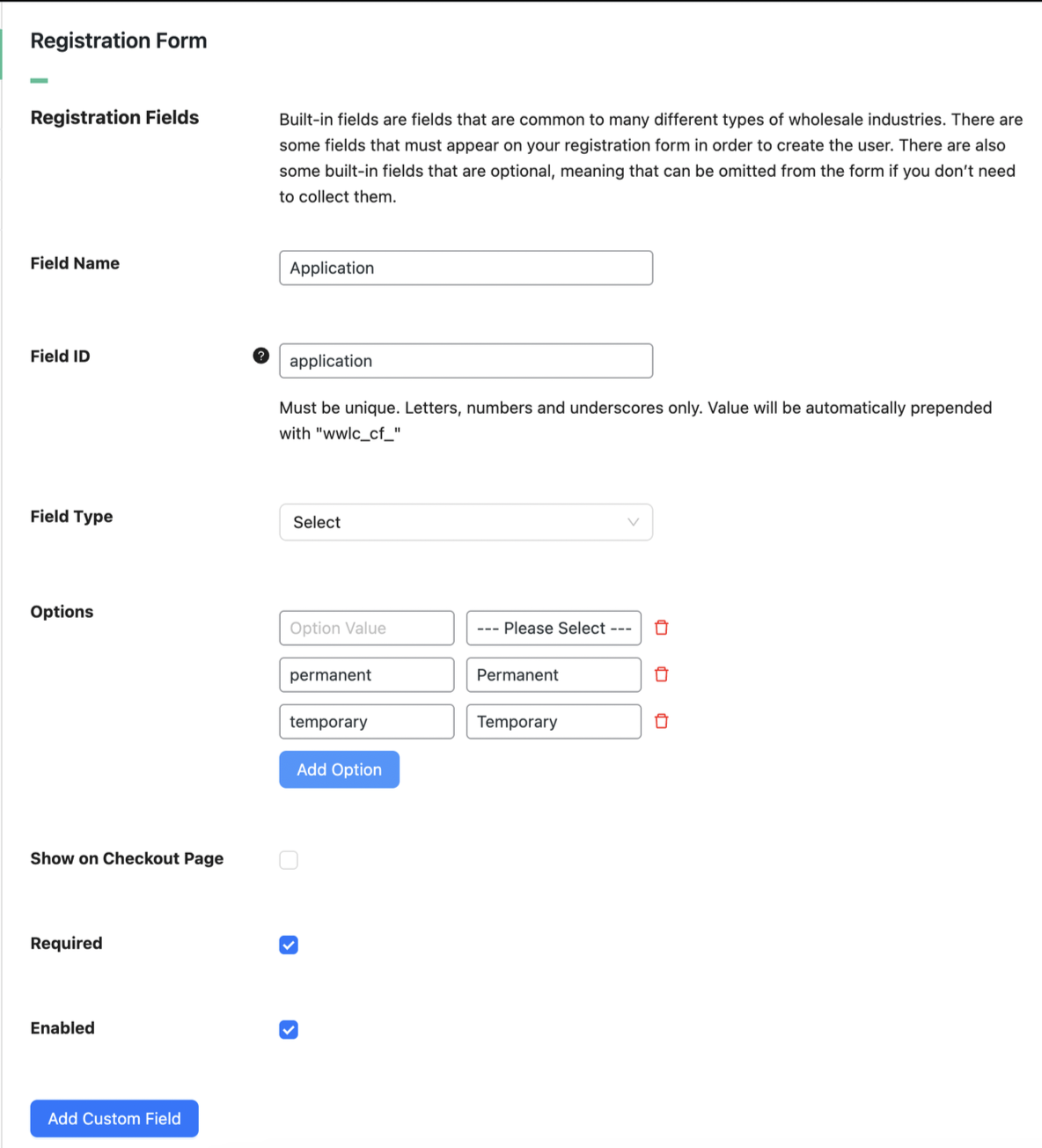
Si vous souhaitez obliger les utilisateurs à sélectionner l'une des options, assurez-vous que le paramètre « Requis » est activé.
Ce que cela donne sur le front-end
Sur le front-end, vos clients verront l'espace réservé --- Veuillez sélectionner --- comme option par défaut. S'ils tentent de soumettre le formulaire sans faire de sélection valide, le formulaire affichera une erreur de validation, empêchant la soumission jusqu'à ce que le problème soit résolu.
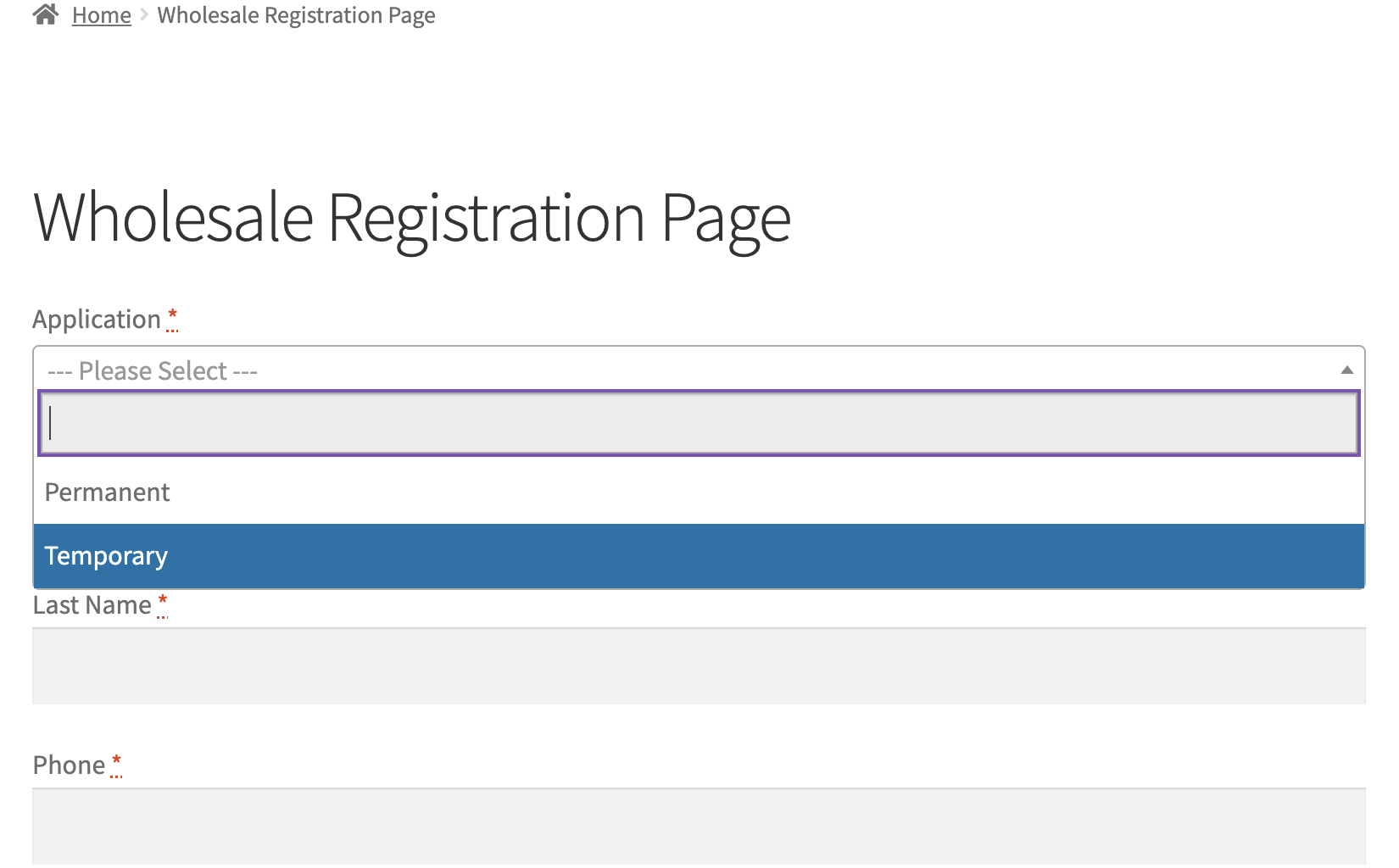
L'ajout d'un espace réservé à votre champ de liste déroulante personnalisé est une petite modification qui peut faire une grande différence. Elle améliore non seulement l'utilisabilité du formulaire, mais garantit également que vous collectez des données significatives et précises auprès de vos candidats en gros.
En suivant les étapes ci-dessus, vous améliorerez votre processus d'inscription et créerez une expérience plus fluide pour les nouveaux clients en gros.
Questions fréquemment posées
Comment ajouter un espace réservé « Veuillez sélectionner » à un champ de liste déroulante ?
Pour ce faire, allez dans Vente en gros > Paramètres > Prospect Vente en gros > Formulaire d’inscription. Ajoutez une nouvelle liste déroulante, créez une entrée avec le nom d’affichage « — Veuillez sélectionner — », laissez sa valeur vide, faites-la glisser en haut, puis activez l’option Obligatoire.
L’option d’espace réservé fonctionne-t-elle sur les champs de liste déroulante facultatifs ?
En général, la première entrée s’affiche quoi qu’il arrive. Seules les entrées obligatoires bloquent la tentative lorsqu’aucun choix réel n’est fait — les champs facultatifs permettent aux candidats de passer sans sélectionner.
Que se passe-t-il si un client soumet le formulaire sans choisir d’option valide ?
Gardez à l’esprit qu’une erreur de validation se déclenche immédiatement, l’empêchant d’être traitée. Le candidat doit choisir une option réelle avant que l’inscription ne progresse — la valeur vide seule déclenche cette vérification.
Puis-je ajouter du texte d’espace réservé à d’autres champs de formulaire personnalisés ?
Actuellement, l’approche de la valeur vide est spécifique aux menus de sélection. Pour les champs de texte, vous pouvez définir un espace réservé HTML natif via votre thème ou un extrait de code, mais cette méthode n’appliquera pas les mêmes vérifications.
Pourquoi mon option « Veuillez sélectionner » ne bloque-t-elle pas la soumission du formulaire ?
Si elle est effacée lors de la soumission, vérifiez que la valeur de l’option est réellement vide — tout espace compte comme une entrée réelle. Confirmez également que le bouton d’activation Obligatoire est activé ; sans cela, cette règle ne s’appliquera pas.
Besoin d'aide ?
Si vous avez une question ou rencontrez des problèmes, nous sommes là pour vous aider.
- Utilisateurs premium : Ouvrir un ticket de support
- Utilisateurs gratuits : Visitez notre forum communautaire

