
If you’re using Bricks Builder, you may notice that wholesale-restricted products still show up for guests or retail users. This happens because Bricks uses its own query system, which bypasses the standard WooCommerce filters that Wholesale Prices Premium relies on. This guide walks you through adding a simple code snippet that forces Bricks to respect your existing WWPP visibility rules — no extra configuration needed.
Prerequisites
Before you start, make sure you have:
- WooCommerce Wholesale Prices Premium installed and active
- Bricks Builder installed and active
- A code snippet manager plugin (e.g. WPCode) or access to your child theme’s
functions.php
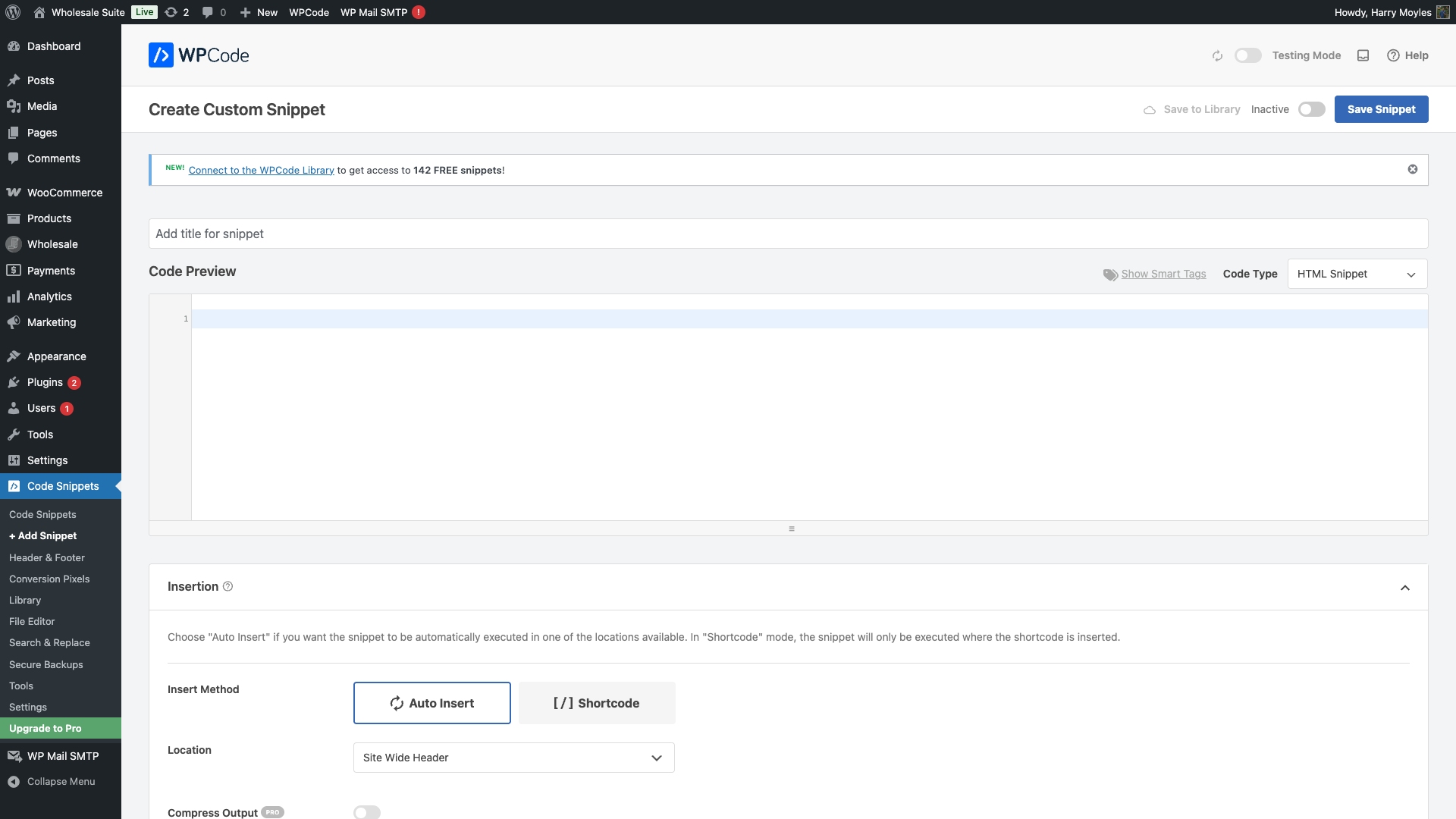
Step 1: Open Your Code Snippet Manager
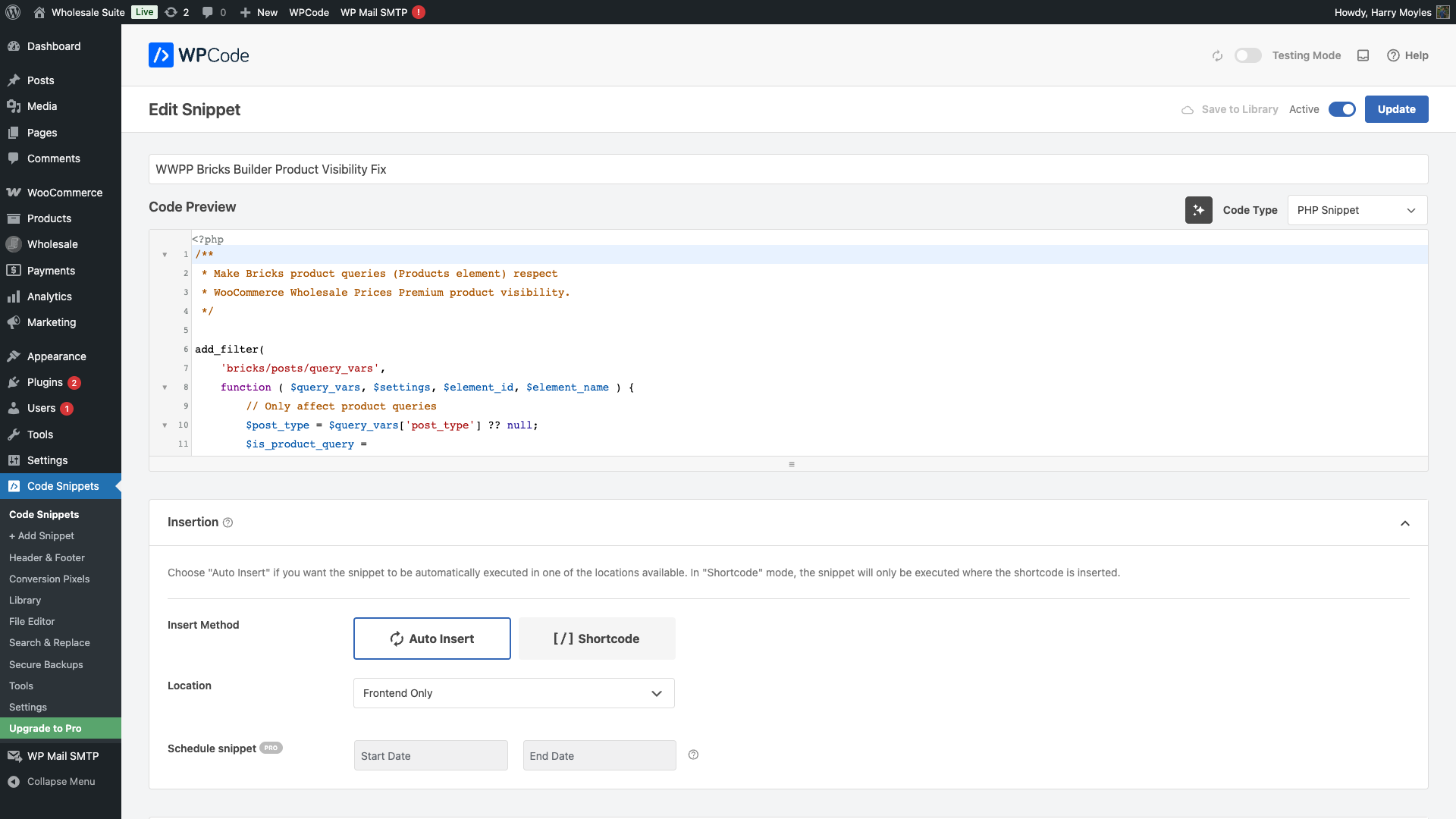
- Go to your WordPress dashboard.
- Navigate to Code Snippets (or your preferred snippet manager plugin).
- Click Add New.
Step 2: Set the Snippet Type
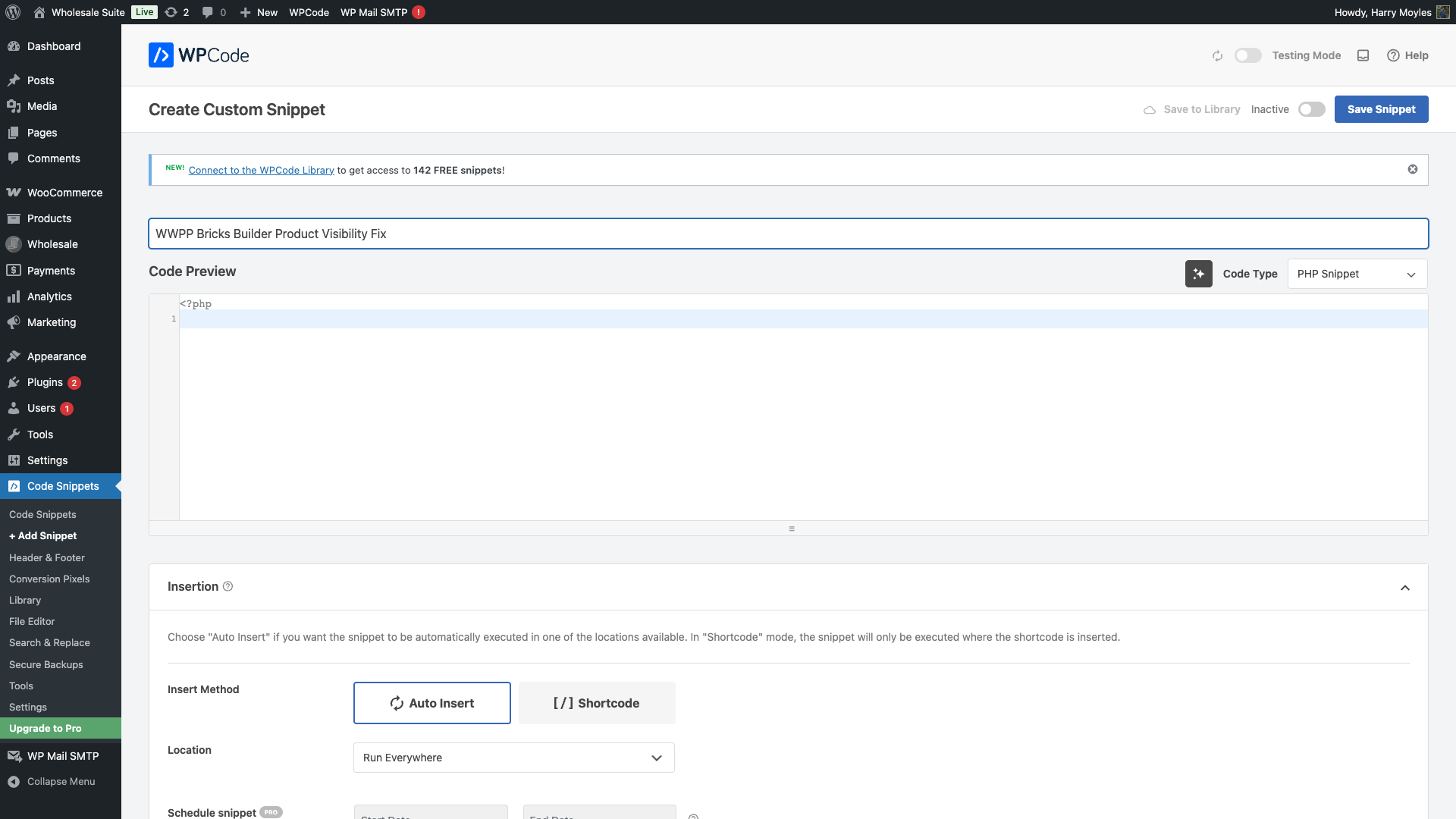
- Select PHP Snippet as the type.
- Give it a descriptive title, such as:
Fix Bricks Builder Wholesale Product Visibility
Step 3: Paste the Code
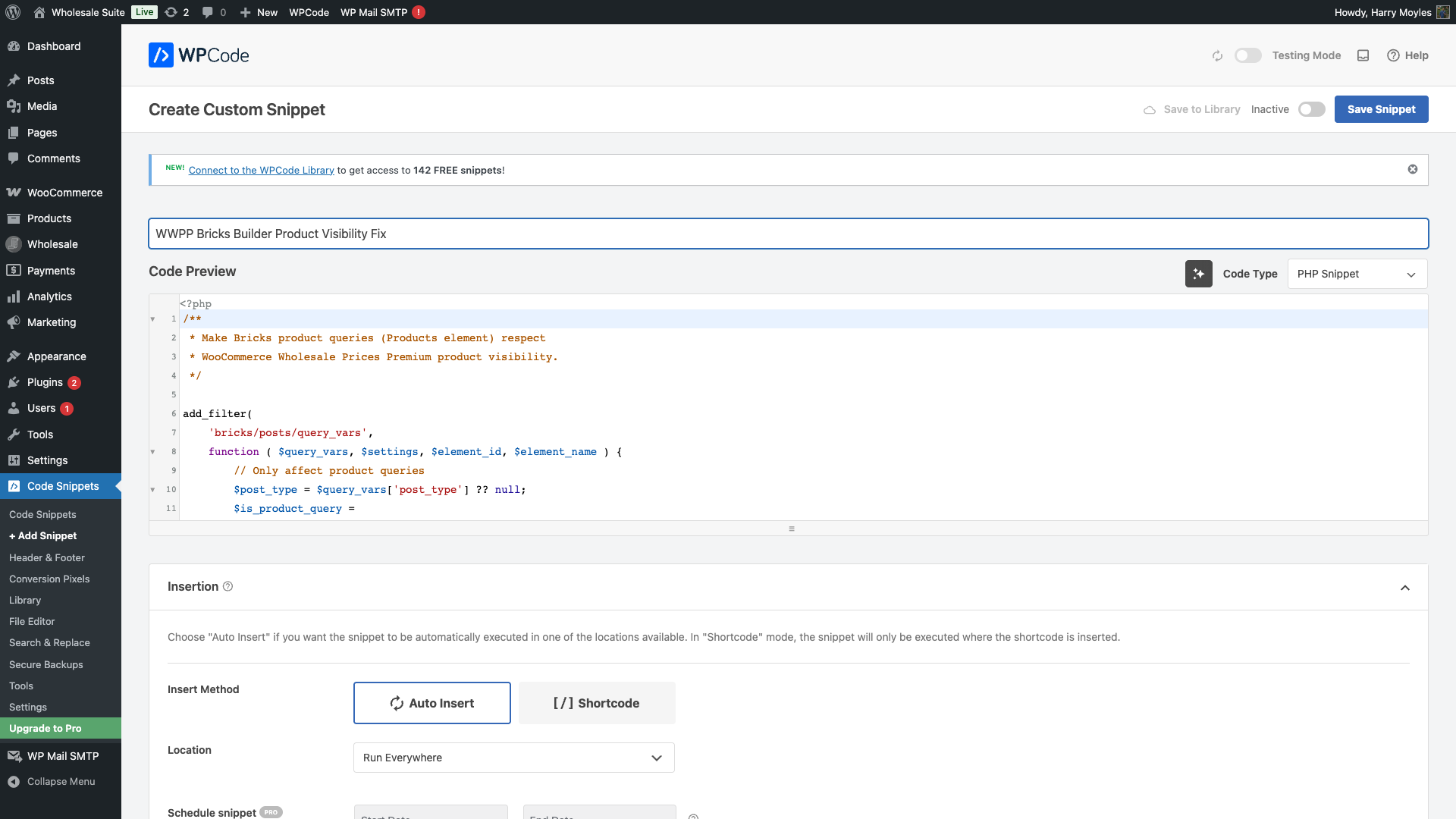
Copy and paste the following snippet into the editor:
/**
 * Make Bricks product queries (Products element) respect
 * WooCommerce Wholesale Prices Premium product visibility.
 */

add_filter(
    'bricks/posts/query_vars',
    function ( $query_vars, $settings, $element_id, $element_name ) {
        // Only affect product queries
        $post_type = $query_vars['post_type'] ?? null;
        $is_product_query =
            ( is_string( $post_type ) && 'product' === $post_type ) ||
            ( is_array( $post_type ) && in_array( 'product', $post_type, true ) );

        if ( ! $is_product_query ) {
            return $query_vars;
        }

        // Ensure WWPP is available
        global $wc_wholesale_prices_premium;
        if (
            ! isset( $wc_wholesale_prices_premium ) ||
            ! isset( $wc_wholesale_prices_premium->wwpp_query )
        ) {
            return $query_vars;
        }

        // Let WWPP apply its standard wholesale visibility logic
        // (same as for WC widgets & shortcodes)
        $query_vars = $wc_wholesale_prices_premium->wwpp_query->pre_get_posts_arg( $query_vars );

        return $query_vars;
    },
    20,
    4
);
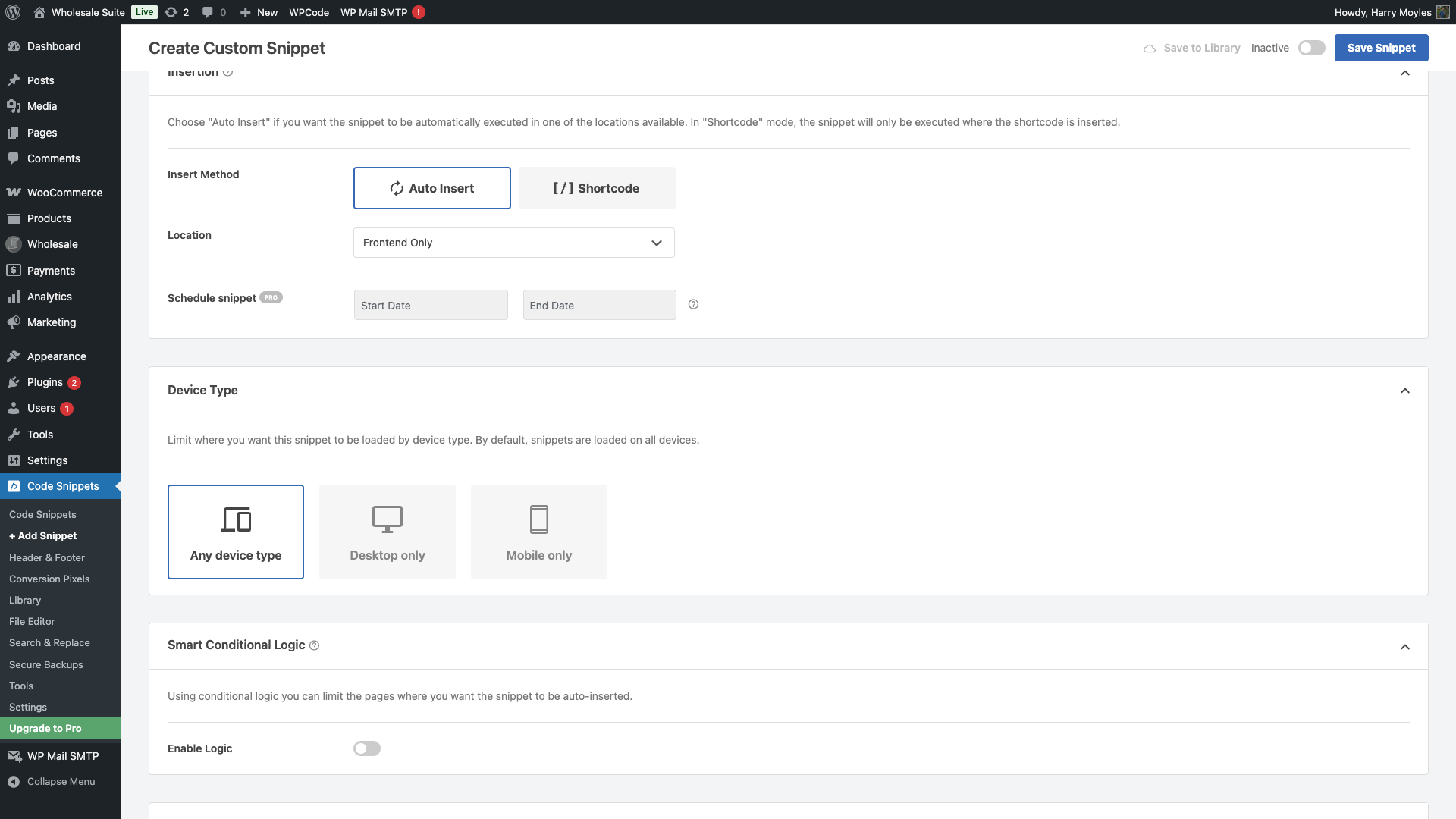
Step 4: Set the Run Location
- Set the snippet to run on the Front End or Everywhere.
This ensures the snippet loads during product archive queries on the front end of your store.
Step 5: Save the Snippet
- Click Save.
Step 6: Activate the Snippet
- Toggle the snippet to Active.
The fix is now live on your store.
How to Verify It’s Working
- Log out of your WordPress account or open a private browser window.
- Visit a Bricks-powered product archive page.
- Confirm that wholesale-restricted products are no longer visible to guests or retail visitors.
- Log in with a wholesale role account and verify that those products appear as expected.
Troubleshooting
Restricted products are still visible after adding the snippet
- Confirm the snippet is set to Active in your snippet manager.
- Go to WooCommerce > Settings > Wholesale Prices > Help and check that Only show wholesale products to wholesale users is enabled.
- Clear any caching plugins (e.g. WP Super Cache, W3 Total Cache, LiteSpeed Cache).
- Open a private/incognito browser window and retest.
The snippet causes a white screen or PHP error
- Deactivate the snippet immediately via your snippet manager.
- Confirm that both WooCommerce Wholesale Prices Premium and Bricks Builder are active and up to date.
- Re-activate the snippet and test again.
Frequently Asked Questions
Will this fix work with any Bricks Builder version?
Yes. The snippet hooks into the bricks/posts/query_vars filter, which is available across all current Bricks Builder versions that use the Products element.
Do I need to configure anything in WWPP after adding the code?
No. The fix automatically uses your existing WWPP visibility settings — the same logic already applied to WooCommerce widgets and shortcodes.
Does this affect non-product post types in Bricks?
No. The fix only triggers on queries where the post type is product. All other Bricks queries stay completely unaffected.
What if restricted products are still visible after adding the code?
First, confirm the snippet is active. Next, check that your WWPP “Only show wholesale products to wholesale users” setting is enabled. Then clear any caching plugins and retest in a private browser window. See the Troubleshooting section above for full steps.
Related Articles
- How To Adjust Visibility Of Wholesale Products
- WooCommerce Wholesale Prices Premium Getting Started Guide
Need Help?
If you have a question or run into any issues, we’re here to help.
- Premium users: Open a support ticket
- Free users: Visit our community forum

