
If your store uses SaveTo Wishlist to let customers save products for later, you can give wholesale buyers the same shortcut directly from the Wholesale Order Form. As of WooCommerce Wholesale Order Form 3.1.1, the order form ships with a dedicated Wishlist column that drops in next to Add to Cart and renders the same “Add to Wishlist” button your customers already see on product pages. This article walks you through adding the column and points you at the SaveTo Wishlist settings that control how the button looks.
Prerequisites
- WooCommerce Wholesale Order Form 3.1.1 or later, installed and activated. The Wishlist column is new in this release.
- SaveTo Wishlist Lite installed and active. Lite owns the button, the “Add to Wishlist” markup, and the click handler.
- SaveTo Wishlist Pro is optional. Pro extends Lite (multiple wishlists, analytics, automations) but is not required to use the order-form button.
- At least one Wholesale Order Form already set up. If you don’t have one yet, start with the WooCommerce Wholesale Order Form Getting Started Guide.
Step 1: Add the Wishlist Column to Your Order Form
When SaveTo Wishlist Lite is active, the WWOF builder palette includes a new Wishlist column element. It sits just before the Add to Cart column in the elements list. If you don’t see it, double-check that SaveTo Wishlist Lite is installed and activated.
- Go to Wholesale → Order Forms in your WordPress admin.
- Click the order form you want to edit, or click Add Form to create a new one. For a step-by-step walkthrough of building a form from scratch, see How to create multiple order forms.
- In the builder’s Order Form Table section, drag the Wishlist element into your table row. Place it wherever you want the button to appear, for example, next to Add to Cart.
- Click Update to save the form.
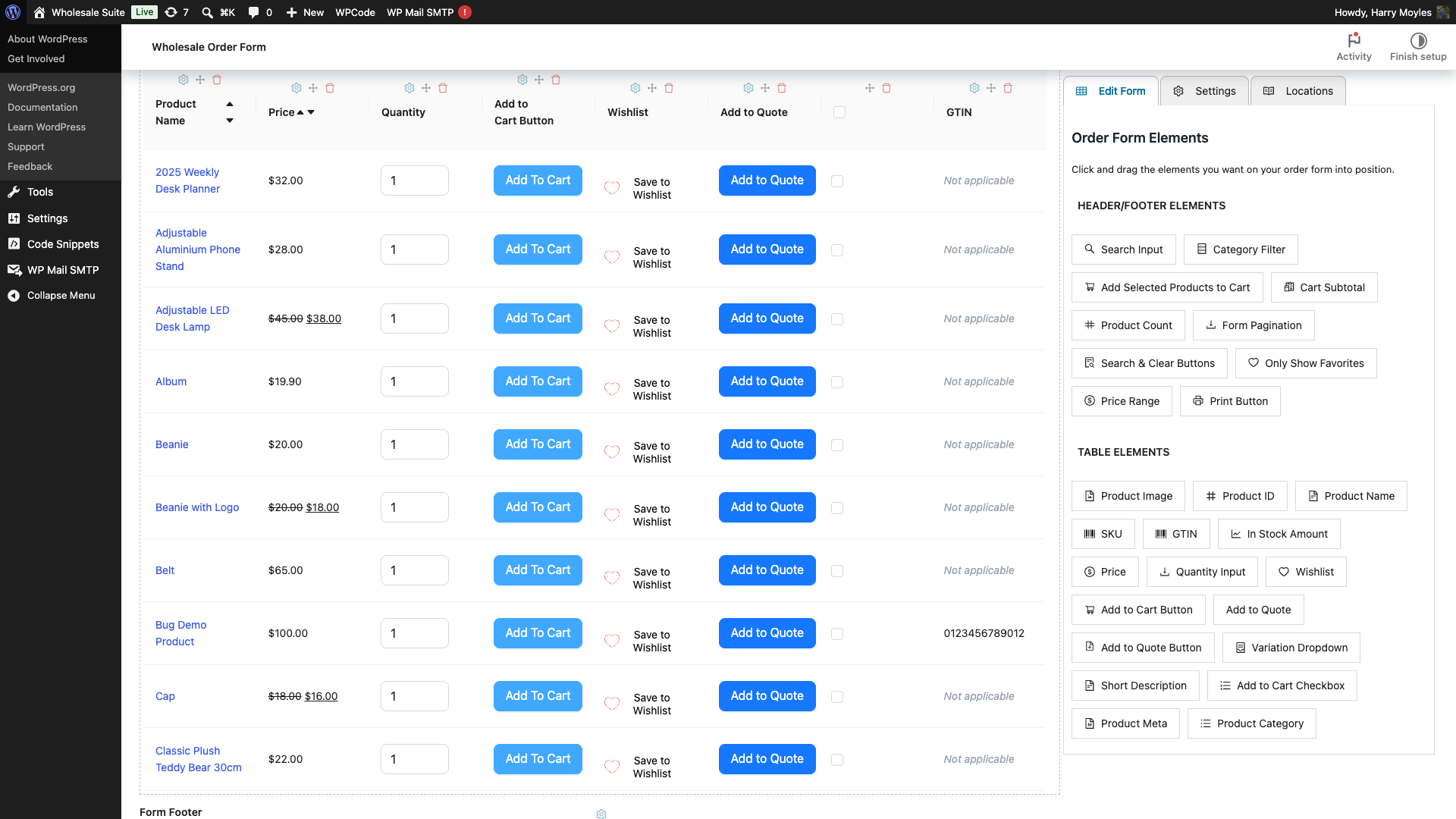
The builder preview shows the button live, styled the same way it will look on the front end. That preview matches the front-end because the builder enqueues SaveTo Wishlist Lite’s own stylesheet on the editor screen.
Step 2: Check How the Button Will Look on The Front End
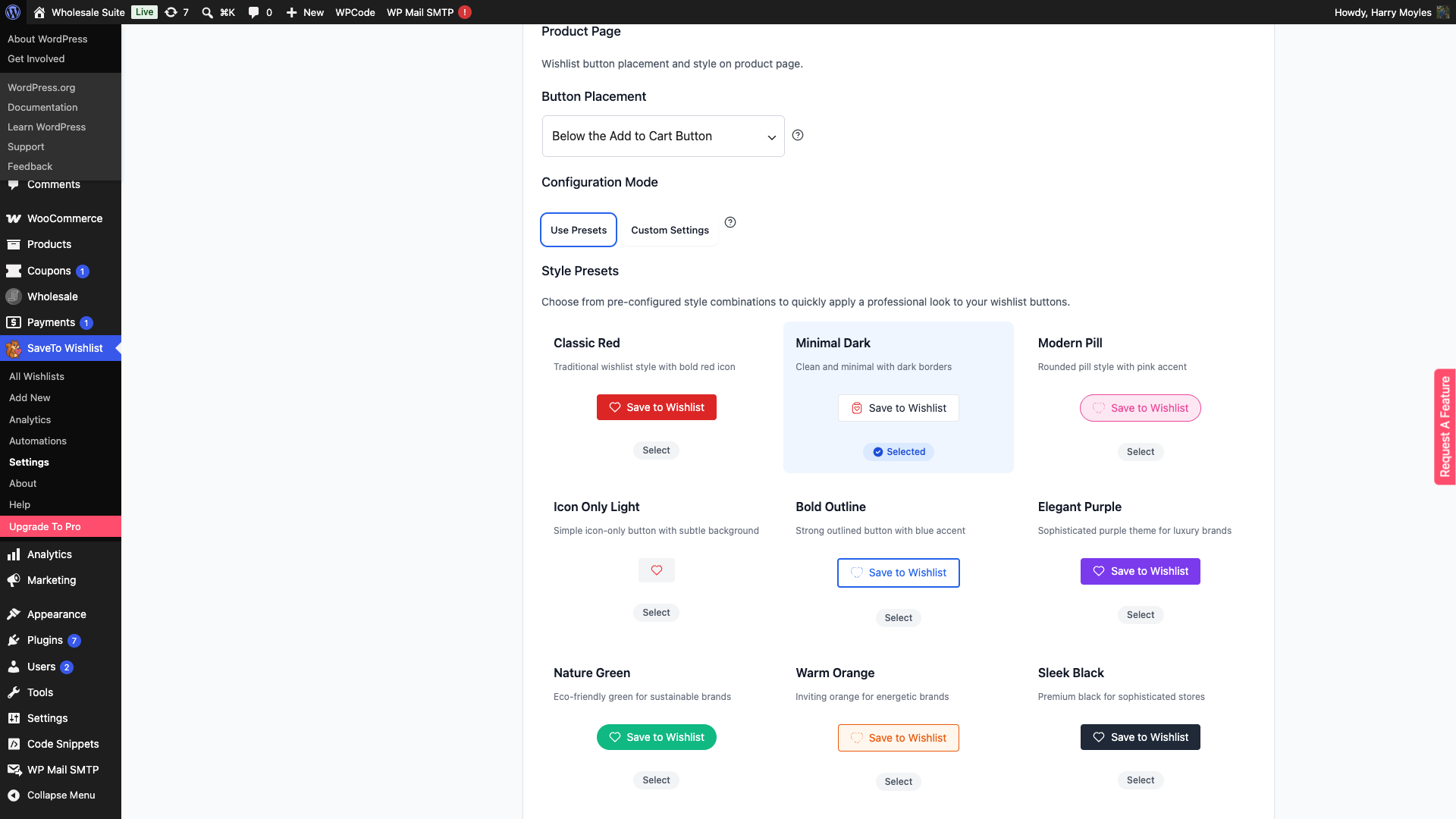
The order-form button mirrors what your store has configured for the regular product page. Whatever placement, button type, and colours you’ve set in SaveTo Wishlist will apply to the order form too. If you’ve never customised them, the button uses Lite’s defaults.
- Go to SaveTo Wishlist → Settings → Button Placement & Styles → Product Page.
- Adjust the button type and colours to match the look you want. The same settings apply to the order-form button.
- Click Save Changes.
To confirm the look on the front end, load your wholesale order form page in a regular browser tab. Log in as a wholesale customer first if your form is gated to logged-in users.
Inside the Frontend Styling section, the Frontend CSS Loading dropdown controls whether SaveTo Wishlist’s own colours and fonts apply on the order form. If you’ve picked Full styling or Minimal styling, the plugin’s styles apply on the order form the same way they would on a product page. If you’ve picked No styling, the button inherits the theme styling instead.
Logged-Out Visitors and the Guest Wishlist Setting
By default, guests see the button on the order form, the same as they would on a product page. If your store has the SaveTo Wishlist Disable Guest Wishlist setting turned on, the button is hidden from logged-out visitors on the order form too. This matches Lite’s product-page behaviour exactly, so there are no separate guest settings to manage for the order form.
If your Wholesale Order Form is only visible to logged-in wholesale customers (a common setup), this guest gate doesn’t change anything for them, because they’re already logged in by the time they see the form.
Troubleshooting
The Wishlist element isn’t showing in the builder palette
Confirm SaveTo Wishlist Lite is installed and activated under Plugins → Installed Plugins. WWOF only registers the Wishlist column element when Lite is active, so if Lite is deactivated (or only Pro is installed without Lite), the element won’t appear.
If Lite is active but the element still doesn’t show, make sure WWOF is on version 3.1.1 or later. Earlier versions of WWOF don’t include the integration.
The button shows on the order form, but the styling looks broken
Check your SaveTo Wishlist Frontend CSS Loading setting under the Frontend Styling section. If it’s set to No styling, or your theme overrides SaveTo’s CSS, the order-form button picks up whatever the theme provides. Switch it back to Full styling or Minimal styling if you want the plugin’s own styles to render.
If the button looks crowded in its column, that’s usually a sign the column is too narrow. Either widen the column in the builder or rearrange the table so the Wishlist column has more room.
Custom SaveTo Wishlist tweaks aren’t reaching the order-form button
Look for an is_product() check in your custom snippet and replace it with a different gate, for example checking the placement or button type argument the filter passes.
The order form uses SaveTo Wishlist’s stwlite_wishlist_button_product_html filter when it builds each row’s button, so most custom hooks that adjust the product-page button also reach the order form. The exception is when a customisation gates on WordPress’s is_product() check: it won’t fire on the order form because the order-form REST request isn’t running in single-product context.
Frequently Asked Questions
Do I need SaveTo Wishlist Pro to use this?
No. The button is owned by SaveTo Wishlist Lite, and Lite alone is enough. Pro adds extras like multiple wishlists per customer and email automations, but the order-form button works the same way whether Pro is installed or not.
Can wholesale customers add variations to a wishlist from the order form?
Yes. Each row’s button adds whatever variation is currently selected in that row. The order form’s variation dropdown updates the row’s product reference, so picking a variation first and then clicking the button adds that variation.
Will the button work if I’m running a Wholesale Order Form with the cart shortcut to checkout enabled?
Yes. The Wishlist column is independent of cart and checkout behaviour. Adding an item to a wishlist doesn’t affect anything else on the order form, so cart flows, quote flows, and checkout shortcuts all work as before.
Does the order-form button respect SaveTo Wishlist’s multilingual setup with WPML?
If you’ve configured SaveTo Wishlist with WPML, the button text and any translatable strings follow the same translations on the order form as they do on product pages. The integration uses Lite’s standard rendering, so anything Lite translates is translated here too.
Need Help?
If you have a question or run into any issues, we’re here to help.
- Premium users: Open a support ticket
- Free users: Visit our community forum

