
Wholesale customers often want a paper copy of their order, or a PDF to attach to a purchase order for approval. WooCommerce Wholesale Order Form includes a Print Order Form button you can add to any order form, so customers can print or save their order straight from their browser. This article shows you how to add the button, what you can customize about it, and what actually shows up when a customer uses it.
Prerequisites
- WooCommerce Wholesale Order Form version 3.0.9 or later active on your site, with at least one order form already created.
- An administrator or shop manager account. By default, only these roles can see the Order Forms screen.
Step 1: Add the Print Button element
- Go to Wholesale > Order Forms in your WordPress admin.
- Click the Edit (pencil) icon in the Action column for the order form you want to add the button to.
- On the Edit Form tab, drag the Print Button element into a row in the Form Header or Form Footer section.
- Click Update to save your changes.
If the form is not published yet, you see Publish and Save Draft instead of Update.
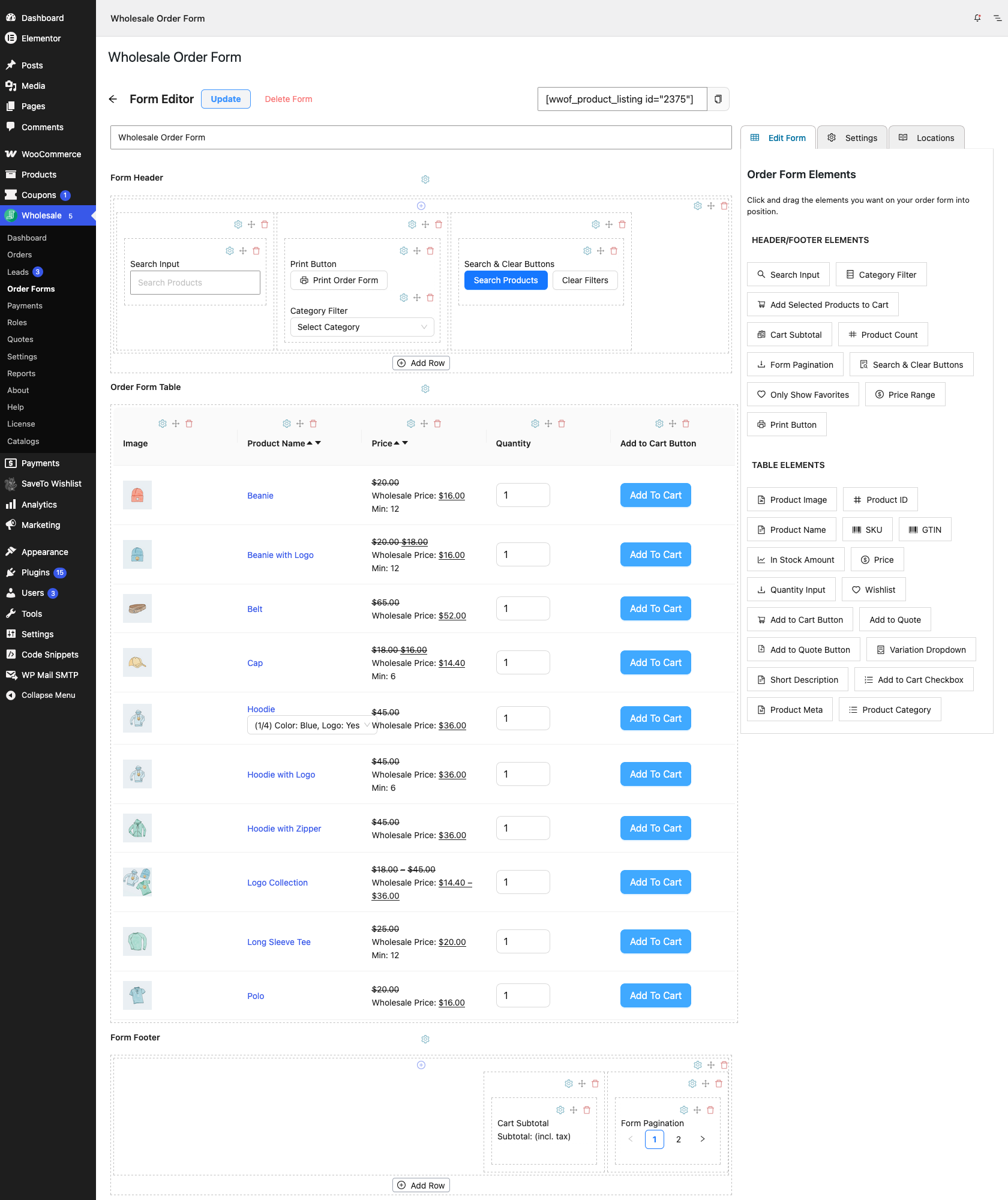
There’s no separate plugin-wide setting to turn this feature on. Adding the Print Button element to a form is what makes it available on that form. By default, the button reads “Print Order Form” with a printer icon next to the text.
Step 2: Customize the button (optional)
- Click the gear icon on the Print Button element to open its settings.
- Edit Button Text to change the label shown to customers.
- Clear the Show Icon checkbox if you don’t want the printer icon next to the button text.
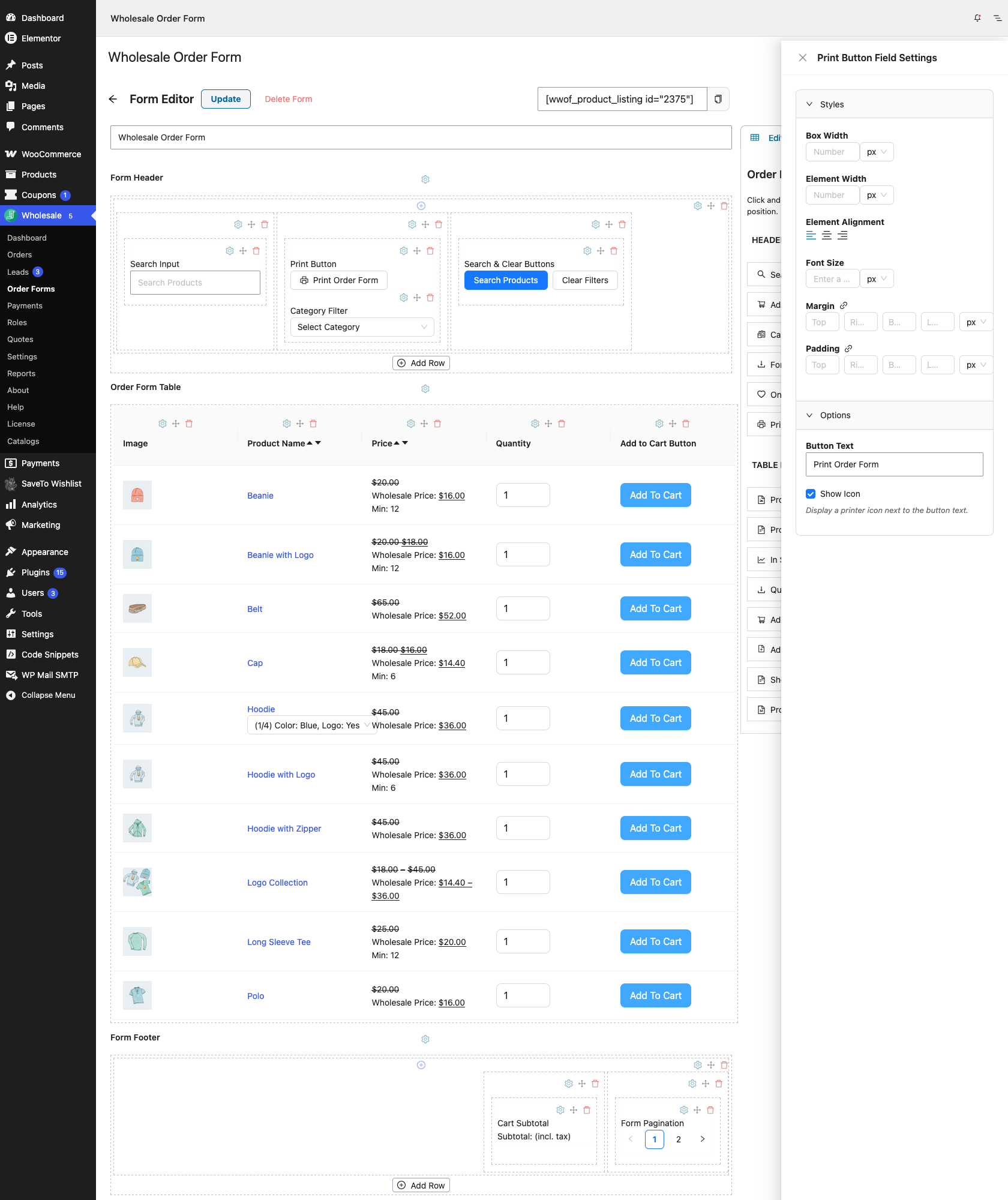
The element also has its own style controls for things like element width, font size, alignment, margin, and padding, the same way every order form element does. See How to change the look & feel of your order form for how to adjust those.
What customers see when they print
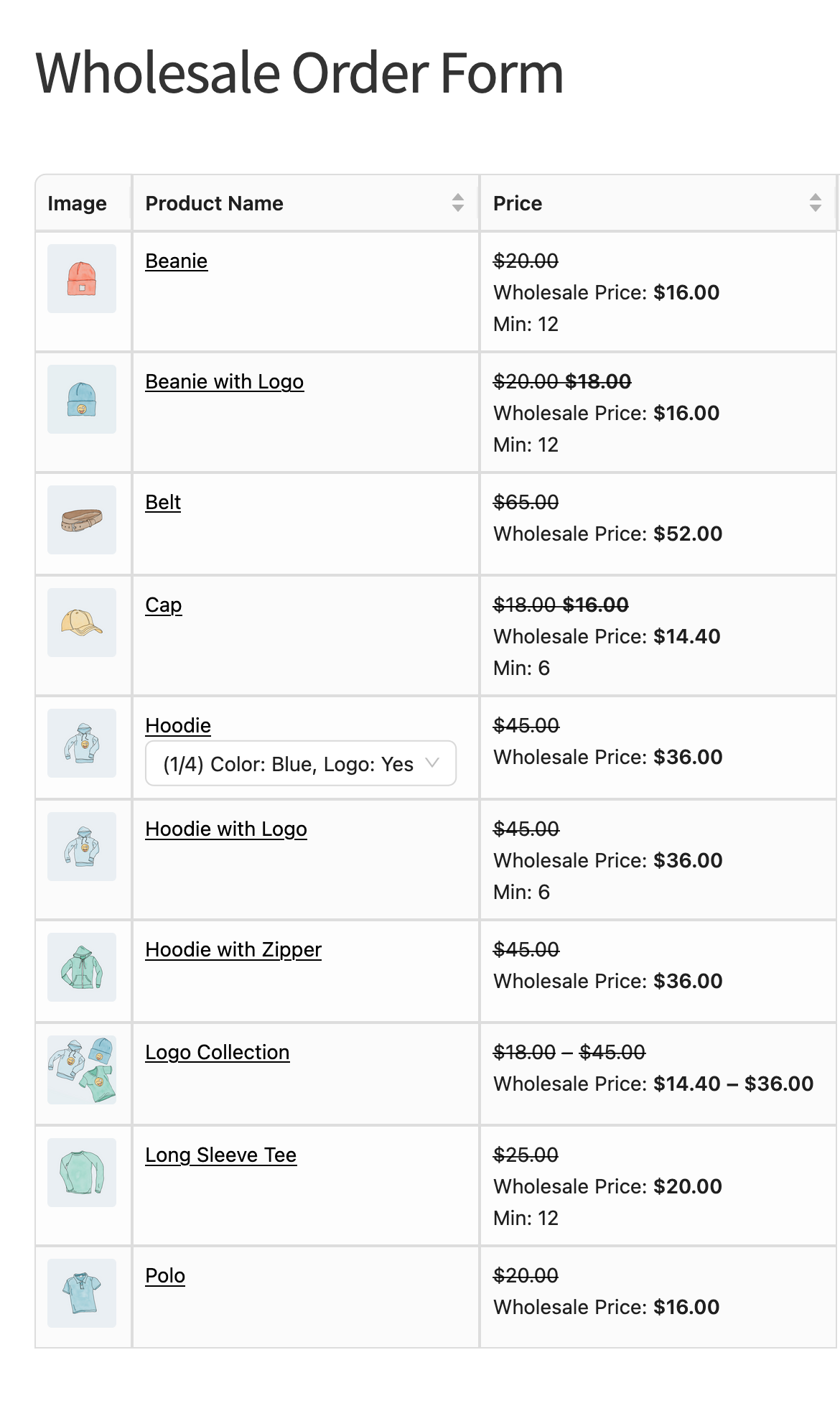
Clicking Print Order Form opens the customer’s browser print dialog. The plugin doesn’t generate its own PDF file. A customer who wants a saved copy instead of a physical printout chooses “Save as PDF” (or whatever their browser calls it) as the print destination, the same way they would on any other webpage.
The printed page only shows the parts of the form that make sense on paper. These are hidden automatically:
- The search box, search button, and category filter
- The Only Show Favorites filter
- Quantity fields, add-to-cart buttons and checkboxes, and the Add Selected Products to Cart button
- Pagination
- The Print Order Form button itself, along with the WordPress toolbar
Informational elements you’ve added to the form, such as Cart Subtotal or Price Range, still appear. Buttons that other plugins add to the form, such as Add to Quote or Save to Wishlist, also still appear on the printout.
Only the products currently loaded on the page are printed. Because pagination is hidden on the printout, a customer who wants products from another page needs to go to that page and print it separately.
Troubleshooting
The quantities customers entered don’t show up on the printed page
This is expected. Quantity fields are interactive controls, and those are hidden when printing along with the other form controls that don’t translate to paper.
Only some products appear on the printout
The order form loads one page of products at a time, and only that page prints. Go to the next page of the form and click Print Order Form again to print the rest.
I added the element but customers don’t see the form
Check these three things:
- The form isn’t on a page yet. A new order form doesn’t appear anywhere until you add its shortcode to a page. Go to Wholesale > Order Forms, click the copy icon next to the form’s shortcode in the Shortcode column (it looks like
[wwof_product_listing id="123"]), and paste it into the page where you want the form. The same shortcode and copy icon also sit at the top of the form editor. The Locations column shows how many pages use each form. Click it to see which pages. - The form isn’t published yet. Until you publish the form, customers see a no-access notice instead of the form. Click Publish to make it live. As an administrator or shop manager you can still see draft forms on the frontend, so check the page while logged out or as a customer to confirm.
- The customer doesn’t have permission. The form’s permission settings decide who can see it. See the steps below.
To check the form’s permissions:
- Go to Wholesale > Order Forms and open the form.
- Click the Settings tab.
- Click Edit next to Form Permissions.
- Change User Role Filter or Allow Public Read as needed.
- Click Save Changes.
If User Role Filter lists any roles, only customers with one of those roles can see the form. Everyone else, including logged-out visitors, sees the Access Denied message. If the filter is empty and Allow Public Read is off, customers need to log in to see the form.
Frequently asked questions
Does printing create a PDF file automatically?
Not on its own. The button opens the browser’s standard print dialog, so a PDF is only created if the customer chooses “Save as PDF” as the print destination there.
Can I add the Print Button to more than one form?
Yes. It’s a form element like any other, so you can add it to the header or footer of as many order forms as you like, and customize the button text and icon separately on each one.
Need help?
If you have a question or run into any issues, we’re here to help.
- Premium users: Open a support ticket
- Free users: Visit our community forum

