
WooCommerce Wholesale Quotes lets you share any quote with a unique public link. Anyone who has the link can view the full quote — products, quantities, pricing, and status — without needing to log in to your store. This article explains how to copy and share a public quote link, and what the recipient sees when they open it.
Prerequisites
- The WooCommerce Wholesale Quotes plugin is installed and active.
- At least one quote has been created in your store.
How public quote links work
Every quote is automatically assigned a unique access token when it’s created or first viewed. The public link combines the quote number and that token to form a URL that looks like this:
https://yourstore.com/view-quote/{quote-number}/{token}/
Because the token is long and randomly generated, the link is effectively private — only someone you share it with can access it. No login is required to view the quote at that URL.
Step 1: copy the public link from the admin
You can copy a quote’s public link directly from the quote edit screen in your WordPress admin.
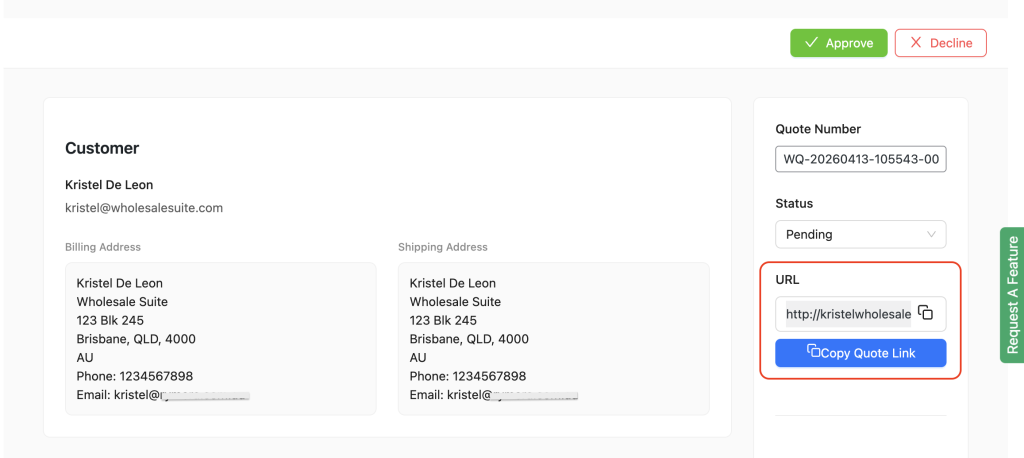
- Go to Wholesale Suite → Quotes and open the quote you want to share.
- In the right-hand column, locate the public link field — it shows the full shareable URL.
- Click Copy Quote Link to copy the URL to your clipboard.
- Share the link with your customer via email, chat, or any other channel.
Step 2: what the recipient sees
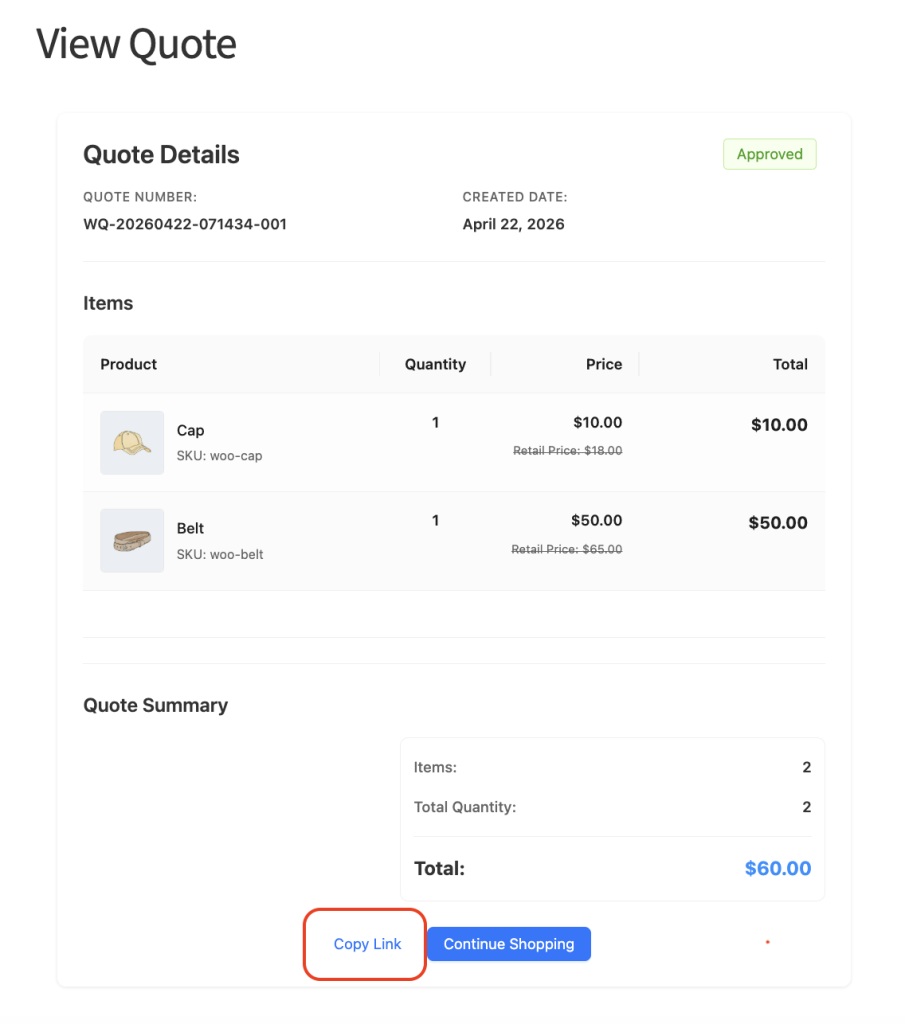
When your customer opens the public link, they see a read-only view of the quote. No account or login is needed.
The public view includes:
- Quote details — quote number, status, created date, and expiry date
- Line items — each product with quantity, wholesale price, and line total
- Retail price comparison — shown alongside wholesale prices if enabled in your settings
- Billing and shipping addresses — if collected on the quote
- Quote subtotal and notes
The recipient can also copy the link themselves using the Copy Link button at the bottom of the page, so they can easily bookmark it or forward it to a colleague.
Logged-in customers: additional options
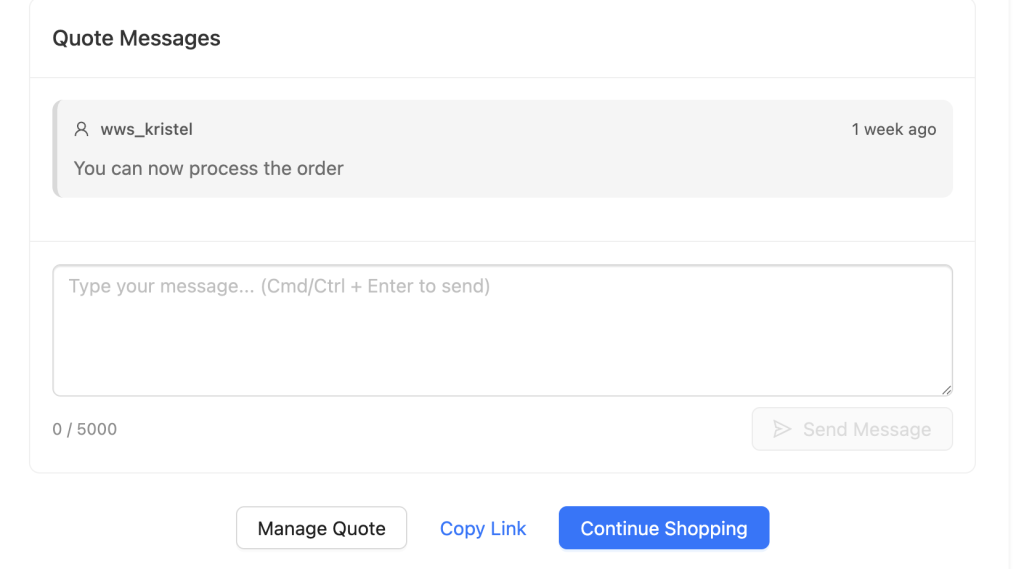
If the person opening the link is logged in and owns the quote, they see a few extra options:
- A Manage Quote button that links back to their account’s quote management area
- The Quote Messages panel, so they can send and receive messages on the quote without navigating elsewhere
Guests and anyone who isn’t the quote owner see the same read-only view but without these extras.
Frequently asked questions
Does the public link expire?
The link itself does not have a separate expiry — it remains accessible as long as the quote exists. However, the quote status (e.g. Expired, Converted) is clearly shown on the page, so recipients can see whether the quote is still active.
Can I disable the public link for a specific quote?
There is no toggle to disable the link per quote — once a token is generated, the link is active. If you need to prevent access, the main option is to decline or delete the quote.
Is the link truly private?
The token is long and randomly generated, so it cannot be guessed. However, anyone you share the link with can forward it. Treat it like a shared document link — share it only with the intended recipient.
Troubleshooting
The public link returns a 404 error
This usually means the rewrite rules haven’t been flushed. Go to Settings → Permalinks in your WordPress admin and click Save Changes — this regenerates the rewrite rules without changing any settings. Then try the link again.
The recipient sees a blank or error page
The access token in the URL may be corrupted or truncated. Open the quote in your admin, copy the public link again using Copy Quote Link, and resend it to the recipient.
The public quote page looks unstyled
This is typically a theme conflict. Switch to a default WordPress theme (such as Twenty Twenty-Four) to confirm. If the page renders correctly with the default theme, the issue is with your active theme’s template overrides.
Need Help?
If you have a question or run into any issues, we’re here to help.
- Premium users: Open a support ticket
- Free users: Visit our community forum

