
Wholesale Suite licenses allow you to activate up to three staging sites per license key. This means you can safely test updates and features in a controlled environment before applying changes to your live store. As a result, managing your WooCommerce site becomes easier and more reliable.
Step 1: Use a Valid Staging Domain
To ensure our system recognizes your staging site, its domain name must follow one of the supported patterns. These include:
- localhost
- 127.0.0.1
- *.dev
- *.local
- *.test
- *.staging
- *.example
- *.invalid
- dev.* ( ex. dev.domain.com. A digit is allowed, so dev2.domain.com also works)
- local.* ( ex. local.domain.com)
- test.* ( ex. test.domain.com)
- staging.* ( ex. staging.domain.com or staging1.domain.com)
- stage.* ( ex. stage.domain.com)
- preprod.* ( ex. preprod.domain.com)
- *staging.wpengine.com (WP Engine)
- *stg.wpengine.com (WP Engine)
- *dev.wpengine.com (WP Engine)
- dev-*.pantheonsite.io (Pantheon)
- test-*.pantheonsite.io (Pantheon)
- staging-*.kinsta.com (Kinsta)
- staging-*.kinsta.cloud (Kinsta)
- env-*.kinsta.cloud (Kinsta)
- *.cloudwaysapps.com (Cloudways)
- *.sg-host.com (SiteGround)
- *.myftpupload.com (GoDaddy)
- *.instawp.xyz (InstaWP)
- *.preload.site
- *.tempurl.host
- *-staging.wpdns.site
- *-staging.onrocket.site
- *staging.astahosting.com.au
- *staging.leserviceweb.com
- *-dev.ksysweb.com
- *-stg.ksysweb.com
- *.ngrok.io
If you’re a hosting provider offering staging services and would like your domain pattern added, feel free to contact us.
If your development address is not on the list
An address outside these patterns counts as a normal site, so activating it uses a paid activation from your plan. On a single-site licence that is your only activation, which means the licence is in use by the development site rather than your live store.
You can free it yourself when you go live. Open My Account, then Downloads, click View Sites next to the licence, and remove the site you no longer need.
Step 2: Get Your Plugin License Key
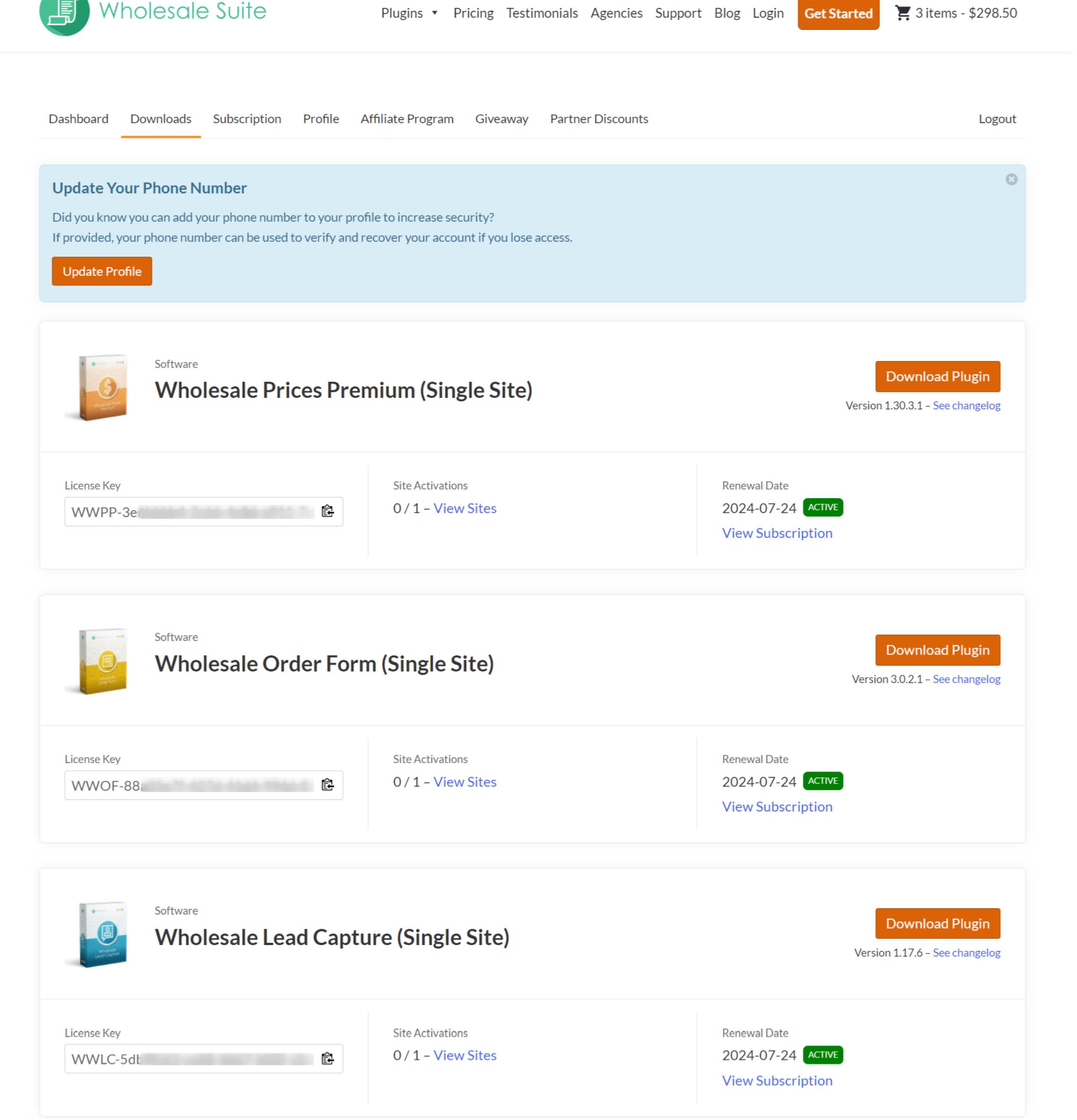
Next, log in to your account on our website. Go to the Downloads tab to find your plugin and copy the license key associated with it.
Step 3: Activate the License on Your Staging Site
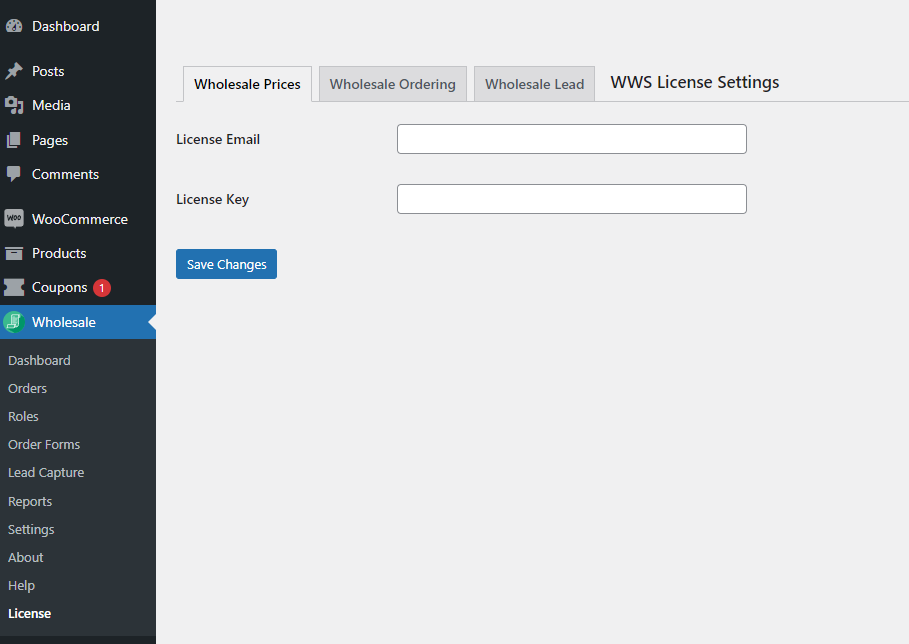
Now, log in to the WordPress dashboard of your staging site. Navigate to Wholesale → License.
Paste your license key into the field and click Save. After saving, the site will be activated, and you’ll receive a confirmation message.
Step 4: Manage or Remove a Staging Site
If you need to remove a staging site from your license, simply return to the Downloads tab in your account. Click View Sites next to your license to see all activated domains. From there, you can remove any staging site as needed.
Frequently Asked Questions
How do I activate a Wholesale Suite license on a staging site?
First, log into your Wholesale Suite account and go to Downloads to copy your license key. Then, in your WordPress dashboard, navigate to Wholesale > License, paste the key, and click Save to activate it on your staging site.
Does my Wholesale Suite license work on localhost development sites?
Yes, it does. In fact, localhost environments such as 127.0.0.1 are fully supported. Additionally, staging domains like .dev, .local, .test, and .staging are also recognized. Several hosting platforms are covered, but by specific address patterns rather than by host name. Check your address against the list above.
What if my staging domain doesn’t match supported patterns?
If your domain is not automatically recognized, don’t worry. Instead, contact Wholesale Suite support with your site URL. After that, the team will confirm eligibility or suggest a suitable setup for your environment.
Can the same license key be used for staging and live sites?
Yes, absolutely. Your license covers your main production site plus up to three additional staging or test environments. Furthermore, you can manage all active installations from the Downloads section by selecting View Sites.
Why isn’t my staging site license activation saving correctly?
Usually, this happens when the domain format is not recognized. Therefore, double-check your URL and ensure it uses a supported pattern like .dev, .local, or .staging. Then try activating the license again.
Need Help?
If you have a question or run into any issues, we’re here to help.
- Premium users: Open a support ticket
- Free users: Visit our community forum

