
WooCommerce Wholesale Quotes gives wholesale customers a dedicated way to request pricing on products before committing to an order. This guide walks you through the complete customer-side workflow, from adding products to a quote, through reviewing and submitting it, to tracking its progress and converting an approved quote into an order.
What you need
- A wholesale customer account (or guest access if your store admin has enabled it, see Allowing Guest Users to Request Wholesale Quotes)
- The Add to Quote button visible on product or shop pages, see How to Set Up the Add to Quote Button
- A New Quote Page set up by your store admin (required for quote submission)
Step 1: Add products to your quote
Browse the store and click the Add to Quote button on any product you want to include. The button appears on individual product pages, on the shop and category archive pages, and on the cart page. Each click adds the product to your current quote.
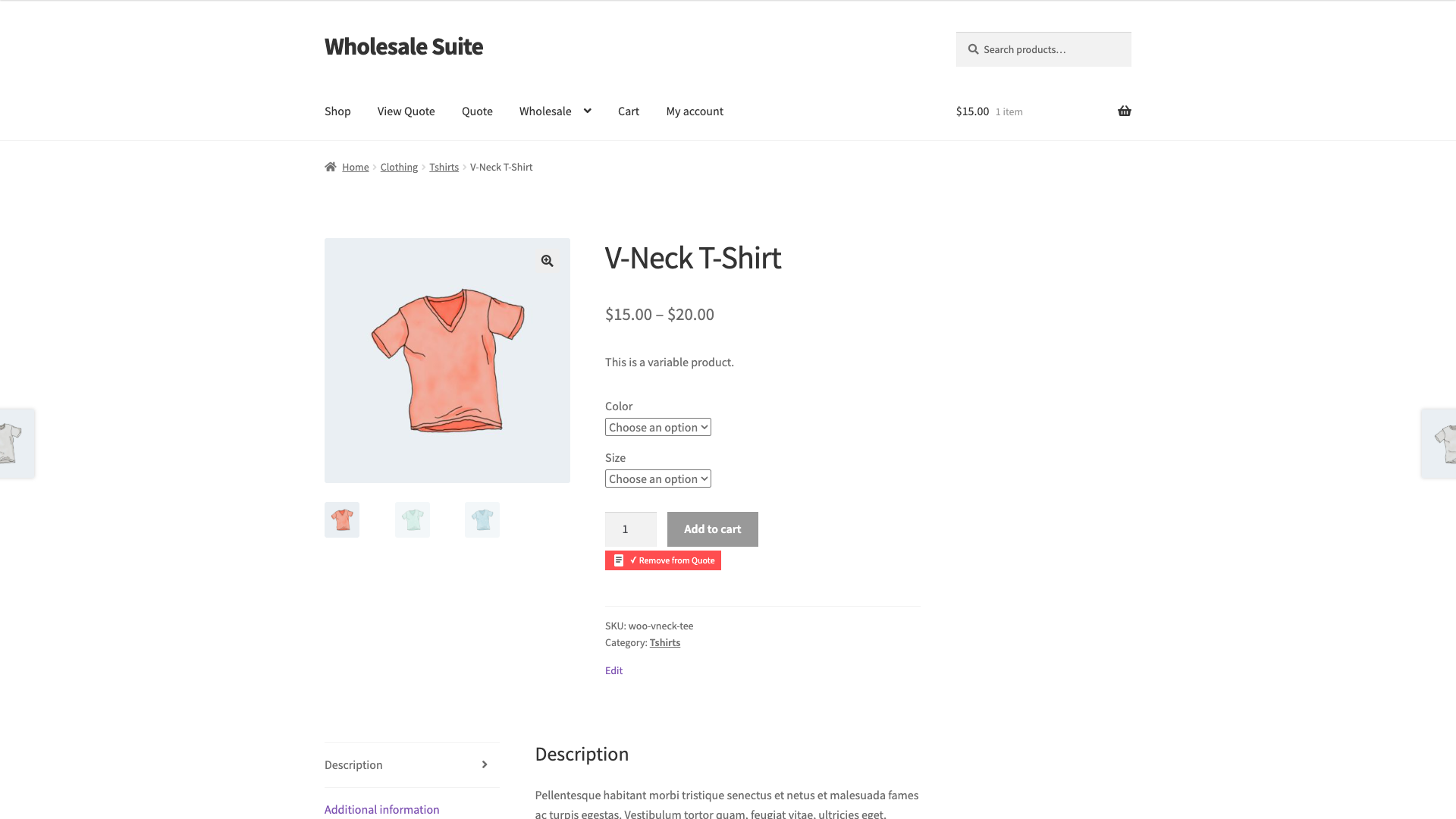
A floating counter badge at the top of the page shows how many items are in your quote. Click the badge to see a mini-dropdown of your current quote contents, or click the link inside it to go straight to the quote page.
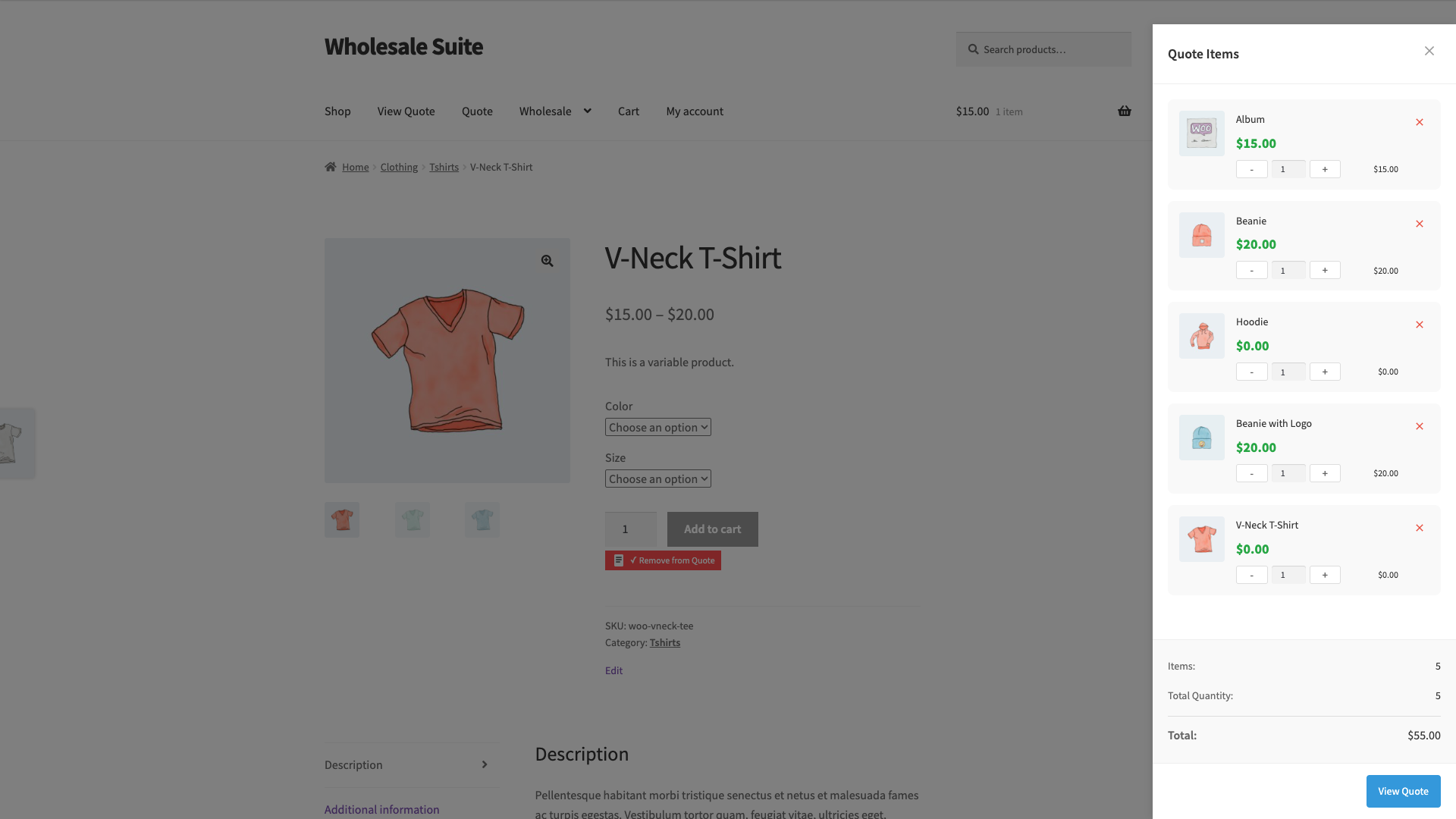
Step 2: Review and submit your quote
Once you have added all the products you want, navigate to the quote page. You can reach it from the counter badge dropdown or from any link your store admin has set up (such as in the site navigation).
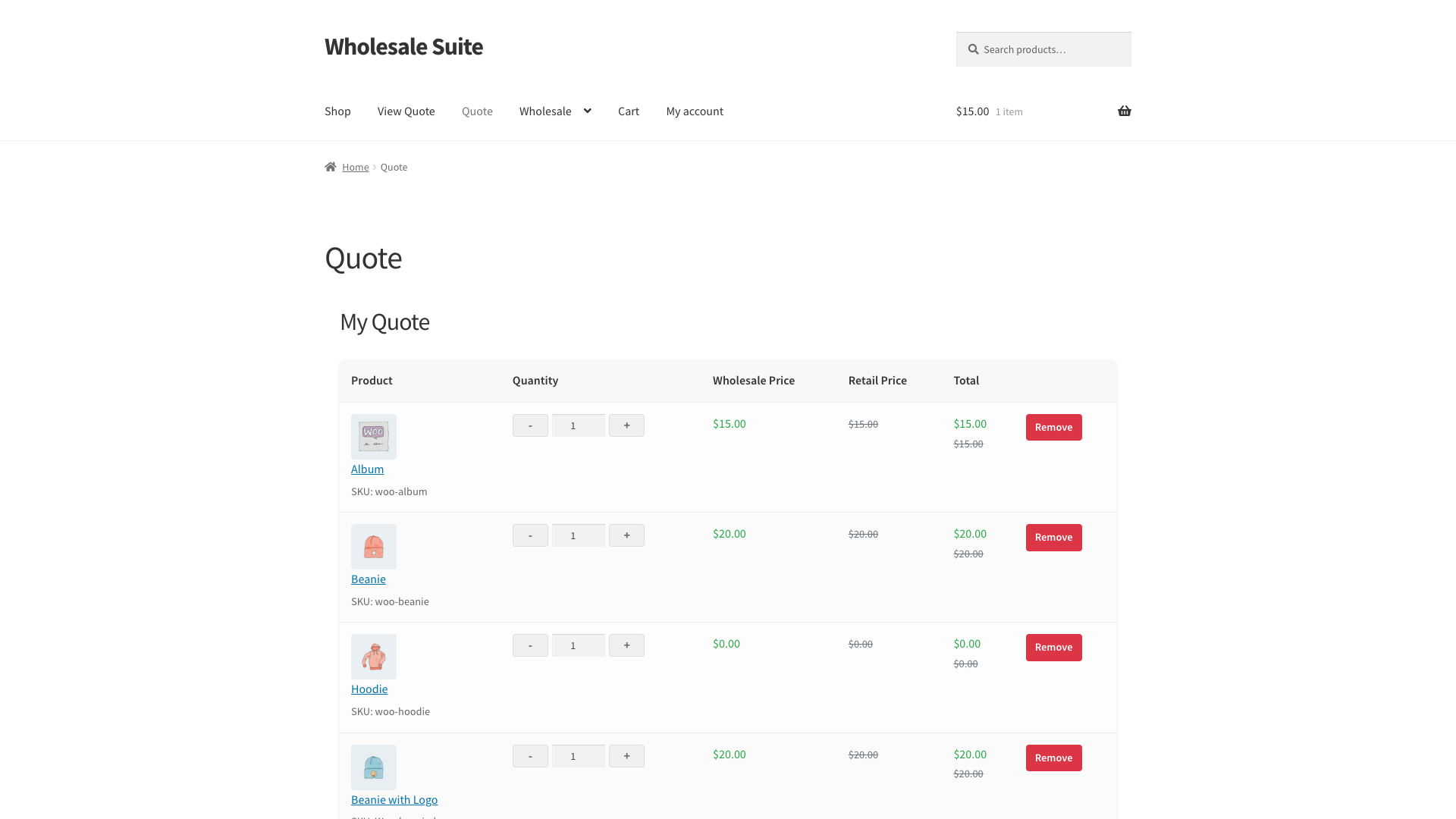
On the quote page, you can:
- Adjust quantities: use the +/- buttons or type directly into the quantity field for each product.
- Remove products: click Remove next to any item you no longer want.
- Add notes: click Add Notes to open a text field for any special requirements or instructions for your admin. Your notes are saved with the quote when you submit.
Below the product table, fill in your contact details in the Customer Information section. Your email address is required. Phone and company are optional.
If your store has address collection enabled, collapsible Billing Details and Shipping Details sections will appear. Expand each section and fill in the fields. Required fields are marked with an asterisk, your admin controls which fields are required.
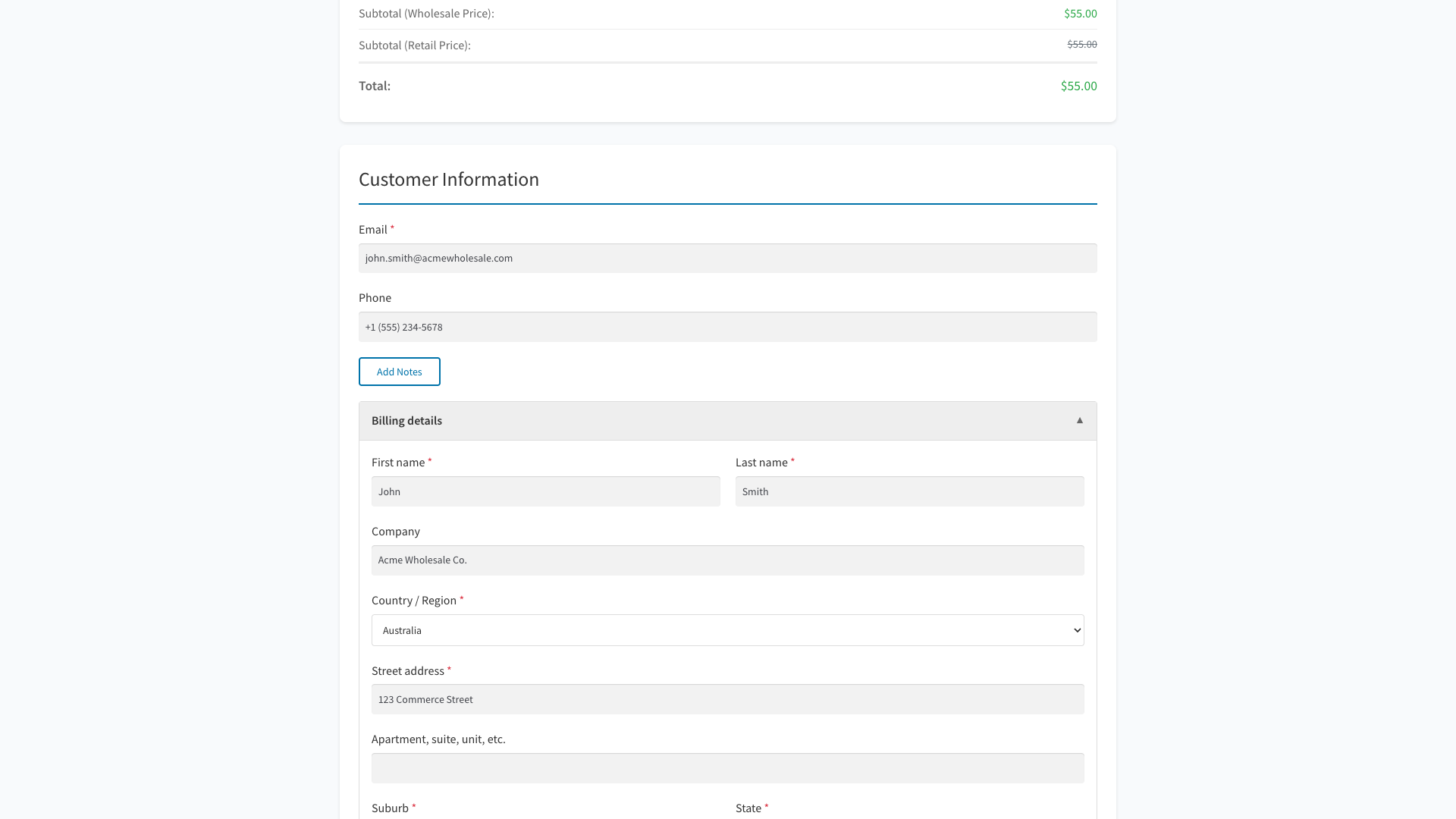
When you are ready, click Submit Quote. The page will confirm that your quote has been submitted and a confirmation email will be sent to your email address.
When the quote is created, it immediately stores its item totals and its expiry date when store expiration is enabled. The confirmation page and notification emails therefore use the submitted values without waiting for an administrator to open the quote first.
Step 3: Track your quotes in My Account
After submitting, you can track all your quotes from My Account > Quotes. The quotes list shows each quote with its number, submission date, current status, number of items, and total value. A newly submitted quote should show its correct total immediately.

Use the status filter tabs at the top to narrow the list:
- All Quotes: shows every quote regardless of status.
- Pending: quotes waiting for your admin to review.
- Approved: quotes that have been approved and are ready to convert to an order.
- Declined: quotes that were not approved.
- Expired: pending or approved quotes that passed their stored expiry date.
- Converted: quotes that have been turned into a WooCommerce order.
You can also search by quote number, ID, or email using the search bar above the list.
If a quote has new messages from your admin, a blue notification badge appears next to the quote number. A 💬 icon indicates a quote with messages but no new unread ones.
Step 4: View a quote’s details
Click View on any quote in the list to open its detail page. The detail page shows:
- Quote summary: quote number, submission date, current status, and total.
- Expiry date: calculated and stored when the quote is created if store expiration is enabled. No expiry date appears when expiration is disabled.
- Line items: each product with its quantity, wholesale price, and line total.
- Messages: the conversation thread between you and the admin. See In-Quote Messaging Between Admin and Customers for how messaging works.
- Quote history: a log of status changes and activity on the quote.

For quotes in Pending or Expired status, an Edit button also appears in the quotes list. Clicking it opens the same detail page, where you can adjust quantities, add or remove products, and save your changes.
Step 5: Convert an approved quote to an order
When your admin approves a quote, its status changes to Approved and you will receive an email notification. Open the quote detail page, a green Place Order button will appear in the footer.
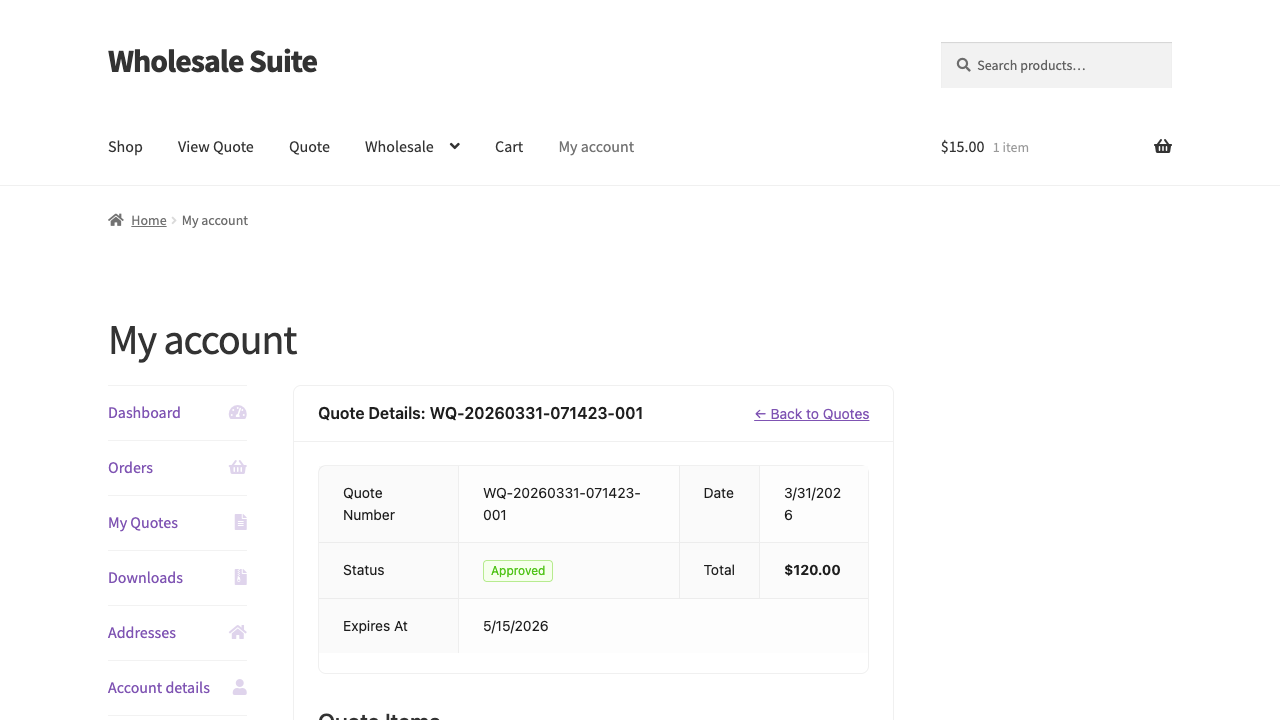
Click Place Order to convert the quote into a WooCommerce order at the approved pricing. Once the order is created, the quote status changes to Converted and a View Order link appears, taking you directly to the order in your account.
If store expiration is enabled, the quote keeps the expiry date that was stored when it was created. Approval does not create a new expiry date. You can convert an approved quote only while that stored date has not passed. After it expires, you may need to request a new quote or ask your admin to review it.
Troubleshooting totals and expiry dates
A new quote shows a $0.00 total. Update WooCommerce Wholesale Quotes to the latest version, then submit a new test quote. Current versions store the calculated item totals when the quote is created. Updating does not automatically rebuild every historical quote, so an administrator may need to review older affected records.
A quote has no expiry date. First check whether quote expiration is enabled in the store settings. No expiry is expected when that setting is disabled. If expiration is enabled, update the plugin and test with a newly submitted quote because older records may not receive a missing date automatically.
For administrative status, pricing, and expiry actions, see How to Manage Wholesale Quotes as an Admin.
Frequently asked questions
Can I edit a quote after I have submitted it?
Yes, but only while it is in Pending or Expired status. Open the quote from My Account > Quotes and click Edit (or View). You can adjust quantities and add or remove products, then save your changes.
What happens if my approved quote expires before I place the order?
The quote moves to Expired status and the Place Order button is removed. You can contact your admin to ask them to re-approve it, or submit a new quote for the same products.
I don’t see the Add to Quote button. Why?
The button is only visible to logged-in wholesale customers by default. If you are browsing as a regular customer without a wholesale role, the button will not appear. Contact your store admin if you believe you should have access.
Can I request a quote without logging in?
Yes, if your store admin has enabled the Guest Quotes feature. When guest quotes are on, the Add to Quote button is visible to all visitors, no account required. You will still need to provide your email address when submitting the quote. If you cannot see the button at all, guest quotes may be disabled on your store, contact your admin to find out.
Can I submit multiple quotes at the same time?
This depends on your store’s settings. Some stores allow multiple open quotes; others require you to wait for an existing quote to be processed before submitting a new one. If you cannot submit, you may see a message explaining the restriction.
Need help?
If you have a question or run into any issues, we’re here to help.
- Premium users: Open a support ticket
- Free users: Visit our community forum

