
WooCommerce Wholesale Quotes lets visitors submit quote requests even if they haven’t created an account yet. In this guide, you’ll learn how to enable the guest quote feature, configure rate limits to protect your store from spam, and understand how the system handles guest quotes when a visitor logs in later.
Prerequisites
Before you begin, make sure the following plugins are installed and active:
- WooCommerce Wholesale Quotes installed and active
- WooCommerce Wholesale Prices installed and active (required by Wholesale Quotes)
- The Quote Page and View Quote Page configured under Wholesale > Settings > Wholesale Quotes > New Quote Page
Step 1: Enable guest quotes
By default, guest quotes are off. Turn them on from the plugin settings.
- Go to Wholesale > Settings in your WordPress admin.
- Click the Wholesale Quotes tab, then select the Guest Quote sub-tab.
- Toggle Enable guest quotes to Enabled.
- Click Save Changes.
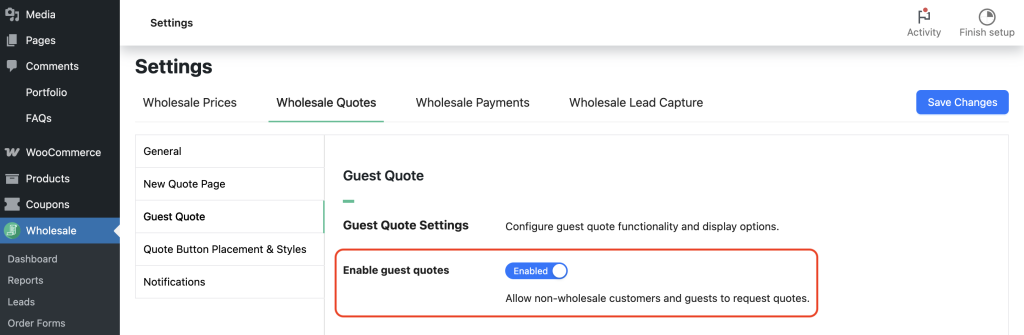
Once enabled, the Add to Quote button becomes visible to visitors who are not logged in, and additional Guest Quote settings appear on this page.
Step 2: Configure the guest quote display options
If you cannot see the settings below, go back to Step 1. They show on the tab only when Enable guest quotes is set to Enabled. They show as soon as you switch it, before you save.
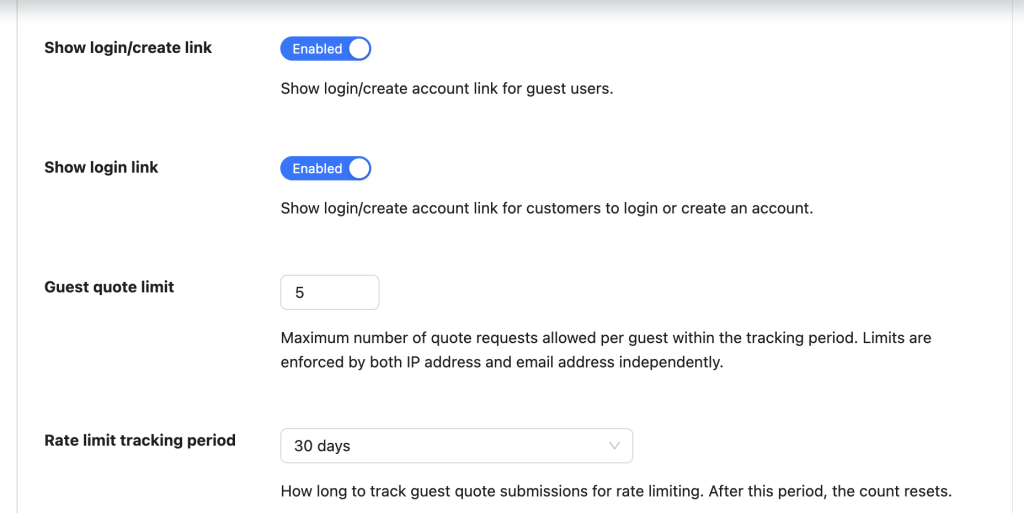
In addition, two optional settings control what guest users see alongside the quote button.
- Turn on Show login/create link if you want a prompt encouraging guests to log in or register. Use this to convert visitors into wholesale accounts.
- Turn on Show login link to display a direct link to the login and registration page next to the guest quote area.
- Click Save Changes.
Step 3: Assign a wholesale role to guest submissions
When a guest submits a quote, Wholesale Quotes needs to know which wholesale pricing tier to use when displaying product prices on that quote. To handle this, you assign a default wholesale role.
- On the Guest Quote settings tab, locate the Default wholesale role for guests dropdown.
- Select the wholesale role you want applied to guest quote submissions.
- Click Save Changes.
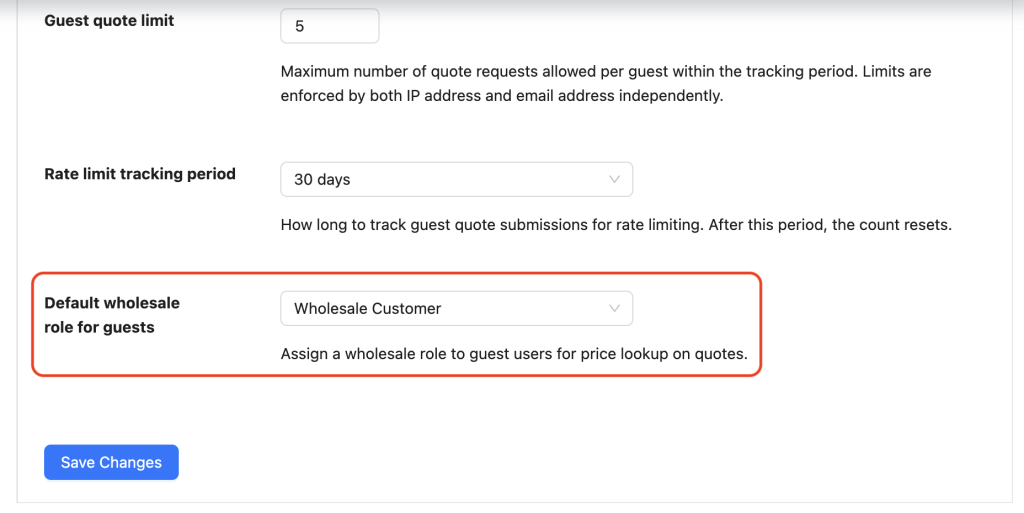
The roles available in this dropdown come from your WooCommerce Wholesale Prices configuration. If you haven’t created wholesale roles yet, set them up there first.
Step 4: Set rate limits for guest submissions
To protect your store, rate limits prevent a single visitor or email address from flooding your inbox with quote requests. Specifically, Wholesale Quotes tracks submissions by both IP address and email address independently, whichever limit is hit first blocks further submissions.
- In Guest quote limit, enter the maximum number of quote requests a guest can submit within the tracking period. The default is 5. You can set any value between 1 and 100.
- In Rate limit tracking period, choose how long submissions are counted before the limit resets:
| Option | What it means |
|---|---|
| Never reset (permanent limit) | The guest’s quota never resets. Once they reach the limit, they cannot submit more quotes from that IP or email address. |
| 7 days | The count resets every 7 days from each submission. |
| 30 days (default) | The count resets after 30 days. |
| 60 days | The count resets after 60 days. |
| 90 days | The count resets after 90 days. |
- Click Save Changes.
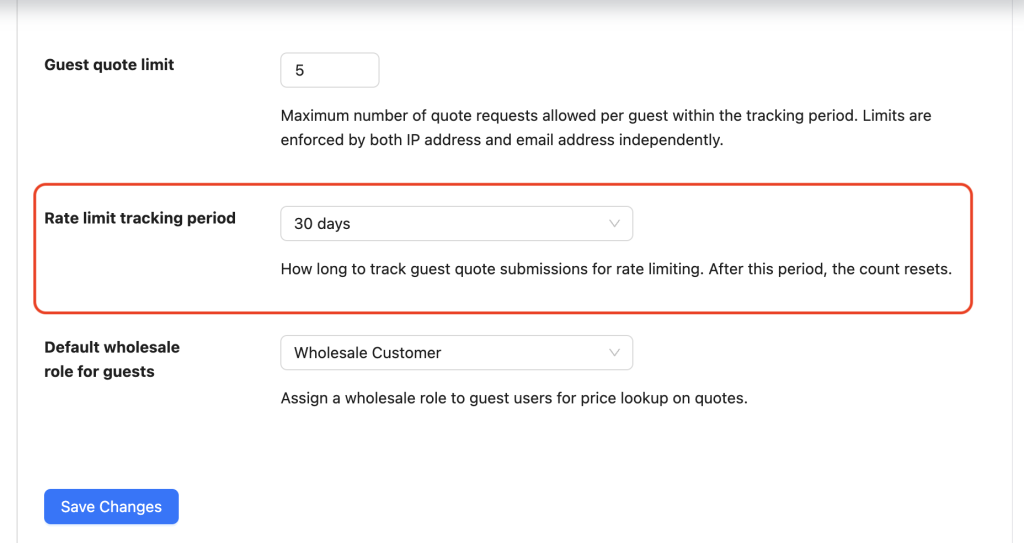
As a result, when a guest reaches the limit, they see a message telling them how many requests are allowed and directing them to contact you for help. The message uses your WooCommerce site’s admin email address automatically.
Additionally, Wholesale Quotes cleans up rate limit records automatically in the background once they expire, after the tracking period plus a 30-day grace period, so your database stays tidy without any manual intervention.
How the guest email modal works
Once you enable guest quotes, the first time a visitor clicks Add to Quote, a modal dialog appears asking for their email address. Wholesale Quotes requires this email for two reasons: it identifies the guest’s quote in the system, and the plugin uses it for rate limiting alongside the visitor’s IP address.
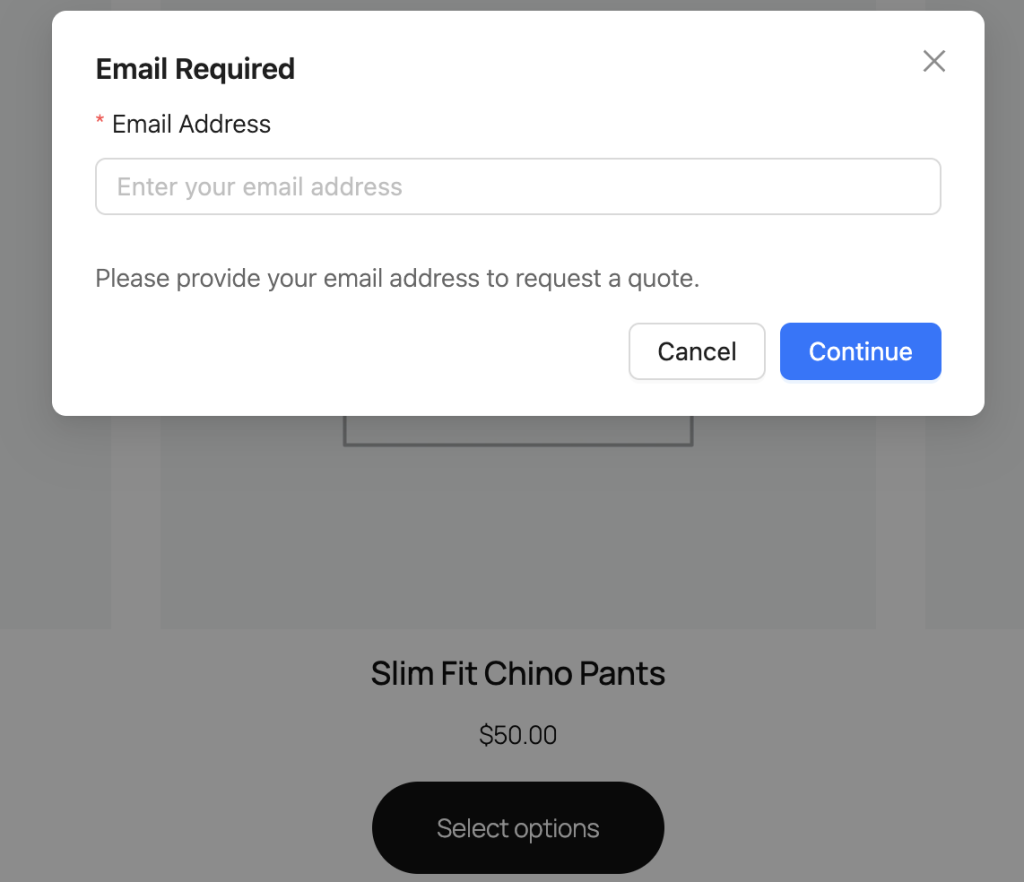
Once the visitor enters a valid email and clicks Continue, the plugin saves it in their browser’s local storage. After that, the plugin won’t prompt them again on the same device and browser. From that point on, they can add products to their quote normally.
The email modal also appears if the guest tries to view or manage their quote and no email address is saved yet for that browser session.
What happens when a guest logs in
When they log in, Wholesale Quotes matches guest quotes to their account by looking up the email address from the modal. When the guest logs into a an account that uses the same email address, their quote history becomes accessible through their account’s quotes page.
However, quotes submitted as a guest stay linked to the original guest email, Wholesale Quotes doesn’t automatically reassign them to the logged-in user account. Instead, the guest can view submitted quotes via the View Quote page using a direct link sent in the confirmation email.
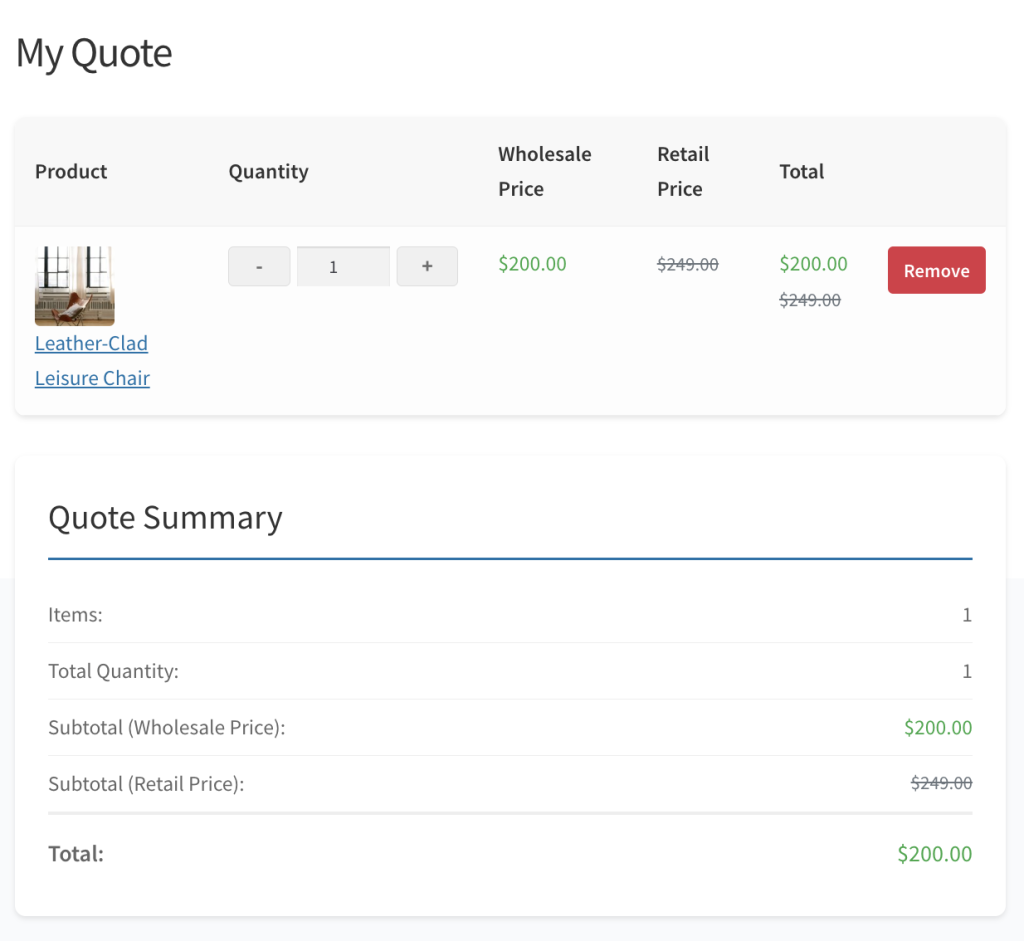
Accessing a guest quote after logging in
If a customer submitted a quote as a guest and later creates (or already has) an account with that same email address, they cannot view their guest quote until they verify they own the email. This protects guest quotes from being claimed by someone who happens to register with the same address.
When the customer opens their guest quote from My Account → My Quotes while logged in, the page shows:
- The heading Verify your email to access this quote.
- A short message explaining that the quote was submitted as a guest with their email address.
- A Reset your password button that opens WooCommerce’s standard password-reset flow.
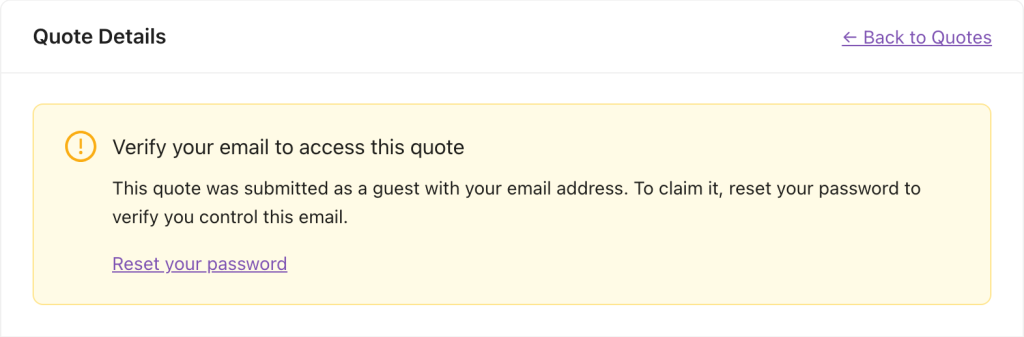
The reset link is the verification step. After the customer completes the password reset using the email they receive, the system knows they control that inbox and automatically attaches the guest quote to their account. They can then view, edit, and respond to the quote like any other account-bound quote.
If a customer doesn’t want to reset their password, they can keep using the original shareable link from their guest-quote email. That link uses a token rather than account access and works regardless of whether they’re logged in.
GDPR and guest data privacy
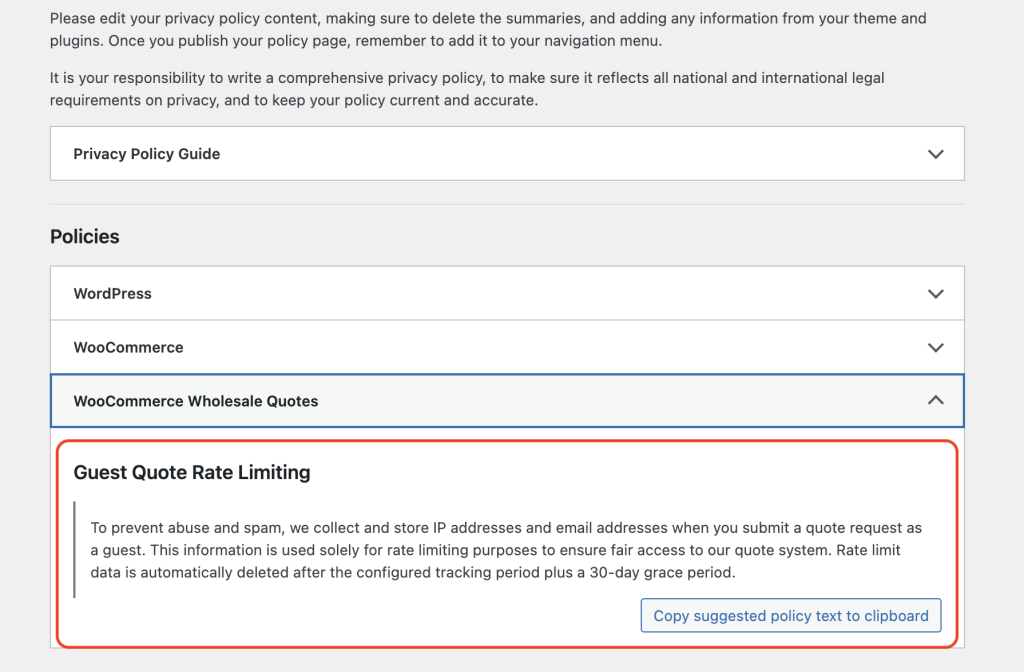
To enforce rate limits, Wholesale Quotes stores each guest’s IP address and email address alongside a reference to their quote submission. Wholesale Quotes uses this data solely for rate limiting, never for marketing or sharing with third parties.
Additionally, the plugin integrates with WordPress’s built-in privacy tools:
- Personal data export, If a user submits a data export request via Tools > Export Personal Data, the export includes their guest quote rate limit records (IP address, email address, quote reference, and submission timestamp).
- Personal data erasure, For erasure requests submitted via Tools > Erase Personal Data, Wholesale Quotes permanently deletes all rate limit records tied to that email address.
- Privacy policy content, The plugin automatically adds a suggested paragraph to your site’s privacy policy (via Settings > Privacy > Privacy Policy) explaining what guest data is collected and why.
- Automatic expiry, Wholesale Quotes automatically deletes rate limit records after the configured tracking period plus a 30-day grace period, with no manual action required.
Troubleshooting
The Add to Quote button is not showing for guest visitors
- Go to Wholesale > Settings > Wholesale Quotes > Guest Quote and confirm Enable guest quotes is toggled to Enabled.
- Check that the Add to Quote button is enabled for products under Wholesale > Settings > Wholesale Quotes > Quote Button Placement & Styles.
- Clear any caching plugin and reload the product page in a private/incognito window.
The rate limit does not reset after the tracking period
- Confirm the Rate limit tracking period setting is not set to Never reset (permanent limit), this option intentionally never resets.
- Rate limit cleanup runs automatically in the background. Allow up to 24 hours for scheduled cleanup to run after the tracking period expires.
The email modal does not appear when a guest clicks Add to Quote
- Open your browser’s developer tools, go to Application > Local Storage, and check whether a guest email is already saved for this site. If so, the modal will not reappear, the stored email is reused.
- To force the modal to reappear, clear local storage for the site and reload the page.
- If local storage is clear and the modal still does not appear, check your browser console for JavaScript errors and confirm the Wholesale Quotes frontend scripts are loading correctly.
Frequently asked questions
Can a guest bypass the rate limit by using a different email address?
The limit is enforced by both IP address and email address independently. A guest who uses a different email address from the same IP address will still hit the IP-based limit once they reach the configured maximum. In other words, both checks must pass for the plugin to accept a submission.
What happens if the guest’s IP address can’t be detected?
If a valid IP address cannot be determined (for example, on certain proxy or server configurations), the system falls back to email-only tracking. In that case, Wholesale Quotes skips the IP-based limit, but the email-based limit still applies.
Will guest quotes be visible in the admin quotes list?
Yes. Guest quotes appear in Wholesale > Quotes alongside quotes from registered customers. You can identify them by the absence of a linked customer account, the quote will show the guest’s email address instead.
Do I need to update my privacy policy manually?
No. The plugin adds suggested privacy policy content automatically. Review it under Settings > Privacy > Privacy Policy and publish or incorporate it into your existing policy.
Need help?
If you have a question or run into any issues, we’re here to help.
- Premium users: Open a support ticket
- Free users: Visit our community forum

