
This guide walks you through installing and setting up WooCommerce Wholesale Quotes so your wholesale customers can start requesting quotes right away. By the end, you’ll have the plugin active, your settings reviewed, and a clear picture of how the quote request process works from both the customer’s and the admin’s perspective.
Before You Begin
WooCommerce Wholesale Quotes requires the following before you install it:
- WordPress 5.8 or higher
- WooCommerce 6.0 or higher
- PHP 7.4 or higher
- WooCommerce Wholesale Prices — this companion plugin must be installed and active. Wholesale Quotes integrates directly with its admin menu and wholesale role system.
If WooCommerce or WooCommerce Wholesale Prices is missing, the plugin will display an error notice and will not activate.
Step 1: Install and Activate the Plugin
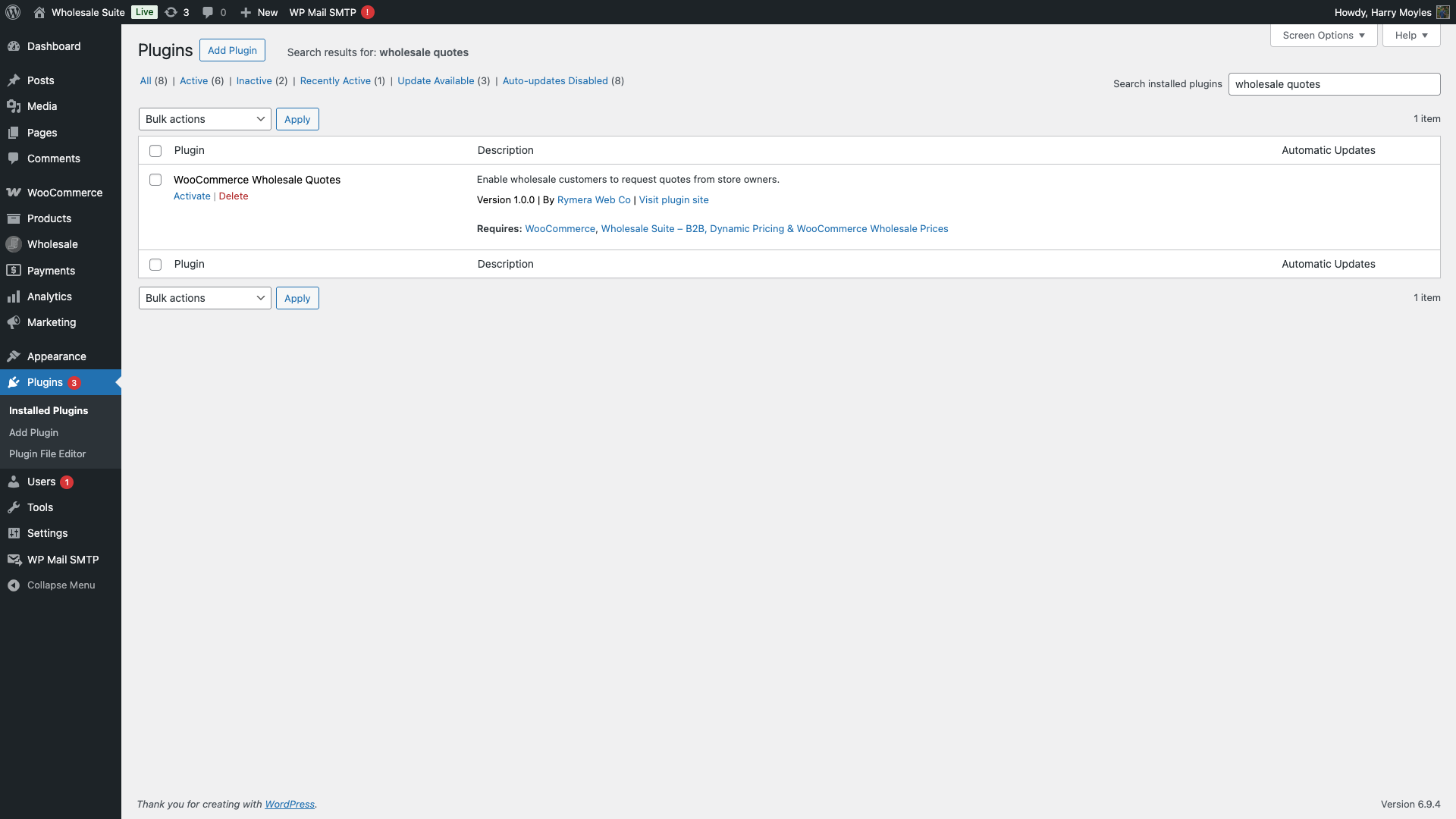
- In your WordPress admin, go to Plugins → Add New Plugin.
- Search for WooCommerce Wholesale Quotes, or upload the plugin zip file directly.
- Click Install Now, then click Activate.
Step 2: What Gets Created Automatically
When the plugin activates, it handles a few things for you automatically so you can get started without manual configuration:
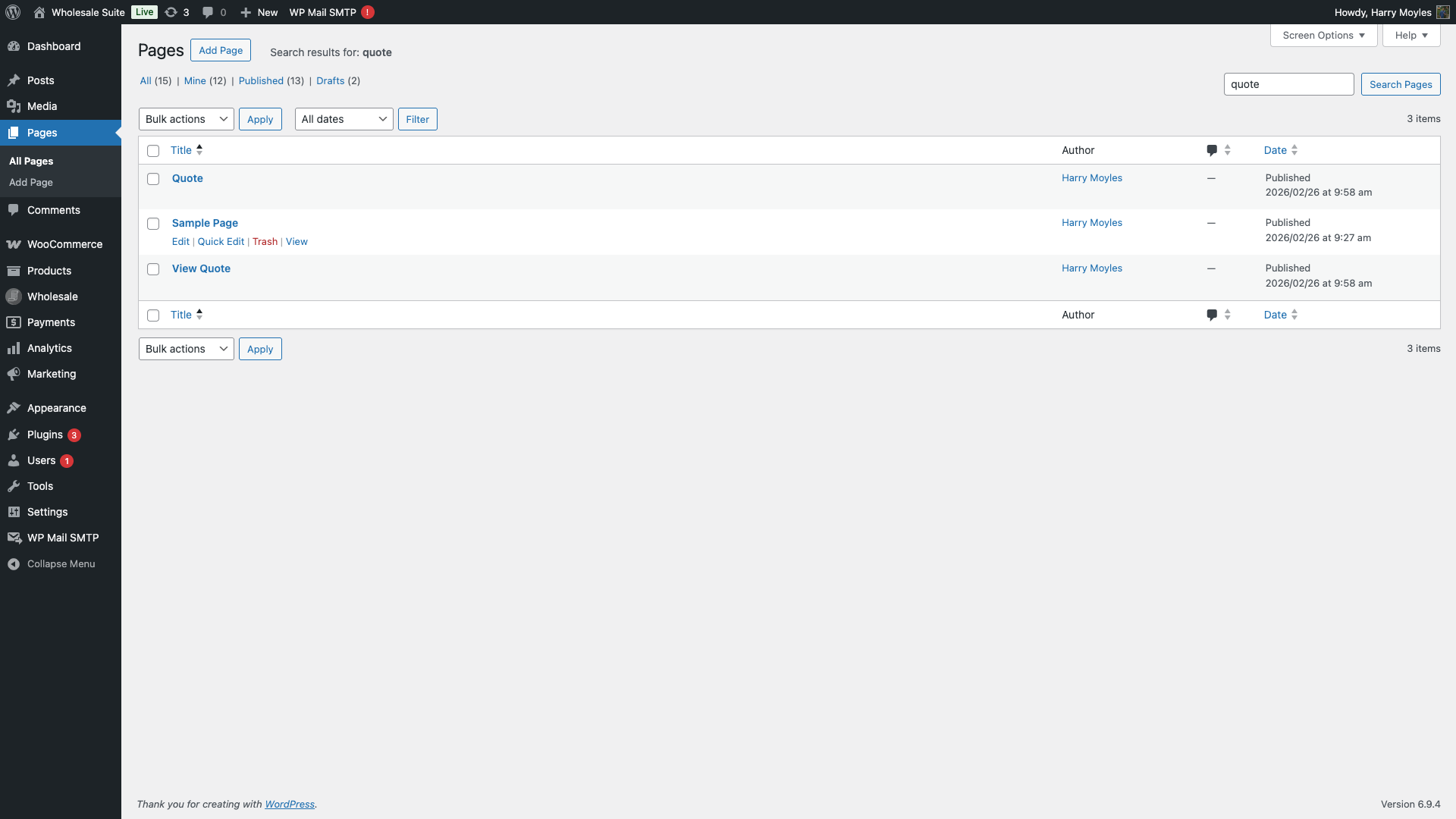
- Quote page — A page titled “Quote” is created at
/quote. This is where customers build their quote and submit it to you. - View Quote page — A page titled “View Quote” is created at
/view-quote. Customers use this link to see their submitted quote after you have approved it. - Default settings — Sensible defaults are pre-configured: a 14-day quote expiry, email notifications enabled, and the button label set to “Add to Quote”.
You do not need to create these pages manually. If you ever delete them accidentally, re-saving the plugin’s settings will restore the page references.
Step 3: Review Your Settings
Go to Wholesale → Settings in your WordPress admin, then click the Wholesale Quotes tab. This is where all plugin configuration lives. You will see the following sub-tabs:
- General — Controls quote expiry (default: 14 days), auto-cleanup of old quotes (default: 30 days), and cart-to-quote options.
- New Quote Page — Controls what the quote submission form shows: address collection fields, a quote counter widget, and toast notification timing.
- Guest Quote — Allows non-logged-in shoppers to request quotes. Enabled by default.
- Quote Button Placement & Styles — Sets where the “Add to Quote” button appears (product page, shop page, cart page) and which button style to use.
- Notifications — Configures which email notifications are sent to the customer and admin when a quote is submitted, approved, declined, or converted.
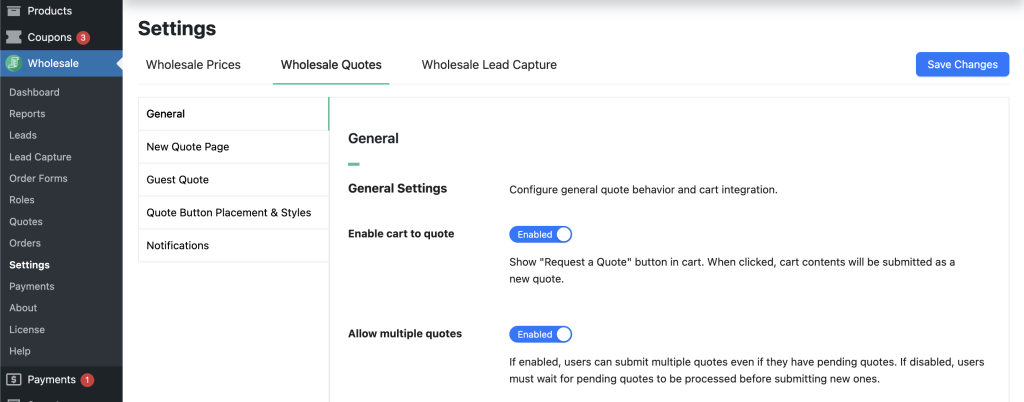
The defaults work well for most stores out of the box. The setting most worth reviewing before launch is Quote Expiry Days under the General tab — set it to match your team’s typical response time.
Step 4: Check the Quote Pages Are Published
Go to Pages in your WordPress admin and confirm that both the Quote and View Quote pages are published and accessible on the front end. If either page was accidentally trashed, simply restore it from the trash and the plugin will recognise it again.
Shortcode Reference
WooCommerce Wholesale Quotes works by placing shortcodes on WordPress pages. The plugin creates the two main pages automatically when it activates. If you ever need to recreate a deleted page, or want to add the optional quotes history listing, use the table below to identify the correct shortcode for each page.
| Shortcode | Purpose | Auto-Created Page |
|---|---|---|
[wholesale_quotes_page] | The main quote management page. Customers build, review, and submit their quote requests here. | Required. Created automatically as the Quote page at /quote. |
[view_quote] | The public quote view page. Customers land here when they follow the link in their quote approval email to review and convert an approved quote. | Required. Created automatically as the View Quote page at /view-quote. |
[wholesale_quotes_history] | Displays a paginated list of all quotes a customer has submitted — a “My Quotes” history page for logged-in customers. | Optional. No page is created automatically. Create a new page, add this shortcode to its content, and publish it wherever you want customers to access their quote history. |
[wholesale_quotes] | Legacy shortcode that also renders the quote form. Supported for backwards compatibility with older setups. | Optional. Not created automatically. Use [wholesale_quotes_page] for new installations. |
Your First Quote: A Full Walkthrough
Here is how the quote process works end-to-end once the plugin is active.
The Customer’s Side
- The customer visits your shop and sees an Add to Quote button on product pages and in the product grid.
- They click Add to Quote. The product is added to their draft quote.
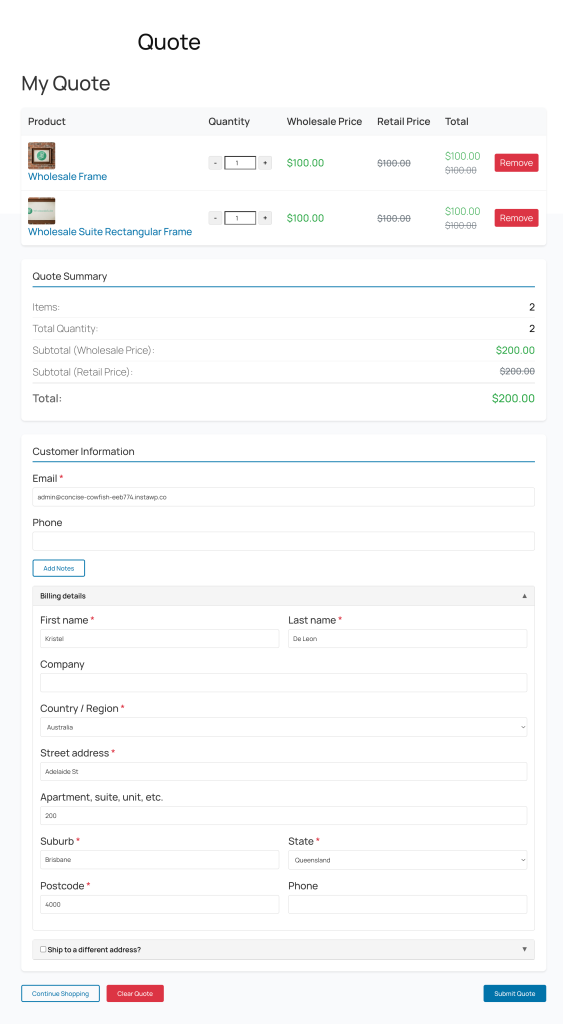
- They can continue browsing and adding more products, then navigate to the Quote page (
/quote) when ready. - On the Quote page, they review the items, enter their email address (required), and optionally add a company name, phone number, and notes.
- They click Submit Quote. A confirmation message appears and they receive a confirmation email.
The Admin’s Side
- You receive an email notification that a new quote has been submitted.
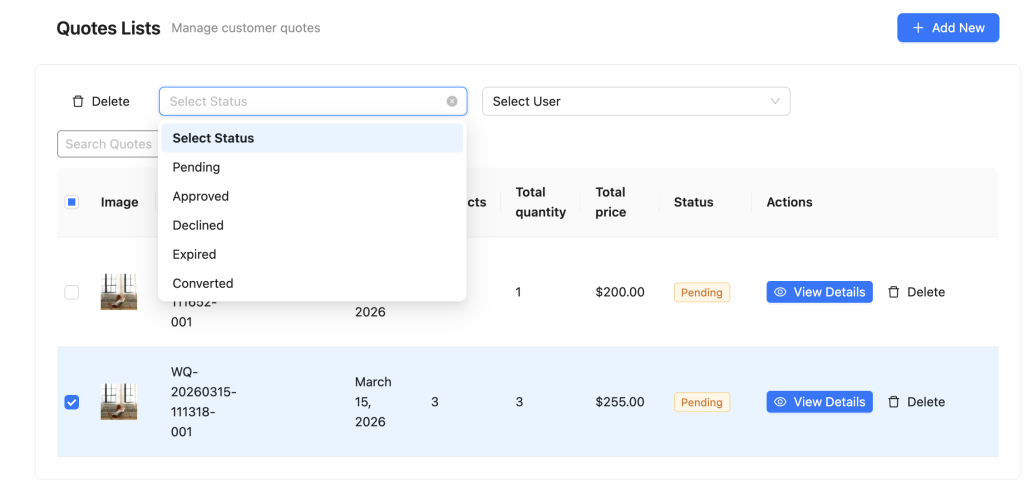
- In WordPress admin, go to Wholesale → Quotes to see all submitted quotes.
- Click the quote to open it. You can review the items, adjust quantities, and edit prices before responding.
- Click Approve to accept the quote, or Decline to reject it. You can also add a message to the customer.
Converting an Approved Quote to an Order
- The customer receives an email notifying them their quote was approved.
- They follow the link in the email to the View Quote page.
- They click Convert to Order. The quote is converted to a WooCommerce order and they proceed through checkout.
What to Do Next
Now that the plugin is set up and you understand the basic flow, here are some common next steps:
- Customise the Add to Quote button — Change the button label, style, and where it appears on product and shop pages under the Quote Button Placement & Styles tab.
- Allow guest quotes — If you want non-registered shoppers to request quotes, confirm Guest Quote is enabled under the Guest Quote tab.
- Review email notifications — Check the Notifications tab to confirm all email triggers are configured the way you want.
- Manage quotes in the admin — Learn more about the Quotes admin list, filtering, and bulk actions. Managing Wholesale Quotes as an Admin
Frequently Asked Questions
Do I need WooCommerce Wholesale Prices installed?
Yes. WooCommerce Wholesale Quotes requires WooCommerce Wholesale Prices to be installed and active. The two plugins share the same admin settings area and wholesale role system. Attempting to activate Wholesale Quotes without it will result in an error.
Do I need to create the Quote and View Quote pages myself?
No. The plugin creates both pages automatically when it activates. You only need to confirm they are published, which you can do from Pages in the WordPress admin.
Can guest shoppers (not logged in) request quotes?
Yes, if the Guest Quote setting is enabled — and it is enabled by default. Guests are identified by the email address they enter on the quote form. Their draft quote is stored in a cookie and merged with their account if they log in later.
How long before a quote expires?
By default, quotes expire after 14 days. You can change this under Wholesale → Settings → Wholesale Quotes → General.
Need Help?
If you have a question or run into any issues, we’re here to help.
- Premium users: Open a support ticket
- Free users: Visit our community forum

