
WooCommerce Wholesale Quotes includes a built-in messaging feature that lets you and your customers communicate directly on a quote — without needing email threads or external tools. This article walks you through enabling messaging, configuring rate limits and status rules, and understanding how the message thread works for both sides.
Prerequisites
- WooCommerce Wholesale Quotes installed and active
- At least one quote submitted by a logged-in wholesale customer
Step 1: Enable messaging
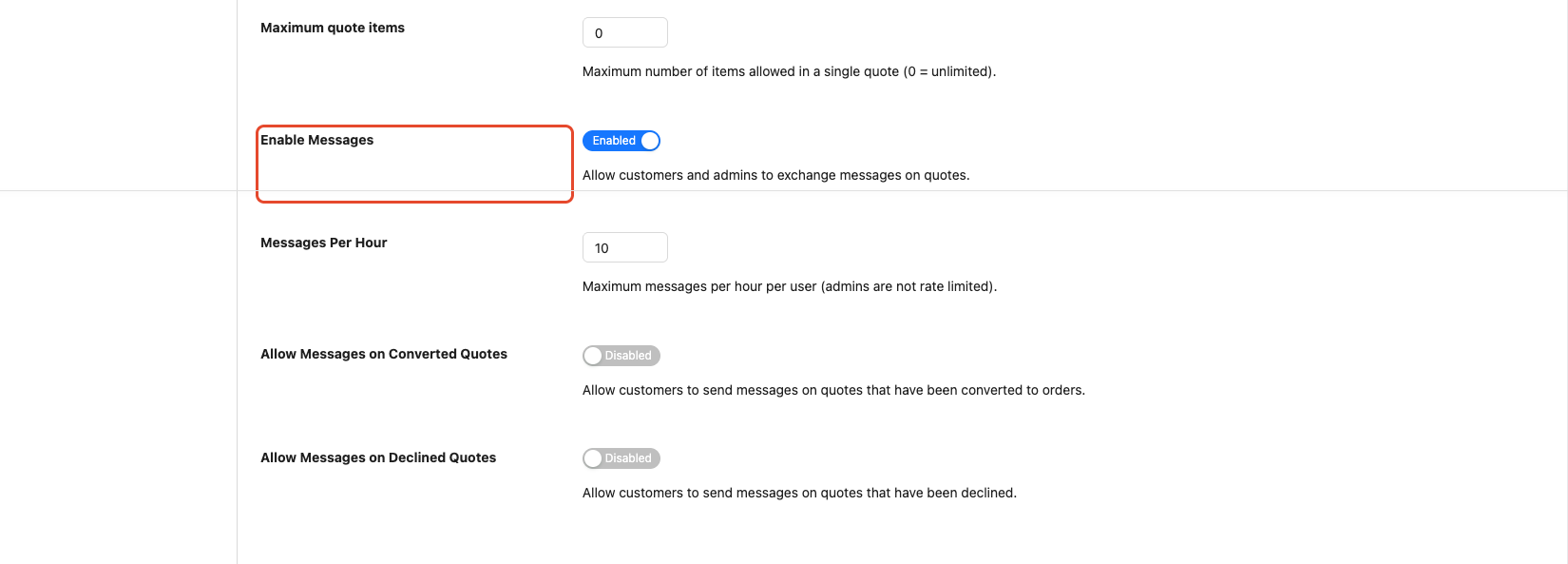
Messaging is enabled by default. To confirm it is on — or to turn it off — follow these steps:
- In your WordPress admin, go to Wholesale > Settings, open the Wholesale Quotes tab, and select General.
- Scroll down to the messaging options (starting with Enable Messages).
- Confirm that Enable Messages is toggled on.
- Click Save Changes.
When messaging is disabled, the message input area is hidden from both the admin quote view and the customer’s quote page, and any attempt to send a message via the API will return an error.
Step 2: Configure the message rate limit
To prevent message spam, the plugin limits how many messages a customer can send per hour. Admins are never rate limited.
- In the same messaging options, locate the Messages Per Hour field.
- Enter a number between 1 and 100. The default is 10.
- Click Save Changes.
The limit resets automatically after 60 minutes. If a customer hits the limit, their send button will return an error until the window resets. Admins with the manage_woocommerce capability always bypass this check.
Step 3: Set messaging rules for closed quotes
By default, customers cannot send messages once a quote has been converted to an order or declined. You can change this behaviour independently for each status.
- In the same messaging options, find the two status switches:
| Setting | What it controls | Default |
|---|---|---|
| Allow Messages on Converted Quotes | Lets customers (and admins) continue the conversation after a quote becomes an order. | Disabled |
| Allow Messages on Declined Quotes | Lets customers (and admins) message on quotes that have been declined. | Disabled |
- Toggle either switch to Enabled if you want messaging to continue after that status change.
- Click Save Changes.
Note that these settings apply to both customers and admins — when a status is blocked, neither side can send new messages on that quote.
Step 4: Send a message as admin
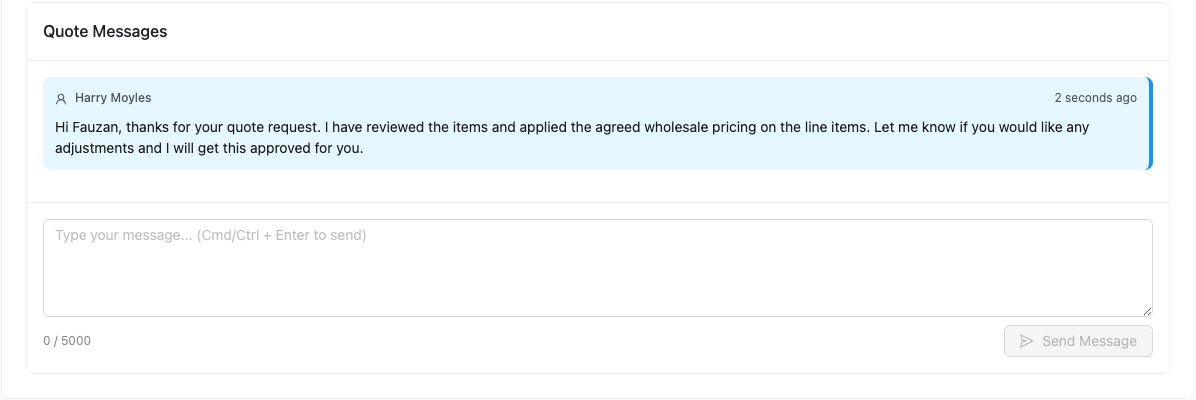
Once messaging is enabled, a Quote Messages panel appears on every quote detail page in the admin.
- Go to Wholesale > Quotes and open a quote.
- Scroll to the Quote Messages panel at the bottom of the page.
- Type your message in the text area. Messages support basic formatting including bold, italic, links, and lists.
- Click Send Message (or press Cmd+Enter / Ctrl+Enter).
When you send a message, the customer receives an email notification automatically (if the Quote Message (Customer) email is enabled in WooCommerce email settings).
Step 5: How customers view and reply to messages
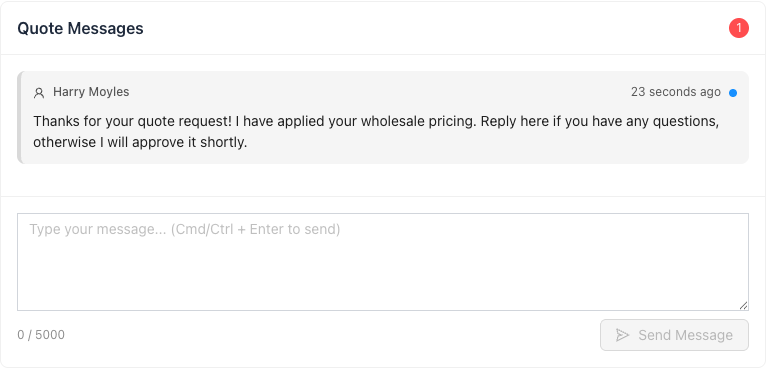
Customers see the same Quote Messages panel when they view a quote from their account.
- The customer logs in and navigates to My Account > Quotes (or the dedicated quotes page).
- They open the relevant quote and scroll to Quote Messages.
- Any unread messages from you appear with a blue dot indicator. Opening the quote automatically marks your messages as read.
- The customer types their reply and clicks Send Message.
When a customer sends a message, you receive an email notification at the admin address (if the Quote Message (Admin) email is enabled).
Understanding read status
Each message carries a read status flag. When either side opens a quote, all messages sent by the other party are automatically marked as read. The unread count badge in the message panel header shows how many messages are waiting for your attention.
Your own messages always appear in blue (right-aligned in the admin view), while the other party’s messages appear in grey (left-aligned). This makes it easy to follow the conversation at a glance.
Troubleshooting
The message input area is not visible on a quote.
Messaging may be disabled. Go to Wholesale > Settings > Wholesale Quotes > General and confirm Enable Messages is toggled on.
A customer reports they cannot send messages on a converted or declined quote.
By default this is blocked. Enable Allow Messages on Converted Quotes or Allow Messages on Declined Quotes in the messaging options to allow it.
A customer gets a rate-limit error before they have sent many messages.
The default limit is 10 messages per 60 minutes. Raise the Messages Per Hour value in the messaging options if your customers need a higher limit.
Email notifications for new messages are not arriving.
Check that the relevant emails are enabled in WooCommerce > Settings > Emails. Look for Quote Message (Customer) and Quote Message (Admin) and confirm both are enabled.
Frequently asked questions
Can guests (non-logged-in users) send messages?
No. Messaging requires the customer to be logged in. Guest quote submissions do not have an account attached, so they cannot participate in the message thread.
Is there a character limit on messages?
Yes. Each message can be up to 5,000 characters long. A character counter in the input area shows how many of the 5,000 characters you have used.
Does the rate limit apply to admins?
No. Admins with the manage_woocommerce capability bypass the rate limit entirely and can send as many messages as needed.
What HTML formatting is allowed in messages?
Messages support a small set of safe HTML tags: paragraphs, line breaks, bold, italic, ordered/unordered lists, and links. All other HTML is stripped automatically.
Need Help?
If you have a question or run into any issues, we’re here to help.
- Premium users: Open a support ticket
- Free users: Visit our community forum

