
Ihre Käufer können Produkte zu einem Angebot hinzufügen, aber der WooCommerce Wholesale Quotes-Zähler erscheint nie in Ihrem Header. Öffnen Sie die Browserkonsole und Sie sehen möglicherweise auch 404-Fehler für Dateien unter /common/. Beide Symptome lassen sich normalerweise auf dieselbe Ursache zurückführen. Diese Anleitung hilft Ihnen, zuerst die einfachen Erklärungen auszuschließen und dann die eigentliche Ursache zu beheben.
Schließen Sie zuerst die Gründe aus, warum der Zähler absichtlich ausgeblendet wird
WooCommerce Wholesale Quotes blendet den Zähler aus drei Gründen absichtlich aus. Überprüfen Sie diese, bevor Sie nach einem Konflikt suchen.
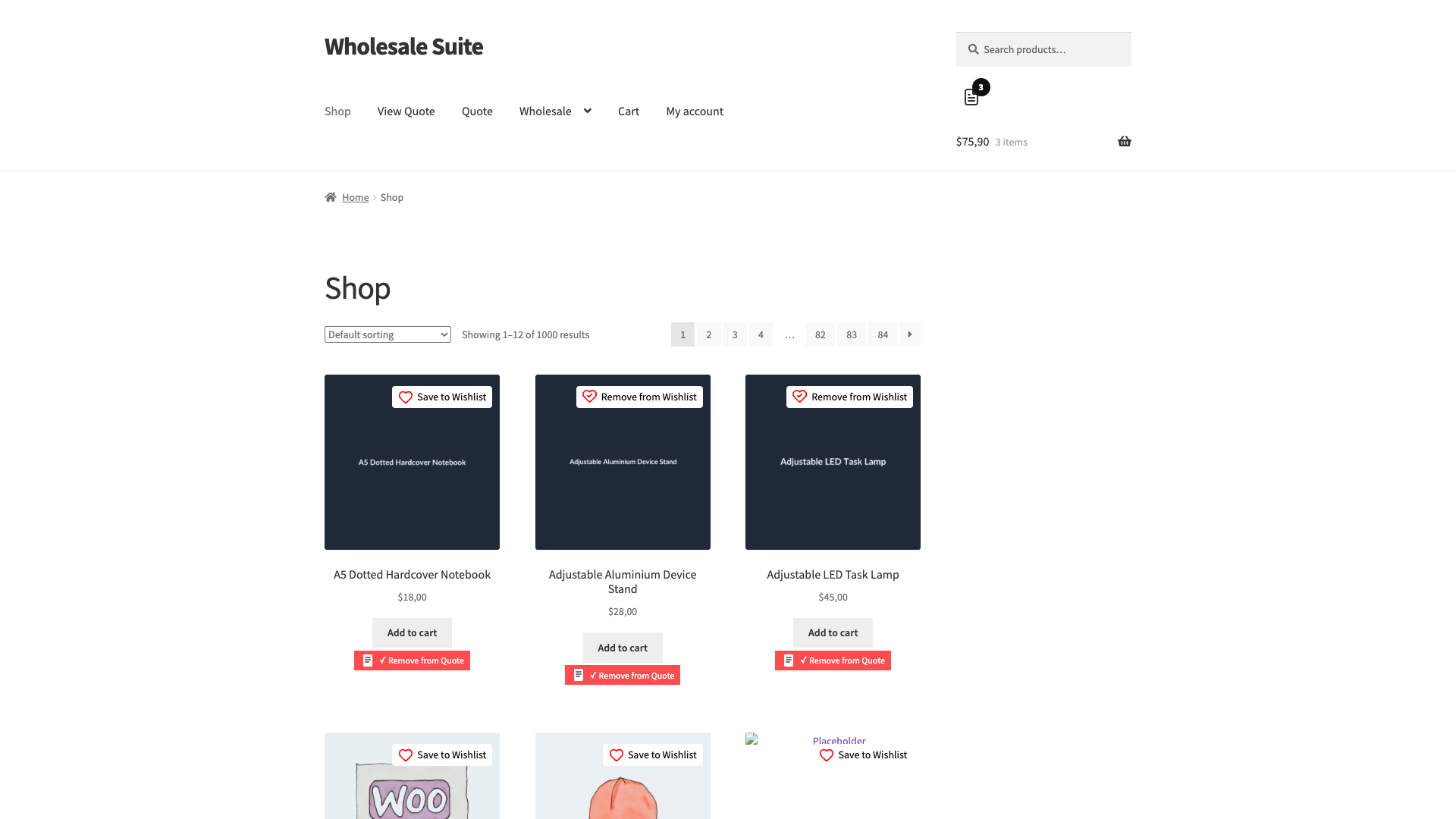
Sie betrachten die Angebotsseite. Der Zähler wird auf der Seite, die Sie als Ihre Neue Angebotsseite ausgewählt haben, nie angezeigt. Dies funktioniert genauso wie WooCommerce den Mini-Warenkorb auf der Warenkorbseite ausblendet: Sie betrachten bereits das Angebot, daher fügt eine Markierung, die darauf hinweist, nichts hinzu. Überprüfen Sie stattdessen den Zähler auf einer Shop- oder Produktseite.
Das Zähler-Widget ist ausgeschaltet. Gehen Sie zu Wholesale → Einstellungen → WooCommerce Wholesale Quotes → Neue Angebotsseite und suchen Sie den Abschnitt Einstellungen für das Zähler-Widget. Zähler-Widget anzeigen ist standardmäßig auf Aktiviert eingestellt, daher ist es nur wichtig, wenn jemand es ausgeschaltet hat.
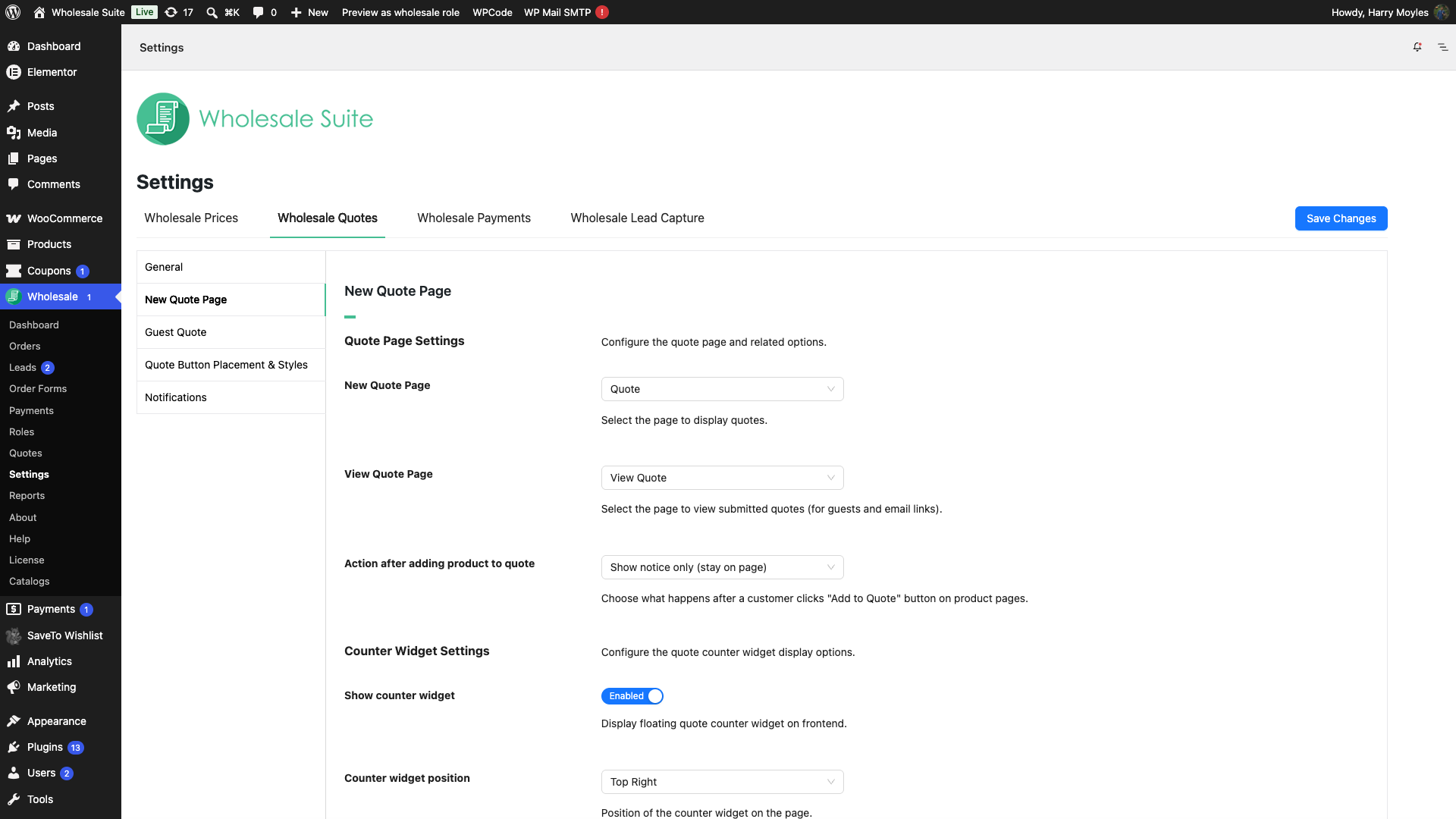
Gastangebote sind deaktiviert und der Käufer ist abgemeldet. Wenn Gastangebote deaktiviert sind, wird der Zähler nur für angemeldete Kunden gerendert. Wenn Sie abgemeldet testen, melden Sie sich als Großhandelskunde an und überprüfen Sie es erneut.
Der Zähler wird nirgendwo in Ihrem Shop angezeigt
Was passiert
Der Button Zum Angebot hinzufügen funktioniert, Produkte landen im Angebot und der Gesamtbetrag des Angebots ist korrekt. Die Zähler-Markierung erscheint einfach nie in Ihrem Header, auf keiner Seite.
Warum es passiert
Ein Caching- oder Optimierungs-Plugin kombiniert, verzögert oder verschiebt das Frontend-Skript von WooCommerce Wholesale Quotes, sodass es entweder nie ausgeführt wird oder zu spät ausgeführt wird.
Dieses Skript hat eine Aufgabe, die die meisten Leute nie sehen. Viele Themes halten den Mini-Warenkorb verborgen, bis ein Käufer auf das Warenkorb-Symbol klickt, und WooCommerce Wholesale Quotes rendert den Zähler innerhalb dieses Mini-Warenkorbs. Das Skript verschiebt den Zähler aus dem versteckten Bereich und platziert ihn neben Ihrem sichtbaren Warenkorb-Symbol. Wenn das Skript nicht ausgeführt wird oder nachdem WooCommerce den Warenkorb im Hintergrund bereits aktualisiert hat, bleibt der Zähler im versteckten Bereich und niemand sieht ihn.
Wie man es behebt
Schließen Sie den Ordner WooCommerce Wholesale Quotes von der JavaScript-Optimierung aus und leeren Sie dann Ihre Caches. Die genaue Formulierung unterscheidet sich je nach Plugin, daher beschreiben die folgenden Schritte, wonach Sie suchen müssen, anstatt eines einzelnen Menüpfads.
Schließen Sie das Plugin in Ihrem Optimierungs-Plugin aus
- Öffnen Sie die Einstellungen Ihres Caching- oder Optimierungs-Plugins. Gängige sind WP Rocket, LiteSpeed Cache, WP-Optimize, SiteGround Optimizer, Autoptimize und Perfmatters.
- Suchen Sie nach seinen JavaScript-Optionen. Diese heißen normalerweise JavaScript kombinieren, JavaScript zusammenführen, JavaScript minimieren, JavaScript verzögern und JavaScript verzögern.
- Fügen Sie den Plugin-Ordner zur Ausschlussliste für jede dieser Optionen hinzu:
wp-content/plugins/woocommerce-wholesale-quotes/ - Speichern Sie Ihre Änderungen.
- Einige Plugins führen für jede Option eine separate Ausschlussliste. Fügen Sie den Ordner zu jeder aktivierten JavaScript-Option hinzu, nicht nur zur ersten.
- Wenn Ihr Plugin nur einen vollständigen Dateipfad akzeptiert, verwenden Sie
wp-content/plugins/woocommerce-wholesale-quotes/assets/js/wholesale-quotes-frontend-scripts.jssowie den Ordner.
Schalten Sie die JavaScript-Optimierung bei Ihrem CDN aus
Ein CDN kann JavaScript umschreiben, nachdem Ihr Optimierungs-Plugin fertig ist. Dieser Schritt ist also separat.
- Öffnen Sie Ihr CDN-Dashboard und suchen Sie die Leistungs- oder Optimierungseinstellungen. Bei Cloudflare befinden sich diese unter Speed.
- Schalten Sie Rocket Loader aus und schalten Sie die JavaScript-Minifizierung aus, falls sie aktiviert ist.
- Speichern Sie Ihre Änderungen.
Löschen Sie die Caches und überprüfen Sie
- Löschen Sie den Cache Ihres Optimierungs-Plugins.
- Löschen Sie Ihren Seiten-Cache.
- Löschen Sie Ihren CDN-Cache.
- Öffnen Sie eine Shop-Seite in einem privaten Browserfenster und suchen Sie nach dem Zähler.
Die Browserkonsole zeigt 404-Fehler für /common/ Dateien an
Was passiert
Ihre Browserkonsole listet 404-Fehler für Dateien auf, die sie nicht finden kann, unter Pfaden wie /common/ oder /wp-content/common/. Die Dateinamen verraten es, da es sich um die gemeinsam genutzten Bibliotheken handelt, die Wholesale Quotes mitliefert:
/common/vue.esm-bundler.[hash].js/wp-content/common/pinia.[hash].js- Andere unter denselben Ordnern, wie z. B.
quotesStore,quote-apiundrestApi
Die Fehler sehen so aus. Der Ordner in der Mitte ändert sich je nachdem, wohin der Optimierer die Datei verschoben hat, aber die Dateinamen am Ende sind immer dieselben:
GET https://yourstore.com/wp-content/common/pinia.fikamNF6.js 404 (Not Found)
GET https://yourstore.com/wp-content/common/vue.esm-bundler.DN4Y7oEq.js 404 (Not Found)
GET https://yourstore.com/wp-content/common/quotesStore.MaDbR_mT.js 404 (Not Found)
GET https://yourstore.com/wp-content/common/restApi.CYcLk56s.js 404 (Not Found)
GET https://yourstore.com/wp-content/common/AntdIcon.BOwhF_Va.js 404 (Not Found)
Sie werden normalerweise etwa ein Dutzend davon gleichzeitig sehen, da die Hauptdatei alle ihre gemeinsam genutzten Bibliotheken auf die gleiche Weise lädt. Die Buchstaben und Zahlen in jedem Dateinamen ändern sich zwischen den Plugin-Versionen, daher werden Ihre nicht exakt übereinstimmen.
Warum es passiert
Die Angebotsseite, die Bildschirme Meine Angebote und Angebot anzeigen sowie die Gast-E-Mail-Aufforderung sind als moderne JavaScript-Module aufgebaut. Die Hauptdatei für jeden Bildschirm lädt ihre gemeinsam genutzten Bibliotheken aus einem common-Ordner, der sich daneben befindet, über einen Pfad, der relativ zu seinem eigenen Speicherort ist. Dieser Pfad ist korrekt, solange die Datei von dort bereitgestellt wird, wo sie installiert wurde: /wp-content/plugins/woocommerce-wholesale-quotes/dist/.
Wenn ein Optimierer diese Datei in ein Bündel kombiniert, inline in die Seite einfügt oder aus einem Cache-Ordner bereitstellt, befindet sich die Datei nicht mehr an ihrem ursprünglichen Speicherort. Die relativen Pfade klettern immer noch die gleiche Anzahl von Ordnern hinauf, sodass sie nun an einem Ort landen, der nicht existiert.
Der Ordner in der 404-Meldung gibt an, wohin Ihr Optimierer die Datei verschoben hat. Eine Datei, die von /wp-content/cache/min/1/ bereitgestellt wird, fordert /wp-content/cache/common/ an. Ein flacherer Cache-Ordner fordert /wp-content/common/ an, und eine Datei, die vom Stammverzeichnis der Website bereitgestellt wird, fordert /common/ an. Alle drei sind dasselbe Problem.
Wie man es behebt
Die Korrektur ist dieselbe wie die oben beschriebene Ausnahme. Sobald die Dateien des Plugins wieder aus ihrem eigenen Ordner bereitgestellt werden, werden die relativen Pfade korrekt aufgelöst und die 404er hören auf.
Überprüfen Sie Ihre anderen Rymera-Plugins auf derselben Website
Mehrere unserer Plugins sind auf die gleiche Weise aufgebaut und laden gemeinsam genutzte Bibliotheken aus ihrem eigenen common-Ordner. Wenn eines davon optimiert wird, können Sie dasselbe 404-Muster auch von diesem Plugin sehen. Dies betrifft Advanced Coupons, SaveTo Wishlist, WooCommerce Wholesale Payments, WooCommerce Wholesale Order Form und WooCommerce Wholesale Prices Premium.
Das Ausschließen des Ordners jedes Plugins von den Einstellungen für JavaScript-Kombination, Zusammenführung und Verzögerung löst das Problem für alle.
Häufig gestellte Fragen
Verlangsamt das Ausschließen des Plugins meine Website?
Der Unterschied ist gering. Sie schließen die Skripte eines Plugins von der Bündelung mit allem anderen aus, und diese Skripte werden nur auf Seiten geladen, auf denen ein Angebotsbutton oder -zähler angezeigt werden kann. Caching, Bildoptimierung und CSS-Optimierung funktionieren weiterhin wie zuvor.
Der Zähler zeigt eine Zahl an, aber sie ändert sich nie. Ist das dasselbe Problem?
Ja, und dieselbe Korrektur gilt. Ihr Server rendert die Zahl im Badge, wenn die Seite geladen wird, sodass sie auch dann mit einer veralteten Anzahl angezeigt werden kann, wenn das Skript, das sie auf dem neuesten Stand hält, blockiert ist.
Muss ich auch das CSS des Plugins ausschließen?
Beginnen Sie nur mit JavaScript, da dies den Zähler kaputt macht und die 404er verursacht. Wenn der Zähler angezeigt wird, aber ungestaltet aussieht oder an der falschen Stelle sitzt, fügen Sie denselben Ordner auch Ihren Ausschlüssen für CSS-Kombination und -Minifizierung hinzu.
Betrifft dies den Button "Zum Angebot hinzufügen"?
Das kann es. Der Button sendet Daten an Ihren Server, sodass das Hinzufügen eines Produkts oft trotzdem funktioniert, aber die Bestätigung und die Weiterleitung zur Angebotsseite hängen vom selben Skript ab. Wenn sich der Button träge anfühlt, behandeln Sie ihn als Teil desselben Problems. Wie der Button konfiguriert ist, erfahren Sie unter Einrichtung des Buttons "Zum Angebot hinzufügen".
Wie bestätige ich, dass der Ausschluss tatsächlich funktioniert hat?
Öffnen Sie eine Shop-Seite, zeigen Sie den Quelltext der Seite an und suchen Sie nach woocommerce-wholesale-quotes. Die Skript-Tags sollten auf /wp-content/plugins/woocommerce-wholesale-quotes/ zeigen. Wenn sie stattdessen auf einen Cache- oder Upload-Ordner zeigen, wird der Ausschluss noch nicht angewendet.
Was als Nächstes lesen?
- Erste Schritte mit WooCommerce Großhandelsangeboten
- Referenz zu WooCommerce Großhandelsangebote-Einstellungen
- Einrichtung des Buttons „Angebot anfordern“
Benötigen Sie Hilfe?
Wenn Sie eine Frage haben oder auf Probleme stoßen, sind wir für Sie da.
- Premium-Benutzer: Support-Ticket eröffnen
- Kostenlose Benutzer: Besuchen Sie unser Community-Forum

