
If your wholesale store mainly attracts customers from a specific country, optimizing your registration form can make a big difference. One simple but effective way to improve user experience is by setting a default country in your WooCommerce wholesale registration form.
By reducing the number of steps users need to take, you streamline the sign-up process. This makes registration faster and less frustrating—especially for international stores that serve a primary region.
Why You Should Set a Default Country for Wholesale Registrations
When you pre-select the most common country, you remove one more obstacle between your customer and conversion. This seemingly small adjustment can significantly reduce drop-off rates during sign-up. It also creates a smoother, more tailored onboarding experience for new wholesale customers.
Fewer clicks mean faster registrations. And faster registrations often lead to higher completion rates.
Does WooCommerce Support This Feature Natively?
Unfortunately, WooCommerce Wholesale Lead Capture doesn’t include a built-in setting to set a default country. However, there’s a simple workaround. With a small snippet of code, you can manually set a default country on the wholesale registration page.
This method doesn’t require any additional plugins and is easy to implement—even if you’re not a developer.
Step-by-Step: How to Set a Default Country Using Code
To apply this customization, add the following code to your WordPress theme’s functions.php file:
// Change the default country on WooCommerce Wholesale Lead Capture's registration
function wwsSetRegistrationDefaultCountry() {
    if ( is_page( 'wholesale-registration-page' ) ) {
		?>
        <script type="text/javascript">
            jQuery(document).ready(function () {
                jQuery('select#wwlc_country').val('AU');
                jQuery('select#wwlc_country').trigger('change');
            });
        </script>
        <?php
    }
}
add_action( 'wp_footer', 'wwsSetRegistrationDefaultCountry', 99 );
Important Tips for Customizing the Code
Before you save and upload the code, make sure to adjust the following:
1. Update the Page Slug
The snippet includes 'wholesale-registration-page' as the page slug. If your wholesale registration page has a different URL or custom slug, replace it accordingly. Otherwise, the script won’t trigger on the correct page.
2. Change the Country Code
The example uses 'AU' for Australia. If your store targets a different country, use the relevant two-letter ISO country code. For instance:
'US'for the United States'GB'for the United Kingdom'CA'for Canada'NZ'for New Zealand
You can find a complete list of ISO country codes here.
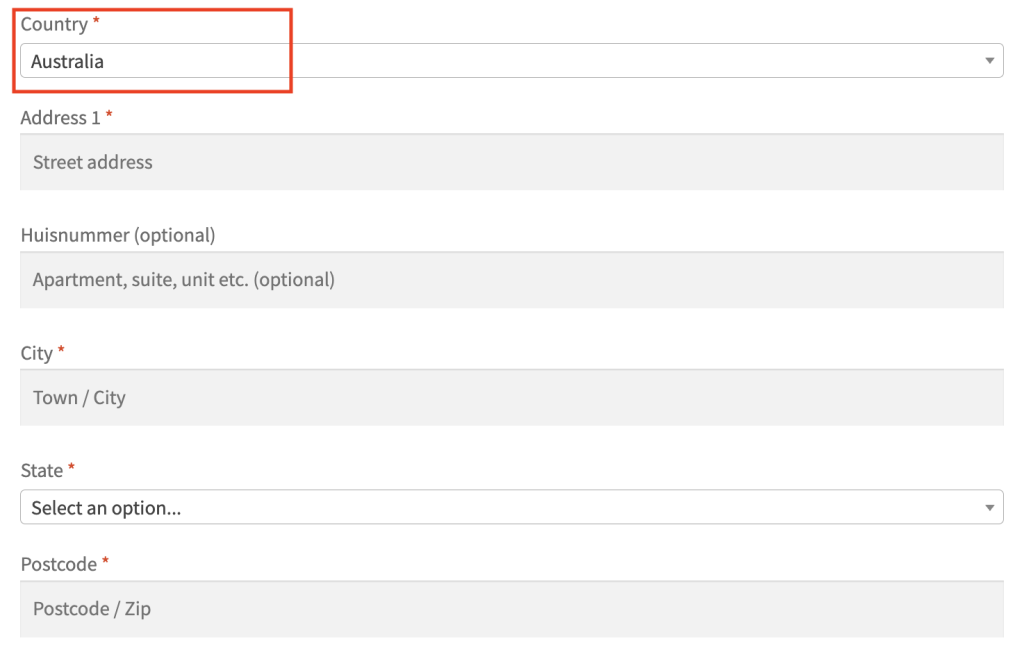
By setting a default country on your wholesale registration form, you’re making life easier for your customers. You eliminate unnecessary friction, speed up form completion, and create a more personalized experience.
This quick, low-effort tweak can have a high impact—especially for WooCommerce stores focused on a single country or region.
In today’s competitive eCommerce space, even the smallest enhancements can boost conversions. So don’t overlook this one!
Frequently Asked Questions
Where in functions.php do I add the default country snippet?
First, open functions.php. Then, paste the code at the bottom of the file. If a closing PHP tag exists, place it just before that. Also, use a child theme to protect your changes from future updates.
Does jQuery on a wholesale sign-up form work with caching?
Yes, it usually does. In most cases, jQuery runs normally on each page load. However, if the field does not pre-fill, clear your cache. Otherwise, outdated files may prevent the latest changes from appearing.
Can I set different default countries on multiple registration pages?
Yes, you can. Since this setup targets specific page slugs, you can create different versions for each registration page. Then, simply update the URL path and country code for each one before saving.
Can I conceal the location dropdown for single-region businesses?
Yes, absolutely. If you only serve one region, you can hide the dropdown using CSS. Even so, the selected default value will still submit correctly in the background.
Why isn’t the pre-filled value appearing on my sign-up form?
If this happens, first check your URL slug. It must match the actual page path exactly, including hyphens. Next, review your script for syntax errors. Finally, make sure the file was saved properly.
Need Help?
If you have a question or run into any issues, we’re here to help.
- Premium users: Open a support ticket
- Free users: Visit our community forum

