
If you use WooCommerce Wholesale Order Form alongside WooCommerce Wholesale Quotes, you can add an Add to Quote button directly inside the order form. This lets wholesale customers browse your product catalogue and add items to a quote — or to the cart — without leaving the form. This guide explains how to set up the Quote Button element in WWOF and configure its appearance.
What You’ll Need
- WooCommerce Wholesale Quotes — active and configured on your store
- WooCommerce Wholesale Order Form — active with at least one order form created
- Administrator or Shop Manager access to WooCommerce admin
The integration activates automatically when both plugins are active at the same time. No extra configuration is needed to enable it — you simply add the Quote Button element to your form layout.
Step 1: Open the Order Form in the Form Builder
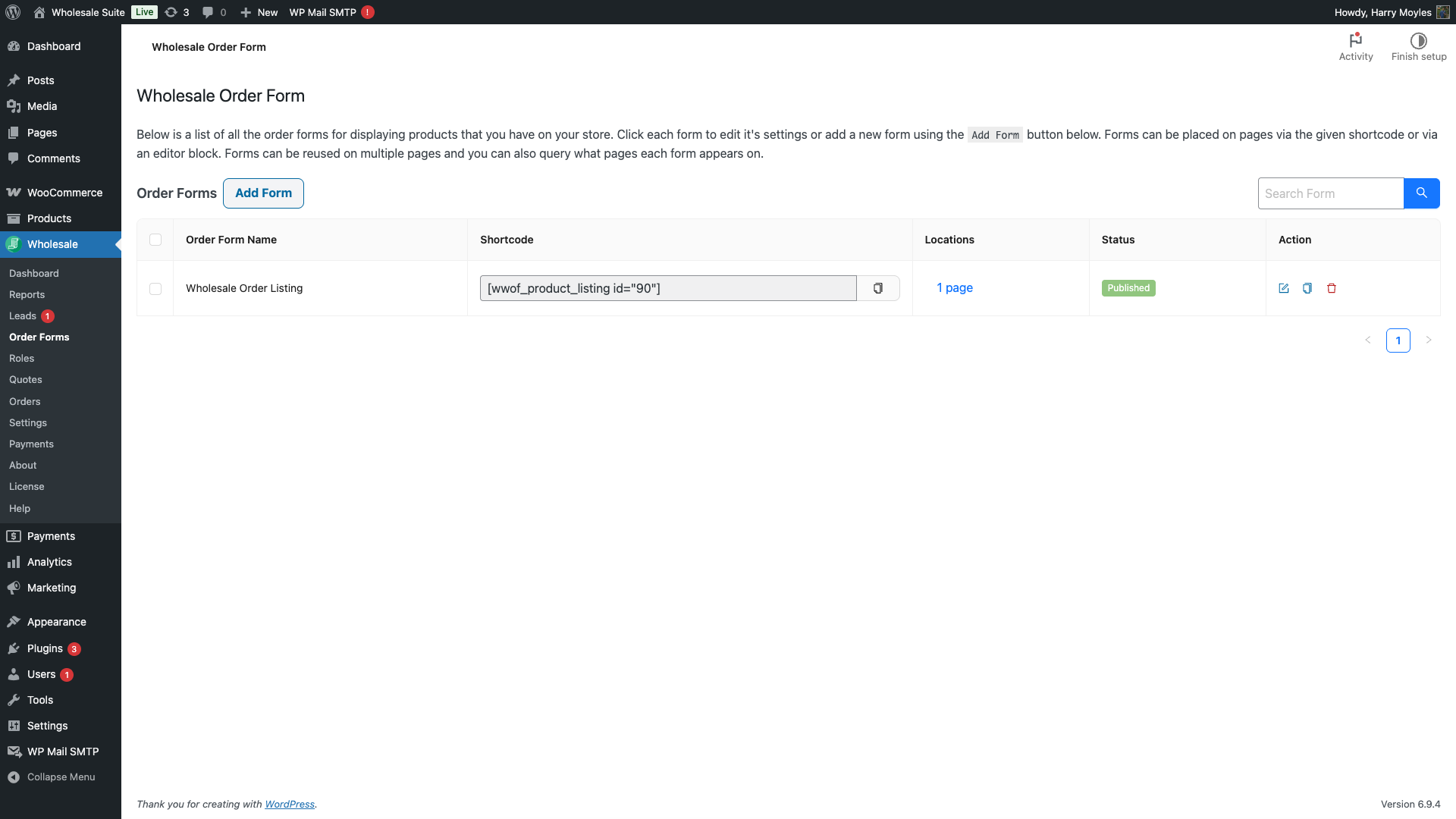
In your WordPress admin, go to WooCommerce > Order Forms and open the order form you want to modify. This opens the WWOF form builder.
Step 2: Add the Quote Button to a Form Column
In the form builder, locate the column in the product table where you want the quote button to appear. Click the column’s + icon or the element picker to open the list of available elements. You will see Quote Button listed under the Action category.
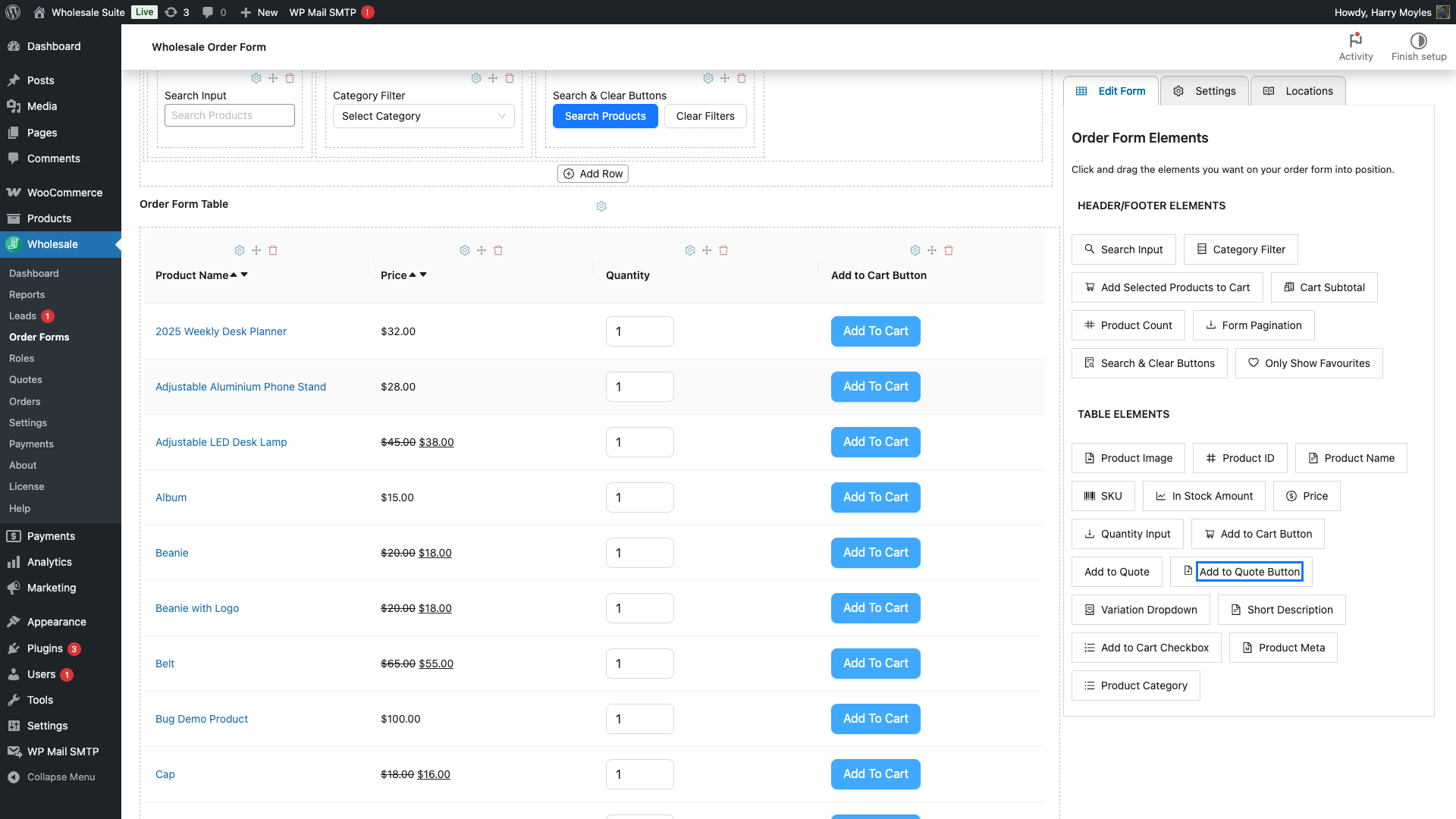
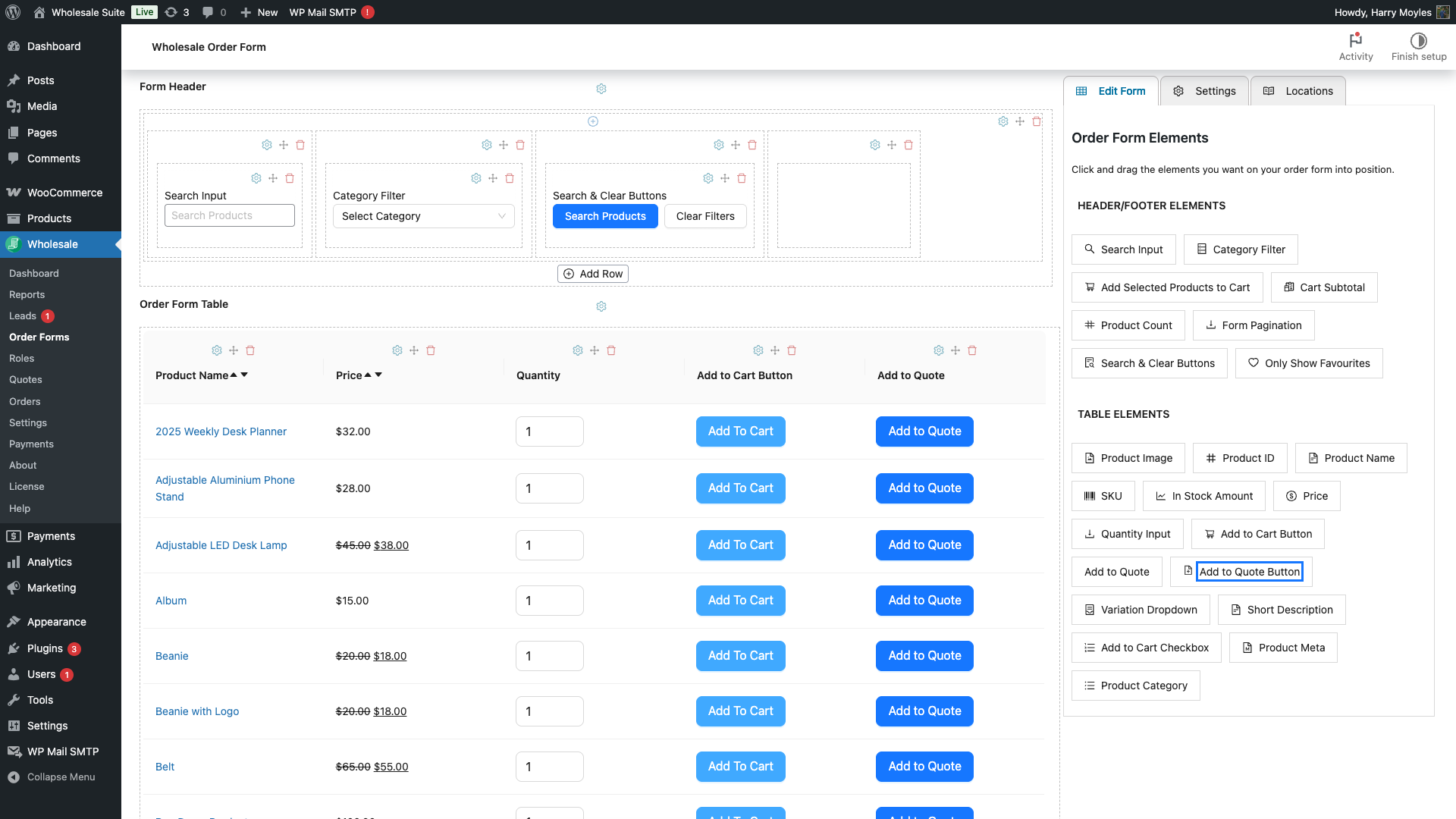
Click Quote Button to add it to the column. The button will appear in the form preview immediately, showing the default Add to Quote label.
Step 3: Configure the Quote Button Appearance
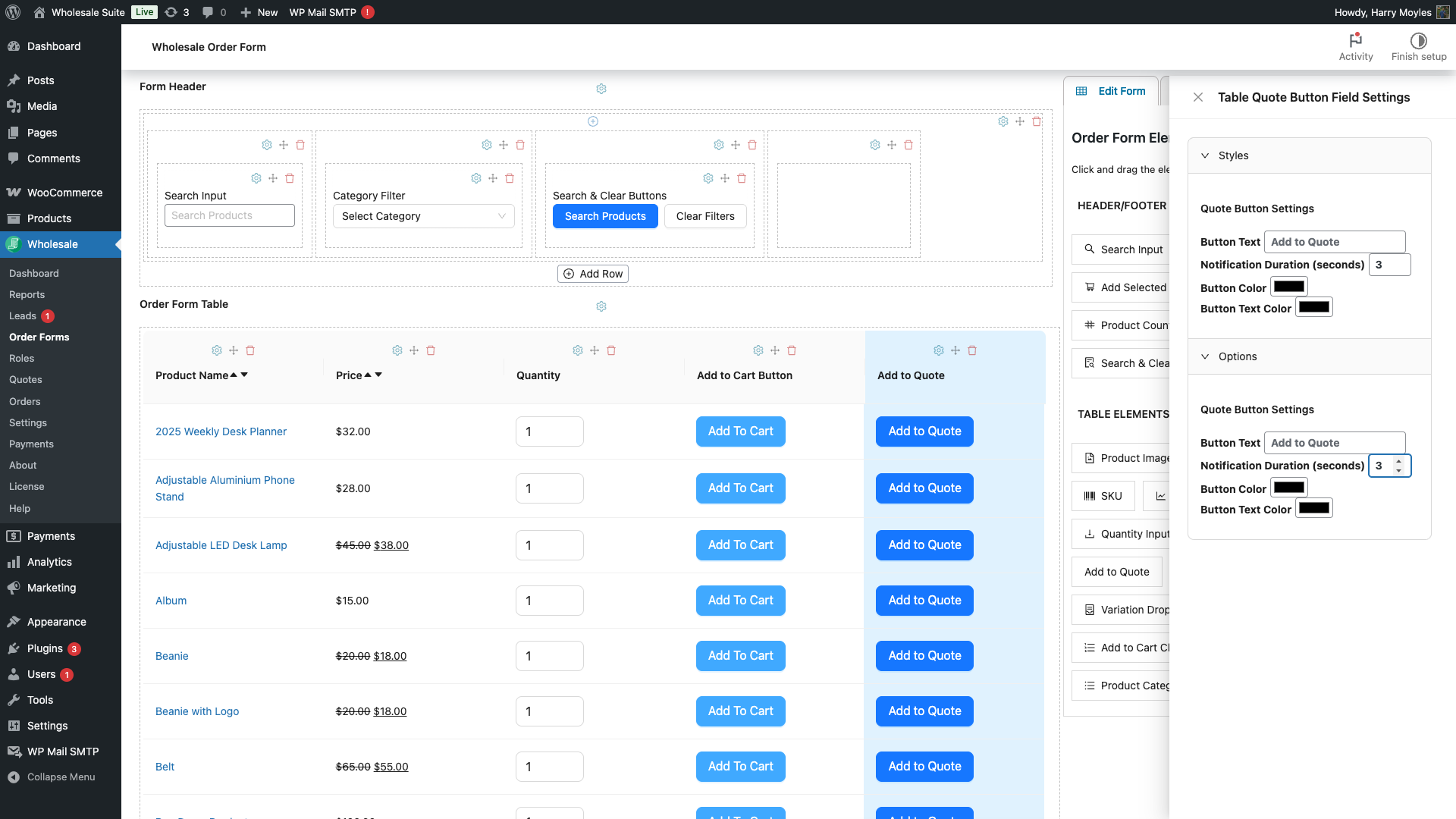
Click the Quote Button element in the form builder to open its settings panel. You can customise these properties per column:
| Setting | Description | Default |
|---|---|---|
| Button Text | The label shown on the button when the product is not yet in the quote | Add to Quote |
| Notification Duration (seconds) | How long the success notification is shown after adding a product | 3 |
| Button Color | Background colour of the button | #52c41a (green) |
| Button Text Color | Colour of the button label text | #FFF (white) |
When a product is already in the customer’s quote, the button automatically switches to display the Remove from Quote label (configurable in WooCommerce > Wholesale Quotes > Settings) WooCommerce Wholesale Quotes Settings Reference and changes to a secondary style, so customers can tell at a glance which items are already quoted.
Step 4: Save and Test
Click Save in the form builder to apply your changes. Then visit the front end of your store, navigate to a page containing the order form, and log in as a wholesale customer. The Add to Quote button should appear in the column you configured.
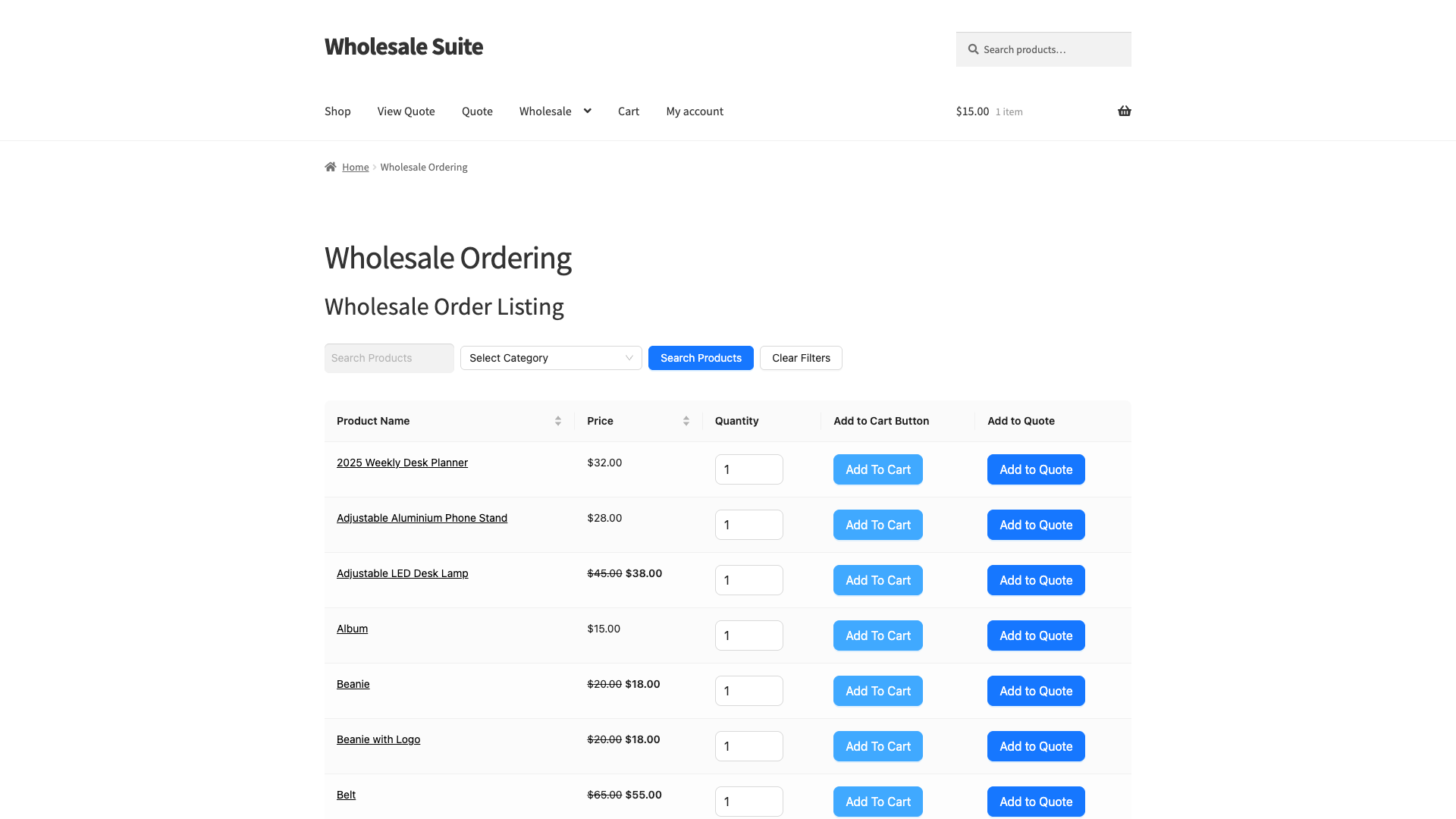
Click Add to Quote on any product to verify the button changes to Remove from Quote and the quote counter updates. If your store has guest quotes enabled, a non-logged-in visitor will see a modal asking for their email address before the product is added. See How to Allow Guest Users to Request Wholesale Quotes How to Allow Guest Users to Request Wholesale Quotes for details.
Frequently Asked Questions
Does the Quote Button appear for all customers or only wholesale customers?
By default, only logged-in wholesale customers see the Quote Button. Guest access depends on whether your store has guest quotes enabled in Wholesale Quotes settings. Regular (non-wholesale) customers who are logged in will not see the button unless the Add to Quote button visibility setting includes their role.
Can I add the Quote Button to multiple columns in the same form?
Yes. You can add the Quote Button element to as many columns as you like. Each instance can have its own button text and colour settings. All instances on the same form share the same quote state — clicking “Add to Quote” on any column button for a product will mark that product as in-quote everywhere on the form.
The Quote Button element is not showing in the element picker. What should I check?
Confirm that both WooCommerce Wholesale Quotes and WooCommerce Wholesale Order Form are active in Plugins. The integration activates automatically only when both plugins are running. If both are active and the element still does not appear, try deactivating and reactivating WooCommerce Wholesale Quotes to reinitialise the integration hooks.
Need Help?
If you have a question or run into any issues, we’re here to help.
- Premium users: Open a support ticket
- Free users: Visit our community forum

