
When a wholesale customer submits a quote, it lands in your admin Quotes dashboard waiting for your review. From there you can adjust pricing, approve or decline the quote, convert it directly into a WooCommerce order, and communicate with the customer — all without leaving WordPress. This article walks you through every step of the admin quote management workflow in WooCommerce Wholesale Quotes.
Finding the Quotes Dashboard
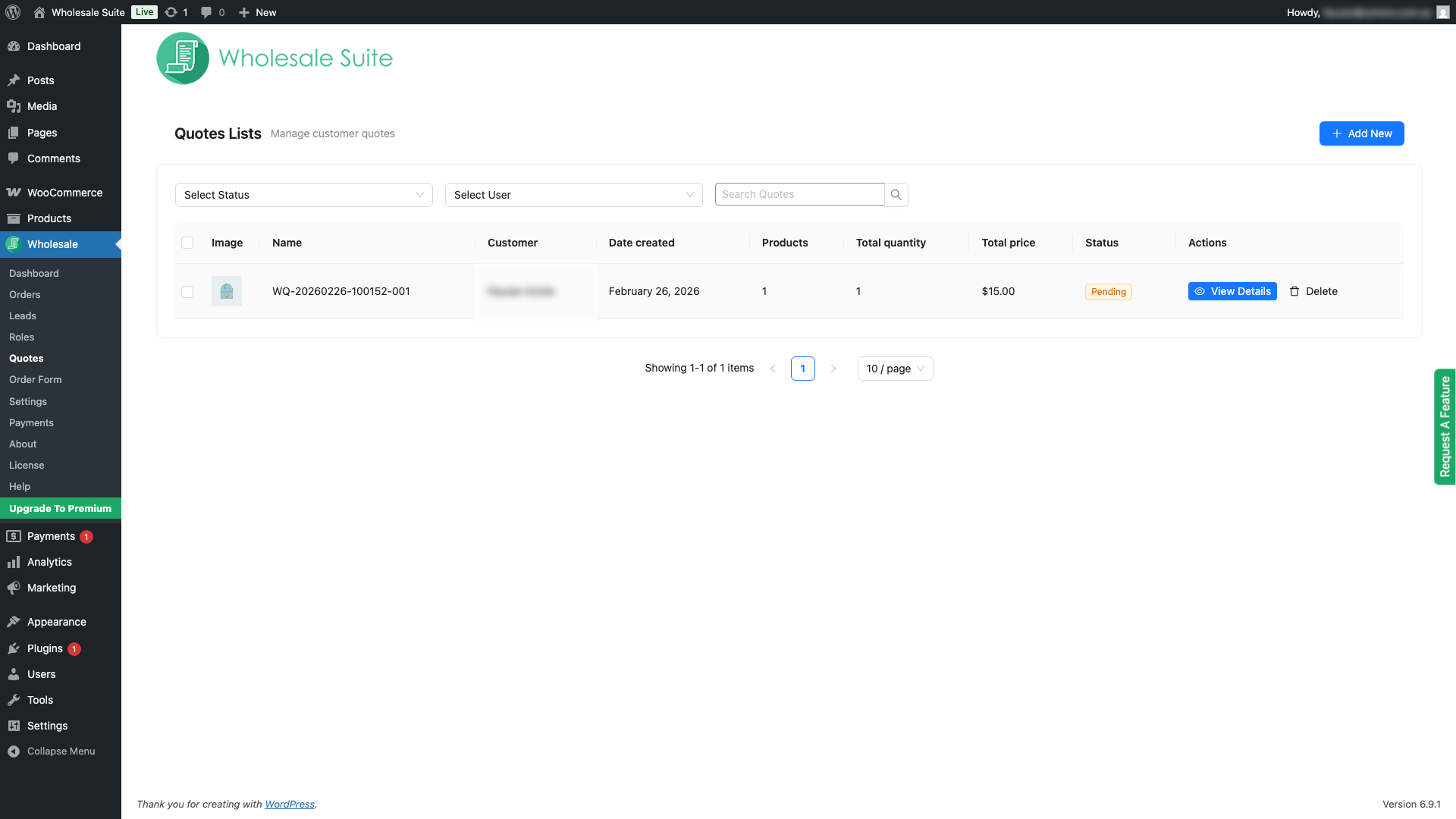
The Quotes dashboard is accessible from two places in your WordPress admin:
- Wholesale > Quotes — if you have WooCommerce Wholesale Prices installed
- WooCommerce > Quotes — available as a standalone menu item
The dashboard shows all submitted quotes (excluding internal draft quotes) in a paginated list. You can search by quote number or customer name, filter by status, and filter by customer.
Understanding Quote Statuses
Every quote moves through a lifecycle of statuses. Knowing what each one means helps you decide what action to take.
| Status | What it means | Available actions |
|---|---|---|
| Pending | Submitted by the customer, waiting for admin review | Approve, Decline, Edit, Delete, Message |
| Approved | You have approved the quote; the customer can proceed | Convert to Order, Edit, Delete, Message |
| Declined | You have declined the quote with a reason | Edit, Delete, Message (if enabled in settings) |
| Converted | Quote has been turned into a WooCommerce order | View Order, Message (if enabled in settings) |
| Expired | The quote’s expiration date has passed without being acted on | Approve, Decline, Edit, Delete |
Step 1: Review a Quote
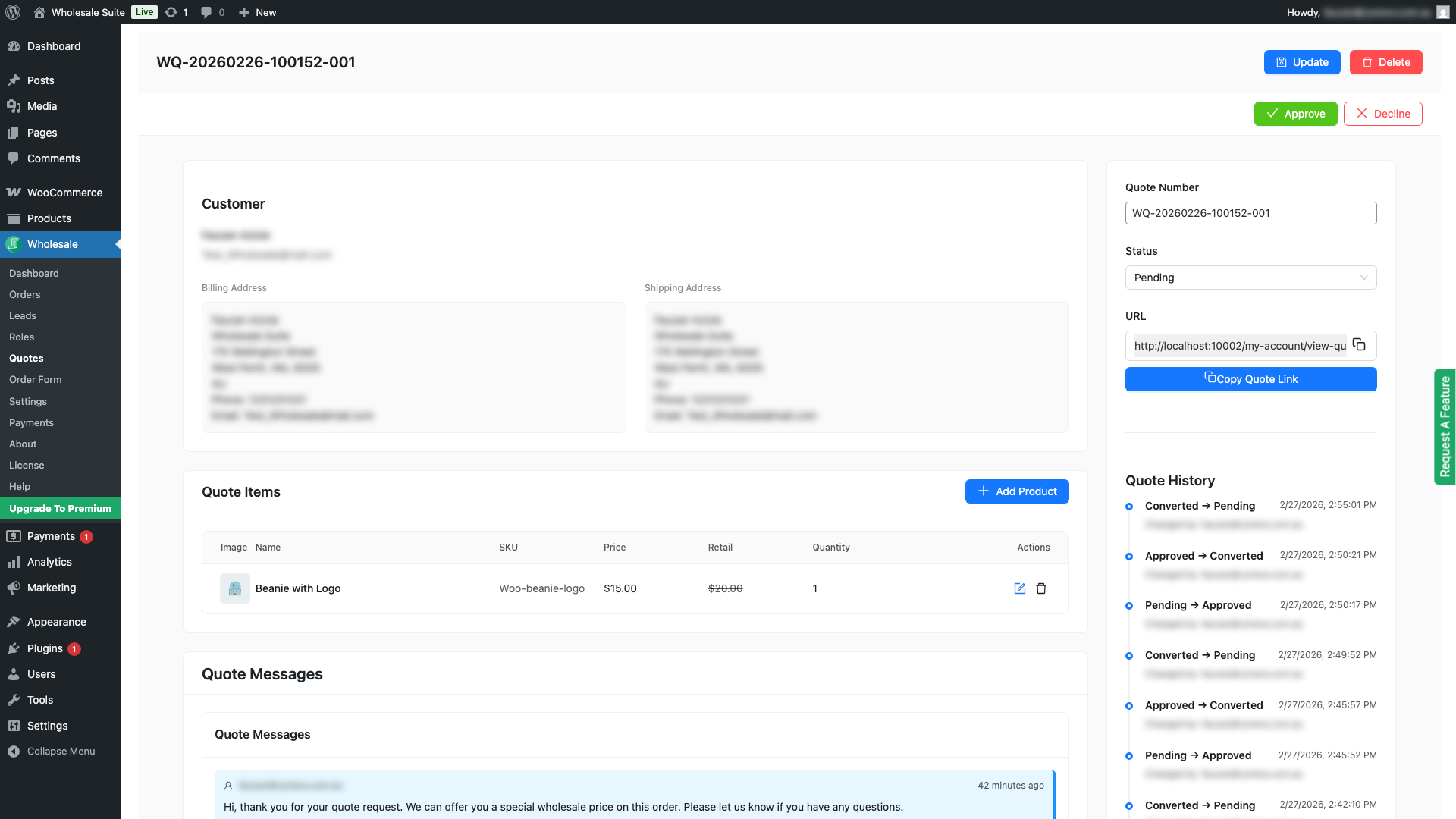
- From the Quotes dashboard, click the quote you want to review.
- The quote detail screen opens, showing the customer’s name and email, the quote number, submission date, expiration date (if set), and the full list of line items.
- Each line item shows the product name, SKU, quantity, wholesale price, and retail price for comparison.
Step 2: Edit the Quote (Optional)
Before approving, you can adjust the quote to reflect any negotiated pricing, add or remove products, or add internal notes.
Edit Line Item Prices and Quantities
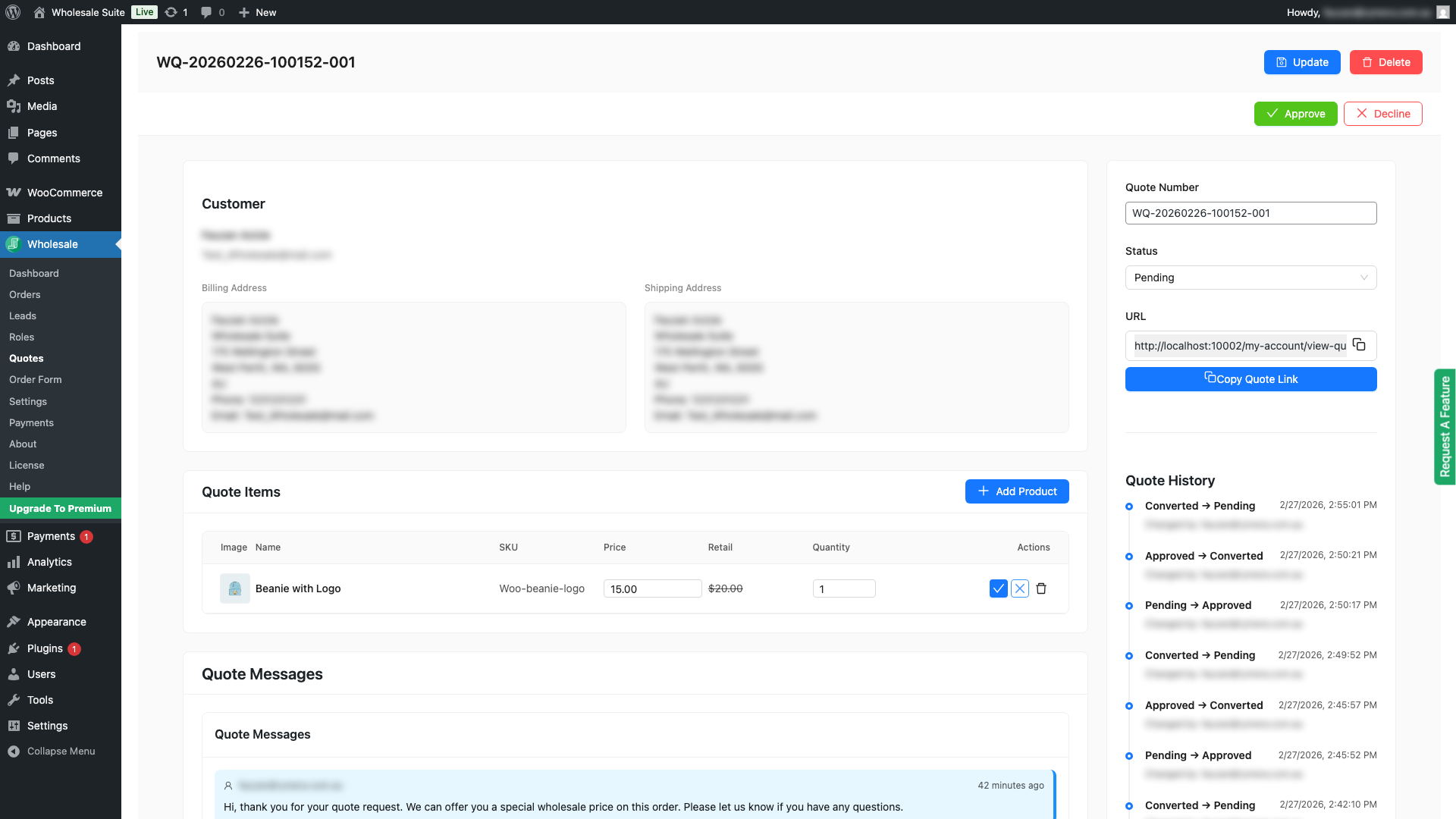
- In the line items table, click the edit icon next to the item you want to change.
- Update the wholesale price or quantity as needed.
- Click Save on the item to apply the change. The quote total updates automatically.
Add or Remove Products
- To add a product, use the Add Product field — search by product name or SKU and select the item. The wholesale price for the customer’s role is loaded automatically.
- To remove a product, click the delete icon on that line item.
- Click Save to apply your changes.
Add Admin Notes and Edit the Quote Number
You can add internal notes to the quote — these are visible to admins only and are carried over when the quote is converted to an order. You can also edit the quote number field if you need it to follow a specific reference format.
Step 3: Approve a Quote
Approving a quote notifies the customer by email (if the Quote Approved email is enabled) and moves the quote to Approved status, where it can then be converted to an order.
- Open the quote detail screen.
- Click Approve.
- The quote status changes to Approved and the customer receives an email notification.
If you want to approve and immediately convert to an order in a single action, you can use the Convert to Order button — it will auto-approve the quote first if it is still pending.
Step 4: Decline a Quote
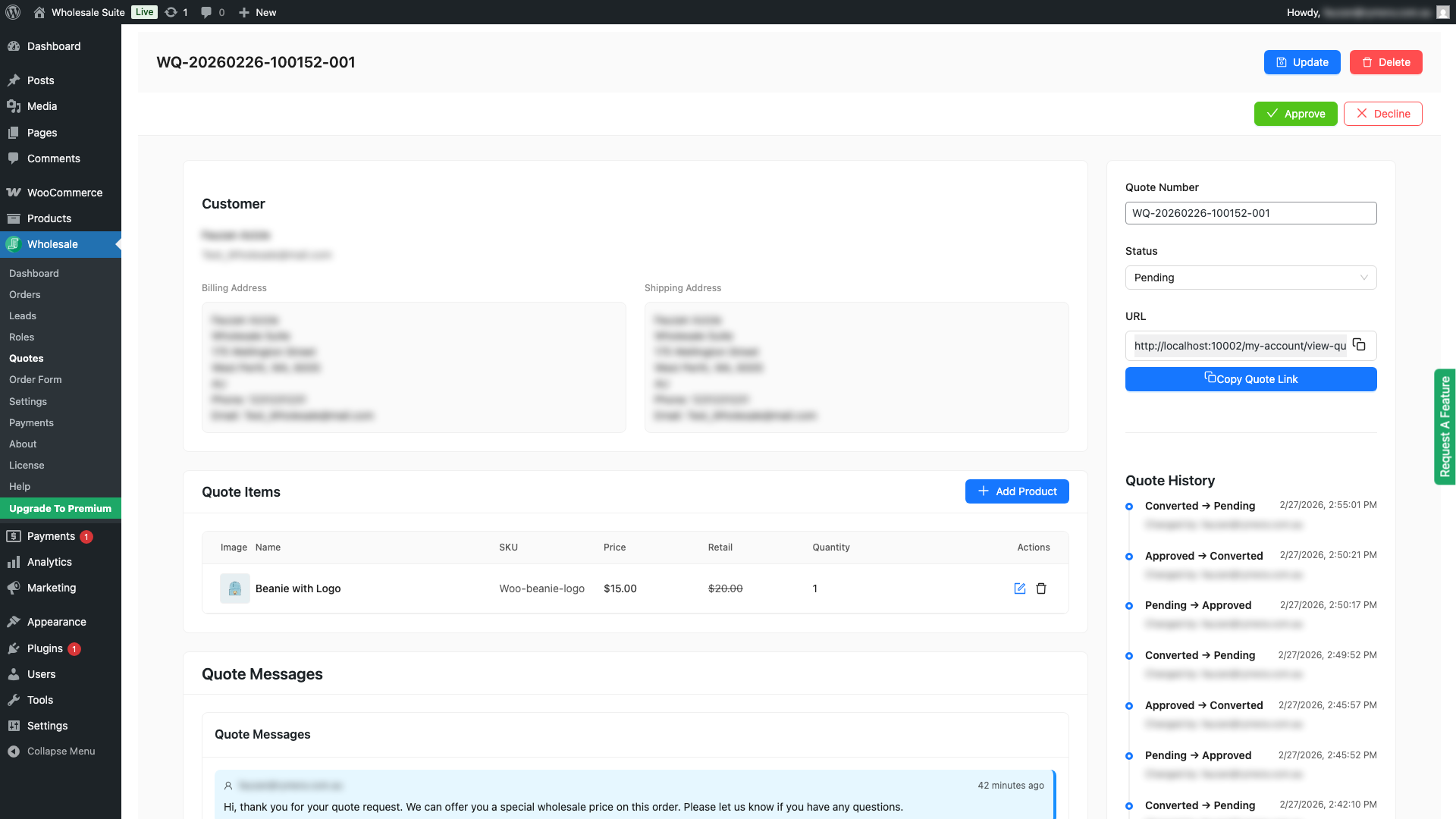
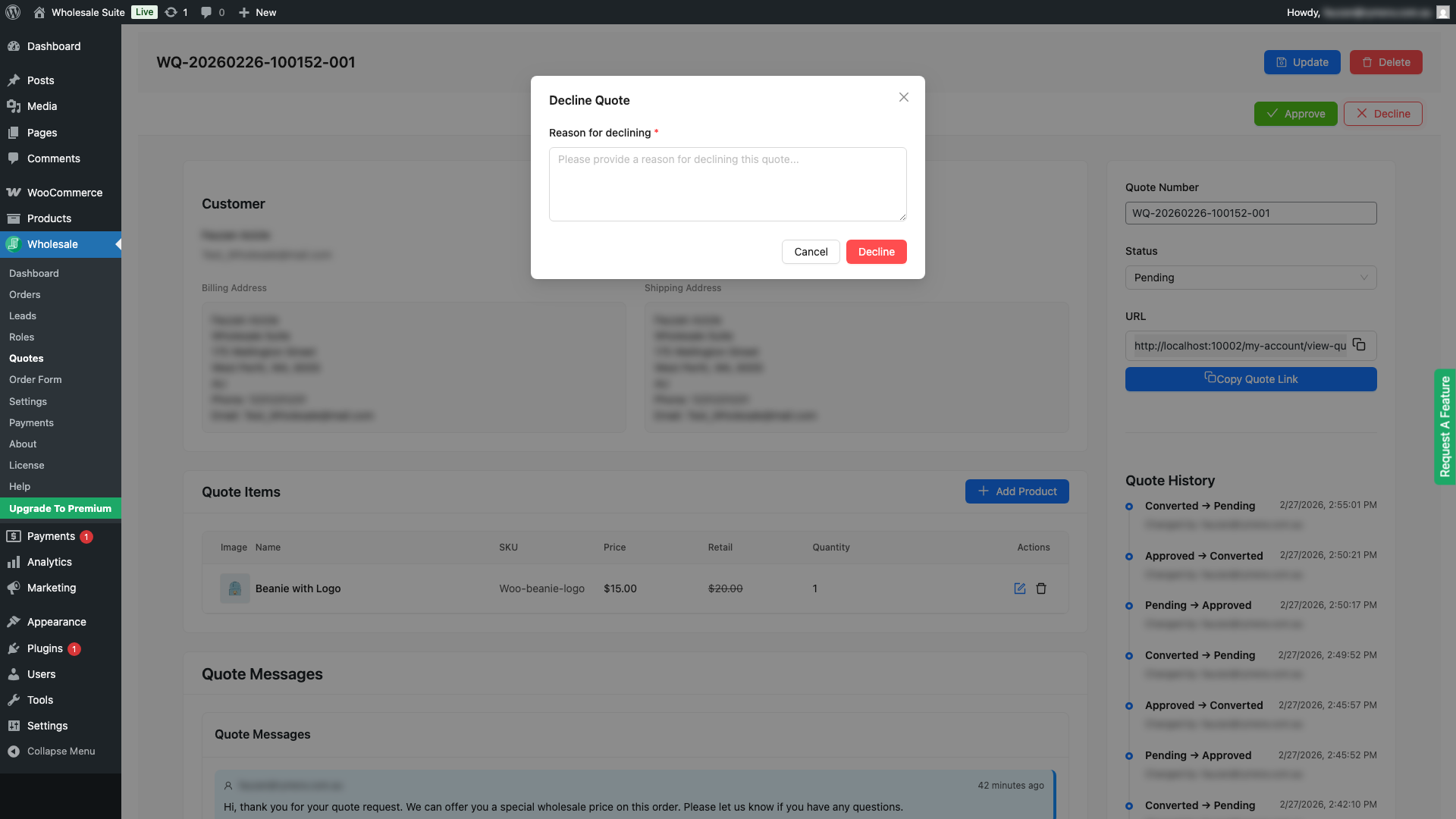
Declining a quote requires you to provide a reason. The reason is sent to the customer in the Quote Declined email (if enabled) so they understand what happened and can follow up.
- Open the quote detail screen.
- Click Decline.
- A prompt appears asking for a decline reason. Enter your reason — this is required and will be included in the notification email to the customer.
- Click Confirm to decline. The quote status changes to Declined.
Step 5: Convert an Approved Quote to an Order
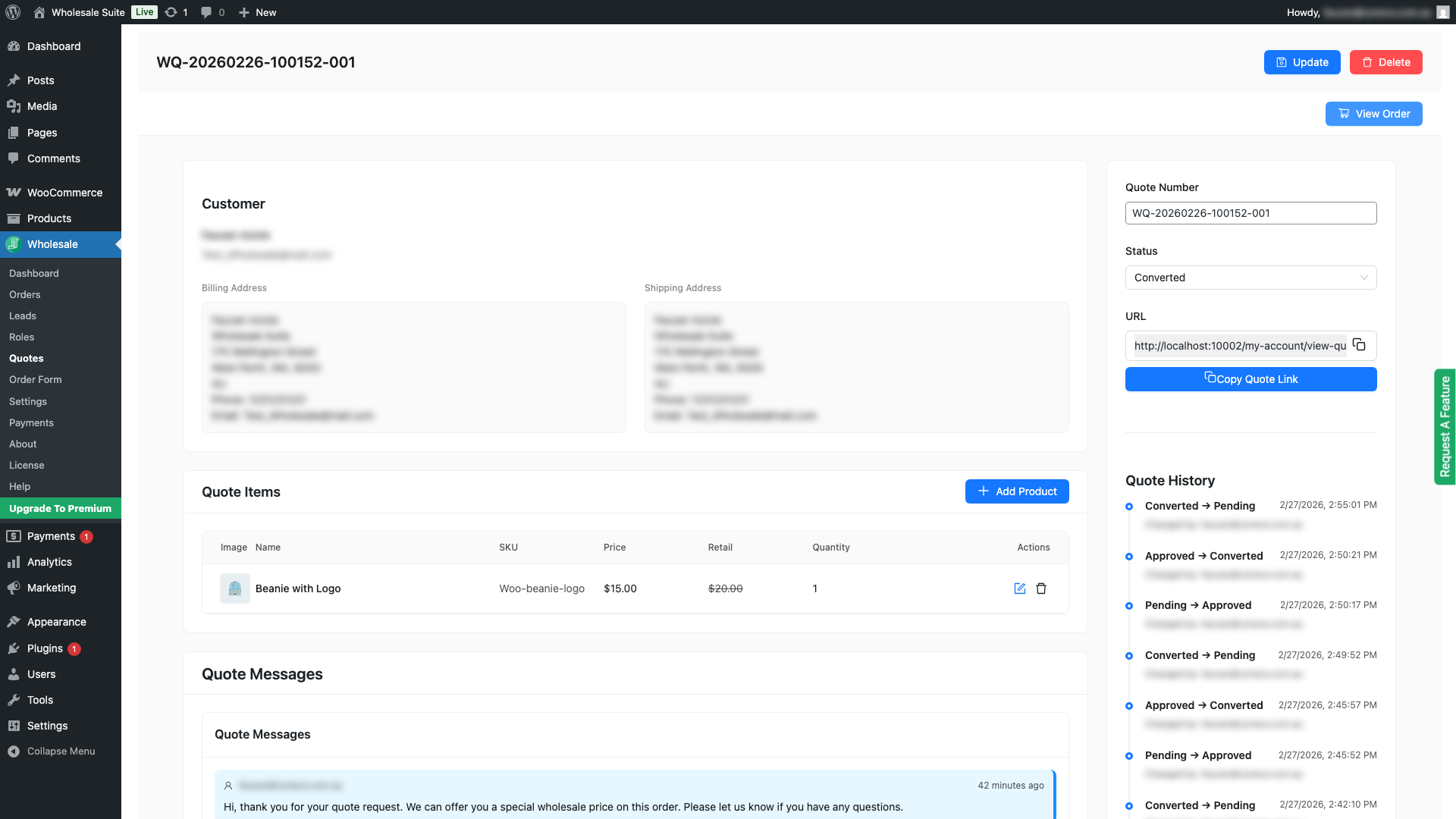
Converting a quote creates a WooCommerce order with the wholesale prices locked in from the quote. The order is created with a Pending payment status so the customer can complete payment through your normal checkout flow.
- Open an approved quote (or a pending quote — the system will auto-approve it first).
- Click Convert to Order.
- The plugin creates a WooCommerce order using the quote’s line items at their locked wholesale prices. If the quote included billing or shipping addresses, these are applied to the order automatically.
- The quote status changes to Converted and a link to the new WooCommerce order appears on the quote detail screen.
At conversion, the plugin checks stock availability using your Out of stock product handling setting (found under Wholesale > Settings > Wholesale Quotes > General). If set to Exclude, any out-of-stock items are removed from the order. If set to Backorder (the default), all items are included and WooCommerce handles backorders as normal.
Sending Messages to the Customer
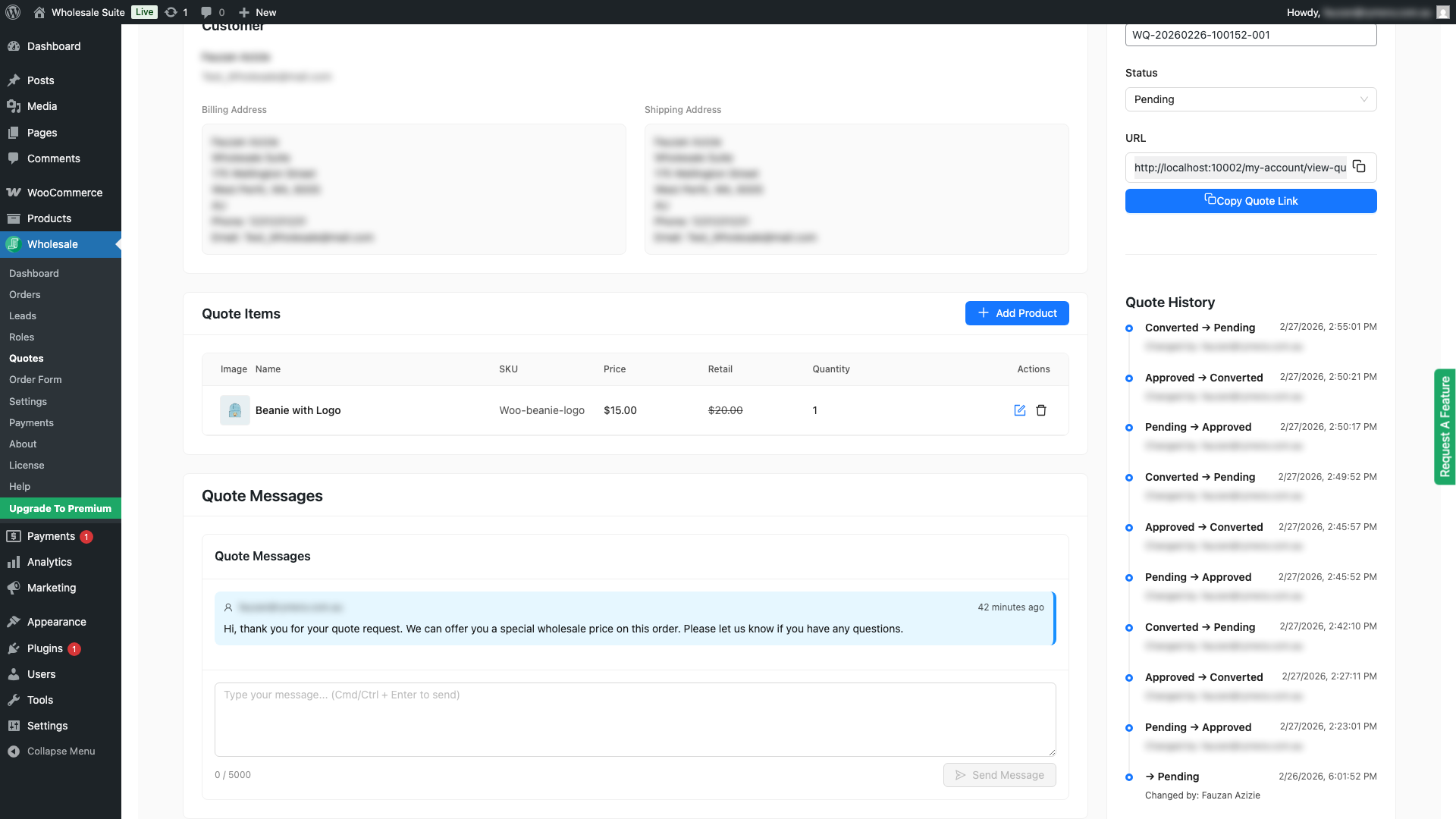
If the messaging feature is enabled (under Wholesale > Settings > Wholesale Quotes > General > Message Settings), each quote detail screen includes a message thread. You can send a message to the customer directly from within the quote — for example, to ask a clarifying question before approving, or to explain a pricing adjustment.
- Open the quote detail screen.
- Scroll to the Messages section.
- Type your message and click Send.
- The customer receives an email notification (if the Customer Message email is enabled) and can reply from their own quote view.
Quote Expiration
Quotes automatically expire after the number of days set under Wholesale > Settings > Wholesale Quotes > General > Quote expiration days (default: 30 days). When a quote expires:
- Its status changes to Expired
- The customer receives a Quote Expired email notification (if enabled)
- You can still approve or convert the quote from the admin — expiration only prevents customers from acting on it directly
To set a specific expiration date on an individual quote, edit the Expires at field on the quote detail screen before approving.
Deleting a Quote
To permanently delete a quote, open the quote detail screen and click Delete. You can also select multiple quotes from the dashboard list and delete them in bulk using the Bulk Actions control.
Deleting a quote is permanent and cannot be undone. If the quote has already been converted to a WooCommerce order, deleting the quote does not delete the order.
Frequently Asked Questions
Can I convert a pending quote to an order without approving it first?
Yes. Clicking Convert to Order on a pending quote will auto-approve it and immediately convert it in a single step.
Does converting a quote update stock levels?
Yes. Converting a quote creates a standard WooCommerce order, which reduces stock levels according to your WooCommerce stock management settings — the same as any other order placed through your store.
Can I edit a quote after it has been approved?
Yes. You can edit line items, pricing, notes, and the quote number on quotes in any status, including approved and expired. Changes to pricing on an already-approved quote take effect when the quote is converted to an order.
What happens to the customer’s quote if I decline it?
The customer receives a notification email with the decline reason you provided. The quote shows as Declined in their My Account quotes list. You can still message the customer through the quote thread to discuss next steps.
Need Help?
If you have a question or run into any issues, we’re here to help.
- Premium users: Open a support ticket
- Free users: Visit our community forum

