
WooCommerce Wholesale Quotes gives you detailed control over how quotes work in your store — from submission rules and button placement to email notifications and guest access. This article covers every setting in every tab, so you can configure the plugin to fit your workflow without guesswork.
How to Access These Settings
- Log in to your WordPress admin.
- Go to Wholesale > Settings.
- Click the Wholesale Quotes tab in the main settings navigation.
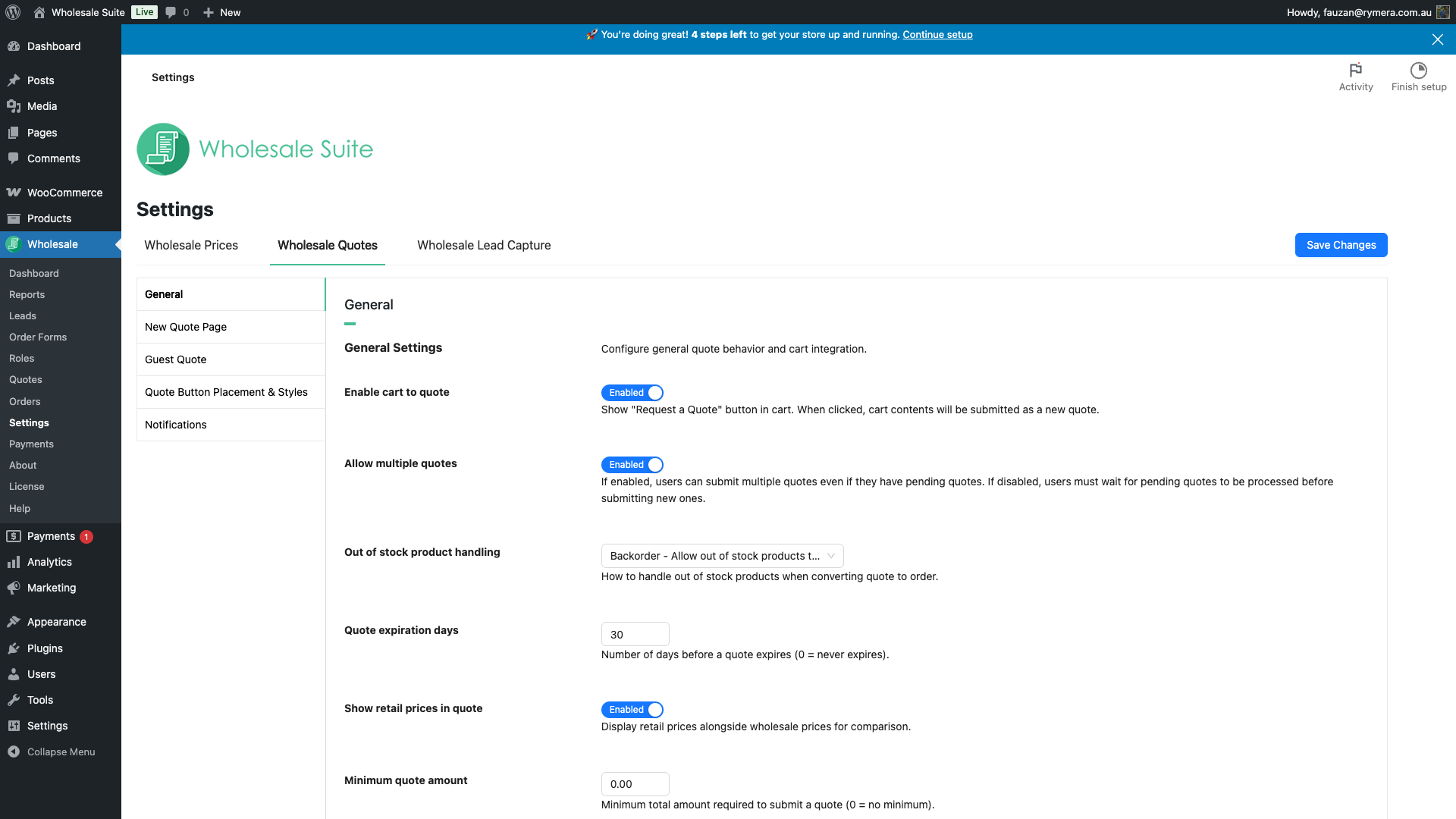
General Tab
The General tab controls overall quote behaviour — submission rules, pricing display, and the built-in messaging system between customers and admins.
General Settings
| Setting | Description | Default |
|---|---|---|
| Enable cart to quote | Shows a “Request a Quote” button in the cart. When clicked, the cart contents are submitted as a new quote. | Enabled |
| Allow multiple quotes | When enabled, customers can submit new quotes even if they already have pending ones. When disabled, customers must wait for existing quotes to be processed first. | Enabled |
| Out of stock product handling | What happens to out-of-stock items when a quote is converted to an order. Backorder keeps them on the order; Exclude removes them automatically; Notify shows a warning but still allows the conversion. | Backorder |
| Quote expiration days | Number of days before an approved quote expires. Set to 0 for quotes that never expire. Maximum: 365 days. | 30 |
| Show retail prices in quote | Displays standard retail prices alongside wholesale prices on the quote, so customers can see the discount they’re receiving. | Enabled |
| Minimum quote amount | Minimum cart total required before a quote can be submitted. Set to 0 for no minimum. | 0 |
| Maximum quote items | Maximum number of distinct line items allowed in a single quote. Set to 0 for unlimited. | 0 (unlimited) |
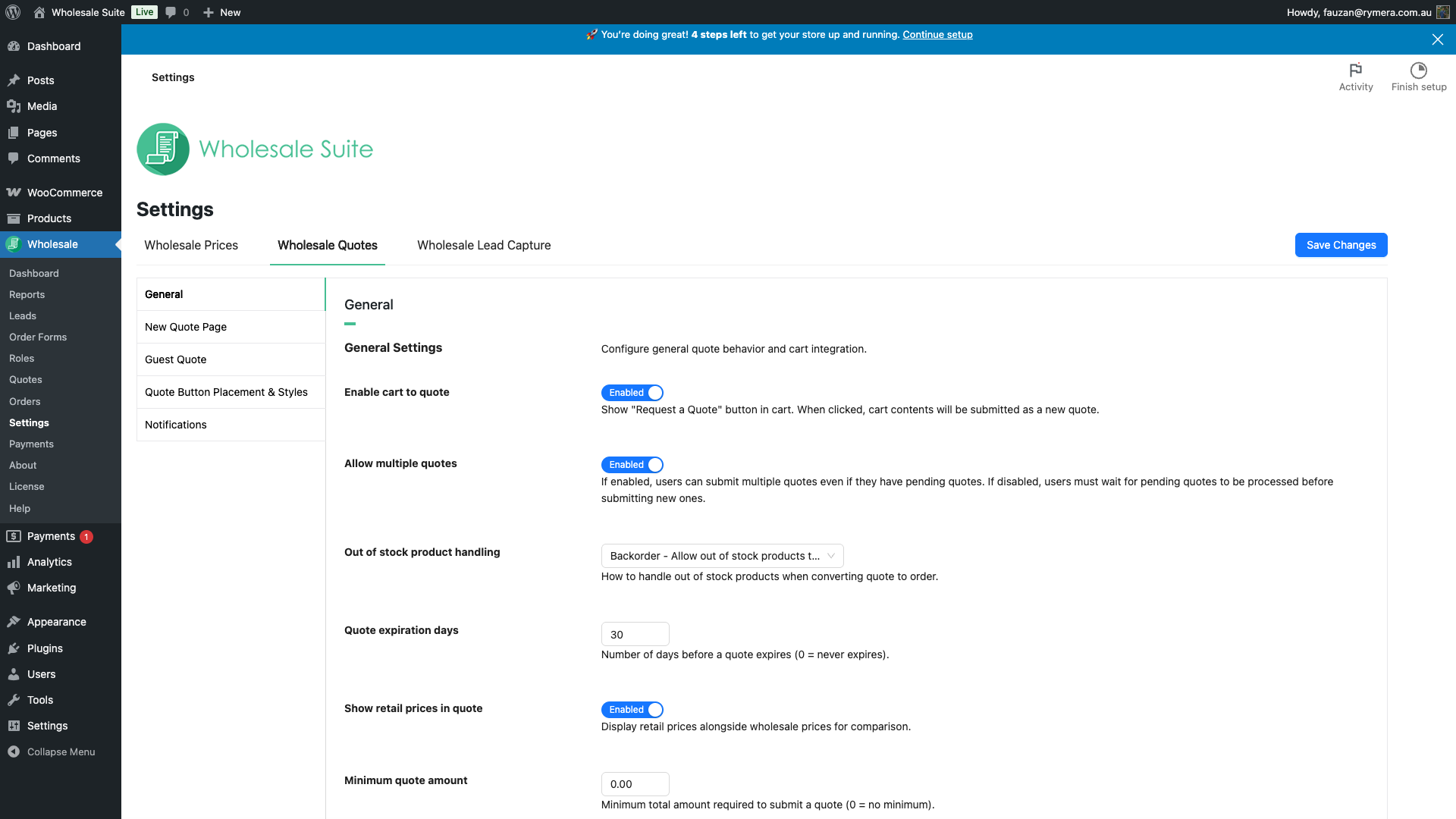
Message Settings
These settings control the built-in messaging feature, which lets customers and admins exchange notes directly on a quote thread.
| Setting | Description | Default |
|---|---|---|
| Enable Messages | Turns the messaging feature on or off for all quotes. When disabled, the message thread is hidden from both customers and admins. | Enabled |
| Messages Per Hour | Maximum number of messages a customer can send per hour. Admins are not subject to this limit. Range: 1–100. | 10 |
| Allow Messages on Converted Quotes | When enabled, customers can still send messages after a quote has been converted to an order. | Disabled |
| Allow Messages on Declined Quotes | When enabled, customers can still send messages after a quote has been declined. | Disabled |
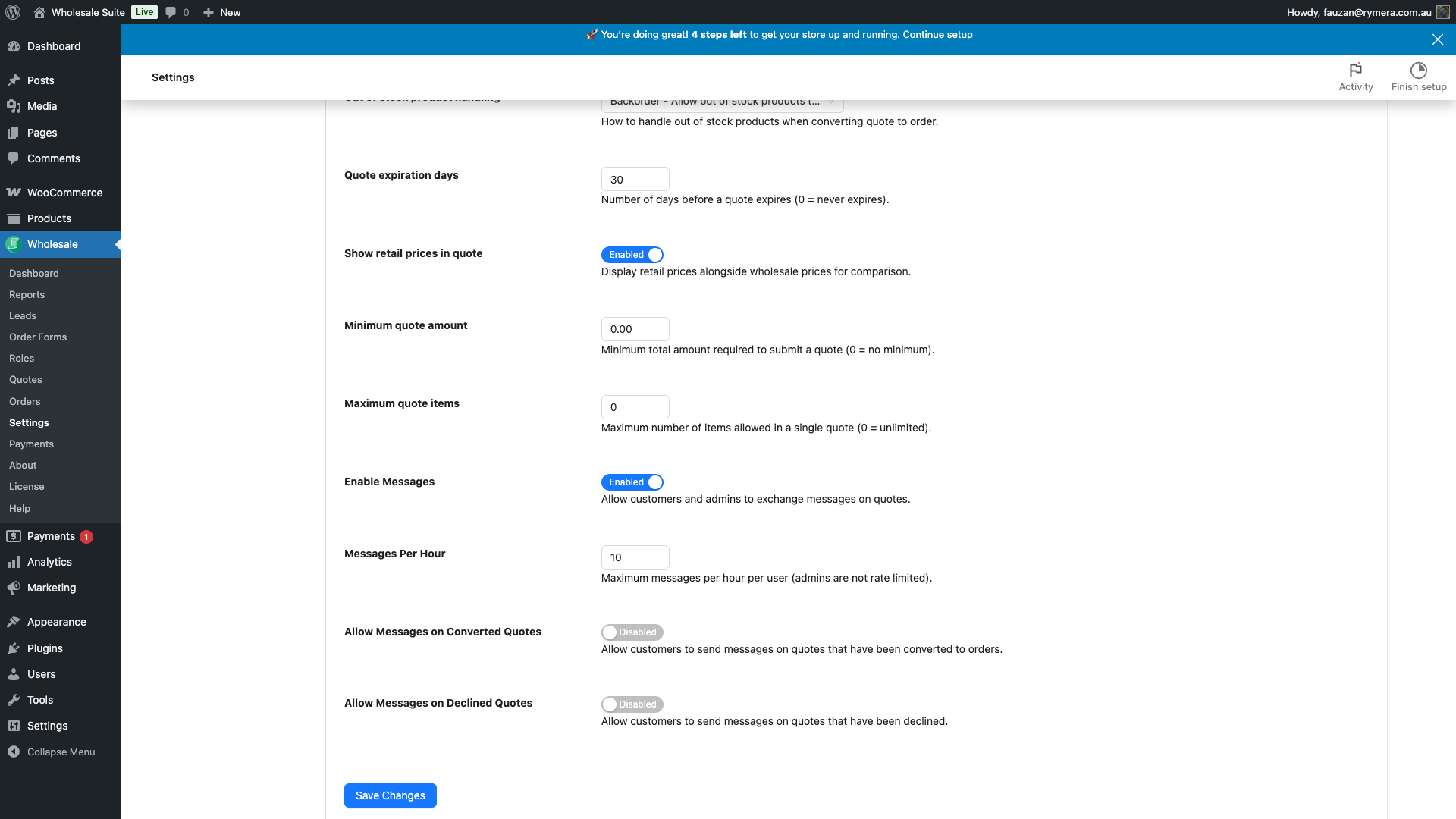
New Quote Page Tab
The New Quote Page tab groups four configuration areas: the quote submission and viewing pages, the floating counter widget, toast notifications, and address collection on the quote form.
Quote Page Settings
| Setting | Description | Default |
|---|---|---|
| New Quote Page | The WordPress page where customers fill out and submit new quotes. This page should have the WooCommerce Wholesale Quotes shortcode or block added to it. | (none selected) |
| View Quote Page | The page guests and email link recipients are directed to when viewing a submitted quote. Used for public quote sharing links sent via email. | (none selected) |
| Action after adding product to quote | What happens after a customer clicks Add to Quote on a product page. Redirect to quote page sends them to the New Quote Page immediately. Show notice only keeps them on the current page and shows a confirmation message. | Redirect to quote page |
Counter Widget Settings
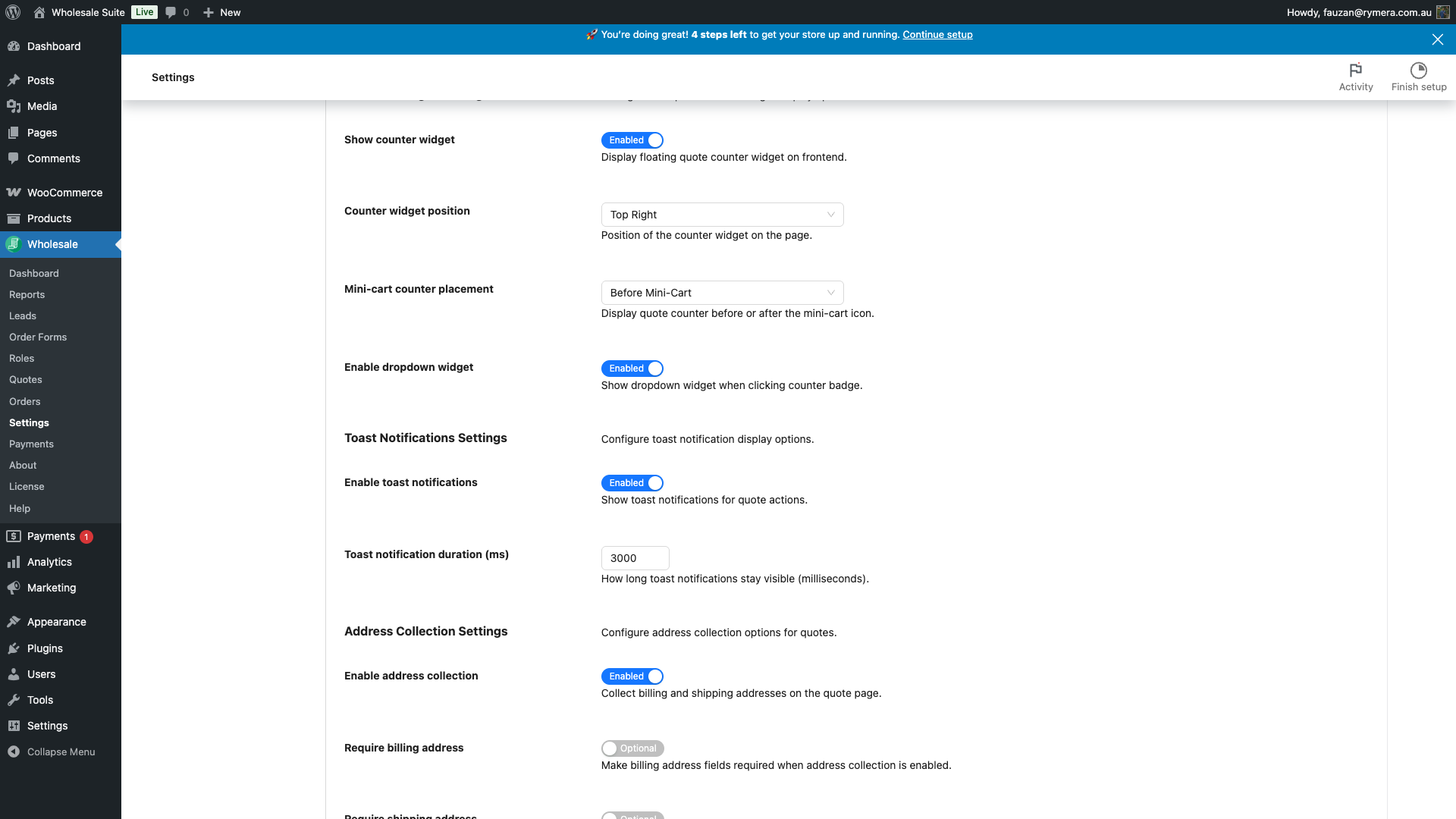
The counter widget is a floating badge displayed on the frontend that shows customers how many items are currently in their quote.
| Setting | Description | Default |
|---|---|---|
| Show counter widget | Displays the floating quote counter badge on all frontend pages. | Enabled |
| Counter widget position | Corner of the screen where the floating counter badge appears. Options: Top Right, Top Left, Bottom Right, Bottom Left. Only visible when Show counter widget is enabled. | Top Right |
| Mini-cart counter placement | Whether the quote counter icon appears before or after the mini-cart icon in the site header. Only visible when Show counter widget is enabled. | Before Mini-Cart |
| Enable dropdown widget | When enabled, clicking the counter badge opens a mini-dropdown showing the current quote contents and a link to the quote page. Only visible when Show counter widget is enabled. | Enabled |
Toast Notification Settings
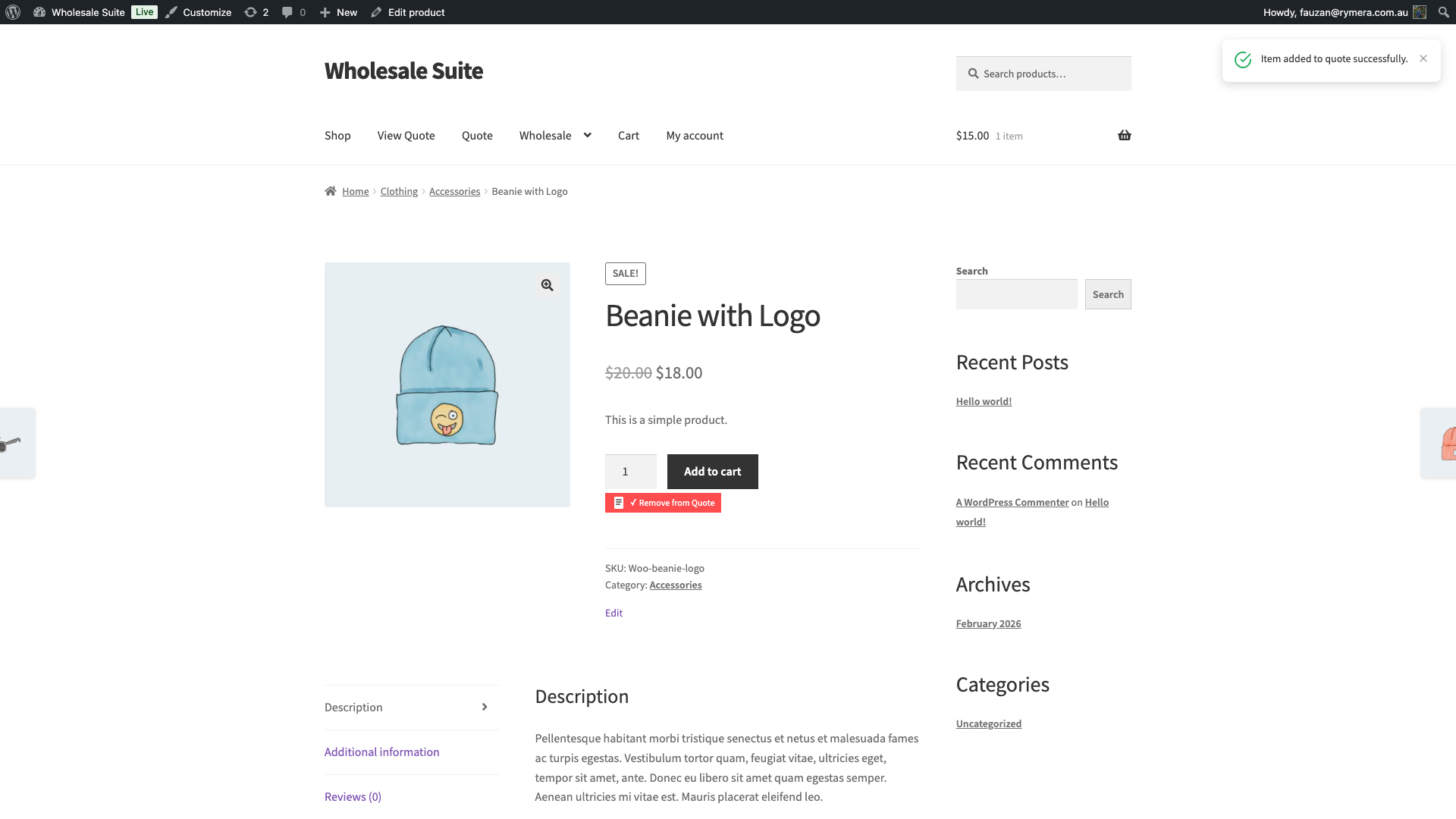
Toast notifications are brief pop-up messages that appear when a customer adds or removes a product from their quote.
| Setting | Description | Default |
|---|---|---|
| Enable toast notifications | Turns toast notifications on or off across the entire frontend. | Enabled |
| Toast notification duration (ms) | How long a toast notification stays visible before fading out, in milliseconds. Range: 1,000–10,000 (1–10 seconds). Only visible when toast notifications are enabled. | 3000 (3 seconds) |
Address Collection Settings
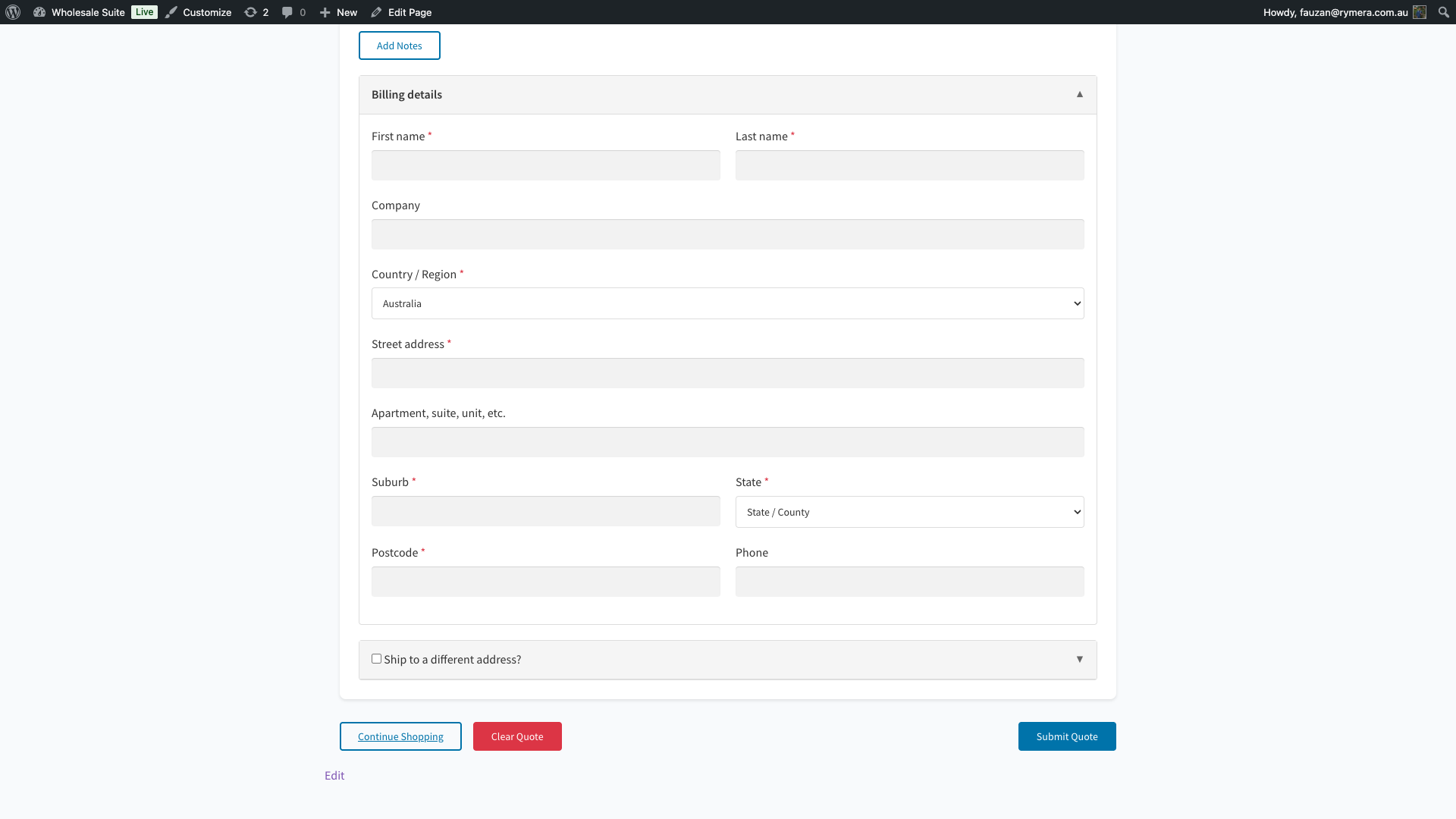
When address collection is enabled, the quote submission form includes billing and shipping address fields, letting you collect delivery details at the quote stage rather than at checkout.
| Setting | Description | Default |
|---|---|---|
| Enable address collection | Adds billing and shipping address fields to the quote submission form. | Disabled |
| Require billing address | When enabled, customers must complete the billing address fields before submitting their quote. Only applies when address collection is turned on. | Optional |
| Require shipping address | When enabled, customers must complete the shipping address fields before submitting their quote. Only applies when address collection is turned on. | Optional |
Guest Quote Tab
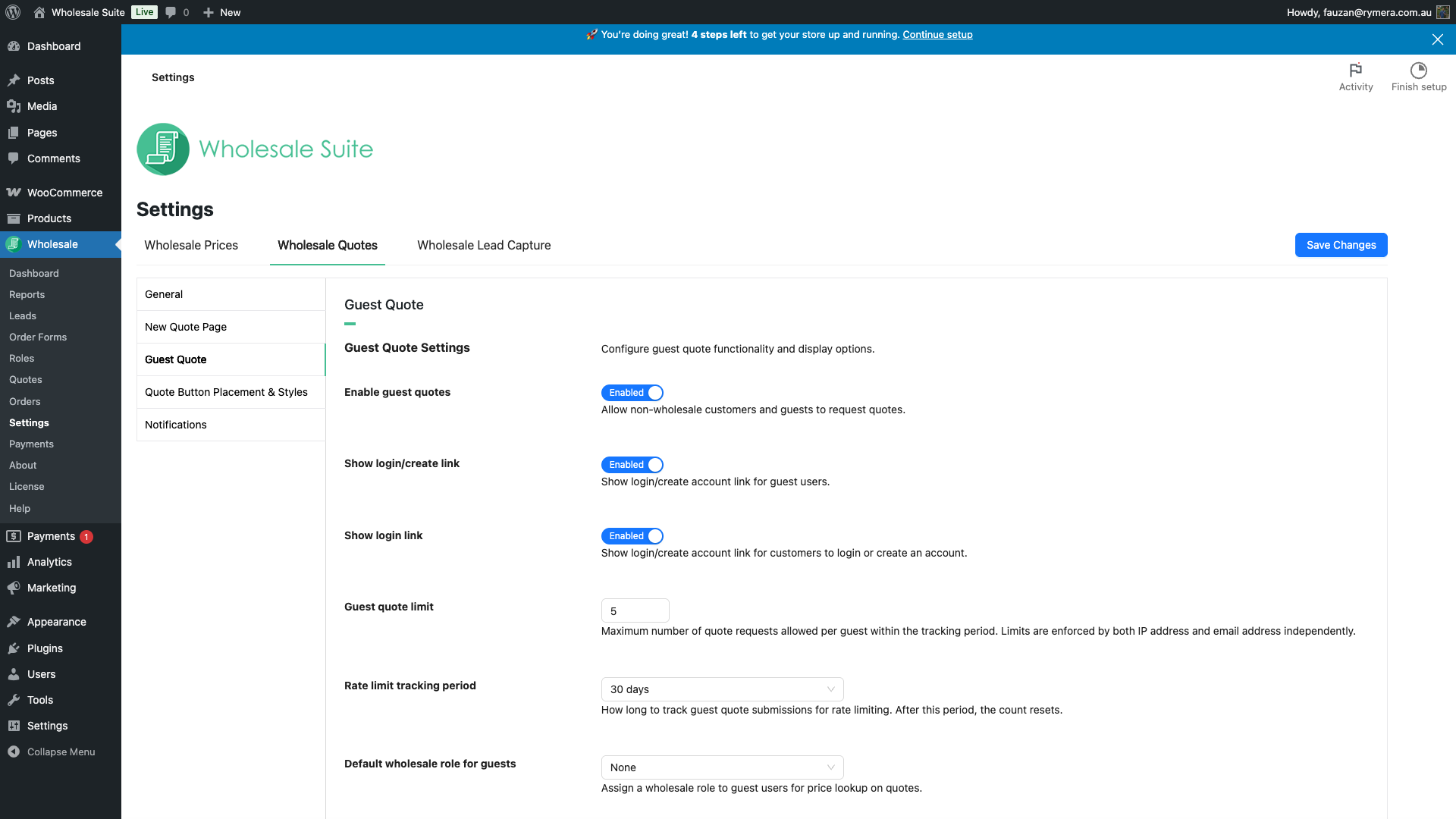
The Guest Quote tab controls whether visitors who aren’t logged in (or who don’t have a wholesale role) can submit quotes, and how their submissions are rate-limited to prevent abuse.
Guest Quote Settings
| Setting | Description | Default |
|---|---|---|
| Enable guest quotes | Allows visitors who are not logged in, and registered customers without a wholesale role, to submit quote requests. | Disabled |
| Show login/create link | When guest quotes are enabled, shows a prompt encouraging guests to log in or create an account. Only visible when guest quotes are enabled. | Enabled |
| Show login link | Shows a separate login or register link on the quote page for guests. Only visible when guest quotes are enabled. | Enabled |
| Guest quote limit | Maximum number of quotes a single guest can submit within the tracking period. Limits are enforced independently by IP address and by email address. Range: 1–100. Only visible when guest quotes are enabled. | 5 |
| Rate limit tracking period | The rolling window used to count a guest’s quote submissions. After this period, their count resets. Options: Never reset (permanent limit), 7 days, 30 days, 60 days, 90 days. Only visible when guest quotes are enabled. | 30 days |
| Default wholesale role for guests | Assigns a wholesale role to guest submissions so the plugin can display the correct wholesale pricing on the quote. Select a role defined in WooCommerce Wholesale Prices. Only visible when guest quotes are enabled. | (none) |
Quote Button Placement & Styles Tab
This tab controls how the quote button looks and where it appears on product pages, shop and category archive pages, and the cart.
General Button Settings
These labels apply globally to quote buttons on all product and shop pages.
| Setting | Description | Default |
|---|---|---|
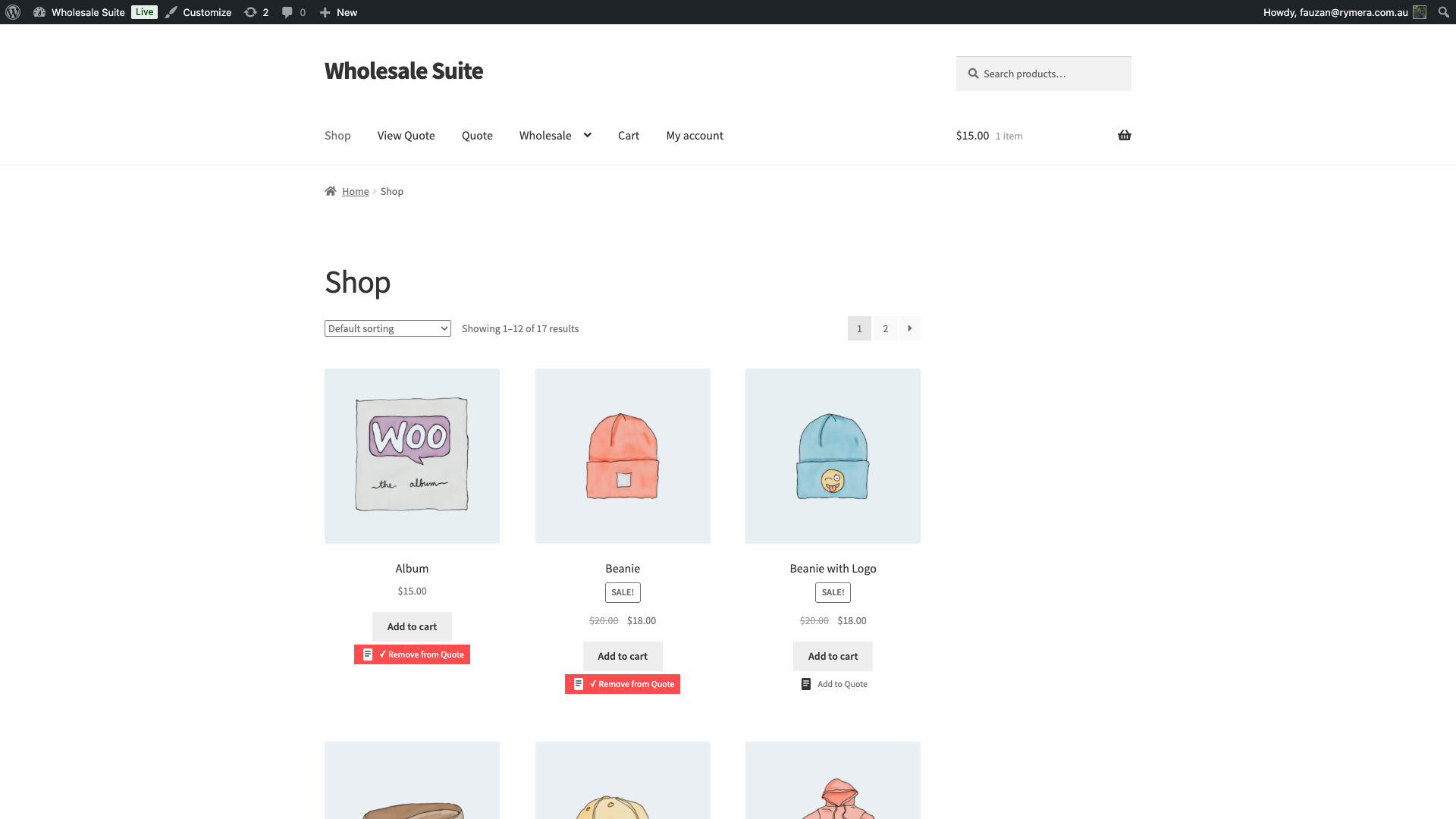
| Quote button label | The text displayed on the Add to Quote button on product and shop pages. | “Add to Quote” |
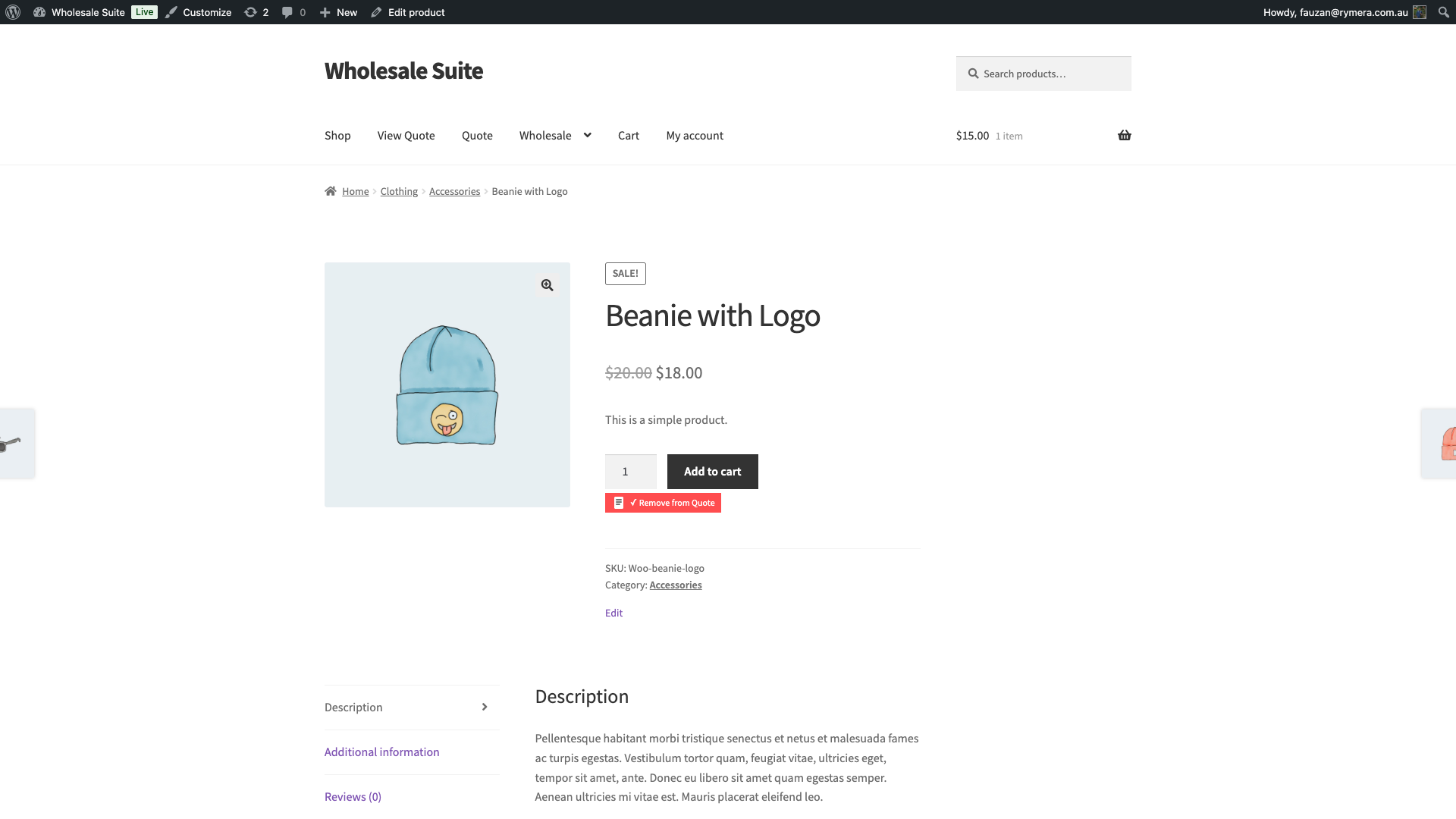
| Remove from Quote button label | The text displayed on the button when the product is already in the customer’s quote and can be removed. | “Remove from Quote” |
Product Page Button Settings
| Setting | Description | Default |
|---|---|---|
| Product page button placement | Where the quote button appears on individual product pages. You can position it relative to the Add to Cart button, the product title, or overlay it on the product image. | Below the Add to Cart Button |
| Product page button style | The visual treatment of the button. Text Only shows just the label. Icon Only shows the quote icon with no text. Other options combine icon and text in solid, outline (icon+text), or pill shapes. | Solid Icon and Text |
Placement options: Above the Add to Cart Button, Below the Add to Cart Button, Above the Product Title, Below the Product Title, Product image – Top right, Product image – Top left, Product image – Bottom right, Product image – Bottom left.
Style options: Text Only, Icon Only, Icon and Text, Icon and Text Pill, Solid Icon, Solid Icon and Text, Solid Icon and Text Pill, Minimal Icon, Minimal Icon and Text, Minimal Icon and Text Pill.
Shop Page Button Settings
| Setting | Description | Default |
|---|---|---|
| Shop page button placement | Where the quote button appears within product cards on the shop page and category archive pages. | Below the Add to Cart Button |
| Shop page button style | The visual style of the quote button on shop and archive pages. Uses the same style options as the product page button. | Solid Icon and Text |
Placement options: Above the Product Title, Below the Product Title, Above the Add to Cart Button, Below the Add to Cart Button, Product image – Top right, Product image – Top left.
Cart Page Button Settings
| Setting | Description | Default |
|---|---|---|
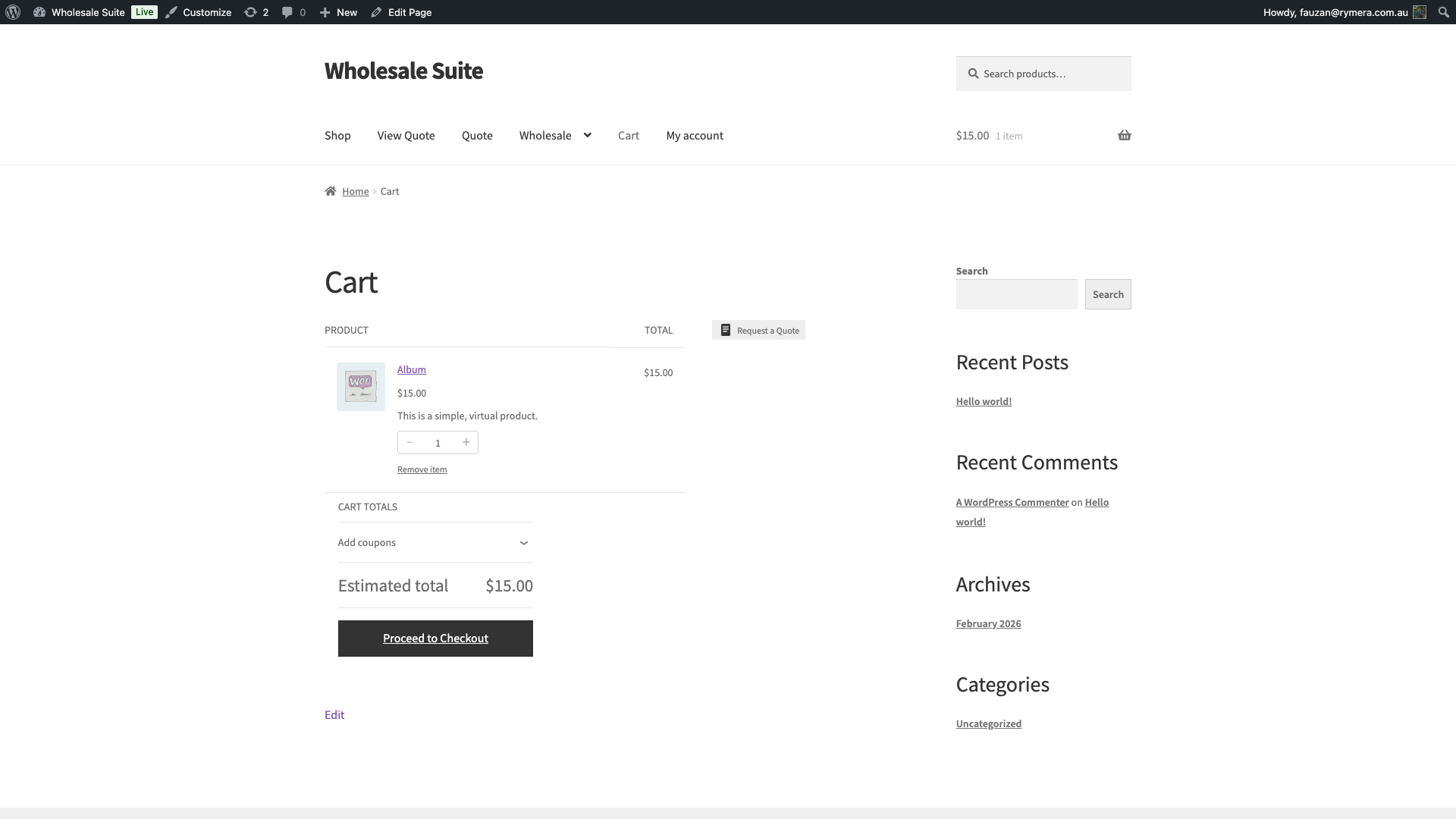
| Cart button label | Text displayed on the quote button on the cart page. This is independent of the product-page button label set above. | “Request a Quote” |
| Cart button placement | Where the quote button appears on the cart page. Options: After cart table, Before cart totals, After proceed to checkout button. | After cart table |
| Cart button style | The visual style of the cart quote button. Options: Solid and Text, Icon and Text, Icon Only. | Solid and Text |
| Clear cart after quote submission | When enabled, the cart is automatically emptied after the customer submits a quote from the cart. When disabled, items remain in the cart after submission. | Yes |
Notifications Tab
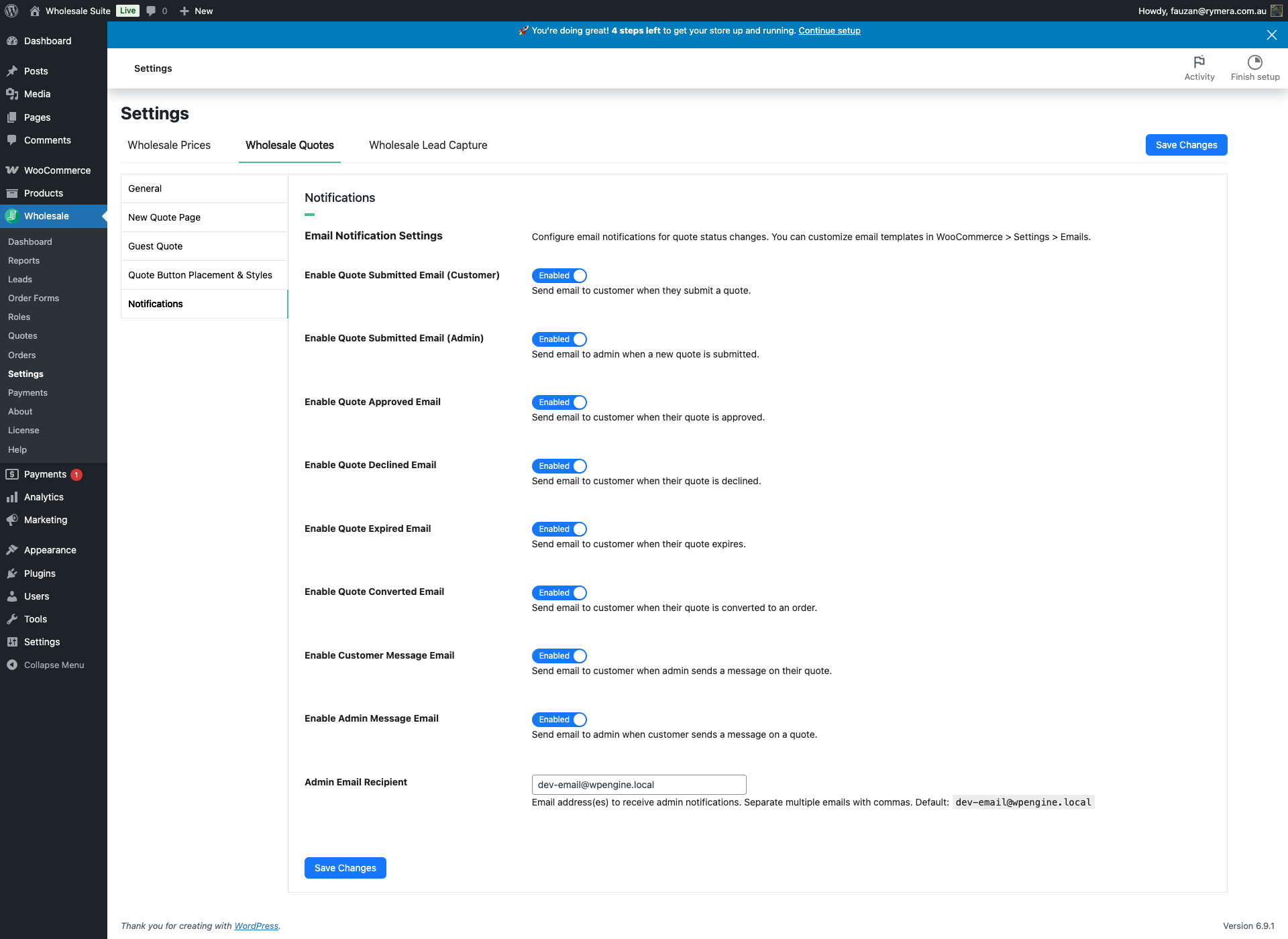
The Notifications tab lets you turn each automated quote email on or off individually, and set the email address that receives admin-facing notifications.
Email Notification Settings
| Setting | Description | Default |
|---|---|---|
| Enable Quote Submitted Email (Customer) | Sends a confirmation email to the customer when they submit a quote. | Enabled |
| Enable Quote Submitted Email (Admin) | Notifies the admin when a new quote has been submitted. | Enabled |
| Enable Quote Approved Email | Sends an email to the customer when their quote is approved by the admin. | Enabled |
| Enable Quote Declined Email | Sends an email to the customer when their quote is declined. | Enabled |
| Enable Quote Expired Email | Notifies the customer when an approved quote has reached its expiration date. | Enabled |
| Enable Quote Converted Email | Sends a confirmation to the customer when their quote is converted to a WooCommerce order. | Enabled |
| Enable Customer Message Email | Notifies the customer by email when an admin sends a message on their quote thread. | Enabled |
| Enable Admin Message Email | Notifies the admin by email when a customer sends a message on a quote. | Enabled |
| Admin Email Recipient | Email address(es) that receive admin notifications. Separate multiple addresses with commas. Defaults to the WordPress site admin email. | WordPress admin email |
To customise email subject lines, sender names, and body content for any of these emails, go to WooCommerce > Settings > Emails.
Frequently Asked Questions
Can I use different button text for the cart and for product pages?
Yes. The Quote button label under General Button Settings applies to product and shop pages. The cart page has its own Cart button label field under Cart Page Button Settings, so you can set different text for each location.
What happens when a guest reaches the quote submission limit?
The limit is enforced independently by IP address and by email address. Once either threshold is reached within the tracking period, that guest cannot submit additional quotes until the period resets. Quotes already submitted before the limit was reached are unaffected.
Does hiding the counter widget affect how quotes work?
No. The counter widget is a display element only. Hiding it removes the floating badge from the frontend but does not affect quote functionality — customers can still add products to their quote and submit it normally.
Need Help?
If you have a question or run into any issues, we’re here to help.
- Premium users: Open a support ticket
- Free users: Visit our community forum

