
If you want your wholesale customers to pay their invoices online, you’ll need to connect Stripe to Wholesale Payments first. This guide walks you through connecting your Stripe account, confirming the connection, and getting ready to collect payments. Once it’s done, customers can pay their wholesale invoices and the money flows straight into your Stripe account.
Before you start
- WooCommerce and Wholesale Prices installed and active. Wholesale Payments needs both to run.
- Wholesale Payments active with a valid license.
- A Stripe account you can sign into, or you can create one during onboarding.
Connect your Stripe account
- Go to Wholesale → Settings → Wholesale Payments.
- Open the General tab and find the API Settings section.
- Click Connect with Stripe.
- You’re taken to Stripe’s onboarding page. Sign in or create your account and complete Stripe’s steps.
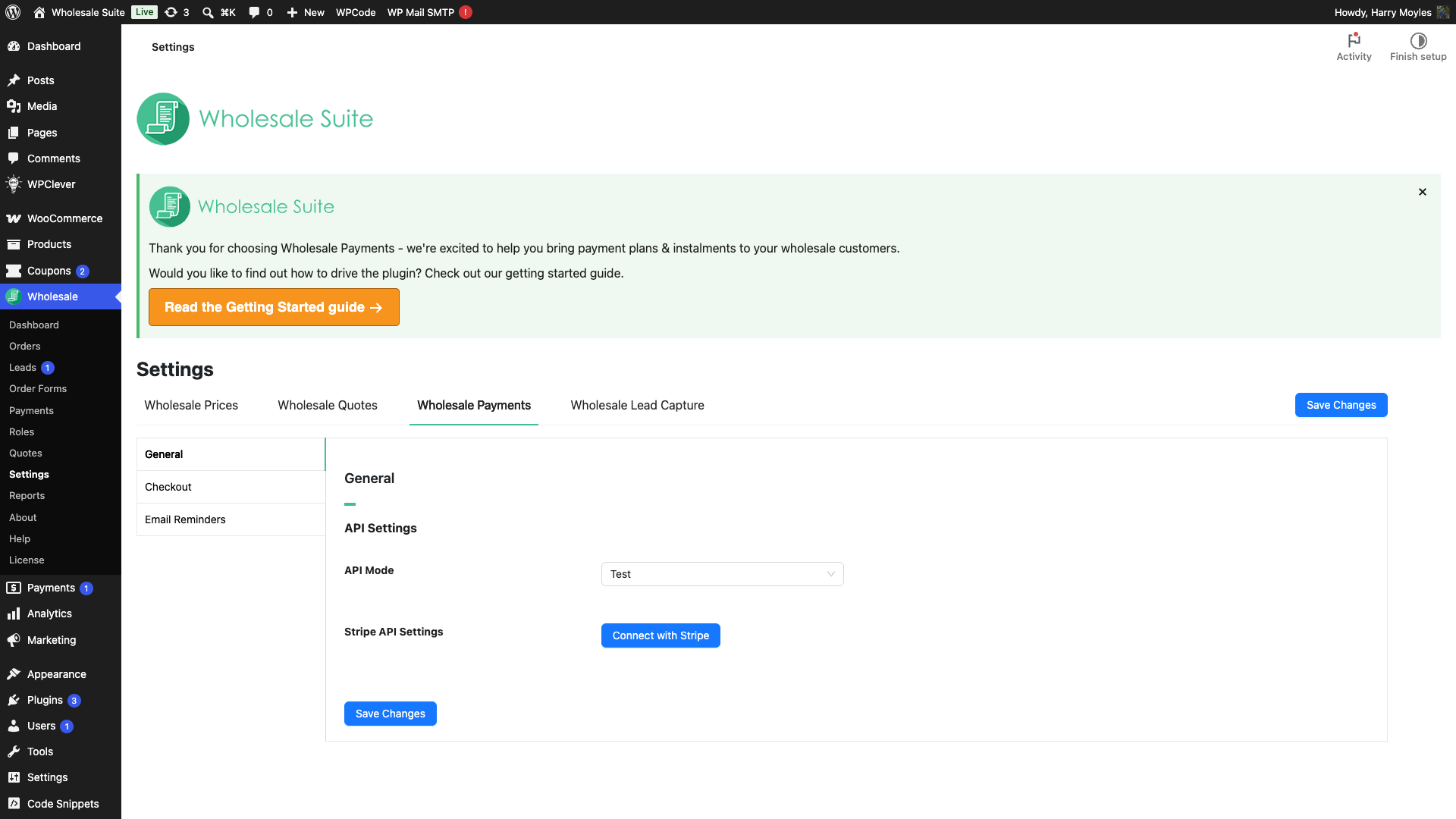
When you finish, Stripe sends you back to the settings page and the connection shows as active.
Confirm the connection
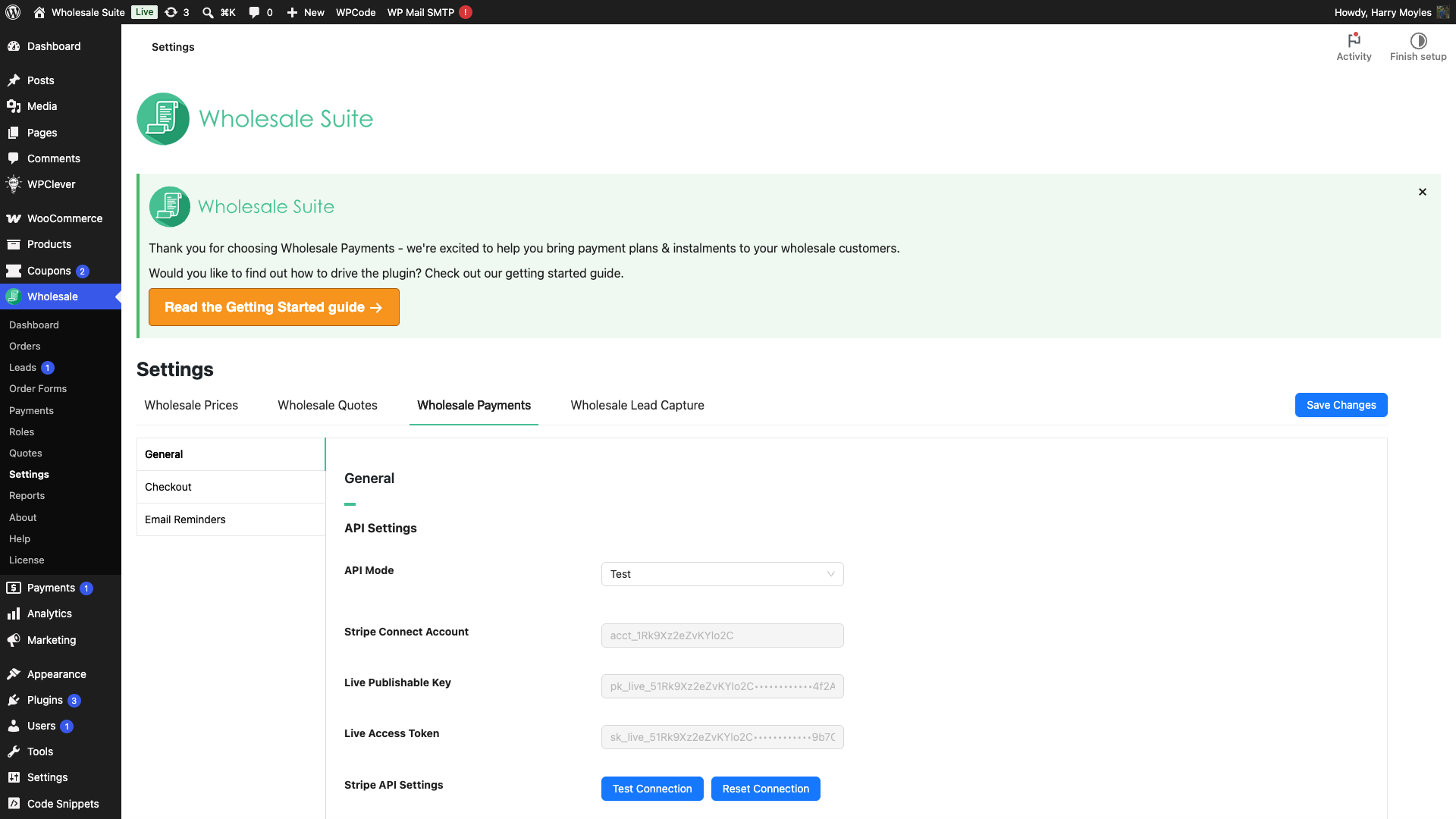
Once connected, the API Settings section shows your Stripe Connect Account number along with Test Connection and Reset Connection buttons. Click Test Connection to confirm everything is talking to Stripe correctly. Use Reset Connection only if you need to disconnect and start over.
Choose which payment methods customers can use
Wholesale Payments doesn’t pick payment methods for you. It uses your Stripe account’s invoice defaults, so the methods your customers can pay with (cards, bank debits, local options) are whatever you’ve enabled for invoices in your Stripe Dashboard. Set them there before you send your first invoice. See Stripe’s invoice payment methods documentation.
How customers pay an invoice
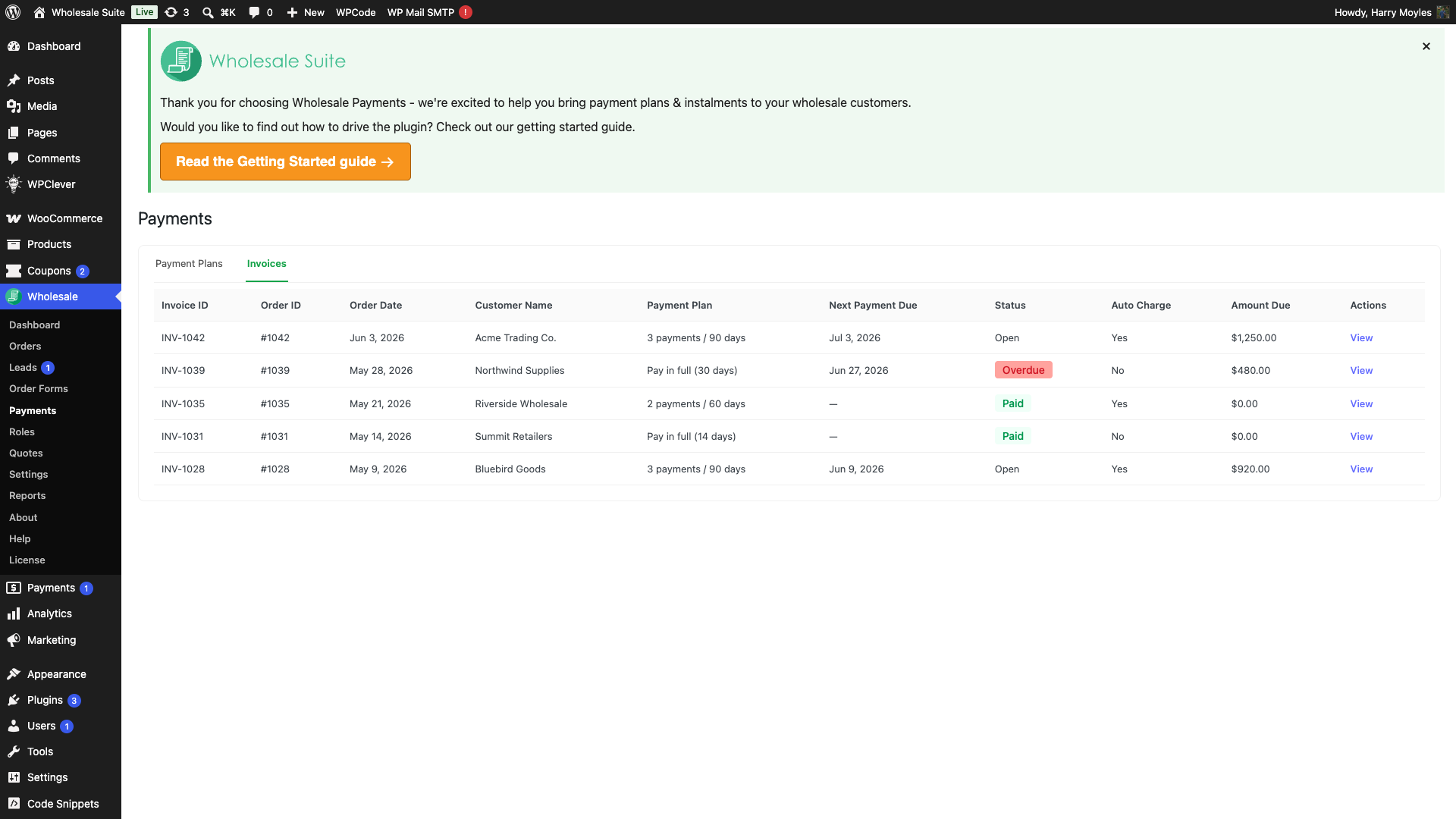
At checkout, your wholesale customer selects the Wholesale Payments option. When the order is placed, Wholesale Payments creates a Stripe invoice for it. By default the invoice is sent to the customer to pay online. If you’ve set up auto-charge, for example with a payment plan and a saved card, Stripe charges the customer automatically on schedule. As payments come in, the order and the Invoices tab update on their own.
You can review invoices anytime under Wholesale → Payments → Invoices.
Troubleshooting
The Payments page says your Stripe account is not connected. Click Go to Settings in that notice. It takes you to Wholesale → Settings → Wholesale Payments, where you can click Connect with Stripe.
Payments aren’t going through. Go to Wholesale → Settings → Wholesale Payments → General → API Settings and click Test Connection. If it fails, click Reset Connection and connect again.
Need Help?
If you have a question or run into any issues, we’re here to help.
- Premium users: Open a support ticket
- Free users: Visit our community forum

