
When using the Wholesale Payment terms with Stripe, Stripe retains full control over the invoicing process. To cancel the invoice payment associated with a canceled order in WooCommerce when using the Wholesale Payment plugin, you must manually process the cancellation directly within your Stripe account.
1. Check WooCommerce Order Status
First, make sure the WooCommerce order is canceled. You can check this by going to the WooCommerce > Orders section in your WordPress admin panel. The order status should show as Canceled.
2. Log in to Your Stripe Account
You need to access your Stripe dashboard to manage invoices.
- Go to Stripe Dashboard and log in with your credentials.
3. Locate the Invoice in Stripe
If Stripe has generated an invoice for the canceled order, you’ll need to find the specific invoice related to that order.
- In your Stripe Dashboard, open Billing > Invoices.
- Find the payment associated with the canceled WooCommerce order by either:
- Searching for the customer’s email or invoice number.
- Looking at recent invoices and checking the details for the canceled order.
You can also go directly to Billing > Invoices in Stripe, and then search for the invoice by its ID or customer name/email.
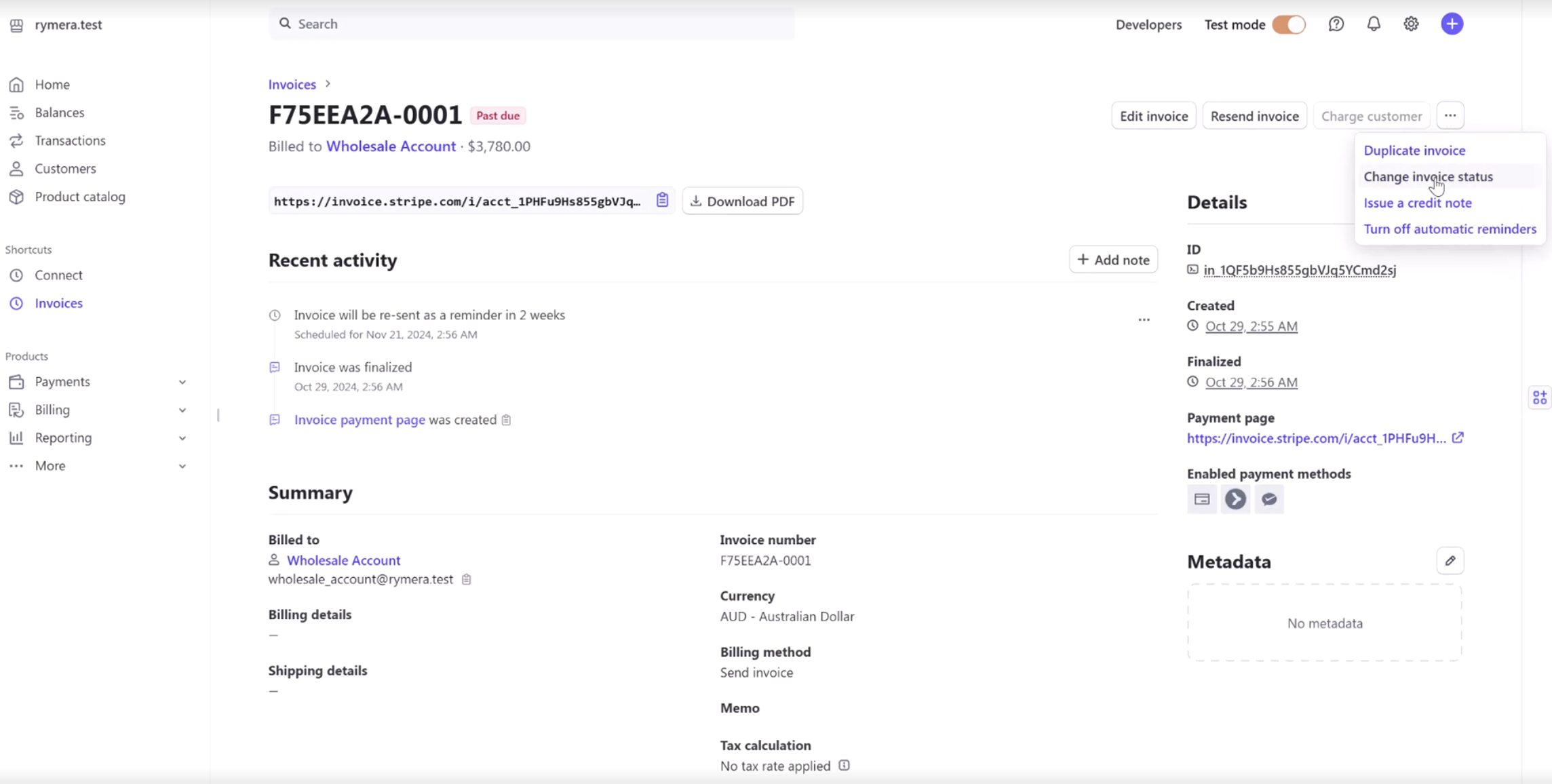
4. Cancel the Invoice in Stripe
Once you’ve located the invoice, you’ll want to cancel it manually to prevent Stripe from charging the customer. Here’s how:
- Click on the specific Invoice that corresponds to the canceled order.
- On the invoice page, you should see an option to Void the invoice.
- Click Void to stop Stripe from charging the customer.
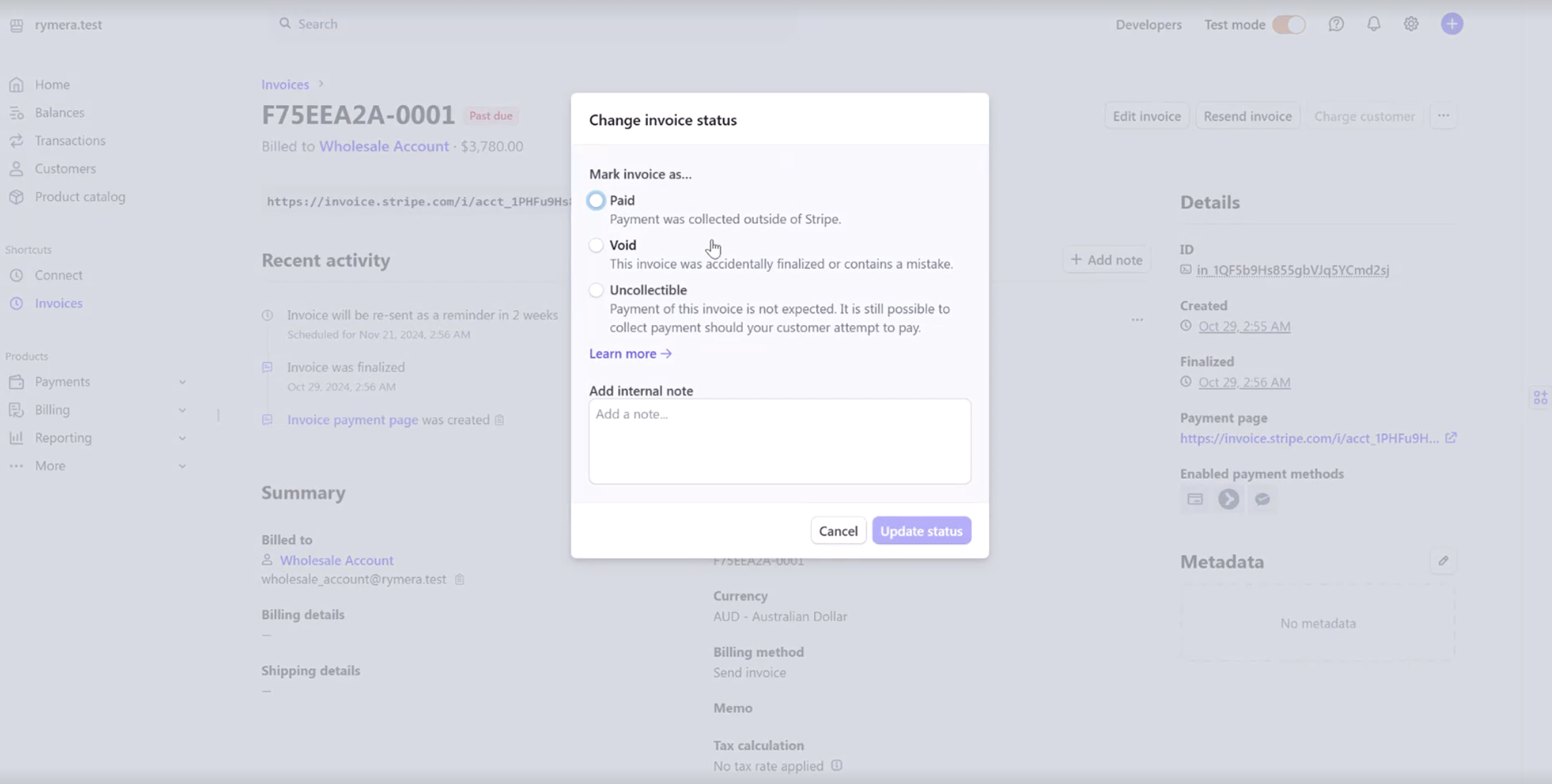
5. Update WooCommerce Order Status
To keep everything in sync, make sure that the WooCommerce order status is Canceled in your WooCommerce admin. This step should already be done, but you can double-check.
If orders and payments are not syncing between WooCommerce and Stripe, your Wholesale Payments connection may need attention. Reach out to our support team if integration issues persist.
Frequently Asked Questions
How do I set up Wholesale Payment sync with Stripe?
Install the plugin. Open the settings page. Enter your Stripe API keys. Enable order sync. This keeps WooCommerce and Stripe billing records aligned automatically.
Does this invoice workflow work without a Stripe account?
No. The Wholesale Payment plugin requires Stripe for payment processing and billing management. If you use another payment gateway, manage invoices and cancellations directly in that platform.
What if a customer already paid before the order was canceled?
If payment was captured, voiding the invoice will not trigger a refund. Issue the refund manually in Stripe. Then update the WooCommerce order status. This keeps both systems consistent.
Can I void multiple Stripe billing entries at once?
Bulk actions are not available in WooCommerce. Go to the Stripe Billing dashboard. Select multiple open invoices. Void them in one action to save time on large batches.
Why is my canceled order still showing an open charge in Stripe?
This usually indicates a sync or configuration issue. Check your Stripe API keys. Make sure the plugin is updated. If the WooCommerce order is marked “Canceled” but the charge is still open, void it manually in the Stripe Billing section.
Need Help?
If you have a question or run into any issues, we’re here to help.
- Premium users: Open a support ticket
- Free users: Visit our community forum

