
Overview
If you want to improve your WooCommerce store, adding a wholesale subtotal calculator is a smart move. With this feature, customers can see their total cost right away. As a result, they can make faster buying decisions. In addition, clear pricing builds trust and reduces confusion.
In this guide, you will learn how to add automatic subtotal calculations. Specifically, we will use the Wholesale Prices Premium plugin. By the end, you will have a simple tool that improves the wholesale shopping experience.
What This Feature Does
A wholesale subtotal calculator updates prices in real time. When a customer changes the quantity, the total changes instantly. Because of this, buyers do not need to calculate totals on their own.
At the same time, the feature is limited to logged-in wholesale users. Therefore, retail customers will not see wholesale pricing. This keeps your pricing structure organized and secure.
Key Benefits
First of all, customers see totals immediately. This saves time and removes guesswork. In addition, the buying process feels smoother. Since totals update automatically, shoppers avoid mistakes. Another benefit is a more professional look. Clear pricing makes your store feel reliable. Finally, fewer customers will contact support about pricing. As a result, you save time and effort.
Prerequisites
Before you begin, make sure you have the following ready:
- WordPress installed
- WooCommerce activated
- Wholesale Prices Premium plugin installed and active
- A child theme or a code snippet plugin
- Basic knowledge of WordPress
Most importantly, create a full backup of your site before editing code. That way, you can restore your site if anything goes wrong.
Installation Methods
You can add this feature in two ways. Either method works well, so choose the one you prefer.
Method 1: Child Theme Functions File
One option is adding the code to your child theme’s functions.php file. Many developers prefer this approach.
However, never edit the parent theme directly. Otherwise, future updates will remove your changes. For that reason, always use a child theme.
Method 2: WP Code Plugin (Recommended)
Alternatively, you can use the WP Code plugin. For most users, this method is easier and safer.
To get started, follow these steps:
- Install and activate WP Code.
- Go to Code Snippets in your dashboard.
- Click Add New Snippet.
After that, you are ready to paste the code.
Step 1: Prepare Your Site
Before making changes, back up your site. You can use your hosting panel or a backup plugin. If a problem happens, you can quickly restore your site.
Next, check that the Wholesale Prices Premium plugin is active. Simply go to the Plugins page in your dashboard. Then confirm the plugin shows as activated. Only continue once everything is ready.
Step 2: Add the Code Snippet
Now copy the full code snippet below. Then paste it into your child theme’s functions.php file or into a WP Code snippet.
add_action('woocommerce_before_add_to_cart_form','Show_Total');

function Show_Total(){
    global $wc_wholesale_prices, $product;

    $user_wholesale_role    = $wc_wholesale_prices->wwp_wholesale_roles->getUserWholesaleRole();

    if (!empty($user_wholesale_role) && is_product() && WWP_Helper_Functions::wwp_get_product_type($product) === 'simple') {
        $product_id             = $product->get_id();
        $price_arr              = WWP_Wholesale_Prices::get_product_wholesale_price_on_shop_v3( $product_id, $user_wholesale_role );
        $wholesale_price        = $price_arr['wholesale_price'];

        if (isset($wholesale_price) && is_numeric($wholesale_price)) {
            ?>
                <div class="calculate_product_subtotal" data-wholesale_price="<?php echo $wholesale_price ?>">Calculate wholesale price (quantity*wholesale) <span class="calculate_product_subtotal_price"><?php echo WWP_Helper_Functions::wwp_formatted_price($wholesale_price) ?></span></div>
                <script>
                    jQuery(document).ready(function ($) {
                        $('body').on('change', 'input.qty', function(){
                            var $calculate_subtotal_parent  = $(this).parents('.product').find('.calculate_product_subtotal');
                            var $subtotal_price_element     = $calculate_subtotal_parent.find('.calculate_product_subtotal_price');
                            var qty                         = $(this).val();
                            var price                       = $calculate_subtotal_parent.data('wholesale_price');
                            var subtotal                    = qty*price;

                            $subtotal_price_element.html(price_format(subtotal));
                        });

                        function price_format(price) {
                            var formatter = new Intl.NumberFormat('en-US', {
                                style: 'currency',
                                currency: 'USD',
                            });

                            return formatter.format(price);
                        }
                    });
                </script>
            <?php
        }
    }

}
Be sure to copy the entire snippet. Even a small mistake can cause errors.
Step 3: Save and Test
After adding the code, save your changes right away. Then clear your website cache. This ensures the new feature loads correctly.
Next, log in as a wholesale customer. Open any simple product page. Change the quantity field. You should see the subtotal update instantly.
If it works, the setup is complete.
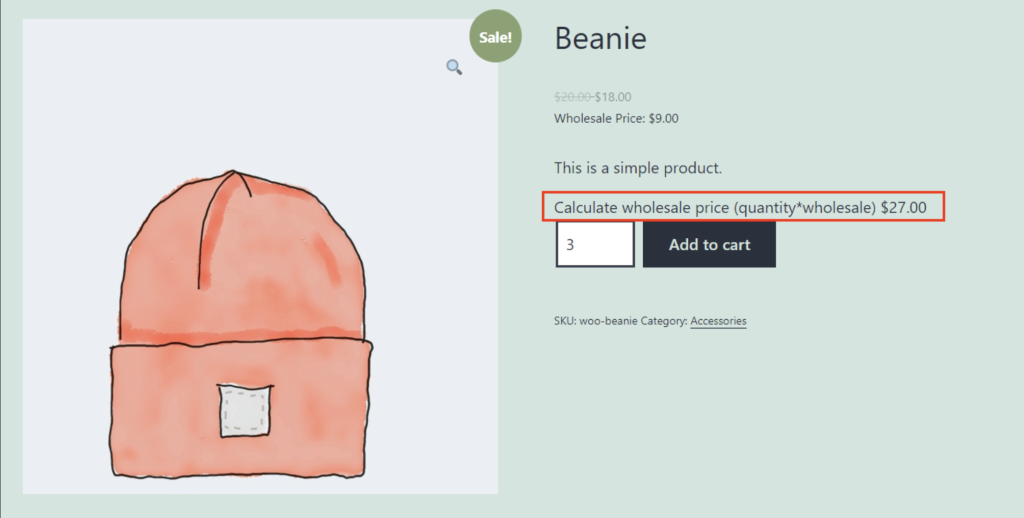
Overall, a wholesale subtotal calculator makes your store easier to use. Customers see totals right away. Because of this, they can order with confidence.
In addition, the feature is simple to install. With just a few steps, you improve clarity and reduce pricing questions.
To sum up, always back up your site before editing code. Then test the feature carefully. Finally, keep your plugins updated to avoid issues later.
In the long run, small improvements like this can lead to better customer satisfaction and more wholesale sales.

