
The Add to Quote button is how your wholesale customers start building a quote — directly from product pages, the shop, or their cart. WooCommerce Wholesale Quotes gives you full control over where the button appears, what it looks like, and what happens when a customer clicks it. This guide walks you through every button setting so you can get the experience right for your store.
Before You Begin
Before configuring the button, make sure you have:
- WooCommerce Wholesale Quotes installed and activated
- WooCommerce Wholesale Prices installed (required for wholesale roles)
- At least one wholesale customer role set up
The button is not limited to wholesale customers by default. Restrict to wholesale customers starts Disabled, so logged-in retail customers can also see the button. To let retail customers submit quote requests, or to show the button to logged-out visitors, enable Enable guest quotes — see How to Allow Guest Users to Request Wholesale Quotes.
If you enable Restrict to wholesale customers, only logged-in users with a wholesale role can see quote buttons. This restriction also hides them from guests even when guest quotes are enabled.
How to Access the Button Settings
- In your WordPress admin, go to Wholesale → Settings.
- Click the Wholesale Quotes tab.
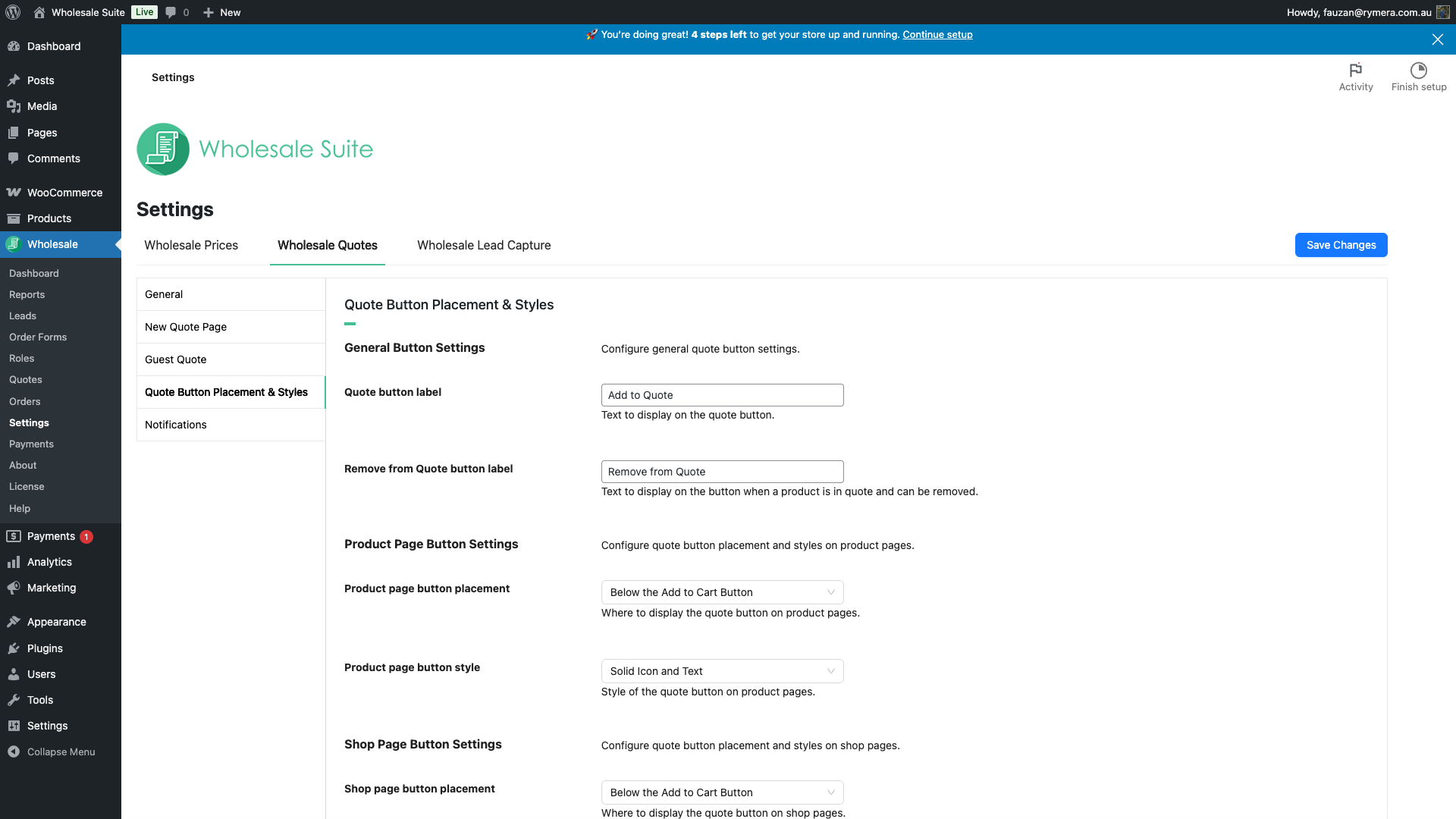
- Open General to control who can see quote buttons, whether the cart can be converted to a quote, and whether out-of-stock products can show a quote button.
- Open Quote Button Placement & Styles to configure labels, placement, and appearance.
Step 1 — Configure Button Availability
Go to Wholesale → Settings → Wholesale Quotes → General, then configure these controls for your store:
| Setting | What it controls | Default |
|---|---|---|
| Enable cart to quote | Shows the Request a Quote button on the cart and checkout pages so customers can turn the cart into a quote request. | Enabled |
| Restrict to wholesale customers | When enabled, only logged-in users with a wholesale role can see quote buttons on product, shop, cart, and checkout pages. | Disabled |
| Show quote button for out-of-stock products | Shows Add to Quote for out-of-stock products on single product pages. It does not add the button to out-of-stock products on shop or archive pages. | Disabled |
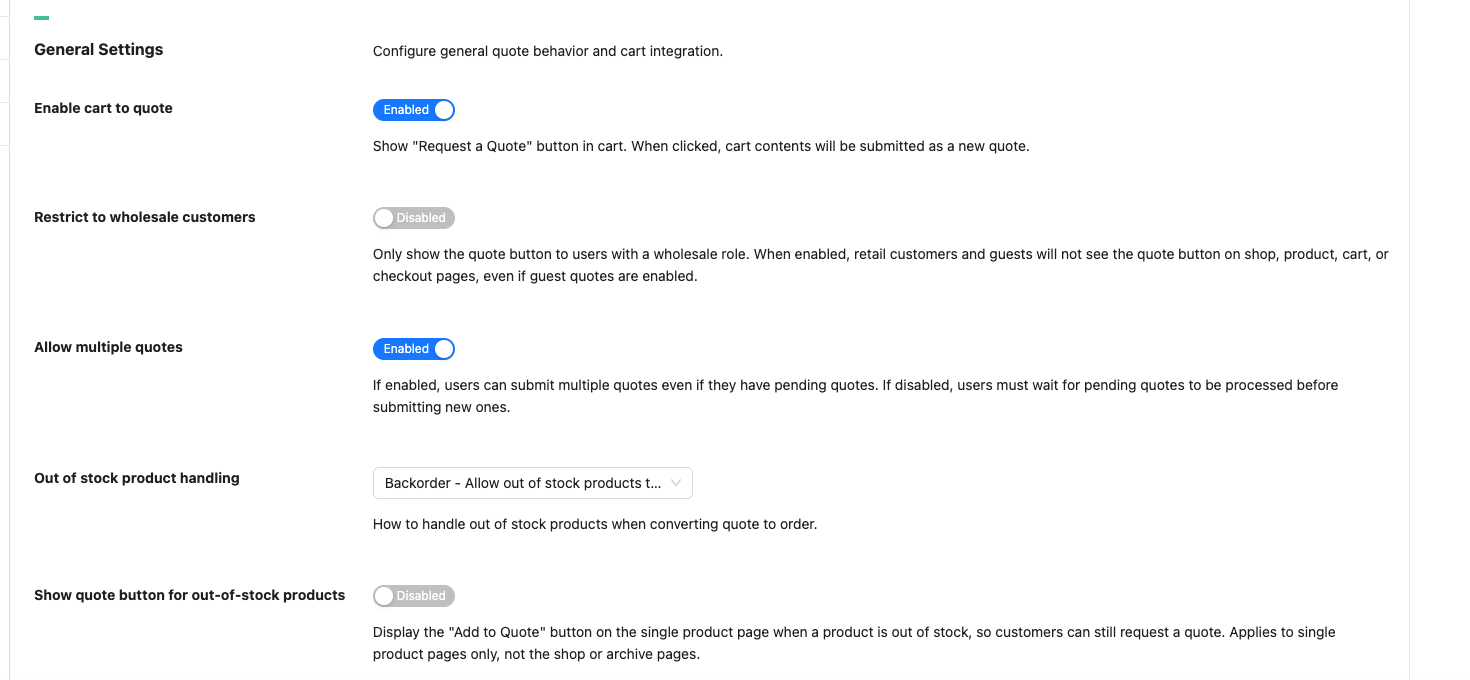
If you want logged-out visitors or registered customers without a wholesale role to request quotes, also enable Enable guest quotes. The wholesale-only restriction takes priority, so leave it Disabled when guests or retail customers should be able to request quotes.
Step 2 — Set Your Button Labels
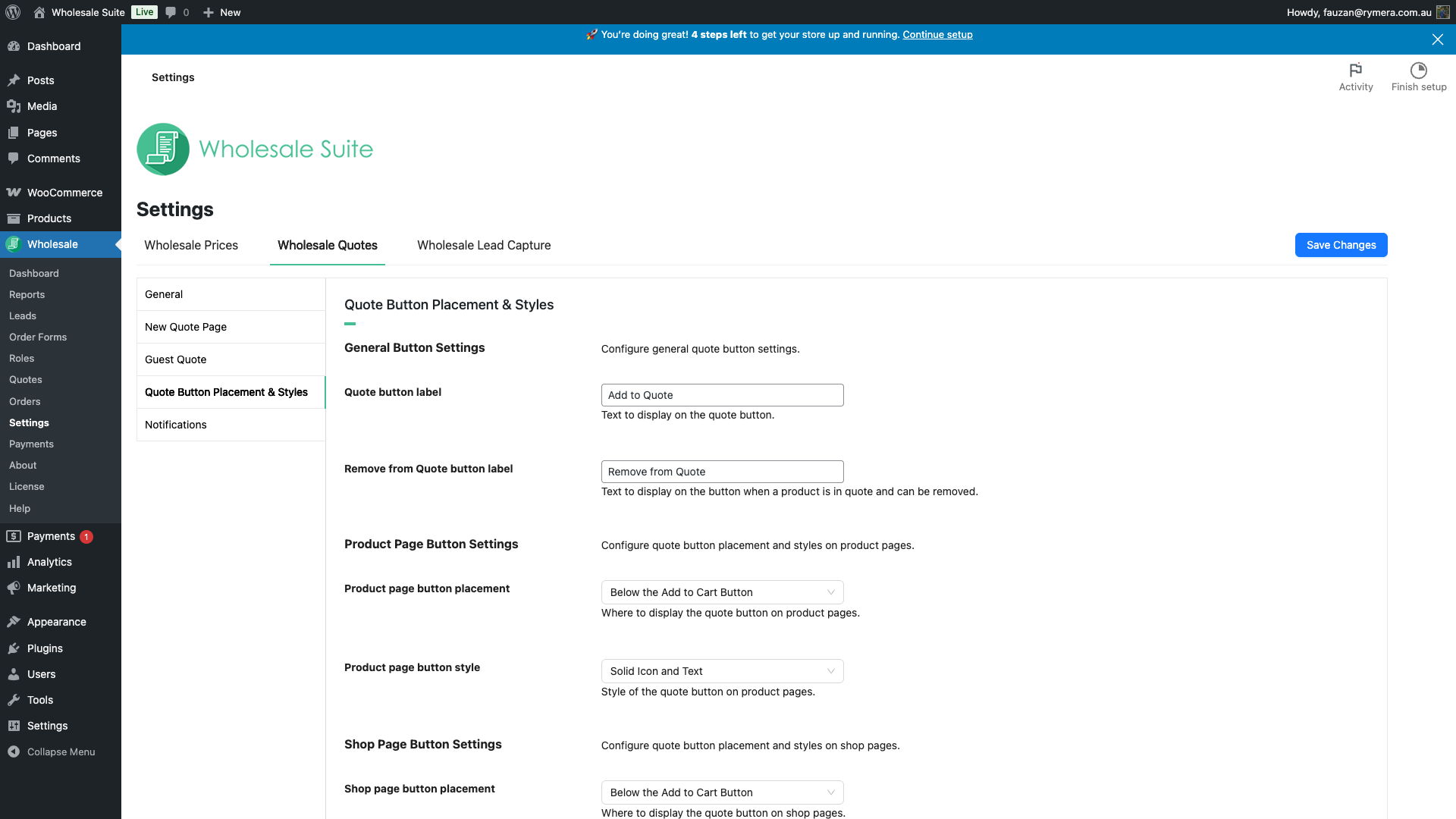
The General Button Settings section controls the button text that appears across your entire store.
| Setting | Description | Default |
|---|---|---|
| Quote button label | Text shown on the button before a product is added to a quote. | Add to Quote |
| Remove from Quote button label | Text shown once a product is already in the current quote. Clicking it removes the product. | Remove from Quote |
These labels apply globally — product pages, shop pages, and WooCommerce block templates all use the same text.
Step 3 — Configure the Product Page Button
The Product Page Button Settings section controls how the button appears on individual product pages.
Placement
Choose where the button appears using the Product page button placement dropdown:
| Option | Where it appears |
|---|---|
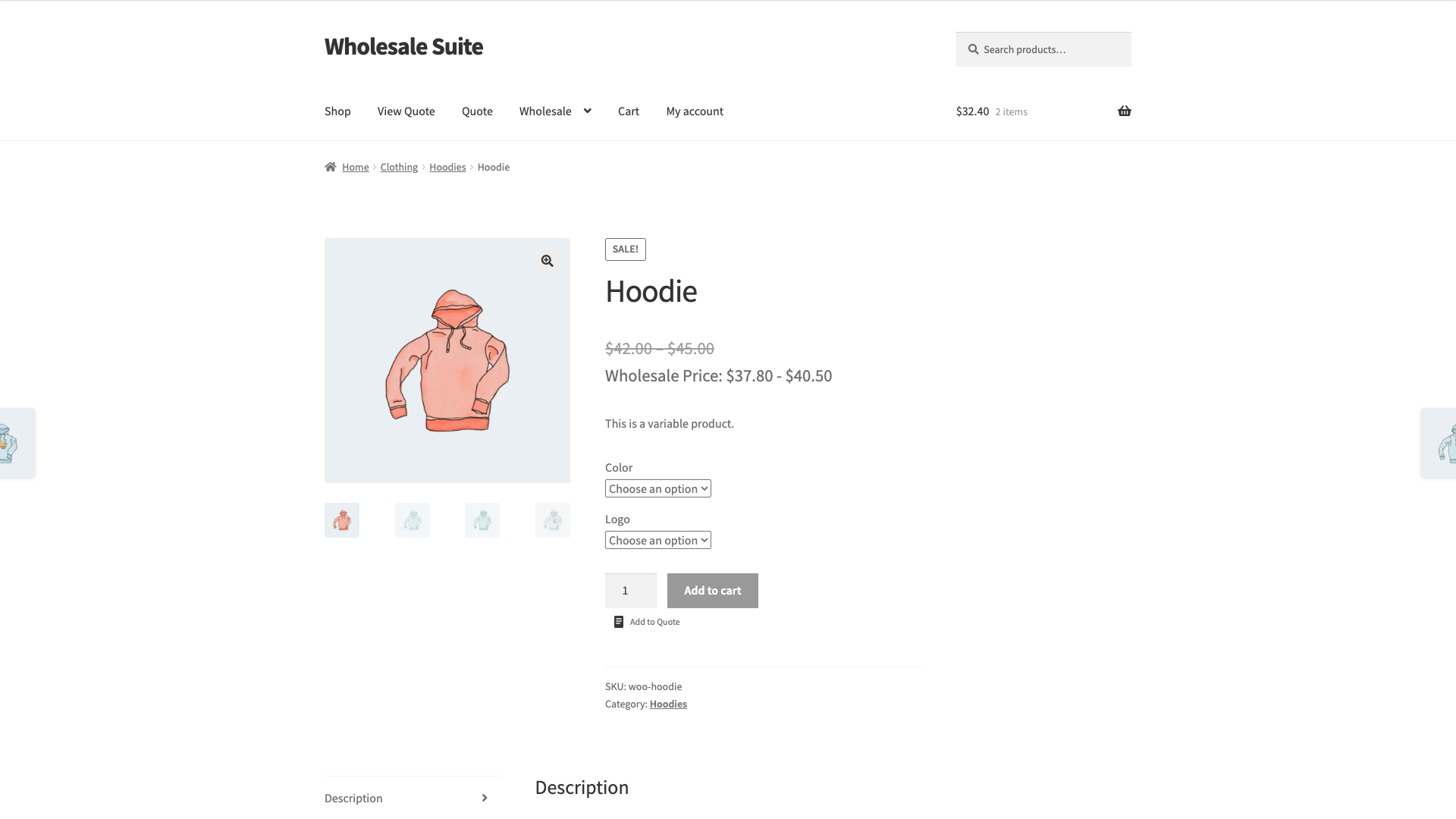
| Above the Add to Cart Button | Directly above the quantity field and Add to Cart button |
| Below the Add to Cart Button (default) | Directly below the Add to Cart button |
| Above the Product Title | At the top of the product summary, before the title |
| Below the Product Title | Immediately below the product title |
| Product image — Top right/left | Overlaid on the product image, top corner |
| Product image — Bottom right/left | Overlaid on the product image, bottom corner |
Style
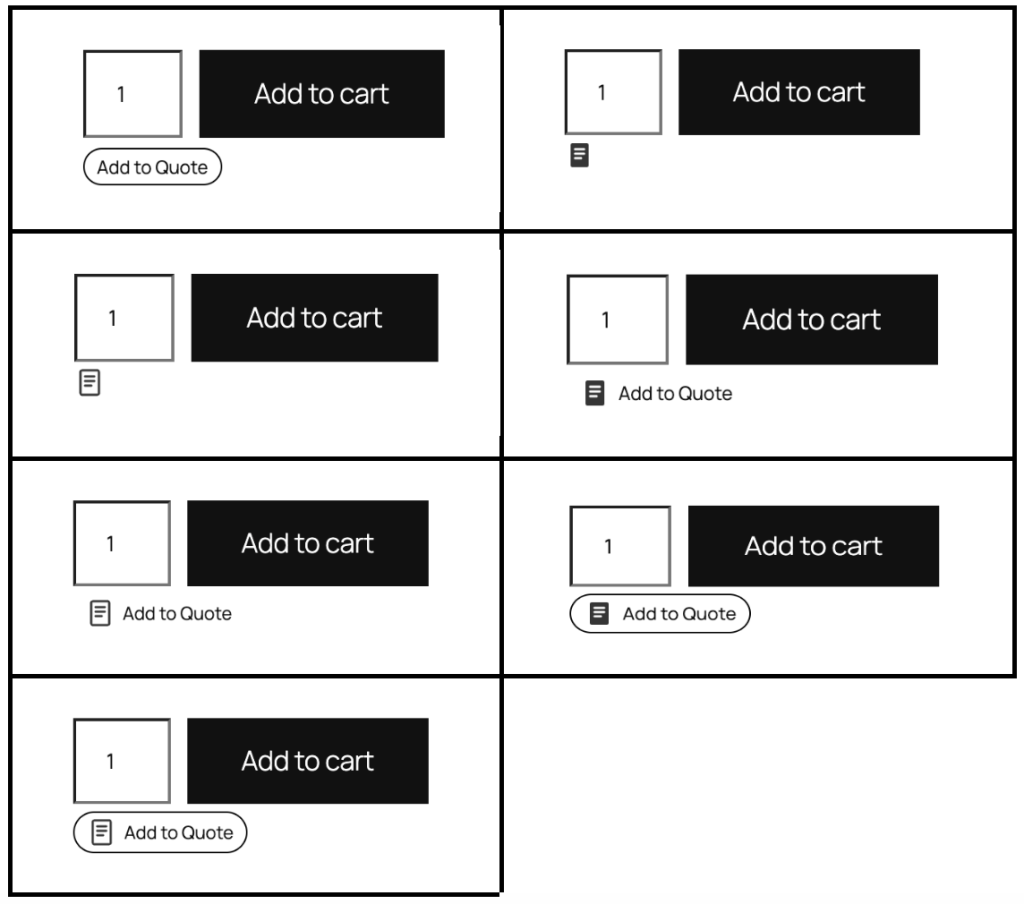
Use the Product page button style dropdown to choose the button’s appearance. There are 7 options across three icon families:
| Style | What it looks like |
|---|---|
| Text Only | Plain text label, no icon |
| Icon Only | Outline quote icon, no label |
| Icon and Text | Outline quote icon + label |
| Icon and Text Pill | Outline quote icon + label in a pill shape |
| Solid Icon | Filled quote icon, no label |
| Solid Icon and Text (default) | Filled quote icon + label |
| Solid Icon and Text Pill | Filled quote icon + label in a pill shape |
Step 4 — Configure the Shop & Category Page Button
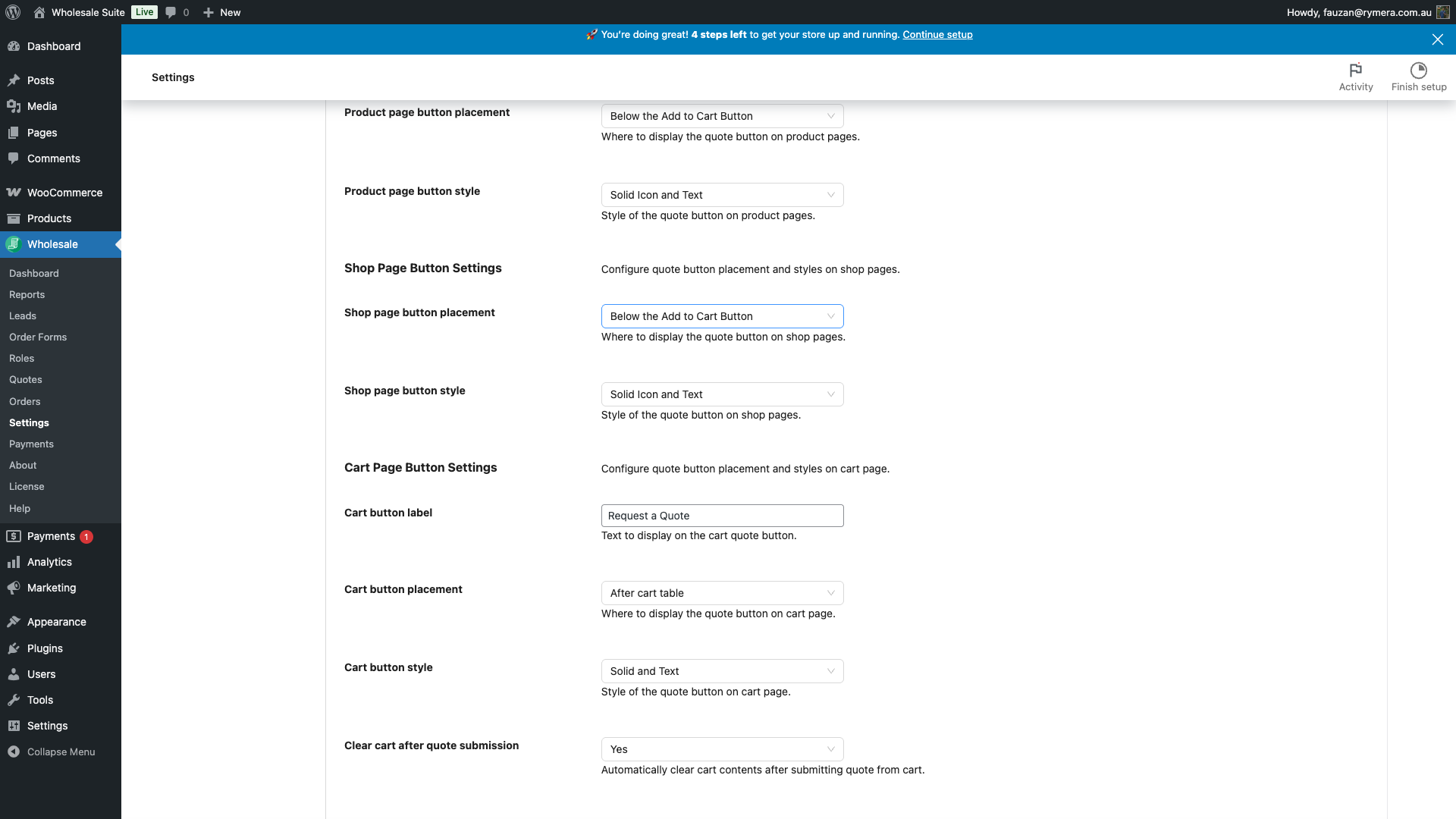
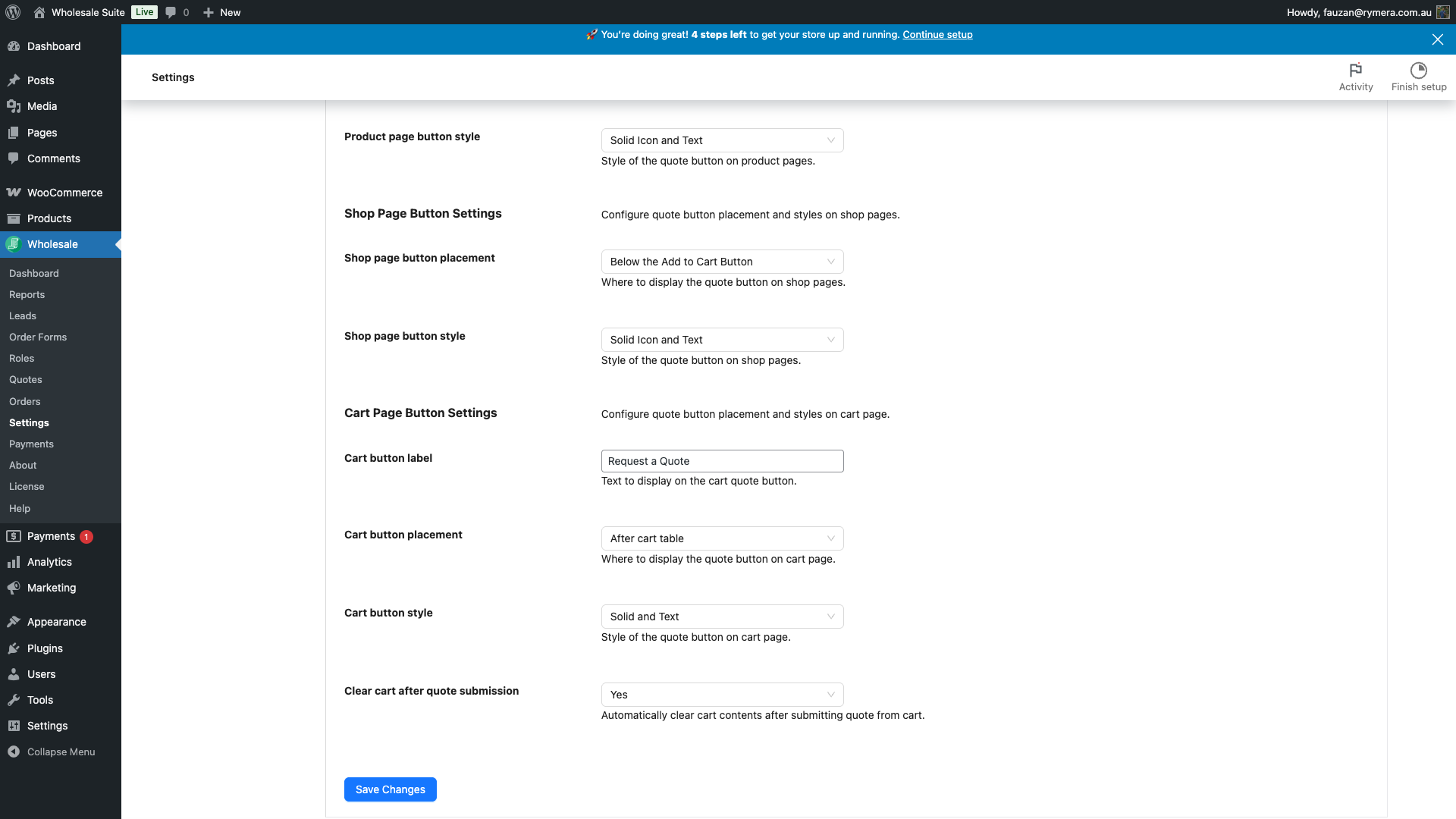
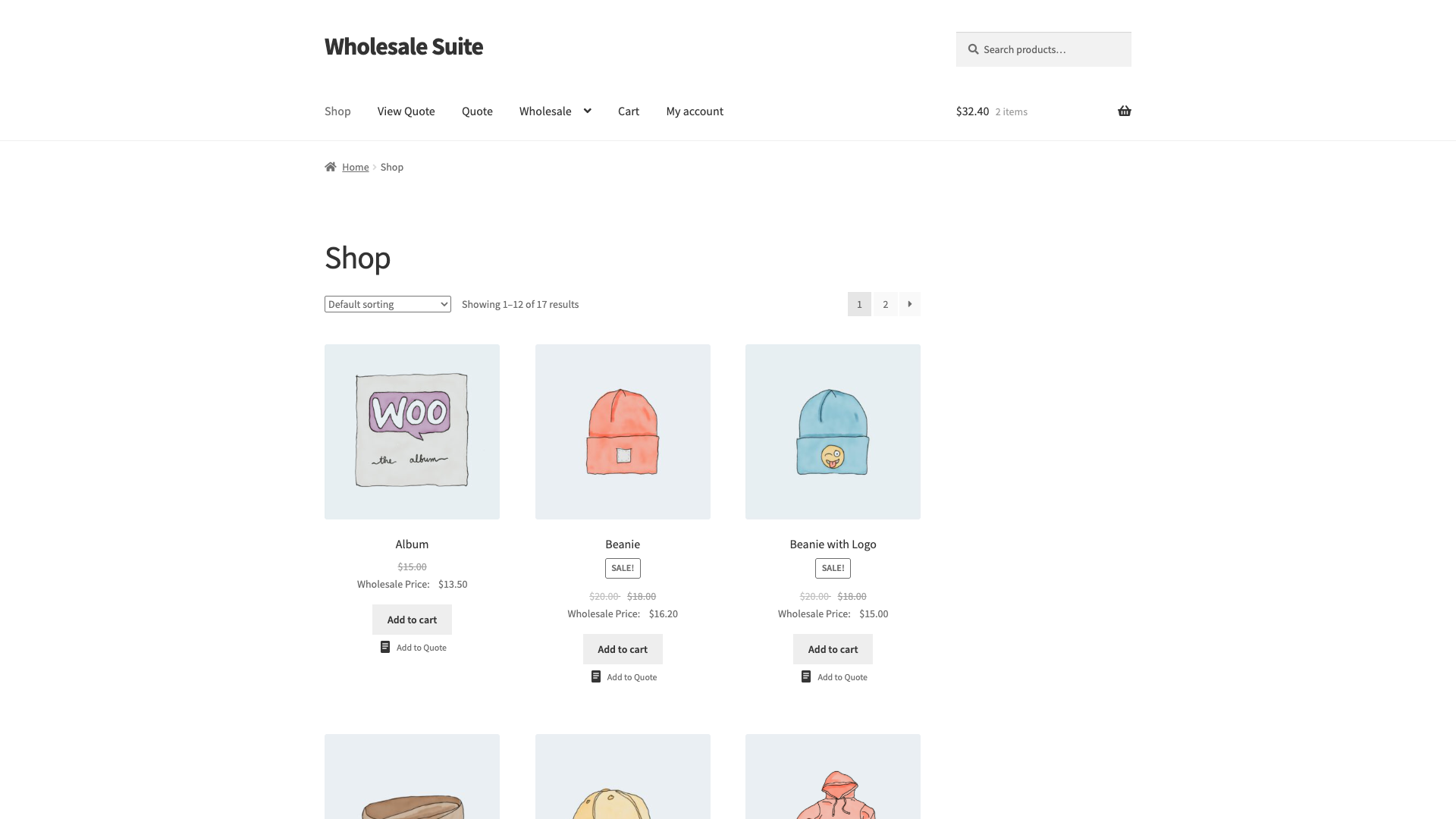
The Shop Page Button Settings section controls the button on your shop page and product category archives — any page that shows a product grid.
Placement
| Option | Where it appears on each product card |
|---|---|
| Above the Product Title | Above the product name |
| Below the Product Title | Below the product name, above the price |
| Above the Add to Cart Button | Above the Add to Cart button |
| Below the Add to Cart Button (default) | Below the Add to Cart button |
| Product image — Top right/left | Overlaid on the product thumbnail, top corner |
Style
The same 7 style options are available here. Icon-only or pill styles tend to work well on compact product card grids where space is limited.
Step 5 — Configure the Cart Page Button
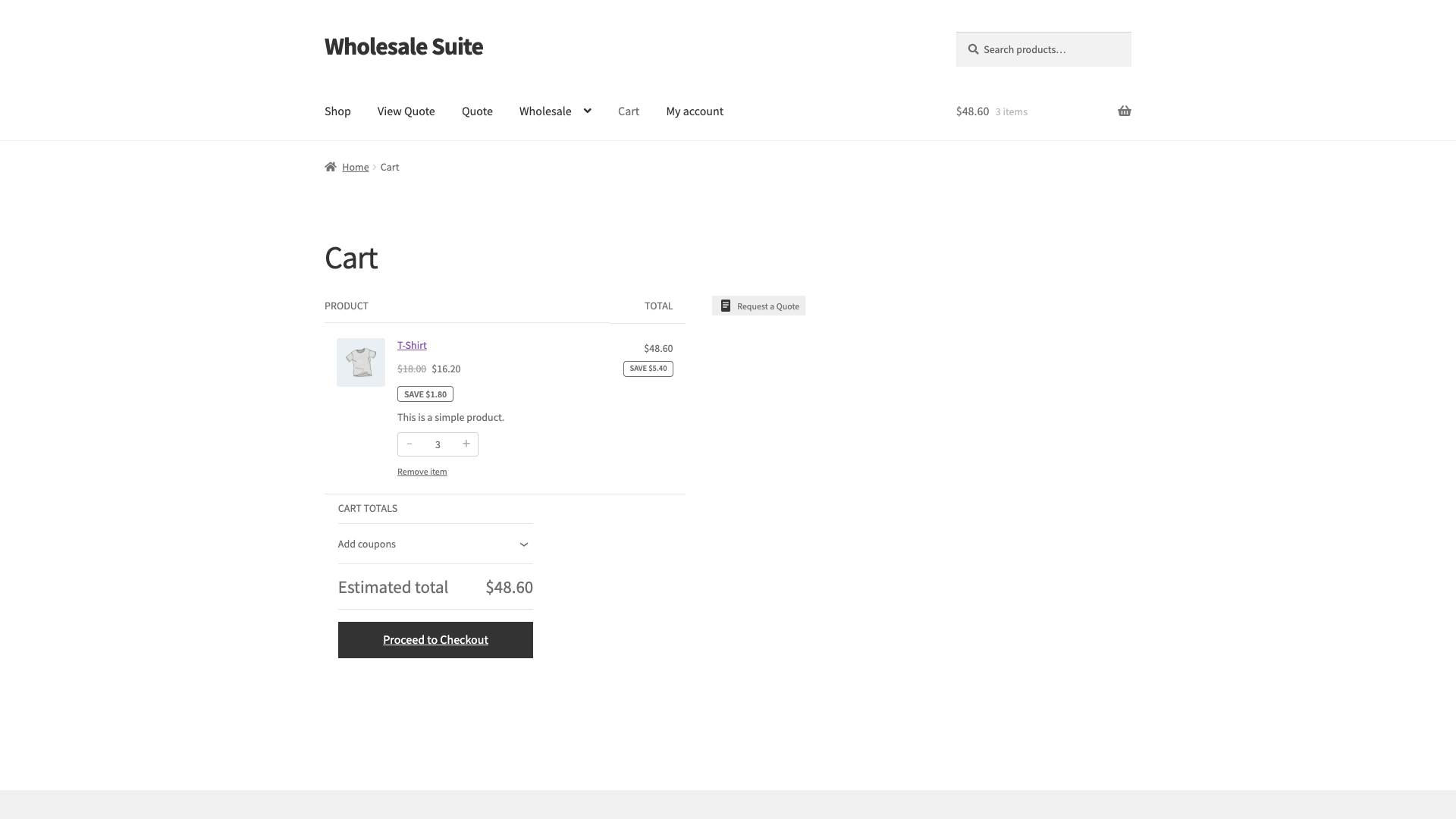
The cart button works differently from the product and shop page buttons. Rather than adding a single item to a quote, clicking it converts the entire cart into a quote request in one step.
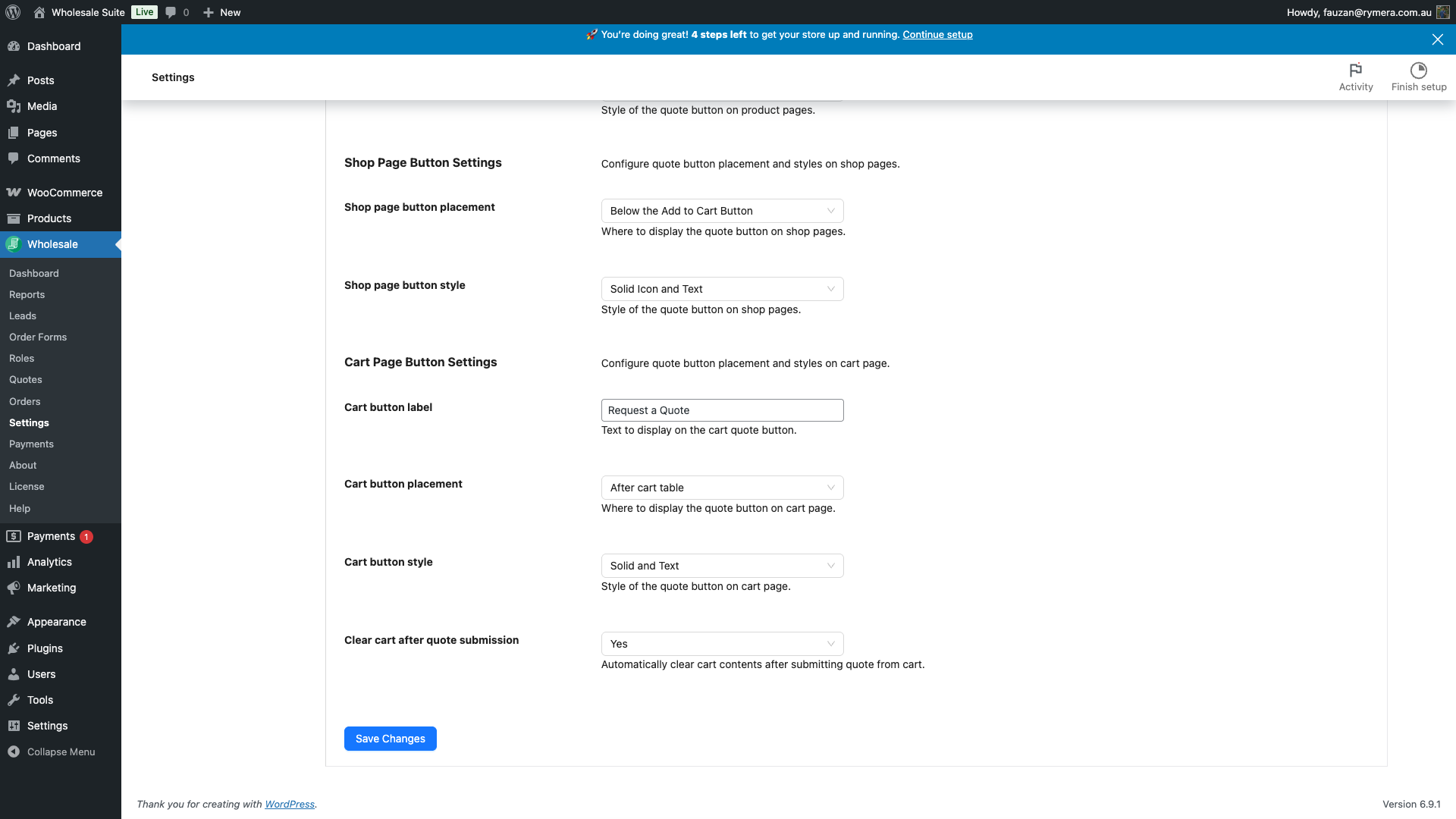
The cart button is enabled automatically when Enable cart to quote is on (found in the General sub-tab). To configure its label, placement, and style, use the Cart Page Button Settings section.
| Setting | Description | Default |
|---|---|---|
| Cart button label | Text on the cart quote button. | Request a Quote |
| Cart button placement | Where the button appears on the cart page: After cart table, Before cart totals, or After proceed to checkout button. | After cart table |
| Cart button style | The same 7 style options as the product page button. | Solid Icon and Text |
| Clear cart after quote submission | If Yes, the cart is emptied once the quote is submitted from the cart page. | Yes |
What Happens After a Customer Clicks “Add to Quote”
When a customer clicks Add to Quote on a product page, you control what happens next using the Action after adding product to quote setting in the New Quote Page sub-tab:
- Redirect to quote page (default) — the customer is taken to the quote page immediately to review their quote.
- Show notice only (stay on page) — a toast notification appears briefly at the top-right corner, and the button label switches to “Remove from Quote”. The customer stays on the current page to keep browsing.
Once a product is in the active quote, the button label switches automatically to “Remove from Quote”. Clicking it asks the customer to confirm, then removes the item without leaving the page.
Variable Products and Variations
For variable products (products with size, colour, or other attribute options), the Add to Quote button works the same way as Add to Cart. The customer selects their desired variation first, then clicks the button to add that specific variation and quantity to their quote.
Frequently Asked Questions
The Add to Quote button isn’t showing on my store. What should I check?
Check these settings and the type of visitor or product you are testing:
- Restrict to wholesale customers: If this is Enabled, the button appears only for logged-in users with a wholesale role.
- Wholesale role: Confirm the test account has a wholesale role when the restriction is enabled.
- Enable guest quotes: Turn this on for logged-out visitors and registered customers without a wholesale role to request quotes.
- Enable cart to quote: This must be Enabled for the Request a Quote button to appear on the cart and checkout pages.
- Show quote button for out-of-stock products: Enable this when testing an out-of-stock item on its single product page. This setting does not apply to shop or archive pages.
Can I show a quote button on the checkout page too?
Yes — when Enable cart to quote is on, a quote button automatically appears on the checkout page (after the Place Order button). This lets customers switch to a quote request instead of placing a regular order.
Can I translate or change the button labels per language?
Yes — the Quote button label and Remove from Quote button label fields in General Button Settings accept any text you like. For multilingual stores, the labels are stored as plugin settings rather than translatable strings, so your translation plugin needs to be configured to translate WordPress options.
Need Help?
If you have a question or run into any issues, we’re here to help.
- Premium users: Open a support ticket
- Free users: Visit our community forum

