
If you have configured minimum order requirements in WooCommerce Wholesale Prices Premium and a wholesale customer is seeing retail prices in their cart, this is expected behaviour. The plugin holds the cart at retail prices until the customer’s order meets the requirements you have set. Once the requirements are satisfied, the cart updates and wholesale pricing applies automatically.
If your wholesale customers are seeing retail prices in the cart until they hit a minimum, that is by design — this guide explains how the calculation works for each type of minimum (quantity, subtotal, per-product), and how to optionally block checkout entirely until the requirements are met.
Requirements
- WooCommerce installed and active.
- WooCommerce Wholesale Prices Premium installed and activated. Minimum order requirements are not available in the free WooCommerce Wholesale Prices plugin.
- At least one minimum order requirement configured in Wholesale → Settings → Wholesale Prices → General, in the Order Requirements section.
How the cart behaves when minimums are set
When a minimum order requirement is active, WooCommerce Wholesale Prices Premium keeps all cart prices at retail until the customer’s cart meets the configured minimum. A notice appears in the cart explaining what the customer still needs to add to activate wholesale pricing. The moment the requirement is met, the cart updates and wholesale prices apply.
This behaviour is intentional. If the cart allowed wholesale prices before the minimum was reached, the customer could proceed to checkout at wholesale rates regardless of any warning. By keeping the cart at retail prices until the minimum is satisfied, the plugin prevents customers from completing a wholesale-priced order without qualifying for it.
How minimum order subtotal is calculated
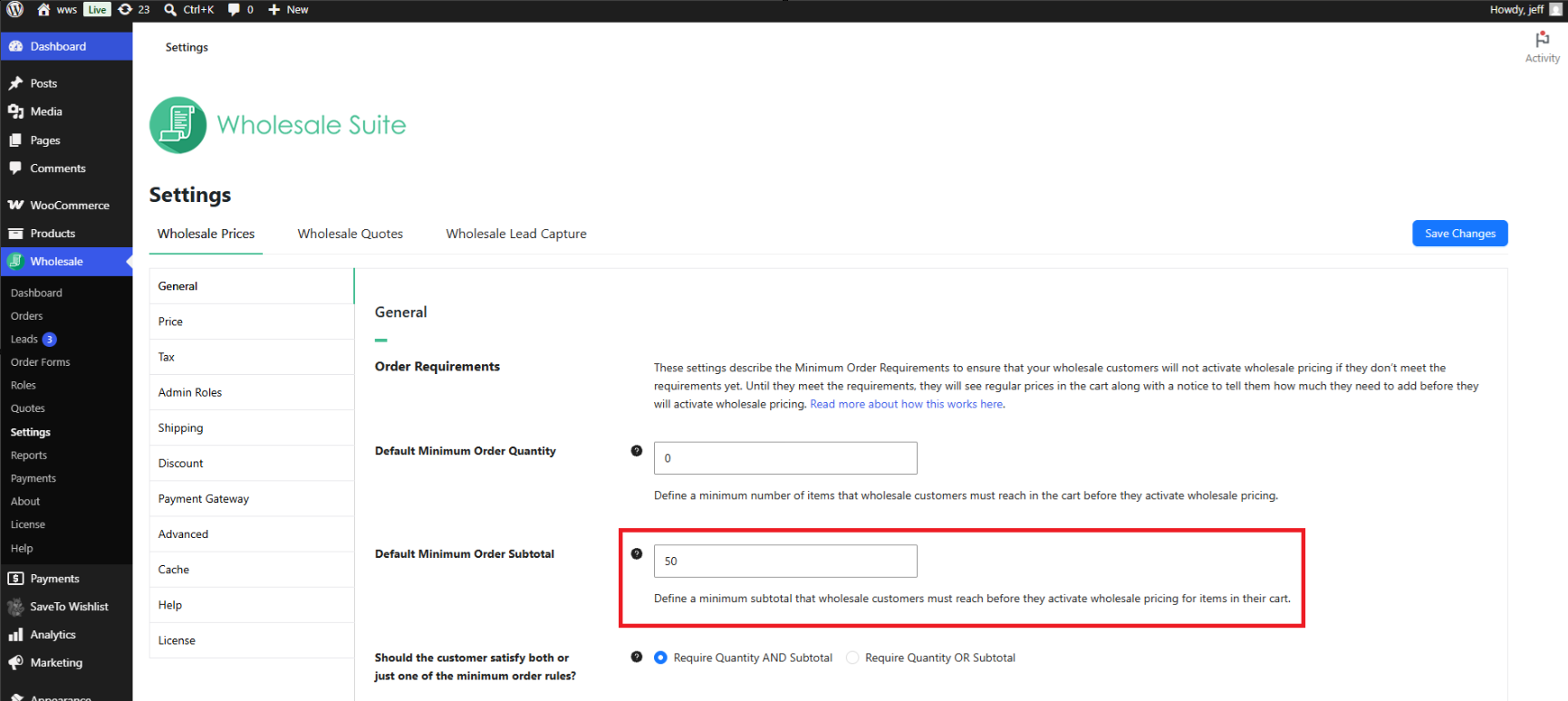
The Default Minimum Order Subtotal is the minimum cart value a wholesale customer must reach before wholesale pricing applies. Set it in Wholesale → Settings → Wholesale Prices → General, in the Order Requirements section.
The subtotal is calculated using the wholesale prices of the products in the cart, not the retail prices. Tax and shipping are excluded. If a product has a retail price of $200 and a wholesale price of $100, the system counts $100 toward the subtotal threshold, not $200.
For example: if the Default Minimum Order Subtotal is $500 and a product has a retail price of $200 and a wholesale price of $100, a customer who adds three units reaches a wholesale-based subtotal of $100 × 3 = $300, which falls below the threshold. Retail prices are shown and a notice appears. When the customer adds two more units, the subtotal reaches $100 × 5 = $500, the requirement is met, and wholesale pricing activates.
How minimum order quantity is calculated
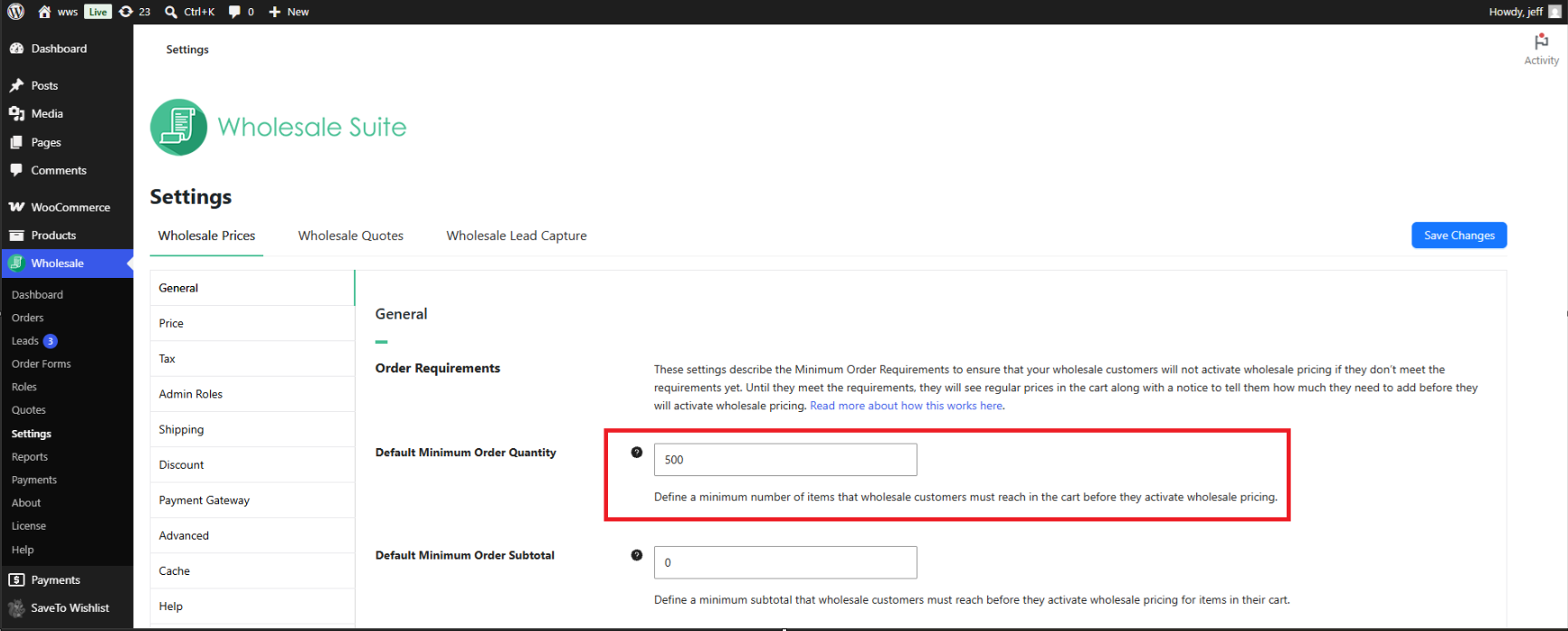
The Default Minimum Order Quantity is the minimum total number of units a wholesale customer must have in their cart before wholesale pricing applies. Set it in Wholesale → Settings → Wholesale Prices → General, in the Order Requirements section. The quantity is counted across all products in the cart combined.
For example: if the Default Minimum Order Quantity is 50 units, a customer who adds Product A (20 units) and Product B (15 units) has 35 units in the cart, which falls below 50. Retail prices are shown and a notice appears. When the customer increases Product B to 30 units, the cart total reaches 50 (20 + 30), the requirement is met, and wholesale pricing activates.
How per-product minimum order quantity works
In addition to the cart-level minimums, each product can have its own minimum quantity. This is set in the product’s pricing settings under Wholesale Minimum Order Quantity and applies to that product only, not the entire cart.
If a customer has not added enough units of a product that has a per-product minimum, retail prices are shown for that product with a notice. Other products in the cart that have met their own minimums continue to show wholesale prices. This means a customer can have a mix of wholesale-priced and retail-priced items in the same cart.
Using AND/OR logic when both minimums are set
If you have both a Default Minimum Order Quantity and a Default Minimum Order Subtotal configured, WooCommerce Wholesale Prices Premium uses a conditional logic rule to determine when wholesale pricing activates. The setting Should the customer satisfy both or just one of the minimum order rules? controls this.
- AND – the customer must meet both the minimum quantity and the minimum subtotal before wholesale pricing applies.
- OR – the customer needs to meet only one of the two minimums for wholesale pricing to apply.
Configure this in Wholesale → Settings → Wholesale Prices → General, in the Order Requirements section. If only one minimum is active (either quantity or subtotal, not both), this setting has no effect.
Per-role and per-user minimum requirements
You can override the default minimums for specific wholesale roles. For example, you can set a lower minimum for a Wholesale Customer role and a higher minimum for a Distributor role. In Wholesale → Settings → Wholesale Prices → General, under Order Requirements, enable the option to override requirements per wholesale role, then add a row for each role you want to configure with its own minimum quantity, subtotal, and logic.
You can also override the minimum requirements for individual customers. Open the customer’s user profile in Users and scroll to the wholesale settings section. Set Override Minimum Order Quantity or Override Minimum Order Subtotal to Yes to enter values that apply to that customer only. Per-user settings take precedence over both the global defaults and any per-role overrides.
Blocking checkout until minimums are met
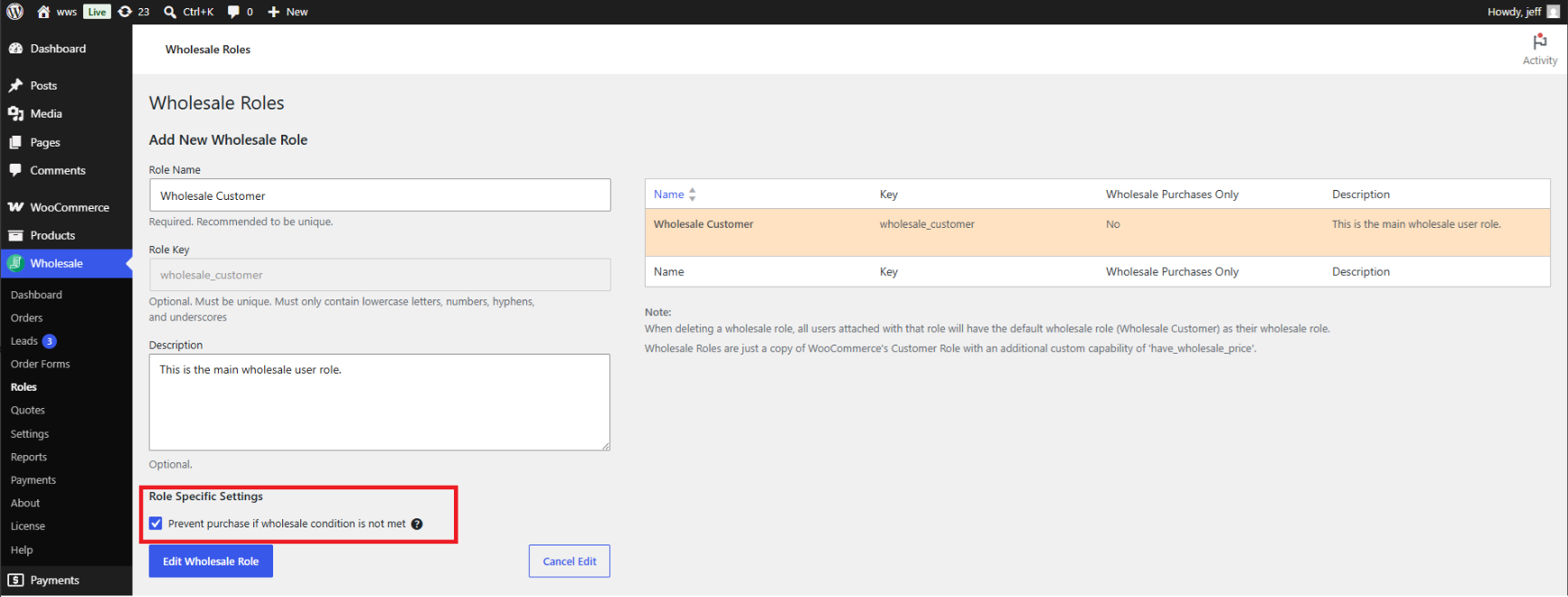
By default, a wholesale customer can proceed to checkout even when their cart falls below the minimum. They see retail prices and a notice explaining what to add, but the checkout button remains available. If you want to block checkout entirely until the minimum is met, enable the Prevent purchase if wholesale condition is not met option for the relevant wholesale role:
- Go to Wholesale → Wholesale Roles.
- Find the role you want to update and click Edit.
- Under Role Specific Settings, check Prevent purchase if wholesale condition is not met.
- Save the role.
With this option enabled, the checkout button is removed and replaced by a message asking the customer to adjust their cart to meet the requirements before proceeding.
Troubleshooting
No notice is appearing in the cart
Confirm that at least one minimum order requirement is saved in Wholesale → Settings → Wholesale Prices → General, in the Order Requirements section. The notice only appears when a minimum is configured and the customer’s cart falls below it.
The cart is not switching to wholesale prices after the minimum is met
The cart updates automatically as the customer adds items. If the cart is not updating, try adding or removing an item to trigger a refresh. If wholesale prices still do not appear after the minimum is clearly met, check whether a caching plugin is serving a stale version of the cart page and clear the cache.
An administrator account sees retail prices in the cart
Minimum order requirements apply only to customers logged in with a wholesale role. Administrator and shop manager accounts do not carry a wholesale role, so the requirement logic does not apply to them. To test the behaviour, use a customer account that has a wholesale role assigned.
The Prevent purchase option is not blocking checkout
The Prevent purchase if wholesale condition is not met setting is per-role. Confirm it is enabled on the correct role by going to Wholesale → Wholesale Roles and editing the role. Also confirm that the customer is assigned that specific role, not a different wholesale role where the setting is not enabled.
Frequently asked questions
Does the minimum order subtotal use retail prices or wholesale prices?
The Default Minimum Order Subtotal is calculated using the wholesale prices defined for the products in the cart, not the retail prices. Tax and shipping are excluded from the calculation.
Can I set different minimums for different wholesale roles?
Yes. In Wholesale → Settings → Wholesale Prices → General, under Order Requirements, you can enable per-role overrides and configure a separate minimum order quantity, minimum order subtotal, and conditional logic for each role that needs different thresholds.
Can I set different minimums for individual customers?
Yes. Open the customer’s user profile in Users and scroll to the wholesale settings section. Set Override Minimum Order Quantity or Override Minimum Order Subtotal to Yes and enter the values to use for that customer only. Per-user settings take precedence over both the global defaults and any per-role overrides.
What is the difference between the cart-level minimum quantity and the per-product minimum order quantity?
The Default Minimum Order Quantity in settings is a cart-level check: it counts the total number of units across all products in the cart. If the total falls below the threshold, retail prices apply to the entire cart. The Wholesale Minimum Order Quantity set on an individual product is a per-product check: if the customer has not added enough units of that specific product, retail prices apply to that product only. Other products in the cart are not affected.
Can a cart have a mix of wholesale and retail prices at the same time?
Yes, when per-product minimums are in use. If a customer has met the minimum quantity for some products but not others, those products show at wholesale price while the products below their minimum show at retail price. Cart-level minimums (the Default Minimum Order Quantity and Default Minimum Order Subtotal) affect all products in the cart together rather than individually.
Does this work with variable products?
Yes. For cart-level minimums, all variation quantities across all products are counted toward the total. Per-product minimum quantities can be set at the variation level or at the parent variable product level.
Can I remove the minimum requirements notice from the cart?
The notice is generated automatically and there is no setting to disable it independently. The notice only appears when a minimum is configured and the cart falls below it. Removing the minimum order requirements from Wholesale → Settings → Wholesale Prices → General stops the notice from appearing.
Does this work with the WooCommerce block-based cart and checkout?
Yes. The minimum requirement notices and the Prevent purchase if wholesale condition is not met option both work with the WooCommerce block-based cart and checkout as well as the classic shortcode-based cart and checkout.
Help & support
We have a dedicated support team for Wholesale Suite who knows our products, WooCommerce, and the industry very well. You’re welcome to make use of their expertise at any time, worldwide.
If you are an existing customer please go to the support ticket request form and send us a message.
If you are a free plugin user, please send us a support request on the forum. We actively monitor the WordPress.org support forums for the free plugin and help our users there as best as we can.

