
If you connected Stripe but Wholesale Payments still isn’t taking real payments, or setup seems to stall right after you click connect, you’re in the right place. This guide walks through the spots where setup most often gets stuck, with a fix for each.
Stripe connection didn’t finish
You clicked Connect with Stripe, went through Stripe’s screens, and landed back in your store with no confirmation. The most common cause is that Stripe’s onboarding wasn’t completed all the way through, so the connection never saved.
- Go to Wholesale → Settings → Wholesale Payments.
- Open the General tab and look at the API Settings section.
- If you still see the Connect with Stripe button, the connection didn’t complete. Click it again and finish every step on Stripe, including any business details Stripe asks for.
- If you see your Stripe Connect Account number instead, the connection is in place. Click Test Connection to confirm it.
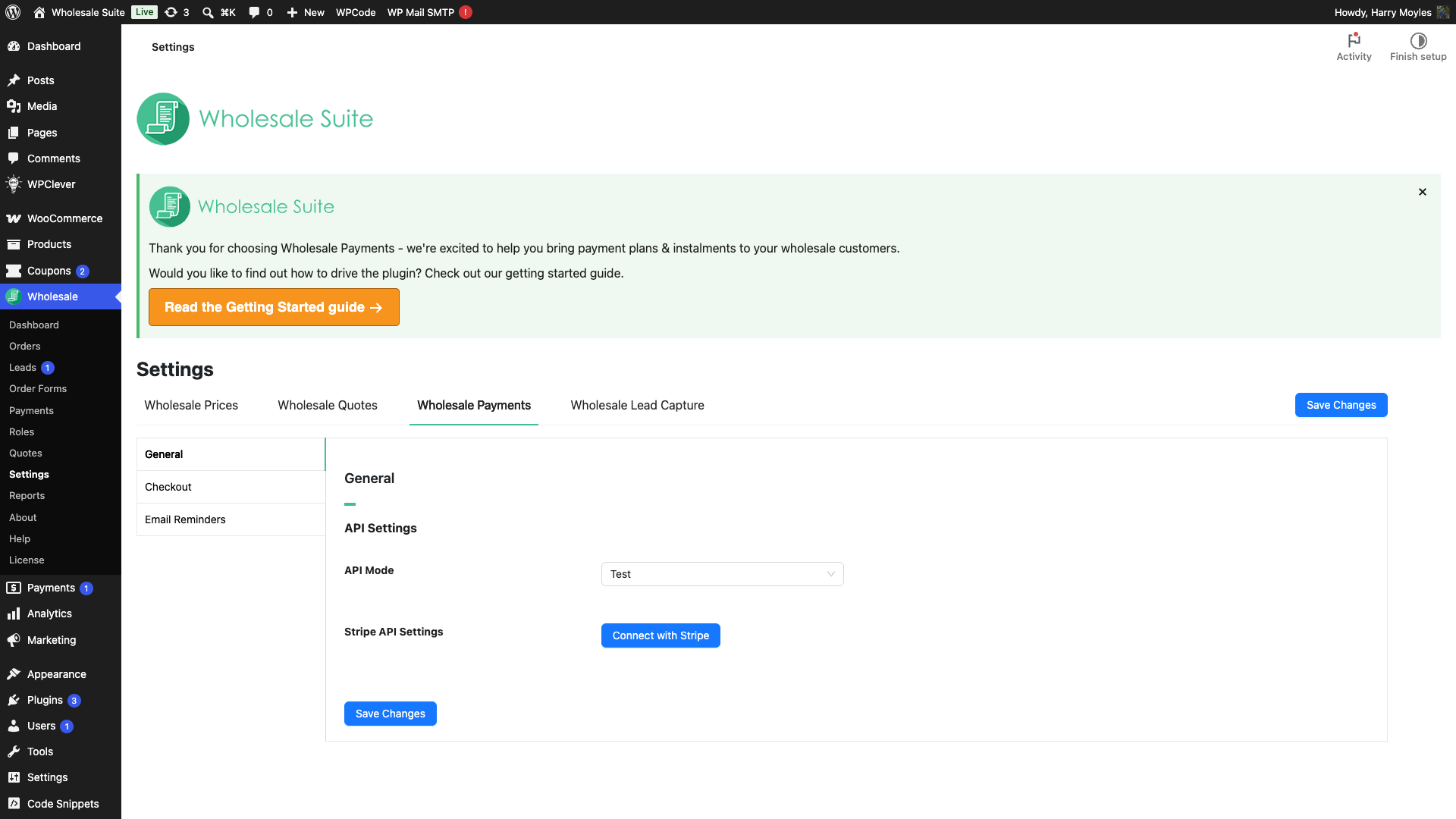
If it still won’t connect, click Reset Connection to clear the half-finished attempt, then click Connect with Stripe and start over.
Payments are stuck in test mode
Orders go through but no real money moves, and your checkout shows a test label. That means API Mode is still set to Test.
- Go to Wholesale → Settings → Wholesale Payments → General → API Settings.
- Set API Mode to Live.
- Click Save Changes, then place a small real order to confirm a live payment goes through.
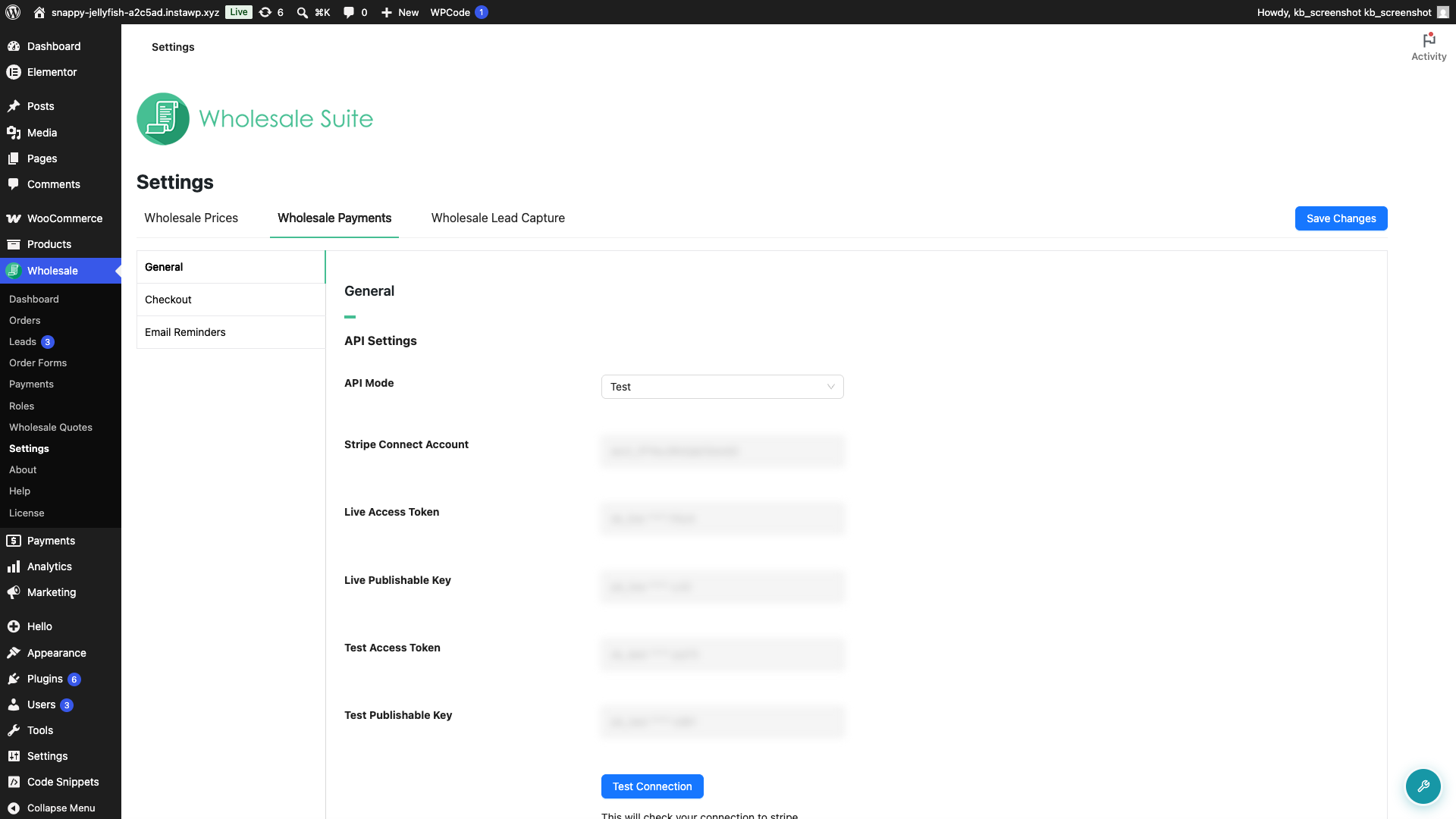
Test and live use separate Stripe connections. If Live shows as not connected, click Connect with Stripe while API Mode is set to Live.
The Payments page says your Stripe account is not connected
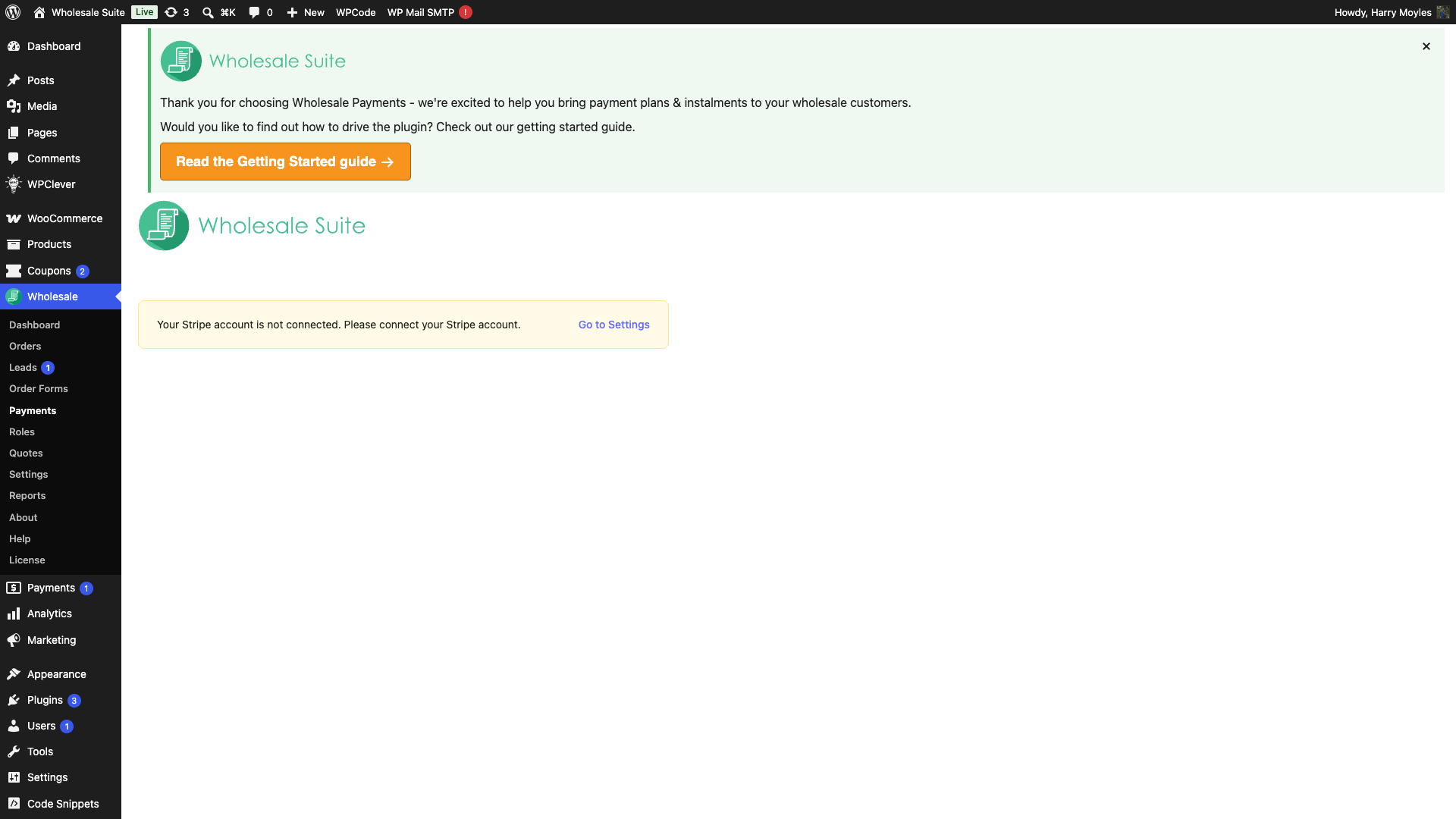
On Wholesale → Payments you see the notice “Your Stripe account is not connected. Please connect your Stripe account.” This appears whenever no Stripe connection is saved for the current mode.
Click Go to Settings in that notice. It takes you to Wholesale → Settings → Wholesale Payments, where you can click Connect with Stripe.
Test Connection fails
Click Reset Connection in API Settings, then Connect with Stripe to reconnect. A failed test usually means the saved keys are stale or the onboarding was only partly completed, and reconnecting clears both.
Auto-charge checkout says a saved payment method is required
On the classic shortcode checkout, a customer without a saved payment method could enter a valid card and still see “Auto-charge requires a saved payment method. Please add a payment method first, then try again.” In Wholesale Payments 1.0.6 and earlier, a checkout refresh could make the plugin lose track of the active Stripe card field before it attached the card.
This specific problem affected classic checkout. Checkout Block already kept its Stripe card field connected through this process, so it wasn’t affected by this issue.
- Update WooCommerce Wholesale Payments to version 1.0.7 or later.
- Clear your site cache, CDN cache, and browser cache so checkout loads the updated payment script.
- Go to Wholesale → Settings → Wholesale Payments → General → API Settings. Select the API Mode you use for this test, confirm that mode is connected to Stripe, and click Test Connection.
- Return to the classic checkout, select Wholesale Payments, and select the auto-charge plan again. If checkout refreshes, re-enter the card details before clicking Place order.
The customer does not need to save a card before visiting checkout. When they select an auto-charge plan and enter a card on the classic checkout, Wholesale Payments attaches it to their Stripe customer so the order can continue.
You can’t activate Wholesale Payments
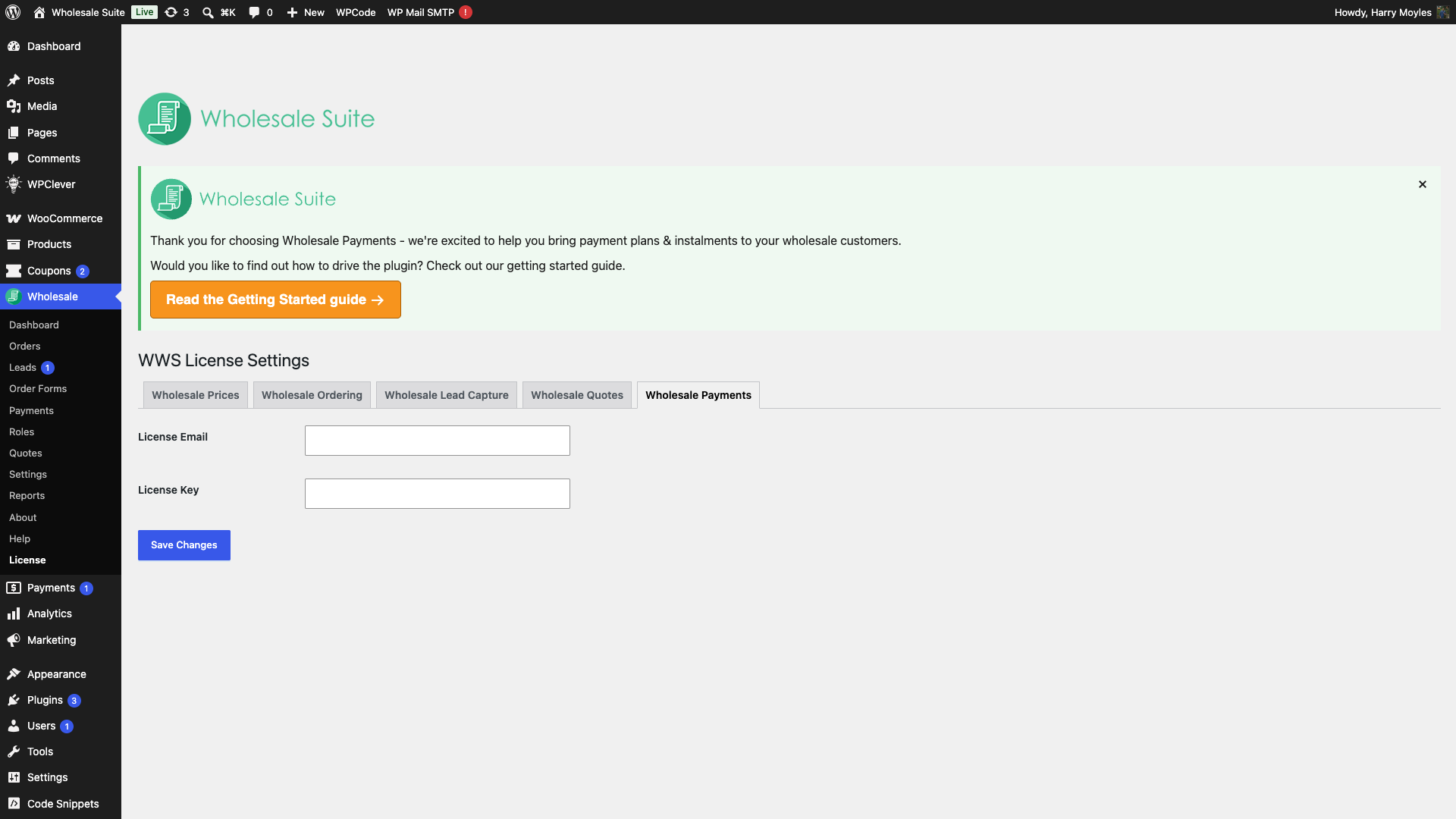
If setup options are greyed out or you’re prompted to activate, your license isn’t active yet. Go to Wholesale → License, enter your License Key, and activate it. Then return to Wholesale Payments to finish setup. See how to renew your license.
On a WordPress multisite network, activate the license on the site where you run Wholesale Payments rather than the network admin. If activation won’t stick on multisite, contact support so we can check your setup.
Frequently asked questions
Do I need a separate Stripe connection for test and live?
Yes. Test and Live each keep their own connection, so connect again after switching API Mode to Live if Live shows as not connected.
Does Reset Connection delete my Stripe account?
No. It only clears the connection saved in your store so you can reconnect cleanly. Your Stripe account and its data are untouched.
How do I set Wholesale Payments up from scratch?
See How to set up Stripe for wholesale payments for the full setup walkthrough.
Need help?
If you have a question or run into any issues, we’re here to help.
- Premium users: Open a support ticket
- Free users: Visit our community forum

