
A wholesale application is never more valuable than in the first hour after it lands. That is the whole idea behind speed to lead: the faster you respond to a new buyer, the more likely that buyer turns into a paying account. Until now, though, the Wholesale Leads page in Wholesale Lead Capture always listed applicants alphabetically, so your newest sign-ups could sit halfway down the page.
Wholesale Lead Capture 2.0.7 changes that. Your leads list now opens with the newest applications at the top, you can sort by Name or Registration Date with one click, and the plugin remembers the order you like. This release also adds WordPress Abilities API support, so AI assistants like Claude and ChatGPT can find, approve, and reject leads for you.
In this article, we’ll walk through both features, show you how to set them up, and share practical tips to tighten your speed to lead.
What Is Speed To Lead And Why Does It Matter For Wholesale?
Speed to lead is the time between a prospect raising their hand and your first meaningful reply. In wholesale, that raised hand is usually a registration form submission: a cafe, salon, or hardware store asking for access to your trade pricing. It’s one piece of a wider lead management process, but it’s the piece that decides whether the rest of the process ever gets a chance.
The research on response time is hard to ignore. A Harvard Business Review study of 1.25 million sales leads found that firms that tried to contact a lead within an hour were nearly seven times as likely to qualify it as firms that waited even one more hour. They were also more than 60 times as likely to qualify it as firms that waited 24 hours or longer, yet the average response time across the 2,241 companies audited was 42 hours.
Wholesale buyers behave the same way. A retailer who applies on Monday morning often compares several suppliers that week, so the first to approve the account and send pricing gets a real head start. Good speed to lead starts with something simple: seeing new applications the moment you open your leads list.
What’s New In Wholesale Lead Capture 2.0.7
This release focuses on two improvements that both shorten the gap between a new application and an approved wholesale customer.
- Sortable Wholesale Leads: the Name and Registration Date columns are now clickable, new leads appear first by default, and each admin’s sort order is remembered. Two related upgrades come with it: search now stays in place when you sort or change pages, and you can choose how many leads load per page.
- WordPress Abilities API support: 11 lead abilities that let AI assistants list, review, approve, and reject leads, read your registration form setup, and manage your lead email templates.
Let’s start with the leads list, since that’s where you win or lose new wholesale accounts every day.
Sortable Wholesale Leads With A Remembered Sort Order
Wholesale Leads page (Wholesale > Leads) is your inbox for new applications. If you haven’t used it yet, our overview of the WooCommerce leads admin page covers the basics like quick filters, bulk actions, and editing a lead. Version 2.0.7 makes that page much better at answering one question: who applied most recently?
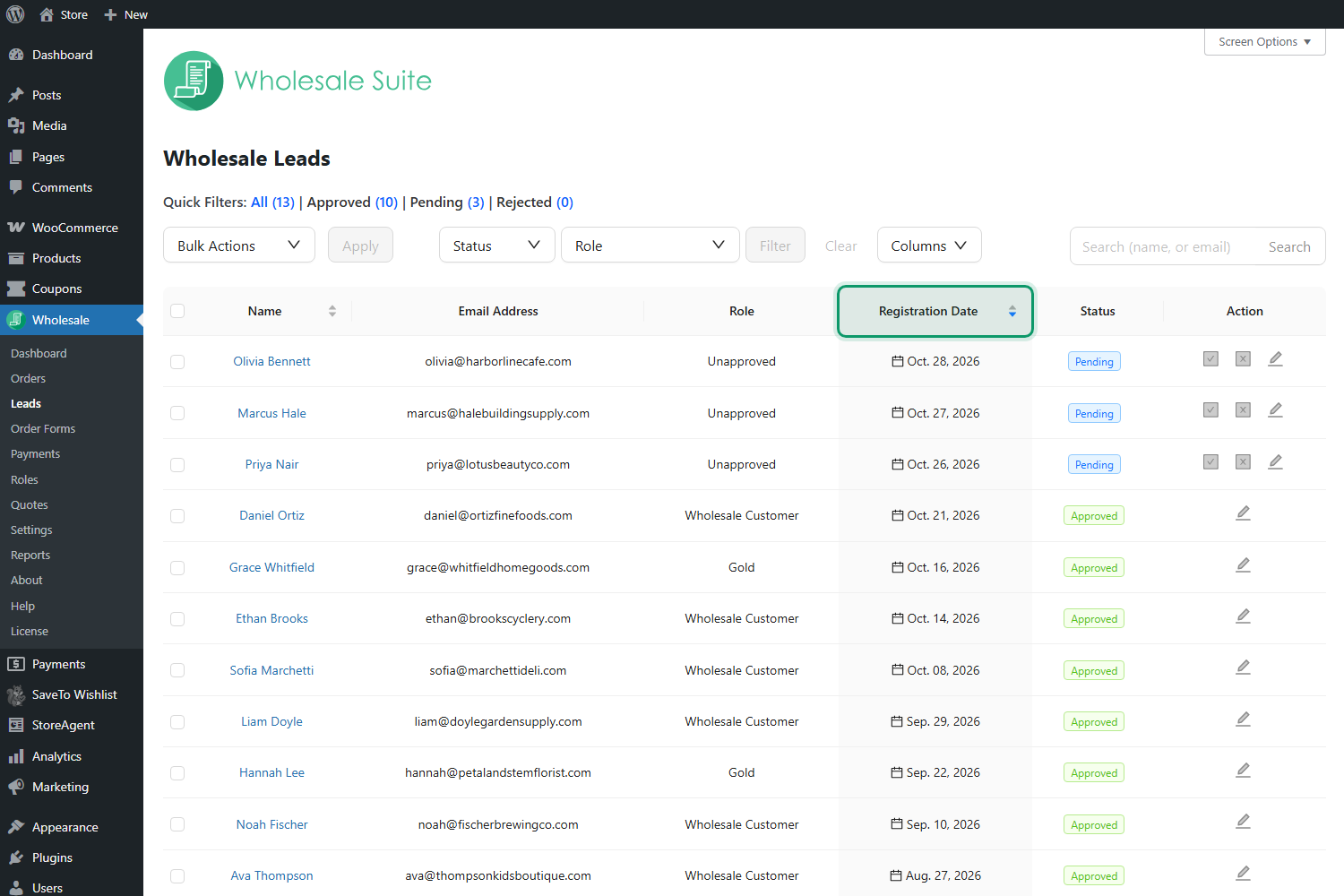
Newest applications appear first by default
When you open the leads list, it now sorts by Registration Date with the newest leads at the top. Before this update, the list was locked to alphabetical order, so a brand-new applicant could land below dozens of older accounts.
Now pending applications naturally sit together at the top of the page, right next to the approve and reject icons. That one change can cut minutes from your daily review and improve your speed to lead, with no setup.
Click Name or Registration Date to change the order
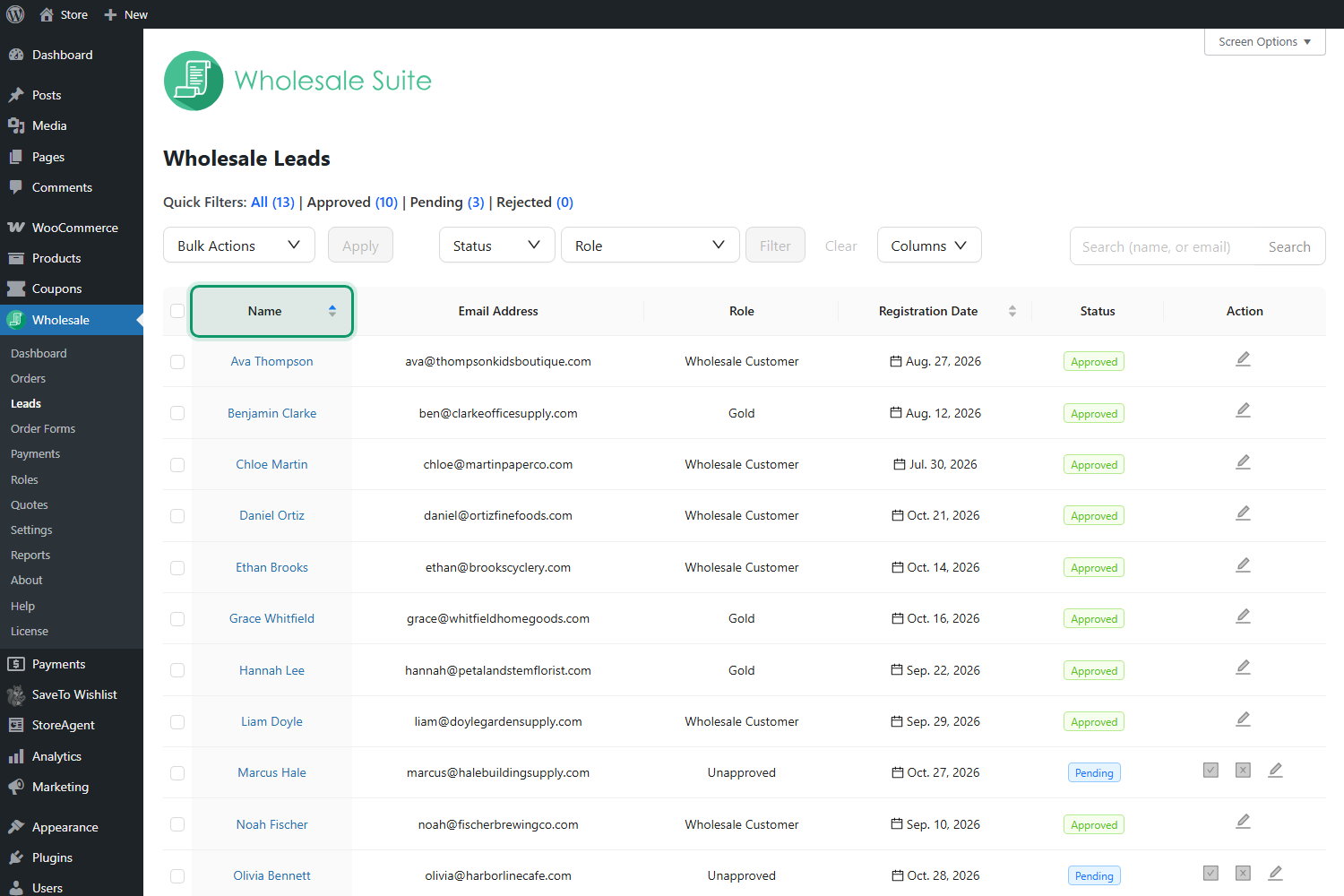
Both the Name and Registration Date column headers are now sortable. Click a header once to sort by that column, click it again to reverse the direction, and watch the small arrow next to the label to see which way the list is sorted.
Sorting by Name puts your leads in alphabetical order, which is handy when a buyer emails you and you want to find their application fast. Only these two columns are sortable. Email, Role, Status, and custom field columns stay as they are, so use the quick filters or the Status and Role dropdowns when you need to narrow the list in other ways.
Your sort order is saved for you
Wholesale Lead Capture remembers the last sort you chose and applies it the next time you open the page, even after a reload or a new login. In other words, your default sort order is simply the one you used last, with no settings page to visit.
The preference is saved per user. If your sales manager likes an alphabetical view while you prefer newest first, each of you gets your own layout, and anyone who has never picked a sort sees the newest-first view.
Search stays active while you sort
This release also fixes a frustrating gap in the old list. Previously, sorting or moving to the next page after a search would quietly drop your search and show every lead again. Now your search term stays applied, so you can search for “supply,” sort the matches by name, and page through only those results.
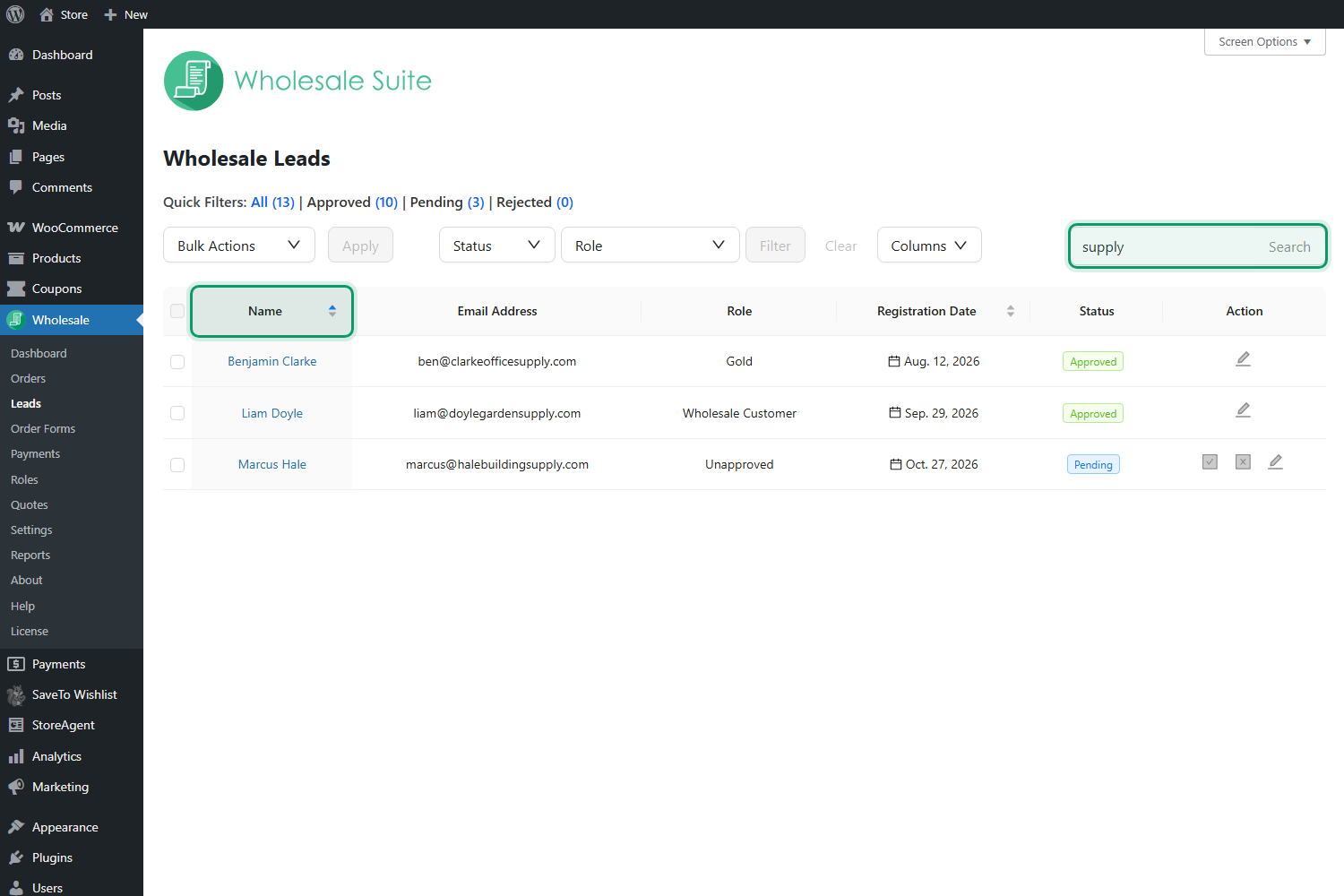
One thing to keep in mind: a text search and the Status or Role filters work separately. Applying a status or role filter clears an active search, and that filter then stays in place as you sort and change pages.
Choose how many leads load per page
The list used to show 15 leads at a time with no way to change it. You can now set your own page size from Screen Options at the top right of the Wholesale Leads page. Enter a number in Number of leads per page, click Apply, and the list reloads with that many leads on each page.
Like the sort order, this setting is saved per user, and the default stays at 15. Stores with a busy registration form often find that 25 or 50 per page makes the morning review much quicker.
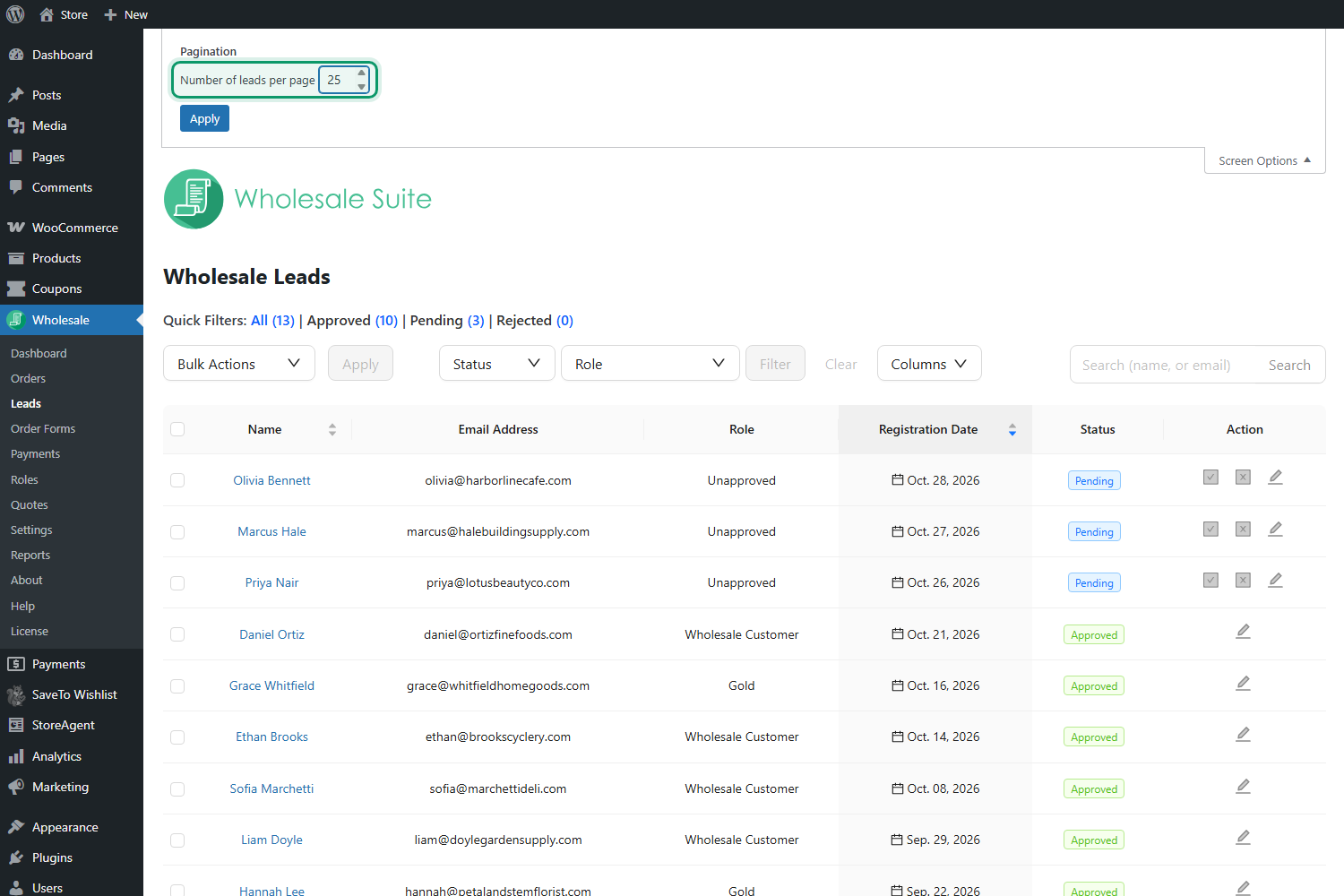
How To Sort Your Wholesale Leads Step By Step
Here’s the full workflow, from updating the plugin to setting up the view you’ll use every day.
- Update Wholesale Lead Capture. Go to Plugins > Installed Plugins and update Wholesale Lead Capture to version 2.0.7 or later.
- Open the leads list. In your WordPress dashboard, go to Wholesale > Leads. The list loads with the newest registrations at the top.
- Sort by name. Click the Name column header to sort from A to Z. Click it a second time to sort from Z to A.
- Sort by registration date. Click the Registration Date header to sort by when each lead signed up, then click again to flip the direction.
- Leave your preferred view in place. Close the page whenever you’re done. The next time you open Wholesale > Leads, your last sort order is waiting for you.
- Adjust your page size (optional). Click Screen Options, type a new value in Number of leads per page, and click Apply.
Once you set up your list the way you like, approving a pending lead works the same as before. Use the checkmark icon in the Action column, or open the lead to review the details first.
WordPress Abilities API Support For Wholesale Lead Capture
The second feature in 2.0.7 works behind the scenes, but it opens up a new way to handle leads. Wholesale Lead Capture now registers 11 abilities with the WordPress Abilities API, which has been part of WordPress core since version 6.9.
An ability is a clearly described action a plugin can perform, such as “list pending leads” or “approve a lead,” along with rules for who may run it. AI assistants connected to your store through the Model Context Protocol (MCP) can discover these abilities and use them when you ask a question in plain English. We covered how this works across the whole suite in our guide to WooCommerce MCP.
For busy store owners, this is a big deal. Instead of logging in, finding the Leads page, and opening each application, you can ask Claude or ChatGPT, “Which wholesale leads are waiting on approval?” and act on the answer right in the chat.
The 11 lead abilities
| Ability | What it does | Type |
|---|---|---|
| List leads | Lists wholesale leads, with optional filters for status (pending, approved, or rejected), registration date range, and search | Read |
| Get lead | Shows one lead’s full details, including custom registration fields and addresses | Read |
| Get leads summary | Totals for pending, approved, rejected, active, and inactive leads, plus a count of approved leads who placed a first order in a date range | Read |
| Get registration form configuration | Lists your registration form fields and whether reCAPTCHA or honeypot protection is on, without ever sharing secret keys | Read |
| Get lead email template | Shows the subject, heading, message, and on or off state of a lead email | Read |
| Approve lead | Approves a pending or rejected lead and assigns a wholesale role | Write |
| Reject lead | Rejects a lead, with an optional reason | Write |
| Bulk approve leads | Queues approval for up to 50 pending leads per request, with one approval email per lead | Write |
| Set approval mode | Switches new registrations between manual and automatic approval | Write |
| Update registration form field | Adds, edits, or removes a custom registration form field | Write |
| Update lead email template | Edits the subject, heading, and message of the registration, approval, rejection, or welcome email | Write |
Built-in guardrails
Every ability checks WordPress user permissions before it runs. Lead details are only available to users who can list and edit users, such as administrators and shop managers, while changing the approval mode or the registration form requires administrator-level access.
Write abilities are flagged as actions that change your store, so MCP clients ask you to confirm before they run. They also use the exact same code as the admin screens. When an AI assistant approves a lead, the customer gets the same approval email and your store fires the same events it would if you’d clicked the checkmark yourself.
If you’d rather not expose these abilities at all, a developer can switch them off with the WWLC_DISABLE_ABILITIES constant or the wwlc_disable_abilities filter.
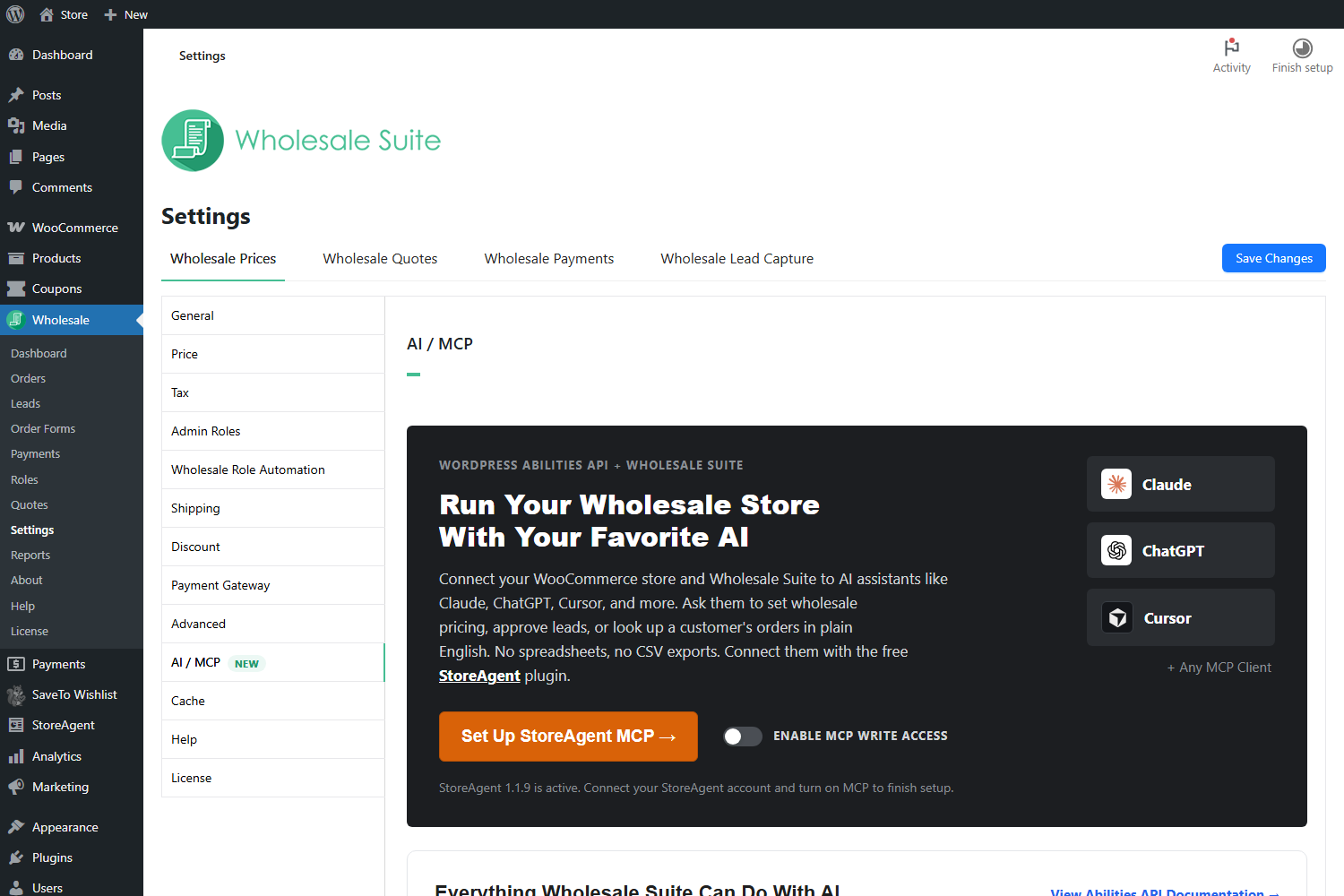
How To Manage Wholesale Leads With An AI Assistant
Here’s how to get the new lead abilities working with your AI assistant of choice.
- Check your versions. You need Wholesale Lead Capture 2.0.7, Wholesale Prices 2.3.0 or later (it provides the shared Wholesale Suite abilities), and WordPress 6.9 or later.
- Open the AI / MCP settings. Go to Wholesale > Settings, stay on the Wholesale Prices tab, and click AI / MCP in the left menu.
- Connect StoreAgent. Click Set Up StoreAgent MCP. The free StoreAgent plugin connects your store’s abilities to MCP clients like Claude, ChatGPT, and Cursor, and StoreAgent’s guide on how to connect Claude and ChatGPT to your store walks through the account setup.
- Decide on write access. Turn on Enable MCP Write Access if you want your assistant to approve or reject leads, not just look them up. StoreAgent’s MCP settings and ability browser also lets you switch individual abilities on or off.
- Add your endpoint to your AI assistant. Copy the address shown under Your Store’s MCP Endpoint and add it to your MCP client.
- Ask your first question. Try “Which wholesale leads are waiting on approval?” and follow up with something like “Approve Olivia Bennett as a Wholesale Customer.”
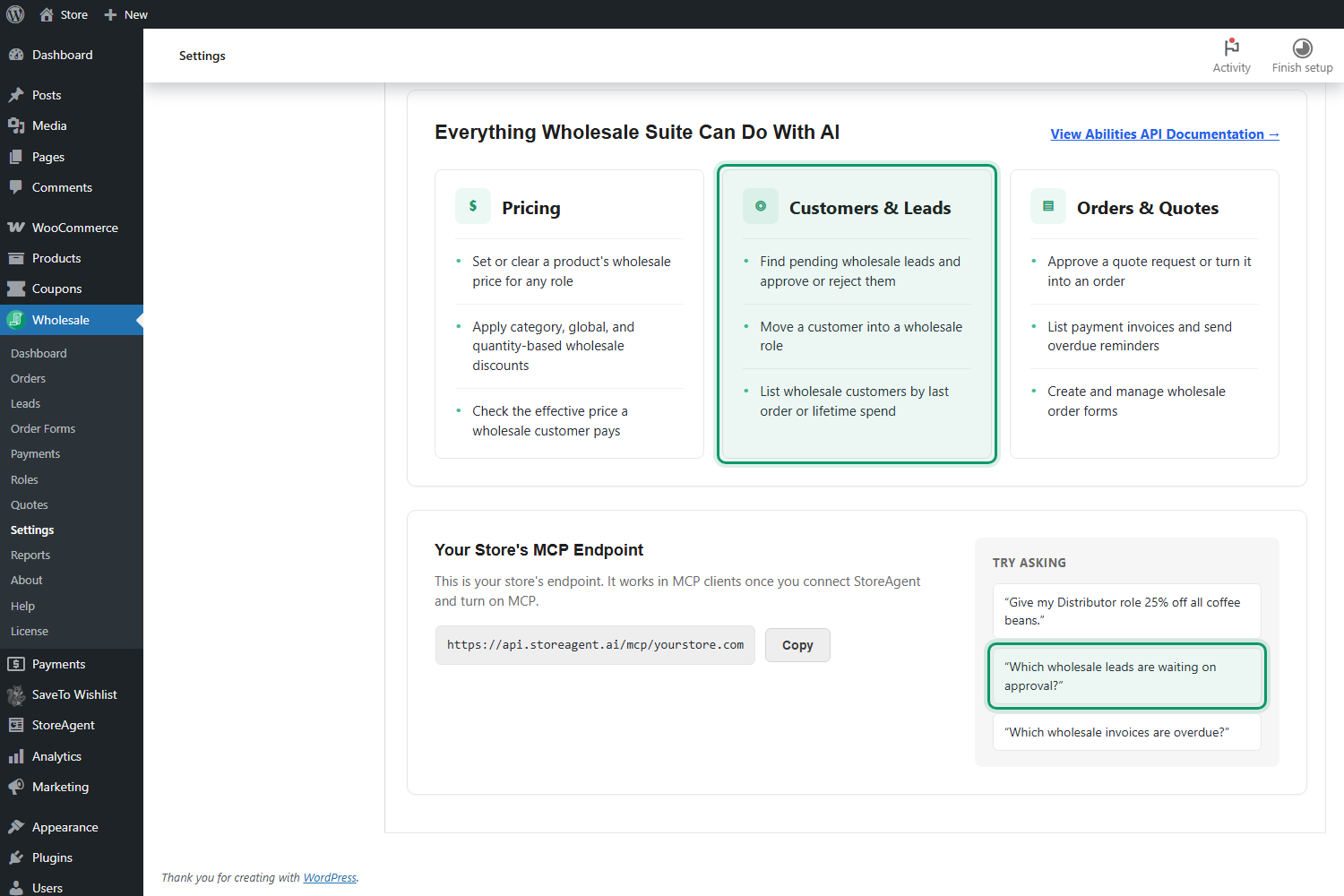
Once you’re connected, a few more prompts map neatly to the new abilities:
- “How many leads are pending right now, and how many approved leads placed their first order last month?”
- “Show me everything this lead entered on the registration form.”
- “Reject the lead from Brooks Cyclery and note that we don’t ship to their region.”
- “Switch wholesale registrations to manual approval.”
- “What’s the current subject line of the wholesale approval email?”
Tips To Improve Your Speed To Lead
The new features do the heavy lifting, but a few habits help them pay off.
Review new leads at set times every day
Pick two or three fixed check-ins, such as first thing in the morning and right after lunch. With newest-first sorting, each check-in is a quick glance at the top of the list rather than a scroll through every account. Consistent check-ins are the simplest way to keep your response time under a few hours.
Ask your AI assistant for a daily lead summary
If you’ve connected an MCP client, start the day with “Summarize today’s pending wholesale leads.” Your assistant can pull the list and each lead’s details, so you only open wp-admin when something needs a closer look.
Use automatic approval only where it fits
Wholesale Lead Capture can approve registrations automatically, bringing your speed-to-lead close to zero. That works well when your registration form already collects everything you need to vet a buyer. If you need to check tax IDs or resale certificates first, keep manual approval and let the new sorting and AI tools speed up the review instead.
Make the first touch count
Fast approval only helps if the buyer knows what to do next. Customize the emails sent to newly registered customers with a link to your order form, your minimum order rules, and a contact person. Then follow our wholesale customer onboarding checklist, and borrow ideas from our lead conversion strategies to turn new accounts into repeat orders.
Conclusion
Speed to lead is one of the few sales metrics you can improve almost overnight, and Wholesale Lead Capture 2.0.7 is built around that idea. The Wholesale Leads page now opens with the newest applications first, sorts by Name or Registration Date in one click, and remembers each admin’s preferred order. It also keeps your search in place and lets you choose how many leads load per page.
The new WordPress Abilities API support takes things a step further. With 11 lead abilities that follow the same permission checks and send the same emails as the admin screens, your AI assistant can tell you who’s waiting, approve the right buyers, and keep your registration settings in shape without a trip to wp-admin.
Update to Wholesale Lead Capture 2.0.7, open Wholesale > Leads, and see how many pending applications are sitting at the top of your list right now. Every one you approve today is a step toward a better speed to lead and more wholesale orders.
Here is what we covered in this article:
- What is speed to lead and why does it matter for wholesale?
- What’s new in Wholesale Lead Capture 2.0.7
- Sortable wholesale leads with a remembered sort order
- How to sort your wholesale leads step by step
- WordPress Abilities API support for Wholesale Lead Capture
- How to manage wholesale leads with an AI assistant
- Tips to improve your speed to lead
Frequently Asked Questions
What is speed to lead?
Speed to lead is how long it takes your business to respond to a new lead. For a wholesale store, it’s usually the time between a buyer submitting your wholesale registration form and you approving the account or reaching out. Research from Harvard Business Review shows that responding within an hour makes a lead far more likely to convert.
How do I set the default sort order on the Wholesale Leads page?
Go to Wholesale > Leads and click the Name or Registration Date column header. Wholesale Lead Capture saves the last sort you choose for your user account and applies it every time you return. If you have never picked a sort, the list shows the newest registrations first.
Which columns can I sort on the Wholesale Leads page?
You can sort by Name and by Registration Date. Name sorts your leads alphabetically by their account username, and Registration Date sorts them by when they signed up. The Email, Role, Status, and custom field columns are not sortable, but you can narrow the list with the quick filters, the Status and Role filters, or search.
Do I need an AI assistant to use the new features?
No. Sorting, the remembered sort order, search, and the leads-per-page setting all work inside your WordPress dashboard with no extra setup. The Abilities API support is optional and only comes into play if you connect an AI assistant through MCP.
Is it safe to let an AI assistant approve wholesale leads?
Each ability checks WordPress permissions before it runs, and actions that change your store are flagged so MCP clients ask for confirmation first. Approvals go through the same code as the admin screen, so buyers get the normal approval email. You can also leave MCP write access off, or a developer can disable the abilities entirely with the WWLC_DISABLE_ABILITIES constant.