
If you use WooCommerce Wholesale Order Form with WooCommerce Wholesale Quotes, your customers can add products to a quote straight from the order form. This guide shows you how to add the Add to Quote Button element to a form, change how the button looks, and check who can see it.
What you’ll need
- WooCommerce Wholesale Quotes: active and set up on your store
- WooCommerce Wholesale Order Form: active, with at least one order form
- An Administrator or Shop Manager account
The integration turns on by itself when both plugins are active. There is nothing else to enable.
Step 1: Open the order form in the form builder
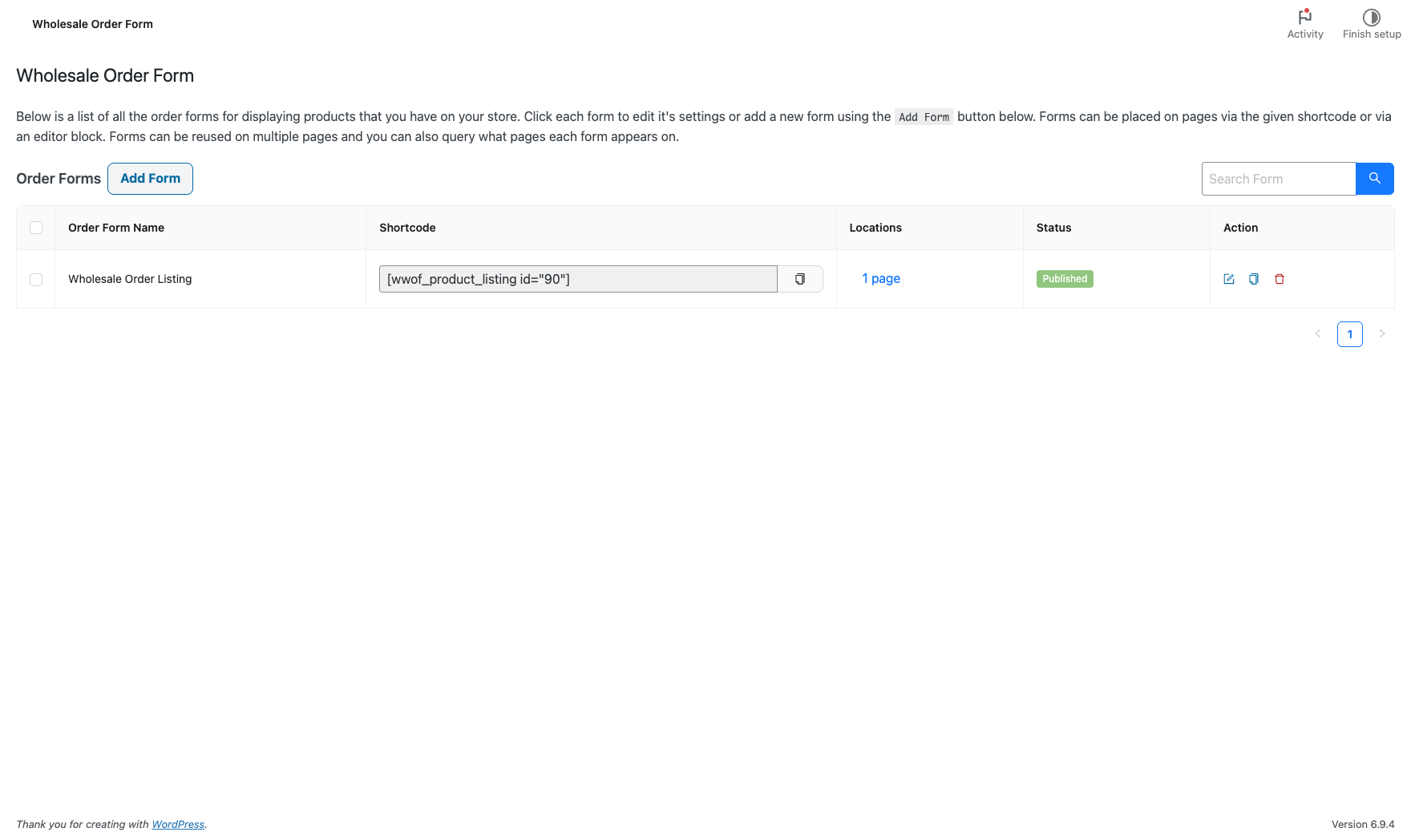
- Go to Wholesale > Order Forms.
- Click the order form you want to change. The form builder opens on the Edit Form tab.
Step 2: Add the quote button to the form table
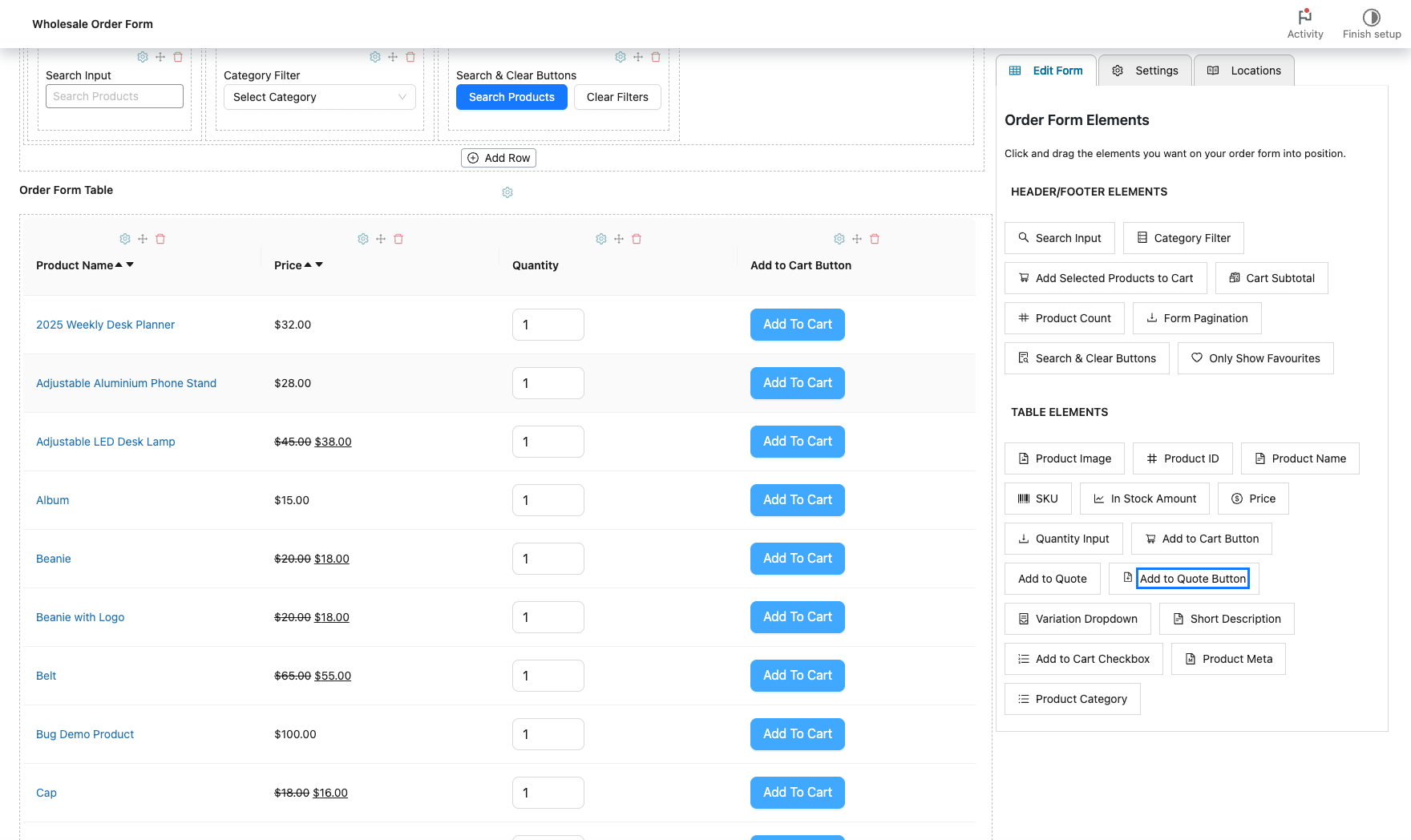
- In the Order Form Elements panel, find Add to Quote Button under TABLE ELEMENTS.
- Drag Add to Quote Button into the Order Form Table, where you want the column to appear.
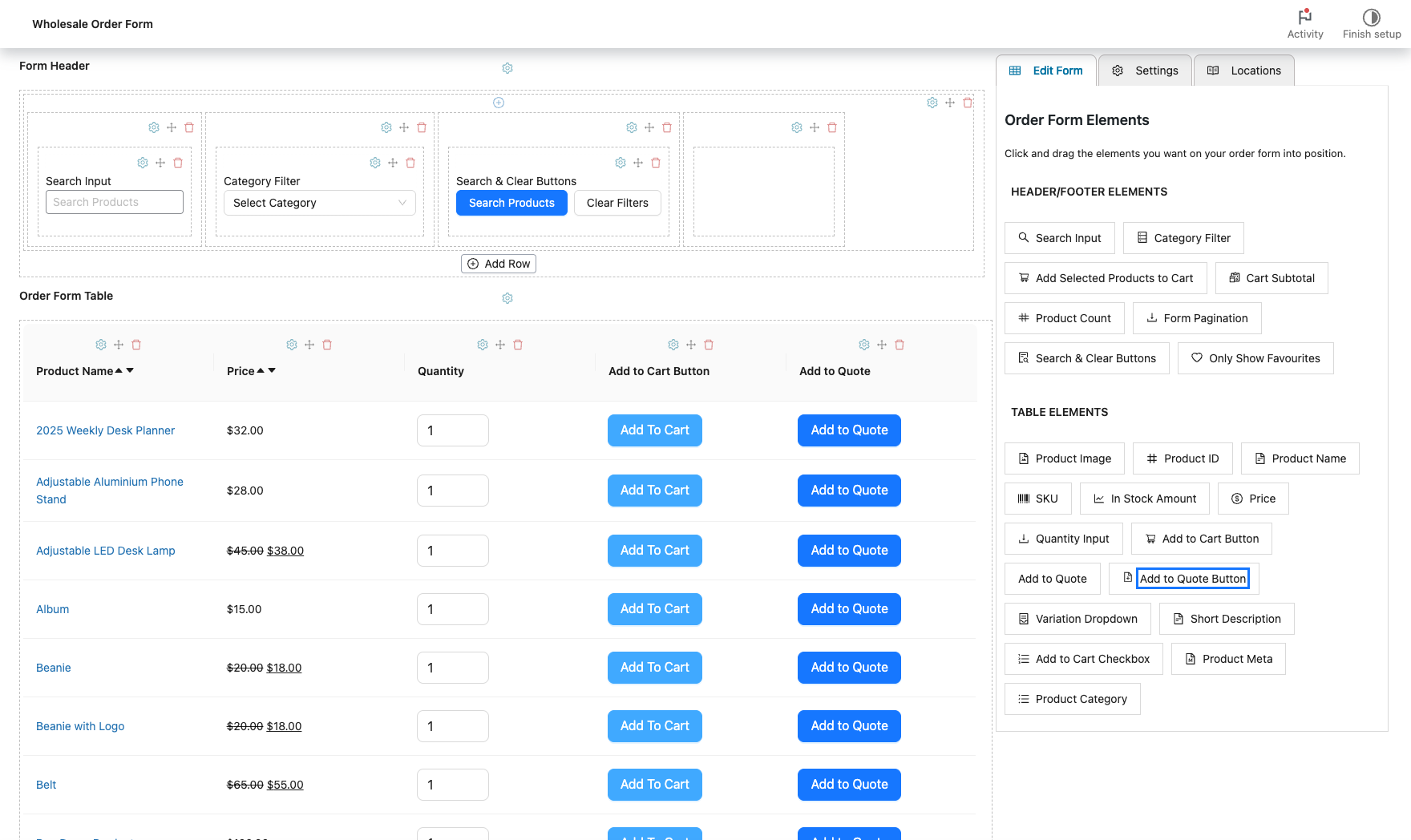
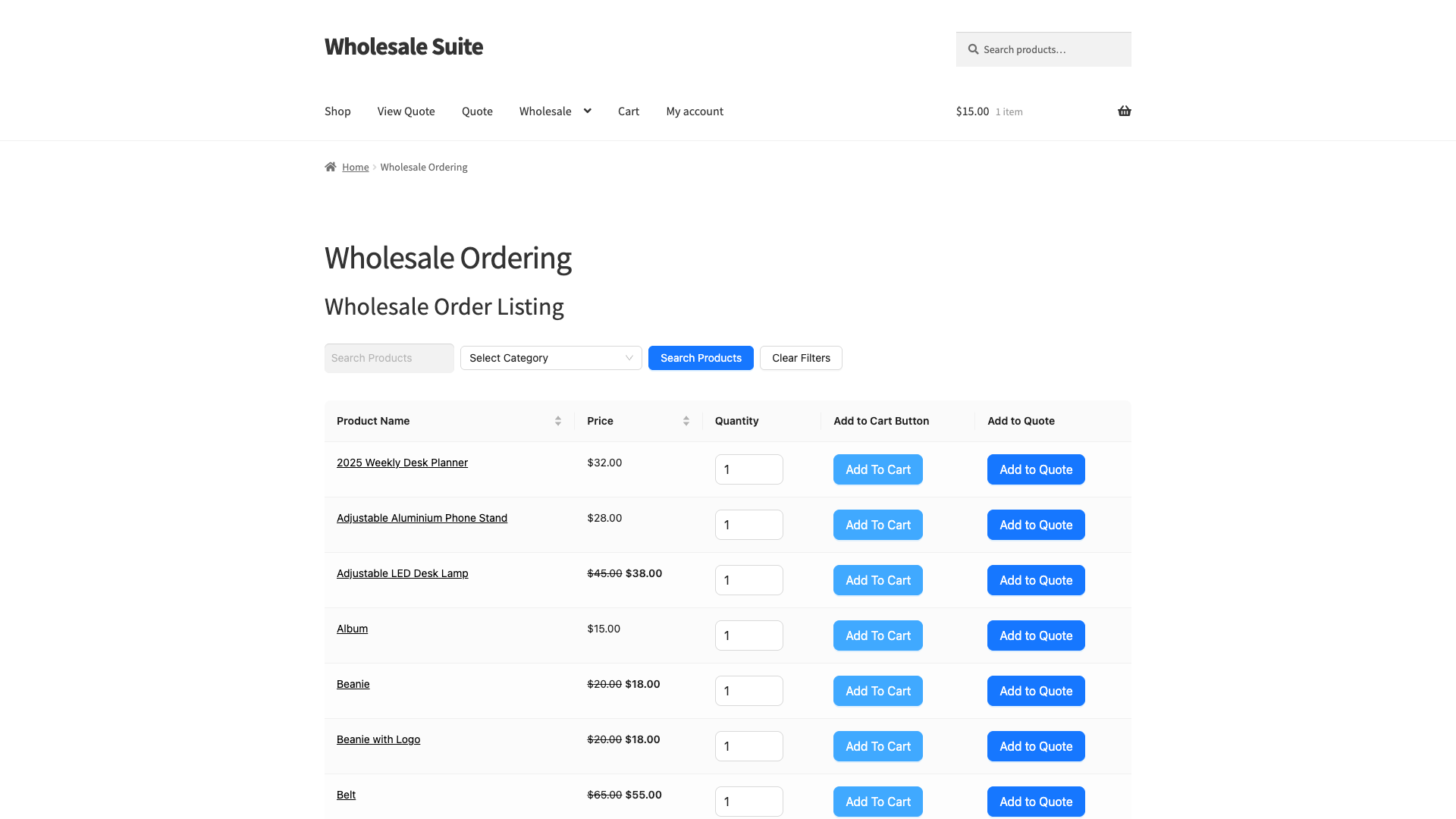
A new Add to Quote column appears in the form preview, with an Add to Quote button on each product row.
Step 3: Change how the quote button looks
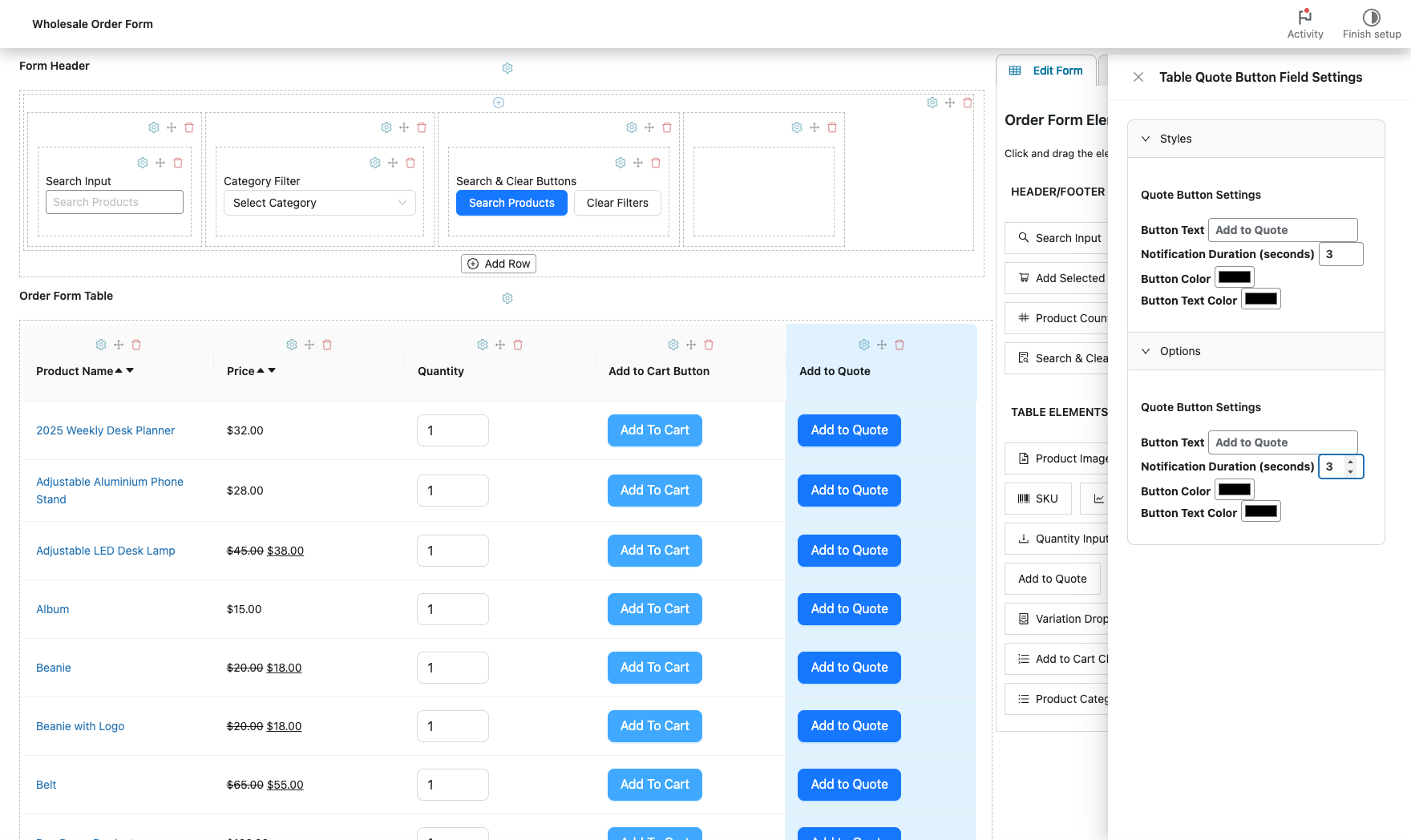
- Click the gear icon above the Add to Quote column. The Table Quote Button Field Settings panel opens.
- Change the settings you want. Each column has its own settings.
| Setting | What it does | Default |
|---|---|---|
| Button Text | The label on the button when the product is not in the quote yet | Add to Quote |
| Notification Duration (seconds) | How long the success notification shows after a product is added | 3 |
| Button Color | The background colour of the button | #1677ff (blue) |
| Button Text Color | The colour of the button label | #FFF (white) |
When a product is already in the quote, the button shows Remove from Quote and changes to a secondary style, so customers can see which items they already added. To change that label, go to Wholesale > Settings > Wholesale Quotes > Quote Button Placement & Styles and edit Remove from Quote button label. See the WooCommerce Wholesale Quotes settings reference.
Step 4: Save and test the form
- Click Update. For a new form that is not published yet, click Publish.
- Open a page that shows the order form on your store.
- Log in as a wholesale customer. The Add to Quote button shows in the column you added.
- Click Add to Quote on a product. The button changes to Remove from Quote, and the quote counter goes up.
If Restrict to wholesale customers is turned on in Wholesale Quotes, test with a wholesale customer account. Guests, retail customers and admins without a wholesale role do not see the button on the order form.
If your store allows guest quotes, a visitor who is not logged in is asked for their email address before the product is added. See How to allow guest users to request wholesale quotes.
Troubleshooting
Add to Quote Button is not in the Order Form Elements panel
Go to Plugins and check that WooCommerce Wholesale Quotes and WooCommerce Wholesale Order Form are both active. The element only shows when both plugins run. If both are active and the element is still missing, deactivate and reactivate WooCommerce Wholesale Quotes.
Some customers do not see the quote button
Check Restrict to wholesale customers in Wholesale > Settings > Wholesale Quotes > General. When it is on, only users with a wholesale role see the button. Guests also need guest quotes turned on.
Frequently asked questions
Does the quote button show for all customers or only wholesale customers?
It depends on the Restrict to wholesale customers setting in Wholesale > Settings > Wholesale Quotes > General. The setting is off by default, so every logged-in customer sees the button. Guests see it only when guest quotes are enabled. When you turn the setting on, only users with a wholesale role see the button. Guests, retail customers and admins without a wholesale role do not, and the order form hides the empty quote column for them. The form builder still shows the button, so you can edit it as usual.
Can I add the quote button to more than one column in the same form?
Yes. Drag Add to Quote Button into as many columns as you like. Each column has its own button text and colour settings. All the buttons on a form share the same quote, so adding a product from one column marks it as in the quote everywhere on the form.
Need help?
If you have a question or run into any issues, we’re here to help.
- Premium users: Open a support ticket
- Free users: Visit our community forum

