
If a customer sends you a long product list, adding each item separately can take time. A CSV file lets you add products and quantities to a quote in one upload. This guide covers preparing the file, uploading it as a customer or administrator, and fixing rejected rows in WooCommerce Wholesale Quotes.
What you’ll need
- WooCommerce Wholesale Quotes 1.0.1 or later, installed and active.
- WooCommerce Wholesale Prices with prices available for the customer’s wholesale role.
- Access to the store’s new quote page, or permission to manage quotes in the admin.
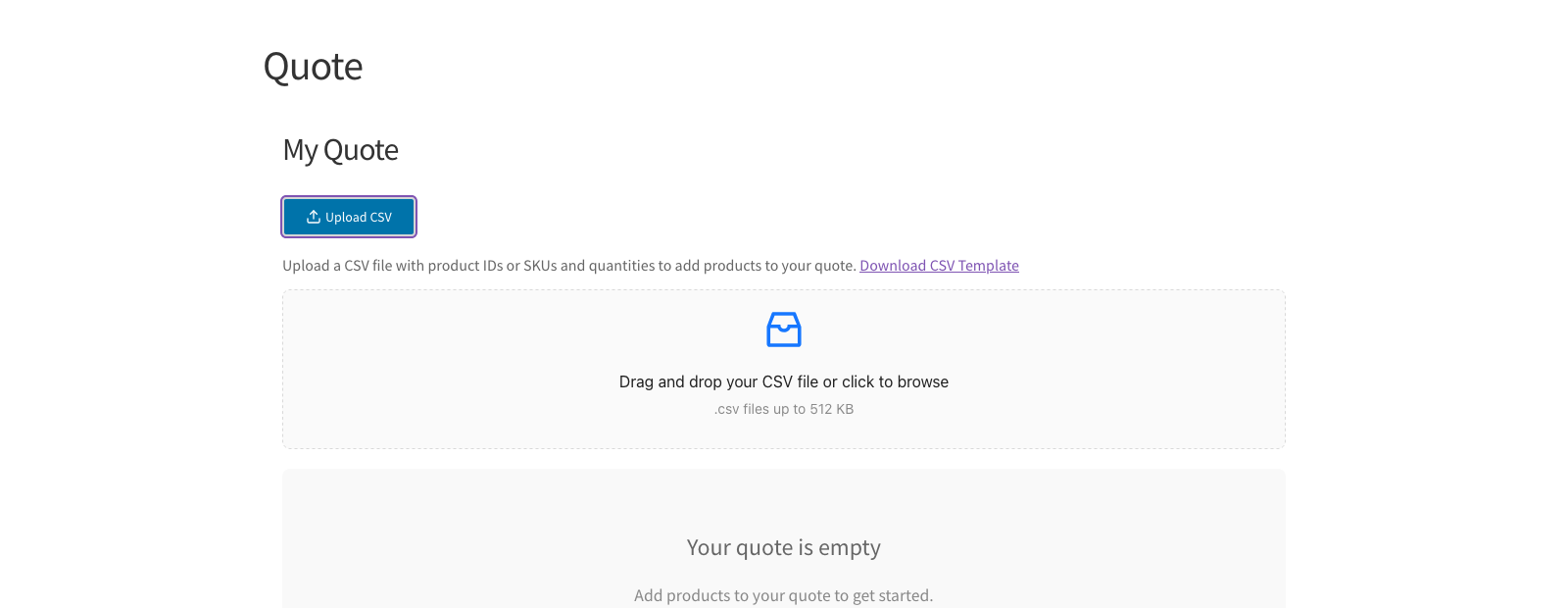
- A .csv file no larger than 512 KB, with at most 500 product rows.
The importer adds quote items; it does not import products into your store or update their catalog prices. For quote setup, see the getting started guide.
Prepare the CSV file
- Open the quote’s Upload CSV area.
- Click Download CSV Template.
- Open the template in your spreadsheet app.
- Replace the sample rows with your own products and quantities.
- Save the file as comma-separated CSV.
| Column | What to enter |
|---|---|
| id | Product ID, or the specific variation ID. Keep the column even when you identify every row by SKU. |
| sku | Product SKU (stock-keeping code), or the specific variation’s SKU. Keep the column even when you use IDs. |
| qty | A positive whole number, such as 10. Zero, negative values and decimals are rejected. |
| name | Optional reference text. It is not used to identify the product. |
The file must include id, sku and qty headers. Each row needs at least one identifier: an ID or a SKU. If you supply both, they must refer to the same product. Header order does not matter, and header matching ignores capitalization.
For a variable product, use the specific variation’s ID or SKU. The variable parent cannot identify which option the customer wants. Grouped and external products are not supported.
For example, a row with a blank ID, SKU BOLT-10MM and quantity 25 adds 25 units of that SKU. Replace all template examples with products from your store.
Upload as a customer
- Open the store’s new quote page.
- If you’re a guest, add a product to your quote with the Add to Quote button (or your store’s renamed quote button) first, and enter your email when asked.
- Click Upload CSV.
- Select your CSV file in the upload area.
- Review the import result.
- Check the items and totals in your quote.
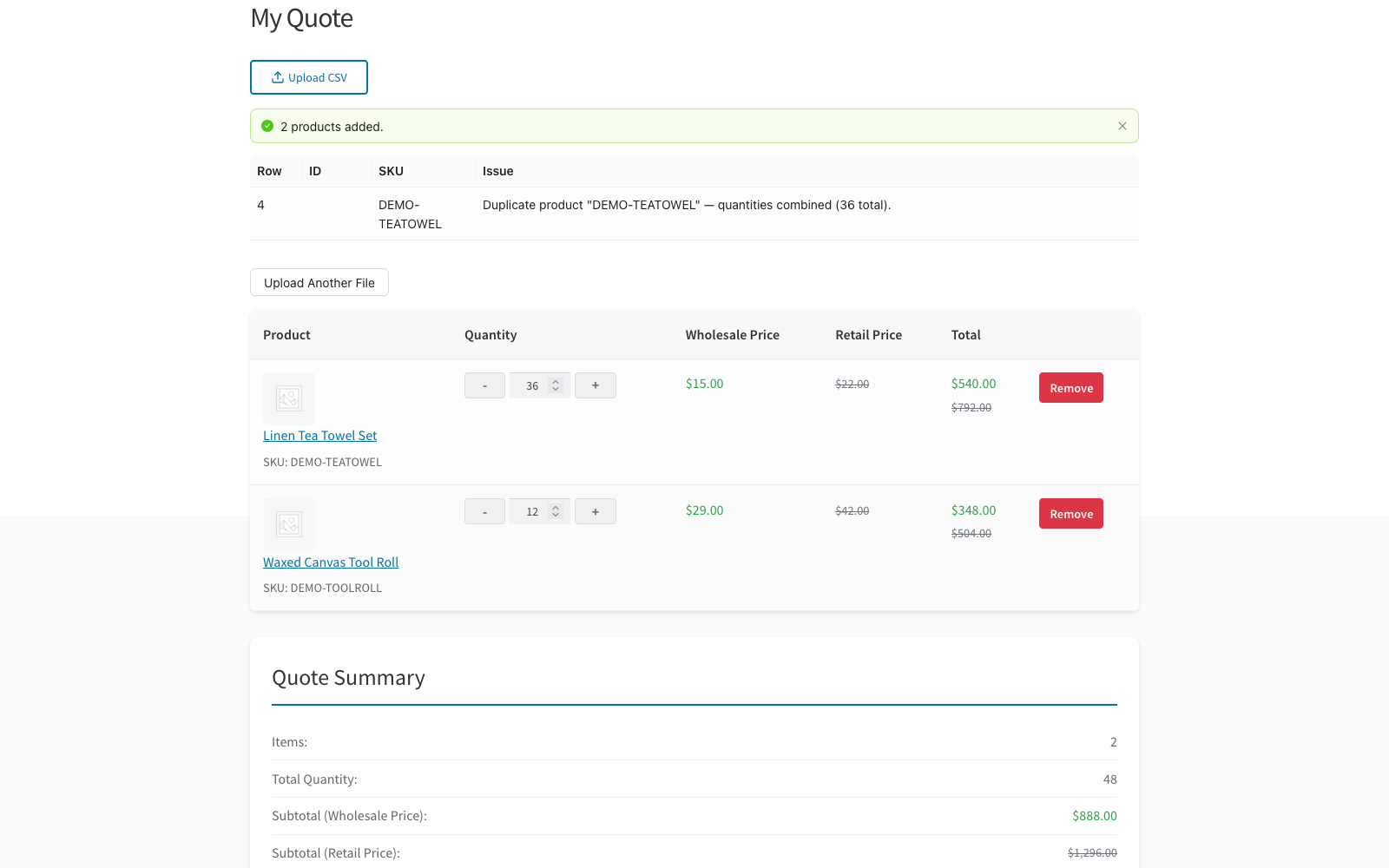
Uploading items does not submit the quote. Complete the normal quote request process after checking the imported list. Guests can upload a CSV file only when the store allows guest quote requests. The store must also set a Default wholesale role for guests, or every row fails with a no wholesale price error. See Step 3 of How to allow guest users to request wholesale quotes. A guest must give an email address before uploading. You can also enter it in the Email field under Customer Information, which shows once the quote has a product.
Upload into an existing quote as an administrator
- Go to Wholesale → Quotes.
- Open the quote you want to update.
- Click Upload CSV in the Quote Items card.
- Upload the completed CSV file.
- Review the updated quantities, prices and quote totals.
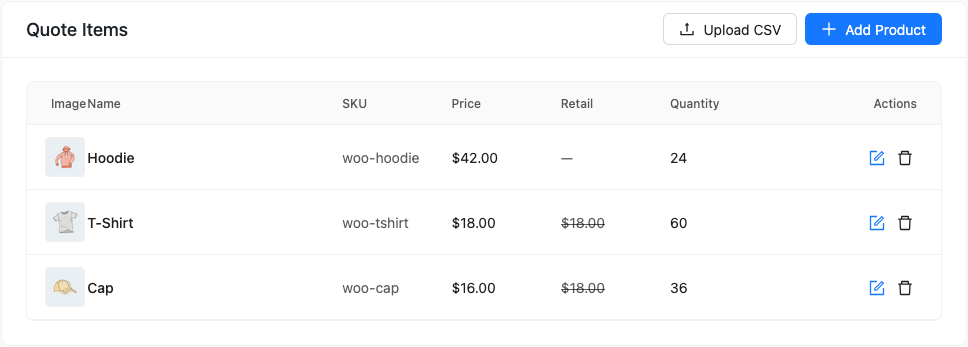
The upload button is available after the quote has been saved and has an existing record. Validation uses the quote’s assigned customer, so check that customer before importing. For the wider admin workflow, see the quote management guide.
Understand merges and partial imports
Repeated rows for the same product or variation combine their quantities. Imported items also merge with matching items already in the quote rather than replacing the whole quote. For example, importing 5 more units into a line that already has 10 increases its quantity to 15.
Valid rows can be added even when other rows fail. Review the result before uploading again: repeating the entire file can add those successful quantities a second time. Correct and upload only the rows you still need.
When stock is managed, the importer may reduce a requested quantity to available stock and report a warning. An out-of-stock item is rejected. Files over 500 product rows are truncated, so split large lists before upload.
Fix common upload problems
| Problem | Fix |
|---|---|
| Guest email required | Add a product to your quote with Add to Quote and enter your email when asked, or enter it in the Email field under Customer Information. Then upload again. |
| Missing headers | Keep the id, sku and qty columns, including columns whose cells are blank. |
| Invalid quantity | Enter a positive whole number without a decimal or thousands separator. |
| Product not found | Check the ID or SKU against the current product or variation. |
| SKU matches several products | Identify the product by ID. |
| ID and SKU do not match | Correct the identifier pair, or provide only one identifier. |
| Variable product rejected | Use a specific variation ID or variation SKU. |
| No wholesale price available | Check the customer’s wholesale role and the product’s wholesale price. For guests, and for customers without a wholesale role, set a Default wholesale role for guests on the Guest Quote settings tab. |
| File rejected | Export a genuine .csv text file at or below 512 KB; renaming an Excel workbook is not enough. |
The default customer limit is five successful uploads per minute, counted by account or guest IP address. If the limit is reached, wait before uploading again. Administrators and shop managers bypass this rate limit; a customized store may use a different limit.
Frequently asked questions
Can I upload an Excel workbook?
Export it as CSV first. The importer expects a .csv file with an accepted CSV or text format.
Does a warning mean nothing was imported?
No. Rows with a warning, such as a combined duplicate or a quantity reduced to stock, were still added. Rows with an error were skipped. Upload only the corrected error rows, so you do not add the same products twice.
Need help?
If you have a question or run into any issues, we’re here to help.
- Premium users: Open a support ticket
- Free users: Visit our community forum

