When a wholesale customer buys on a payment plan, they need to know what they owe, when each payment is due, and how to pay it. WooCommerce Wholesale Payments shows all of this on the customer’s My Account page. This guide shows you what your customers see, so you can point them to the right place and answer their questions.
Before you start
- WooCommerce Wholesale Payments is installed and connected to Stripe. See How to set up Stripe for wholesale payments.
- You have at least one payment plan. See How to Create Payment Plans for Wholesale Customers?.
- The customer placed an order with a Wholesale Payments payment plan at checkout.
Find the payments for an order
Each order paid with a Wholesale Payments payment plan gets a View Payments button in the customer’s order list. Cancelled orders do not show the button.
Your customer finds the payments like this:
- Log in to the store.
- Go to My Account → Orders.
- Find the order and click View Payments.
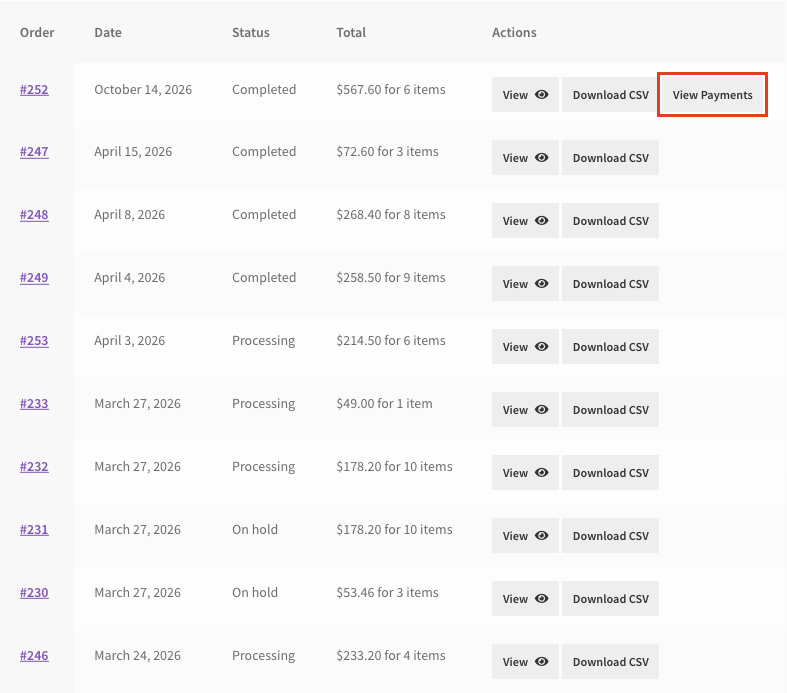
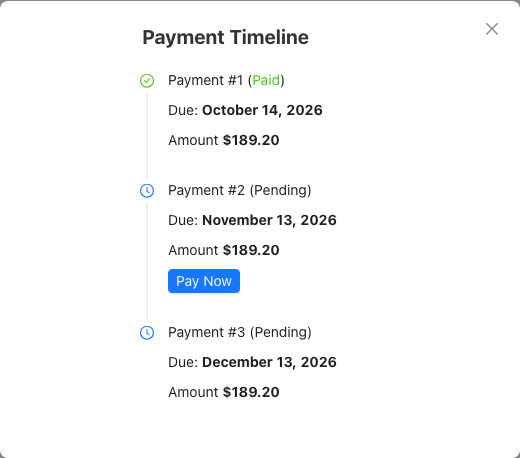
A Payment Timeline window opens. It lists every payment in the plan, in order.
Read the payment timeline
Each payment in the timeline shows three lines: Payment #1 (Paid) with the payment number and status, Due: with the due date, and Amount with the amount for that payment.
| Status | What it means |
|---|---|
| Paid | The customer paid this payment. |
| Pending | The payment is not paid yet, and its due date has not passed. |
| Overdue | The due date has passed and the payment is not paid. |
| Pending Order Completion | The payment schedule has not started yet. It starts when you mark the order as completed. |
The Pending Order Completion status shows when the Payment Plan Schedule Start Date setting is Completed Date. You find this setting in Wholesale → Settings → Wholesale Payments → Checkout. The schedule then starts when you mark the order as completed. Until then, the timeline shows Due: Pending Order Completion instead of a date.
Pay a payment with Pay Now
The Pay Now button shows on the first payment that is Pending or Overdue. Later payments do not show the button until the earlier ones are paid.
- In the Payment Timeline window, click Pay Now.
- On the Stripe invoice page that opens in a new tab, enter the payment details and pay.
Stripe bills every payment. When the payment goes through, the timeline shows the payment as Paid the next time the customer opens it.
See the payments on the order details page
The order details page also shows the payment schedule. The customer opens it from My Account → Orders → View. This page also has a View Payments button in the Actions row, which opens the same Payment Timeline window. The same section shows on the order received page after checkout.
Below the order table, a Wholesale Payments section lists each payment in a table with three columns: Amount Due, Due Date, and Status. The first unpaid status (Pending Payment or Overdue) is a link that opens the same Stripe invoice page as Pay Now.
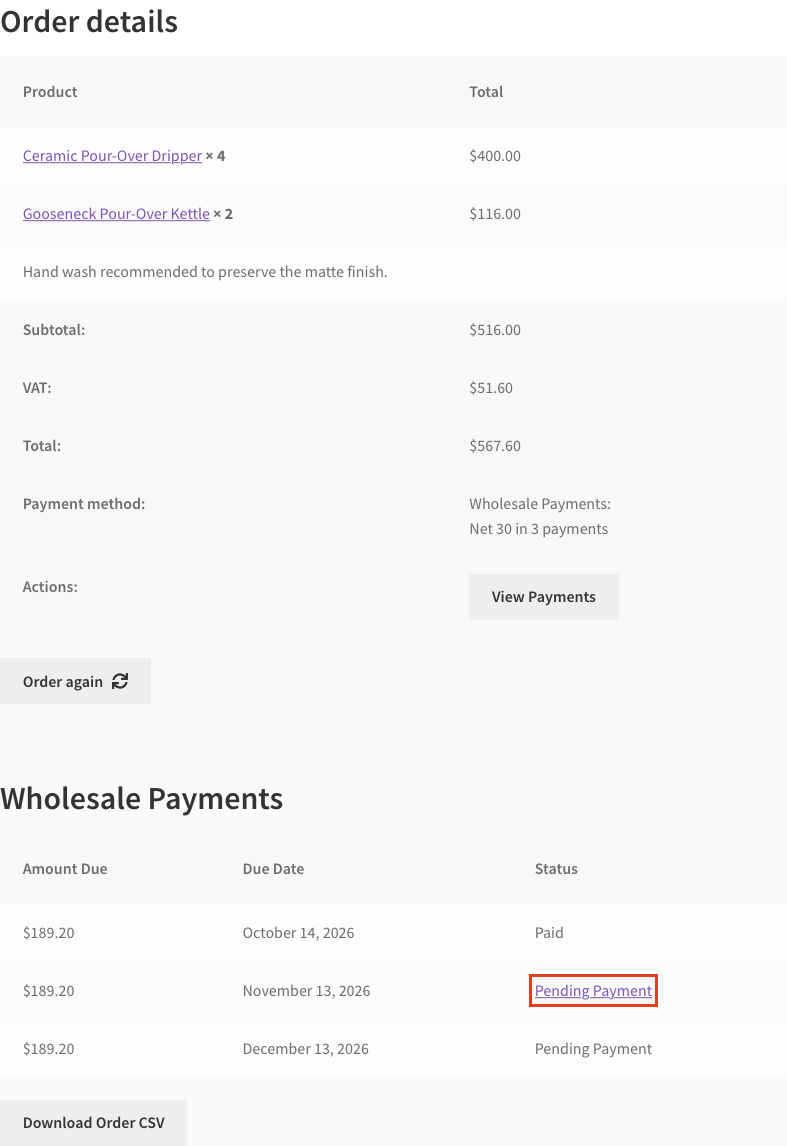
In the order totals, the Payment method row shows the name of the payment plan the customer picked at checkout.
If the schedule waits for order completion, the section shows a message that the instalments begin when the order is completed, instead of the table.
What customers see when a payment is overdue
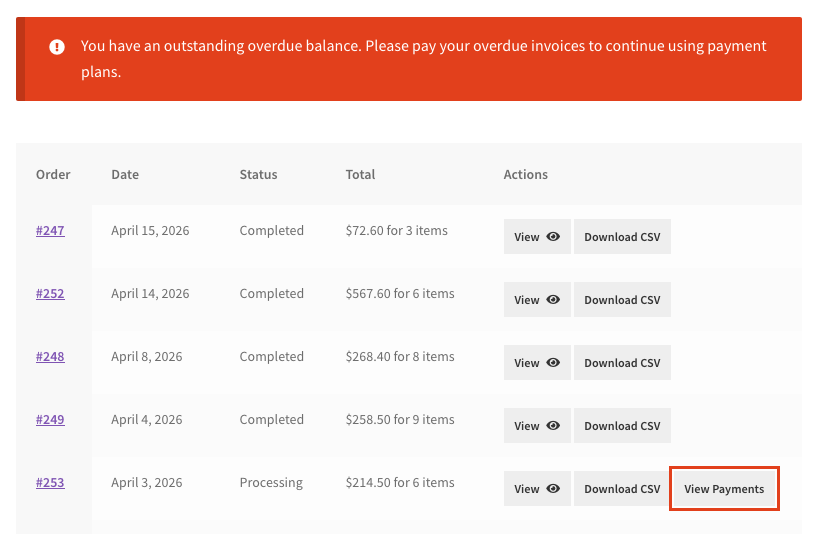
If you restrict customers with overdue invoices, the Orders page in My Account shows this notice when the customer has an overdue payment: “You have an outstanding overdue balance. Please pay your overdue invoices to continue using payment plans.” The customer can open View Payments on the order and click Pay Now to clear it. To set up the restriction, see How to restrict wholesale customers with overdue invoices.
Troubleshooting
The View Payments button does not show on an order. Check that the customer paid for the order with Wholesale Payments and picked a payment plan at checkout. Orders paid with another gateway, and cancelled orders, do not get the button.
There is no Pay Now button. Check the payment statuses in the timeline. If every payment is Paid, there is nothing to pay. If the payments show Pending Order Completion, the schedule starts when you mark the order as completed.
A due date shows as a dash. Check the order’s invoice in the admin invoice list. The dash means the payment has no due date recorded.
Frequently asked questions
Can a customer pay a later payment before an earlier one?
No. Pay Now only shows on the first unpaid payment, so customers pay in order.
Does the timeline still show when I collect payments automatically?
Yes. Orders that use automatic payment collection show the same View Payments timeline and statuses. See How to set up automatic payment collection for wholesale invoices.
Where do I see the same payments as a store owner?
Go to the admin invoice list. See Understanding the Wholesale Payment Invoice List.
What’s next
- How to Create Payment Plans for Wholesale Customers?
- Wholesale Payment Email Reminder
- How to restrict wholesale customers with overdue invoices
- Understanding the Wholesale Payment Invoice List
Need help?
If you have a question or run into any issues, we’re here to help.
- Premium users: Open a support ticket
- Free users: Visit our community forum