
Placing large wholesale orders often means working with multiple product types, including bundles. These bundles contain pre-configured products sold together at either a fixed or calculated price. Starting in version 3.1.0, WooCommerce Wholesale Order Form now includes native support for WooCommerce Product Bundles. As a result, bundle products appear directly in the order form alongside simple and variable products. You can also configure optional items, variation attributes, and per-bundled-item quantities inline without leaving the form.
Requirements
Two plugins must be active for bundle products to appear in your order form:
- Wholesale Order Form 3.1.0 or later
- WooCommerce Product Bundles 8.3 or later
When WooCommerce Product Bundles is not active, the integration is fully inert. Bundle products will not appear in the order form, but all other product types continue to work normally.
How bundle products appear in the order form
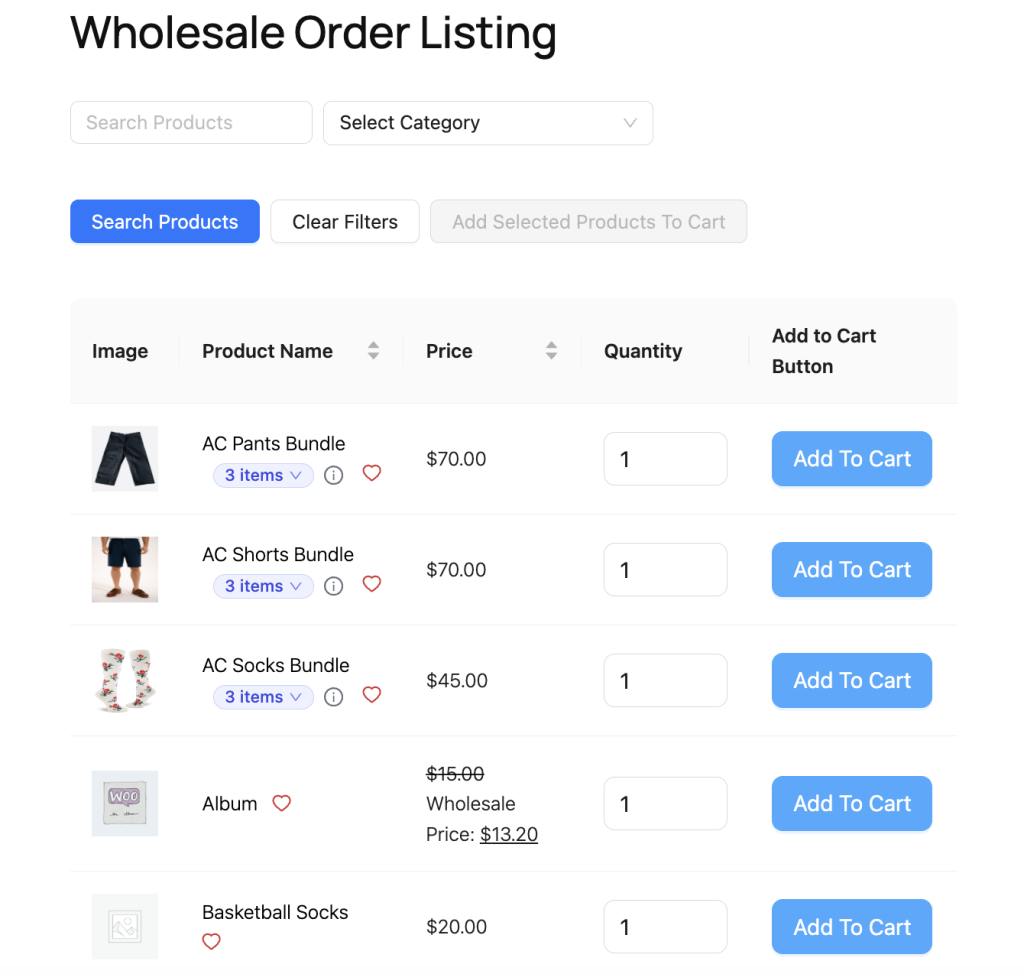
Bundle products appear as rows within the form table alongside simple and variable products. In addition, each bundle row includes a pill badge in the product name area that shows how many products the bundle contains, such as 3 items.
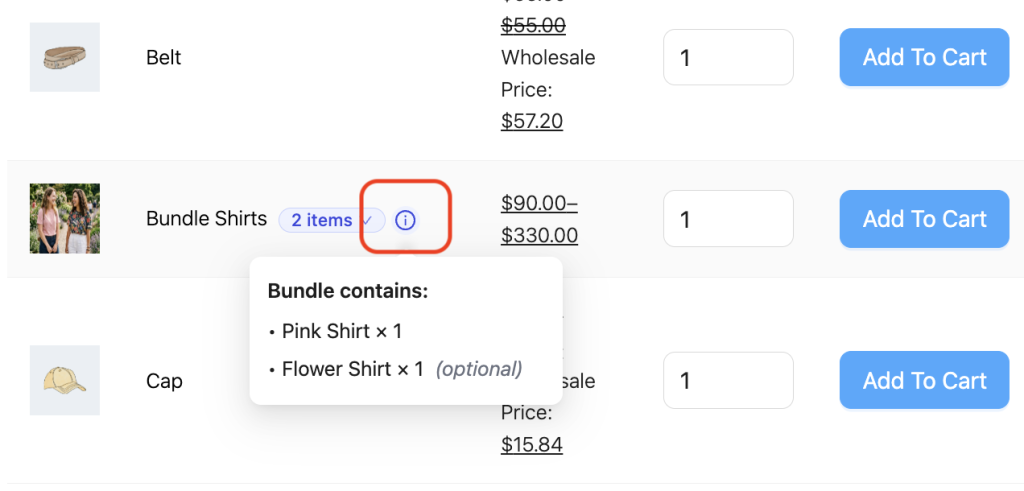
On desktop devices, hovering over the pill opens a Bundle contains: popover that lists all included products and their default quantities. Meanwhile, touch devices let users tap the info icon (ⓘ) beside the pill to preview bundle contents without opening the full configuration panel.
Configuring a bundle product
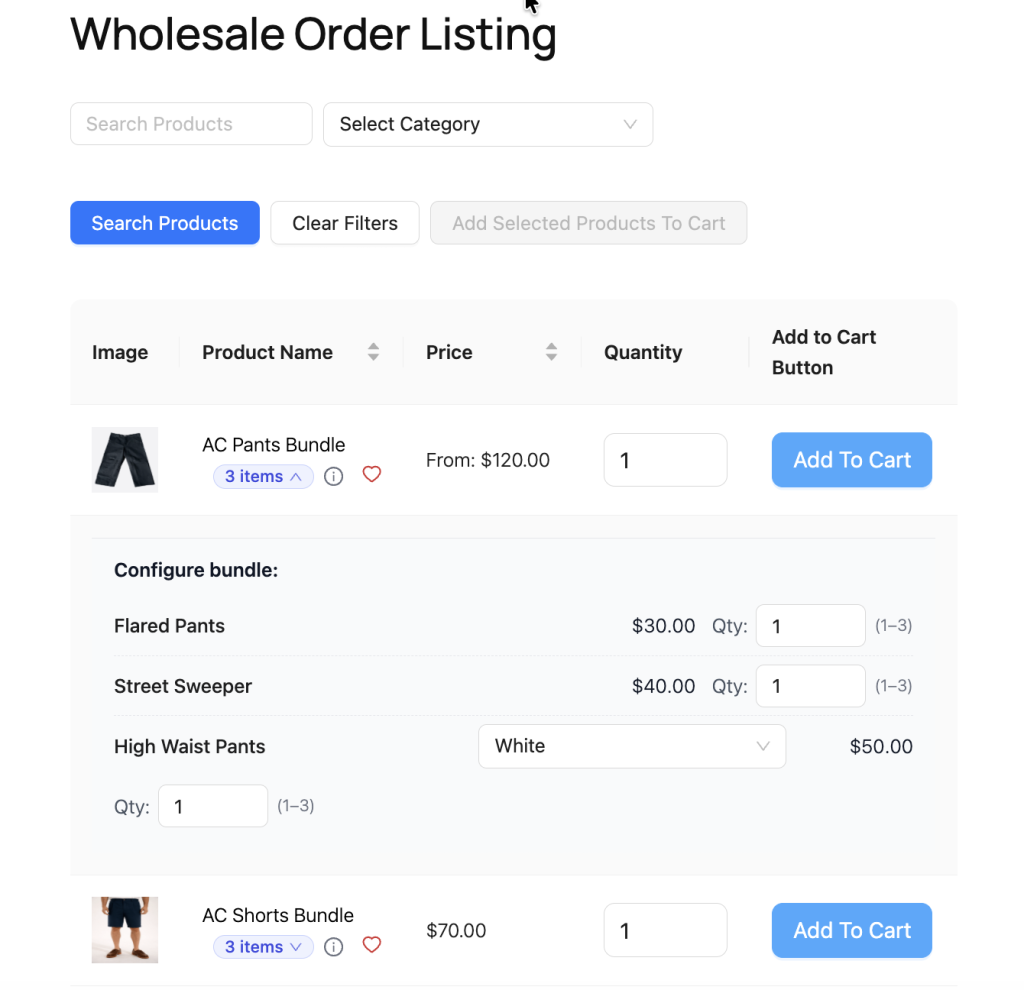
Many bundles include optional items, variable bundled items, or adjustable per-bundled-item quantities. To configure a bundle, click the item count pill, for example 3 items, to expand the inline Configure bundle: panel below the bundle row.
Selecting optional items
Optional bundled items display a checkbox and an (optional) label. Tick the checkbox to include the item, or untick it to remove the item from the bundle.
Required bundled items behave differently. Instead of checkboxes, they appear as plain text and cannot be deselected.
Choosing variation attributes
Variable bundled items display a dropdown menu. From there, select the variation you want, such as a color or size. Each option uses a clear, human-readable attribute label to make selection easier.
Adjusting per-bundled-item quantities
Whenever a bundled item’s minimum and maximum quantities differ, a Qty: input appears beside the product name. Enter any quantity within the allowed range shown in parentheses.
Furthermore, if the row quantity exceeds 1, for example when ordering 3 bundles, the per-bundled-item quantity display switches to a multiplier format such as 2 × 3 = 6. In this example, each bundle contains 2 units of that bundled item, resulting in a total of 6 units in the cart.
Out-of-stock bundled items
If a bundled item is out of stock, the configure panel displays an Out of stock badge next to its name.
Required bundled items that are out of stock prevent the bundle from being added to the cart. However, optional bundled items can still be removed by unticking them.
Configuring bundles in the product info modal
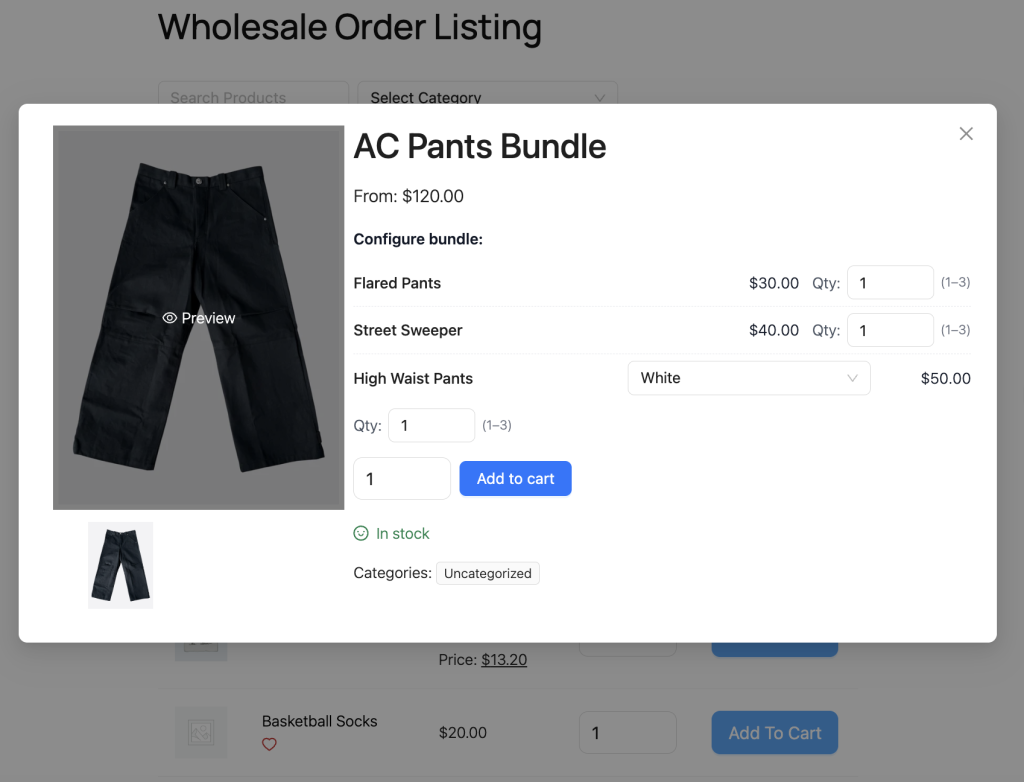
You can also configure a bundle from the product info modal. First, click the product name to open the modal. Next, use the same Configure bundle: panel to select optional items, choose variations, and adjust quantities. When you add the product to the cart, the modal uses your selected configuration automatically.
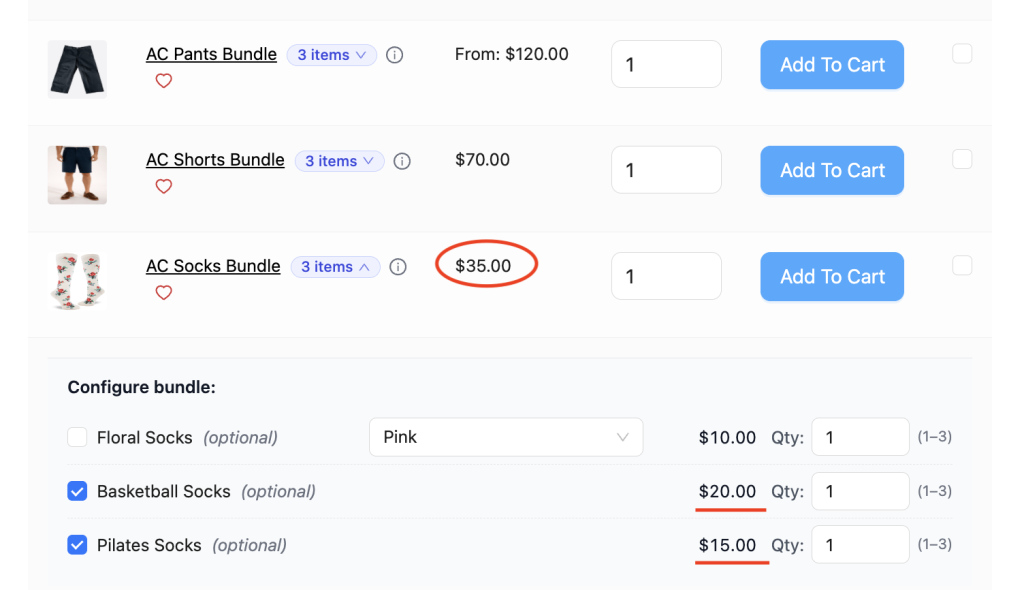
Live price updates
Per-item bundles calculate pricing dynamically because each bundled item contributes to the total price. Consequently, the displayed total updates in real time while you configure the bundle.
For example, changing a variation, removing an optional item, or updating quantities immediately refreshes the displayed price.
Adding a bundle to the cart
Adding a single bundle
After configuring the bundle, click Add To Cart on the bundle row. The system then adds both the bundle and all configured bundled items to the cart in one action. A Successfully added: notification confirms the addition.
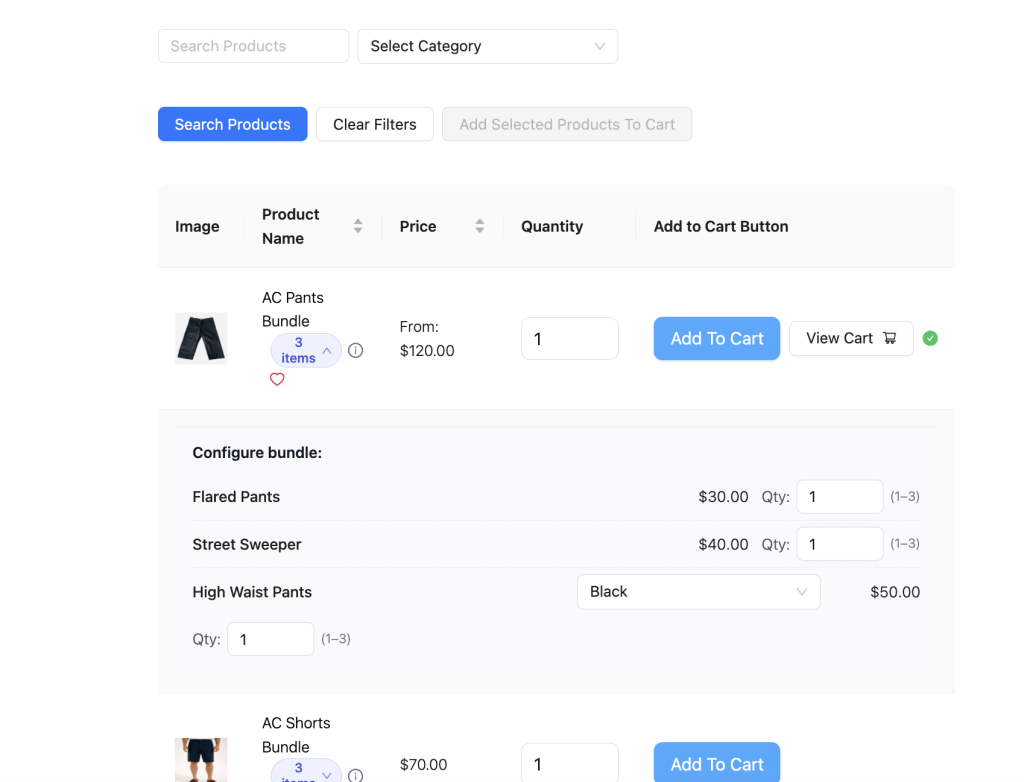
If the process fails, the error message identifies the exact bundled item causing the issue. For example:
- “[Bundled item name] is out of stock, so [Bundle name] cannot be added to the cart.”
- “The selected variation of [Bundled item name] is out of stock, so [Bundle name] cannot be added to the cart.”
- “[Bundled item name] is not available for your account, so [Bundle name] cannot be added to the cart.”
Adding bundles with bulk add-to-cart
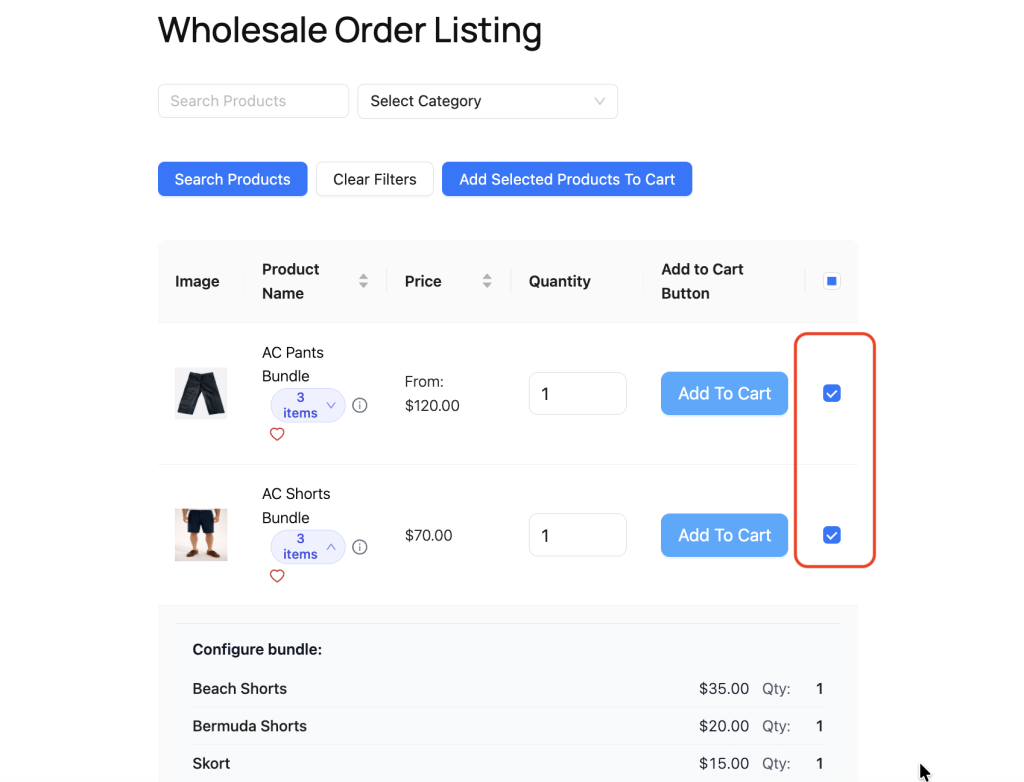
Bundles also support bulk add-to-cart actions alongside simple and variable products. Tick the checkboxes beside the products you want, including bundle rows, and then click Add Selected Products To Cart.
Each bundle uses its current inline configuration during the process.
Cart indicators
After adding a bundle to the cart, standalone rows for bundled items display a contextual message such as “In cart as part of [Bundle Name]”
This message replaces the standard cart indicator. However, you can still add those bundled items separately if needed.
Bundle pricing
Static bundles
Static bundles use a single container price. If your wholesale role includes a wholesale price for the bundle product itself, the order form displays that wholesale price. Otherwise, the retail price appears instead.
Per-item bundles
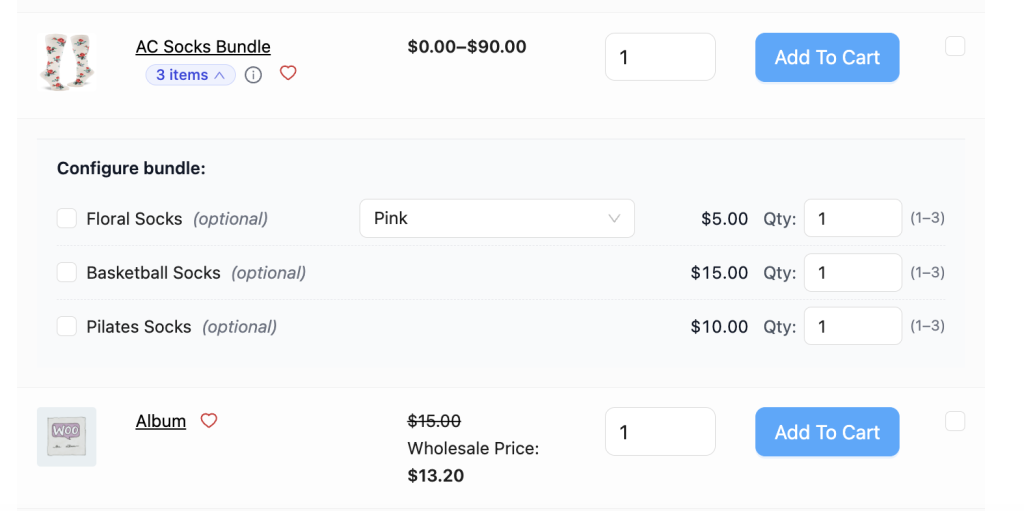
Per-item bundles calculate pricing from the individual bundled items. Therefore, if wholesale pricing exists on the bundled items, the bundle row displays a price range based on those wholesale prices.
On the other hand, if a bundled item doesn’t include wholesale pricing, the calculation falls back to that product’s retail price. As a result, the displayed total reflects the actual pricing mix.
If wholesale pricing is unavailable entirely, the bundle row falls back to the retail pricing provided by WooCommerce Product Bundles.
For more on how wholesale pricing interacts with WooCommerce Product Bundles at the product level, see the companion article, Wholesale pricing with WooCommerce Product Bundles.
Out-of-stock and role-restricted bundles
Bundle products follow two additional visibility rules in the order form.
First, if a bundle contains required bundled items from role-restricted categories in WWPP, the system hides the entire bundle from wholesale roles that cannot access those products. This prevents buyers from attempting to purchase inaccessible bundles.
Second, if the Zero Inventory setting is disabled, bundles with effectively out-of-stock bundled items are removed from the order form listing. This behavior matches how simple products work when Zero Inventory is turned off.
Product Add-Ons support
If WooCommerce Product Add-Ons is active, container-level add-ons configured on the bundle product appear in both the order form row and the product info modal. In addition, all selected add-ons transfer to the cart when the bundle is added.
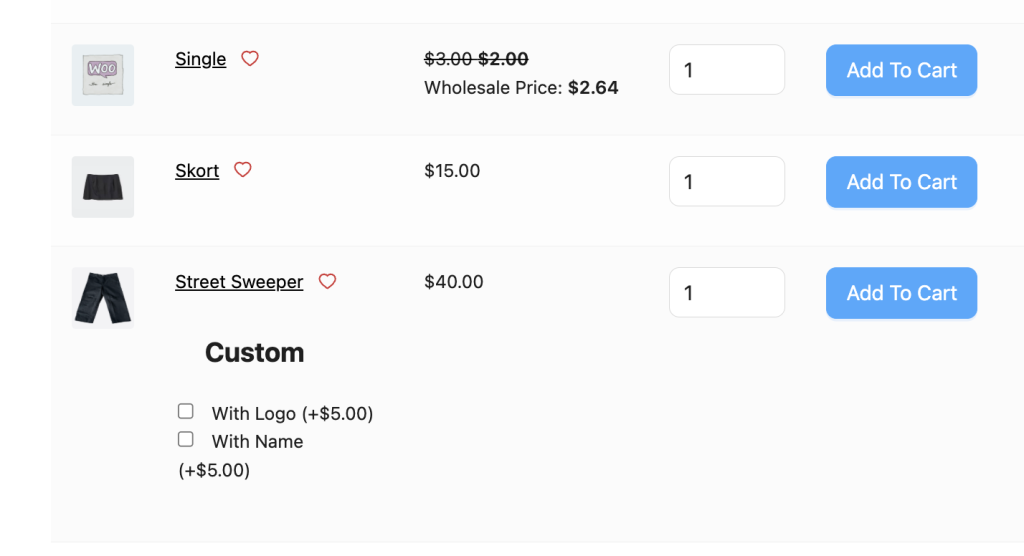
Note that add-ons configured on individual bundled items do not currently appear inside the bundle configuration panel.
Troubleshooting
Bundle products don’t appear in the order form
First, confirm that WooCommerce Product Bundles 8.3 or later is active. Then, make sure the bundle products are published and assigned the Bundle product type in WooCommerce.
Add To Cart is disabled for a bundle
The Add To Cart button becomes disabled whenever a required or selected optional bundled item is out of stock.
To resolve the issue, open the Configure bundle: panel and look for bundled items displaying the Out of stock badge. If the item is optional, untick it. Otherwise, you must restore stock before adding the bundle.
Bundle price shows retail price instead of wholesale price
Per-item bundles pull wholesale pricing from the individual bundled items rather than the bundle container itself.
Therefore, confirm that wholesale pricing exists for each bundled item in WWPP. If any bundled item lacks wholesale pricing, the system uses its retail price in the bundle calculation.
Variation dropdown doesn’t appear for a bundled item
Variation dropdowns only appear for variable bundled items with available variations.
Check the bundled item in WooCommerce and confirm that:
- variations are in stock
- variations are available for purchase
- variations are published
Frequently asked questions
Can I order more than one of the same bundle?
Yes. Update the quantity in the bundle row’s Qty: input. The configure panel then updates the multiplier display automatically to reflect the total bundled item quantities added to the cart.
Do wholesale prices apply to bundles with per-item pricing?
Yes, they can. Per-item bundle pricing uses the individual bundled items. Therefore, if wholesale prices exist on those bundled items, the bundle total reflects those wholesale prices. See Wholesale pricing with WooCommerce Product Bundles for additional pricing details.
Can I add product add-ons to individual bundled items inside a bundle?
Not currently. The configure panel doesn’t render add-ons attached to individual bundled items. However, container-level add-ons on the bundle product itself remain fully supported.
Need help?
If you have a question or run into any issues, we’re here to help.
- Premium users: Open a support ticket
- Free users: Visit our community forum

