
Getting a critical PHP error after adding the Wholesale Order Form shortcode to a page, but the page loads fine once you remove it? The cause is almost always incorrect shortcode syntax, a low PHP memory limit, or a conflict with another plugin. This article covers the most common scenarios and walks you through isolating the exact cause.
Before you start: check your shortcode syntax
In version 3 of WooCommerce Wholesale Order Form, the correct shortcode format is:
[wwof_product_listing id="XX"]where XX is your Order Form’s numeric ID. A shortcode placed without the id attribute, or using an incorrect ID, will either produce an error message or show nothing at all.
To find the correct shortcode for your form:
- Go to Wholesale Suite → Order Forms in your WordPress admin.
- Open the form you want to embed.
- Copy the shortcode shown in the form editor.
- Paste it onto the page where you want the form to appear.
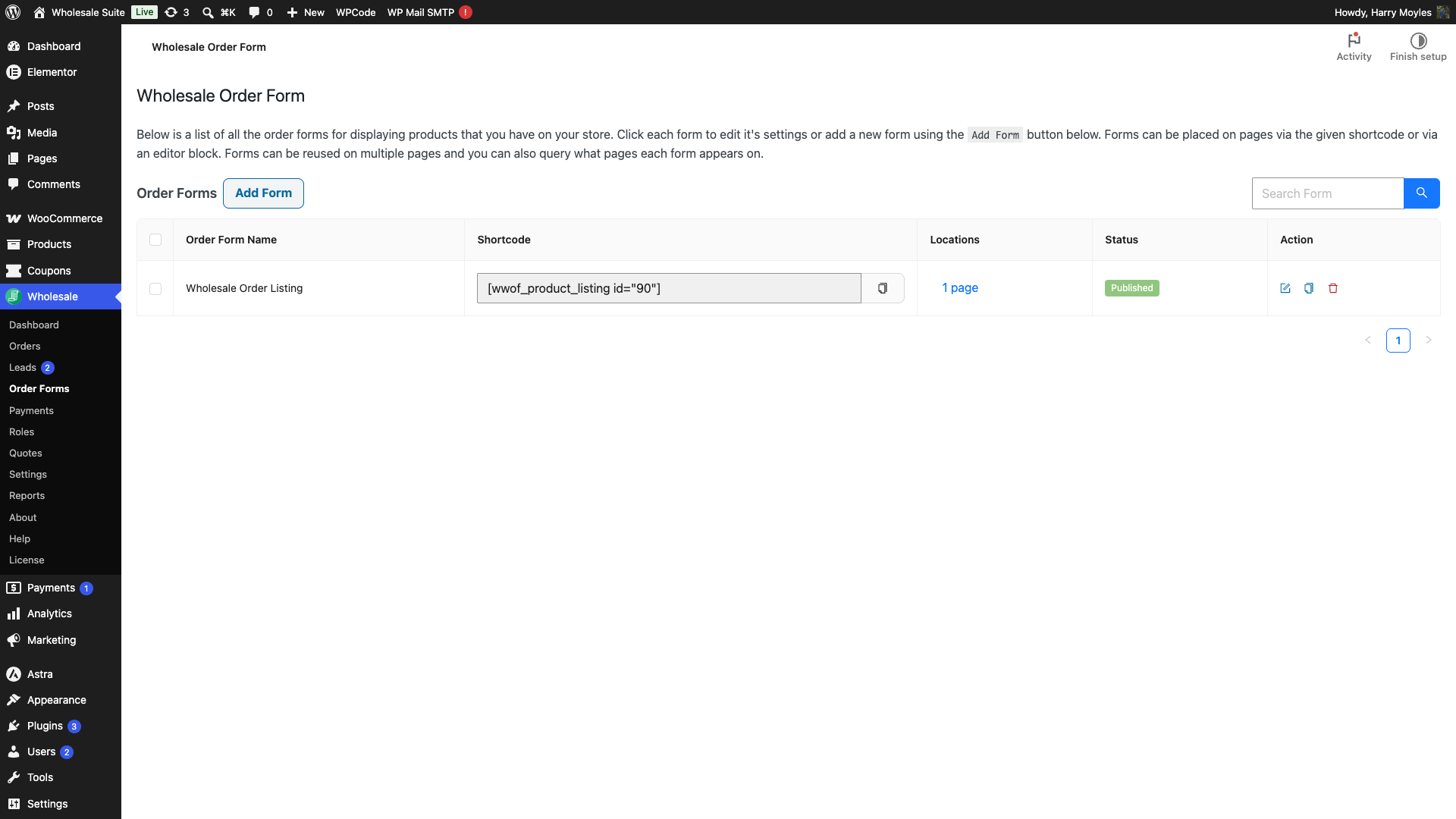
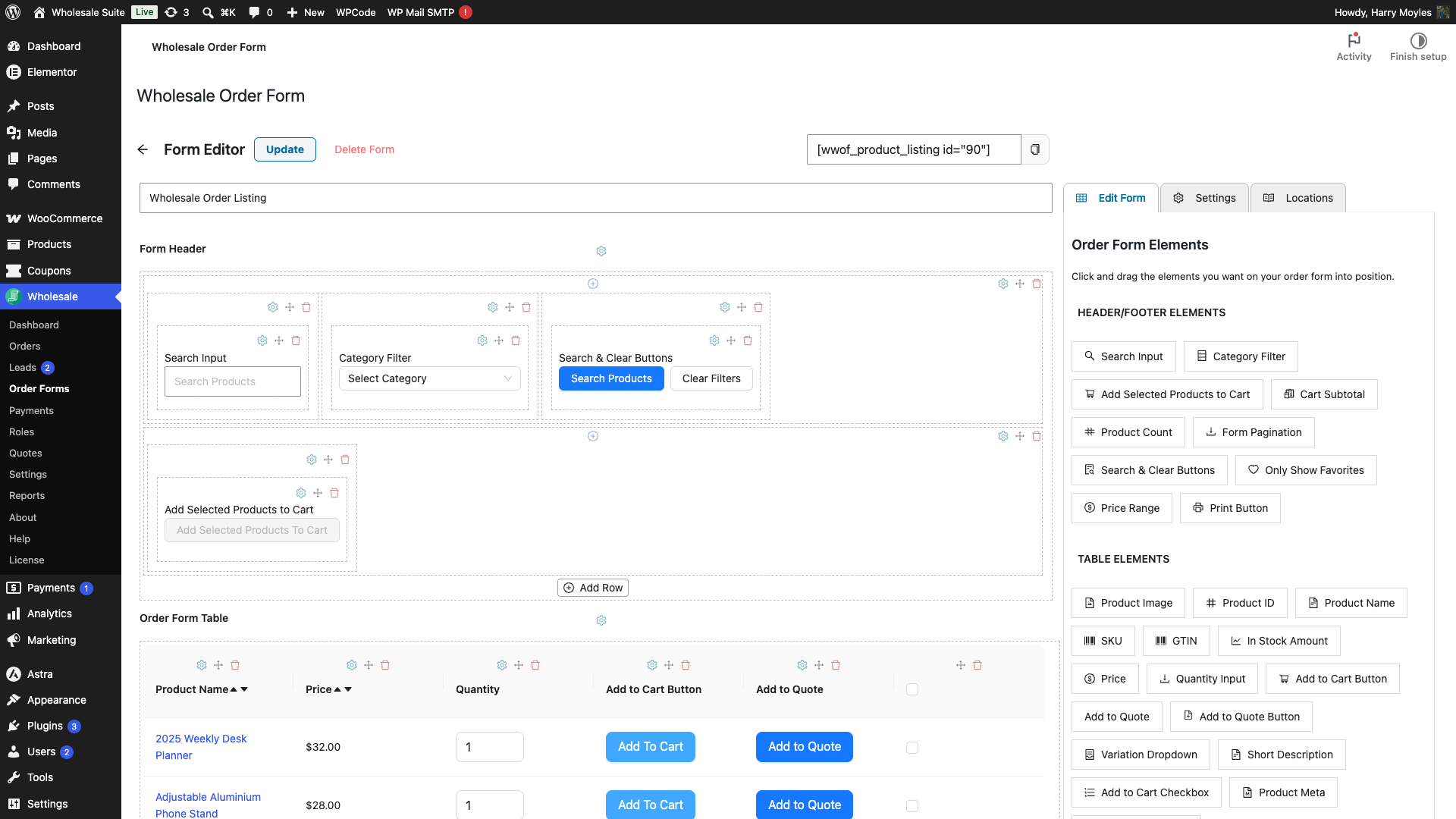
If you have been using [wwof_order_form] without an id attribute, that shortcode format is no longer in use. Replace it with the shortcode copied from the form editor.
Common issues and fixes
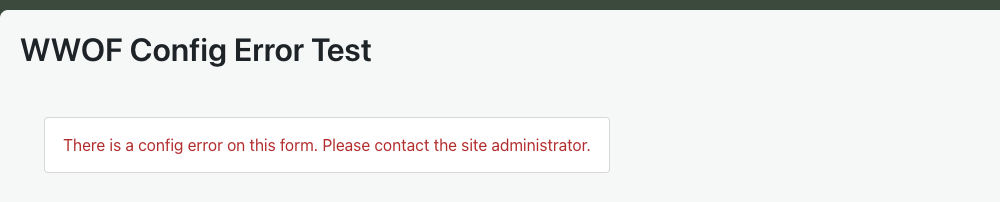
The page shows “No order form ID specified” or “There is a config error”
Administrators who see “No order form ID specified.” are using the shortcode without the required id attribute. Replace the shortcode with the one copied from Wholesale Suite → Order Forms.
Non-admin visitors see “There is a config error on this form. Please contact the site administrator.” instead. This is the same underlying problem. Fix the shortcode and the message disappears for both.
The order form is not showing at all
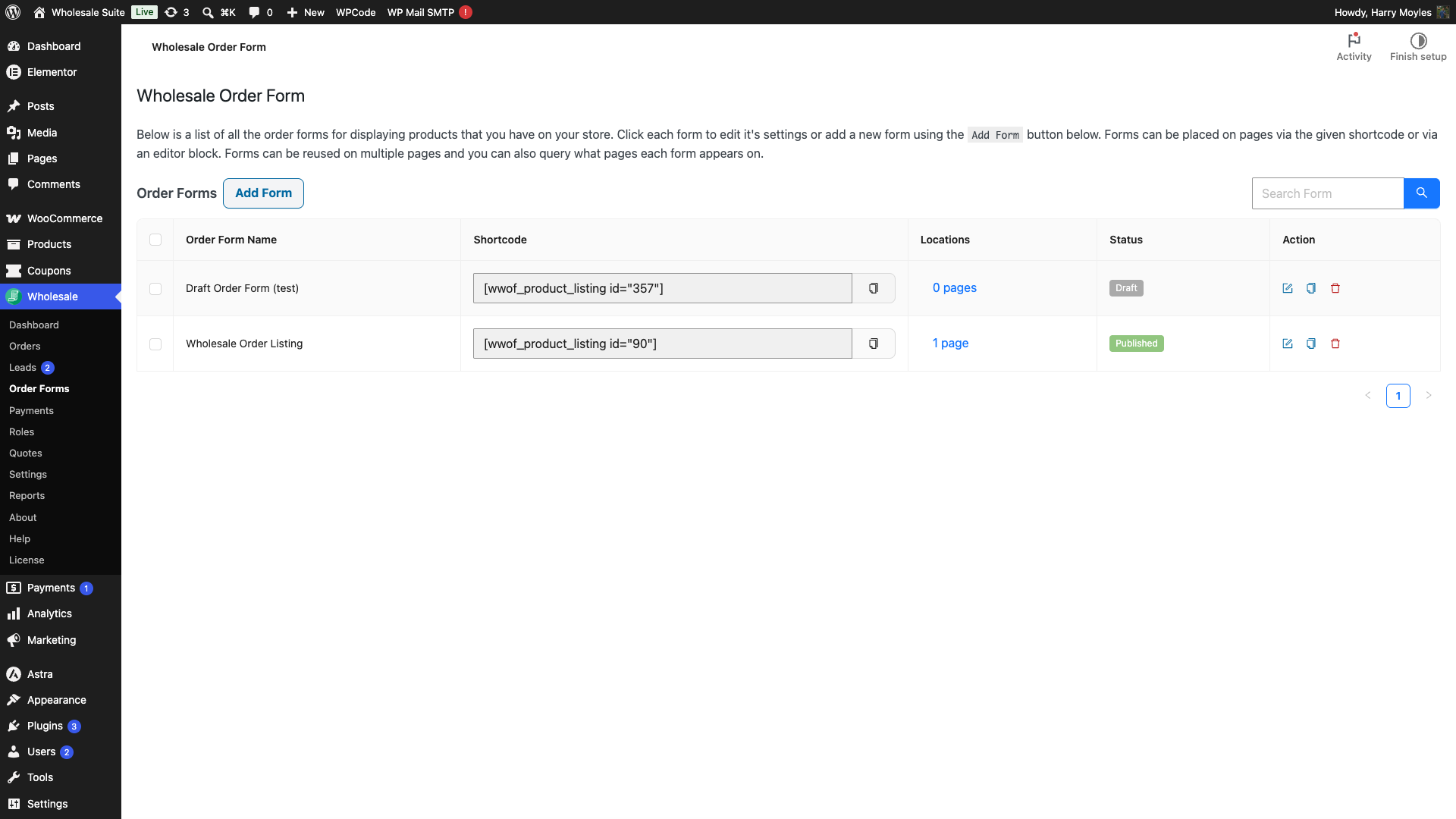
The order form only displays when its status is Published. A form saved as a draft will not appear on the front end even if the shortcode is placed correctly. Logged-out visitors and customers will instead see an “Access Denied” restriction message (“You do not have permission to view this order form.”), so a draft form often looks like a permission problem rather than a missing form.
- Go to Wholesale Suite → Order Forms.
- Check the status of the form. If it shows Draft, open it and click Publish.
A critical PHP error appears when the shortcode is on the page
Critical errors that only appear when the shortcode is present are caused by a plugin conflict, a caching or optimisation plugin that mishandles the order form’s JavaScript bundle, or a PHP memory limit that is too low. Work through the steps below in order.
Step 1: enable WP_DEBUG to see the actual error
- Open your site’s
wp-config.phpfile (located in your WordPress root directory). - Find the line
define( 'WP_DEBUG', false );and changefalsetotrue. - Directly below that line, add:
define( 'WP_DEBUG_LOG', true ); - Save the file and reload the page that triggers the error.
- Open
wp-content/debug.log. - Note the exact error message and the file path it points to.
Note: Keep this error message and file path handy. You will need them if you contact support.
See Debugging in WordPress for full details on the available constants.
Step 2: check the PHP memory limit
The order form loads a JavaScript application that makes several background requests to your server. If PHP runs out of memory during this process, a fatal error can result. The recommended minimum for WooCommerce sites, including those running the Wholesale Order Form, is 256 MB.
To check your current limit, go to WooCommerce → Status → System Status and look for the PHP Memory Limit row. If it is below 256 MB, contact your hosting provider to increase it, or add the following line to wp-config.php:
define( 'WP_MEMORY_LIMIT', '256M' );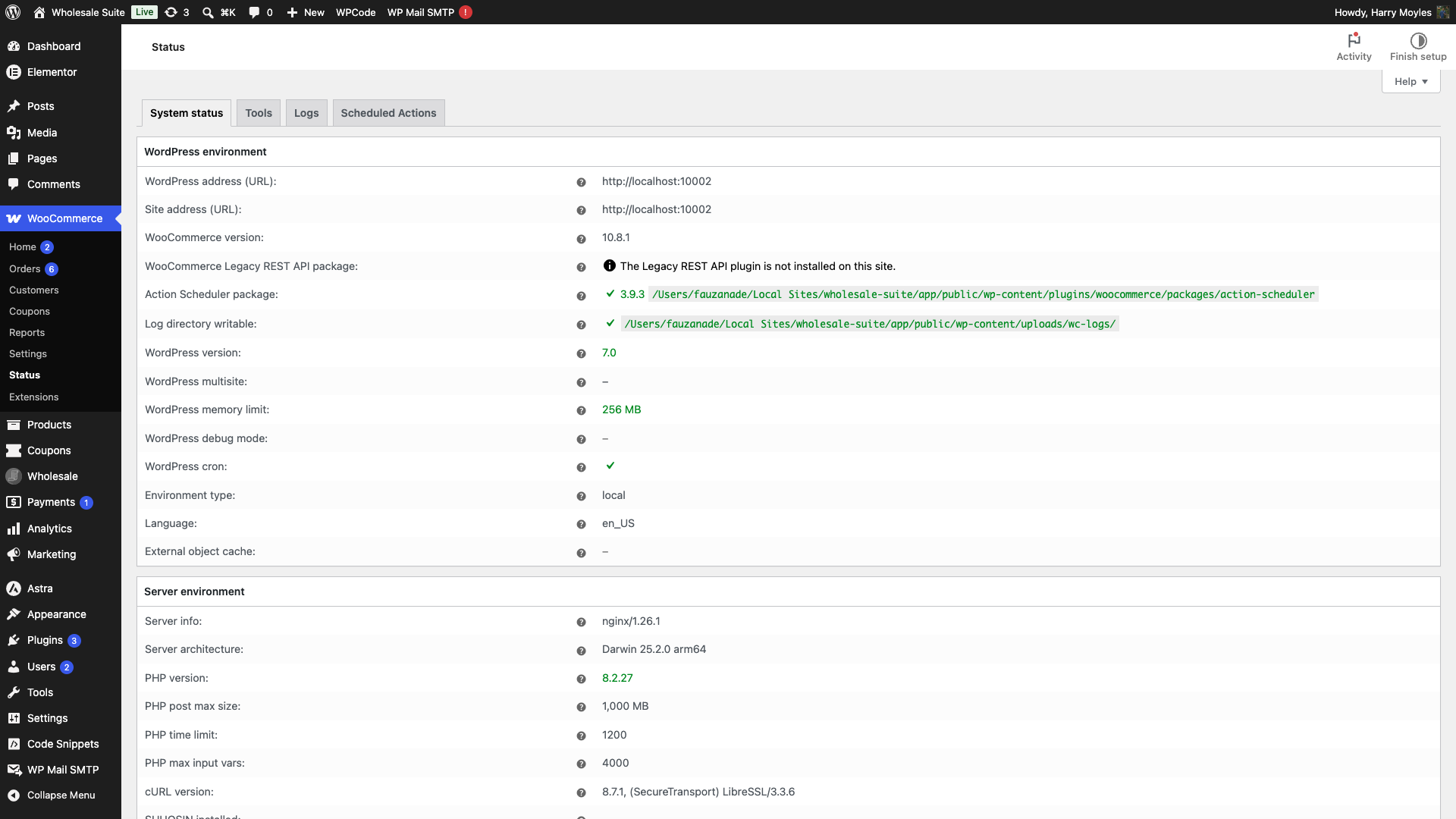
Step 3: switch to a default theme
A theme that adds conflicting JavaScript or overrides WooCommerce templates can break the order form. Switching to a default theme rules this out quickly.
- Go to Appearance → Themes in WordPress admin.
- Activate Storefront or Twenty Twenty-Four.
- Reload the page with the shortcode.
If the error disappears with the default theme active, your original theme is the source of the conflict. Re-activate it and share the debug log with your theme’s support team.
Step 4: isolate the conflicting plugin
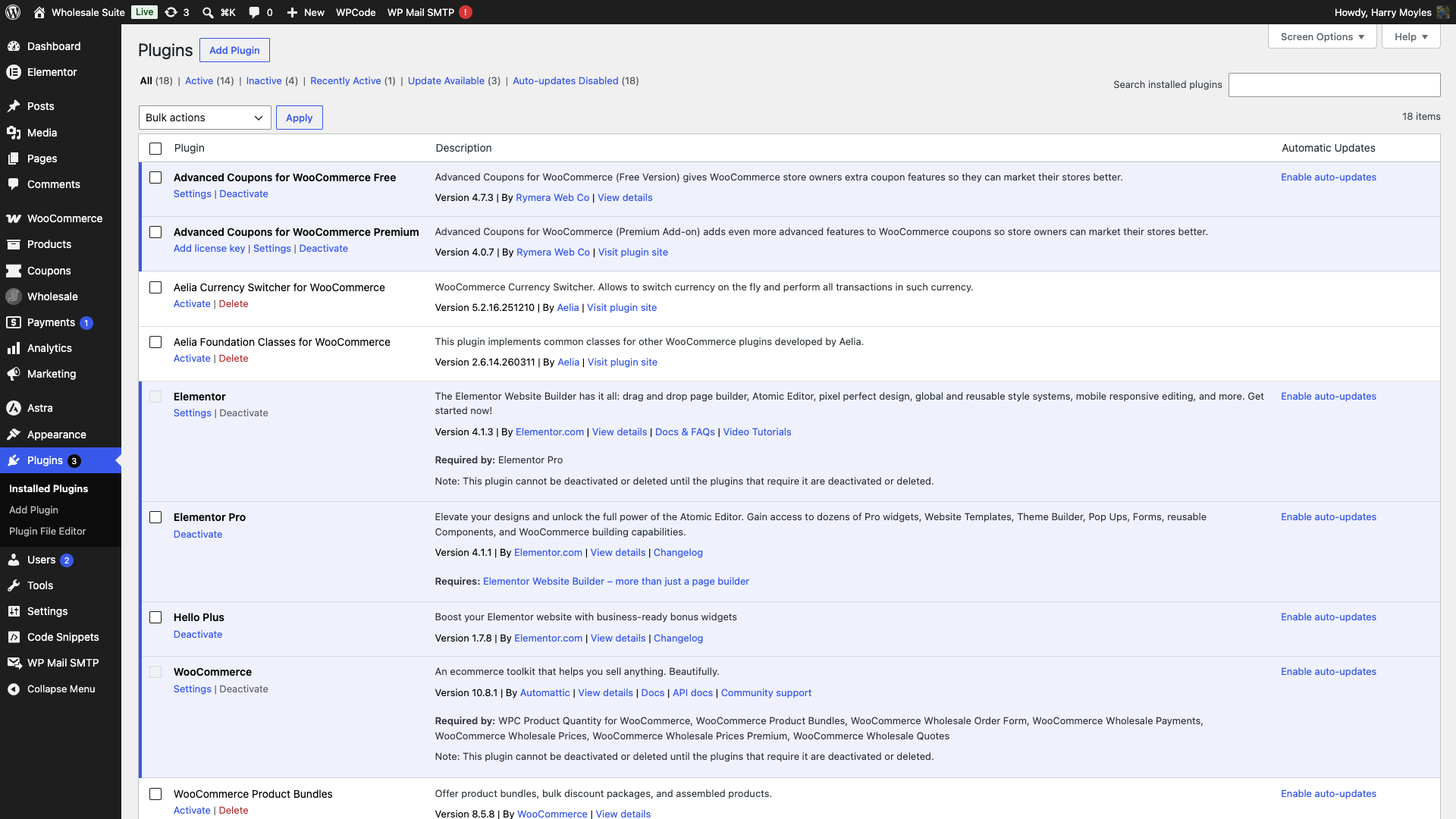
- Go to Plugins → Installed Plugins.
- Deactivate all plugins except WooCommerce and WooCommerce Wholesale Order Form.
- Reload the page with the shortcode. If the error is gone, a plugin conflict is the cause.
- Re-activate plugins one at a time, reloading the page after each. The last plugin you activated when the error reappears is the conflicting one.
Known plugin conflicts and workarounds
Several optimisation and caching plugins require special handling to work alongside the order form. The plugin includes built-in compatibility for some of these, meaning no manual steps are needed for them.
WP Rocket. The Wholesale Order Form automatically excludes pages containing its shortcode from WP Rocket’s page cache. No manual exclusion rule is needed.
SiteGround Optimizer. The plugin automatically excludes its scripts from SiteGround Optimizer’s JavaScript and CSS combination and minification. If you are still seeing issues after confirming this is the conflict, manually disable Combine JavaScript Files and Minify JavaScript Files (and the equivalent CSS combine and minify options) for the page containing the order form.
Other caching plugins (WP Super Cache, W3 Total Cache, LiteSpeed Cache, etc.). Add the order form page URL to the plugin’s cache exclusion list and disable JavaScript minification and combination for that page.
Page builders (Elementor, Divi, WPBakery). If the shortcode is placed inside a page builder’s shortcode element and the form does not load, try placing it directly in the WordPress block editor. For Breakdance, native shortcode support is available from WooCommerce Wholesale Order Form version 3.1.0 onwards.
What to include when contacting support
If the error persists after working through the steps above, the Wholesale Suite support team will need the following details to investigate:
- The exact error message from
wp-content/debug.log - A list of your active plugins at the time of the error
- Your PHP version and current memory limit (visible at WooCommerce → Status → System Status)
- The active theme name and version
- Any changes made to the site shortly before the error appeared
Frequently asked questions
What is the correct shortcode for the Wholesale Order Form?
The correct shortcode in version 3 is [wwof_product_listing id="XX"], where XX is the Order Form ID. Copy it directly from the form editor at Wholesale Suite → Order Forms.
Why does the order form show “There is a config error on this form”?
This message appears when the id attribute is missing from the shortcode, or when the specified Order Form ID does not exist. Check that your shortcode includes the correct id copied from the form editor.
Why doesn’t my order form appear even though the shortcode is correct?
The most common cause is that the form is still saved as a Draft. An order form only renders on the front end once its status is Published. Open the form at Wholesale Suite → Order Forms and click Publish. Logged-out visitors may also see an “Access Denied” message if the form is restricted to specific roles.
Do I need to configure my caching plugin to work with the order form?
For WP Rocket and SiteGround Optimizer, no manual configuration is needed. The plugin handles compatibility automatically. For other caching plugins, add the order form page to the cache exclusion list and disable JavaScript minification for that page.
Need help?
If you have a question or run into any issues, we’re here to help.
- Premium users: Open a support ticket
- Free users: Visit our community forum

