
Building a new order form from scratch is slow when it’s really just a variant of one you already have. WooCommerce Wholesale Order Form lets you duplicate any order form from the dashboard in a couple of clicks, so you can reuse its layout and settings instead of rebuilding them. This article shows you where to find the Duplicate action, what carries over to the copy, and what to do with the duplicate once it’s created.
Prerequisites
- WooCommerce Wholesale Order Form active on your site, with at least one order form already created.
- An administrator or shop manager account. The Order Forms screen is only visible to these roles by default.
Step 1: Duplicate the form
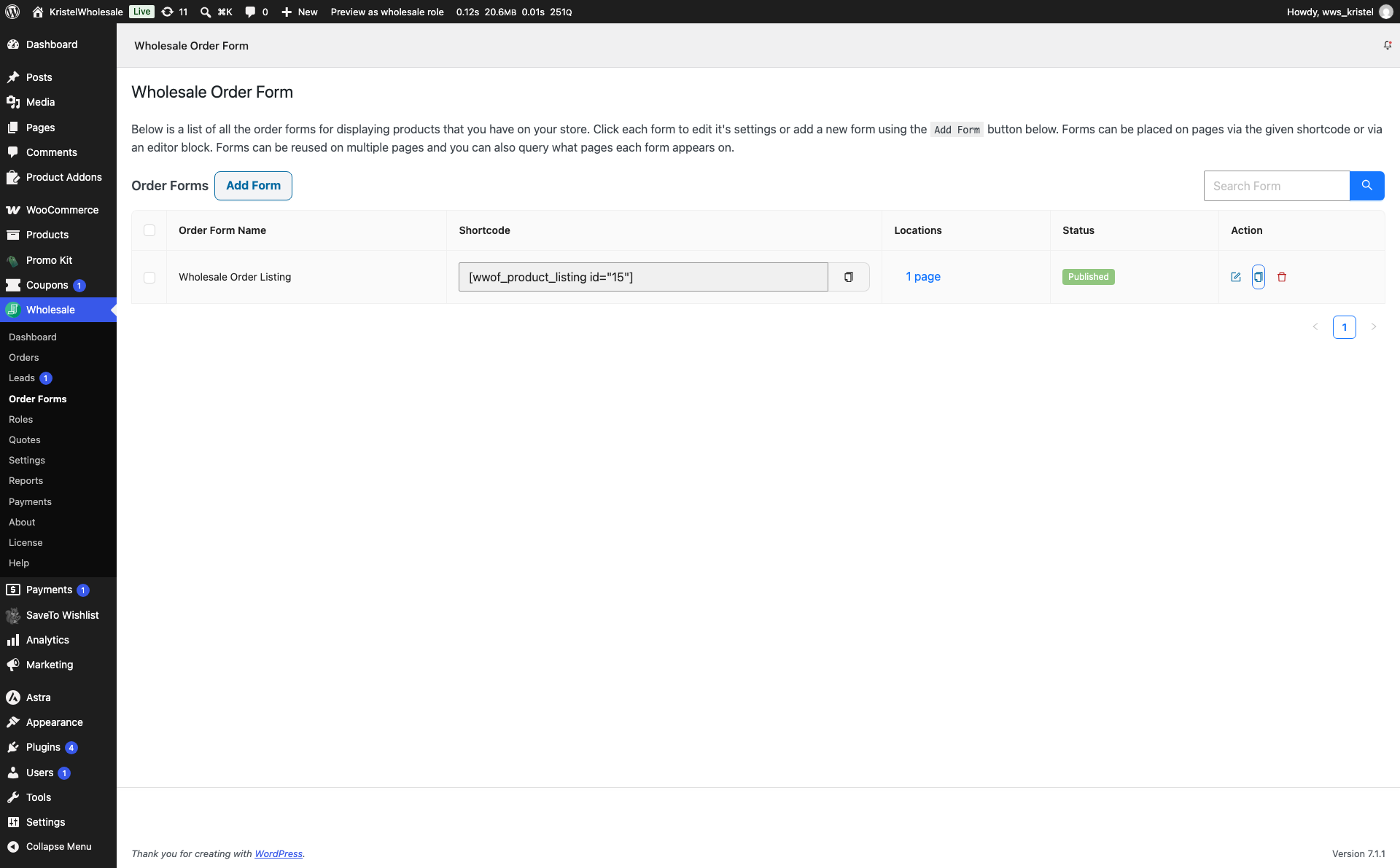
- Go to Wholesale > Order Forms in your WordPress admin.
- Find the order form you want to copy in the list.
- In the Action column for that form, click the Duplicate icon.
- In the confirmation dialog, click Duplicate to confirm.
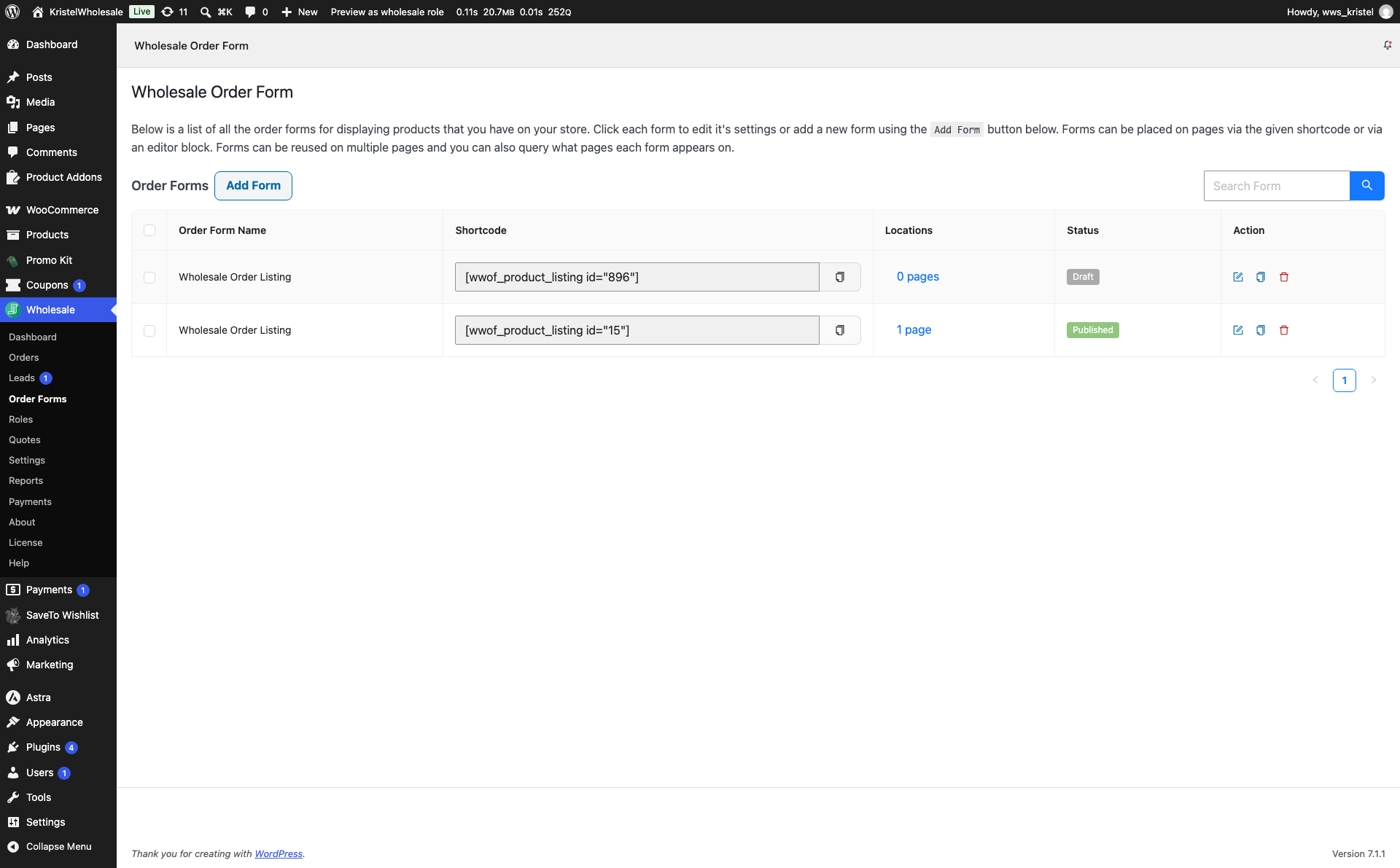
A “Form successfully duplicated” notice appears, and the copy is added to the top of the list with the same name as the original order form and a Draft status tag.
Step 2: Rename the duplicate
Since the copy keeps the exact same name as the original, rename it so the two forms are easy to tell apart in the list.
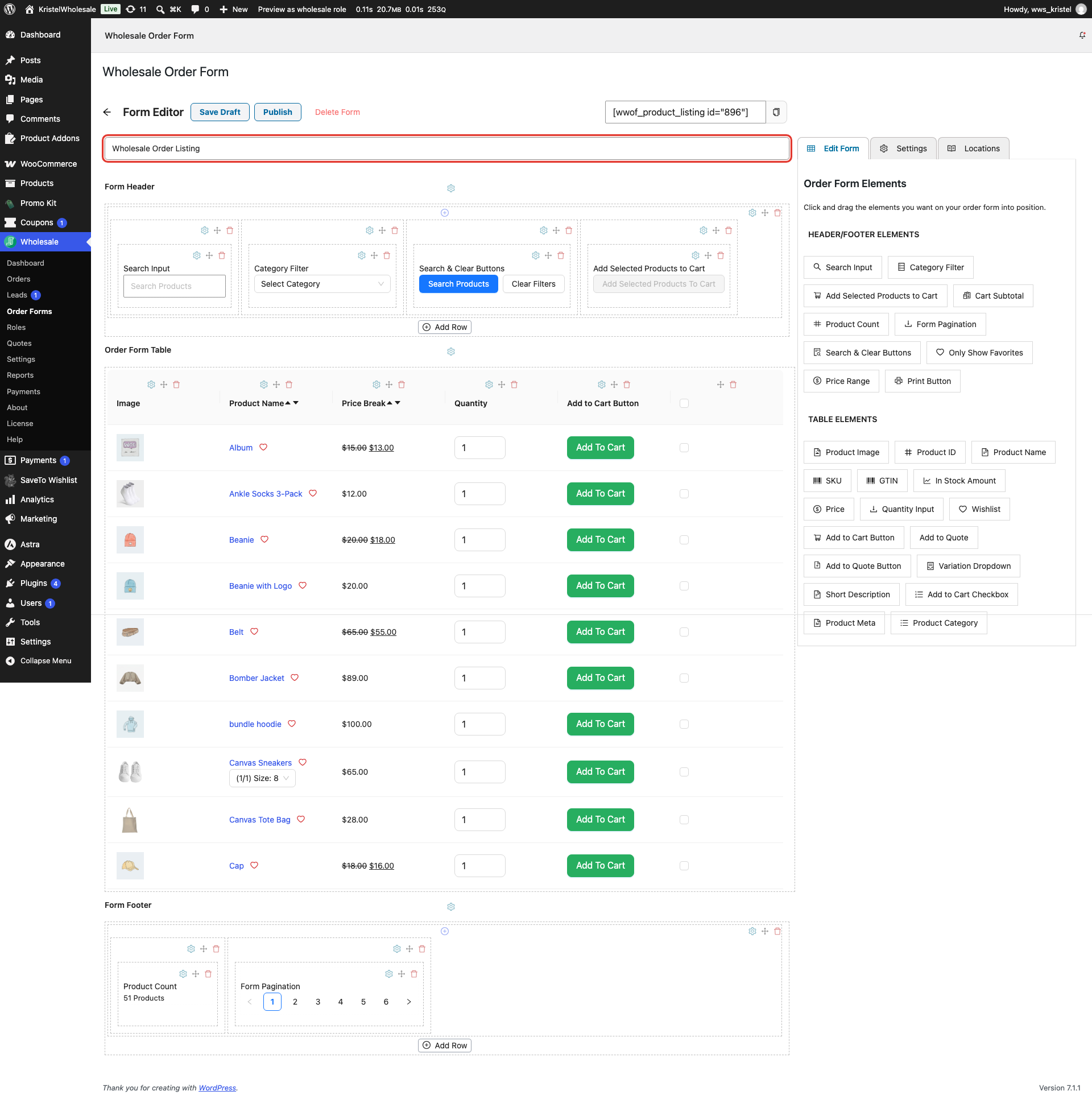
- Click the Edit icon in the Action column for the duplicated form.
- Replace the text in the title field at the top of the editor (it shows the original form’s name) with a new title.
- Click Publish to make the form live, or Save Draft to keep working on it.
What carries over and what doesn’t
Duplicating a form copies everything that makes it work: its layout, every column and element you’ve added, and its settings, including the Permissions that control which customer roles can view it. The copy is a separate, independent form, so editing it never changes the original.
One thing doesn’t carry over: where the form is displayed. The Locations column on the dashboard shows which pages a form’s shortcode or block has been added to, and a duplicate starts with none of its own, even if the original is live on several pages. Add the new form’s shortcode or block to a page the same way you did for the original (see the WooCommerce Wholesale Order Form Getting Started Guide) to make the duplicate visible to customers.
Common use cases
Duplicating is most useful when you need several forms that are almost identical. Role-based variants are the most common case. Duplicate your main form, then adjust its Permissions to restrict the copy to a specific customer role instead of building a new form from scratch. Regional variants work the same way: duplicate a form, then change its product categories or styling for a specific market. Testing changes safely is a third case. Duplicate a live form before making major edits, so you can experiment on the copy, for example to change the look and feel of your order form, without touching the version your customers already use.
Troubleshooting
I can’t find the form I just duplicated
Type the form name in Search Form on the Order Forms screen. The duplicate has the same name as the original and a Draft status, so look for the newer row with the Draft tag. New forms are also added to the top of the list.
The duplicated form isn’t showing up on my site
A duplicate starts as a Draft, and customers can’t use a draft form. Open the form and click Publish. Locations aren’t copied either, so the new form isn’t added to any page automatically. Add its shortcode or block to a page to make it appear.
Frequently Asked Questions
Does the duplicate keep the same customer access permissions as the original?
Yes. Permissions are part of a form’s settings, so they’re copied to the duplicate along with its layout. You can change them independently at any time without affecting the original form.
Will the duplicate appear on the same pages as the original form?
No. Duplicating only copies the form itself, not where it’s displayed. You’ll need to add the new form’s shortcode or block to a page before customers can see it.
Need Help?
If you have a question or run into any issues, we’re here to help.
- Premium users: Open a support ticket
- Free users: Visit our community forum

