
Need to show a wholesale order form only to specific customer groups, for example only logged-in wholesale buyers and not retail customers? WooCommerce Wholesale Order Form lets you set access rules on each form independently, so you can restrict who sees the form, show a custom message to anyone who does not qualify, and optionally let logged-out guests view it. This article walks you through the Form Permissions settings.
Prerequisites
- WooCommerce Wholesale Order Form installed and at least one form created on your WooCommerce site.
- The form must have a title and a table element added before Form Permissions can be edited.
Step 1: Open Form Permissions
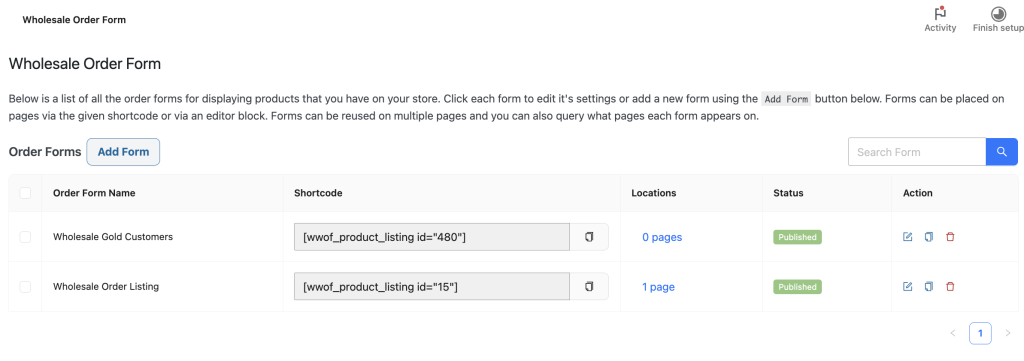
- Go to Wholesale → Order Forms in your WordPress admin.
- Click the form you want to configure to open it in the editor.
![Wholesale Order Form management screen with a list of forms; two entries shown: 'Wholesale Gold Customers' and 'Wholesale Order Listing', each with a shortcode (e.g., [wvof_product_listing id="480"]), locations, and a 'Published' status, plus action icons to edit/delete.](https://wholesalesuiteplugin.com/wp-content/uploads/2026/06/wws-wwof-order-form-list-edit-1024x361.png "wws-wwof-order-form-list-edit - Wholesale Suite")
- In the right-hand sidebar, click the Settings tab.
- Find the Form Permissions row and click the Edit button next to it.
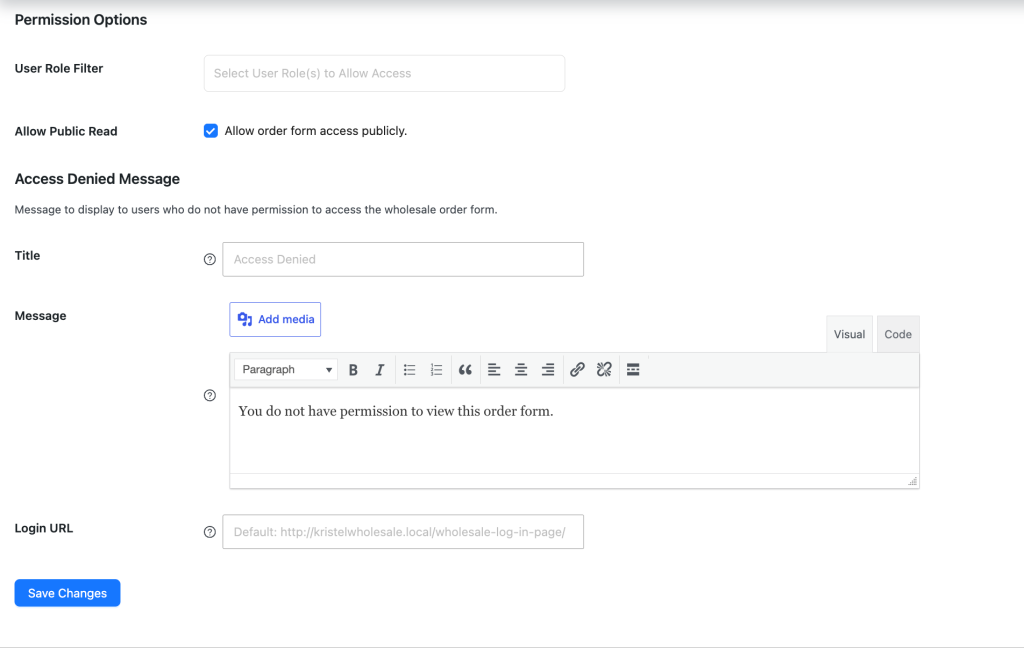
Step 2: Configure Who Can Access the Form
The Permission Options section controls which user roles can view the order form.
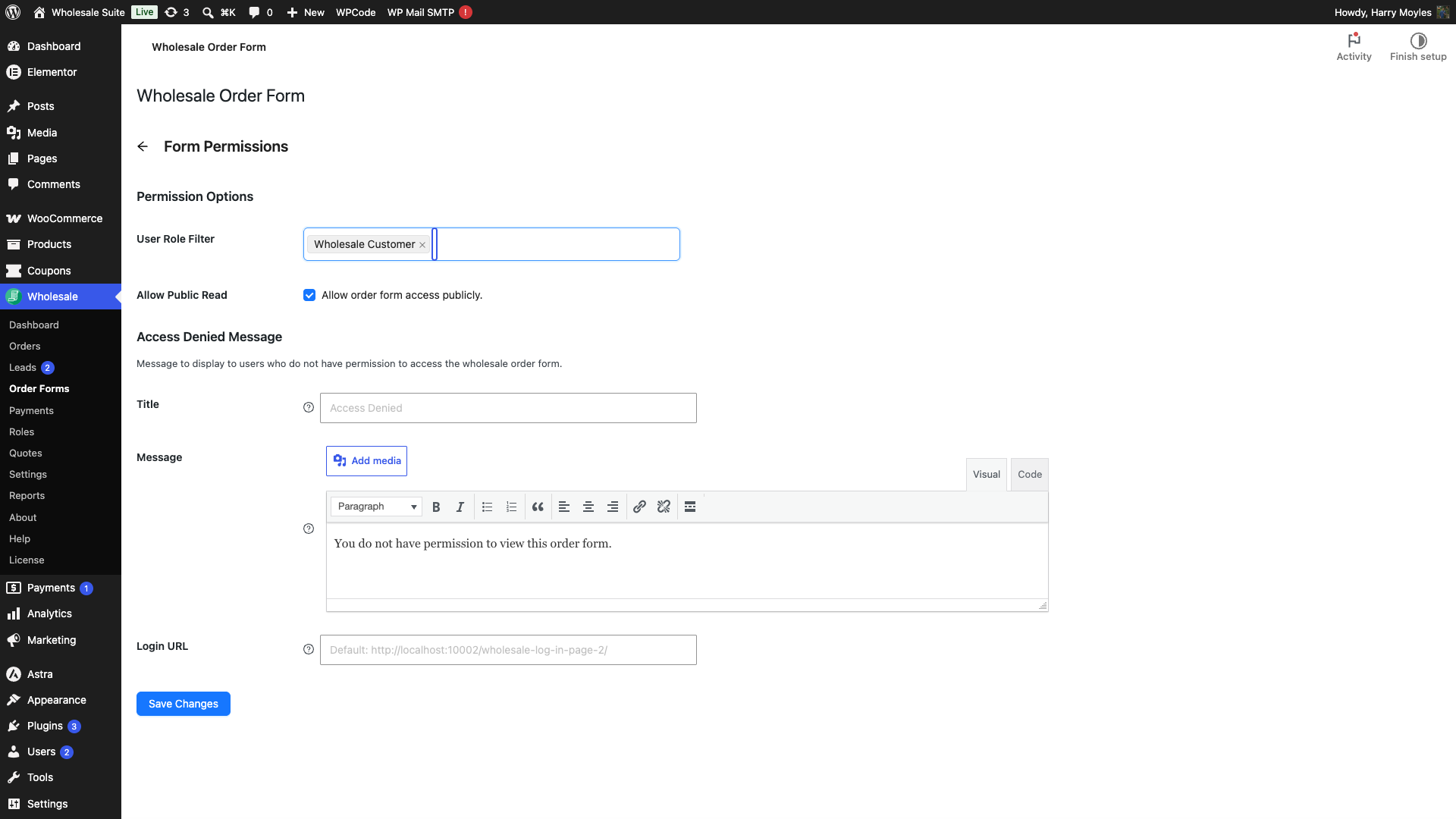
Restrict access to specific roles
- Click the User Role Filter dropdown.
- Select each role that should have access.
Only users with one of the selected roles will be able to see the form. Any user not in the list will see the Access Denied Message instead.
Allow public (unauthenticated) access
The Allow Public Read option controls whether logged-out guests can view the form when no roles are selected in the User Role Filter. It is enabled by default, and it has no effect when you have selected one or more roles in the filter.
- Check Allow order form access publicly. to enable public access.
When to enable this: Leave it on (the default) when the User Role Filter is empty and you want logged-out guests to be able to view the form.
Step 3: Customise the Access Denied Message
The Access Denied Message section controls what users see when they try to view the form without permission.
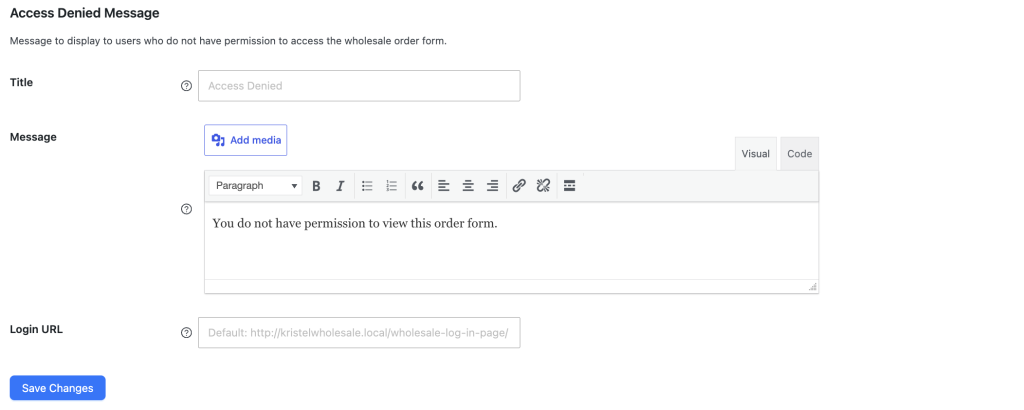
| Field | What it does | Default |
|---|---|---|
| Title | Heading shown on the access denied notice. | “Access Denied” when left blank |
| Message | Body text of the notice. Supports rich text (bold, links, lists) via the built-in editor. | A new form starts with “You do not have permission to view wholesale product listing.” If you clear the field, visitors instead see “You do not have permission to view this order form.” |
| Login URL | Link to a login page included in the notice, so visitors can log in to gain access. | Pre-filled with your WordPress login URL. If you clear it, the form links to your Wholesale Lead Capture login page (if active), otherwise your WooCommerce My Account page, and finally the WordPress login URL. |
- Enter a heading in the Title field.
- Enter the notice text in the Message editor.
- Enter a login page address in the Login URL field.
Step 4: Save Your Changes
- Click Save Changes to apply your settings.
For a form that has not been published yet, two buttons appear instead: Publish (makes the form live) and Save Draft (saves without publishing).
Troubleshooting
The Edit button stays greyed out. Form Permissions cannot be opened until the form has both a title and a table element. Hovering over the disabled button shows “Requires the form title and table to be set first.” Add a form title and a table element in the form editor, then reopen the Settings tab.
Wholesale users still see the Access Denied Message. Check that their role is listed in the User Role Filter. Only the roles you select there can view the form. If a wholesale tier has its own custom role, add that role to the filter as well.
Guests can still see a restricted form. If you left the User Role Filter empty, the form falls back to the Allow Public Read setting, which is on by default and makes the form visible to everyone. To require a login, either add the roles you want to the User Role Filter or turn off Allow Public Read.
Form Permissions and Product Visibility
Form Permissions and WooCommerce Wholesale Prices Premium’s role-based product visibility work independently of each other.
Form Permissions controls whether a user can view the order form at all. If the user’s role is not in the User Role Filter, they see the access denied message and never reach the form.
Product visibility (configured in WooCommerce Wholesale Prices Premium) controls which individual products appear inside the form once the user has access. A user may have permission to view the form but still not see certain products because of role-based product visibility rules.
You can use both together. Restrict the form to wholesale roles with Form Permissions, then fine-tune which products each wholesale tier sees using product visibility rules.
Frequently Asked Questions
Can I set different permissions on different order forms?
Yes. Form Permissions is per-form, so each order form has its own independent access rules. You can restrict one form to a specific wholesale tier while leaving another form open to all users.
What happens to unauthenticated visitors when Allow Public Read is off?
They see the Access Denied Message. A new form’s default is “You do not have permission to view wholesale product listing.”; if the Message field has been cleared, the fallback “You do not have permission to view this order form.” is shown instead.
If I leave the User Role Filter empty, do guest visitors see the form?
That depends on the Allow Public Read setting. With it enabled (the default), guests can see the form. With it disabled, only logged-in users can see it and guests cannot.
Need Help?
If you have a question or run into any issues, we’re here to help.
- Premium users: Open a support ticket
- Free users: Visit our community forum

