
You can view the list of your activated WooCommerce sites and remove any unwanted sites from your license by logging into your account on our website.
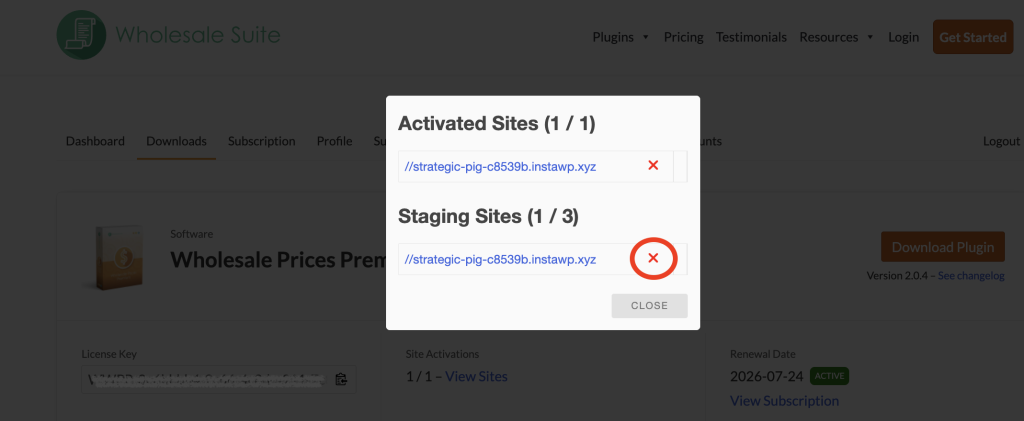
If you want to remove an activated site, you can simply go to the Downloads tab on your account.
The Downloads tab shows you the list of all licenses associated with your account. From here, you can click on the View Sites link, which will show a pop-up and let you remove any unwanted sites from your license.
And if you want to activate a new site on your license, this is done from the backend of your store. Just navigated to the site’s backend and clicked on Wholesale -> License.
Frequently Asked Questions
How do I add a new site to my Wholesale Suite license?
First, log in to your store dashboard and go to Wholesale → License. Then activate the license there. However, ensure an available slot exists on your plan; otherwise, activation won’t proceed for the new site.
Can I remove a staging site from my Wholesale Suite license?
Yes, staging domains has 3 slots on Growth plans. Simply sign in, open Downloads, select View Sites, and remove the staging URL. As a result, the freed slot becomes available for another installation.
What happens if all my license slots are full?
If your limit is reached, adding another site won’t work immediately. Instead, go to Downloads, open View Sites, and remove an unused domain. Once cleared, you can activate a new one.
Can I upgrade my license to support more activated sites?
Yes, upgrading expands your available slots. To proceed, visit the Downloads section and choose the upgrade option. Business plan allow more WooCommerce sites without hitting restrictions.
Why is the View Sites button not removing my domain?
Often, a blocked pop-up causes this issue. So, enable pop-ups and try again. If it persists, clear your browser cache or switch browsers. This helps confirm whether the removal was properly saved.
Need Help?
If you have a question or run into any issues, we’re here to help.
- Premium users: Open a support ticket
- Free users: Visit our community forum

