
Selling WooCommerce Product Bundles to your wholesale customers? When both WooCommerce Wholesale Prices Premium and Product Bundles are active, Wholesale Suite applies wholesale pricing to your bundles automatically. This article shows how that pricing works, how to set wholesale prices on a bundle, how visibility rules decide which bundled items wholesale customers see, and what they see on the storefront.
It does not cover showing bundles inside the Wholesale Order Form. For that, see How to use product bundles in the Wholesale Order Form.
Requirements
Before you start, make sure the following are installed and active on your store:
- WooCommerce, installed and active.
- WooCommerce Wholesale Prices Premium, installed and active with a valid license.
- WooCommerce Product Bundles, installed and active.
When all four are active, the integration turns on automatically. There is no separate setting to enable it.
How the integration works
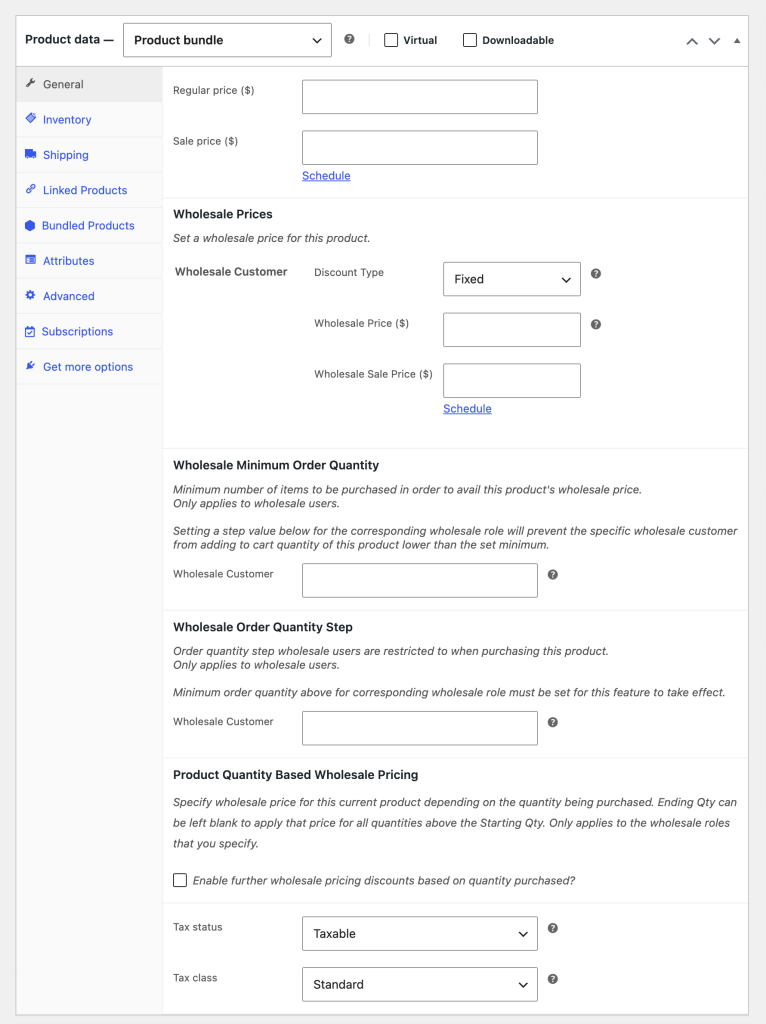
When the WooCommerce Product Bundles plugin is installed and active, Wholesale Suite automatically enables wholesale pricing support for bundle product types. No additional configuration is required, because the integration activates on its own.
The integration adds the following to bundle products:
- Wholesale price fields in the product editor
- Minimum order quantity settings per wholesale role
- Order quantity step settings per wholesale role
- Wholesale sale price support
- Wholesale price visibility in the product listing
Setting wholesale prices on bundle products
Pricing the parent bundle
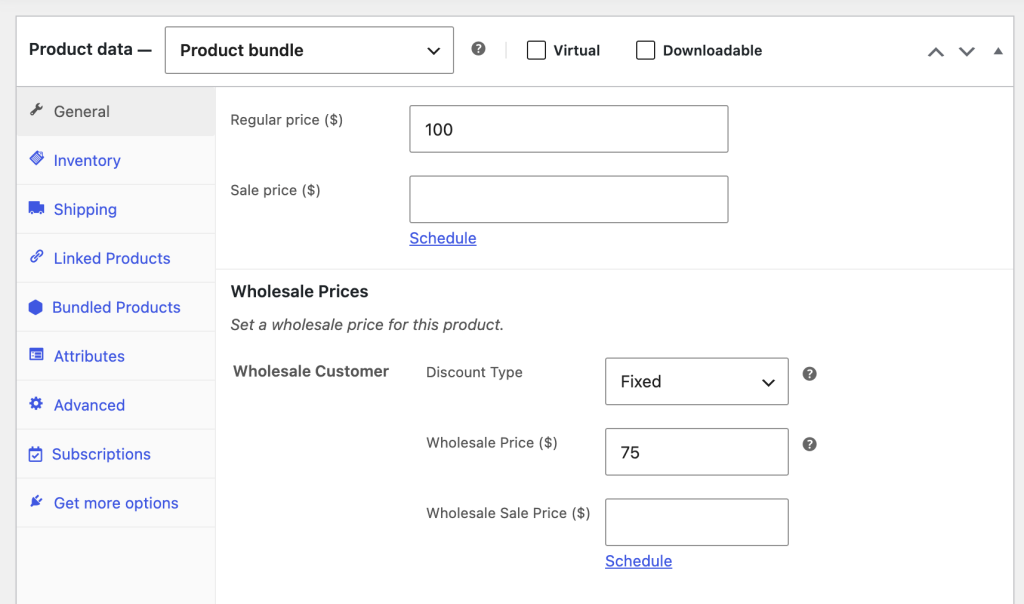
Bundle products can have a single wholesale price set on the parent product. When a wholesale customer views the product page, they see this price instead of the regular bundle price. If the bundle also contains priced-individually items, this price acts as the base and the item prices are added to it.
To set a wholesale price on a bundle:
- Go to Products in your WordPress admin.
- Open the bundle product you want to price.
- In the pricing section of the product editor, enter a wholesale price in the field for each wholesale role.
- Click Update to save.
Pricing bundled items individually
WooCommerce Product Bundles lets you mark individual items as “priced individually.” When items in a bundle are priced individually, each item can carry its own wholesale price. In this case:
- The wholesale total is the bundle’s base price plus each priced-individually item’s wholesale price, multiplied by its quantity. The base is the parent bundle’s wholesale price when you set one, and the parent’s regular base price when you do not. A bundled item with no wholesale price for that role contributes its regular price to the total.
- If a bundled item has a percentage discount configured in the bundle settings, that discount is applied on top of the item’s existing wholesale price.
- Variable products used as bundled items receive wholesale pricing at the variation level.
Priced Individually also affects visibility. In WooCommerce Wholesale Prices Premium 2.1.0 and later, a priced-individually child remains available as part of its bundle even when the wholesale visibility filter would remove an ordinary child that is not priced individually.
When a customer selects these children and adds the bundle, WooCommerce adds the parent and selected children together. Each child keeps its applicable wholesale price and contributes to the bundle total.
Bundled item visibility
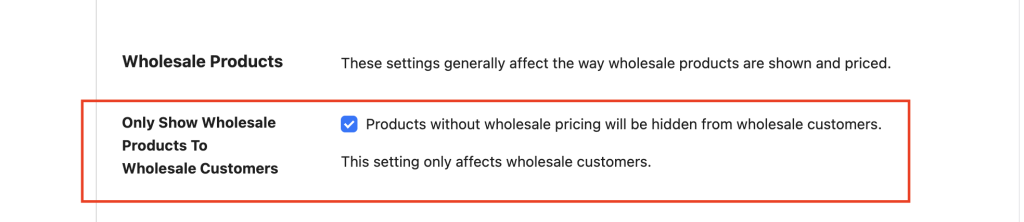
When Only Show Wholesale Products To Wholesale Customers is enabled, the result depends on how the bundle and its children are priced.
| Bundle setup | Visibility behavior |
|---|---|
| Child is Priced Individually | The child remains available as part of the bundle even if the Wholesale Prices visibility filter would remove an ordinary child. Its applicable wholesale price contributes to the bundle total. |
| Child is not priced individually | The normal wholesale visibility checks apply. The child must have a wholesale price from any one of these sources: a per-product wholesale price, a product-category wholesale discount, or the customer’s role-level discount. The child must also be visible to that wholesale role under Restrict To Wholesale Roles. |
| Parent has a wholesale price or category-level wholesale discount | All children remain available because the parent bundle qualifies for wholesale pricing. |
This distinction lets priced-individually children stay attached to the bundle while preserving the existing visibility rules for children that are not priced individually.
Overriding discount rules on bundled items
Two checkboxes on each bundle product let you control how wholesale discount rules apply to bundled items.
Disregard Product Category Level Wholesale Discount. When checked on the parent bundle, bundled items that would ordinarily receive a product-category-level wholesale discount will not receive it.
Disregard Wholesale Role Level Wholesale Discount. When checked on the parent bundle, bundled items that would ordinarily receive a general role-level wholesale discount will not receive it.
These settings are useful when you want to sell a bundle at a fixed wholesale price without having category or role discounts additionally applied to the bundled items.

What your wholesale customers see
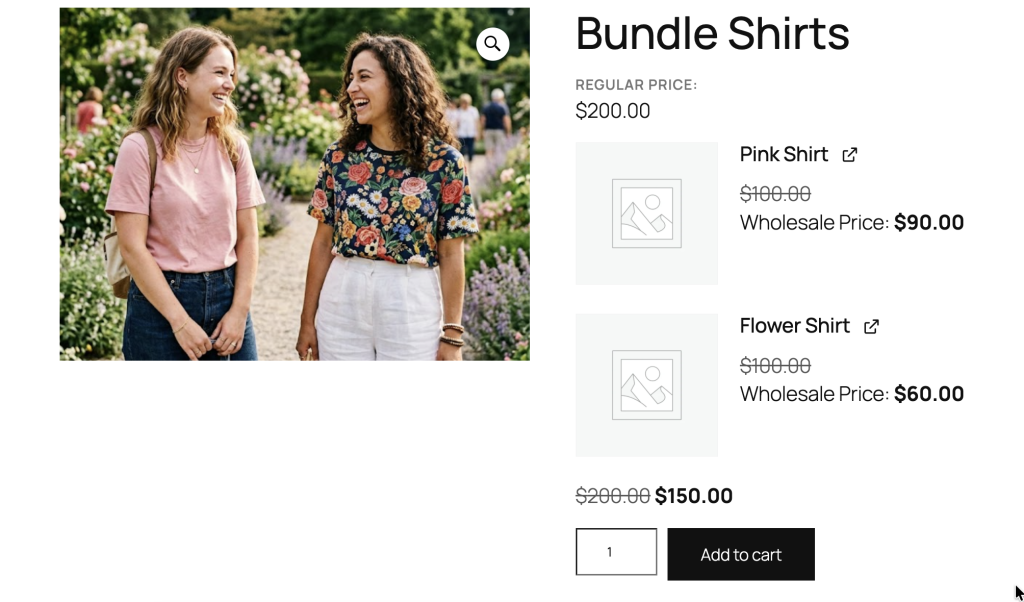
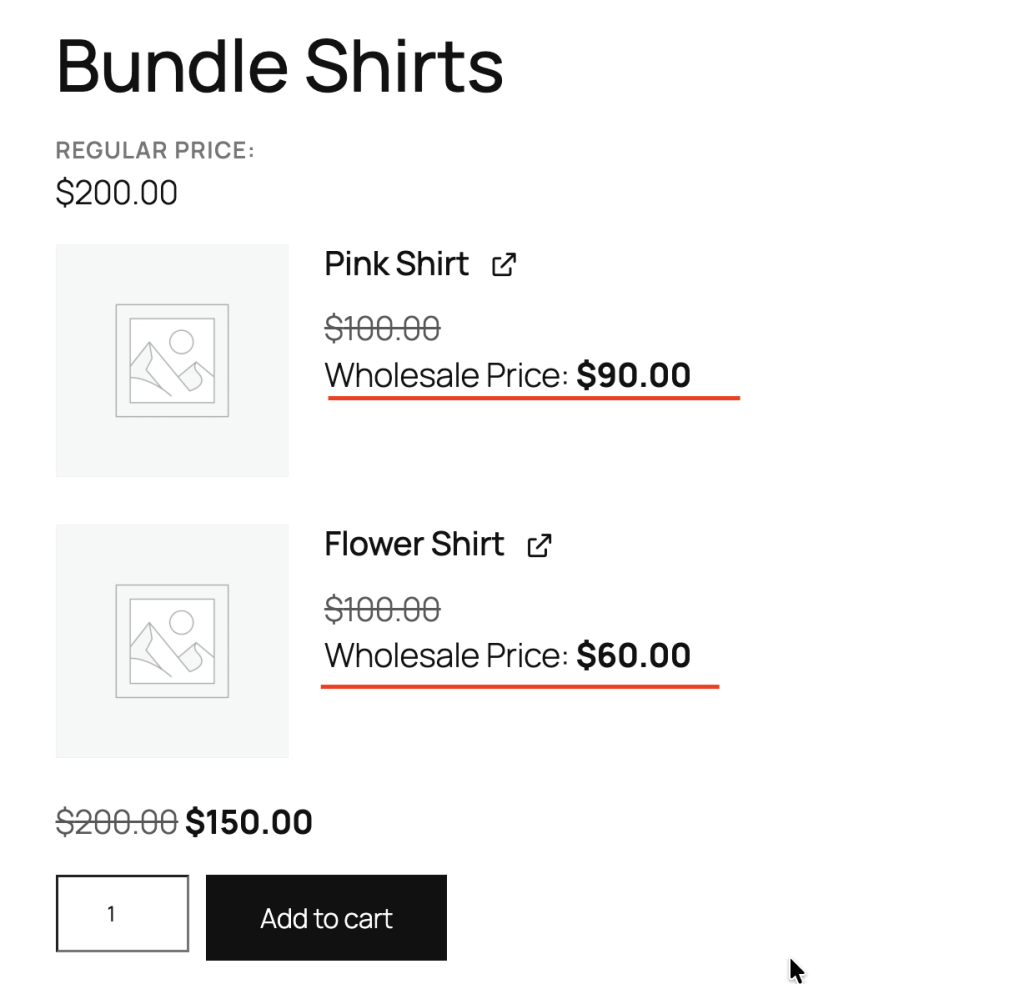
On the product page, wholesale customers see a Wholesale Price: label with their discounted price. The regular price appears with a strikethrough above it.
For bundles with individually priced items, the wholesale total on the product page reflects the sum of the bundled item wholesale prices. The total shows as a range whenever the bundle’s lowest and highest wholesale totals differ. That happens with variable bundled items, optional items, or items with a quantity range.
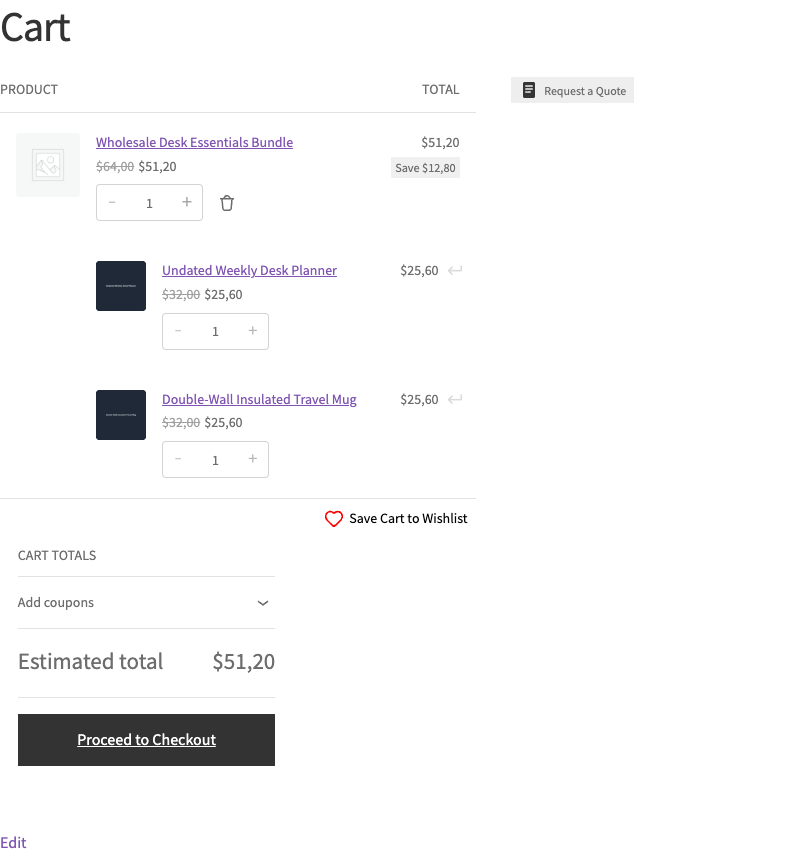
On shortcode and block Cart and Checkout pages, the selected priced-individually children appear as sub-rows beneath the parent bundle. Each child shows its applicable wholesale price and subtotal, and those subtotals contribute to the bundle total.
In your WordPress admin, the Wholesale Price column on the Products list shows a Wholesale Price From: figure for each wholesale role that has wholesale pricing on that bundle. This is the lowest possible wholesale total, not a range. Roles with no wholesale pricing for the bundle are not listed.
Troubleshooting
The wholesale price or total is not showing on a bundle. Confirm both WooCommerce Wholesale Prices Premium and WooCommerce Product Bundles are active, that you are logged in as a wholesale customer (or testing with a wholesale role), and that a wholesale price is set either on the parent bundle or on the bundled items. If items are priced individually, the displayed total is the sum of the item wholesale prices, so make sure each item has a wholesale price for that role.
Some bundled items are missing for wholesale customers. Edit the parent bundle and check whether each affected child is marked Priced Individually. Priced-individually children remain available as part of the bundle. Update WooCommerce Wholesale Prices Premium to 2.1.0 or later if they are still missing. For children that are not priced individually, the normal visibility rules still apply. Give the child a qualifying wholesale price, category discount, or role-level discount, or turn off Only Show Wholesale Products To Wholesale Customers if you want ordinary children shown without those requirements.
A category or role discount is not being applied to bundled items. Check the parent bundle for the Disregard Product Category Level Wholesale Discount and Disregard Wholesale Role Level Wholesale Discount checkboxes. When either is checked, the matching discount is intentionally skipped for that bundle’s items.
Using bundles inside the Wholesale Order Form?
This article covers wholesale pricing for bundles on your storefront. If you want to display and configure bundles directly inside the Wholesale Order Form, see How to use product bundles in the Wholesale Order Form.
Frequently asked questions
Does the integration need to be enabled manually?
No. The integration is built into WooCommerce Wholesale Prices Premium and activates automatically when the WooCommerce Product Bundles plugin is installed and active. There is no setting to turn it on.
Can I set a minimum order quantity on a bundle product?
Yes. The Wholesale Minimum Order Quantity section in the product editor is available on bundle products, just as it is for simple products. Set a minimum for each wholesale role as needed.
What happens if some bundled items don’t have wholesale prices?
A child marked Priced Individually remains available as part of its bundle and uses its applicable price. A child that is not priced individually follows the normal wholesale visibility rules. When Only Show Wholesale Products To Wholesale Customers is enabled, an ordinary child without a qualifying wholesale price or discount may be hidden.
Do variable products inside a bundle get wholesale pricing?
Yes. When a variable product is used as a bundled item and is priced individually, wholesale pricing is applied per variation. Wholesale customers see the correct wholesale price for each variation they select.
Need help?
If you have a question or run into any issues, we’re here to help.
- Premium users: Open a support ticket
- Free users: Visit our community forum

