
Adding a GTIN column to your order form lets wholesale buyers cross-reference your products against their own procurement systems without leaving the order table. The codes (GTIN, UPC, EAN, or ISBN) appear in their own column, so buyers can match items to internal catalogues and purchase orders as they shop. WooCommerce Wholesale Order Form includes a dedicated GTIN column element for this, with no custom coding required. This article shows you where to set the GTIN on each product and how to add and configure the column in your order form.
Requirements
- The current WooCommerce Wholesale Order Form (the GTIN column element is available in recent versions of the order form builder)
- WooCommerce 9.2 or later (for the native GTIN product field)
- At least one order form already created
_global_unique_id post meta. However, the product edit field to set it may not be visible in the admin without a separate plugin.Step 1: Set the GTIN value on your products
The GTIN column displays whatever value is stored in WooCommerce’s native GTIN field. You need to set this on each product before the column shows any data.
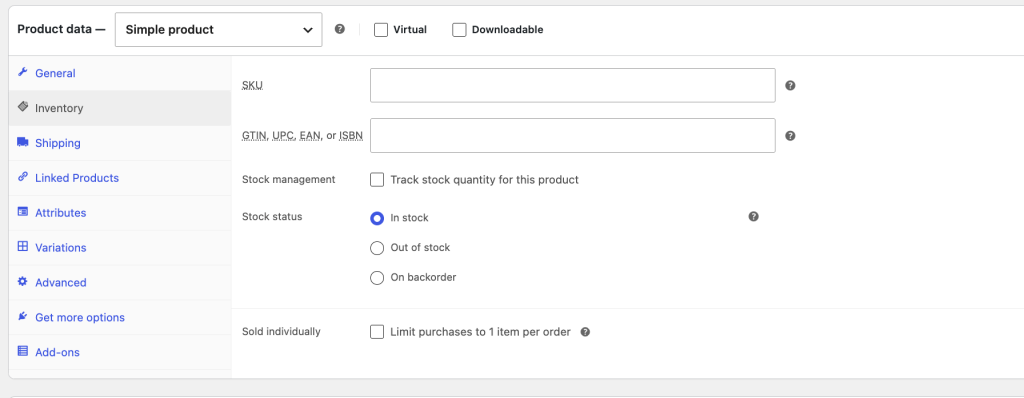
- Open a product in the WordPress admin.
- In the Product data panel, open the Inventory tab.
- Enter the product’s identifier in the GTIN, UPC, EAN, or ISBN field.
- Click Update to save.
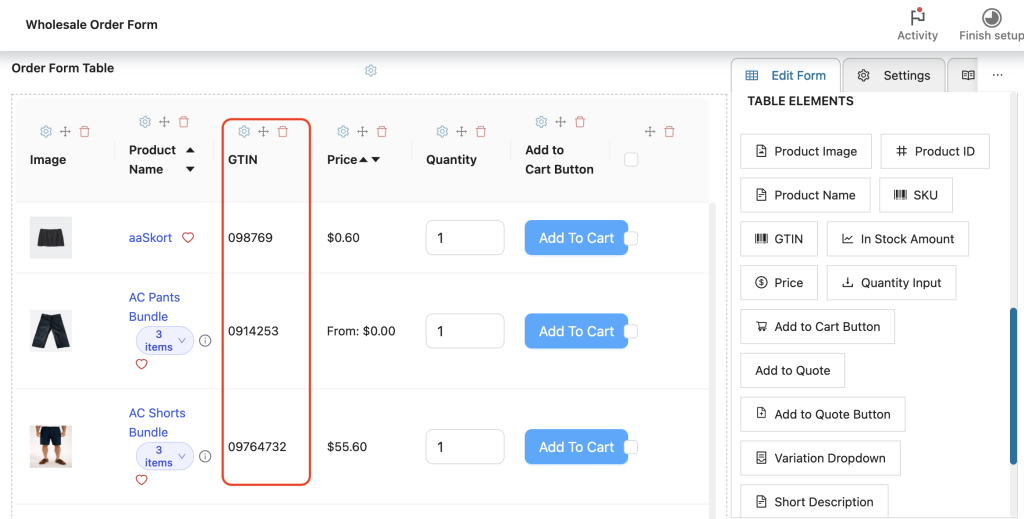
Repeat for each product (and each variation, if using variable products) that you want to display GTIN values for. Products without a value set will show “Not applicable” in the column.
Step 2: Add the GTIN column to your order form
![Wholesale Order Form page with description, an 'Add Form' button, a search bar, and a table listing one form: Wholesale Order Listing with shortcode [wwof_product_listing id="15"], status Published, 1 page in Locations.](https://wholesalesuiteplugin.com/wp-content/uploads/2026/06/wws-wwof-order-form-1024x354.png "wws-wwof-order-form - Wholesale Suite")
- Go to Wholesale → Order Forms in your WordPress admin.
- Click the order form you want to edit to open it in the builder.
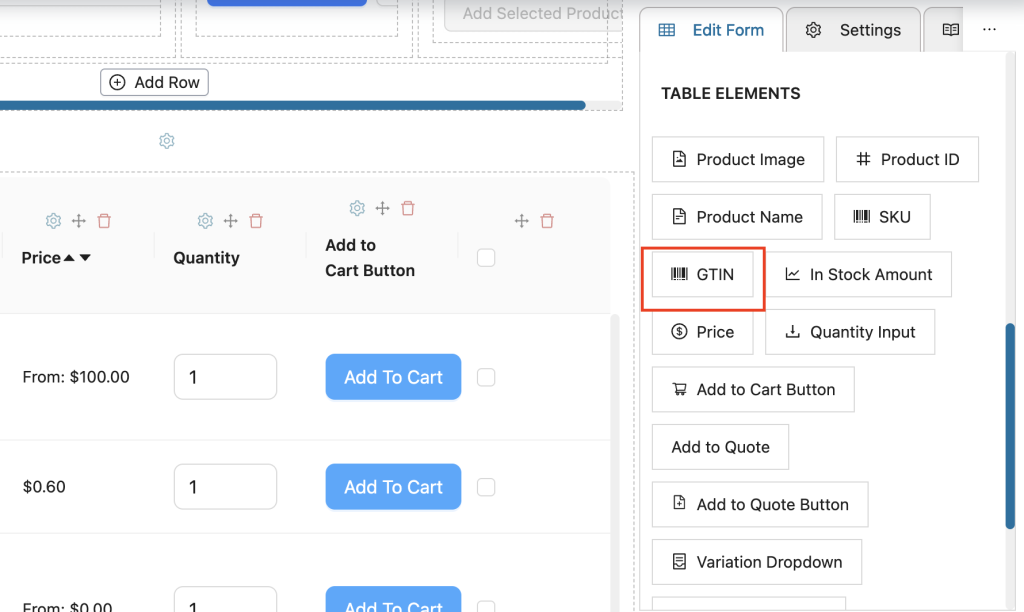
- In the right-hand sidebar, click the Edit Form tab.
- Scroll to the TABLE ELEMENTS section.
- Drag the GTIN element into your order form table, placing it in the column position you want.
- Click Save to apply.
Step 3: Configure the GTIN column
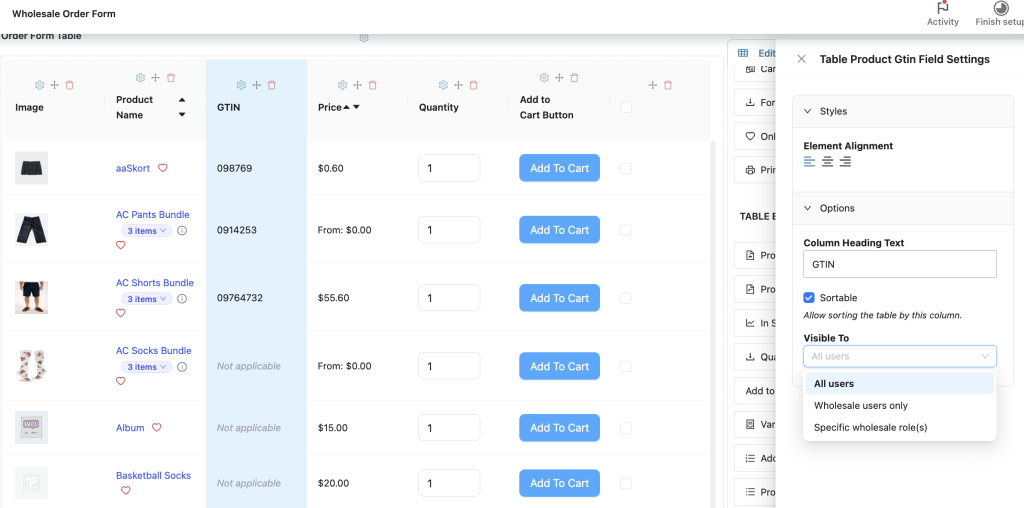
After adding the column, you can customise its heading text, sorting behaviour, and text alignment. Click the GTIN column in the form table to open its settings in the sidebar.
Options tab
The Options tab has two settings:
| Setting | What it does | Default |
|---|---|---|
| Column Heading Text | The label shown in the column header. Change it if your buyers use a different acronym (for example, “UPC” or “Barcode”). | GTIN |
| Sortable | When enabled, buyers can click the column header to sort the product list by GTIN value. | Off |
Styles tab
The Styles tab contains a text alignment control for the column content. Choose left, center, or right alignment to match your form’s layout. After making any changes, click Save to apply.
What buyers see
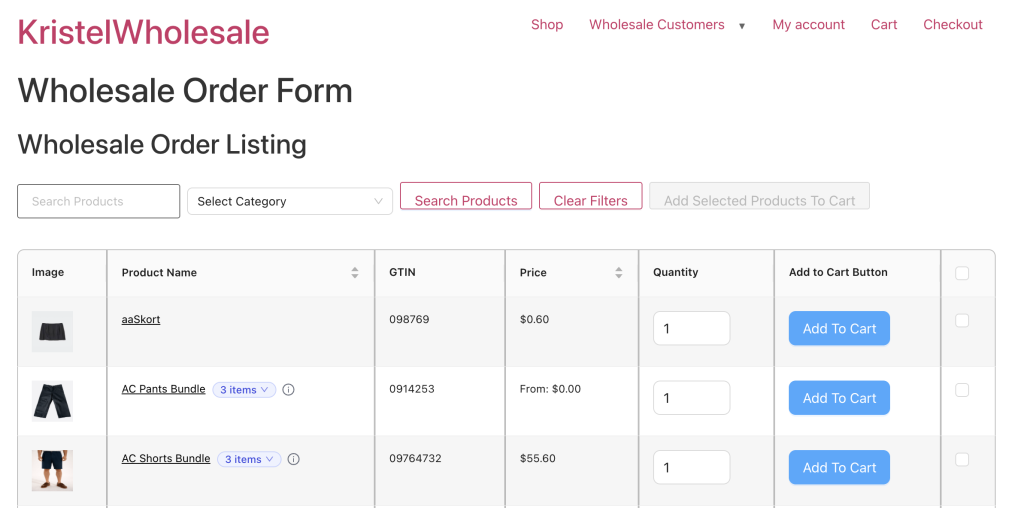
Once the column is in place and products have GTIN values set, buyers see the identifier in the corresponding column of the order form table. The column heading defaults to “GTIN” unless you changed it in the Options tab. Products that have no GTIN value set display “Not applicable” in the column, shown in italic gray text.
Frequently asked questions
Does the GTIN column work for variable products?
Yes. The GTIN value is fetched per variation. Each variation can have its own GTIN set separately in WooCommerce. When a buyer selects a variation, the GTIN column updates to show that variation’s value.
Can I rename the column heading to “UPC” or “EAN”?
Yes. Click the GTIN column in the form editor to open its settings, then change the Column Heading Text field under the Options tab.
My products have GTIN values set but the column is blank. What’s wrong?
Check that you’re running WooCommerce 9.2 or later. Older versions don’t have the native GTIN field. If you’re on an older version, you can store the value manually via a plugin that writes to the _global_unique_id post meta key.
Need help?
If you have a question or run into any issues, we’re here to help.
- Premium users: Open a support ticket
- Free users: Visit our community forum

