Browsing a long product listing for a specific price point wastes a wholesale customer’s time. WooCommerce Wholesale Order Form includes a Price Range element you can add to any order form, so customers can narrow the listing to products within a minimum and maximum price. This article shows you how to add it, what you can configure, and how it works alongside your form’s other filters.
Prerequisites
- WooCommerce Wholesale Order Form active on your site, with at least one order form already created.
- WooCommerce Wholesale Prices version 2.3.1 or later, so the filter compares the wholesale price your customers pay.
- An administrator or shop manager account. The Order Forms screen is only visible to these roles by default.
Step 1: Add the Price Range element
- Go to Wholesale > Order Forms in your WordPress admin.
- Click the Edit (pencil) icon in the Action column for the order form you want to add it to.
- On the Edit Form tab, drag the Price Range element into a row in the Form Header or Form Footer section.
- Click Update to save your changes (this button reads Publish or Save Draft instead if the form hasn’t been published yet).
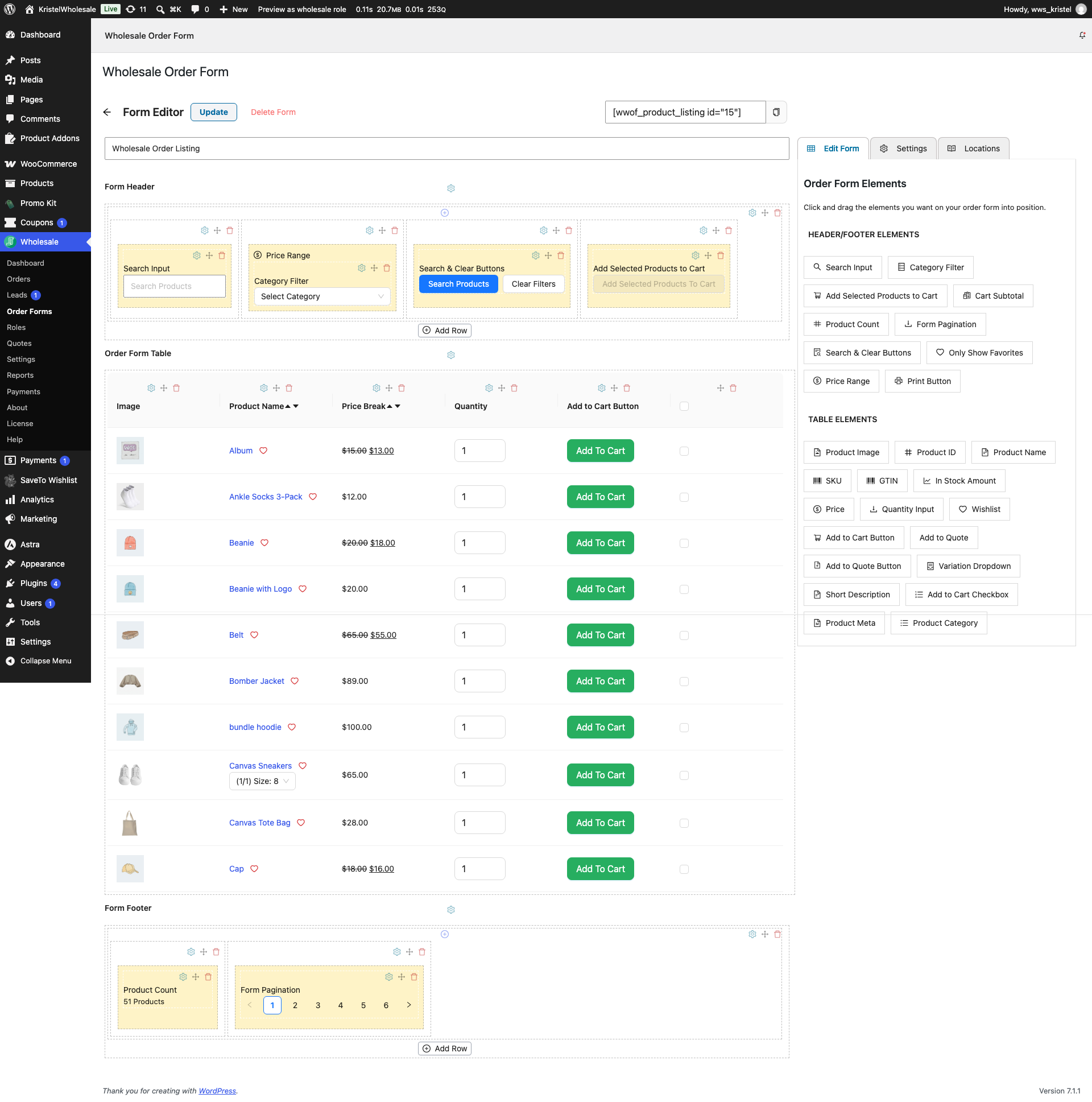
Once added, the element shows as two number fields side by side, separated by a dash. It works as soon as you save the form.
Step 2: Configure the element (optional)
- Click the gear icon on the Price Range element to open its settings.
- Edit Min Price Placeholder and Max Price Placeholder to change the text shown in each empty field.
- Edit Step Increment to change how much each field’s up/down arrows raise or lower the value.
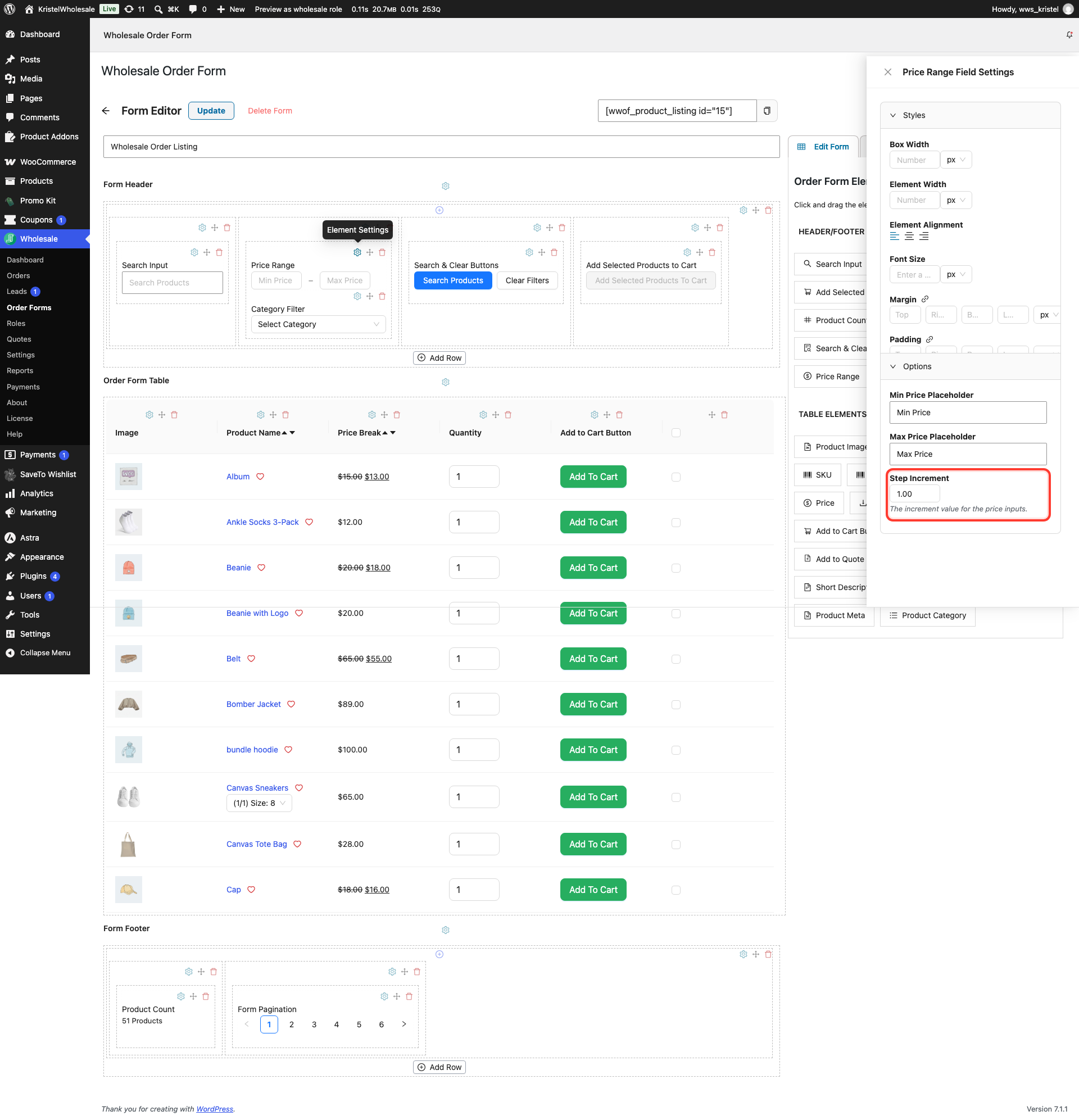
By default the fields read “Min Price” and “Max Price”, and the step increment is 1. There’s no separate setting for the field’s overall minimum or maximum. See the FAQ below.
How it works for customers
A customer doesn’t need to fill in both fields. Entering a minimum on its own filters out anything cheaper, entering a maximum on its own filters out anything more expensive, and entering both narrows the listing to that range. The listing updates as soon as a field changes. Unlike the plugin’s Search Input, there’s no button to click or Enter key to press.
The Price Range filter combines with whatever else the customer has already set. If a category is selected in Category Filter, or a term is entered in Search Input, the price range narrows that same result set rather than replacing it. If you’ve also added the Search & Clear Buttons element, its Clear Filters button resets the Price Range fields along with the form’s other filters.
The filter compares the price each customer pays. For a wholesale customer, that’s their wholesale price, including any wholesale sale price, category discount, or customer or role discount. For any other customer, it’s the product’s store price, or its sale price when the product is on sale. For a variable product, the product shows when any of its variations has a price inside the range. Out-of-stock variations don’t count when your store hides out-of-stock products.
Troubleshooting
Wholesale customers see products outside the price range they entered
Update WooCommerce Wholesale Prices to version 2.3.1 or later. Older versions compare the store price instead of the wholesale price. They also ignore the range when Wholesale Prices Premium is set to hide products without wholesale pricing from wholesale customers.
The price fields don’t show a currency symbol
This is expected. The fields are plain number inputs, so customers type a number without a currency symbol attached.
Frequently Asked Questions
Can I limit how high or low customers are able to filter?
No. The element has no boundary setting. Its Options cover the placeholder text and the step increment, and its Styles cover size, alignment, and spacing. The fields don’t accept values below 0.
Do customers have to enter both a minimum and a maximum?
No. Either field works on its own, and the listing updates as soon as a value is entered in either one.
Need Help?
If you have a question or run into any issues, we’re here to help.
- Premium users: Open a support ticket
- Free users: Visit our community forum