
Your wholesale buyers order 24 mugs, 36 tote bags, and 100 sticker packs. Then someone on their team sits down and types every line back into their own point-of-sale system, one SKU at a time. That retyping is exactly the problem big retailers solve with EDI, and it is the reason “WooCommerce EDI” keeps coming up when wholesale store owners talk about scaling.
Full electronic data interchange is powerful, but it is also expensive and slow to set up. Most small and mid-sized wholesalers don’t need it. What their buyers actually want is simpler: a clean file with the products, prices, SKUs, and barcodes from each order, ready to import.
That is what the new Download Order CSV feature in Wholesale Prices Premium 2.1.5 delivers. In this guide, you’ll learn how it works, how to set it up, and how it gives your buyers a lightweight WooCommerce EDI alternative. We’ll also cover the new Wholesale Prices Premium setup checklist that ships in the same release.
What Is WooCommerce EDI And Why Do Wholesale Buyers Ask For It?
EDI stands for electronic data interchange. It is the computer-to-computer exchange of business documents, like purchase orders, invoices, and shipping notices, in a standard format that both trading partners’ systems can read. IBM’s EDI overview explains how it replaces paper and email with structured data that flows straight into each company’s software.
WooCommerce EDI usually means connecting your store to an EDI provider so orders, confirmations, and advance shipping notices move automatically between you and a large retail partner. Big-box retailers often require it from their suppliers. For a growing wholesale store, though, a full EDI rollout means monthly provider fees, mapping work for every trading partner, and ongoing maintenance.
Here’s the thing: most independent retailers who buy from you don’t want a full EDI connection. They want to stop retyping orders. If they can pull each order’s line items into their POS or inventory system before the boxes arrive, they can price, label, and shelve stock the moment it lands.
What’s New In Wholesale Prices Premium 2.1.5
Wholesale Prices Premium 2.1.5 includes two new features, plus a long list of fixes and improvements:
- Download Order CSV: customers can download any of their orders as a CSV file from My Account, from both the Orders list and the View Order page.
- Wholesale Prices Premium setup checklist: a new section in the Wholesale Suite dashboard’s “Get Started” card that tracks your premium setup, plus two optional milestone emails.
The CSV download is the headline for store owners who sell to retailers. It turns every order into structured data, which is the core benefit of EDI, without the integration project.
How The Download Order CSV Feature Works
Once you update to 2.1.5, the feature is live. There is no setting to switch on. Logged-in customers see two new download options in their account area.
Where your buyers find the download
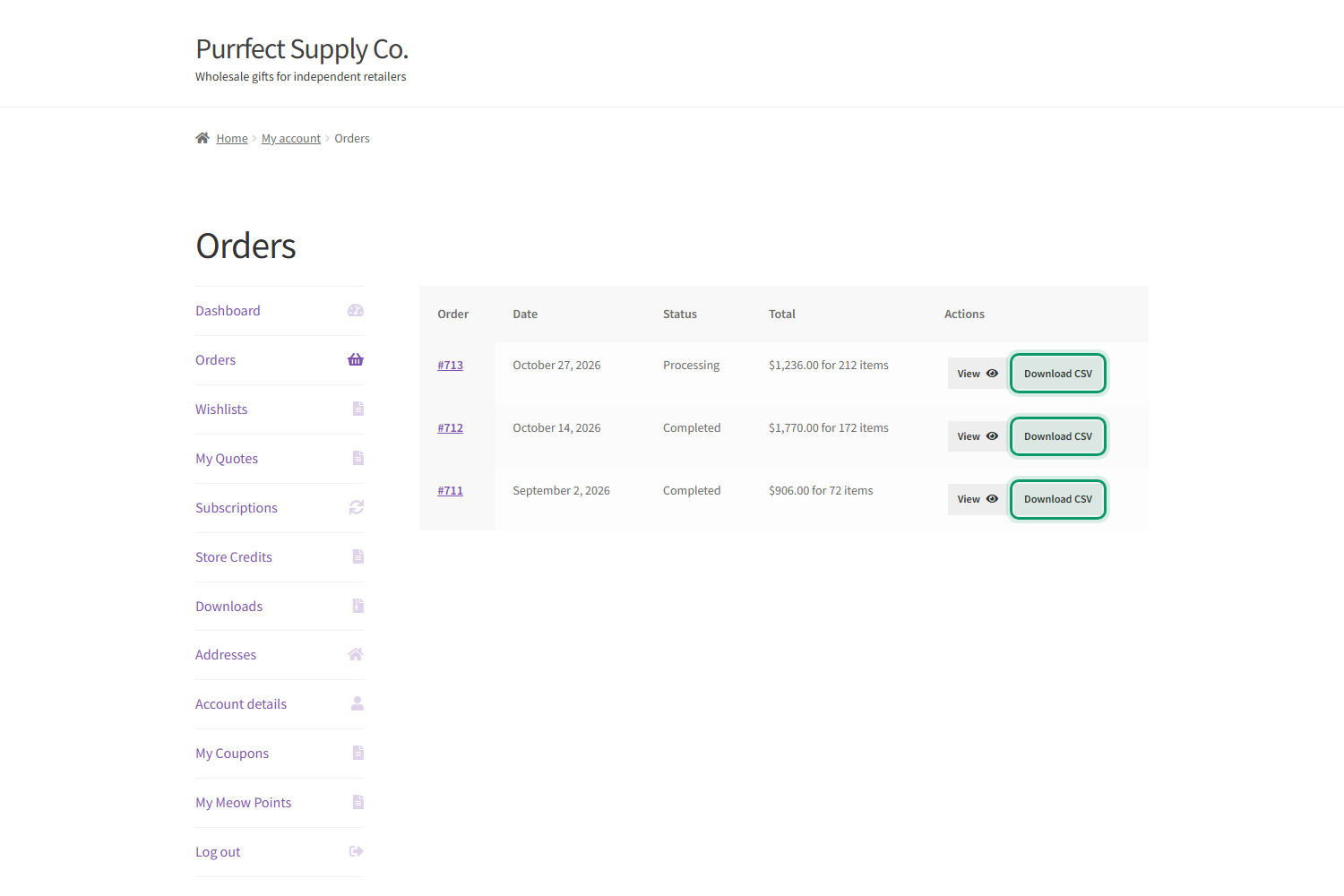
On My Account > Orders, each order row gets a Download CSV button next to the existing View button. On the individual View Order page, a Download Order CSV button sits below the order details table. Both buttons download the same file, named after the order, such as order-712.csv.
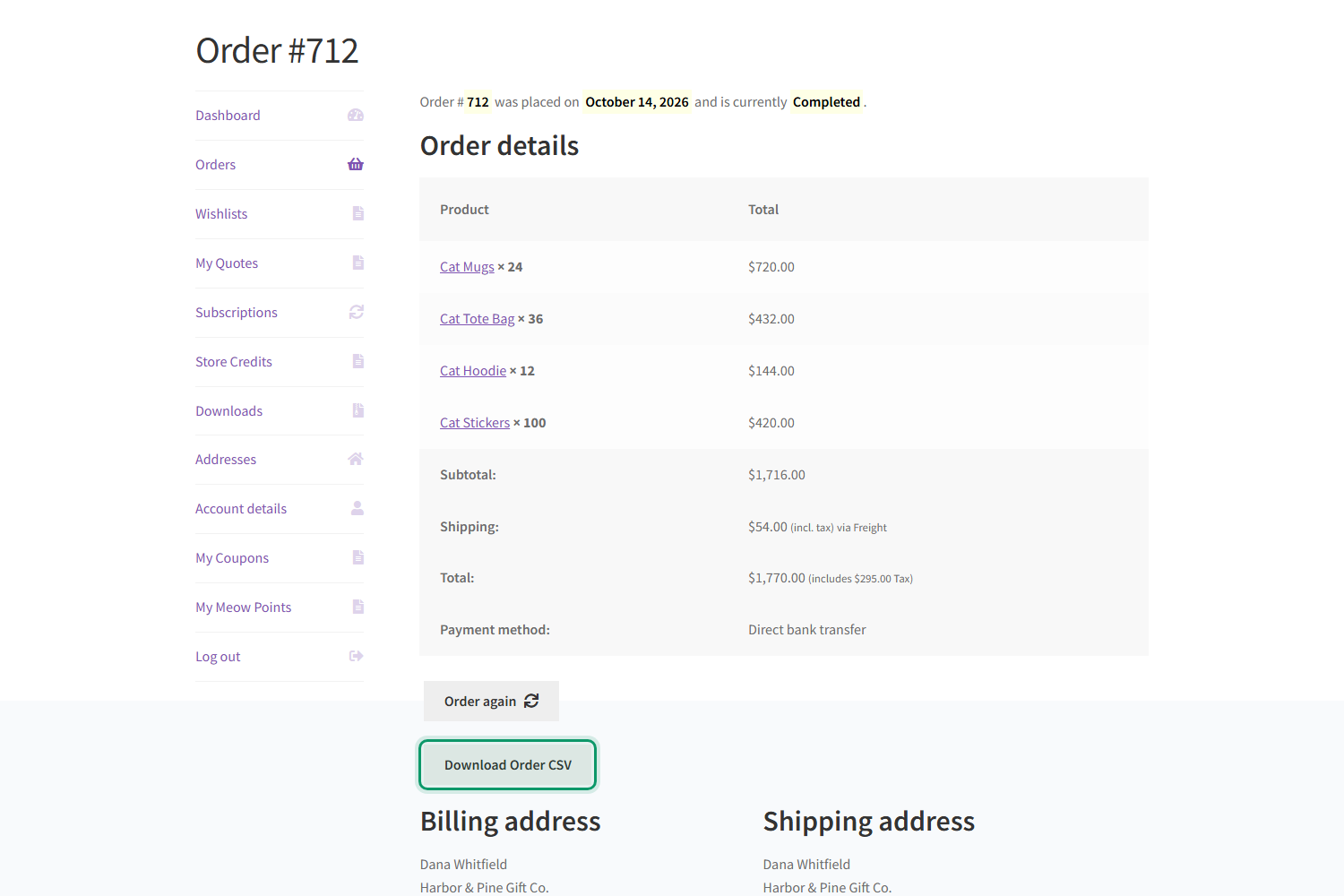
The button doesn’t appear on the order-received (thank you) page. Buyers grab the file from their account whenever they need it, which keeps checkout clean.
What’s inside the CSV file
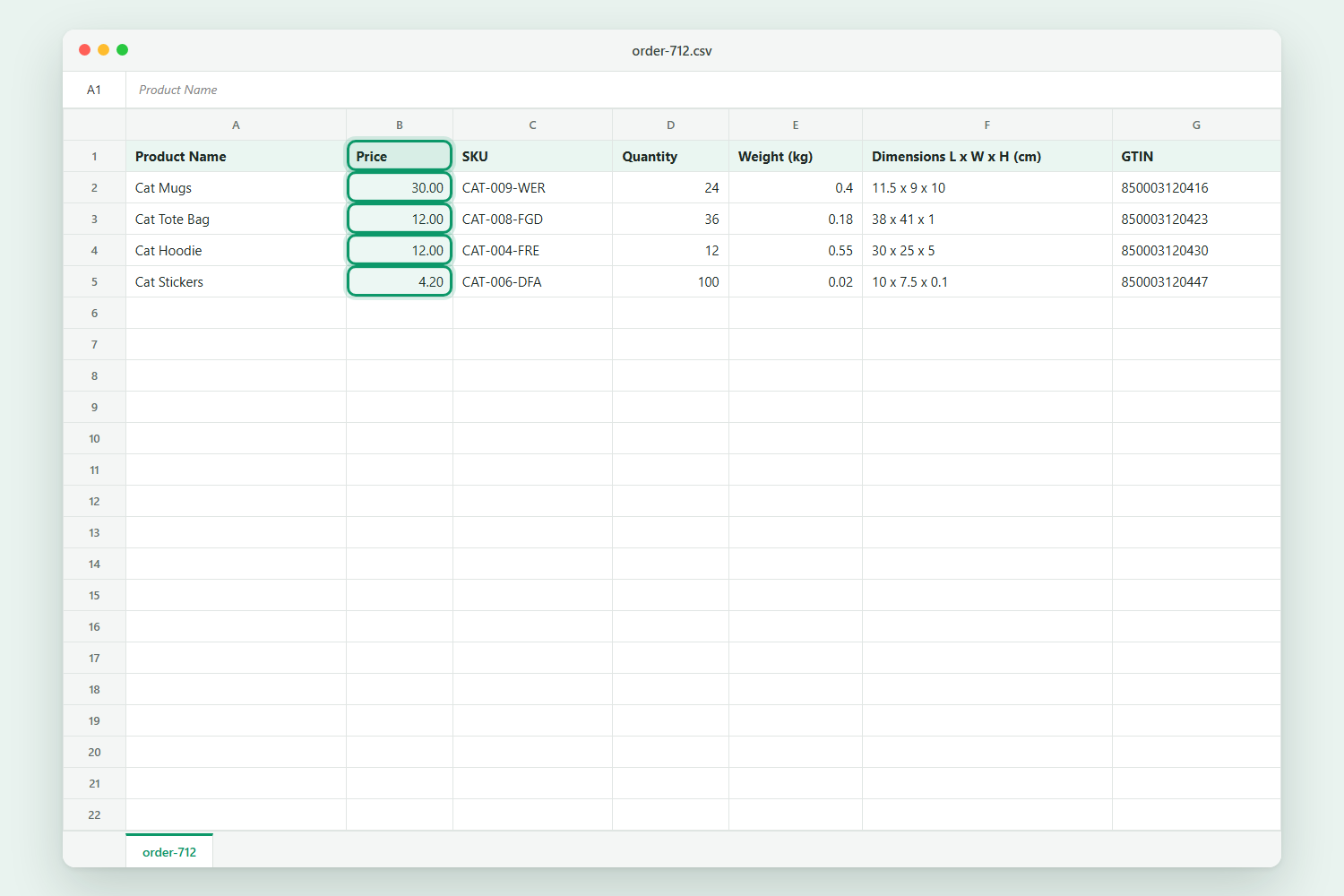
The file contains one row per line item on the order, with these columns:
| Column | What it contains | Example |
|---|---|---|
| Product Name | The product name, plus any visible details like variation attributes or add-on selections | Cat Mugs |
| Price | The unit price the customer actually paid on that order | 30.00 |
| SKU | The product or variation SKU | CAT-009-WER |
| Quantity | The quantity ordered, minus any refunded units | 24 |
| Weight | Product weight in your store’s weight unit | 0.4 |
| Dimensions L x W x H | Length, width, and height in your store’s dimension unit | 11.5 x 9 x 10 |
| GTIN | The barcode from WooCommerce’s GTIN, UPC, EAN, or ISBN field | 850003120416 |
Because the columns follow a fixed order with clear headers, buyers can map them once in their POS import tool and reuse that mapping for every order. That repeatable handoff is what makes this a practical WooCommerce EDI alternative for smaller trading relationships.
How the price column is calculated
The Price column shows the unit price stored on the order, so it reflects the wholesale price the customer was charged, not your regular retail price. In our demo store, Cat Mugs retail for $30.00 before tax, but the wholesale customer paid $25.00. The CSV shows 30.00 because this store displays prices including 20% tax.
Whether tax is included follows the same setting that controls the View Order page, including your wholesale tax display option under Wholesale > Settings > Wholesale Prices > Tax. So the CSV always matches what the buyer sees on screen. Prices are rounded per unit, so price multiplied by quantity can differ from the line total by a cent on odd splits.
Who can download and how orders stay private
By default, every logged-in customer can download CSVs of their own orders, retail and wholesale alike, since retail buyers get the same value from a clean import file. Developers who want to limit the download to wholesale roles can do so with the wwpp_show_order_csv_download filter.
Each download link is tied to its order, and the plugin checks that the order belongs to the logged-in customer. If someone edits the link to point at another customer’s order, they’re sent back to their Orders page with the notice “Sorry, you cannot download this order.” Logged-out visitors are redirected to the login page, and no order data is ever sent.
The file is also built with spreadsheet safety in mind. Text that starts with characters like =, +, -, or @ gets a leading apostrophe, so a product name can never run as a formula when the file opens in Excel or Google Sheets.
How To Set Up Order CSV Downloads Step By Step
The feature works as soon as you update, but a little product data prep makes each file much more useful. Follow these steps to give your buyers a reliable WooCommerce EDI style data feed.
- Update Wholesale Prices Premium to 2.1.5. Go to Plugins in your WordPress dashboard and update, or upload the new version from your Wholesale Suite account. Back up your site first, as with any update.
- Fill in SKUs on every product. Open a product, go to Product data > Inventory, and add a SKU. Your buyers will use it to match items in their own system.
- Add GTINs for barcode scanning. In the same Inventory tab, fill in the GTIN, UPC, EAN, or ISBN field. This native WooCommerce field (WooCommerce 9.2 and newer) feeds the GTIN column.
- Add weight and dimensions. Under Product data > Shipping, enter each product’s weight and dimensions. The CSV labels these columns with your store’s units, such as kg and cm.
- Check your wholesale tax display. Under Wholesale > Settings > Wholesale Prices > Tax, confirm whether wholesale prices show including or excluding tax. The Price column follows this choice.
- Test it as a customer. Log in with a wholesale test account, open My Account > Orders, click Download CSV, and open the file to confirm every column fills in.
- Tell your buyers about it. Mention the new download in your wholesale welcome email or account page so buyers know they can skip the retyping.
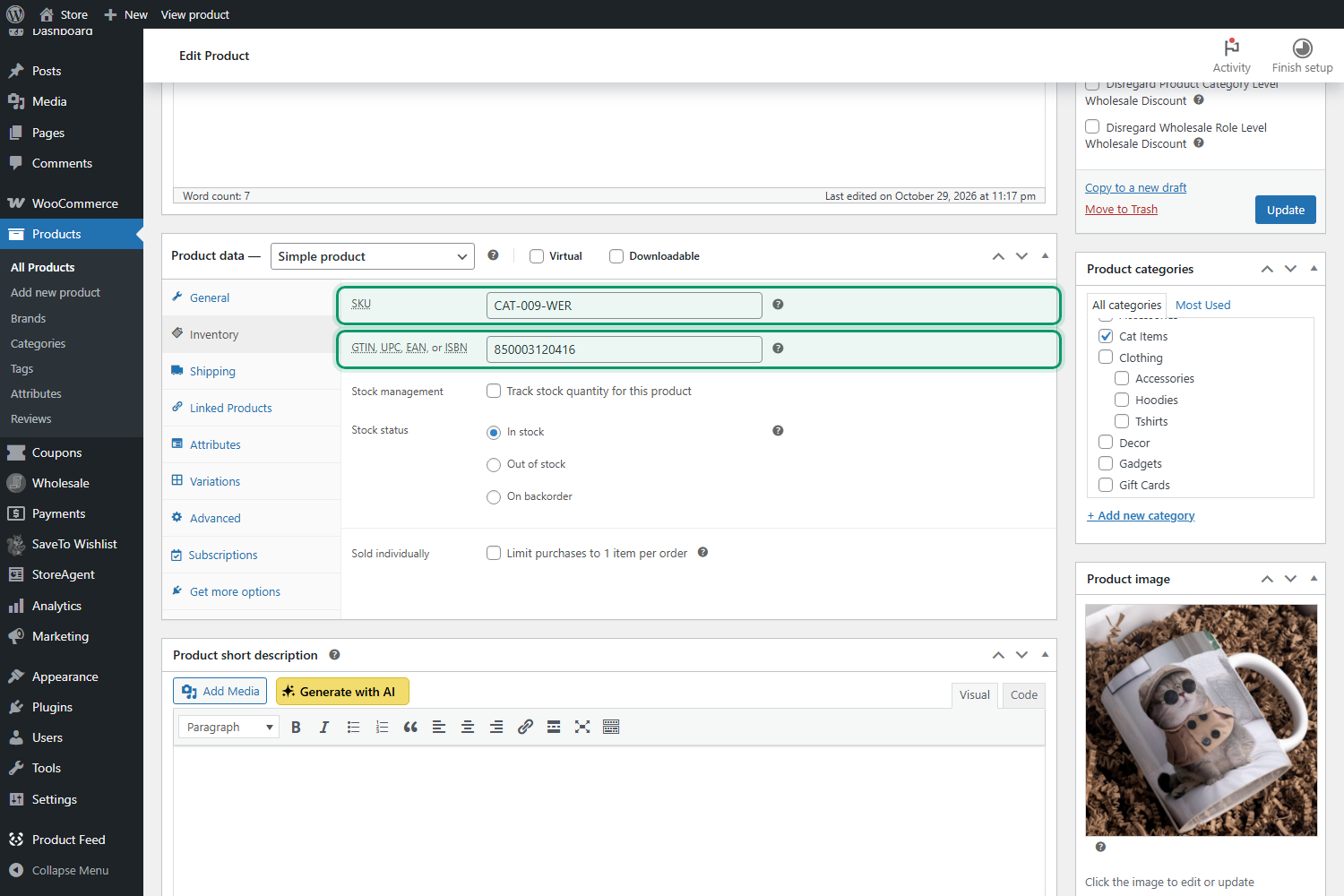
If you already show barcodes on your order form, you’ve likely already filled in GTINs. Our guide on showing WooCommerce GTIN, UPC, EAN, or ISBN in your order form covers that setup in detail.
Track Your Premium Setup With The New Onboarding Checklist
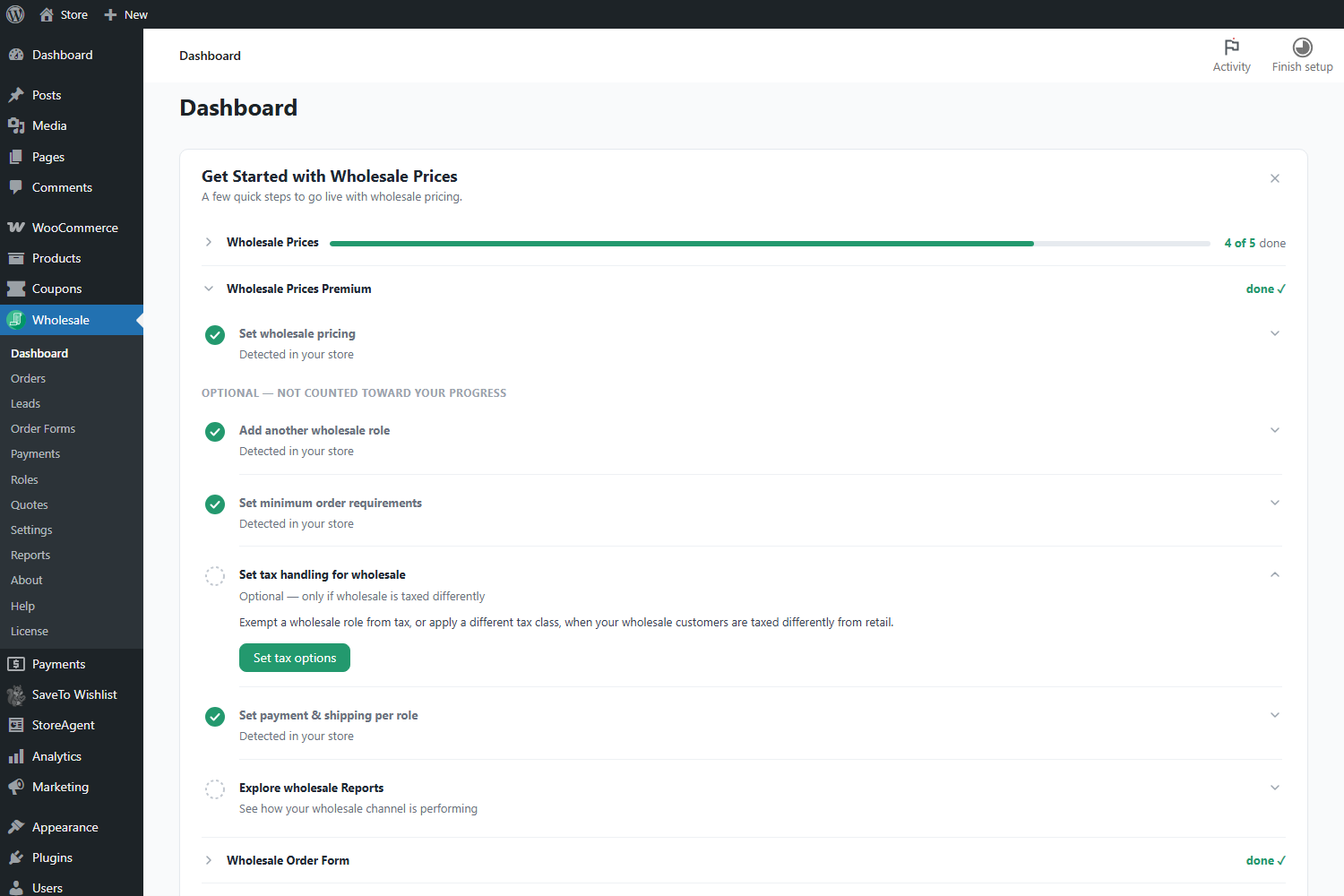
The second new feature in 2.1.5 helps you, not your buyers. Wholesale Prices Premium now adds its own section to the Get Started with Wholesale Prices card on your Wholesale > Dashboard page. It works alongside the sections for the free Wholesale Prices plugin and the other Wholesale Suite plugins you have installed.
What the checklist tracks
The section has one counted step: Set wholesale pricing. It completes automatically as soon as you set a wholesale price on a product or apply a store-wide or category discount to a wholesale role. Its button, Set a wholesale discount, takes you straight to the discount settings.
Below it, under “Optional, not counted toward your progress,” you’ll find five more steps that each link to the right screen:
- Add another wholesale role, for example a “Distributor” tier with its own pricing
- Set minimum order requirements for quantity or order value
- Set tax handling for wholesale, only if wholesale is taxed differently from retail
- Set payment & shipping per role to offer wholesale-only gateways or shipping methods
- Explore wholesale Reports to see revenue, top products, and top customers
Every step is detected from your store’s real settings, so you don’t have to tick anything off by hand. If you’ve used the setup checklist in Wholesale Order Form, this will feel familiar. Our post on the WooCommerce setup checklist for your wholesale order form shows how the shared card works.
Milestone emails and the WooCommerce task
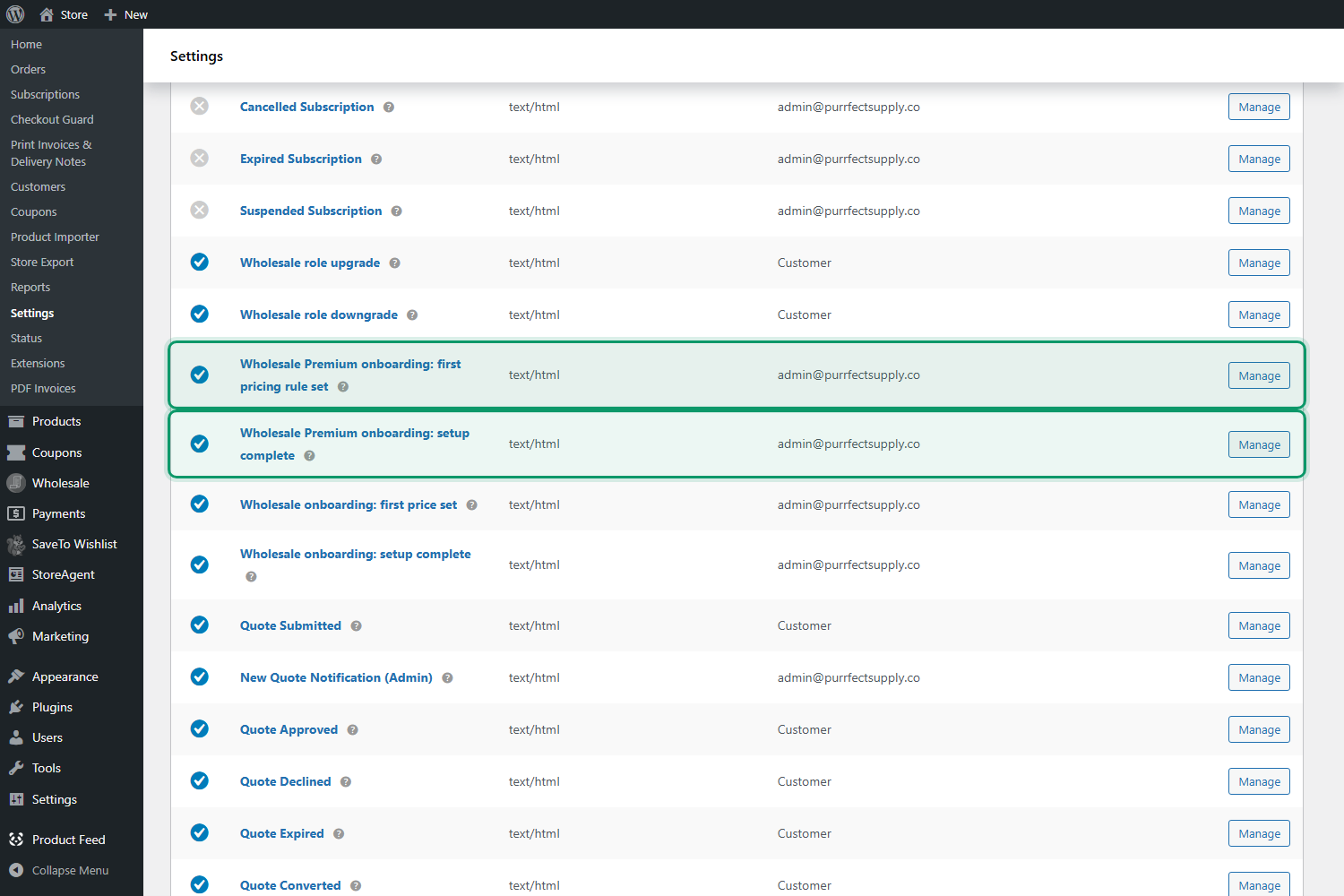
Two new admin emails mark your progress. “Your wholesale pricing is live” is sent the first time you save a premium wholesale pricing rule, and “Your wholesale pricing is set up” is sent when the section reaches 100%. Each sends once, and stores already set up before the update won’t receive them retroactively.
You can edit, redirect, or turn off both emails under WooCommerce > Settings > Emails, where they’re listed as “Wholesale Premium onboarding: first pricing rule set” and “Wholesale Premium onboarding: setup complete.”
The release also adds a task called Set up wholesale pricing (Premium) to the WooCommerce “Things to do next” list, which links to the same dashboard card. If the Premium section doesn’t appear on your dashboard, update the free WooCommerce Wholesale Prices plugin too, since it provides the card.
Best Practices For A WooCommerce EDI Alternative Your Buyers Will Use
A CSV download only saves time if the data inside it is clean. These habits make each file import without fixes.
- Keep SKUs unique and stable. Buyers match on SKU, so avoid reusing or renaming them once products are live.
- Use real GTINs. GS1 barcodes, the global standard for GTINs, let buyers scan stock straight onto shelves.
- Name variations clearly. Variation attributes appear in the Product Name column, so “Hoodie (Size: Large, Color: Navy)” beats vague labels.
- Share a sample file. Send new wholesale accounts one example CSV so they can set up their import mapping before their first delivery.
- Pair it with fast reordering. Buyers who import your data tend to reorder on a rhythm, so a smooth wholesale reorder workflow keeps that loop moving.
If you also need bulk exports for your own records, that’s a different job. Our guide on how to export WooCommerce orders covers store-wide exports from the admin side. Sister brand Visser also shows how to export WooCommerce orders to Google Sheets automatically, and Store Owner Tips compares the best WooCommerce export and import plugins.
When You Still Need Full WooCommerce EDI
The Download Order CSV feature is a buyer-driven, one-order-at-a-time download. It doesn’t send documents automatically, and it doesn’t produce standard EDI formats like ANSI X12 or EDIFACT. That is fine for most independent retailers, but some trading partners have stricter rules.
You’ll still want a dedicated WooCommerce EDI provider if a large retailer requires EDI compliance in their vendor agreement, if you need automatic purchase order intake and shipping notices, or if you exchange thousands of documents a month. Many wholesalers run both: full EDI for one or two big accounts, and CSV downloads for everyone else.
For buyers who send formal purchase orders by email instead, our guide to accepting WooCommerce purchase orders covers that workflow.
Conclusion
For years, getting order data out of a WooCommerce store and into a buyer’s system meant one of two things: hours of retyping or a costly integration. Wholesale Prices Premium 2.1.5 adds a middle path. Every customer can download a clean CSV of any order from My Account, with the price they paid, SKUs, weights, dimensions, and GTINs ready to import into their POS.
It isn’t a replacement for full WooCommerce EDI when a big retail partner demands it, and it doesn’t try to be. For the independent shops that make up most wholesale accounts, it removes the busywork that EDI was invented to solve, and it costs nothing extra to run. Fill in your product data, test one download, and let your buyers know it’s there.
The new Premium setup checklist rounds out the release by showing you, at a glance, which wholesale features are configured and which are worth a look next. Together, both features make your store easier to run and easier to buy from.
Here is what we covered in this article:
- What is WooCommerce EDI and why do wholesale buyers ask for it?
- What’s new in Wholesale Prices Premium 2.1.5
- How the Download Order CSV feature works
- How to set up order CSV downloads step by step
- Track your premium setup with the new onboarding checklist
- Best practices for a WooCommerce EDI alternative your buyers will use
- When you still need full WooCommerce EDI
Frequently Asked Questions
Is the Download Order CSV feature the same as WooCommerce EDI?
No. Full EDI exchanges standardized documents automatically between trading partners’ systems. The Download Order CSV feature gives buyers a clean file of each order’s line items that they import themselves. It covers the most common need, which is avoiding manual retyping, without an EDI provider.
Do I need to turn on the order CSV download?
No. It’s active as soon as you update to Wholesale Prices Premium 2.1.5. Logged-in customers see a Download CSV button on My Account > Orders and a Download Order CSV button on each View Order page.
Can I limit the CSV download to wholesale customers only?
By default, all logged-in customers can download their own orders. A developer can restrict it to wholesale roles using the wwpp_show_order_csv_download filter.
Why is the GTIN column empty in my CSV?
The GTIN column reads WooCommerce’s native GTIN, UPC, EAN, or ISBN field, found in Product data > Inventory. It stays blank if that field is empty or if your store runs a WooCommerce version older than 9.2.
Where do I find the new Wholesale Prices Premium setup checklist?
Go to Wholesale > Dashboard and look at the Get Started with Wholesale Prices card. The Wholesale Prices Premium section lists the counted pricing step and five optional steps, each detected automatically from your settings.