
Not every wholesale customer buys the same way. Some place small repeat orders, others buy in volume, and a single wholesale price rarely suits both. Wholesale Prices Premium lets you create as many wholesale roles as you need, each with its own price on every product. This article shows you how to add a role, where its price fields appear, and how to assign customers to it.
Requirements
- WooCommerce Wholesale Prices Premium installed and activated. The free plugin gives you one wholesale role, and extra roles need the premium add-on.
- An administrator account, to open Wholesale > Roles.
Why use tiered wholesale pricing
Separate roles let you reward volume without losing the smaller buyers. You can give a bulk buyer a deeper discount than a small retailer, group customers by the terms you actually agreed with them, and change one role’s pricing without touching the others. It also keeps the pricing in the product screen rather than in custom code, so anyone on your team can maintain it.
Add a wholesale role
- Go to Wholesale > Roles in your WordPress admin.
- Fill in the Add New Wholesale Role form in the left column:
- Role Name: required, and the label you see everywhere else in the admin. For example, Bronze Wholesale.
- Role Key: optional. Leave it empty and the plugin generates one from the name. If you set it yourself, it must be unique and use only lowercase letters, numbers, hyphens and underscores. For example, wholesale_bronze.
- Description: optional, and only shown in the roles list.
- Click the Add New Wholesale Role button at the bottom of the form. The button carries the same wording as the form heading.
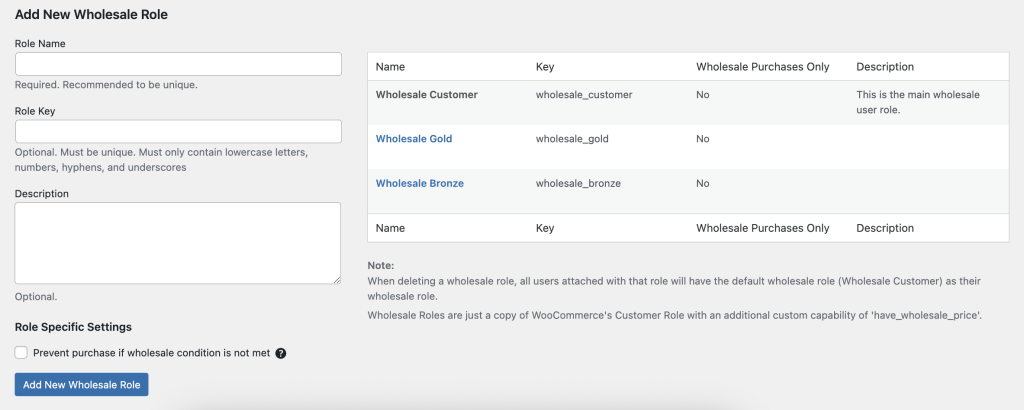
The new role appears in the table on the right, with its Name, Key, Wholesale Purchases Only setting and Description. To change a role later, click it in that table, edit the form, then click Edit Wholesale Role.
Role specific settings
The same form carries a Role Specific Settings section with one option: Prevent purchase if wholesale condition is not met. Turn it on and customers in this role cannot check out until they meet the minimum order requirements that activate wholesale pricing. Leave it off and they can check out at retail prices instead.
Set a price for the new role
Each wholesale role adds its own set of price fields to every product. Open a product, then look under Product data > General. You get a Wholesale Price and a Wholesale Sale Price field per role, along with a percentage discount option. There is no separate Wholesale tab on the product screen.
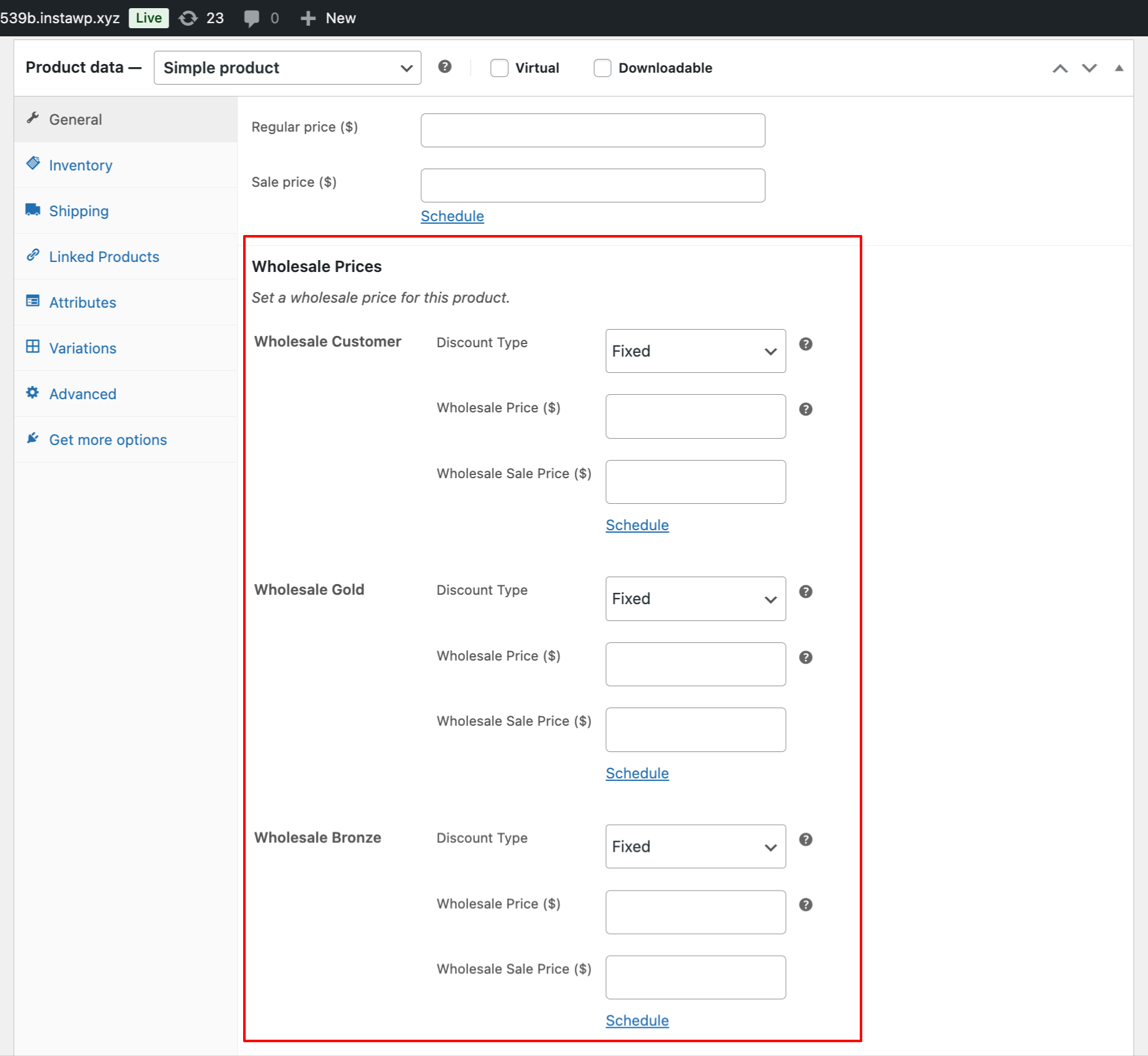
Leave a role’s field empty and that role pays the normal retail price for the product.
Example: three tiers
A store that sells to three kinds of buyer might set it up like this.
| Tier | Role Key | Pricing strategy |
| Bronze Wholesale | wholesale_bronze | 5% discount for small retailers |
| Silver Wholesale | wholesale_silver | 10% discount for mid-size businesses |
| Gold Wholesale | wholesale_gold | 15% discount for high-volume buyers |
- Add the three roles.
- Set each role’s price on your products, under Product data > General.
- Assign each customer to one tier. A customer can hold only one wholesale role at a time, so to give someone a bigger discount you move them to a different role rather than adding a second one.
- To let customers apply for a tier themselves, use the Wholesale Lead Capture plugin, which can assign a role manually or automatically on registration.
A wholesale role has to be created in Wholesale > Roles. An existing custom role from another plugin cannot be given wholesale capabilities, so it will not get price fields on your products.
Frequently asked questions
How do I add a new wholesale pricing tier in WordPress?
Go to Wholesale > Roles, fill in the Add New Wholesale Role form, and click the button of the same name. Role Name is the only required field. Once the role is saved, a price field for it appears on every product edit screen. Repeat for each tier you want to offer.
Can I add my existing custom user role as a wholesale customer?
No. Wholesale capabilities cannot be attached to a role created by another plugin or by custom code. Create the role in Wholesale > Roles instead, then move the customers across to it. A role created anywhere else gets no wholesale price fields on your products.
Do wholesale tiers work with roles created in other plugins?
No. Every tier has to be built in the Roles section of Wholesale Prices Premium. Roles imported from other tools do not get their own price field, so products fall back to the retail price for those customers.
Is there a limit to how many wholesale tiers I can create?
There is no cap. Three tiers is a common setup, one each for small retailers, mid-size businesses and high-volume buyers, and you can go further. Keep in mind that every role adds another price field to each product, so a long list makes catalogue work slower.
Can I automatically assign new customers to a wholesale tier?
Yes. The Wholesale Lead Capture plugin builds a registration page that puts approved applicants straight into the role you choose. You can also open a customer profile in the WordPress admin and set the role by hand.
Why are my new wholesale tier prices not showing on product pages?
Check the customer profile first. The account has to hold the wholesale role, and it can hold only one at a time. If the role is right, open the product and confirm you entered a value in that role’s price field. An empty field means the customer pays the retail price.
Need help?
If you have a question or run into any issues, we’re here to help.
- Premium users: Open a support ticket
- Free users: Visit our community forum

