Do you want your regular customers to apply for a wholesale account from their own account page? Account upgrade requests let an existing retail customer submit the wholesale registration form and become a wholesale customer, without creating a second account. This article shows how to turn the feature on and what your customers see.
Prerequisites
WooCommerce Wholesale Lead Capture version 1.15 or higher must be installed and active on your store. See the changelog for version details.
Enable account upgrade requests
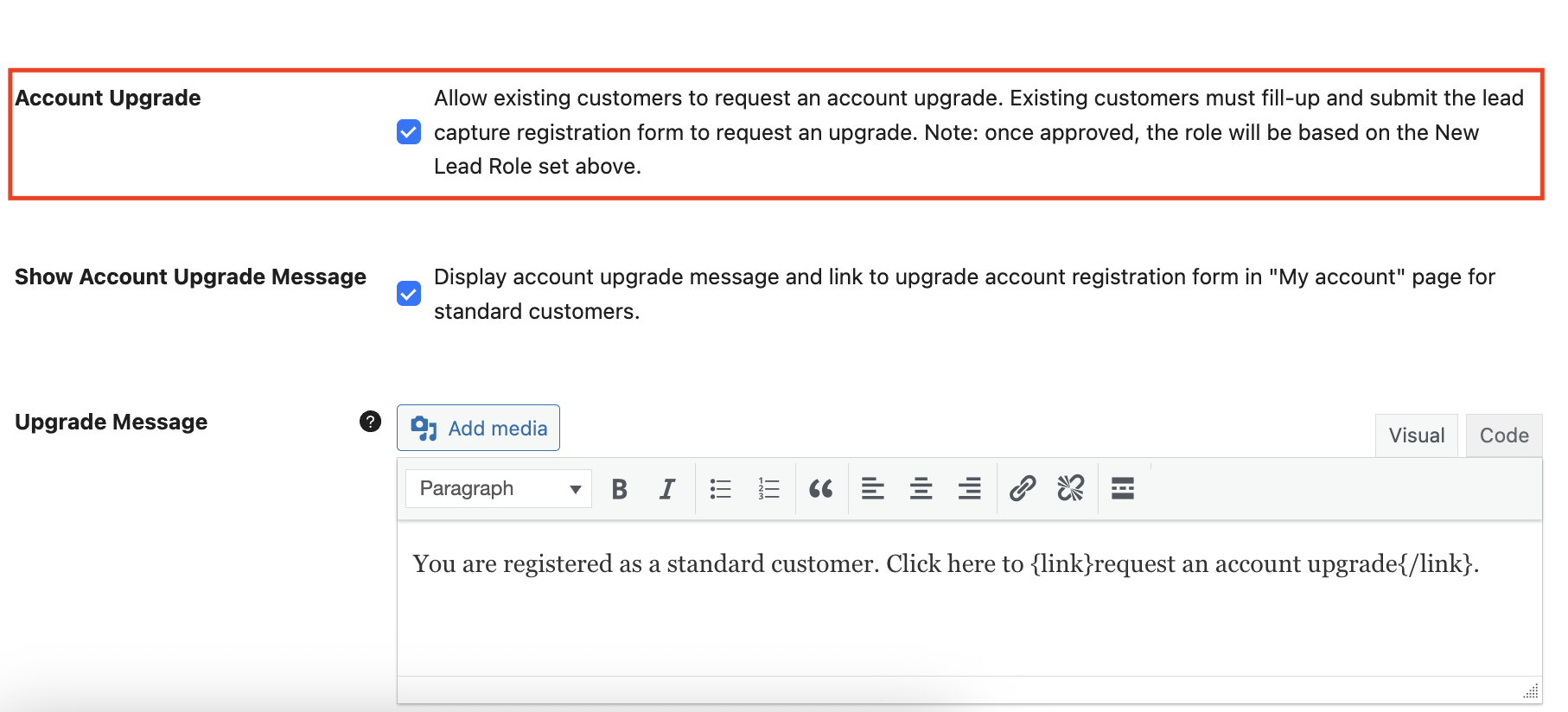
Go to Wholesale > Settings > Wholesale Lead Capture > General and enable the Account Upgrade option.
Show the upgrade notice to customers
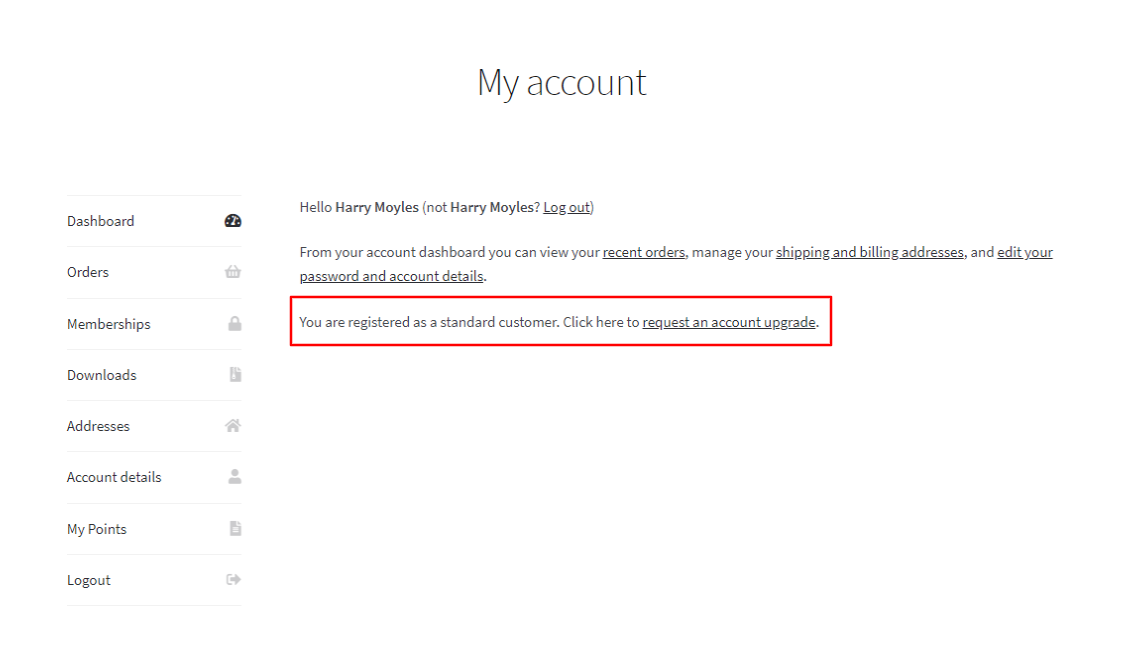
When you have enabled this option, a notice with a link to request an upgrade shows in the Dashboard section of a retail customer’s account page. The Show Account Upgrade Message option, just below Account Upgrade, controls this notice. It is on by default. Turn it off if you want to hide the notice and the link from the My Account page.
You can change the notice text in the Upgrade Message option on the same General tab. Use {link} and {/link} around the words that you want to turn into the link to the registration page.
What happens when a customer requests an upgrade
If the regular customer clicks the request an account upgrade link, they’ll get redirected to the wholesale customer registration page with an Upgrade Account Request detail.
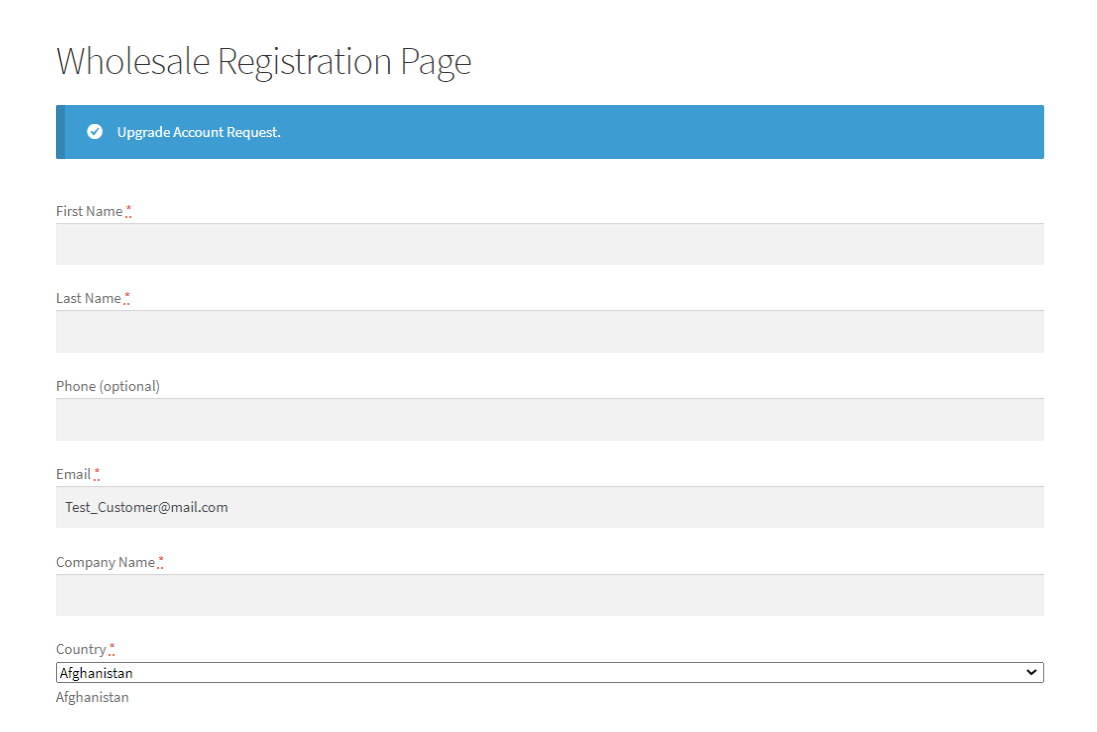
If you enabled the Automatic Approval option, their request will be automatically approved, and they’ll get the wholesale customer role. If you enabled the Manual Approval Required, you can review their application first before approving or rejecting their request.
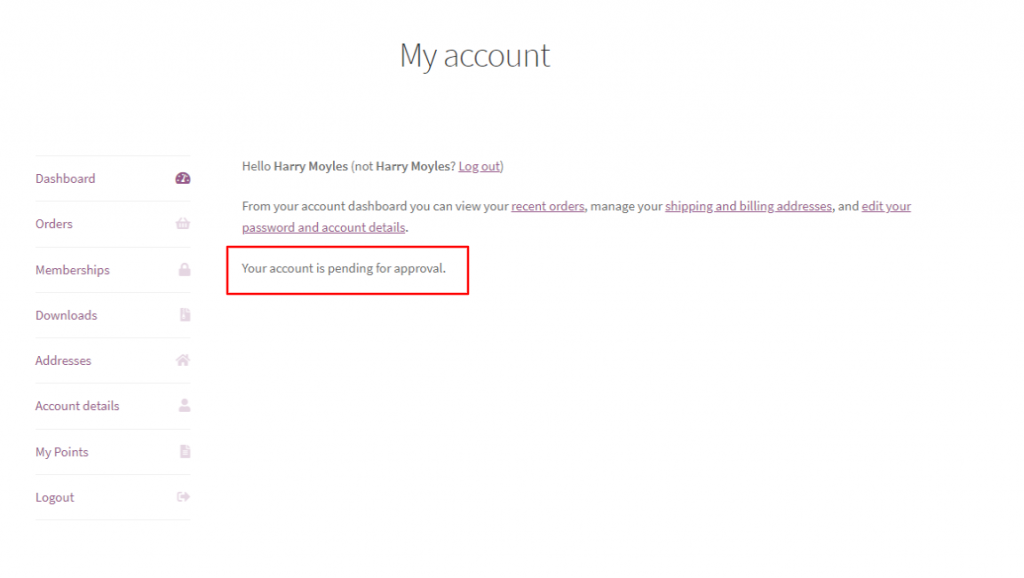
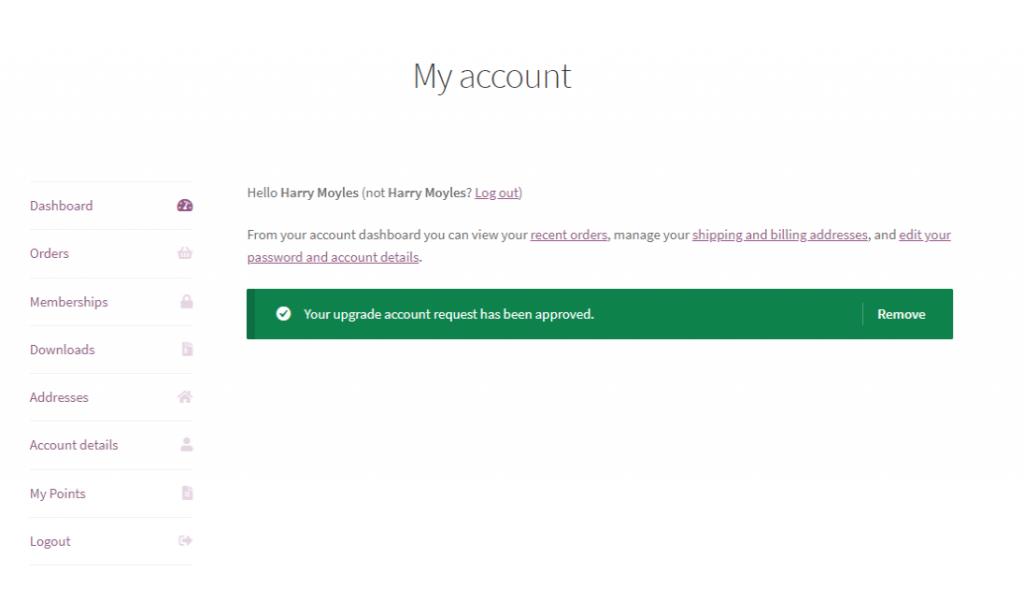
When waiting for your approval, there’ll be a notice in the Dashboard section of their account page. Then, if you have approved them, they’ll see a notice as well that their account request has been approved. They’ll be able to get the wholesale price when browsing your shop.
Frequently asked questions
How do I enable account upgrade requests for retail customers?
To do this, navigate to Wholesale > Settings > Wholesale Lead Capture > General and activate the Account Upgrade option. This requires WooCommerce Wholesale Lead Capture version 1.15 or higher to be installed and active on your store.
Does this feature require WooCommerce Wholesale Lead Capture?
Yes, the upgrade request capability was introduced in WooCommerce Wholesale Lead Capture version 1.15. Without this plugin active on your site, the Account Upgrade setting will not appear in your dashboard.
Can customers submit multiple upgrade requests or just one?
Once a shopper submits an application, they will see a “pending for approval” notice on their profile page. There is no built-in way to submit multiple requests while one is still under review.
Can I customize the upgrade notice shown to retail customers?
Yes. The Upgrade Message setting lets you edit the notice text displayed on the customer’s dashboard. You can adjust the wording to match your brand’s tone before making it live.
How do I hide the upgrade notice without turning off account upgrades?
Go to Wholesale > Settings > Wholesale Lead Capture > General and turn off Show Account Upgrade Message. The Account Upgrade option stays on, and the upgrade form still works for customers who use a direct link to your registration page.
Why isn’t the upgrade request link showing on my account page?
If the link is missing, make sure the Account Upgrade and Show Account Upgrade Message options are both enabled under Wholesale > Settings > Wholesale Lead Capture > General. Also confirm that the logged-in user has a regular customer role. Wholesale users will not see this option.
Need help?
If you have a question or run into any issues, we’re here to help.
- Premium users: Open a support ticket
- Free users: Visit our community forum