
When a wholesale customer leaves, stops paying, or breaks your terms, you need their wholesale access to end right away. This guide shows you how to deactivate a wholesale account so the customer is signed out and can no longer order at wholesale prices. It also shows you how to check that the account is fully blocked. You need WooCommerce Wholesale Lead Capture for this.
Before you start
- WooCommerce Wholesale Lead Capture version 2.0.5 or later. Version 2.0.5 and later sign the customer out as soon as you deactivate the account.
- An administrator or shop manager account. You can’t deactivate your own account.
What happens when you deactivate a wholesale account
Deactivating an account does three things at once. It removes the customer’s wholesale role and gives them the standard WooCommerce Customer role. It marks the account as Inactive. It also signs the customer out of every browser and device where they’re logged in.
Because the wholesale role is gone, wholesale prices stop applying straight away. If the customer had a cart open, they’re signed out the next time they load a page. They can’t complete that checkout as a wholesale customer.
Deactivation doesn’t delete the account or change any past orders. The customer can still log in again, but only as a regular retail customer paying your normal prices. If you want to stop them logging in at all, see Block the customer from logging in completely below.
Deactivate a wholesale account
Always use the Deactivate action described below. Don’t change the customer’s role by hand on the WordPress Edit User screen. A manual role change doesn’t sign the customer out or mark the account as inactive.
You can deactivate accounts from the Leads page or from the WordPress Users list. Both do the same thing.
Option 1: From the Leads page
- Go to Wholesale → Leads.
- Find the customer. Use the Search (name, or email) box if you have a lot of leads.
- Click the edit (pencil) icon on the customer’s row. The Edit User panel opens.
- Click Deactivate at the top of the panel.
- This button only appears when the lead’s status is Approved or Rejected.
- In the Deactivate User? box, click Ok.
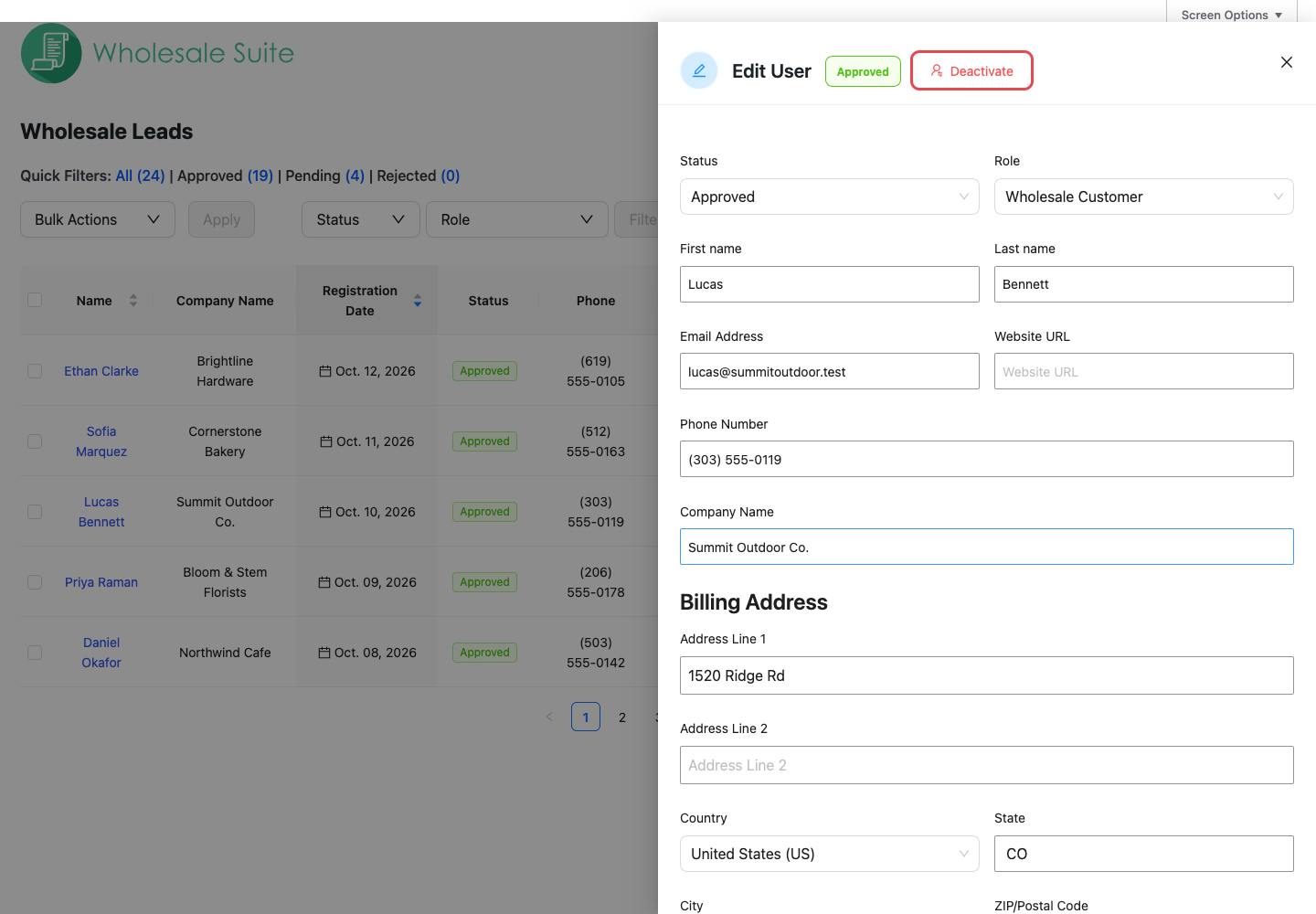
You can also set the Status drop-down in the Edit User panel to Inactive, then click Save User. This does exactly the same thing as the Deactivate button.
To deactivate several customers at once:
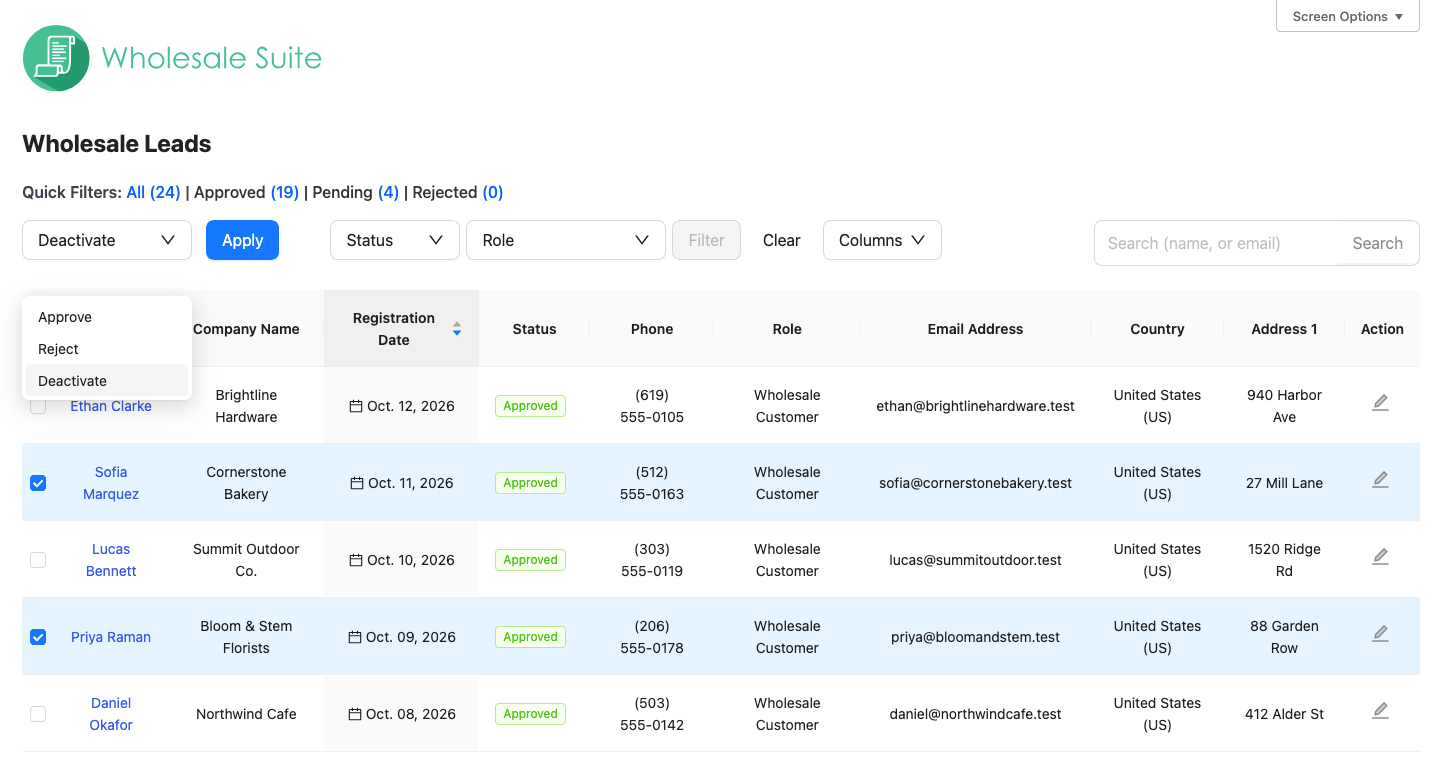
- On the Leads page, tick the checkbox next to each customer.
- Open the Bulk Actions drop-down and select Deactivate.
- Click Apply.
Option 2: From the WordPress Users list
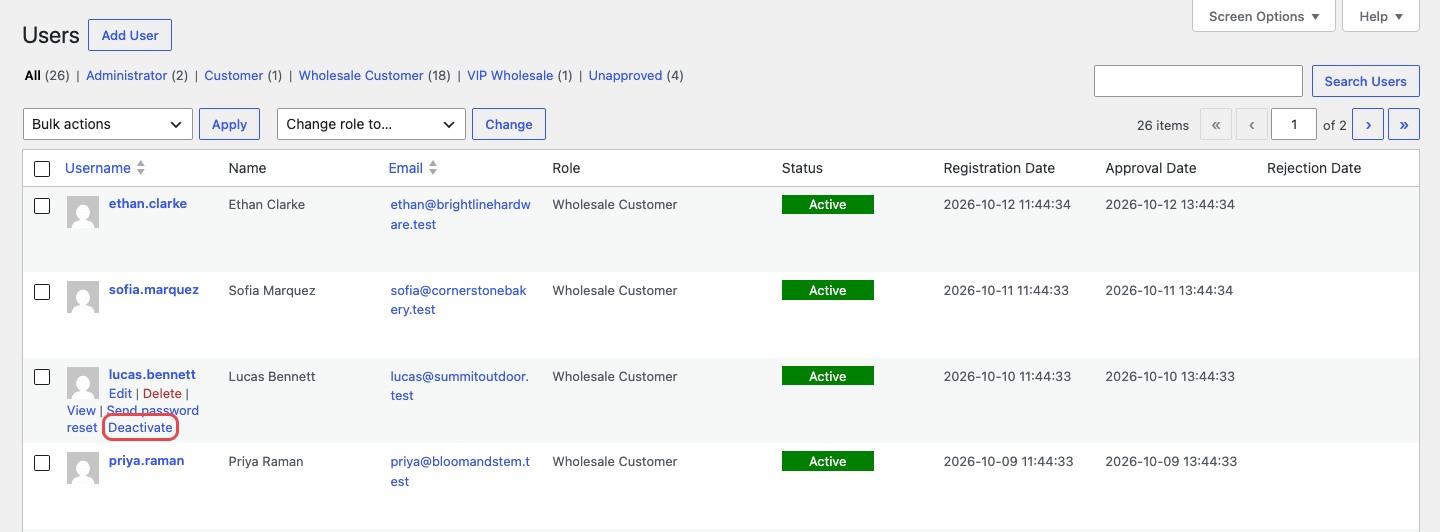
- Go to Users → All Users.
- Hover over the customer’s name.
- Click Deactivate in the row actions below the name.
Confirm the account is blocked
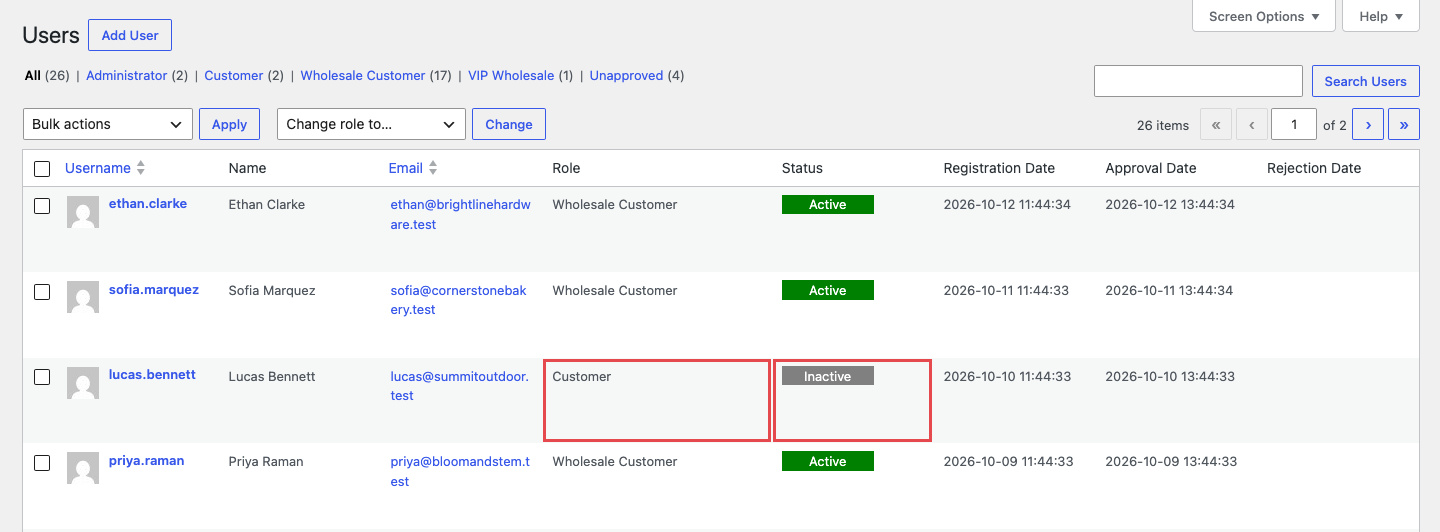
- Go to Users → All Users.
- Find the customer and check the Status column. It should say Inactive.
- Check the Role column. It should say Customer, not a wholesale role.
On the Leads page, click the All quick filter to find the customer. Their status tag shows Inactive. The status filter drop-down doesn’t include an Inactive option, so use All.
Want to see it from the customer’s side? Use a test wholesale account for this check. Before you deactivate it, log in as that account in a private browser window and add a product to the cart. After you deactivate the account, refresh that window. You should be signed out. If you log in again with that account, you’ll see retail prices instead of wholesale prices.
Block the customer from logging in completely
Deactivation stops wholesale ordering, but the customer can still log in and buy at retail prices. To stop them logging in at all, deactivate the account first and then reject it. Keep this order. Deactivating signs the customer out. Rejecting on its own doesn’t, so a customer with an open browser session stays logged in.
- Go to Wholesale → Leads and open the customer’s Edit User panel.
- Click Deactivate, then click Ok. This signs the customer out.
- Set Status to Rejected.
- Click Save User.
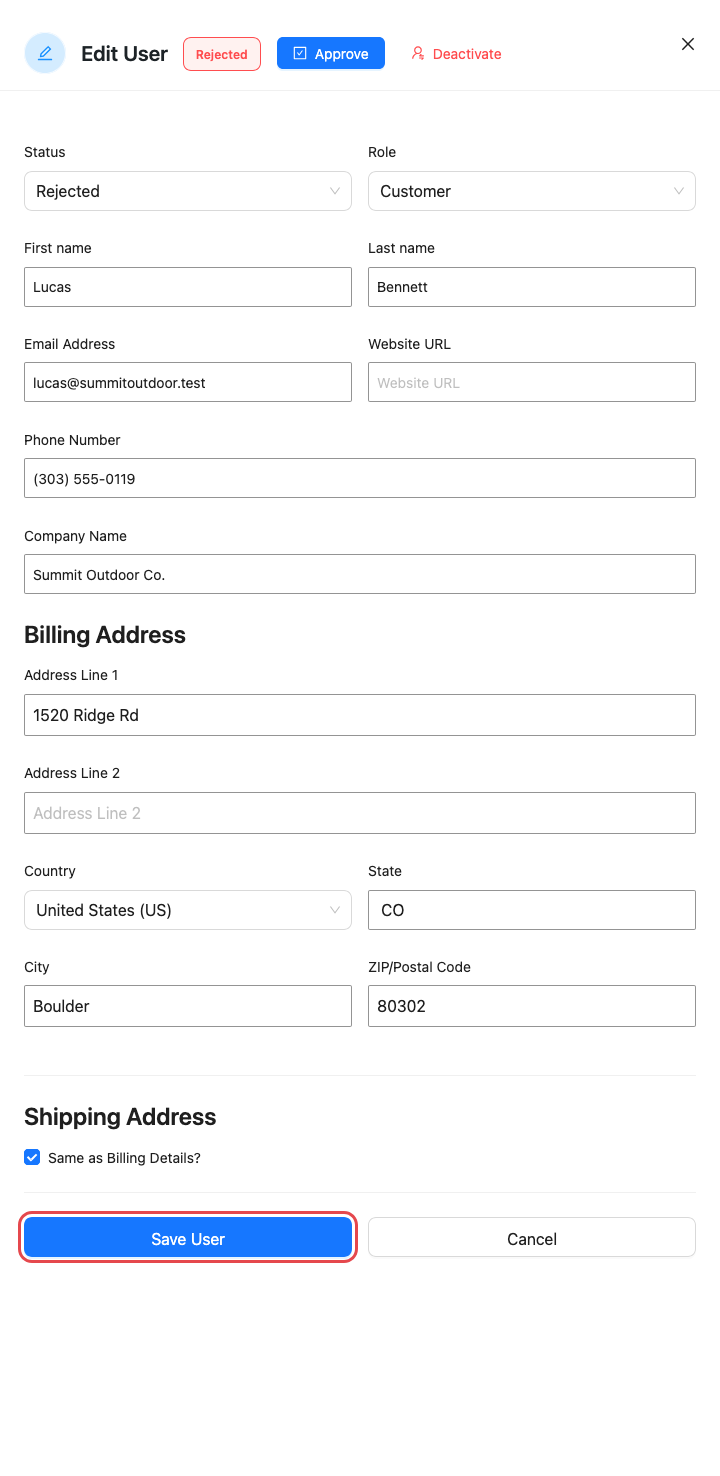
Don’t click Deactivate again after you reject the account. Deactivating gives the customer the Customer role again, and that lets them log in.
Rejecting sends the customer the Wholesale account rejected email. If they try to log in on the standard WordPress or WooCommerce login form, they see an Invalid Request error. On your wholesale login page, they see “Invalid username or password.”
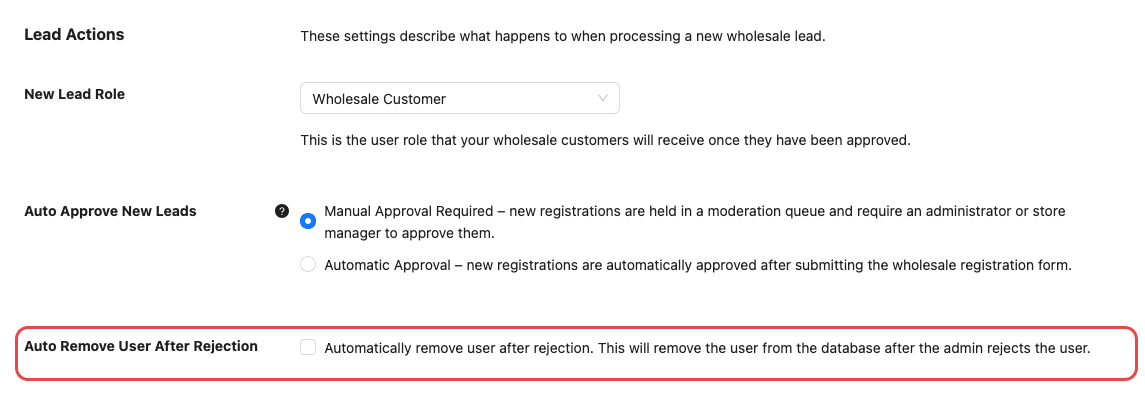
Check one setting before you reject anyone. If Auto Remove User After Rejection is turned on, rejecting deletes the account permanently. You’ll find it at Wholesale → Settings → Wholesale Lead Capture → General, in the Lead Actions section.
Troubleshooting
The customer is still logged in after I changed their role
Run Deactivate from the Leads page or the Users list. The customer is signed out straight away. Changing the role by hand on the WordPress Edit User screen doesn’t sign the customer out or mark the account as inactive.
The deactivated customer stayed logged in and placed an order
Update WooCommerce Wholesale Lead Capture to version 2.0.5 or later, then deactivate the account again. Version 2.0.5 and later sign the customer out as soon as you deactivate the account.
The deactivated customer is placing orders again
Check the order prices. If the orders are at retail prices, deactivation is working as designed: the customer logged back in as a regular customer. To stop this, deactivate and then reject the account (see Block the customer from logging in completely).
I can’t see the Deactivate button in the Edit User panel
Check the lead’s status tag. The button only shows for Approved or Rejected leads. If the account already shows Inactive, it’s already deactivated.
Frequently asked questions
Does deactivating an account cancel or change their existing orders?
No. Deactivation only changes the customer’s role and account status. Past and in-progress orders stay as they are.
How do I give a deactivated customer their wholesale access back?
Go to Users → All Users, hover over the customer’s name and click Activate. This doesn’t send the customer an email. You can also do it from the Edit User panel on the Leads page. Set Role to the customer’s wholesale role, set Status to Approved, then click Save User. Change the role too, or the customer keeps the Customer role. This method sends the customer the Wholesale account approved email again.
Will they get their old wholesale role back when I reactivate them?
Not automatically. The Activate action gives the customer the role set in the New Lead Role setting, not the role they had before. If they had a different wholesale role, change it in the Role drop-down in the Edit User panel after reactivating, then click Save User. Saving the panel sends the customer the Wholesale account approved email again. To set the role and approve in one save, use the Edit User panel method in the answer above. To learn more about wholesale roles, see How do I add additional wholesale user role tiers?
Is the customer told that their account was deactivated?
No. Wholesale Lead Capture doesn’t email the customer when you deactivate their account. If you want them to know, contact them yourself.
Related: How to Approve and Manage Leads from the Wholesale Leads Dashboard
Need help?
If you have a question or run into any issues, we’re here to help.
- Premium users: Open a support ticket
- Free users: Visit our community forum

