
If you’re experiencing an issue with Wholesale Suite — products not showing, pricing not applying, or something else not working as expected — a basic debug helps you narrow down the cause. This guide walks you through the standard troubleshooting steps so you can identify conflicts and get things working again.
Prerequisites
- WordPress admin access
- WooCommerce installed and active
- Wholesale Suite plugins installed (WooCommerce Wholesale Prices and/or premium extensions)
Step 1: Update Your Themes and Plugins
Outdated plugins or themes are one of the most common causes of unexpected behavior. Most updates include bug fixes and compatibility improvements, so this is always the first thing to check.
- Go to WordPress Dashboard > Plugins.
- Look for any plugins with an available update — you’ll see a notification number on the Plugins tab if updates are available.
- Click Update Now next to each plugin that needs updating.
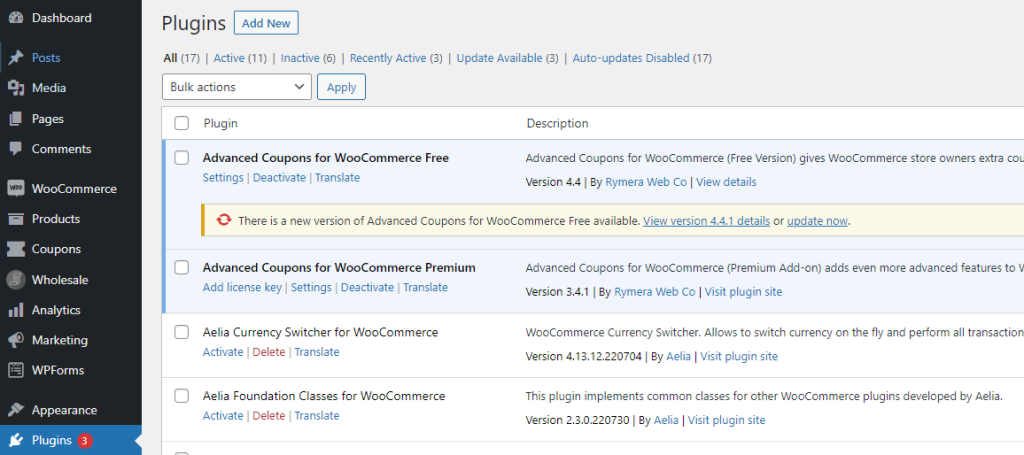
- Go to Appearance > Themes.
- Update any themes that have a new version available.
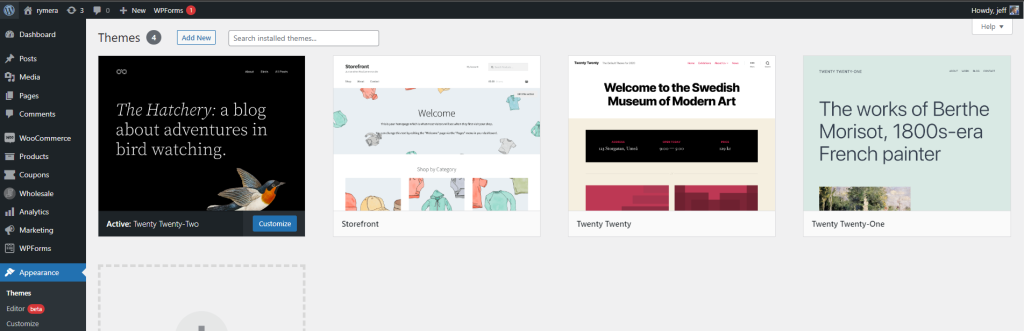
After updating, check whether the issue is resolved before moving on.
Step 2: Switch to a Default Theme
Some themes can cause minor conflicts with Wholesale Suite — usually design issues or cases where the theme bundles its own plugins that interfere. Switching to a default theme rules this out.
- Go to Appearance > Themes.
- Activate the Storefront theme or a default WordPress theme like Twenty Twenty-Three.
- Visit your site and check whether the problem is resolved.
If the issue goes away with a default theme, the conflict is theme-related. You can contact the theme developer or reach out to our support team with your findings.
Step 3: Deactivate Plugins One at a Time
Plugin conflicts are the most frequent cause of issues. Another plugin on your site may have overlapping features or incompatible code that interferes with Wholesale Suite.
- Go to WordPress Dashboard > Plugins.
- Deactivate your plugins one at a time, keeping only WooCommerce and your Wholesale Suite plugins active.
- After each deactivation, check whether the issue is resolved.
- If the issue disappears after deactivating a specific plugin, you’ve found the conflict.
Alternatively, you can deactivate all non-essential plugins at once, then re-enable them one at a time until the issue reappears.
If your theme requires its own plugins to function, temporarily switch to a default theme (see Step 2) before running this test.
Step 4: Run the Built-In Debugging Tools
WooCommerce Wholesale Prices Premium includes built-in tools that fix common visibility and product meta issues.
- Go to Wholesale > Settings > Wholesale Prices > Help.
- Click Clear Unused Product Meta — this removes leftover metadata that may cause display problems.
- Click Re-Initialize Product Visibility Meta — this rebuilds the visibility data for all your products, which is especially helpful after a product import or manual database change.
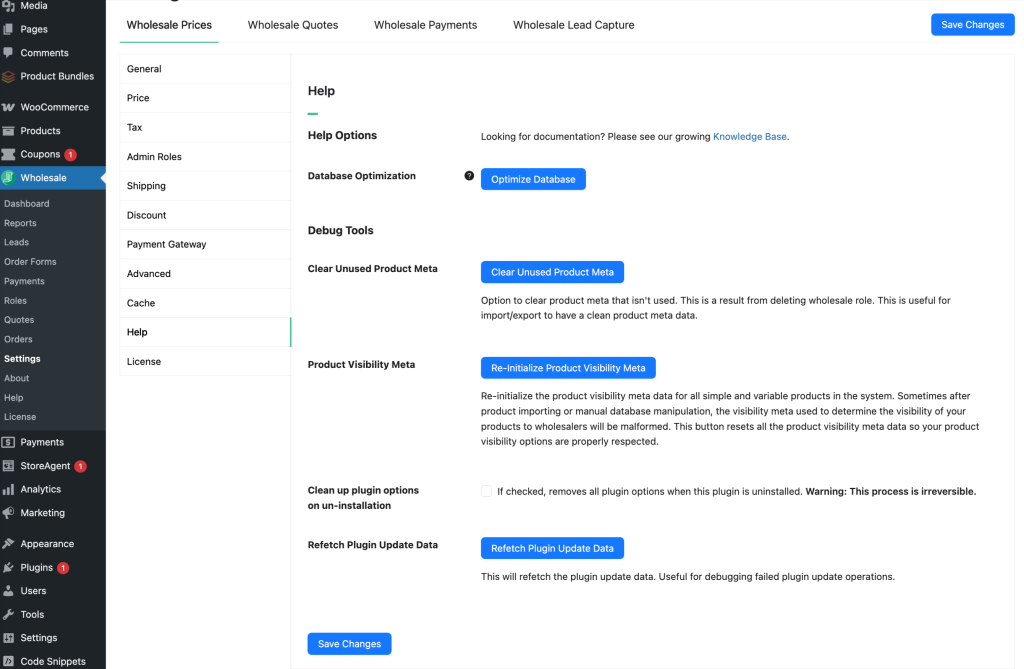
These tools fix most visibility issues and missing product problems.
Troubleshooting
The issue persists after completing all steps
If you’ve updated everything, switched themes, deactivated plugins, and run the built-in tools but the problem is still there, it’s time to contact support. Make a note of what you tried and whether any step changed the behavior — this helps the support team diagnose your issue faster.
The issue only appears with a specific plugin active
If you’ve identified a conflicting plugin in Step 3, note the plugin name and version. Reach out to our support team with this information so we can investigate the compatibility issue.
Frequently Asked Questions
Does Wholesale Suite conflict with other WooCommerce plugins?
It can. Plugin conflicts are one of the most common causes of issues. To find the culprit, deactivate your plugins one at a time while keeping WooCommerce and Wholesale Suite active. If the problem goes away after disabling a specific plugin, you’ve found the conflict. Share your findings with our support team for help.
What does “Re-Initialize Product Visibility Meta” do?
This tool rebuilds the product visibility data for all your products. It’s especially useful when products stop appearing for wholesale customers after a bulk import or database change. You’ll find it under Wholesale > Settings > Wholesale Prices > Help, alongside the Clear Unused Product Meta tool.
What if switching themes doesn’t fix the problem?
A theme switch only rules out styling or template conflicts. If the issue persists with a default theme, move on to deactivating plugins one at a time (Step 3). This process isolates each variable and usually uncovers the real source of the problem.
My wholesale products still aren’t showing after running the debug tools.
If the built-in tools didn’t fix it, the issue likely needs a closer look at your specific setup. Open a support ticket with details about what you’ve tried — this helps the team get to the root cause quickly.
Need Help?
If you have a question or run into any issues, we’re here to help.
- Premium users: Open a support ticket
- Free users: Visit our community forum

