
Already using WooCommerce Product Add-Ons to let customers choose engraving, gift wrapping, or custom configurations? WooCommerce Wholesale Prices Premium integrates with it automatically, so wholesale customers see wholesale prices on both the product and the add-ons total, and you can control which add-on options each role sees. This article explains what works out of the box and how to configure role-based visibility for individual add-on groups.
How the integration works
When both plugins are active, WooCommerce Wholesale Prices Premium automatically hooks into WooCommerce Product Add-Ons. There are no settings to enable. The integration is always on when both plugins are present.
Three things happen automatically for wholesale customers:
- The product price displayed in the add-ons total widget on the single product page is replaced with the customer’s wholesale price, so the running total stays accurate as they pick options.
- Add-on costs are calculated on top of the wholesale price in the cart, not the regular retail price.
- Order line items record the correct wholesale-based amounts, so order totals and receipts reflect the actual wholesale price paid.
Requirements
- WooCommerce Wholesale Prices Premium (current version recommended)
- WooCommerce Product Add-Ons (the official WooCommerce.com extension)
- At least one wholesale role configured in your store
Step 1: Restrict an add-on group by wholesale role
By default, every add-on group is visible to all customers. WWPP adds a role visibility field to each add-on group in the product editor so you can limit a group to specific roles. For example, you can show a “Trade Packaging” add-on only to wholesale customers, or hide a “Gift Wrapping” add-on from all wholesale roles.
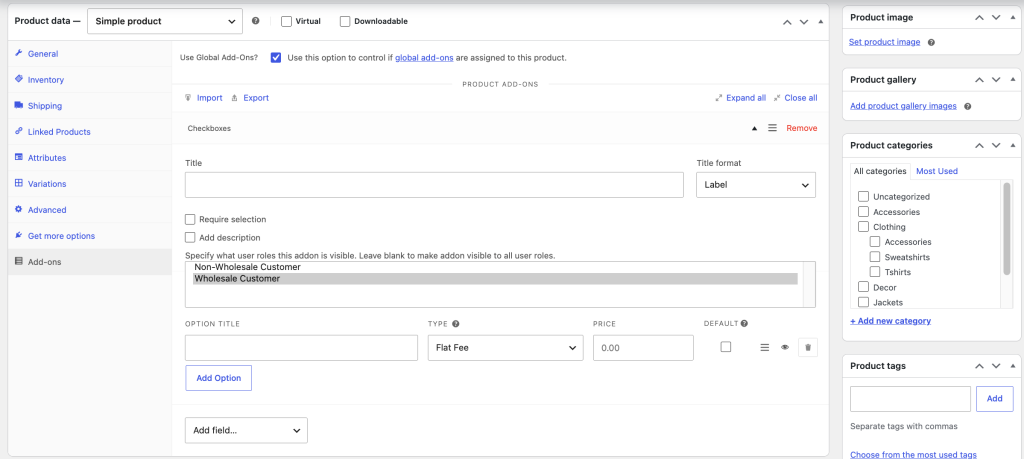
- Open the product in the WordPress editor and scroll to the Add-Ons panel.
- Find the add-on group you want to restrict.

- In the Specify what user roles this addon is visible. Leave blank to make addon visible to all user roles. field, click the dropdown and select one or more roles.
- Save or update the product.
The roles available in the dropdown include Non-Wholesale Customer (which also covers logged-out guests, see the FAQ below) and each wholesale role registered in your store.
How add-on costs are calculated on wholesale prices
The way an add-on cost is added to the cart total depends on the add-on price type set in Product Add-Ons:
| Add-on price type | How it works with wholesale pricing |
|---|---|
| Percentage | The percentage is applied to the wholesale price, not the regular retail price. A 10% add-on on an $80 wholesale product adds $8, not the retail-price equivalent. |
| Flat fee (whole order) | The flat fee is divided by the quantity in the cart and added per unit on top of the wholesale price. |
| Quantity based and other types | Any other price type, including a fixed per-item amount, is added on top of the wholesale price as configured. It is not discounted. |
The price-type names above follow the labels shown in the Product Add-Ons editor. Only the percentage and flat-fee types are calculated specially against the wholesale price. Every other type is added at its configured value, the same way a fixed per-item cost would be.
In all cases, the wholesale price is fully resolved first, including any role-level general discount, per-product wholesale price, or quantity-based pricing, and then the add-on amount is added on top. The add-on itself is not discounted by the wholesale role general discount.
Limitations and notes
Add-on prices are not discounted by the wholesale role general discount. The role general discount applies to the product price. Add-on costs are then added at their configured value on top of the discounted product price. If you want wholesale customers to pay less for a specific add-on, set a lower price for that add-on directly in the product editor.
Administrators always see all add-on groups. When you are logged in as an administrator, role visibility restrictions on add-on groups are bypassed and all groups show regardless of which roles are configured. This is intentional so you can preview and manage add-on groups without switching accounts.
Only the official WooCommerce Product Add-Ons extension is supported. The integration checks for the plugin at the standard WooCommerce.com install path. Third-party forks or alternative add-on plugins are not covered by this integration.
Troubleshooting
- The add-ons total still shows the retail price. Confirm both WooCommerce Wholesale Prices Premium and WooCommerce Product Add-Ons are active, that the customer is logged in with a wholesale role, and that the product has a wholesale price set for that role. Then clear any page or object cache so the updated price markup is served.
- A restricted add-on group is not appearing for a wholesale customer. Open the add-on group and check the role visibility field includes that customer’s wholesale role. An empty field shows the group to everyone, while any value limits it to the listed roles only.
- You can see every add-on group even though some are restricted. Administrators bypass role visibility, so test visibility with a real wholesale account or an incognito window rather than your admin login.
Frequently asked questions
Does the wholesale role general discount apply to add-on prices?
No. The general discount reduces the product price, and add-on costs are then added on top of that discounted price at their full configured amount. The add-on price itself is not reduced.
Can I show different add-on groups to different wholesale roles?
Yes. Add multiple add-on groups to the product and set a different role restriction on each group. Each group’s visibility is evaluated independently.
What does “Non-Wholesale Customer” mean in the role dropdown?
It covers anyone who does not have a wholesale role, which is both logged-in customers without a wholesale role and logged-out guests. When you restrict an add-on group to “Non-Wholesale Customer”, that group shows to those visitors and is hidden from your wholesale roles. Add-on groups with no role restriction set are always visible to everyone, including guests.
Need help?
If you have a question or run into any issues, we’re here to help.
- Premium users: Open a support ticket
- Free users: Visit our community forum

