
Manually promoting wholesale customers to a higher tier takes time, and it’s easy to miss the moment a customer crosses a spending milestone. Wholesale Role Automation in WooCommerce Wholesale Prices Premium handles this for you: it watches each customer’s spending or order count and automatically upgrades or downgrades their wholesale role when they hit a threshold you define. This article walks you through creating rules, customizing emails, and using the audit log to track every change.
What is Wholesale Role Automation?
Wholesale Role Automation evaluates your customers against rules you configure. Each rule specifies who it applies to, what to measure, how much to measure, and which roles to move the customer to. When a customer meets the threshold, they are automatically moved to the upgrade role. If they later fall below it, they can be moved to a downgrade role.
Evaluation happens in the background, triggered when an order is completed, refunded, or cancelled, and also as part of a daily sweep that checks all eligible customers. Nothing interrupts the checkout experience.
Prerequisites
- WooCommerce Wholesale Prices Premium 2.1.0 or later
- At least one additional wholesale role registered in Wholesale → Roles
- Action Scheduler enabled (included with WooCommerce)
Step 1: Open the Wholesale Role Automation settings
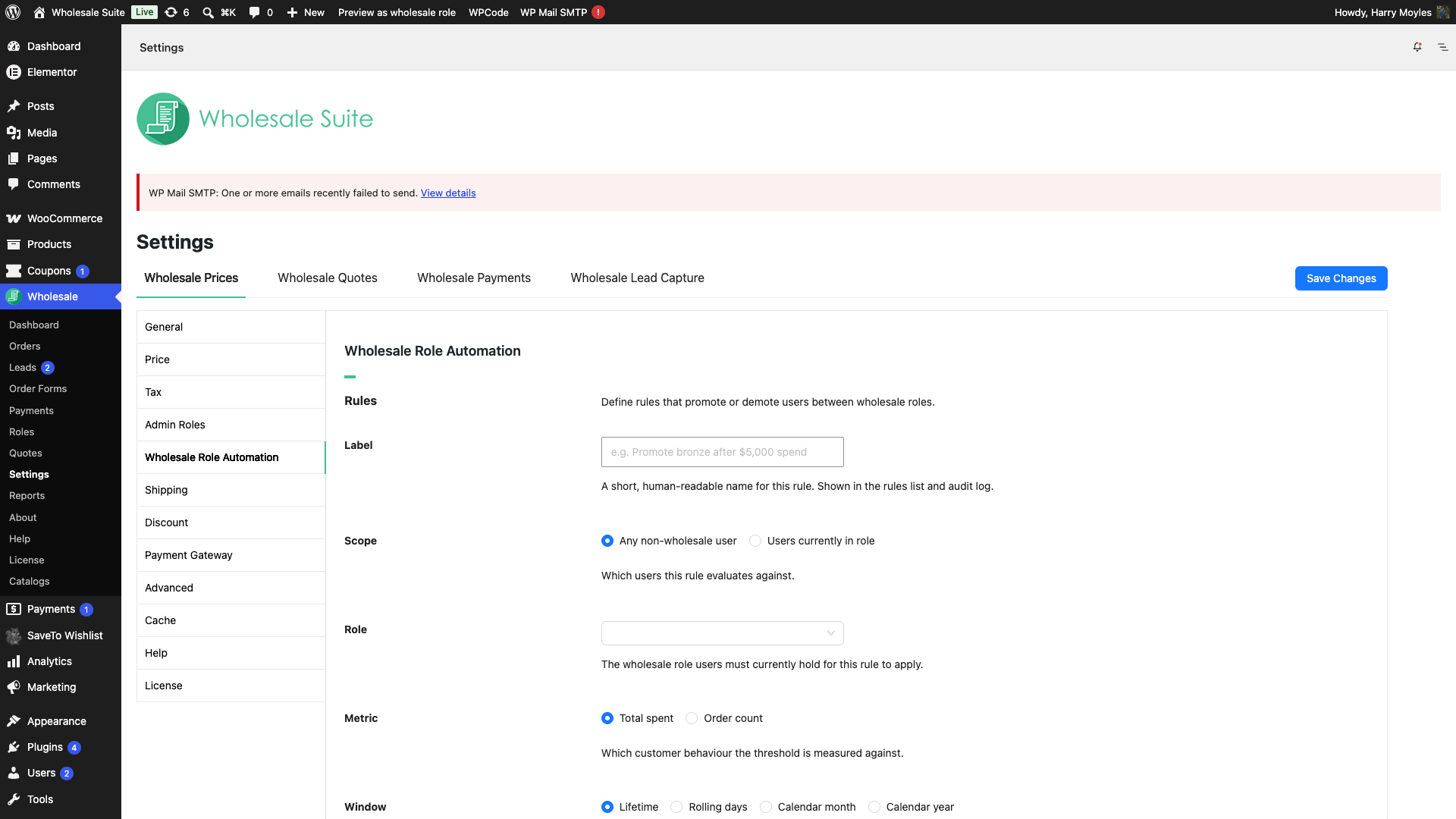
- In your WordPress admin, go to Wholesale → Settings → Wholesale Prices → Wholesale Role Automation.
- Click the Wholesale Role Automation tab.
The tab has three sections: Rules, Audit log, and Overrides.
Step 2: Create an automation rule
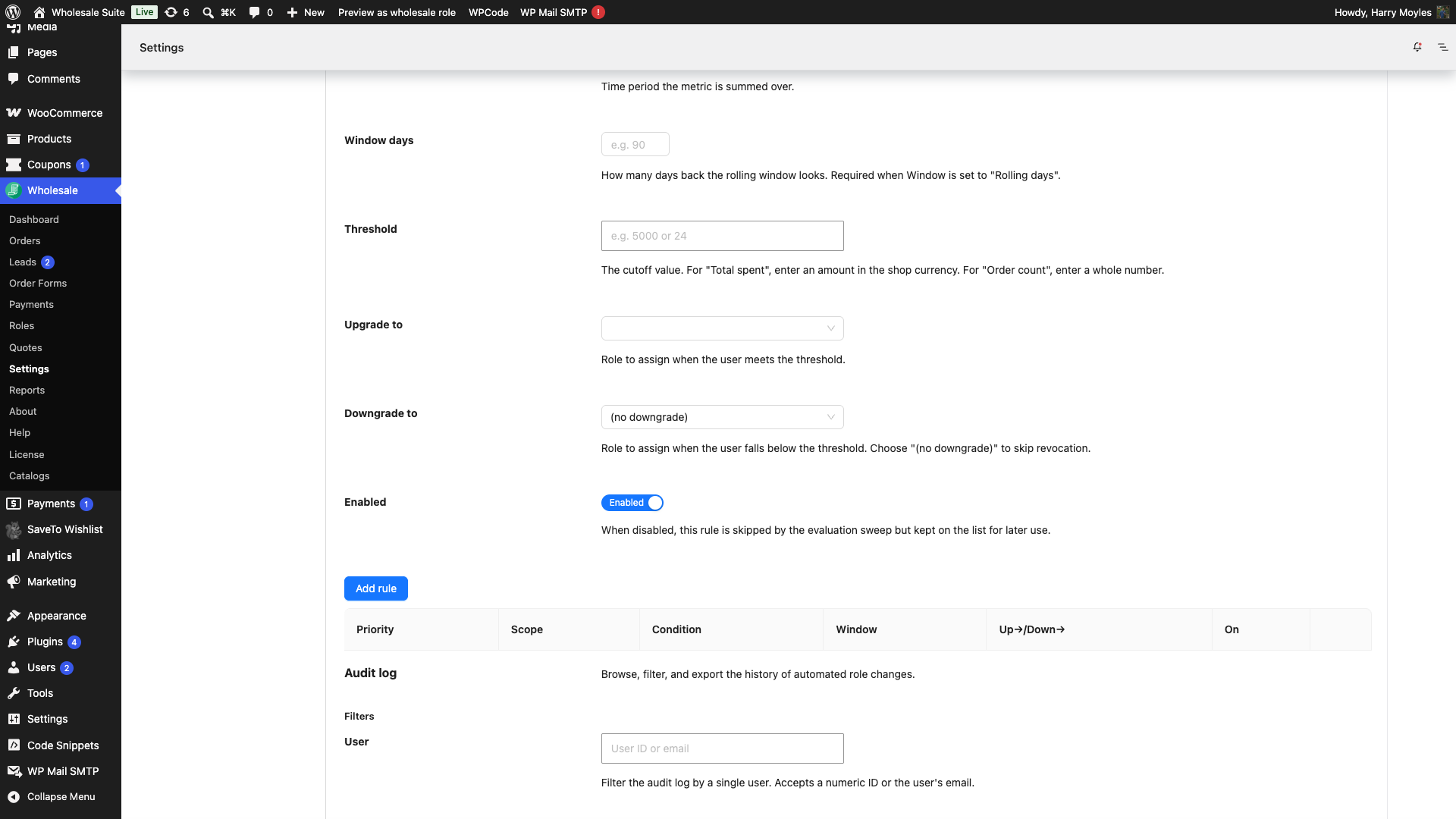
Add a new rule
- Click Add rule to open the rule drawer.
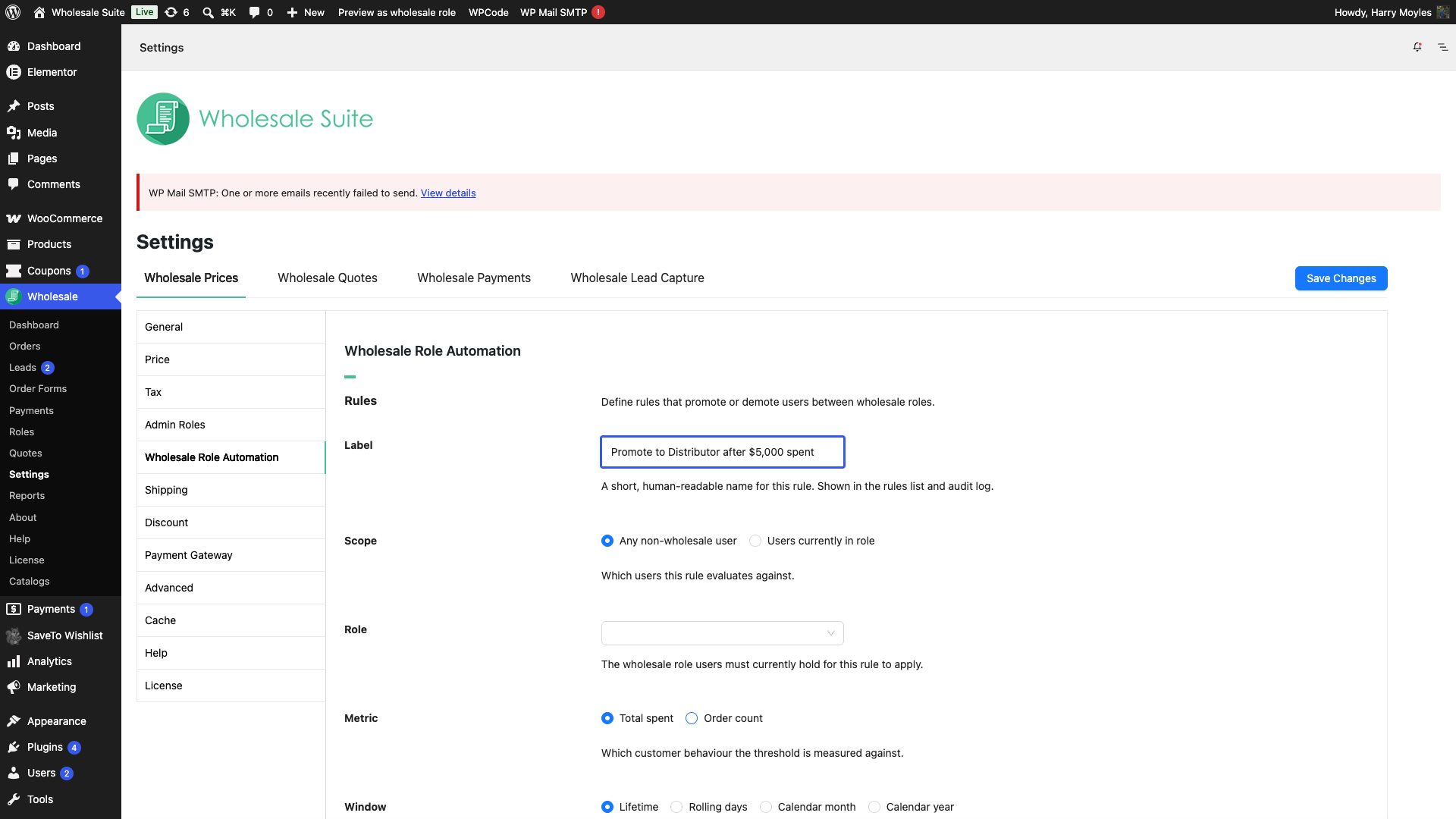
Set a label
- In the Label field, enter a descriptive name for this rule (for example, “Upgrade to Gold, $1,000 lifetime”). The label appears in the Rules table and in the audit log.
Set the scope
The Scope field controls which customers the rule applies to.
- Under Scope, select one of the following:
- Any non-wholesale user: targets all customers who do not yet have a wholesale role. Use this for initial upgrade rules (non-wholesale → first wholesale tier).
- Users currently in role: targets customers already in a specific wholesale role. When you select this, a Role dropdown appears; choose the role to target. Use this for tiered upgrades (Bronze → Silver) or downgrade rules.
Choose a metric
- Under Metric, select what to measure:
- Total spent: the customer’s cumulative purchase value in your store’s currency.
- Order count: the number of completed orders the customer has placed.
Set the measurement window
The Window field determines the time range used when calculating the metric.
- Under Window, choose one of the four options:
- Lifetime: counts all orders or spend since the customer first purchased.
- Rolling days: counts only the last N days. A Window days field appears; enter the number of days to look back (for example, 90 for the last three months).
- Calendar month: counts the current calendar month only. Resets at the start of each new month.
- Calendar year: counts the current calendar year only. Resets on 1 January.
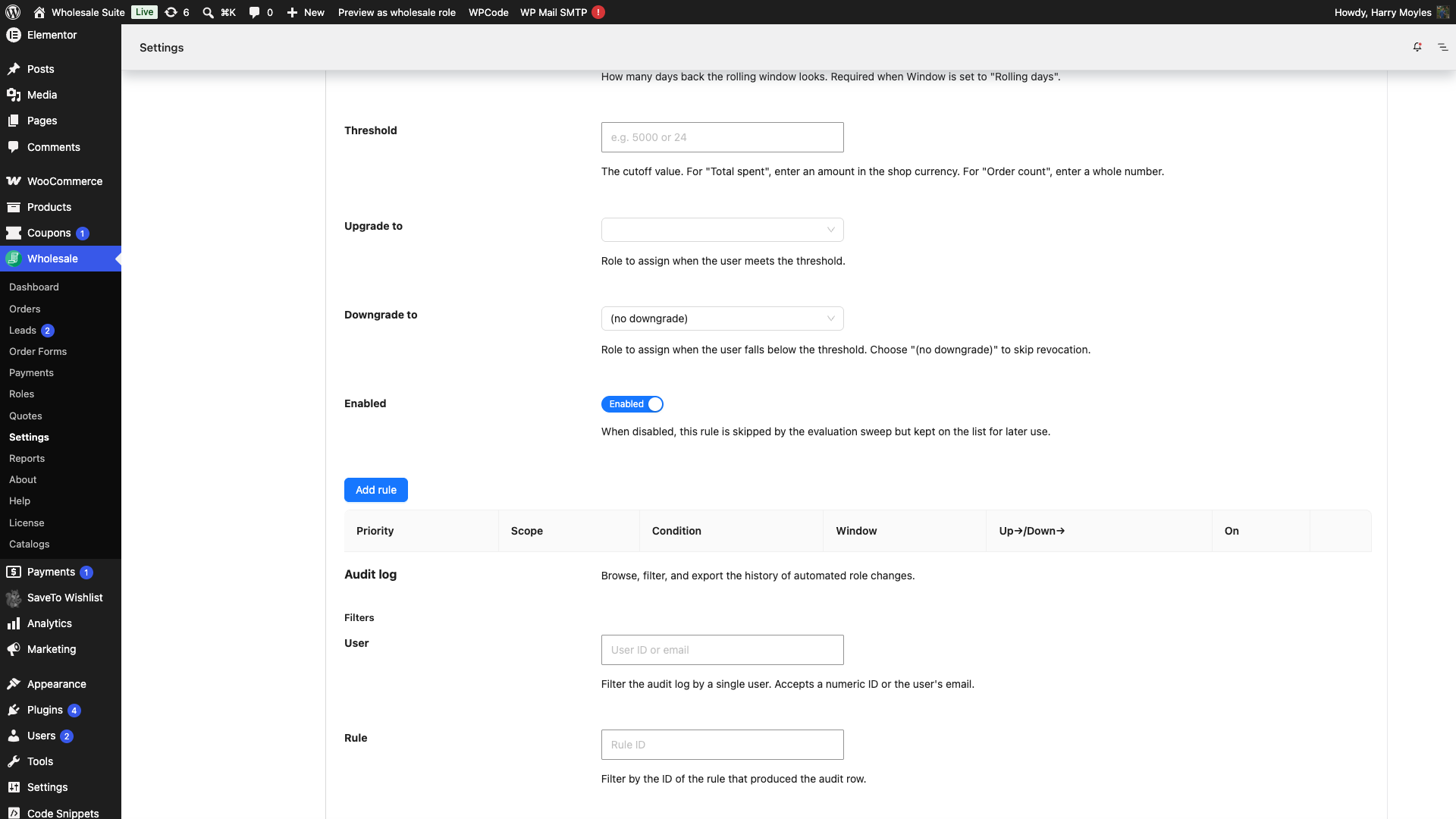
Enter the threshold
- In the Threshold field, enter the numeric value the customer must reach to trigger an upgrade. For Total spent, enter a decimal amount (for example,
500for $500.00). For Order count, enter a whole number.
Set the upgrade and downgrade targets
- In the Upgrade to dropdown, select the wholesale role the customer moves to when the threshold is met. Select Customer (revoke wholesale) to remove the wholesale role entirely.
- In the Downgrade to dropdown, select the wholesale role the customer moves to if they fall below the threshold. Select (no downgrade) if you want upgrades only with no corresponding demotion.
Enable and save the rule
- Confirm the Enabled toggle is set to Enabled.
- Save the rule.
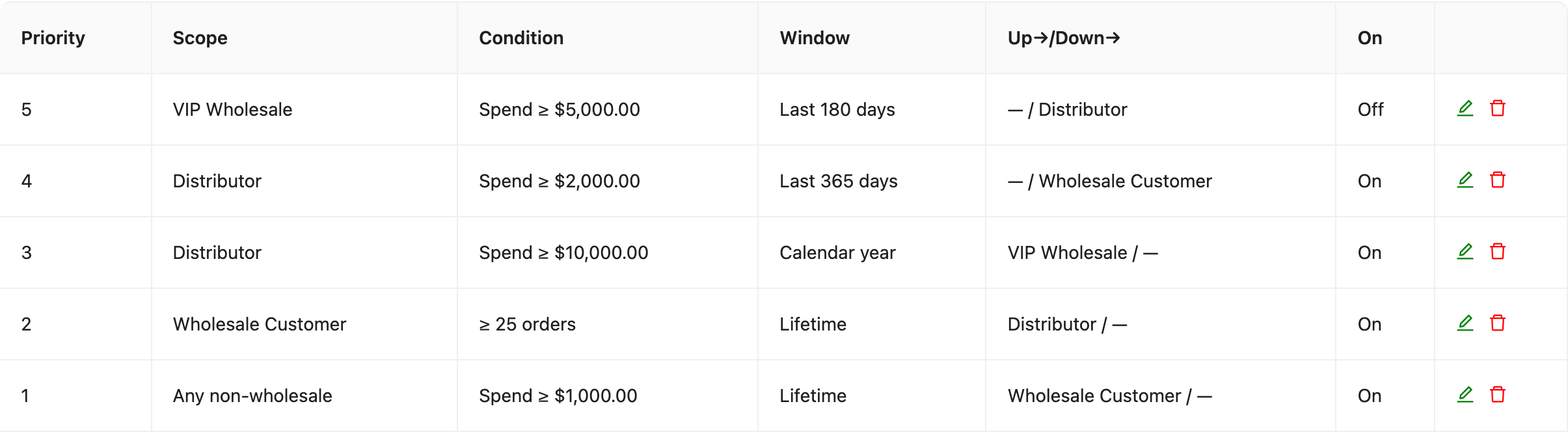
Step 3: Manage existing rules
The Rules table lists every rule with these columns:
| Column | What it shows |
|---|---|
| Priority | Evaluation order. The highest-priority rule evaluated first. |
| Scope | Which customers the rule applies to. |
| Condition | The metric and threshold. |
| Window | The measurement window. |
| Up→/Down→ | The upgrade and downgrade target roles. |
| On | Whether the rule is currently enabled. |
Reordering rules: Drag rows in the table to change the evaluation order. When a customer is evaluated, the first matching rule wins. Lower-priority rules are not checked after a match.
Editing a rule: Click the edit icon on any row to reopen the rule drawer and change its settings.
Disabling a rule: Edit the rule and set the Enabled toggle to Disabled. The rule stays in the table but is skipped during evaluation.
Deleting a rule: Click the delete icon on any row to remove the rule permanently.
Step 4: Customize the notification emails
When a customer’s role changes automatically, WooCommerce Wholesale Prices Premium sends them a transactional email. Two email types are available: Wholesale role upgrade and Wholesale role downgrade.
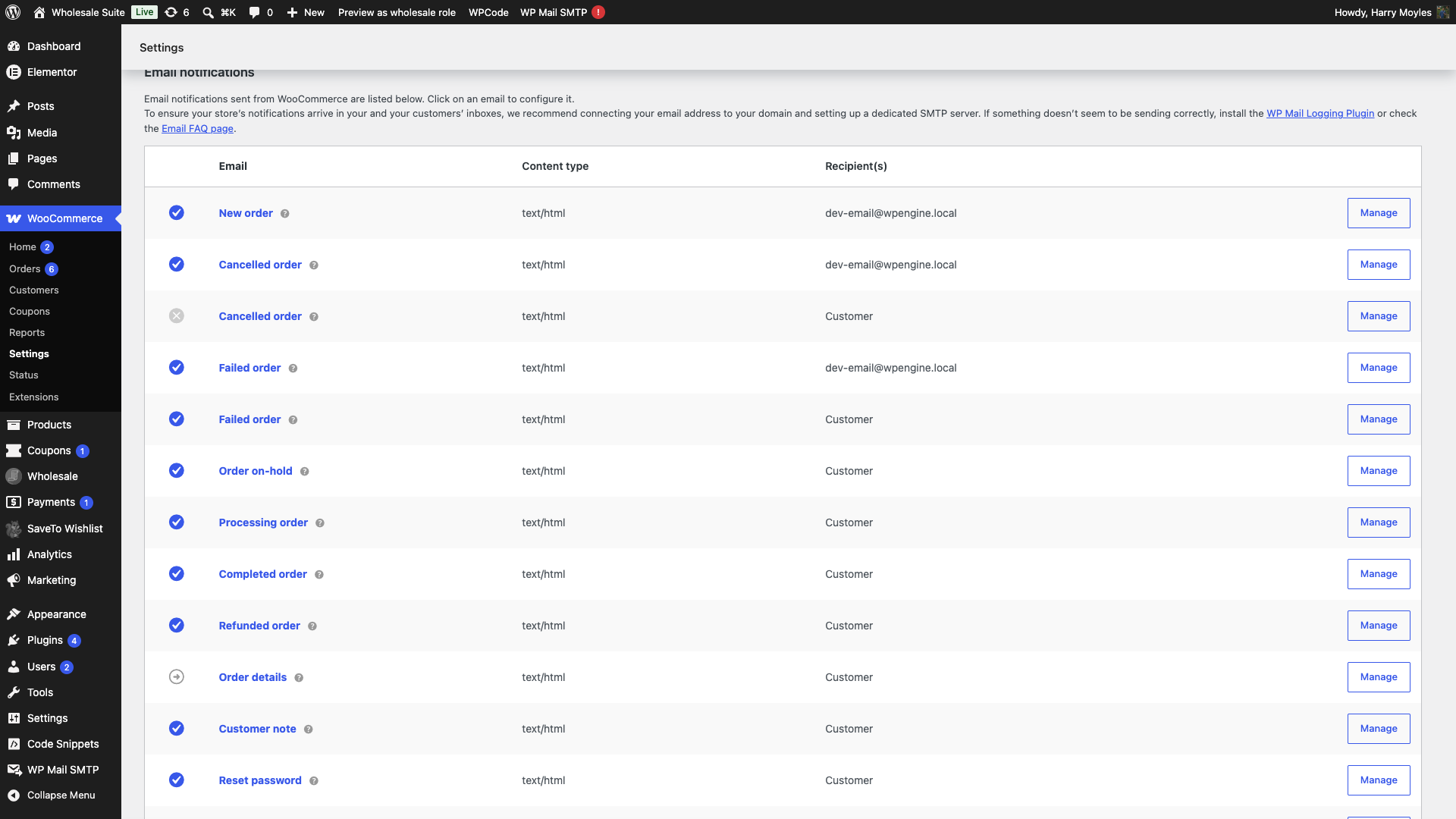
- Go to WooCommerce → Settings → Emails.
- Find Wholesale role upgrade or Wholesale role downgrade and click Manage.
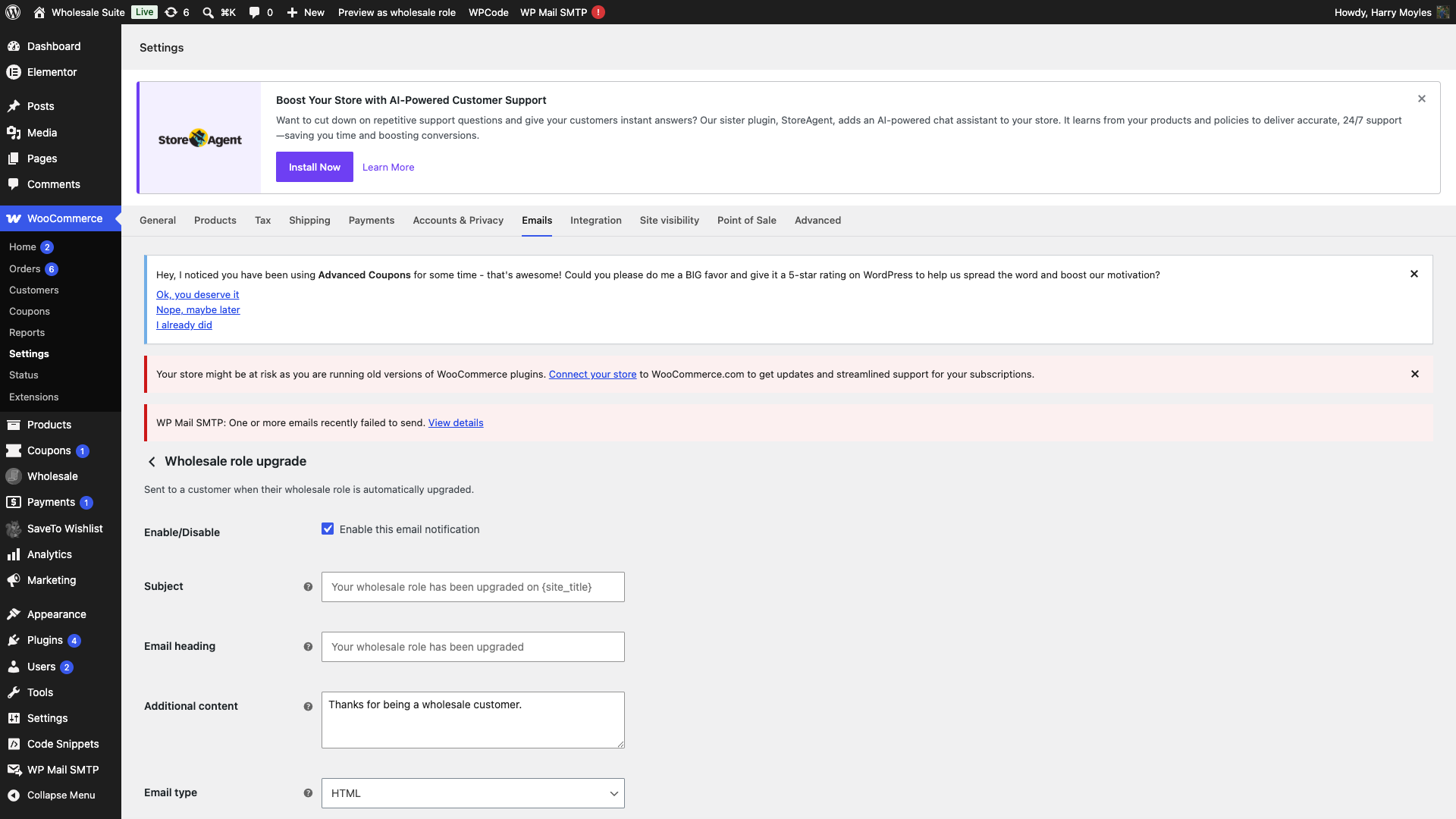
- Customize the Subject, Heading, and Additional content fields.
- Click Save changes.
Available placeholders
You can use the following placeholders in the subject, heading, or body of either email:
| Placeholder | Resolves to |
|---|---|
{user_display_name} | The customer’s display name. |
{old_role_label} | The wholesale role the customer is moving away from. |
{new_role_label} | The wholesale role the customer is moving to. |
{rule_label} | The label of the automation rule that triggered the change. |
{site_title} | Your store name. |
What customers see on their account page
In addition to the email, the next time an affected customer visits their My Account page after a role change, a one-time notice appears:
- After an upgrade: “🎉 Congratulations — you’ve been upgraded to [role name]. Your new pricing is active on your next order.”
- After a downgrade: “Your wholesale role has changed to [role name]. This affects future orders. Existing subscriptions are unchanged.”
The notice appears only once and is removed after the customer views it.
Step 5: Review the audit log
Every automated role change, whether upgrade, downgrade, pause, or unpause, is recorded in the Audit log section. Use it to investigate when a customer’s role changed and what triggered it.
Filter the log
The Filters panel lets you narrow results before viewing or exporting:
- User: enter a user ID or email address.
- Rule: enter a rule ID to see changes produced by a specific rule.
- Direction: select Upgrade, Downgrade, Pause, or Unpause.
- Trigger: select what caused the change: Order completed, Refund, Cancelled, Scheduled, or Admin.
- From date / To date: enter dates as YYYY-MM-DD. Bounds are inclusive and interpreted in UTC.
- Set your filters, then click Reload to apply them.
Audit entries table
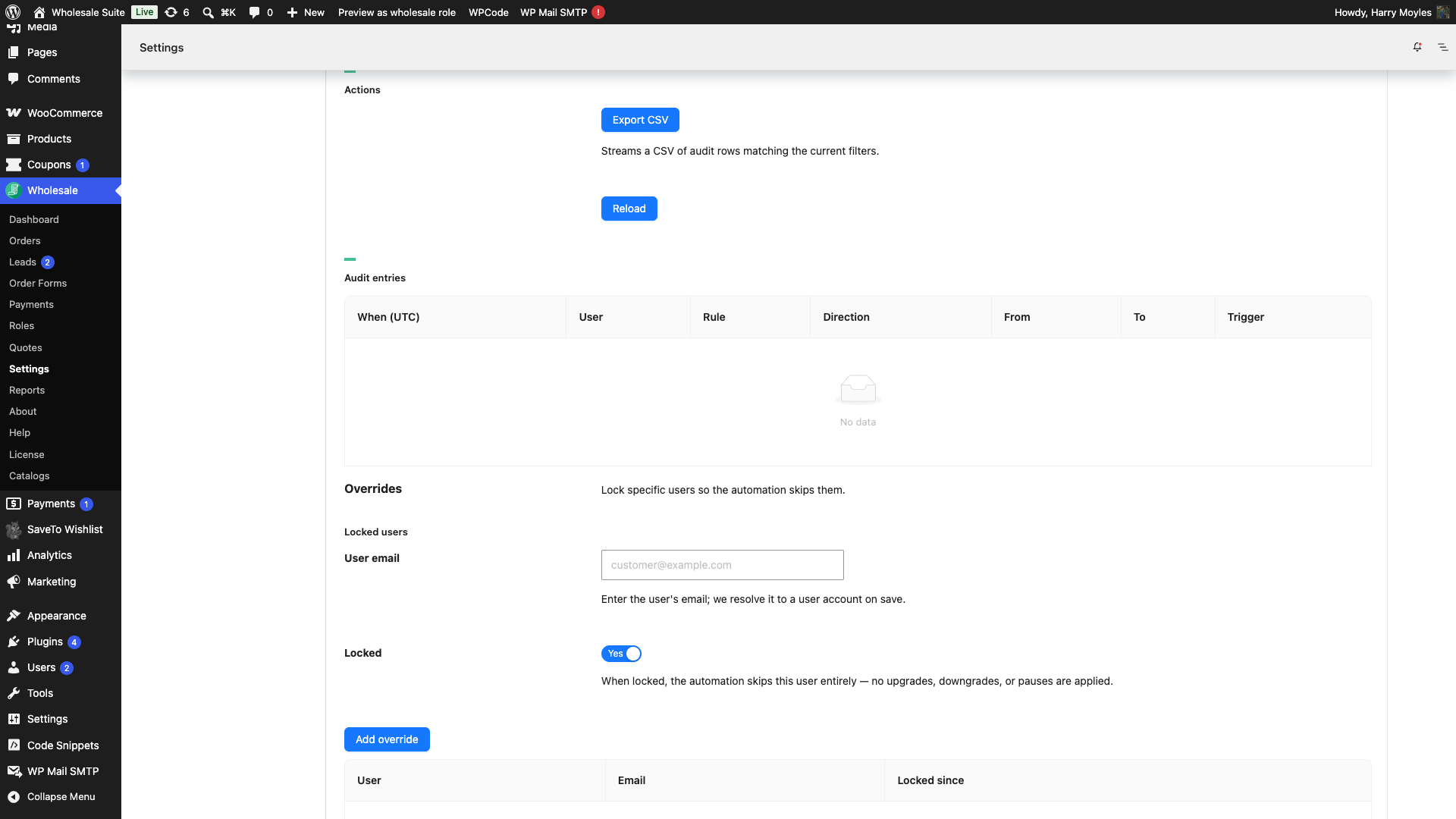
The table shows up to 50 rows per page. Each row records:
| Column | What it shows |
|---|---|
| When (UTC) | The UTC timestamp of the change. |
| User | The customer’s email and display name. |
| Rule | The label of the rule that fired. |
| Direction | Upgrade, Downgrade, Pause, or Unpause. |
| From | The role the customer moved away from. |
| To | The role the customer moved to. |
| Trigger | What caused the evaluation (for example, Order completed or Scheduled). |
Export to CSV
- Set any filters you want, then click Export CSV.
The downloaded file contains the following columns: When (UTC), User ID, Rule ID, Direction, From Role, To Role, Trigger Type, and Trigger Ref.
Excluding specific users from automation
The Overrides section lets you lock individual customers so the automation skips them entirely. Locked customers receive no upgrades, downgrades, or pauses. They keep their current role regardless of any matching rules.
Lock a user
- In the Overrides section, click Add override.
- Enter the customer’s email address in the User email field.
- Confirm the Locked toggle is set to Yes.
- Save.
The customer appears in the Locked users table with the date they were locked.
Unlock a user
- Find the customer in the Locked users table and click the delete icon on their row.
Troubleshooting
Rule not firing after an order is completed
Open WooCommerce → Status → Scheduled Actions and filter by the group wwpp-wholesale-role-automation to check for failed or pending actions. The automation runs asynchronously. Evaluation is queued as a background task and runs on the next Action Scheduler tick, not immediately when the order completes. If no actions appear, confirm that Action Scheduler is running (WooCommerce requires it).
Customer’s role did not change even though a rule matched
Go to Wholesale → Roles to confirm the target role still exists. The upgrade or downgrade target role must still be registered. If it was deleted after the rule was created, the evaluation skips that rule silently.
Audit log is empty
Place a test order, or wait for the next daily sweep, to generate the first entries. The daily sweep runs once per day; order-triggered evaluations run asynchronously after each order event. If no rows appear in the Audit entries table yet, no automation changes have occurred.
Frequently asked questions
Does the automation run immediately when a customer places an order?
Not immediately. It is queued as a background task and typically runs within a few minutes of the order completing, depending on how frequently Action Scheduler processes its queue on your server.
Can I use both an upgrade and a downgrade target on the same rule?
Yes. When the threshold is met, the customer is upgraded. When the threshold is not met and the customer is already in the rule’s scope role, they are moved to the downgrade target. Select (no downgrade) if you want upgrades only.
What happens if two rules match the same customer?
The highest-priority rule wins. Rules are evaluated in the order shown in the Rules table, and the first matching rule is applied. No further rules are checked for that customer in the same evaluation cycle.
Can I prevent a specific customer from being affected by automation?
Yes. Add them in the Overrides section or lock them from their user profile. Locked customers are skipped entirely.
Need help?
If you have a question or run into any issues, we’re here to help.
- Premium users: Open a support ticket
- Free users: Visit our community forum

