Moving away from Wholesale Suite, or want a clean slate before reinstalling? Removing the plugins the right way decides what data stays in your database. This guide shows you how to turn on the clean-up settings, deactivate and delete the plugins in a safe order, and what each plugin leaves behind.
Before you start
- A full backup of your site. The clean-up settings permanently delete data and can’t be undone.
- Admin access to your WordPress dashboard. You need to change settings and delete plugins.
- A list of the Wholesale Suite plugins you have installed. Check Plugins > Installed Plugins for WooCommerce Wholesale Prices, WooCommerce Wholesale Prices Premium, WooCommerce Wholesale Order Form, WooCommerce Wholesale Lead Capture, WooCommerce Wholesale Quotes, and WooCommerce Wholesale Payments.
What gets removed when you uninstall
Deactivating a plugin doesn’t remove its settings. Data is only removed when you delete the plugin from the Plugins screen. Even then, most of your settings are only removed if you turned on the plugin’s clean-up setting first.
The clean-up setting is off by default in Wholesale Prices Premium and Wholesale Lead Capture. If you never turned it on, deleting those plugins removes only their license details, and your settings will be waiting for you if you reinstall.
| Plugin | Always removed on delete | Removed only with the clean-up setting on |
|---|---|---|
| WooCommerce Wholesale Prices | Its scheduled reminders and a few internal notice flags | No clean-up setting. Its settings stay in your database. |
| WooCommerce Wholesale Prices Premium | License details | All Premium settings (general, price, tax, shipping, discount, cache), wholesale role mappings for shipping, payment gateways, discounts, tax and order minimums, wholesale role automation rules, lifecycle email settings, and the product visibility and quantity discount rules saved on your products |
| WooCommerce Wholesale Lead Capture | License details | All Lead Capture settings |
| WooCommerce Wholesale Order Form | License details | No clean-up setting on its settings screens. Its settings and forms stay in your database. |
| WooCommerce Wholesale Quotes | Nothing | No clean-up setting on its settings screens. Its data stays in your database. |
| WooCommerce Wholesale Payments | License details, its Stripe connection, and the API Mode, Payment Method Name, and Payment Plan Schedule Start Date settings. You need to connect Stripe again and re-enter these settings if you reinstall. | No clean-up setting. Its payment plans and invoice records stay in your database. |
No Wholesale Suite plugin deletes your customer accounts, orders, or the wholesale prices you entered on each product. Those stay in WooCommerce after you uninstall.
Step 1: Turn on the clean-up settings
Do this while all your Wholesale Suite plugins are still active. The settings for every add-on live under the Wholesale menu, which disappears once WooCommerce Wholesale Prices is deactivated.
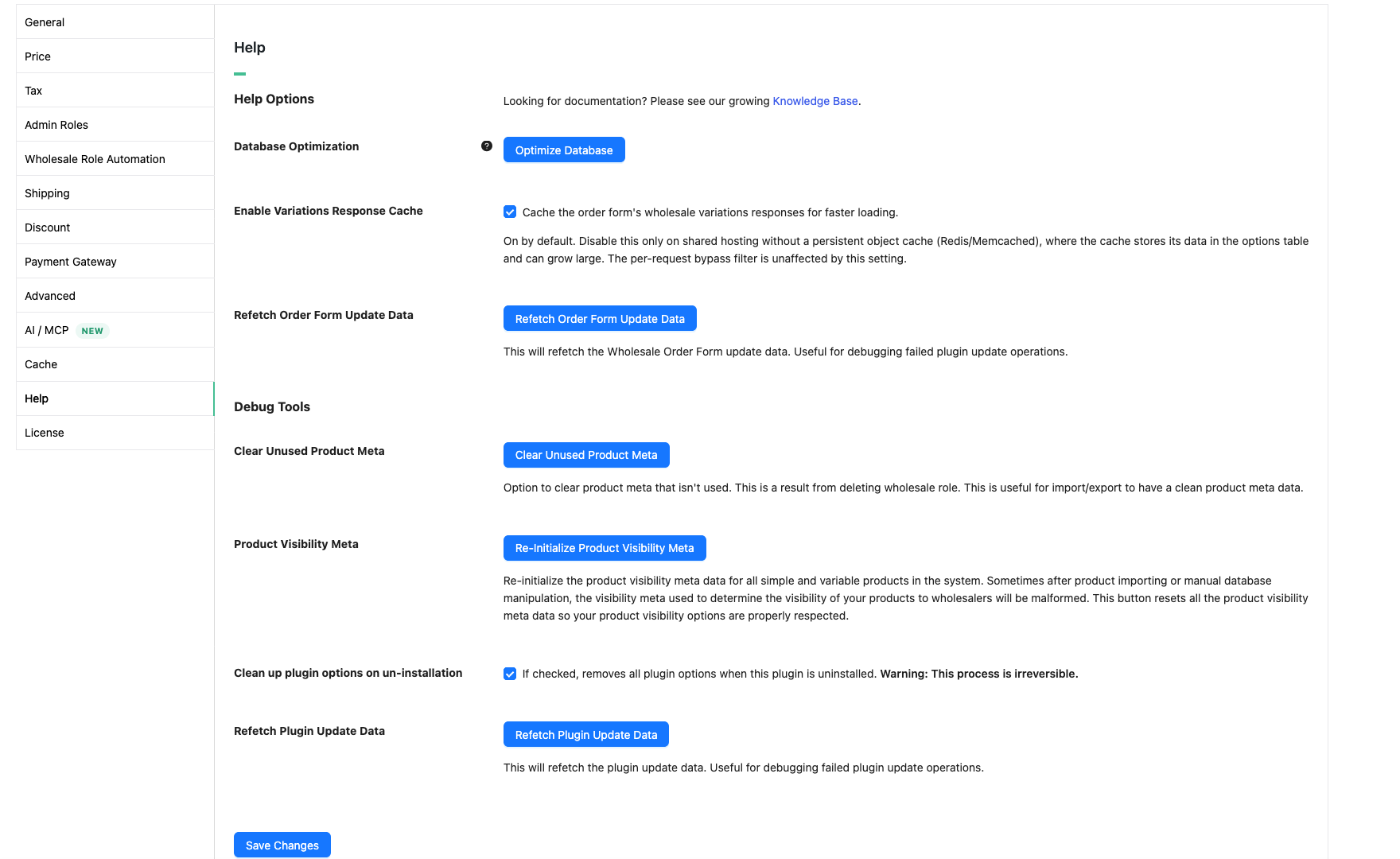
Wholesale Prices Premium
- Go to Wholesale > Settings.
- Click the Wholesale Prices tab.
- Click the Help sub-tab.
- Under Debug Tools, tick Clean up plugin options on un-installation.
- Click Save Changes.
Wholesale Lead Capture
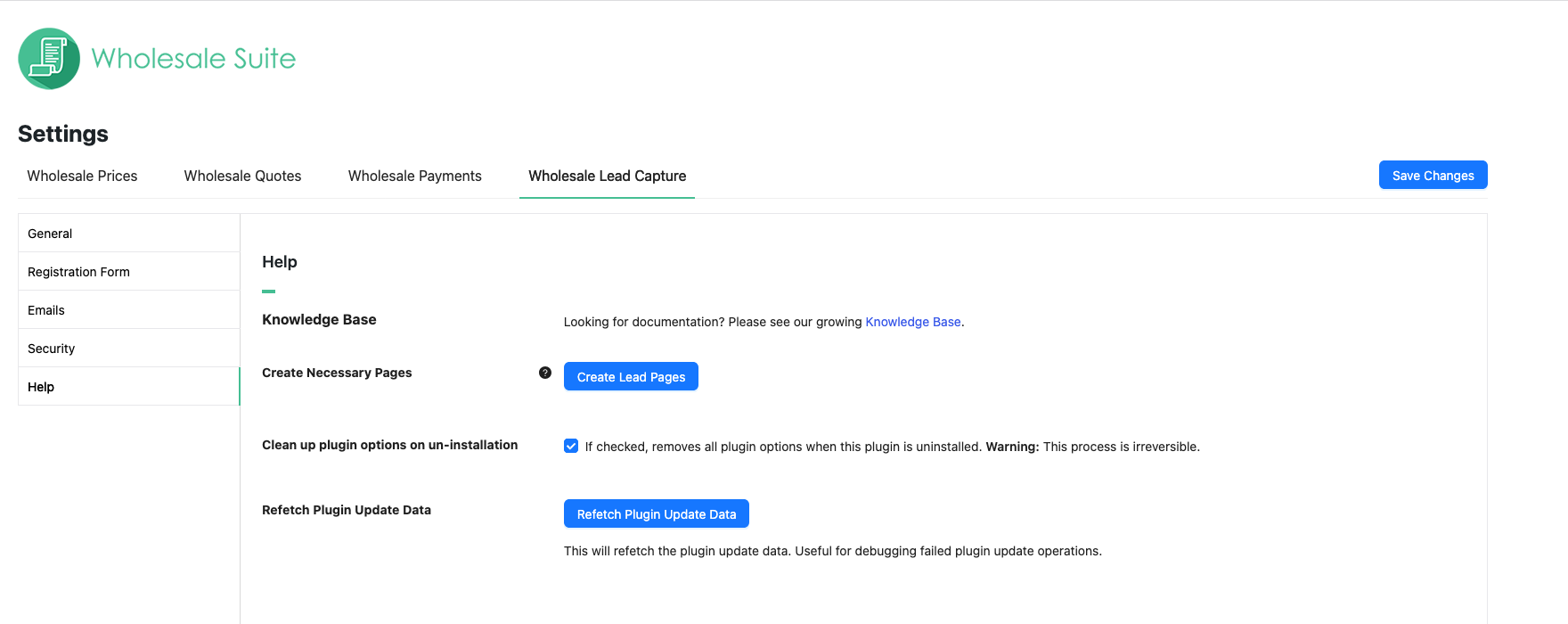
- In Wholesale > Settings, click the Wholesale Lead Capture tab.
- Click the Help sub-tab.
- Tick Clean up plugin options on un-installation.
- Click Save Changes.
Step 2: Deactivate the plugins
Deactivate the add-ons first and WooCommerce Wholesale Prices last. The add-ons need WooCommerce Wholesale Prices to run, so this order keeps everything working until the end.
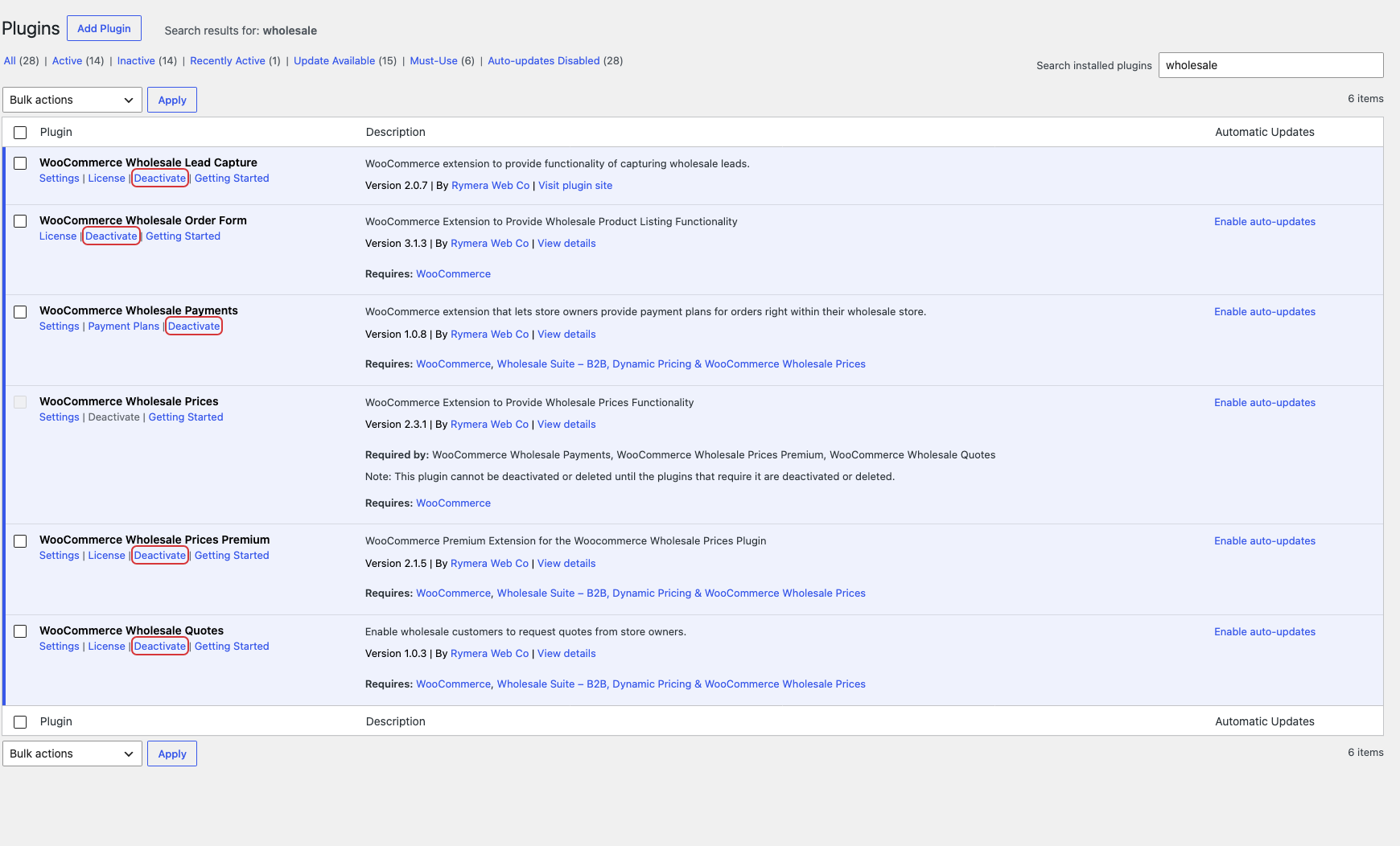
WordPress also enforces part of this order. It won’t let you deactivate WooCommerce Wholesale Prices while WooCommerce Wholesale Prices Premium, WooCommerce Wholesale Quotes, or WooCommerce Wholesale Payments is still active. It also won’t let you delete WooCommerce Wholesale Prices while any of them is still installed. While those plugins are active, Deactivate shows as plain text under WooCommerce Wholesale Prices instead of a link.
- Go to Plugins > Installed Plugins.
- Click Deactivate under each add-on you have installed: WooCommerce Wholesale Order Form, WooCommerce Wholesale Lead Capture, WooCommerce Wholesale Quotes, WooCommerce Wholesale Payments, and WooCommerce Wholesale Prices Premium.
- Click Deactivate under WooCommerce Wholesale Prices.
Heads up: deactivating WooCommerce Wholesale Prices removes the Wholesale Customer role from your store straight away, so those customers stop seeing wholesale prices. If you change your mind, reactivating the plugin adds the role back. See How To Fix Missing Wholesale Roles if a role doesn’t come back. Deactivating WooCommerce Wholesale Lead Capture also removes the Unapproved and Rejected lead roles. Reactivating the plugin adds them back.
Step 3: Delete the plugins
Deleting is what runs each plugin’s clean-up. Delete the add-ons first, then WooCommerce Wholesale Prices.
- On Plugins > Installed Plugins, click Delete under each Wholesale Suite add-on.
- Confirm the deletion when WordPress asks.
- Click Delete under WooCommerce Wholesale Prices and confirm.
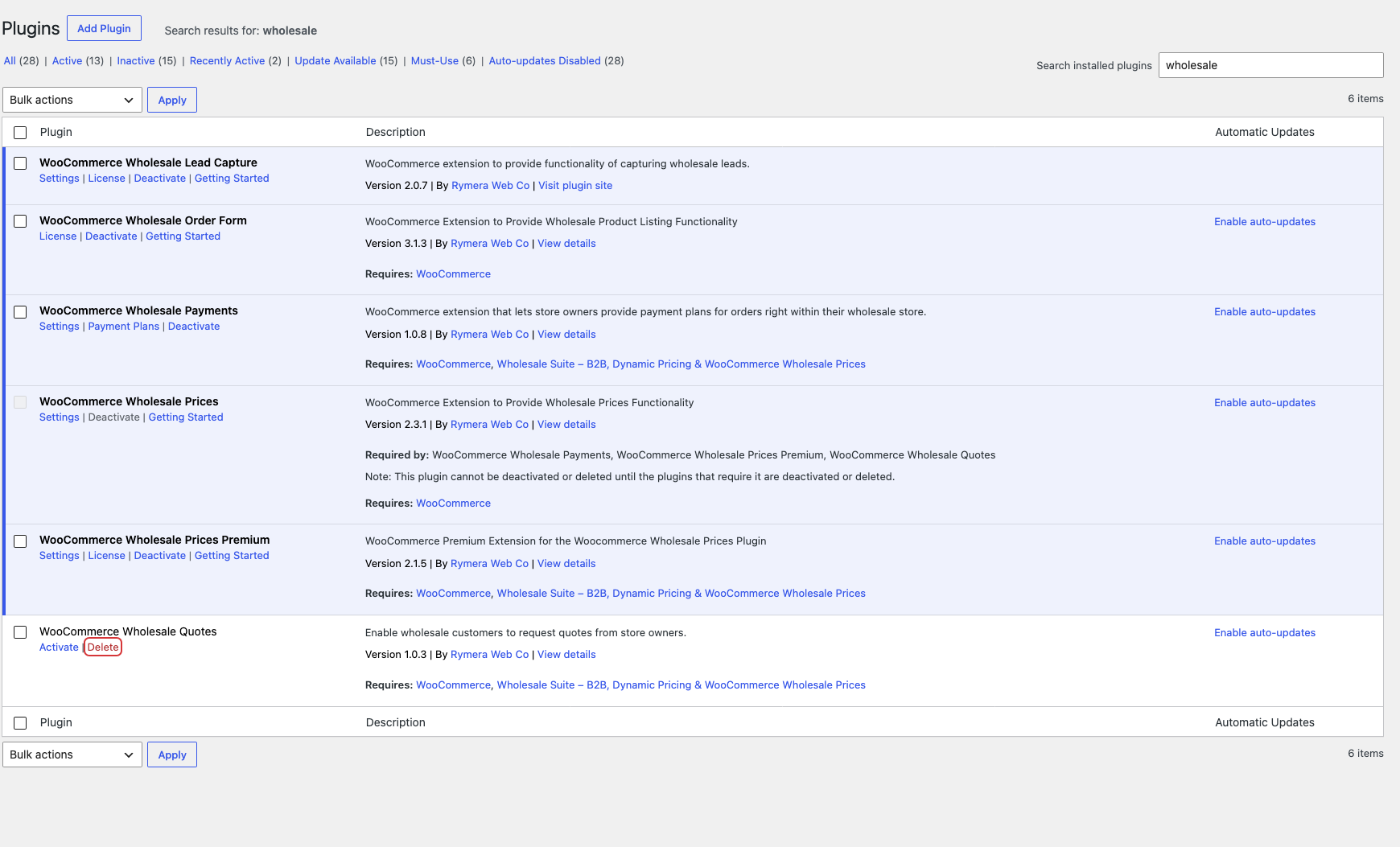
Always delete from the Plugins screen. If you remove the plugin folders over FTP or your host’s file manager, WordPress never runs the clean-up and all the data stays in your database.
Troubleshooting
My wholesale settings came back after I reinstalled.
Turn on Clean up plugin options on un-installation before you delete the plugin, then delete it from the Plugins screen. The setting is off by default, and removing the plugin folder by FTP skips the clean-up.
My wholesale customers lost their prices after I deactivated the plugin.
Reactivate WooCommerce Wholesale Prices to add the Wholesale Customer role back. Deactivating the plugin removes the role, but it doesn’t delete your customers or their accounts.
I can’t find the Wholesale menu to turn on the clean-up setting.
Reactivate WooCommerce Wholesale Prices, and the add-on you’re removing, then follow Step 1. The add-on settings only appear while WooCommerce Wholesale Prices is active.
Frequently asked questions
Does deactivating a Wholesale Suite plugin delete my data?
No. Deactivating keeps your settings, customers, and leads. It only removes the wholesale and lead roles until you reactivate the plugin. Data is only removed when you delete the plugin, and most settings only if the clean-up setting is turned on.
Will uninstalling delete my wholesale prices on products?
No. The wholesale prices you entered on each product, along with your customers and orders, stay in WooCommerce after you uninstall. If you turned on the Wholesale Prices Premium clean-up setting, it does remove the quantity discount rules and visibility settings saved on your products.
Can I use my license on another site after uninstalling?
Yes. To free up the activation, remove this site from your license in your account. See How To Remove An Activated Site From Your License.
I run a WordPress multisite network. Does the clean-up remove data from every site?
No. The Wholesale Prices Premium clean-up only removes settings from the site you uninstall it on. Data on the other sites in your network stays in place.
Need help?
If you have a question or run into any issues, we’re here to help.
- Premium users: Open a support ticket
- Free users: Visit our community forum