Some products sell out while your wholesale buyers still want to order them in bulk. You can let wholesale customers keep ordering those products, and show them an “Available on backorder” message, without changing what your retail customers see. This guide shows you how to turn on both settings in WooCommerce Wholesale Prices Premium and what your customers see afterwards.
Before you start
- WooCommerce Wholesale Prices Premium is installed and active. Both settings are Premium only.
- Your buyers log in with a wholesale role. The settings do not apply to guests or retail customers.
Turn on backorders for wholesale customers
Open the settings
- Go to Wholesale > Settings.
- Open the Wholesale Prices tab, then the General tab.
- Scroll to the Wholesale Customer Capabilities section.
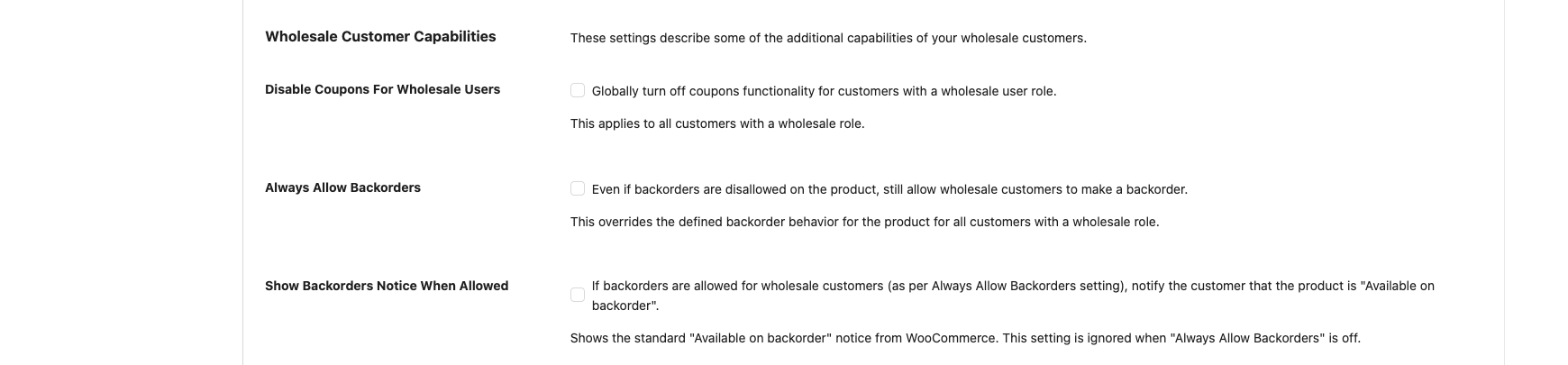
Choose your backorder options
- Check Always Allow Backorders.
- (Optional) Check Show Backorders Notice When Allowed.
- Click Save Changes. The button is at the top and the bottom of the page.
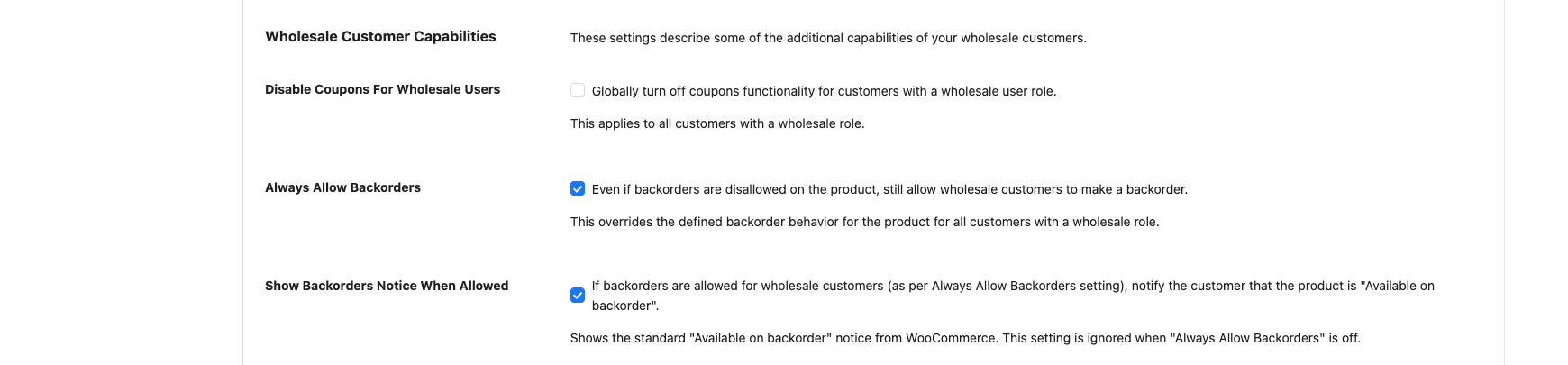
Both settings are off until you check them. Always Allow Backorders lets wholesale customers order even when the product itself does not allow backorders. Show Backorders Notice When Allowed adds the “Available on backorder” message. It has no effect when Always Allow Backorders is off.
What each setting does
| Setting | What it does | Default |
|---|---|---|
| Always Allow Backorders | Overrides the backorder option on every product for customers with a wholesale role. The product stays orderable even when it is out of stock or its own setting is “Do not allow”. | Off |
| Show Backorders Notice When Allowed | Shows the standard “Available on backorder” message from WooCommerce to wholesale customers. Ignored when Always Allow Backorders is off. | Off |
The override applies to every customer who has a wholesale role. It does not apply to accounts that can manage WordPress options, such as administrators, so you need a wholesale customer account to test it.
What wholesale customers see
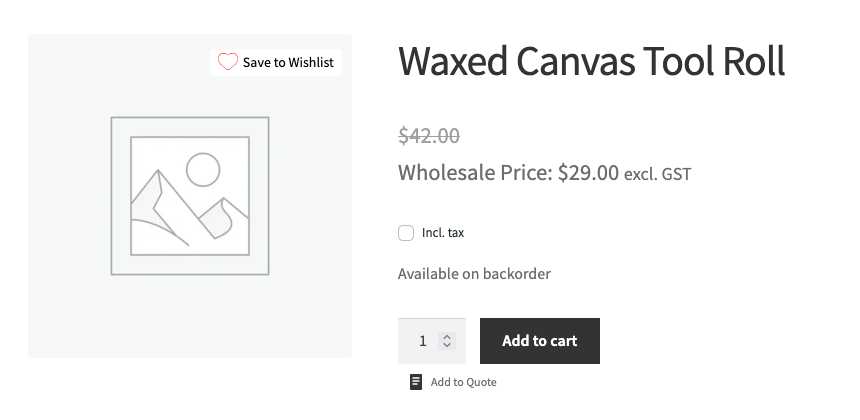
On the product page, a wholesale customer sees the product as available to order, even if the product is out of stock or set to “Do not allow” for backorders. With Show Backorders Notice When Allowed on, on the product page the stock line reads “Available on backorder” when the product has no stock left. In the cart, the message appears when the quantity in the cart is more than the stock. It shows under the product name. The classic cart shows it as plain text, and the block cart shows it as a small label.
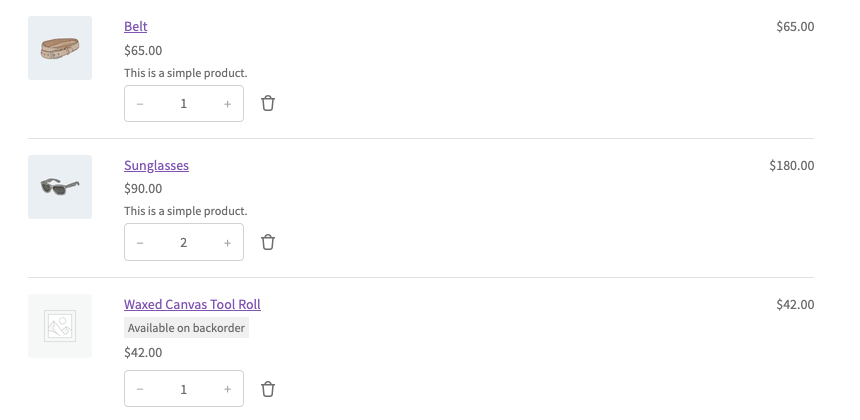
The cart here shows the retail price because the cart has not met your wholesale order minimum yet. The backorder message does not depend on this. See Why the cart shows retail prices until minimum order requirements are met.
With Show Backorders Notice When Allowed off, wholesale customers can still order the product, but the notice is hidden. This is also true when the product is set to “Allow, but notify customer” in its own Inventory settings. Retail customers and guests keep seeing the product’s own settings.
How this works with WooCommerce stock settings
Products that manage stock. With Manage stock? on, WooCommerce counts the quantity. When a wholesale customer orders more than you have, the product counts as on backorder, and the notice appears if you turned it on.
Products that do not manage stock. If a product has no stock quantity and its stock status is not “In stock”, the plugin reports the status as “On backorder” to wholesale customers, but only when both settings are on. This is how the notice shows for products without managed stock.
Minimum order quantity. Wholesale Prices Premium normally marks a product as out of stock for a wholesale customer when the stock is lower than the wholesale minimum order quantity and the product does not allow backorders. With Always Allow Backorders on, this check is skipped, so the product stays orderable. For more, see How to set minimum order quantity and step quantity for wholesale customers.
Stock reduction. These settings do not change whether wholesale orders reduce your stock count. For that, see How To Prevent Stock Reduction For Wholesale Orders.
Troubleshooting
You do not see the backorder behavior when you test. Log in as a customer with a wholesale role. Administrator accounts are not affected by these settings.
The “Available on backorder” message does not show. Check that both Always Allow Backorders and Show Backorders Notice When Allowed are checked and saved. Then check that the product has no stock left, or that the cart quantity is more than the stock. The message only appears for products on backorder.
The message wording needs to change. The text comes from WooCommerce, not from Wholesale Prices Premium. You cannot edit it from the Wholesale settings.
Frequently asked questions
Do retail customers see the backorder notice?
No. Both settings only apply to customers with a wholesale role. Retail customers see the backorder option set on each product.
Can I allow backorders for one wholesale role only?
No. Always Allow Backorders applies to every customer with a wholesale role. There is no setting for a single role.
Does this change the backorder option on my products?
No. The product settings stay as they are. The override only applies when a wholesale customer views or orders the product.
Need help?
If you have a question or run into any issues, we’re here to help.
- Premium users: Open a support ticket
- Free users: Visit our community forum