
Our Wholesale Prices Premium has a feature that can add manual Wholesale Orders on the admin side.
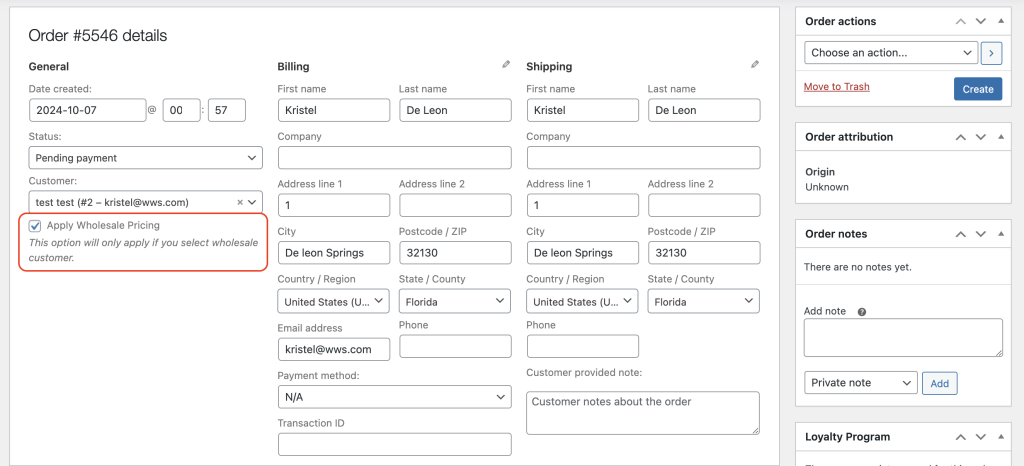
When you navigate to WooCommerce > Orders > Add New, you will come across a feature that allows you to Apply Wholesale Pricing. By activating this option, the wholesale prices of the products will be displayed immediately upon their addition.
Certainly, this process will only work if the customer has a wholesale role. Select a customer assigned with a wholesale role, and the system will automatically fill in the necessary information. Please ensure to check the Apply Wholesale Pricing option to activate the wholesale prices.
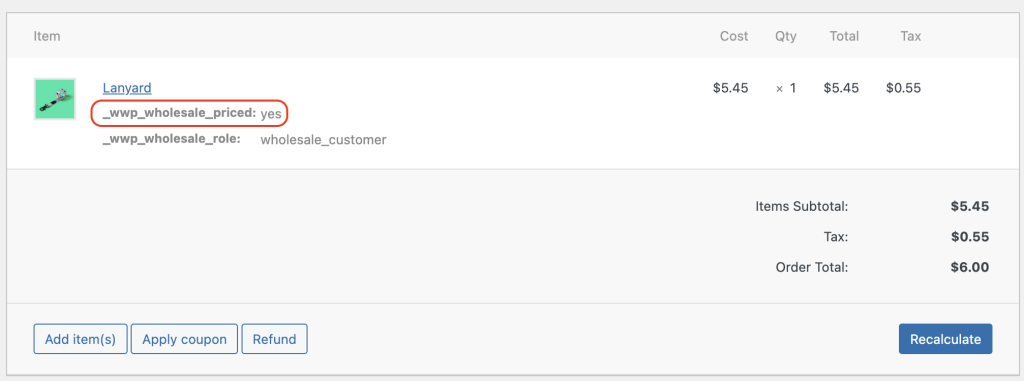
Once set, you can start adding wholesale products. You’ll notice that the meta _wwp_wholesale_priced:yes will appear under the product, which means that the wholesale price has been applied for this product.
Don’t forget to add your shipping before clicking the Save and Create buttons.
If you wish to edit an existing order, you may click Edit and ensure that the Apply Wholesale Pricing is activated before editing/adding wholesale products.
Also, some store owners want to give an extra discount on top of the existing wholesale price. You may edit the price on each line. However, you need to turn off the Apply Wholesale Pricing because the price that you are about to give is not the wholesale price set on the Product Data.
Note – At the moment, the wholesale price that will reflect on the manual order or wholesale order editing is the one set on the product level (fixed wholesale price) and subscription wholesale products. We haven’t fully integrated all our settings so the Global/Category Discounts, Minimum Requirements, Tax and Shipping Shipping, Payment Gateway, etc. will not reflect on the backend order. You need to turn off the Apply Wholesale Pricing and treat them as retail orders.
Frequently Asked Questions
How do I enable wholesale pricing when creating a backend order?
Once you open a new order under WooCommerce > Orders > Add New, tick the “Apply Wholesale Pricing” checkbox before adding any products. The system then pulls in the correct wholesale price for each item automatically. Make sure you have also selected a customer assigned to a wholesale role, otherwise the pricing toggle will have nothing to work with.
Does the backend order feature work with all WooCommerce product types?
Generally, it works with standard WooCommerce products that have wholesale prices set at the product level. Variable products are supported as long as each variation has a wholesale price assigned. If a product carries no wholesale price, the system will fall back to the standard retail rate even when the pricing option is switched on.
Will global discounts and shipping rules apply to a manually created backend order?
No, the “Apply Wholesale Pricing” option only reflects product-level prices — it does not factor in category discounts, minimum order requirements, tax rules, payment gateway conditions, or shipping adjustments. If your order needs those elements included, turn the pricing toggle off and process the transaction as a standard retail order instead.
Can I apply a custom discount on top of the wholesale price in a backend order?
If you want to go below the set wholesale rate on a specific line item, first disable “Apply Wholesale Pricing” so the plugin stops overriding your manual entries. Then adjust the price directly on each individual line item as needed. This gives you full control without the automatic pricing interfering.
Why isn’t my backend order showing wholesale prices after selecting a customer?
Keep in mind that the customer must be assigned a wholesale role in their account profile — selecting any logged-in customer is not enough. Also confirm the “Apply Wholesale Pricing” checkbox is ticked after choosing the customer, since adding products before enabling that option can result in retail rates being loaded instead. Toggling the checkbox off and back on after adding items may refresh the pricing display.
Need Help?
If you have a question or run into any issues, we’re here to help.
- Premium users: Open a support ticket
- Free users: Visit our community forum

