Want to know how many of your wholesale orders actually come through your order form? You can spot them right on the order screen. This guide shows you where WooCommerce Wholesale Order Form labels these orders, how to pull totals for them, and how developers can find them in code.
What you’ll need
- WooCommerce Wholesale Order Form version 3.1.0 or higher
- At least one order form published on your store. See Getting started with WooCommerce Wholesale Order Form
How order source tracking works
Each time a customer adds a product to their cart from a wholesale order form, the plugin quietly marks that cart item. When the customer checks out, the plugin checks the cart. If at least one item came from the order form, the order is tagged as a Wholesale Order Form order.
This works on both the classic WooCommerce checkout and the block-based checkout. It also covers bundles added from the order form. For details, see product bundles in the order form.
There’s nothing to switch on: tracking runs automatically from version 3.1.0 of the plugin.
Check the order source on an order
- In your WordPress admin, go to WooCommerce → Orders.
- Click the order number to open the order.
- Find the Order Source: line in the General section of the order details.
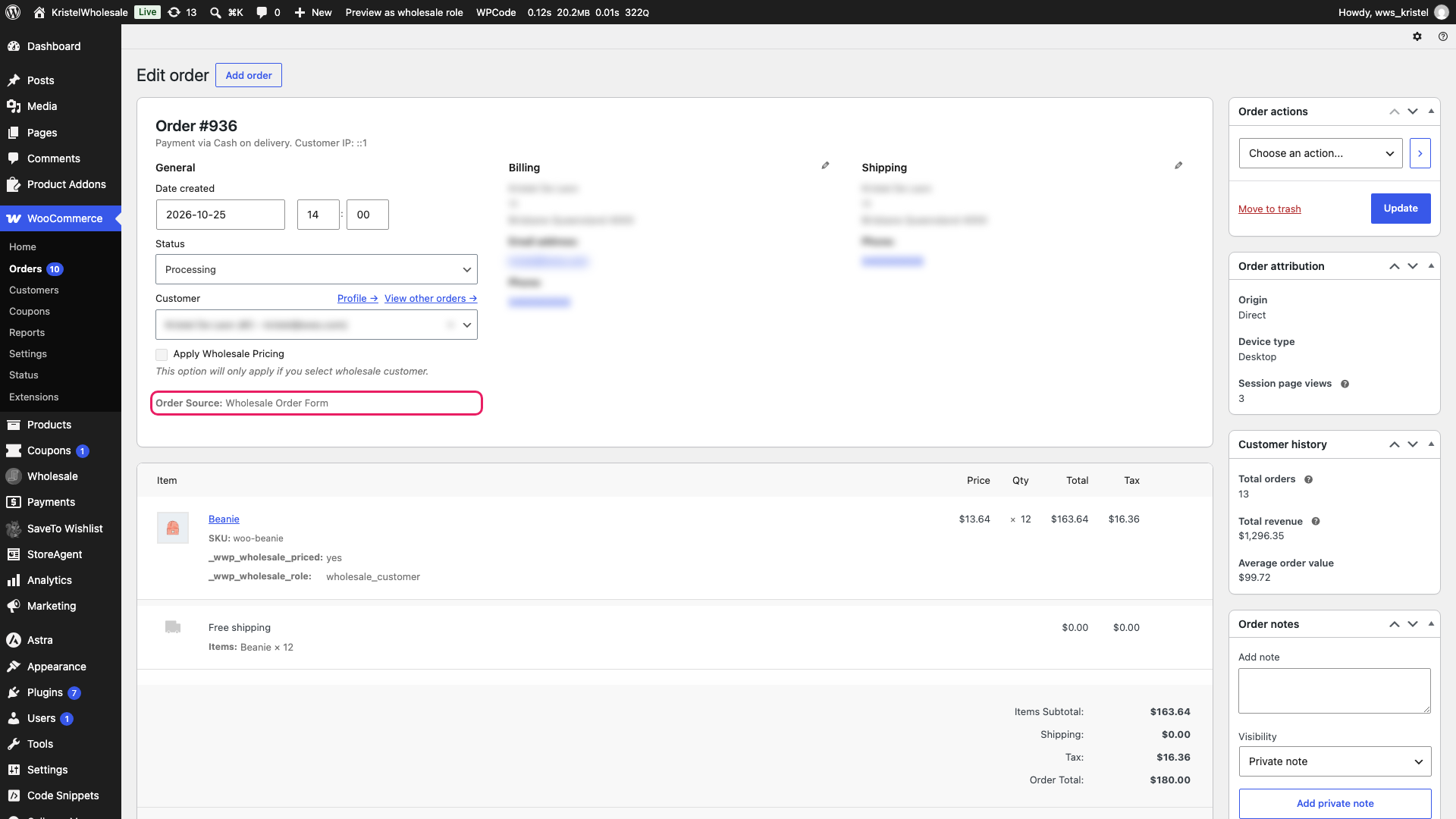
The Order Source: line only appears on orders placed through an order form. If an order came through your regular shop and checkout, the line isn’t shown at all.
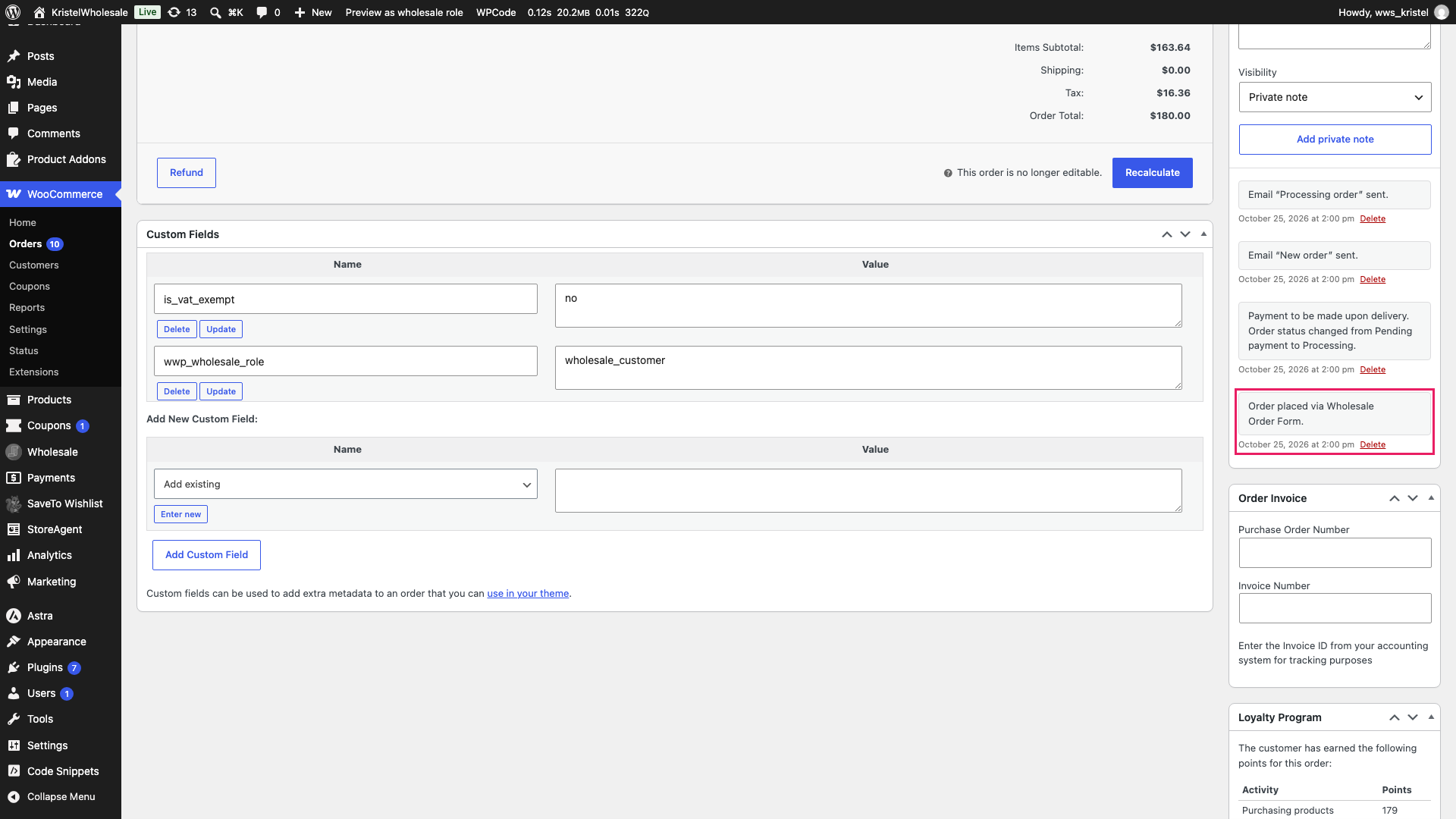
The plugin also adds a private order note at the moment the order is created. Look for “Order placed via Wholesale Order Form.” in the order notes panel.
Report on Wholesale Order Form orders
The Orders list doesn’t include an order source column or filter, so you can’t sort or filter the list by order source there. You have two ways to see totals instead.
Ask an AI assistant for order form sales
From version 3.1.2, the plugin adds a Get order form analytics ability. If you’ve connected an AI assistant to your store, you can ask it for order form sales over a date range. It returns the number of orders, revenue, refunds, and average order value. See AI abilities in Wholesale Suite for setup.
A few things shape the numbers. The totals combine all your order forms, because the plugin records that an order came from an order form but not which one. Only paid orders count, and partial refunds are subtracted. Orders in a currency other than your store’s base currency are left out and reported separately. If you don’t give a date range, it covers the last 30 days. One request checks up to 10,000 paid orders, so on a very busy store, ask again with a shorter date range if the result says the total is incomplete.
Look up the order meta (for developers)
Order form orders store this value in the order’s meta data:
| Meta key | Value | Set when |
|---|---|---|
_wwof_order_source | wholesale_order_form | The order is created from a cart holding at least one item added via an order form |
Orders from your regular checkout don’t have this meta key at all. To check a single order in your own code:
$order = wc_get_order( $order_id );

if ( 'wholesale_order_form' === $order->get_meta( '_wwof_order_source' ) ) {
    // This order was placed through the Wholesale Order Form.
}
You can use the same key in custom reports or exports that support WooCommerce order meta.
Troubleshooting
The Order Source line doesn’t appear on an order. First, check the order date. Orders placed before you updated to version 3.1.0 aren’t tagged, because tagging only happens when an order is created. Next, check how the products were added. Items added from your regular shop or product pages don’t count, even if the same customer also uses the order form.
Orders from recovered carts or the admin aren’t tagged. Check how the order was placed. Orders you create with Add order in the admin don’t get the tag. Orders a customer finished from an abandoned cart recovery email may not get it either, because some recovery plugins rebuild the cart from their own saved data and drop the order form marker.
Frequently asked questions
What if a customer adds items from both the order form and my shop pages?
The order is still tagged as a Wholesale Order Form order. One item from the order form is enough.
Can I see which order form an order came from?
No. The plugin records that an order came from an order form, not which form. All order form totals are combined.
Will my older orders be tagged?
No. Only orders created after you update to version 3.1.0 or higher are tagged.
What’s next
- Getting started with WooCommerce Wholesale Order Form
- How to use product bundles in the Wholesale Order Form
- How to use AI abilities in Wholesale Suite
Need help?
If you have a question or run into any issues, we’re here to help.
- Premium users: Open a support ticket
- Free users: Visit our community forum