
Großhandelskunden, die genau sehen, wie viel sie im Vergleich zum Einzelhandel sparen, sind motivierter, größere Bestellungen aufzugeben und zu Ihrem Geschäft zurückzukehren. WooCommerce Wholesale Prices Premium enthält eine Anzeige des Sparbetrags, die jedem Kunden seine Ersparnisse als Dollarbetrag, Prozentsatz oder beides anzeigt. Sie können wählen, ob diese auf der Shop-Seite, Produktseite, im Warenkorb, an der Kasse, auf der Bestellbestätigungsseite und auf der E-Mail-Rechnung angezeigt werden soll.
Dieser Artikel erklärt, wie Sie die Anzeige des Sparbetrags aktivieren, auswählen, auf welchen Seiten sie erscheint, und den angezeigten Nachrichtentext für Ihre Großhandelskunden anpassen.
Voraussetzungen
- WooCommerce Wholesale Prices Premium installiert und aktiviert. Die Anzeige des Sparbetrags ist eine reine Premium-Funktion und nicht im kostenlosen WooCommerce Wholesale Prices Plugin enthalten.
Anzeigen des Großhandel-Sparbetrags aktivieren
- Gehen Sie zu Großhandel → Einstellungen → Großhandelspreise → Preis.
- Scrollen Sie zum Abschnitt Preisoptionen.
- Schalten Sie Großhandels-Sparbetrag anzeigen auf Aktiviert.
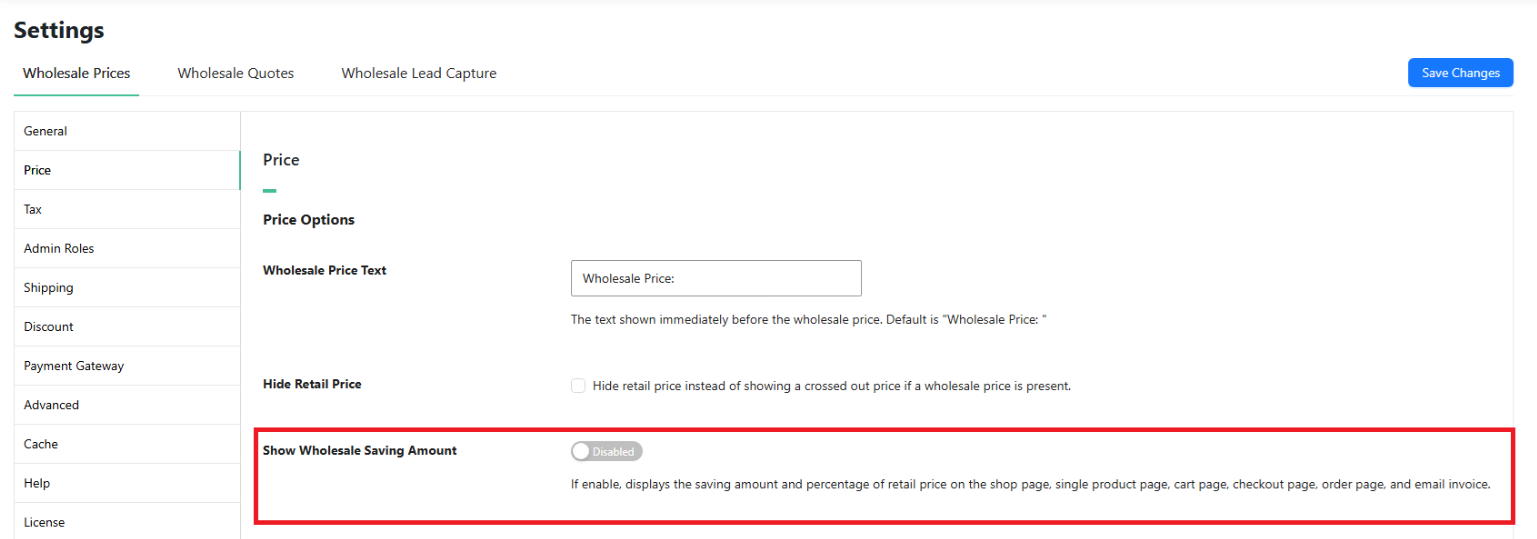
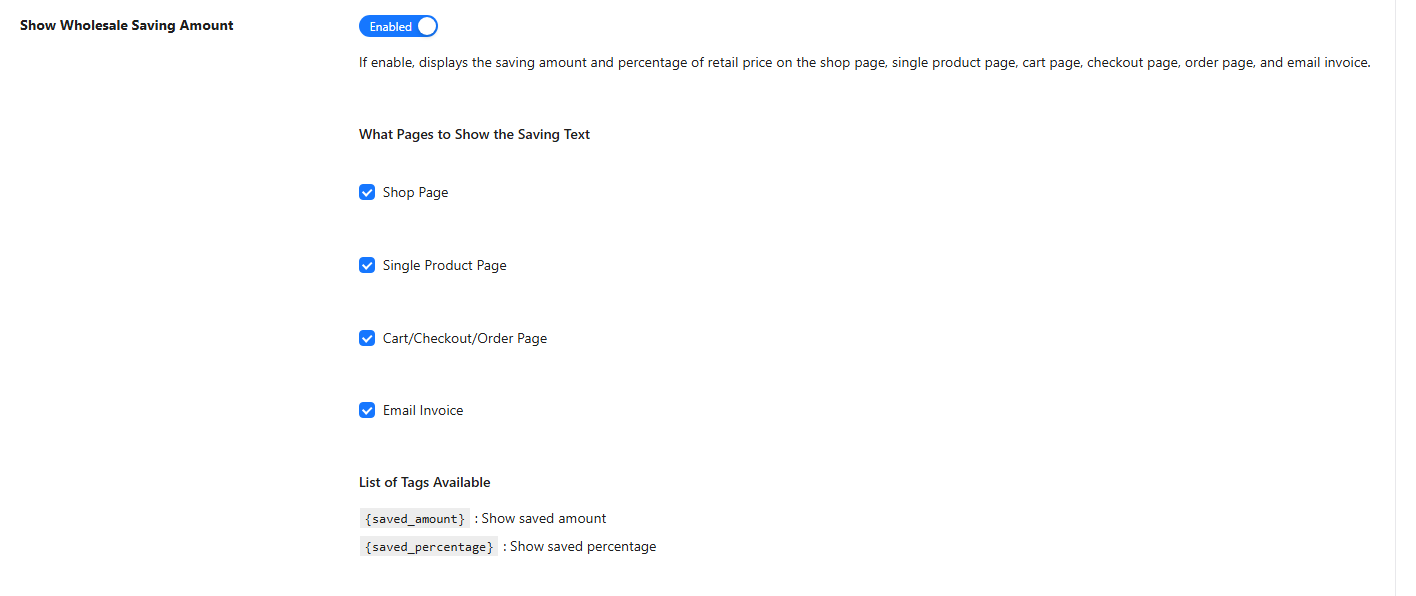
Nach der Aktivierung erscheint direkt unter dem Schalter der Unterabschnitt Auf welchen Seiten soll der Spartext angezeigt werden.
Wählen Sie aus, wo der Spartext angezeigt werden soll
Aktivieren Sie die Kontrollkästchen für jeden Speicherort, an dem der Sparbetrag angezeigt werden soll.
- Shop-Seite – zeigt den Sparbetrag unter dem Großhandelspreis in Produktlisten, Kategorieseiten und verwandten Produktbereichen an.
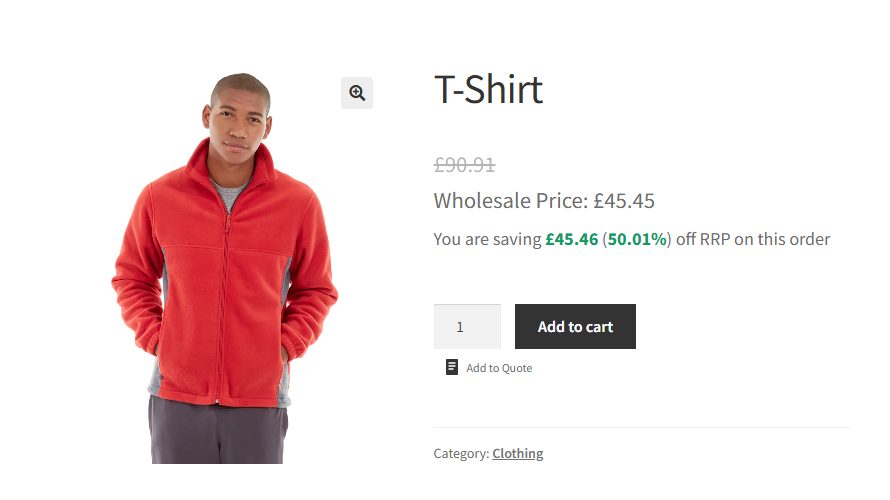
- Einzelproduktseite – zeigt den Sparbetrag auf der einzelnen Produktseite an.
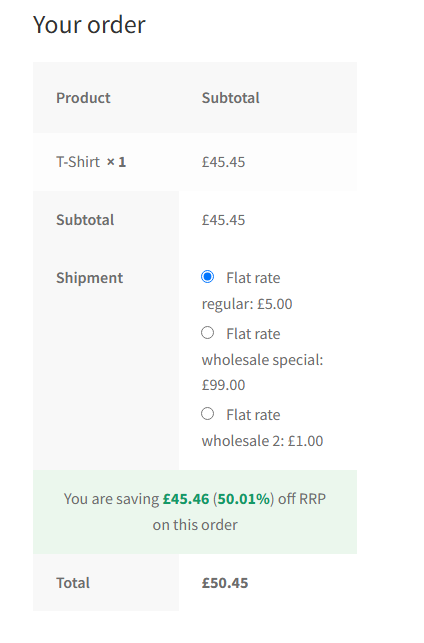
- Warenkorb/Kasse/Bestellseite – zeigt die gesamten Ersparnisse für die Bestellung über der Zeile des Gesamtbetrags auf der Warenkorbseite, der Kassenseite und der Bestellbestätigungsseite an.
- E-Mail-Rechnung – enthält die gesamten Bestellersparnisse in der an den Kunden gesendeten Bestellbestätigungs-E-Mail.
Text für den Sparbetrag anpassen
Das Feld Text für Großhandels-Sparbetrag steuert die Nachricht, die den Kunden angezeigt wird. Der Standardtext lautet:
You are saving {saved_amount} ({saved_percentage}) off RRP on this orderSie können dies in jede beliebige Formulierung ändern. Zwei Vorlagen-Tags stehen zur Verfügung, um die berechneten Werte einzufügen.
{saved_amount}– ersetzt durch den gesparten Dollarbetrag, formatiert mit den Währungseinstellungen Ihres Shops.{saved_percentage}– ersetzt durch die Ersparnis als Prozentsatz des Einzelhandelspreises.

Auf der Shop- und Produktseite wird der Spartext für jedes Produkt unter dem Großhandelspreis angehängt. Im Warenkorb, an der Kasse, auf der Bestellbestätigungsseite und auf der E-Mail-Rechnung spiegelt der Spartext die gesamten Ersparnisse für die gesamte Bestellung wider.
Häufig gestellte Fragen
Funktioniert die Anzeige des Sparbetrags bei variablen Produkten?
Auf den Shop- und einzelnen Produktseiten gilt die Anzeige des Sparbetrags nur für einfache Produkte. Variable Produkte sind auf diesen Seiten nicht in der pro Produkt berechneten Ersparnis enthalten. Im Warenkorb, an der Kasse, auf der Bestellbestätigungsseite und in der E-Mail-Rechnung werden die Einsparungen aus den tatsächlichen Zeilenartikelpreisen im Warenkorb berechnet, sodass jeder Produkttyp in der gesamten Ersparnis enthalten ist.
Erscheint der Sparbetrag für alle Kunden oder nur für Großhandelskunden?
Die Anzeige des Sparbetrags erscheint nur für angemeldete Großhandelskunden. Einzelhandelskunden und Gäste sehen keinen Spartext.
Welcher Preis wird als Einzelhandelspreis bei der Berechnung der Ersparnisse verwendet?
Standardmäßig verwendet das Plugin den aktuellen Verkaufspreis des Produkts als Einzelhandelsbasis. Wenn für das Produkt ein Sonderpreis aktiv ist, wird die Ersparnis vom Sonderpreis und nicht vom regulären Preis berechnet. Um die Ersparnisse unabhängig von einem aktiven Sonderangebot immer vom regulären Preis zu berechnen, aktivieren Sie Immer regulären Preis verwenden unter Großhandel → Einstellungen → Großhandelspreise → Preis.
Kann ich nur den Dollarbetrag ohne den Prozentsatz oder nur den Prozentsatz anzeigen?
Ja. Bearbeiten Sie das Feld Text für Sparbetrag im Großhandel und entfernen Sie das nicht benötigte Tag. Um nur den Dollarbetrag anzuzeigen, verwenden Sie eine Meldung wie Sie sparen {saved_amount} bei dieser Bestellung. Um nur den Prozentsatz anzuzeigen, verwenden Sie Sie sparen {saved_percentage} auf den Einzelhandelspreis bei dieser Bestellung.
Wird auf der Warenkorbseite der Sparbetrag pro Artikel oder für die gesamte Bestellung angezeigt?
Im Warenkorb, an der Kasse, auf der Bestellbestätigungsseite und in der E-Mail-Rechnung spiegelt der Sparbetrag die gesamten Einsparungen für die gesamte Bestellung wider. Einsparungen pro Artikel werden nur auf der Shop-Seite und der einzelnen Produktseite angezeigt, und nur für einfache Produkte.
Ich habe die Funktion aktiviert, aber der Spartext wird nicht angezeigt. Was sollte ich überprüfen?
Bestätigen Sie zunächst, dass dem Kundenkonto eine Großhandelsrolle zugewiesen ist. Die Anzeige des Sparbetrags erscheint nur für angemeldete Großhandelskunden. Überprüfen Sie als Nächstes, ob Sie mindestens eine Option im Abschnitt Auf welchen Seiten soll der Spartext angezeigt werden ausgewählt haben und ob Sie die entsprechende Seite aufrufen. Vergewissern Sie sich außerdem, dass der Großhandelspreis niedriger ist als der als Basis verwendete Einzelhandelspreis – das Plugin gibt den Spartext nur aus, wenn eine positive Differenz besteht. Leeren Sie schließlich jeglichen serverseitigen oder seitenweiten Cache und testen Sie in einer privaten Browsersitzung, um zwischengespeicherte Antworten auszuschließen.
Erscheint die Anzeige des Sparbetrags im WooCommerce Bestellformular für den Großhandel?
Die Anzeige des Sparbetrags ist an die Standard-Shop-, Produkt-, Warenkorb- und Kassenseiten von WooCommerce gebunden. Sie gibt keinen Spartext innerhalb der WooCommerce Bestellformular für den Großhandel-Tabelle selbst aus. Die Einsparungen sind im Warenkorb und an der Kasse weiterhin sichtbar, nachdem ein Kunde Artikel über das Bestellformular hinzugefügt hat.
Kann ich HTML im Feld Text für Sparbetrag im Großhandel verwenden?
Die Tags {saved_amount} und {saved_percentage} werden bei der Anzeige durch fett formatierte Werte ersetzt. Der umgebende Text wird unverändert ausgegeben, sodass grundlegendes HTML wie Zeilenumbrüche oder Inline-Stile funktioniert. Testen Sie benutzerdefinierten Markup auf einer Staging-Website, bevor Sie es in einem Live-Shop verwenden.
Berücksichtigt der Spartext die Steuereinstellungen des Shops?
Ja. Auf den Warenkorb- und Checkout-Seiten verwendet die Sparberechnung denselben Steuermodus – inklusive oder exklusive –, der für den Warenkorb in Ihren WooCommerce-Steuereinstellungen konfiguriert ist. Der Betrag der Ersparnis entspricht daher den Preisen, die der Kunde in den Warenkorb-Gesamtbeträgen sieht.
Hilfe & Support
Wir haben ein engagiertes Support-Team für Wholesale Suite, das unsere Produkte, WooCommerce und die Branche sehr gut kennt. Sie können seine Expertise jederzeit und weltweit nutzen.
Wenn Sie bereits Kunde sind, gehen Sie bitte zum Support-Ticket-Anfrageformular und senden Sie uns eine Nachricht.
Wenn Sie ein kostenloser Plugin-Benutzer sind, senden Sie uns bitte eine Supportanfrage im Forum. Wir überwachen aktiv die Supportforen von WordPress.org für das kostenlose Plugin und helfen unseren Benutzern dort so gut wir können.

