

Cerchi funzionalità, prezzi o vuoi acquistare Wholesale Order Form? Visita la pagina del prodotto Wholesale Order Form.
Grazie per aver acquistato WooCommerce Wholesale Order Form!
Questo documento è una guida introduttiva per il plugin WooCommerce Wholesale Order Form per WooCommerce.
Sulla base di numerose ricerche e dell'osservazione delle transazioni all'ingrosso, sappiamo che i clienti soddisfatti all'ingrosso sono clienti redditizi all'ingrosso. E più velocemente i tuoi clienti all'ingrosso possono ordinare, più felici saranno perché la loro missione è entrare, effettuare l'ordine e uscire.
📝 Cerchi prezzi, funzionalità o vuoi acquistare Wholesale Order Form? Visita la pagina del prodotto Wholesale Order Form.
Wholesale Order Form ha lo scopo di fornire un modulo d'ordine efficiente su una pagina per i tuoi clienti all'ingrosso, in modo da poter mantenere quella promessa.
Ecco cosa coprirà questa guida:
- Panoramica – descriviamo a grandi linee cosa fa esattamente il plugin
- Moduli d'ordine multipli – crea moduli d'ordine multipli e inseriscili ovunque desideri
- Drag and Drop Form Builder – ti mostriamo come utilizzare e personalizzare gli elementi del modulo d'ordine
- Opzioni Aggiungi al Carrello – spieghiamo la differenza tra due diversi modi in cui puoi visualizzare i pulsanti Aggiungi al Carrello
- Colonne Prodotto Extra –
- Opzioni di Ricerca, Filtraggio e Ordinamento – questo è importante perché aiuta i tuoi clienti a trovare ciò che cercano nell'interfaccia del modulo
- Consenti Preferiti – consenti agli utenti di aggiungere prodotti al loro elenco dei preferiti.
- Lazy Loading – i pro e i contro dell'utilizzo della paginazione rispetto al lazy load per gestire più prodotti di quelli che possono stare su una singola pagina
- Autorizzazioni Ruoli Utente – limita quali ruoli utente possono accedere al modulo d'ordine
- Ottenere Aiuto – comprendiamo che questo può essere uno strumento complesso, ti mostreremo dove ottenere aiuto se ne hai bisogno
Panoramica
WooCommerce Wholesale Order Form è un plugin completamente autonomo per WooCommerce che fornisce un'interfaccia d'ordine altamente ottimizzata. È progettato per funzionare in sinergia con il resto della nostra suite di strumenti.
Ci sono centinaia di funzionalità incluse nello strumento Order Form, che puoi vedere qui per un elenco completo, ma oggi tratteremo solo alcune delle funzionalità principali in modo che tu possa essere operativo il più rapidamente possibile.
Una volta attivato, verranno creati automaticamente un modulo e una pagina.
Moduli d'Ordine Multipli
Per creare un nuovo modulo, vai su Wholesale > Order Forms > fai clic sul pulsante “Add Form”.
Questa pagina “Wholesale Order Forms” mostra anche l'elenco di tutti i moduli d'ordine che hai creato
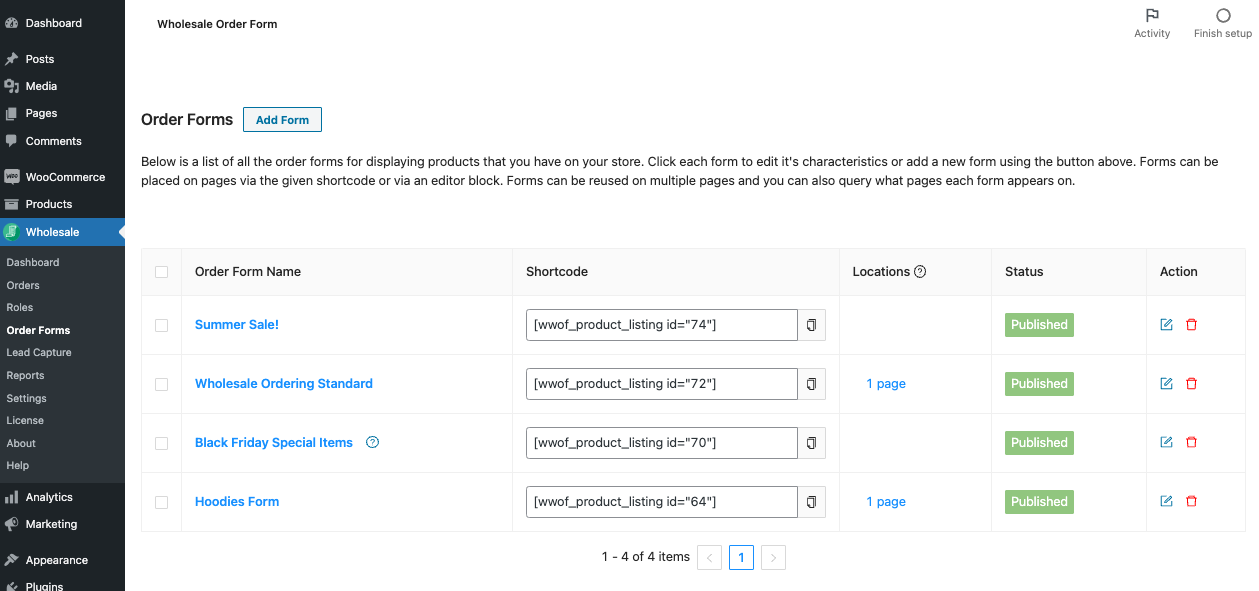
La possibilità di creare moduli d'ordine multipli in diverse configurazioni ti consente di creare moduli d'ordine per varie occasioni. Puoi anche visualizzare una selezione diversa di prodotti su ciascun modulo.
Puoi utilizzare lo shortcode per aggiungere i moduli ovunque desideri, inclusi più moduli su una pagina se necessario.
Costruttore di moduli Drag and Drop
La nostra nuova interfaccia drag-and-drop ti consente di creare moduli d'ordine facilmente senza dover imparare a programmare. È un modo migliore per poter modificare la configurazione dei moduli d'ordine e ottimizzare le impostazioni delle parti del tuo modulo d'ordine in modo più intuitivo.
Opzioni Aggiungi al carrello
- Intestazione del modulo d'ordine
- Tabella del modulo d'ordine
- Piè di pagina del modulo d'ordine
Per l'intestazione e il piè di pagina, puoi aggiungere sezioni e determinare quante colonne desideri in ciascuna sezione. Puoi quindi trascinare elementi dalla scheda "Modifica modulo" in quelle sezioni e disporli come preferisci.
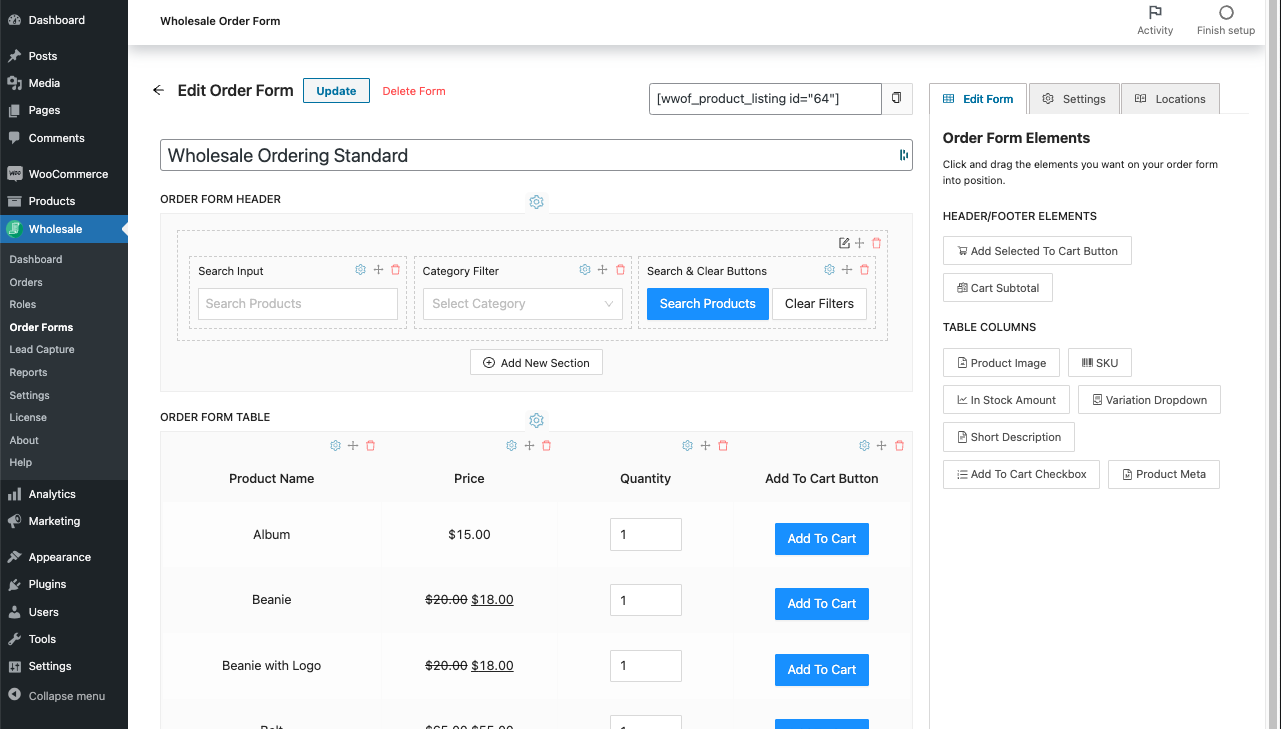
Colonne di prodotti aggiuntive
La tabella di elenco prodotti ha una sola sezione che contiene colonne per mostrare informazioni sul prodotto.
Su ogni elemento, troverai l'icona "⚙" a sinistra. Facendo clic su di essa, verranno visualizzate le opzioni per stilizzare l'elemento e le opzioni aggiuntive che puoi ottimizzare, come rinominare il titolo della colonna, rendere la colonna ordinabile, ecc.
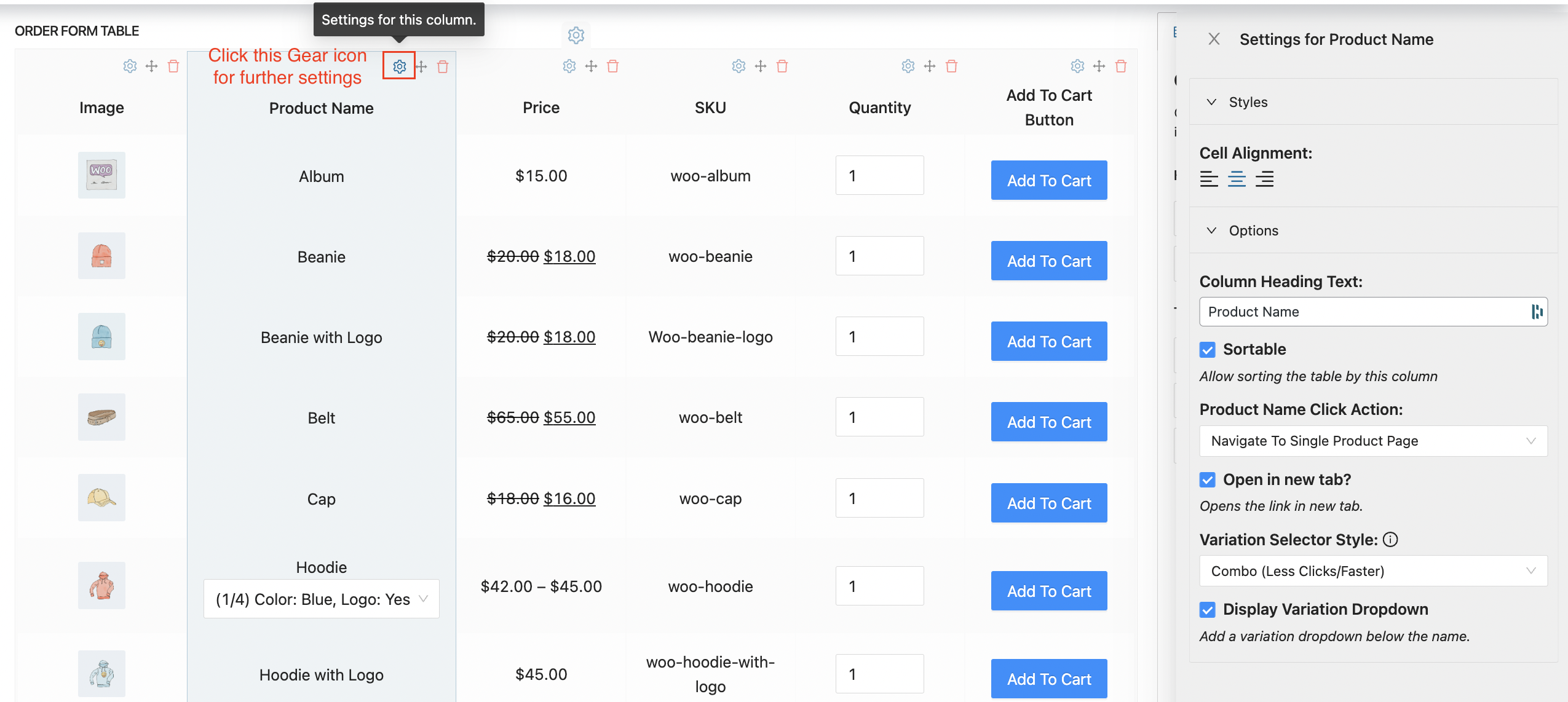
Mostra la quantità in magazzino solo se stai monitorando lo stock nella tua installazione WooCommerce.
Affinché il codice SKU del prodotto venga visualizzato, devi averlo compilato nella scheda Inventario nelle informazioni sui dati del prodotto. Allo stesso modo, per i prodotti variabili, dovresti aver compilato il codice SKU su ogni variazione.
La miniatura del prodotto mostrerà l'immagine in miniatura del prodotto e una volta abilitata potrai anche fornire una dimensione dell'immagine per la miniatura sul modulo.
Aggiungi al carrello Opzioni
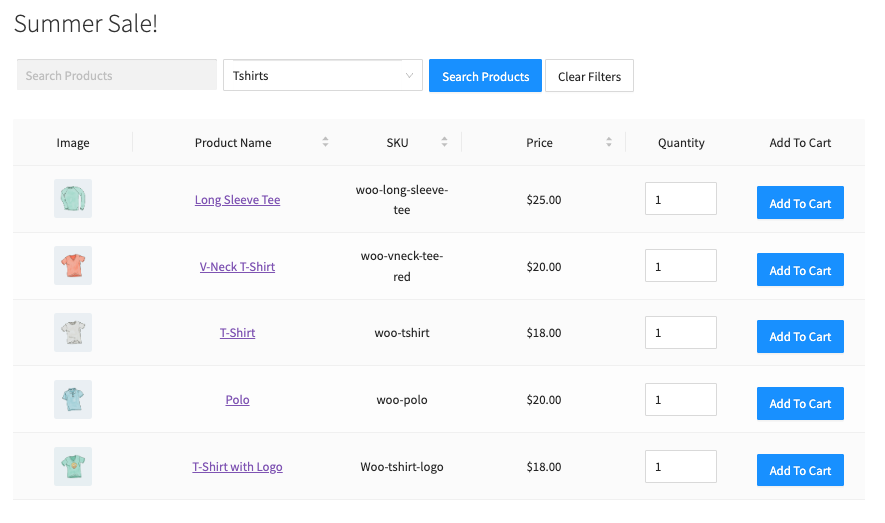
Ci sono due modi per visualizzare il pulsante "Aggiungi al carrello" sul modulo d'ordine, ognuno con i suoi vantaggi e svantaggi.
Nella scheda "Modifica modulo", troverai l'elemento "Pulsante Aggiungi al carrello" e l'elemento "Casella di controllo Aggiungi al carrello".
Il primo visualizzerà il modulo con i pulsanti "Aggiungi al carrello" sul lato destro di ogni riga. Questo presenta una serie di vantaggi:
- È più veloce per il cliente
- Meno clic del mouse (ogni clic del mouse aggiunge tempo e frustrazione)
- È tutto AJAX, quindi non viene ricaricata alcuna pagina quando si fa clic
Se scegli questo stile, ti consigliamo anche di aggiungere una barra laterale alla pagina in modo da poter aggiungere un widget carrello. Vedi la nostra guida qui.
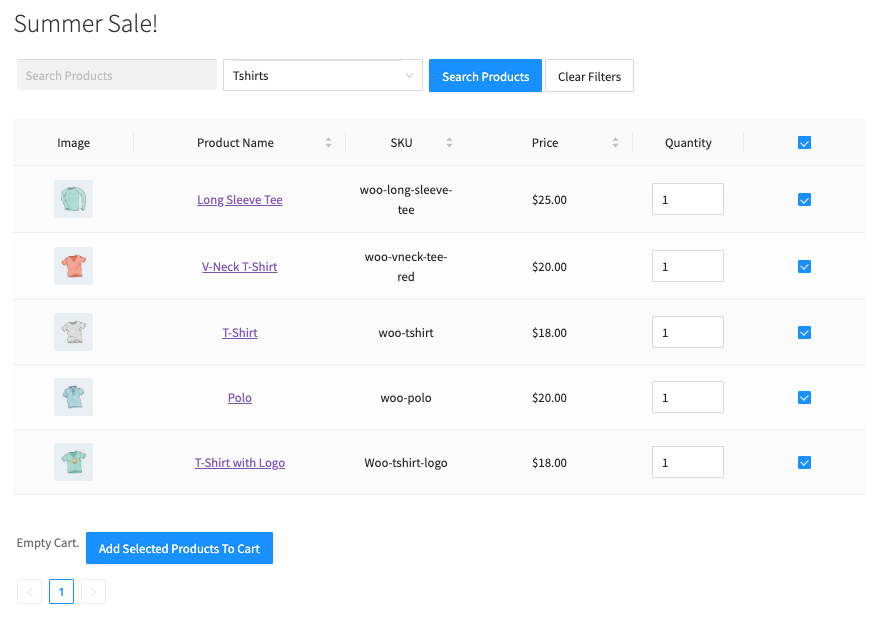
L'altro visualizza il modulo con caselle di controllo accanto ai prodotti sul lato destro di ogni riga e dovrai aggiungere l'elemento "Pulsante Aggiungi prodotti selezionati al carrello" in fondo al modulo che aggiunge tutti i prodotti selezionati al carrello in un'unica volta. Anche questo presenta vantaggi:
- I clienti possono aggiungere prodotti tutti in una volta
- Sembra più un foglio d'ordine tradizionale
- Anch'esso completamente basato su AJAX, quindi non ricarica la pagina quando si fa clic
Opzioni di ricerca, filtro e ordinamento
Queste impostazioni riguardano la ricercabilità e la filtrabilità del modulo d'ordine, nonché l'ordinamento.
Se fai clic sull'icona "⚙" dell'elemento "Input di ricerca", puoi trovare l'opzione per consentire ai clienti di cercare per codice SKU.
Nella scheda "Impostazioni", troverai l'opzione per ordinare i prodotti per nome, data di aggiunta, SKU e altro.
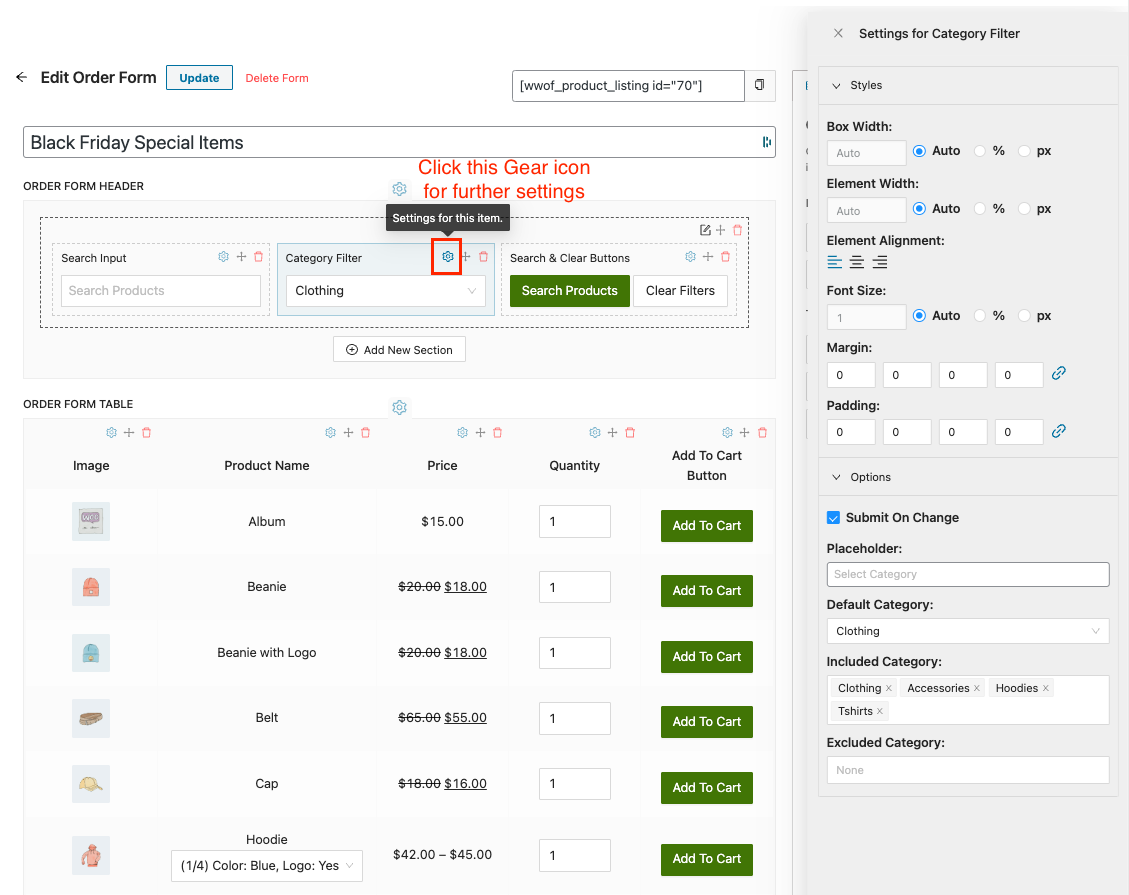
Abbiamo anche l'opzione per mostrare i prodotti esauriti e scegliere quali prodotti includere o escludere. Puoi persino creare un modulo d'ordine separato per ogni categoria di prodotto.
Caricamento lazy
La prossima decisione di visualizzazione che dovresti prendere è come gestire quando il modulo ha così tanti prodotti da mostrare che passano alla pagina successiva.
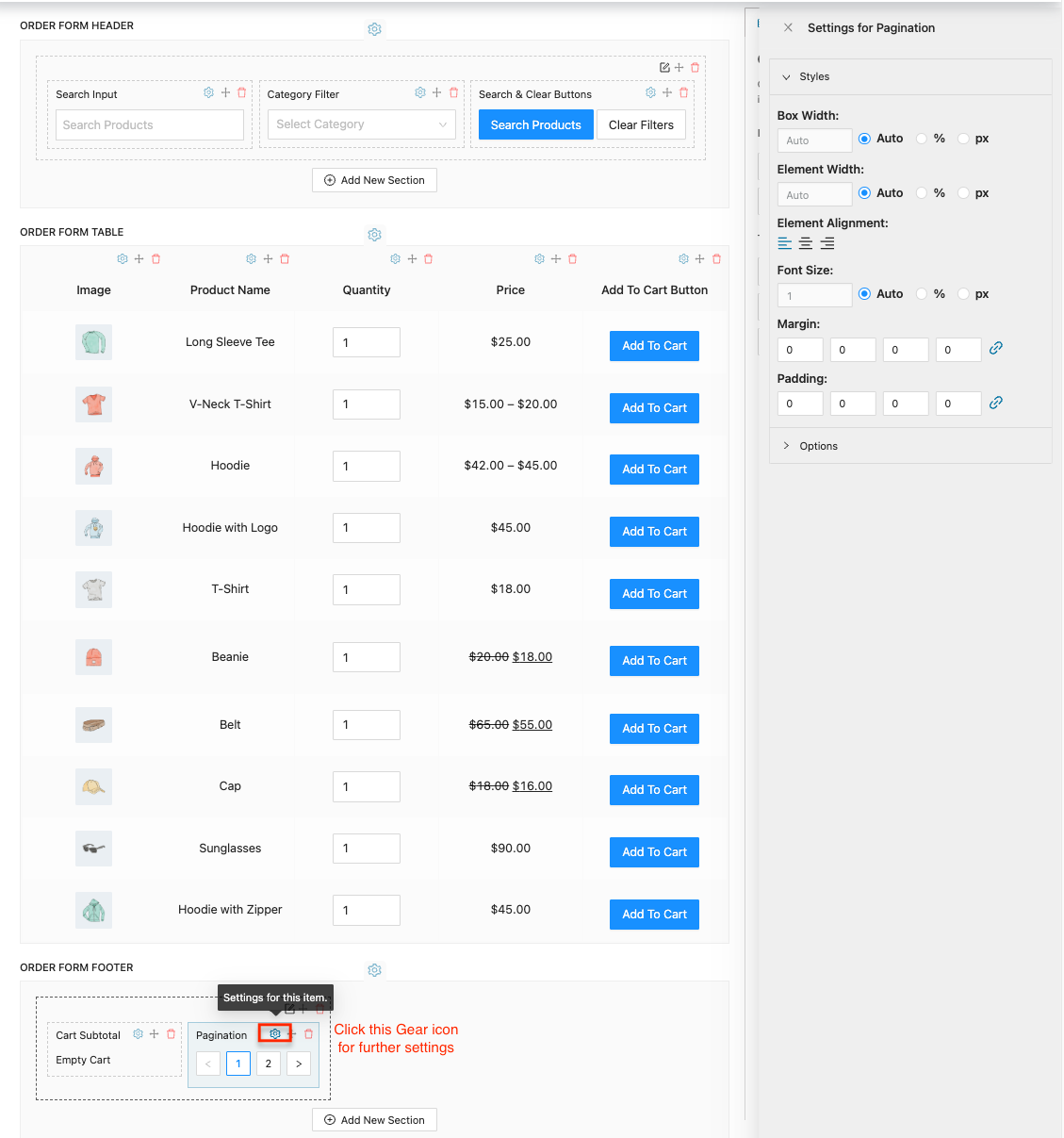
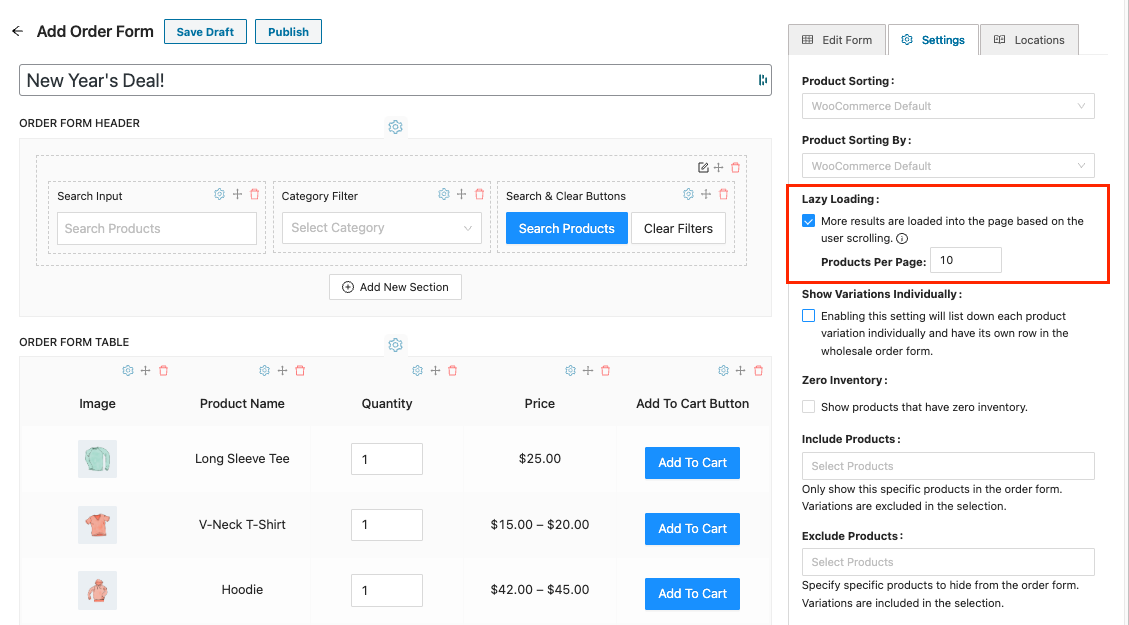
Per impostazione predefinita, il modulo d'ordine visualizzerà 10 prodotti per pagina. Questo è un numero abbastanza comune da caricare inizialmente e si applica anche quando il cliente filtra o cerca prodotti.
Tuttavia, puoi comunque determinare quanti prodotti devono essere visualizzati per pagina facendo clic sull'icona "⚙" dell'elemento "Paginazione".
Quando abiliti l'opzione Caricamento pigro nella scheda "Impostazioni", altri risultati vengono caricati nella pagina in base allo scorrimento dell'utente.
Entrambe le opzioni sono ottime, quindi alla fine, dipende da te come vuoi che funzioni.
La paginazione mostrerà al cliente quante pagine ci sono in anticipo, il che gli darà un'indicazione della profondità del tuo catalogo prodotti.
Il caricamento pigro continua semplicemente a far scorrere l'utente finché non esaurisce i prodotti da mostrare, sia nel catalogo nel suo complesso sia per quella particolare ricerca.
Autorizzazioni per ruoli utente
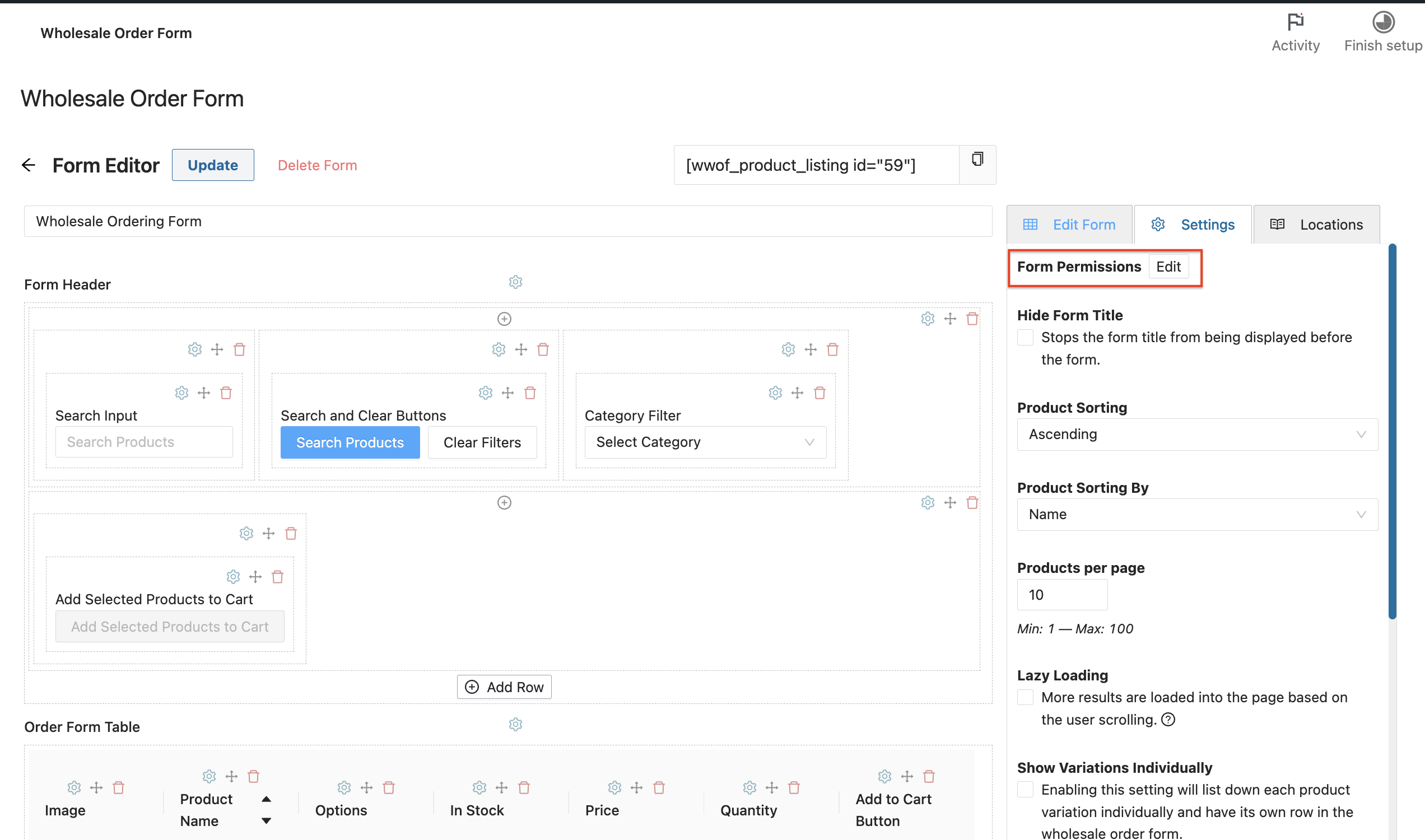
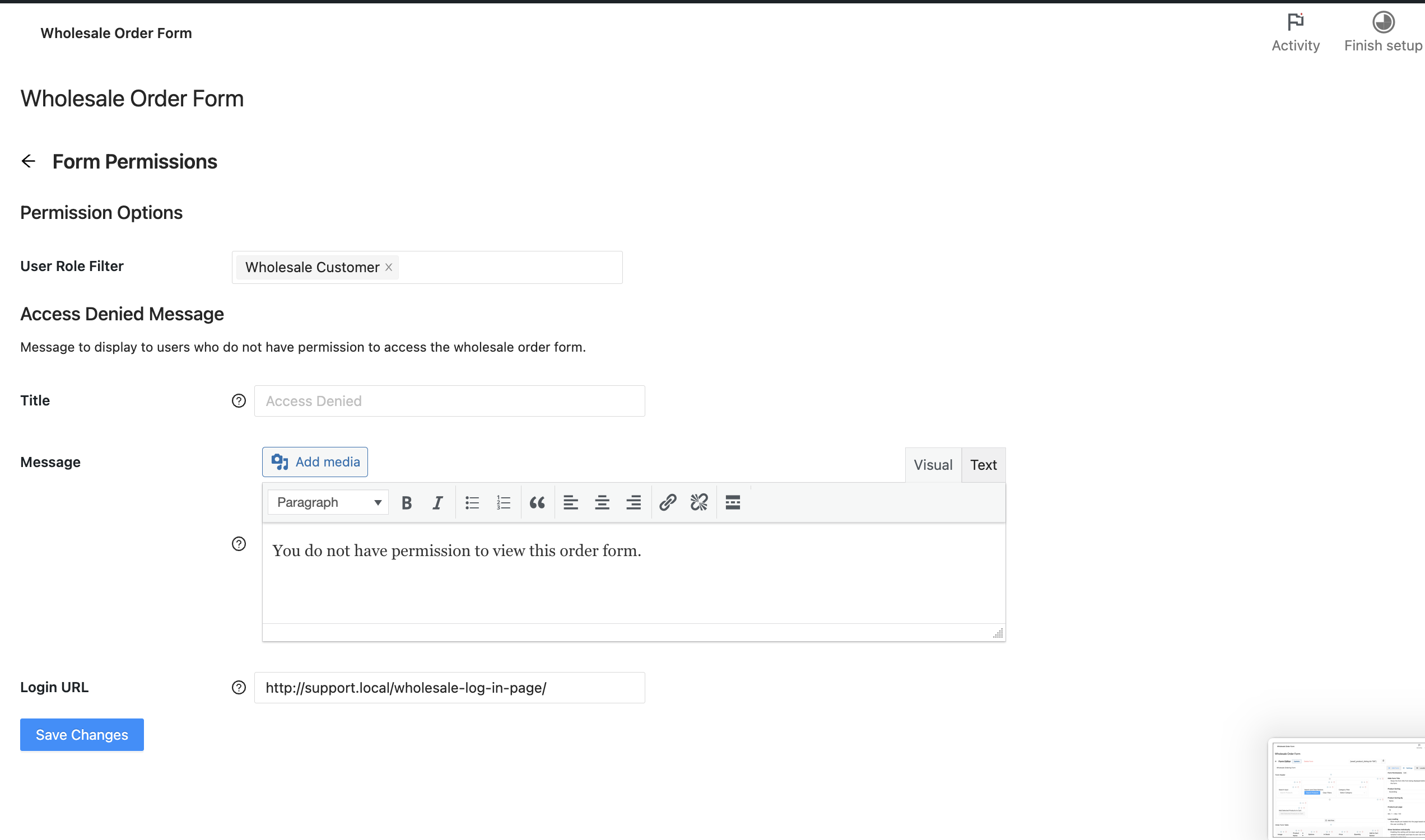
Se non desideri visualizzare il modulo d'ordine a tutti, puoi limitare quali ruoli utente possono accedere ai moduli d'ordine. Puoi trovare l'opzione Autorizzazioni modulo nella scheda Impostazioni.
Funzionalità avanzate
Quando si tratta di risolvere il problema dell'ingrosso per WooCommerce, crediamo in un approccio olistico. Devi risolvere tutti e tre i grandi problemi:
- Impostazione dei prezzi all'ingrosso, visibilità, tasse, ecc. Questo viene risolto con Prices Premium, come hai visto in questa guida.
- Ordinazione efficiente – questo è molto importante e influisce notevolmente sulla soddisfazione dei tuoi clienti quando fanno affari con te
- Reclutamento e gestione di clienti a livello all'ingrosso
WooCommerce Wholesale Prices Premium
Premium è il componente aggiuntivo per il plugin gratuito e apre immediatamente molte funzionalità extra che ti daranno la massima flessibilità.
Inoltre, alcuni paesi richiedono il rispetto di determinate regole specifiche quando si vendono e si pubblicizzano i prezzi ai clienti all'ingrosso e Prices Premium è stato progettato per soddisfare tutti.
Principali caratteristiche in evidenza:
- Numero illimitato di ruoli all'ingrosso aggiuntivi
- Imposta i prezzi tramite % globale o % per categoria oltre ai prezzi a livello di prodotto
- Esenzione fiscale basata sul ruolo utente, sufficientemente flessibile da soddisfare anche le politiche fiscali più rigorose
- Mappatura delle spedizioni dove puoi forzare i clienti all'ingrosso a utilizzare determinati metodi e puoi limitare determinate opzioni di spedizione solo ai clienti all'ingrosso
- Mappatura dei gateway di pagamento dove puoi forzare i clienti all'ingrosso a utilizzare determinati gateway e allo stesso modo limitare determinati gateway solo ai clienti all'ingrosso
- Regola la visibilità dei prodotti per essere solo all'ingrosso, solo al dettaglio o un mix. Questo ti consente anche di regolare la visibilità delle varianti
- Aggiungi regole di acquisto minimo in modo da poter applicare le tue regole per gli ordini all'ingrosso e impostare minimi sensati a livello di prodotto.
Queste sono solo alcune delle centinaia di funzionalità incluse nell'add-on premium.
WooCommerce Wholesale Lead Capture
Gestire i clienti di livello all'ingrosso può essere un po' un mal di testa se lo fai manualmente. Il plugin Wholesale Lead Capture ti fornisce un modulo di registrazione specifico per l'ingrosso, una pagina di accesso dedicata all'ingrosso, sequenze di email di iscrizione e la tua scelta di approvazioni manuali o automatiche.
Elimina il fastidio di reclutare e registrare manualmente i clienti all'ingrosso, il che ti farà risparmiare tempo e ti permetterà di mettere il reclutamento all'ingrosso in modalità automatica.
Principali caratteristiche in evidenza:
- Il generatore di moduli di registrazione ti consente di acquisire tutte le informazioni di cui hai bisogno durante l'iscrizione
- Pre-compila i campi del checkout con le informazioni che raccogli durante l'iscrizione per semplificare il processo del primo ordine per il tuo nuovo cliente all'ingrosso
- Protezione antispam integrata con tecnologia honeypot e opzionalmente Google Recaptcha
- Sequenze email automatiche per le approvazioni e le notifiche via email per amministratori e clienti
- Sistema completo di approvazione utenti che può basarsi su approvazioni manuali o essere automatizzato al 100% se lo desideri
Il plugin Lead Capture renderà il reclutamento dei tuoi clienti all'ingrosso e la loro gestione molto meno dolorosi.
Aiuto e supporto
Abbiamo un team di supporto dedicato per Wholesale Suite che conosce molto bene i nostri prodotti, WooCommerce e il settore. Sei il benvenuto a sfruttare la loro esperienza in qualsiasi momento, in tutto il mondo.
Se sei un cliente esistente, vai al modulo di richiesta ticket di supporto e inviaci un messaggio.
Se sei un utente di plugin gratuito, inviaci una richiesta di supporto sul forum, monitoriamo attivamente i forum di supporto di WordPress.org per il plugin gratuito e aiutiamo i nostri utenti lì al meglio delle nostre capacità.

