Selling to wholesale customers in more than one currency? Each customer should see the right wholesale price in the currency they shop in. This guide shows you how to set wholesale prices per currency with Aelia Currency Switcher for WooCommerce, what the Product base currency setting changes, and how WooCommerce Wholesale Prices works with WooCommerce Multilingual and FOX – Currency Switcher Professional for WooCommerce (WOOCS).
Prerequisites
- WooCommerce Wholesale Prices. The free plugin includes the Aelia integration. Version 2.2.9 or higher updates the labels live when you change the base currency.
- Aelia Currency Switcher for WooCommerce, installed and active, with the currencies you sell in turned on.
- At least one wholesale role, for example the default Wholesale Customer role.
How wholesale prices work with Aelia Currency Switcher
When Aelia Currency Switcher is active, the Wholesale Prices section on the product edit screen changes. Each wholesale role gets one price field for every currency you turned on in Aelia.
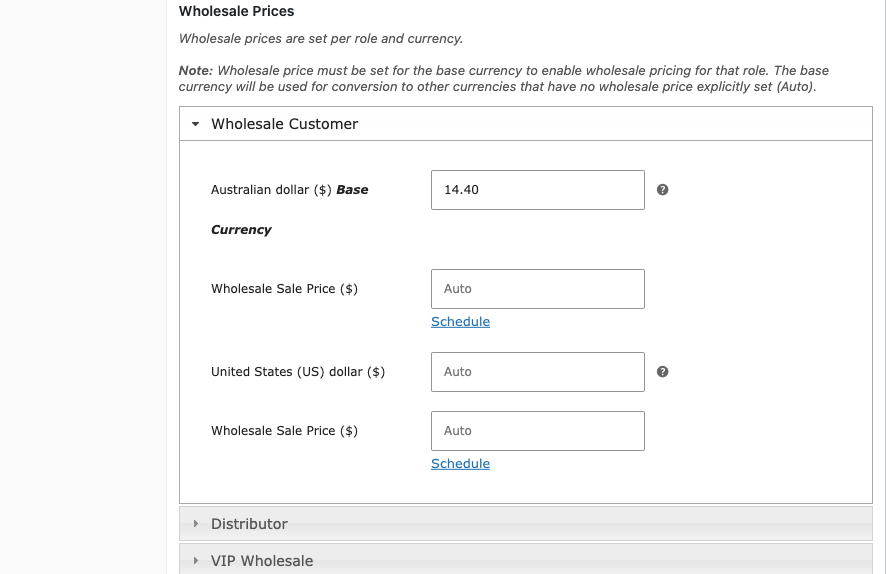
The base currency field comes first. Its label shows the currency name, the symbol, and the words Base Currency, for example “Australian dollar ($) Base Currency”. You must fill in this field. If it is empty, the role gets no wholesale price in any currency, even when other currency fields have a price.
The other currency fields show “Auto”. Leave a field empty and WooCommerce Wholesale Prices converts the base currency price with the Aelia exchange rate. Enter a price and that exact amount is used for that currency instead.
Step 1: Choose the product base currency
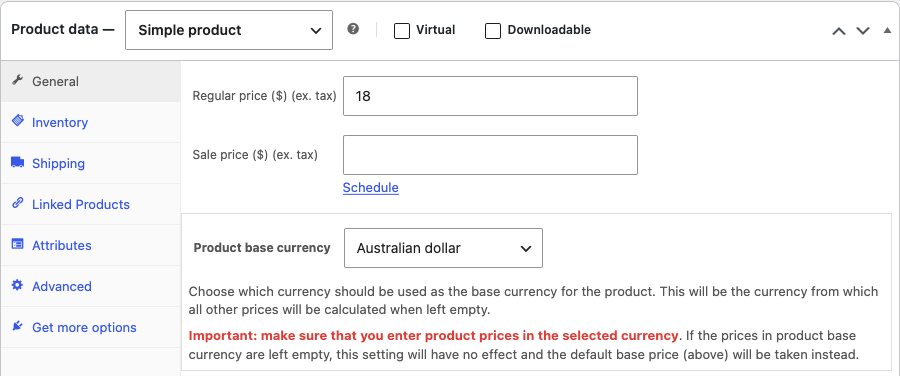
The product base currency is an Aelia setting. It tells Aelia which currency you enter this product’s prices in. If you don’t change it, your shop currency is used.
- Go to Products and open the product you want to edit.
- In the Product data box, open the General tab.
- Select a currency in the Product base currency dropdown.
Step 2: Enter wholesale prices for each currency
- In the same General tab, find the Wholesale Prices section.
- Click the wholesale role name to open its price fields.
- Enter a price in the field that ends with Base Currency.
- (Optional) Enter a price in any other currency field to set a fixed price for that currency.
- Click Update to save the product, or Publish for a new product.
- Leave a currency field empty to keep “Auto”. The price is then converted from the base currency.
- With WooCommerce Wholesale Prices Premium, each currency also gets a Wholesale Sale Price field.
Variable products
Each variation has its own Product base currency dropdown and its own Wholesale Prices section. Open the Variations tab, expand a variation, and set the base currency price for each wholesale role.
What happens when you change the product base currency
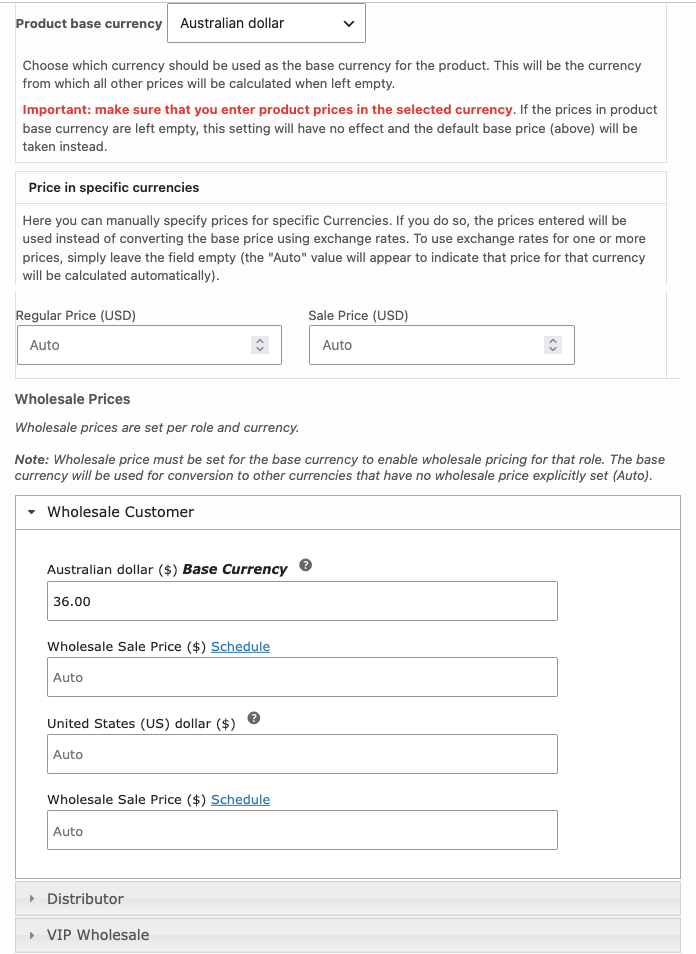
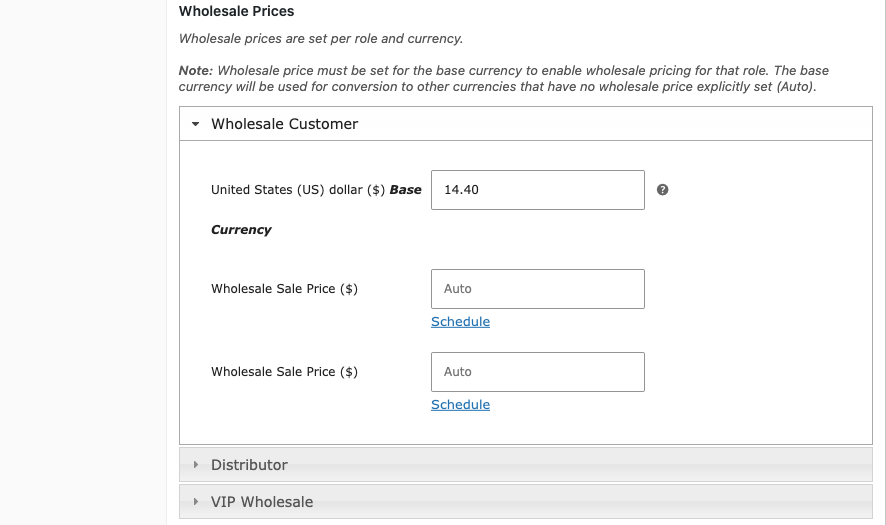
From WooCommerce Wholesale Prices 2.2.9, the wholesale price labels update as soon as you pick a new Product base currency. You don’t need to save first. The base currency field takes the new currency name and symbol, its help tip updates, and the separate row for the new base currency is hidden, so the same currency doesn’t appear twice.
Check the number in the base currency field. The plugin changes the label, not the amount. After you save, the number in that field is read as a price in the new base currency. For example, if the field held 45.00 for Australian dollars and you switch the base currency to US dollars, the role now pays 45.00 US dollars.
Using WooCommerce Multilingual instead
WooCommerce Multilingual works differently. It has no wholesale price field per currency. You enter each wholesale price once, in your store’s default currency. When a customer shops in another currency, WooCommerce Wholesale Prices converts the wholesale price with the WooCommerce Multilingual exchange rate. This works in the free plugin when multi-currency is turned on in WooCommerce Multilingual.
If you use Wholesale Role Automation in WooCommerce Wholesale Prices Premium, rules that use the Total spent metric over a time window, not lifetime, convert each order total to your store’s base currency with WooCommerce Multilingual rates. Aelia Currency Switcher orders are counted at their face value, with no conversion.
Using FOX Currency Switcher (WOOCS) instead
FOX – Currency Switcher Professional for WooCommerce was formerly named WOOCS. Like WooCommerce Multilingual, it has no wholesale price field per currency. You enter each wholesale price once, in your store’s default currency. When Aelia Currency Switcher is not active, WooCommerce Wholesale Prices passes that per-product wholesale price through WOOCS on the single product page, so it shows in the currency your customer picked.
With WOOCS active, WooCommerce Wholesale Prices Premium hides the Sale Discount (%) field on the product edit screen. Enter a Wholesale Sale Price instead.
Troubleshooting
Wholesale customers don’t see a wholesale price in any currency
Enter a price in the field that ends with Base Currency, then save the product. Prices in other currencies only apply when the base currency price is set.
The wholesale price in one currency doesn’t match the exchange rate
Open the product and check that currency’s field. A typed price overrides the conversion. Clear the field to go back to “Auto”.
The base currency label doesn’t change when I pick a new base currency
Update WooCommerce Wholesale Prices to 2.2.9 or higher. Older versions only refresh the label after you save the product.
Frequently asked questions
Do I need WooCommerce Wholesale Prices Premium to use Aelia Currency Switcher?
No. The free WooCommerce Wholesale Prices plugin includes the Aelia integration. Premium adds the per-currency Wholesale Sale Price fields.
Can I set a different wholesale price per currency with WooCommerce Multilingual or WOOCS?
No. With either plugin, you set one wholesale price in your default currency and it is converted for other currencies. For fixed prices per currency, use Aelia Currency Switcher.
Which exchange rate does Wholesale Role Automation use for past orders?
It uses the current WooCommerce Multilingual rate, not the rate on the day of the order. If rates move a lot, a customer’s converted spend can move with them.
Related articles
- Wholesale Pricing Guide – How Wholesale Pricing Works in Wholesale Suite
- How to auto-upgrade and downgrade wholesale roles
Need help?
If you have a question or run into any issues, we’re here to help.
- Premium users: Open a support ticket
- Free users: Visit our community forum