
If you sell products on a recurring schedule, your wholesale customers may need a different subscription price from retail customers. This guide helps you set prices for simple and variable subscriptions and check the amount your customer pays. You’ll use WooCommerce Wholesale Prices.
What you’ll need
- WooCommerce and WooCommerce Subscriptions, installed and active.
- WooCommerce Wholesale Prices 2.2.1 or later; use the latest available release.
- A customer account with the Wholesale Customer role. See the WooCommerce Wholesale Prices (Free Plugin) Getting Started Guide.
- An existing simple or variable subscription product.
WooCommerce Wholesale Prices Premium adds its subscription integration. A recurring price and a signup fee are separate amounts; check both before offering the subscription.
Set the price for a simple subscription
- Go to Products → All Products.
- Open your simple subscription product.
- Select General in Product data.
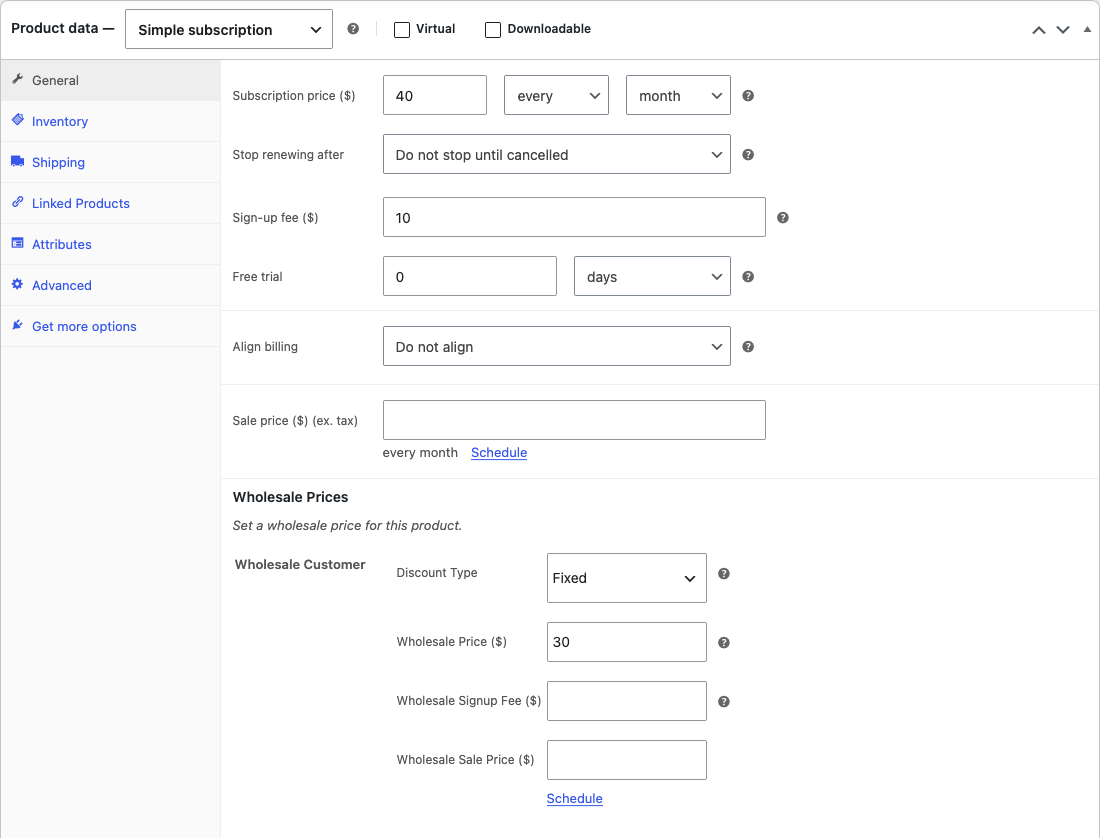
- Select Fixed under Discount Type for the wholesale role.
- Enter the recurring wholesale amount in Wholesale Price for the required wholesale role.
- Click Update.
Keep the billing interval, trial and subscription length configured through WooCommerce Subscriptions. For example, a subscription billed monthly remains monthly when you give wholesale customers a different recurring price. For the wider pricing rules, see the wholesale pricing guide.
Set prices for a variable subscription
- Open your variable subscription product.
- Select Variations.
- Expand the variation you want to price.
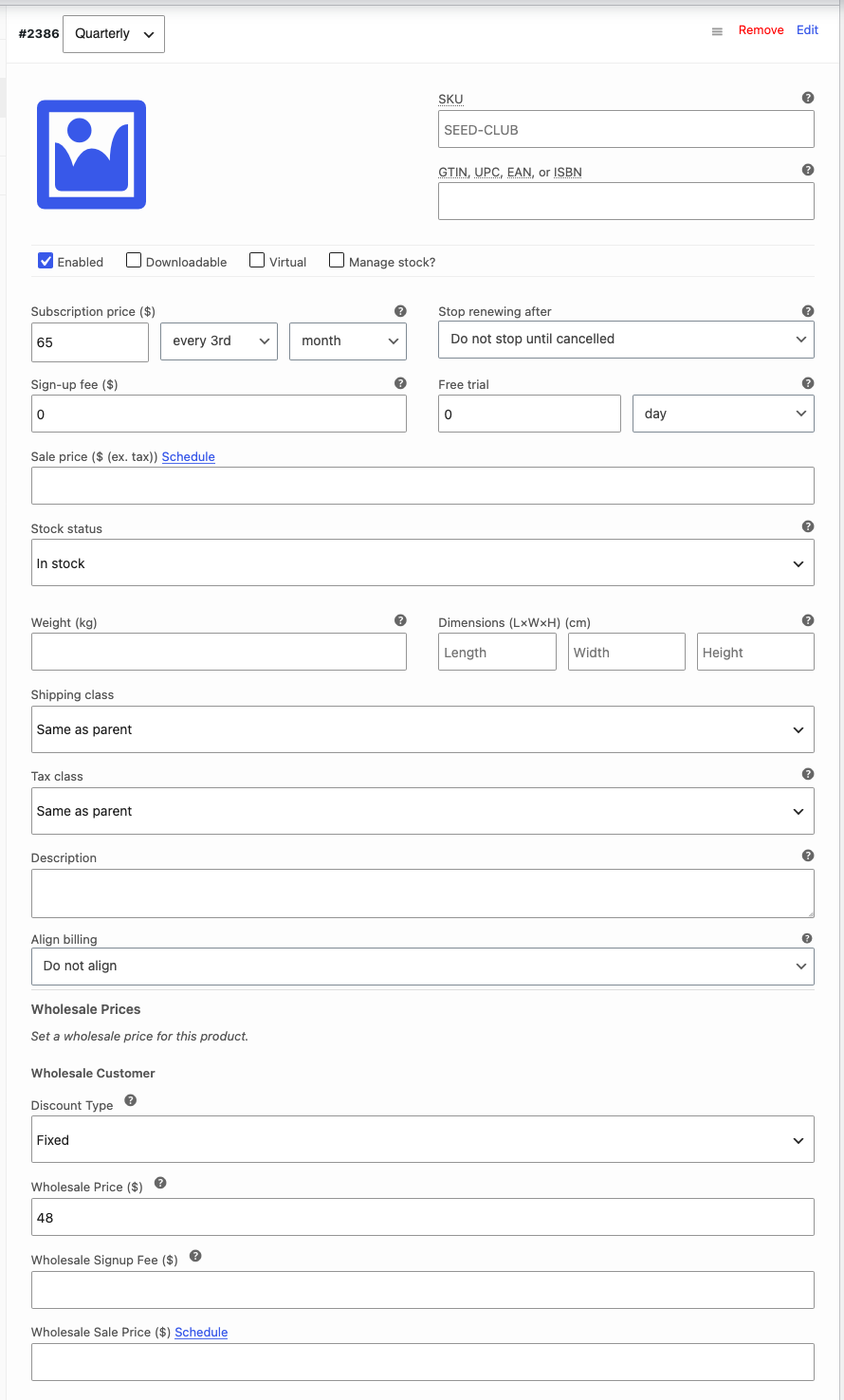
- Select Fixed under Discount Type for the wholesale role.
- Enter the variation’s Wholesale Price.
- Repeat for each variation that needs a wholesale price.
- Click Save changes.
- Click Update.
Set the price on each variation rather than assuming that one amount covers every subscription option. If a variation has no wholesale price, don’t assume it receives the price entered on another variation.
Check the customer’s purchase
- Sign in with your wholesale test customer account.
- Open the subscription product.
- Select a variation if the product has options.
- Add the product to the cart.
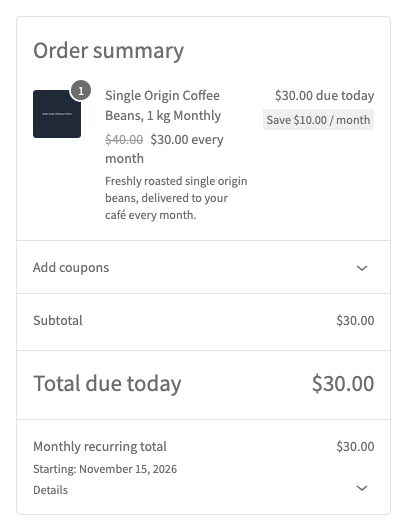
- Check the recurring amount, billing schedule and any signup fee at checkout.
The admin Products list also supports wholesale price display for subscription products from WooCommerce Wholesale Prices 2.2.1. If that price is hidden, check Hide Wholesale Price on Admin Product Listing under Wholesale → Settings → Wholesale Prices → Price.
Understand renewals before changing a price
Check an existing subscription separately from a new purchase. WooCommerce Subscriptions stores the subscription’s recurring totals; changing the product’s wholesale price does not by itself update every existing subscription. Its guide to editing an existing subscription explains how to review those totals.
The Premium integration separates ordinary subscription purchases from renewal carts. Test a renewal with your payment gateway before relying on a changed price or customer role to change the next charge.
Troubleshooting
The wholesale field is missing. Confirm WooCommerce Subscriptions is active and update WooCommerce Wholesale Prices. Subscription pricing fields were added in version 2.2.1.
The cart shows a different amount. Check the selected variation, the customer’s wholesale role and any Premium pricing rules. In the classic cart, the regular-price display for subscriptions was improved in WooCommerce Wholesale Prices 2.2.4. Update before investigating an older display.
The first payment is higher than the recurring price. Check the signup fee and taxes. Setting a recurring wholesale price does not mean the first payment has no additional charges.
The order shows $0.00 for a subscription with no product-level wholesale price. Update WooCommerce Wholesale Prices Premium to 2.1.4 or later. Premium 2.1.0 fixed the $0.00 line item. From that version, a subscription with no product-level wholesale price uses the category or global wholesale discount when one applies. From Premium 2.1.4, a subscription with no wholesale price at any level keeps its retail subscription price. To control the amount directly, set a wholesale price on the product or variation.
Frequently asked questions
Can different subscription variations have different wholesale prices?
Yes. Enter the wholesale price for each variation you want to offer at a different rate.
Does changing a product’s price update existing subscriptions?
Don’t assume it does. Review the existing subscription’s recurring totals and test its renewal before changing a customer’s billing arrangement.
Need help?
If you have a question or run into any issues, we’re here to help.
- Premium users: Open a support ticket
- Free users: Visit our community forum

