
If you offer related products together on one page, your wholesale customers still need the correct price for each item they choose. With a grouped product, you set wholesale prices on its child products rather than one price for the entire group. This guide shows you how to set the prices and check the result using WooCommerce Wholesale Prices.
What you’ll need
- WooCommerce, installed and active.
- WooCommerce Wholesale Prices, updated to the latest available version.
- An existing grouped product containing child products.
- A customer account with a wholesale role. See the WooCommerce Wholesale Prices (Free Plugin) Getting Started Guide.
Set a price on each child product
Start with the child products that the grouped page offers. The grouped parent organizes those products; it does not provide one wholesale amount that automatically becomes the price of every child.
- Go to Products → All Products.
- Open a simple child product included in your group.
- Select General under Product data.
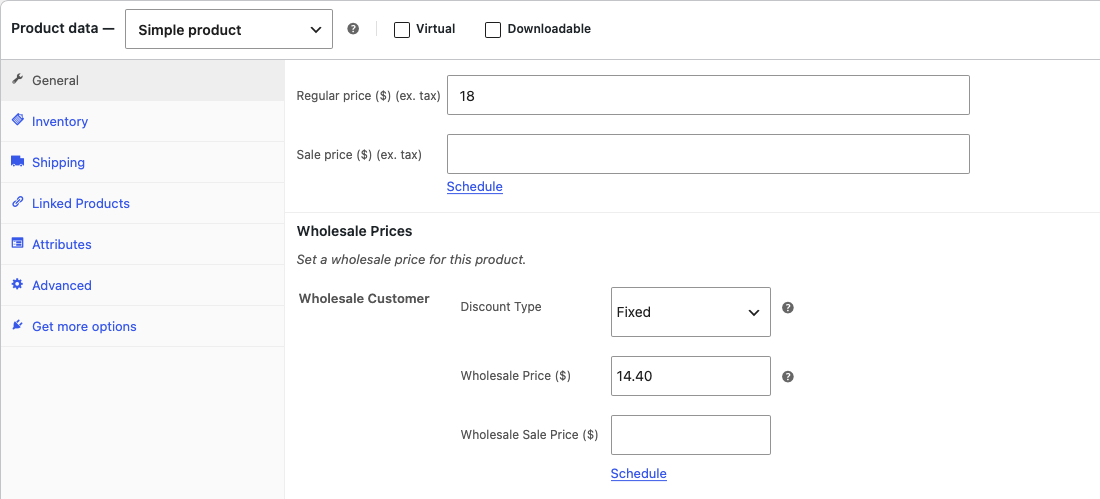
- Select Fixed under Discount Type for the wholesale role.
- Enter the Wholesale Price for the applicable wholesale role.
- Click Update.
- Repeat for each child product you want to sell at a wholesale rate.
Use the wholesale pricing guide if you need help with the price fields. These steps cover simple child products. External/Affiliate products do not show the wholesale price fields, so they keep their regular price.
Check the grouped parent’s price display
For a logged-in wholesale customer, the grouped parent can display a wholesale price range based on its child products. Children with an applicable wholesale price contribute that amount; children without one contribute their current retail price, including an active sale price. A range is a summary of individual item prices, not the total cost of buying the whole group.
For example, if two children have prices of $8 and $12 for the wholesale customer, a range of $8–$12 does not mean that buying one of each costs $12. The cart total depends on the selected quantities.
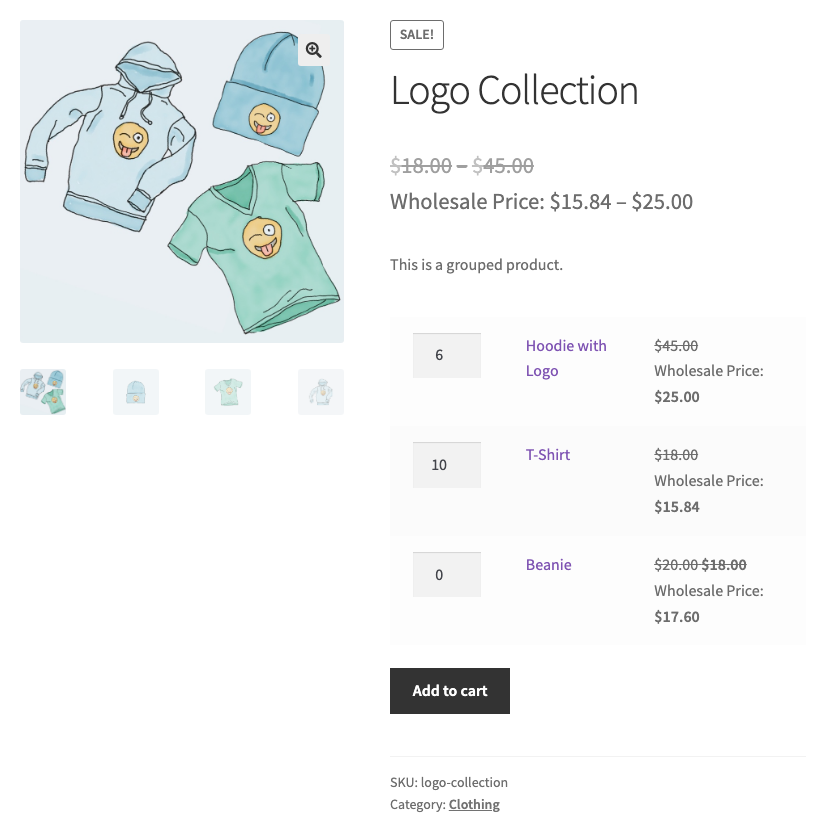
The crossed-out original price depends on the Hide Retail Price setting. See the display guide if you want to hide that original price.
Test the selected items in the cart
- Sign in as your wholesale test customer.
- Open the grouped product page.
- Enter a quantity for each child you want to buy.
- Click Add to cart.
- Open the cart.
- Confirm each selected child’s price, quantity and subtotal.
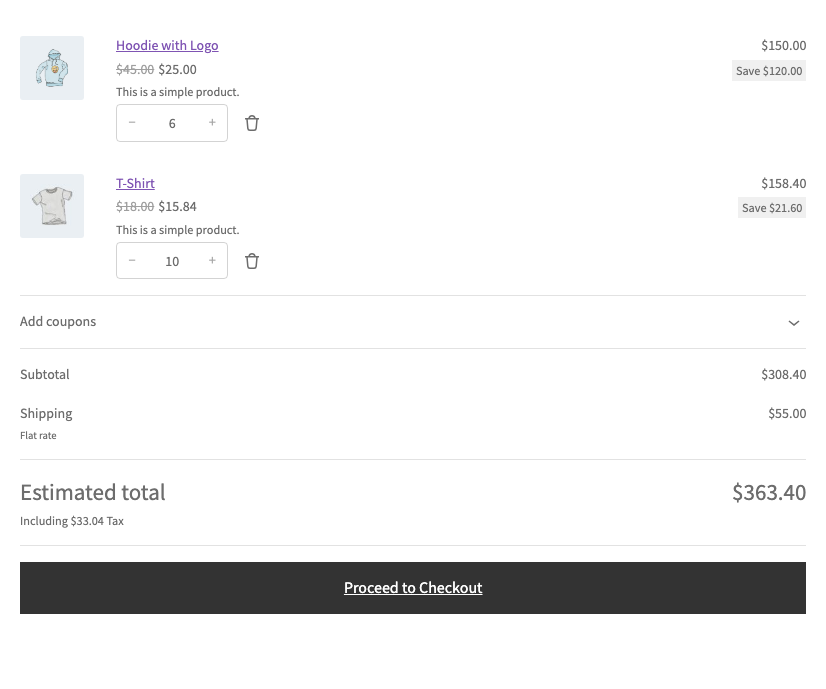
Your store can show prices with tax added, based on your WooCommerce tax settings. For example, a wholesale price of 14.40 shows as $15.84 when your store adds 10% tax.
A child without its own wholesale price stays at its regular price. It does not get another child’s discount. If a cart line shows the regular price, check that child’s wholesale price.
Troubleshooting
The grouped product shows only regular prices. Confirm you are signed in with the intended wholesale role and that at least one current child has an applicable wholesale price. Then check the child’s cart price separately from the grouped summary.
The grouped product triggers a critical error after a child was deleted. Update WooCommerce Wholesale Prices to 2.2.9 or later. That version fixes this error. Then open the grouped product, go to Linked Products, check the Grouped products list, and click Update. WooCommerce removes deleted products from the group when you save.
The range does not match a full-group total. Compare each child’s price and selected quantity in the cart. The parent range summarizes prices; it is not a bundled fixed total.
Frequently asked questions
Do I set one wholesale price on the grouped parent?
Set the wholesale price on each child you want to discount. The parent display derives its price summary from those children.
Do I need Premium for basic grouped product pricing?
The grouped pricing support is in the free WooCommerce Wholesale Prices plugin. Premium adds further pricing rules and wholesale roles. See the WooCommerce Wholesale Prices Premium Getting Started Guide.
Need help?
If you have a question or run into any issues, we’re here to help.
- Premium users: Open a support ticket
- Free users: Visit our community forum

