
When customers apply for a wholesale account on your store, their applications land in one place for you to act on. This article shows you how to use the Wholesale Leads Dashboard to approve, reject, edit, deactivate, and bulk-process those applications, so every applicant ends up with the right access and the right wholesale role.
Prerequisites
- WooCommerce Wholesale Lead Capture installed and activated
- At least one wholesale registration has been submitted by a customer
- You are logged in as a WordPress administrator or WooCommerce manager
Accessing the Leads Dashboard
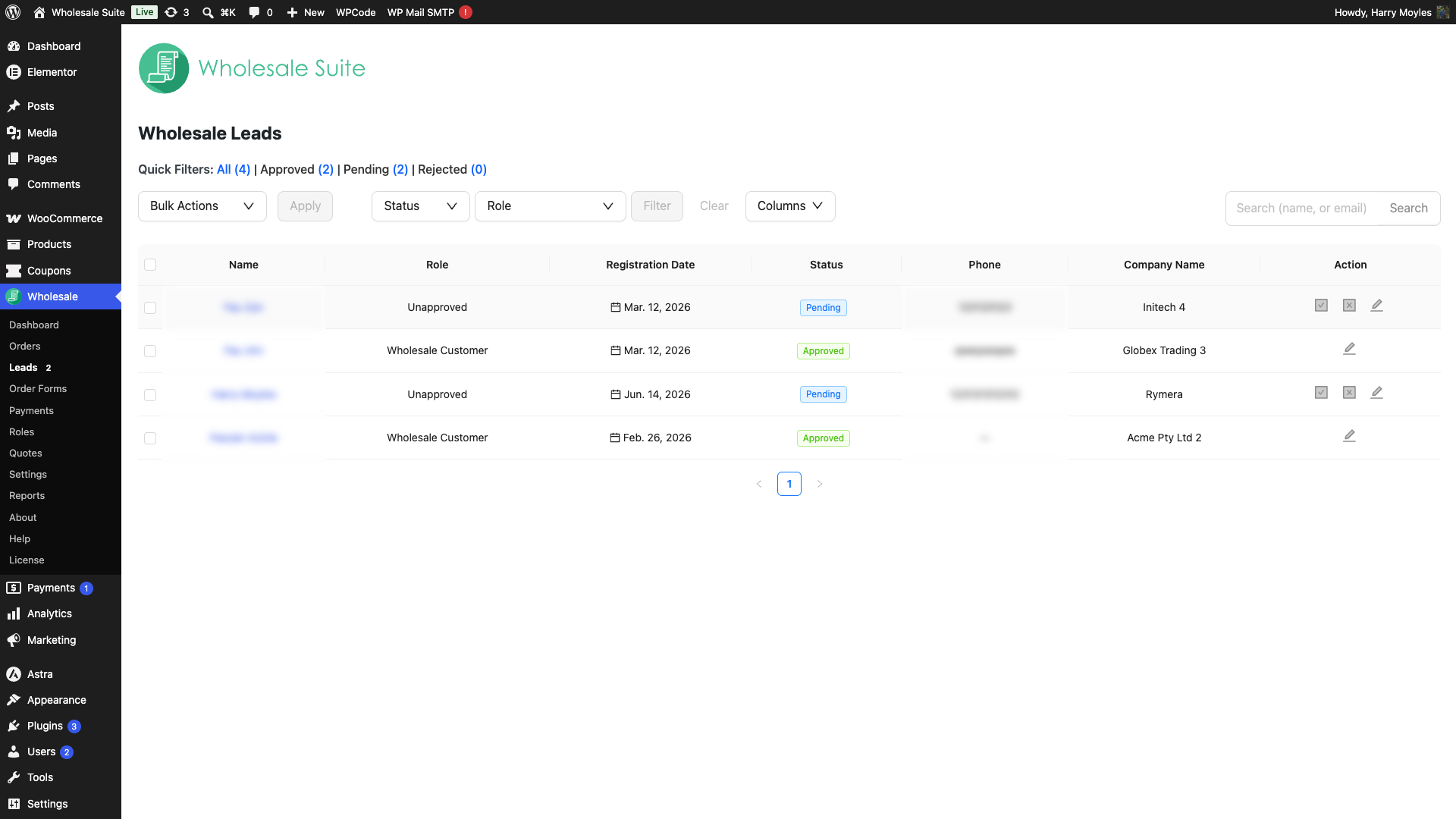
Go to Wholesale Suite → Leads in your WordPress admin menu. If there are any leads waiting for review, a count badge appears next to the menu item so you can spot pending applications at a glance.
Understanding the Dashboard
The dashboard lists every lead, regardless of status, in a table with these columns:
| Column | What it shows |
|---|---|
| Name | The lead’s full name as entered during registration |
| Email Address | Their email address, used for login |
| Role | The WordPress role currently assigned to the lead |
| Registration Date | When they submitted their wholesale application |
| Status | Current approval state (see below) |
| Action | Icons to approve, reject, or edit the lead |
Lead statuses
| Status | What it means |
|---|---|
| Pending | Application received, waiting for your review |
| Approved | Lead has been approved and has wholesale access |
| Rejected | Application was declined |
| Inactive | Previously approved, but access has been deactivated |
Searching and Filtering Leads
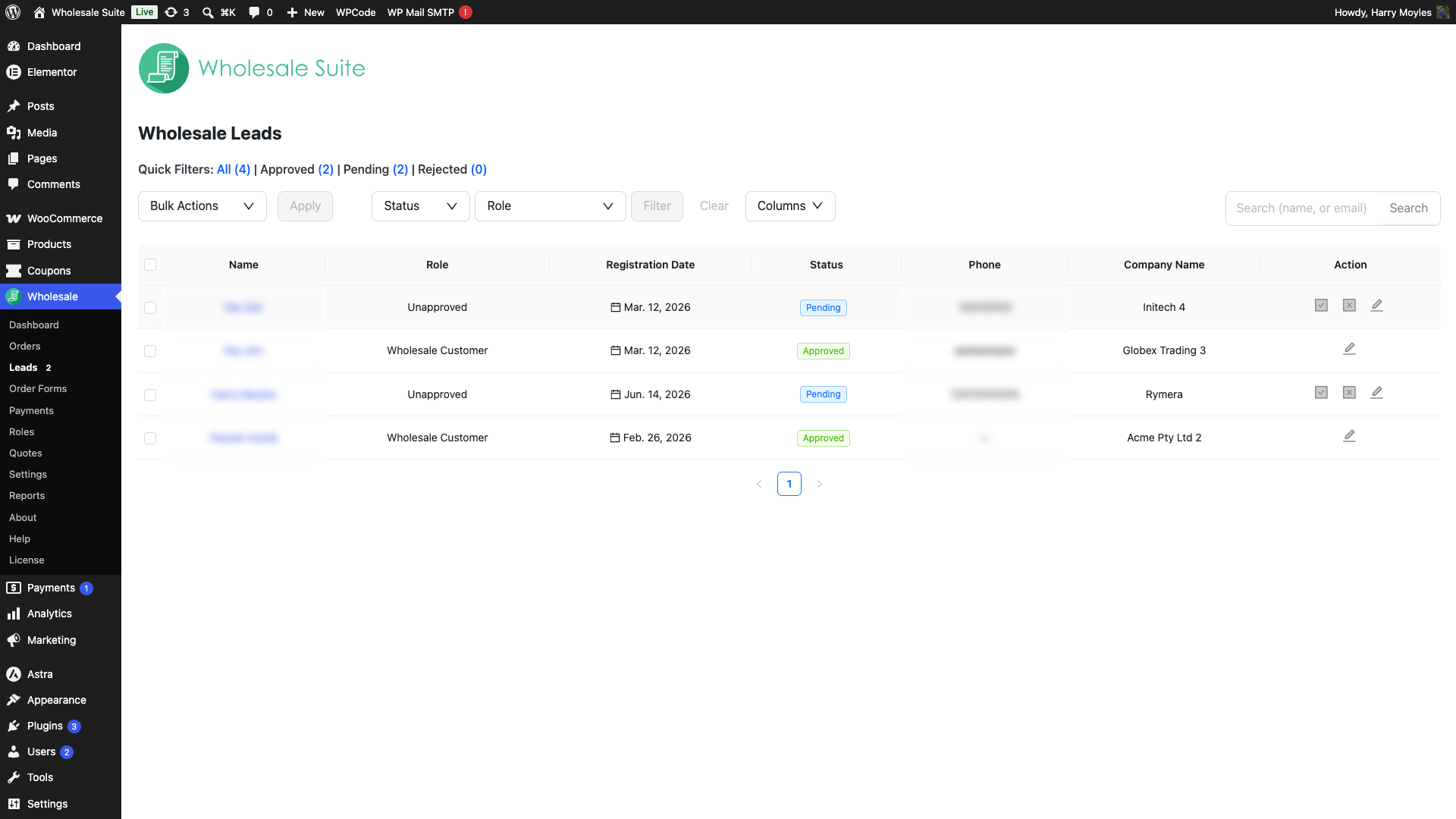
Use the tools at the top of the dashboard to narrow down the list when you have many leads:
- Search box: Type a name or email address to find a specific lead. Partial matches work, so searching “john” will find “John Smith”.
- Quick Filters: Next to the Quick Filters: label, click All, Approved, Pending, or Rejected to filter by status instantly. (To find deactivated leads, use the Status dropdown described below.)
- Filter dropdowns: Use the Status and Role dropdowns together, then click Filter, to see leads matching a specific status and wholesale role combination.
Approving a Lead
Approving a lead grants them access to your wholesale pricing and any wholesale-specific content on your store. The lead receives an account approved email automatically when you approve them from the dashboard.
- Locate the lead you want to approve in the table. Use the Pending quick filter to see only applications awaiting review.
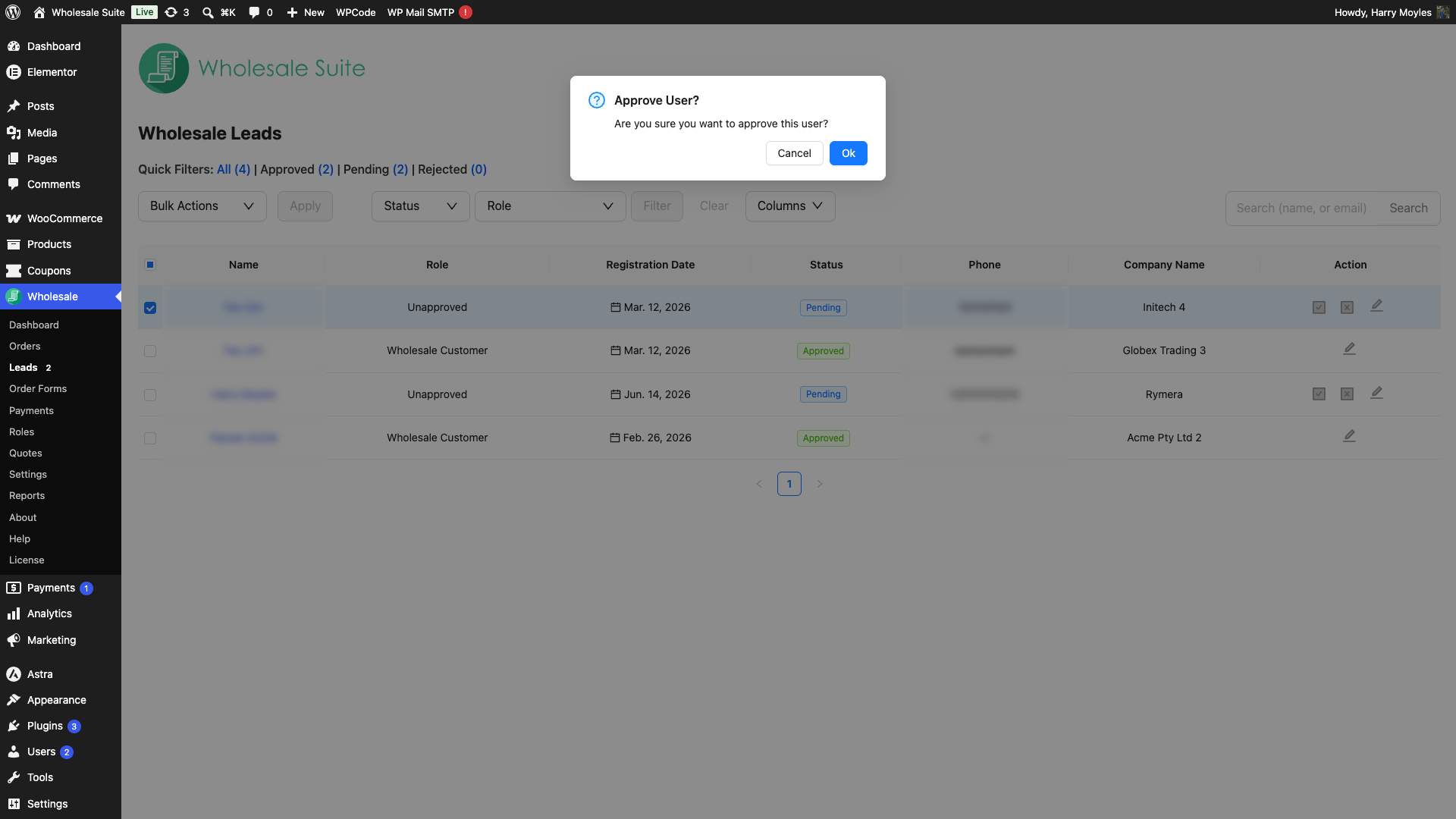
- Click the Approve icon in the Action column for that lead.
- A confirmation dialog titled Approve User? appears, asking “Are you sure you want to approve this user?”. Click OK to confirm.
- The lead’s status changes to Approved and they are assigned your configured wholesale role. An approval email is sent to the lead.
By default, you grant the role set under Wholesale Suite → Settings → Wholesale Lead Capture → General → New Lead Role. If you want a lead to have a different role, open Edit and change the Role dropdown before you approve them. To learn how customers can pick a role at registration, see how to add wholesale role selection to the registration form.
Rejecting a Lead
Rejecting a lead declines their wholesale application. They receive a rejection notification email and their status changes to Rejected. Depending on your settings, the user account may also be deleted automatically. You can only reject a lead from the table row while it is still Pending.
- Find the pending lead in the table.
- Click the Reject icon in the Action column.
- A confirmation dialog titled Reject User? appears, asking “Are you sure you want to reject this user?”. Click OK to confirm.
- The lead’s status changes to Rejected and a rejection email is sent to them.
To control whether rejected users are automatically deleted, go to Wholesale Suite → Settings → Wholesale Lead Capture → General and find the Auto Remove User After Rejection option.
Editing a Lead’s Details
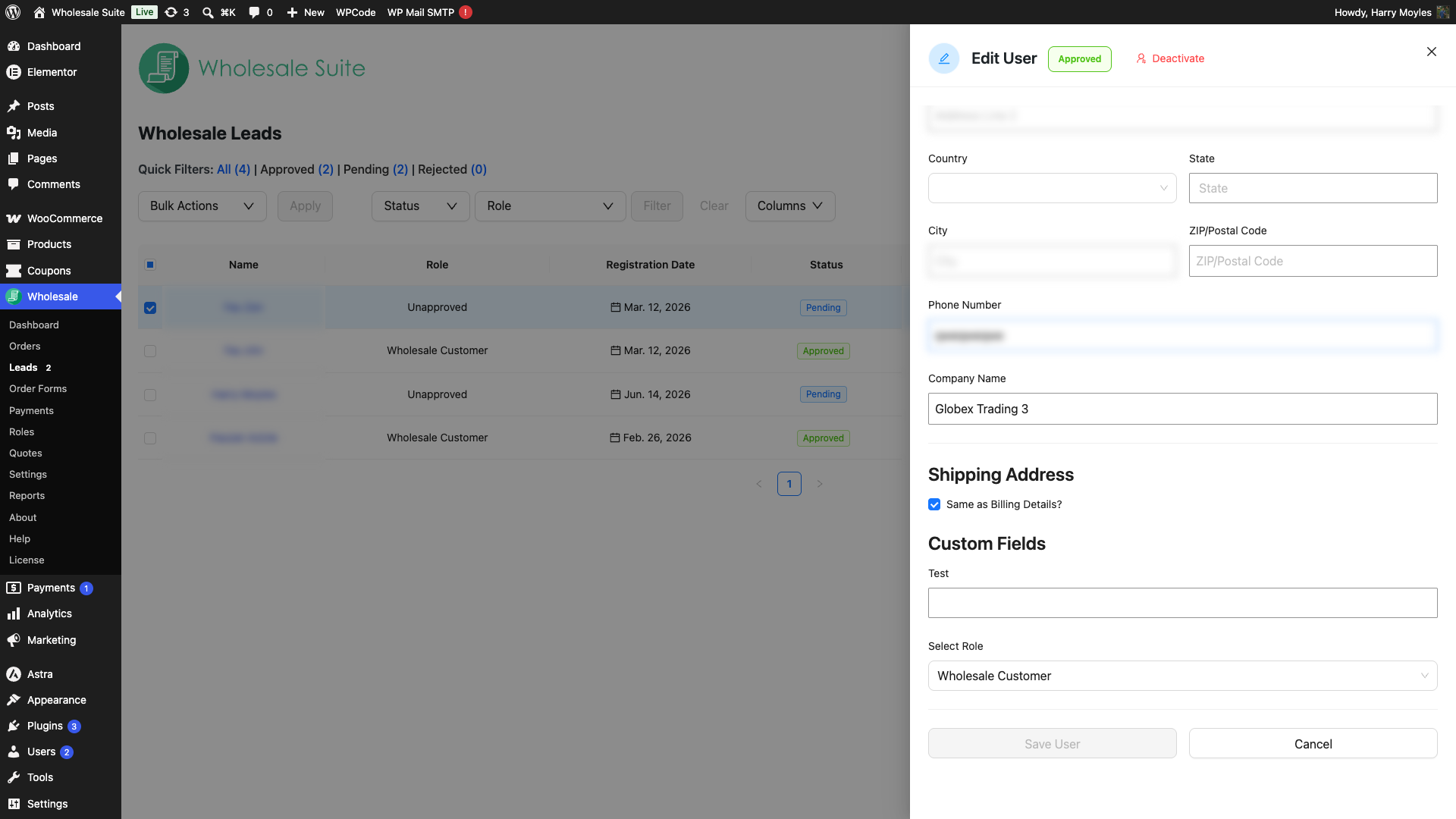
You can update a lead’s personal information, address details, wholesale role assignment, and any custom registration fields, all from the dashboard without leaving this page.
- Click the Edit (pencil) icon in the Action column for the lead.
- The Edit User panel opens on the right. Update any of the following:
- Name, company name, and website URL
- Wholesale role: select a different role from the dropdown
- Billing address
- Shipping address (or tick Same as Billing Details? to copy it across)
- Custom fields: any extra registration form fields your store collects
- Click Save User to apply your changes, or Cancel to close without saving.
Deactivating and Reactivating a Lead
Deactivating a lead suspends their wholesale access without permanently rejecting or deleting their account. Their status changes to Inactive. You can reactivate them later. The Deactivate button is not in the table’s Action column. It lives inside the Edit User panel and appears only when the lead is already approved or rejected.
- Find the approved lead you want to deactivate and click its Edit (pencil) icon to open the Edit User panel.
- Click the Deactivate button in the panel header.
- A confirmation dialog titled Deactivate User? appears, asking “Are you sure you want to deactivate this user?”. Click OK to confirm. The lead’s status changes to Inactive.
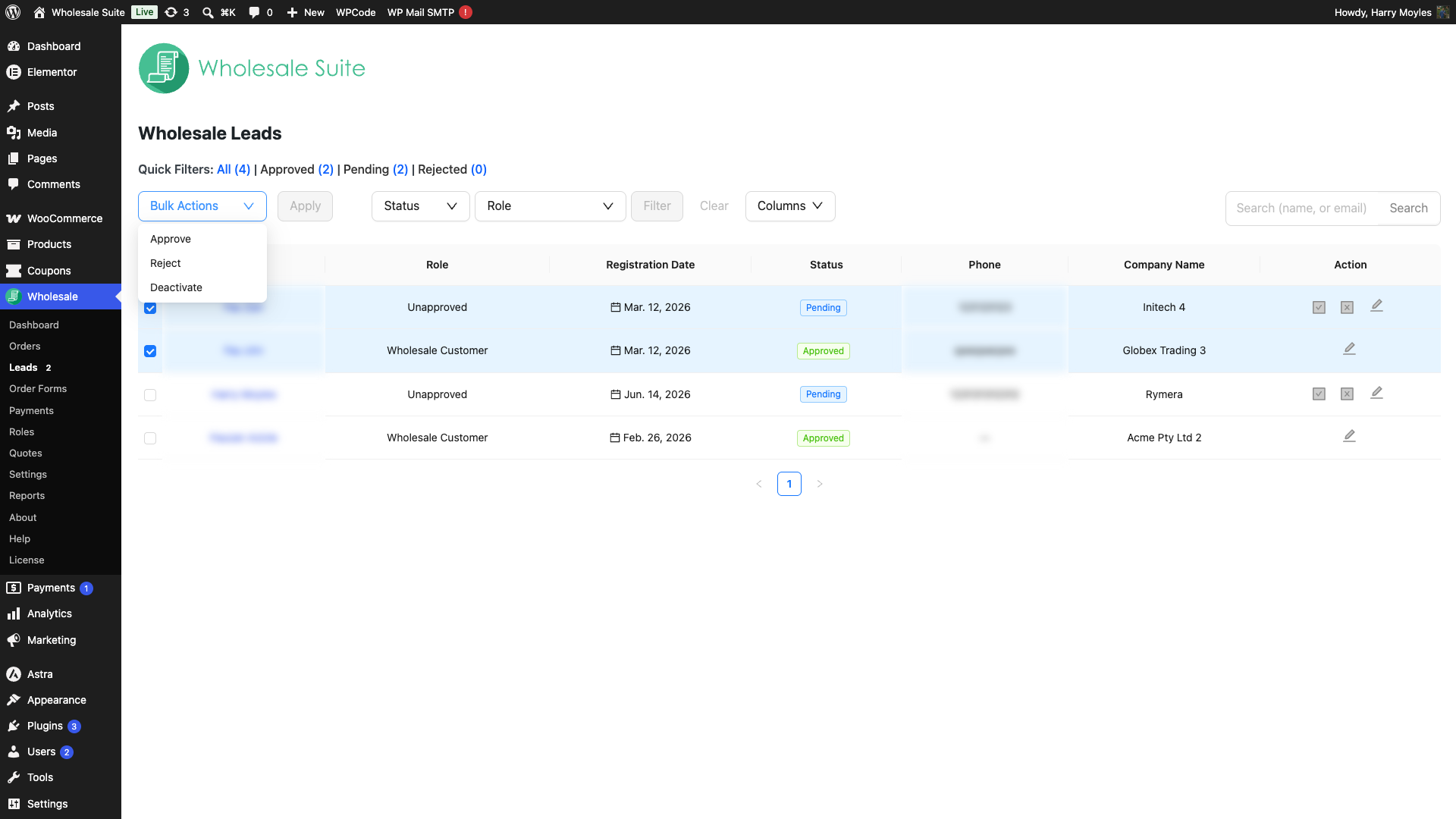
You can also deactivate one or more leads at once by ticking their checkboxes and choosing Deactivate from the Bulk Actions dropdown (see below).
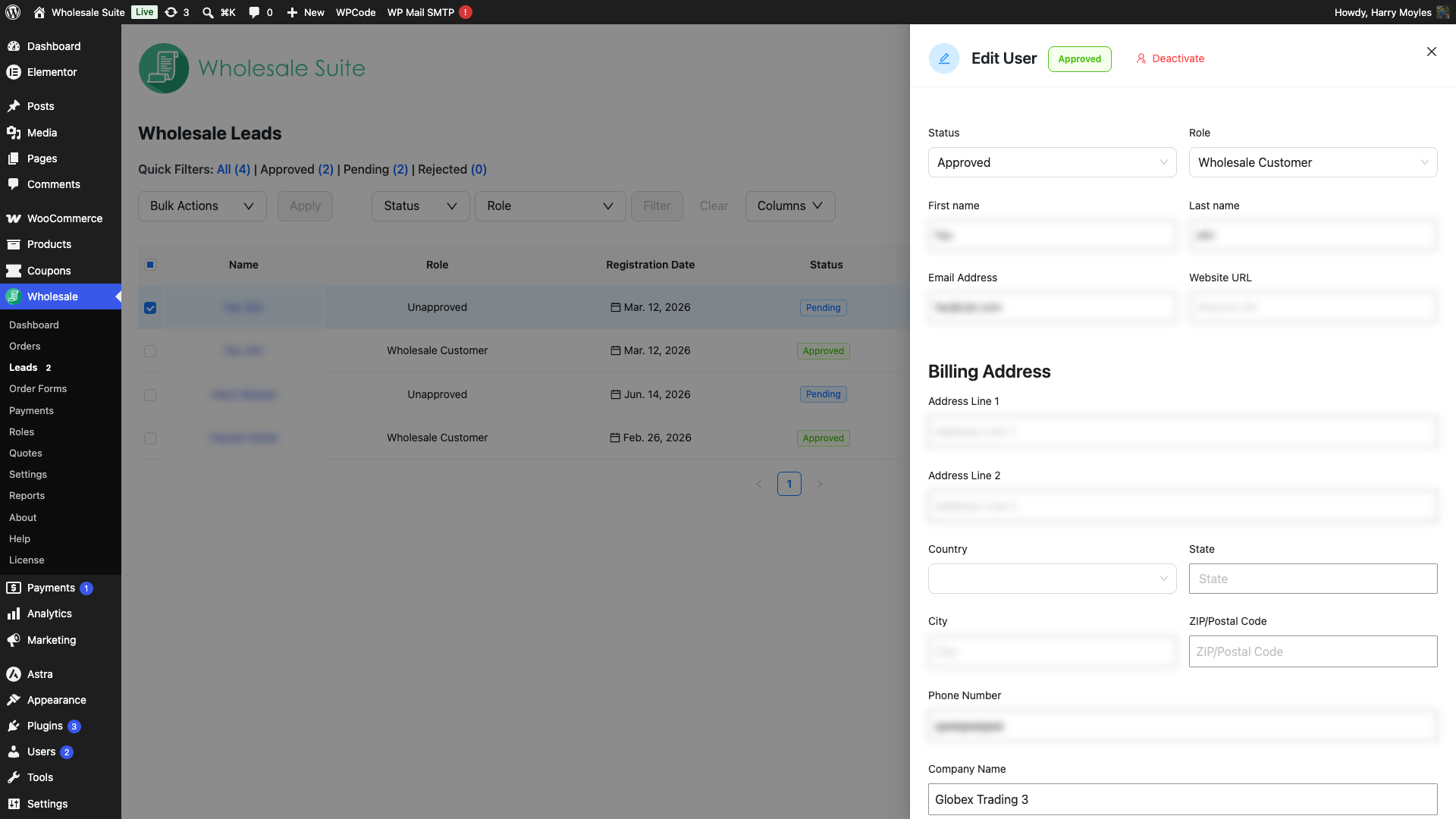
To reactivate an inactive lead, select it using the checkbox, choose Approve from the Bulk Actions dropdown, and click Apply.
Using Bulk Actions
When you have multiple leads to process at once, bulk actions save you time. You can approve, reject, or deactivate several leads in a single step.
- Tick the checkbox next to each lead you want to process. Use the Select All checkbox in the table header to select the entire current page.
- Open the Bulk Actions dropdown and choose Approve, Reject, or Deactivate.
- Click Apply. The selected leads are processed and their statuses update in the table.
Email Notifications Sent on Each Action
The dashboard triggers the following emails automatically when you take action on a lead:
| Action | Email sent | Recipient |
|---|---|---|
| Approve | Wholesale account approved | The lead (applicant) |
| Reject | Wholesale account rejected | The lead (applicant) |
| Deactivate | None | None |
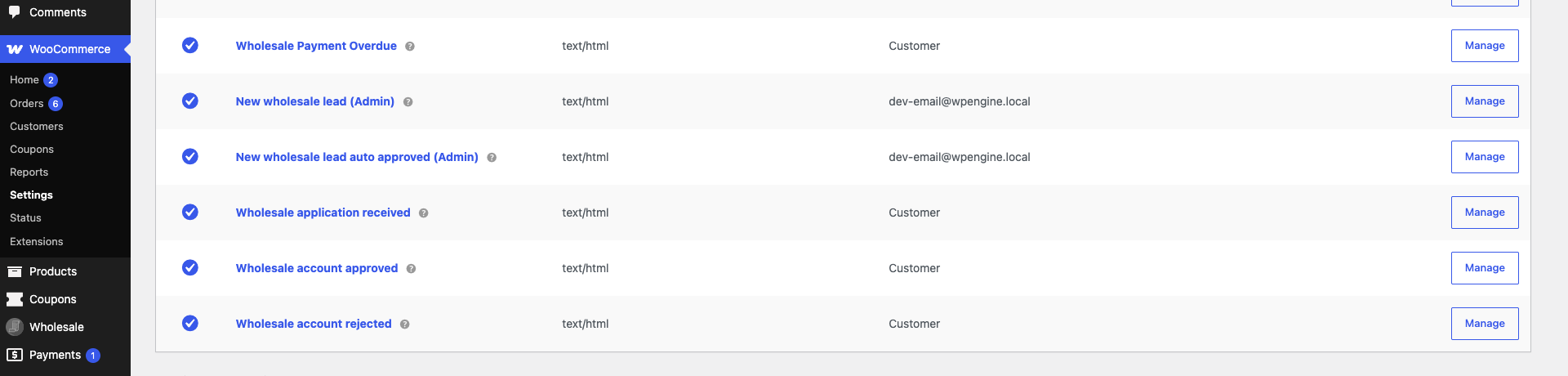
You can customise the content and subject of these emails under WooCommerce → Settings → Emails. Look for the Wholesale account approved and Wholesale account rejected email entries.

Frequently Asked Questions
The lead says they didn’t receive an approval email, what should I check?
First confirm the Wholesale account approved email is enabled under WooCommerce → Settings → Emails. Then ask the lead to check their spam or junk folder. If emails are still not arriving, check that your hosting server can send email (a plugin like WP Mail SMTP can help route emails through a reliable provider).
Can I approve a lead and assign them a different wholesale role at the same time?
Yes. Click Edit to open the lead’s details, change the Role dropdown to your preferred wholesale role, click Save User, then use the Approve action. The role you set on the lead’s record is used instead of the default New Lead Role.
How do I bring back a lead I deactivated by mistake?
Find the inactive lead (use the Status dropdown set to Inactive, then click Filter), tick its checkbox, choose Approve from the Bulk Actions dropdown, and click Apply. The lead returns to Approved with their wholesale access restored.
Need Help?
If you have a question or run into any issues, we’re here to help.
- Premium users: Open a support ticket
- Free users: Visit our community forum

